
See who changed your sign-in setup
Find every change to sign-in in the Audit tab, filter it by kind, and open one to see who made it, from where, and what it changed from and to.
Every change to how people sign in to your apps is written down: a client created, changed, deleted or given a new secret, a sign-in method added, changed or deleted, a change to the sign-in page or to the security, sign-up, SMS or agent settings, and a client an AI agent registered for itself. Each entry says who made the change, from which IP address, when, and what it changed from and to. Use it when sign-in stops working and you need to know what changed.
Before you start
A console role that can read your sign-in settings. Entries are kept for one year; your plan may show fewer days, and the card says how many. Changes to your team and the console itself are in a different log, under Settings > Audit log (your team and its roles).
1. Open the Audit tab
Open the audit trail in the console
(opens the console in a new tab)In the left rail choose Users, then Authentication under Access, and open the Audit tab, the last one.
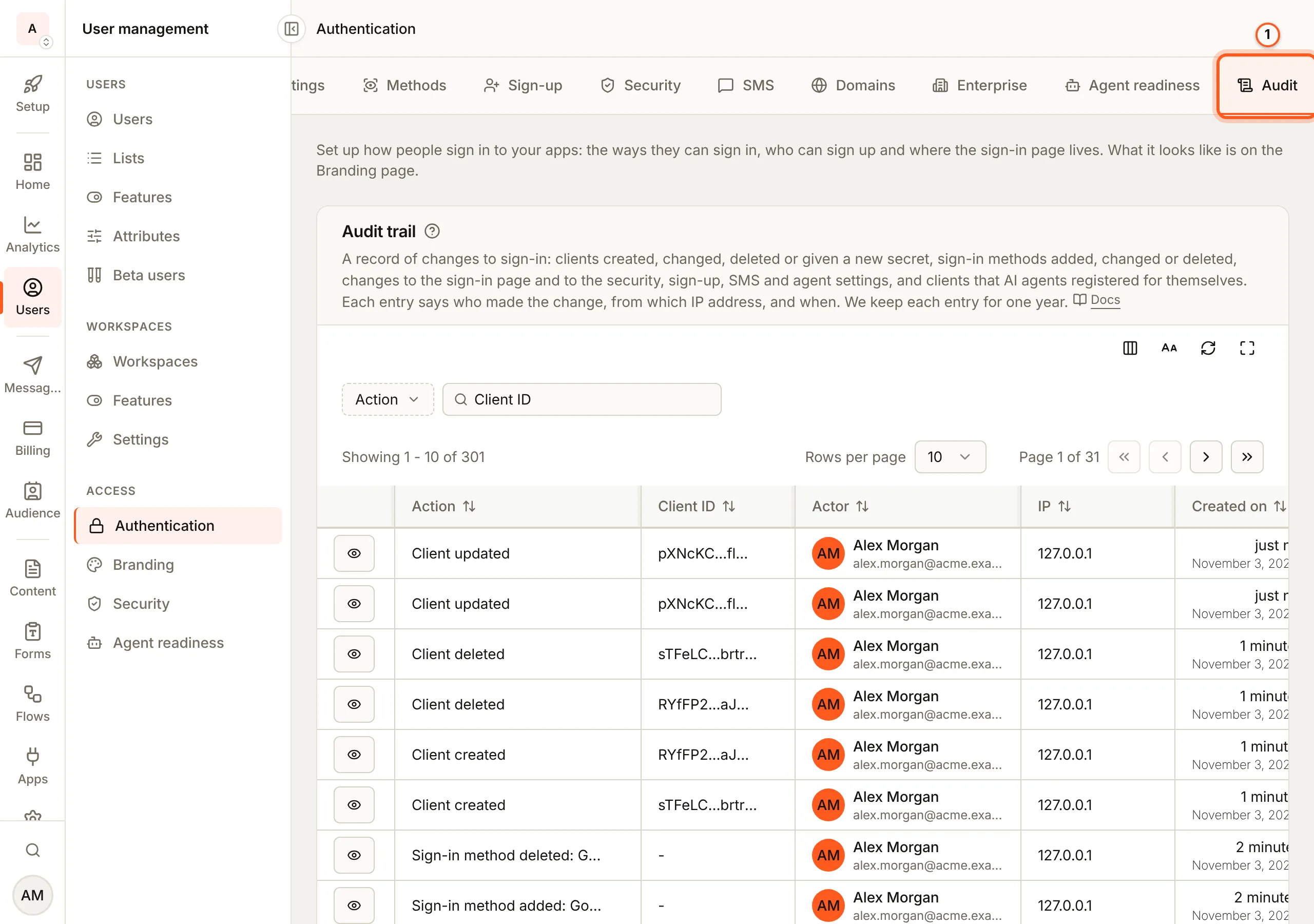
2. Read the list
Audit trail lists the newest change first, one row per change: its Action, the Client ID it was about, the Actor who made it, their IP and when (Created on).
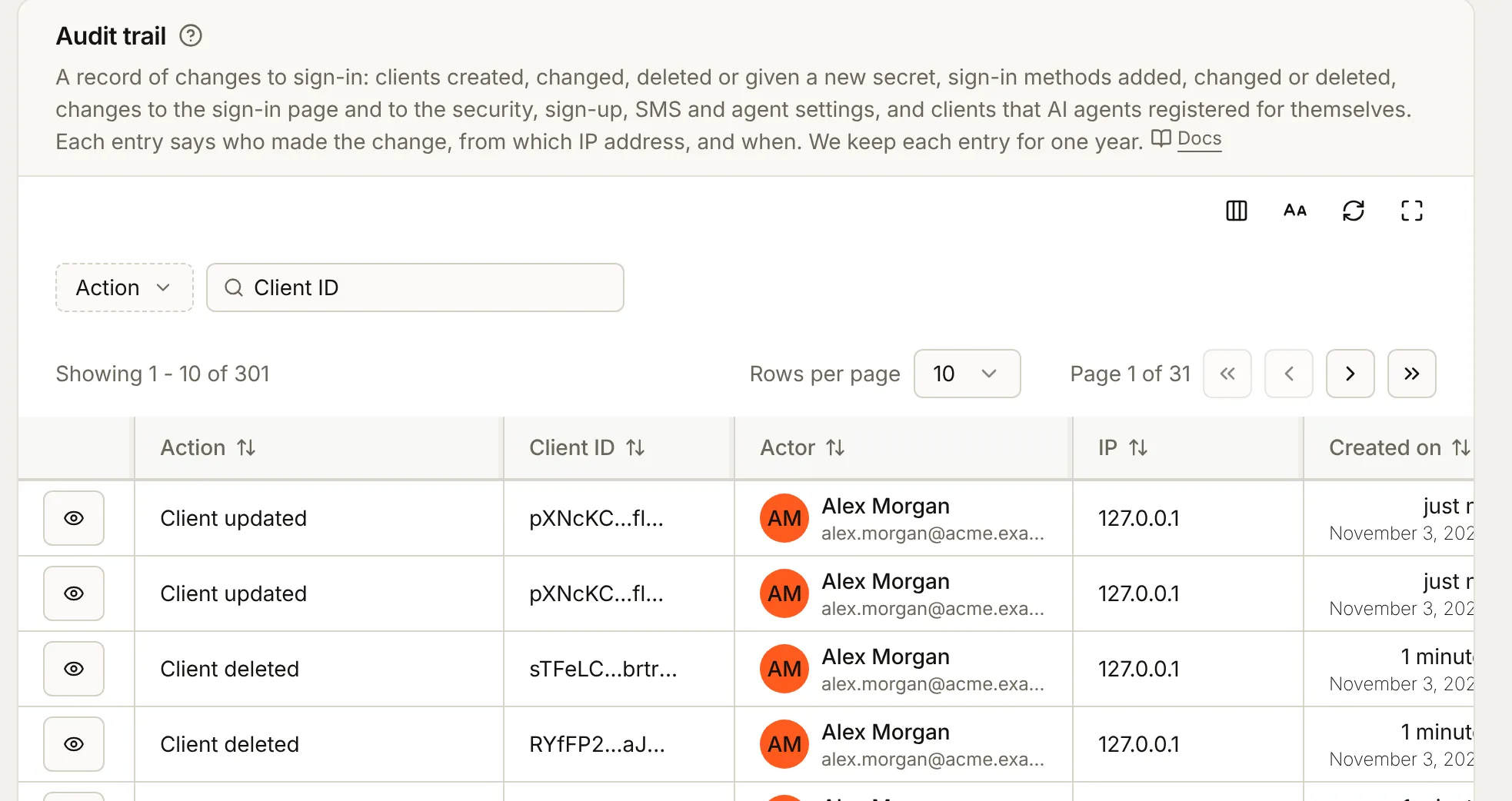
3. Narrow it down
Press Action and tick the kinds of change you want: Client registered, Client created, Client updated, Client deleted, Client secret regenerated, Registration token rotated, Sign-in method added, Sign-in method changed or Sign-in method deleted. To follow one app, type its client ID in Client ID.
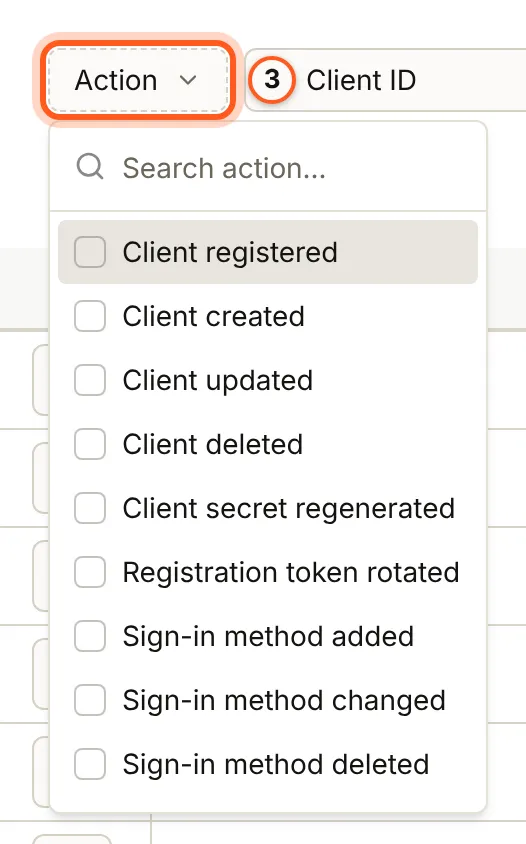
4. Open an entry
Press the eye at the start of a row. The sheet shows the Actor, the IP and User agent, and under Details each field that changed, with its value From and To. Request headers are the ones the change came with.
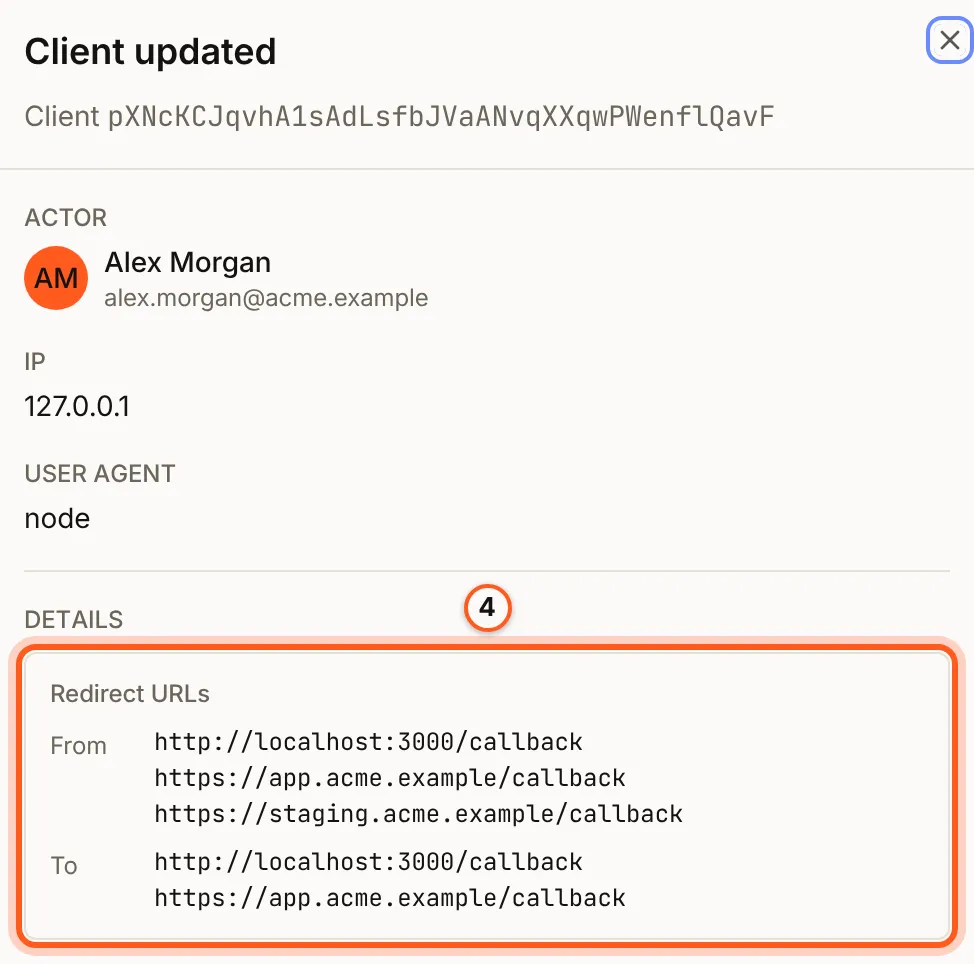
Check it works
Change something small, such as a redirect URL on a client you test with, and change it back. Two Client updated rows appear at the top, with you as the Actor.
Things to watch out for
- A change over the API is recorded too, with your HTTP client as the User agent (
nodefor a script). - An agent's own registration shows as Client registered, so you can see every client an agent made for itself.
- Secrets are never written down. A changed secret, like a change to the sign-in page's words, shows that the field changed, without its values.
- Older entries go. After a year, or sooner on a plan that keeps fewer days, an entry is no longer shown.
Next steps
- Set up sign-in, step by step - every guide, in the order to set them up.
- Your team and its roles - who can change sign-in, and the console's own audit log.
- Agent access - the clients agents register for themselves.
- Authentication overview - what else is on by default, and what the Audit tab lists.