
Set up device code sign-in
Sign people in on a command line tool, a TV or any device without a browser, with a short code they approve on their phone or computer (RFC 8628).
Some devices cannot show a sign-in page: a command line tool on a server, a TV app, a game console. With device code sign-in the device shows a short code such as QSRB-WFXN and a link. The person opens the link on their phone or computer, signs in on your hosted sign-in page, and presses Approve. Meanwhile the device asks BuildBase every few seconds whether it has been approved, and once it has, it receives its tokens. The standard behind it is OAuth 2.0 device authorization (RFC 8628).
Before you start
- A BuildBase plan that includes the OAuth 2.0 server. Without one, the OAuth 2.0 provider type is locked when you create a client.
- A token address on your own server (the Application token URL). BuildBase asks it for the token each time a device is approved, so your server decides what the token is. Your token address shows the code.
- At least one way to sign in that people already use, such as email and password, to tick on the client.
Step by step
- In the BuildBase console, press Users in the left-hand bar (the User management area), then Authentication under Access, and the Settings tab.
- Press Create auth client.
- Fill in the dialog:
| Field | Example | What it is |
|---|---|---|
| Title | Acme CLI | The name people see on the approve screens ("Approve Acme CLI?") |
| Type | OAuth 2.0 provider | The type that can use device codes |
| Application token URL | https://app.acme.example/api/agent/token | Your server's address that answers with the token. It must be reachable from the internet |
| Application profile URL | https://app.acme.example/api/agent/profile | Kept with the client. BuildBase does not call it |
| Require PKCE | Ticked | For browser sign-ins through this client. The device code flow does not use it |
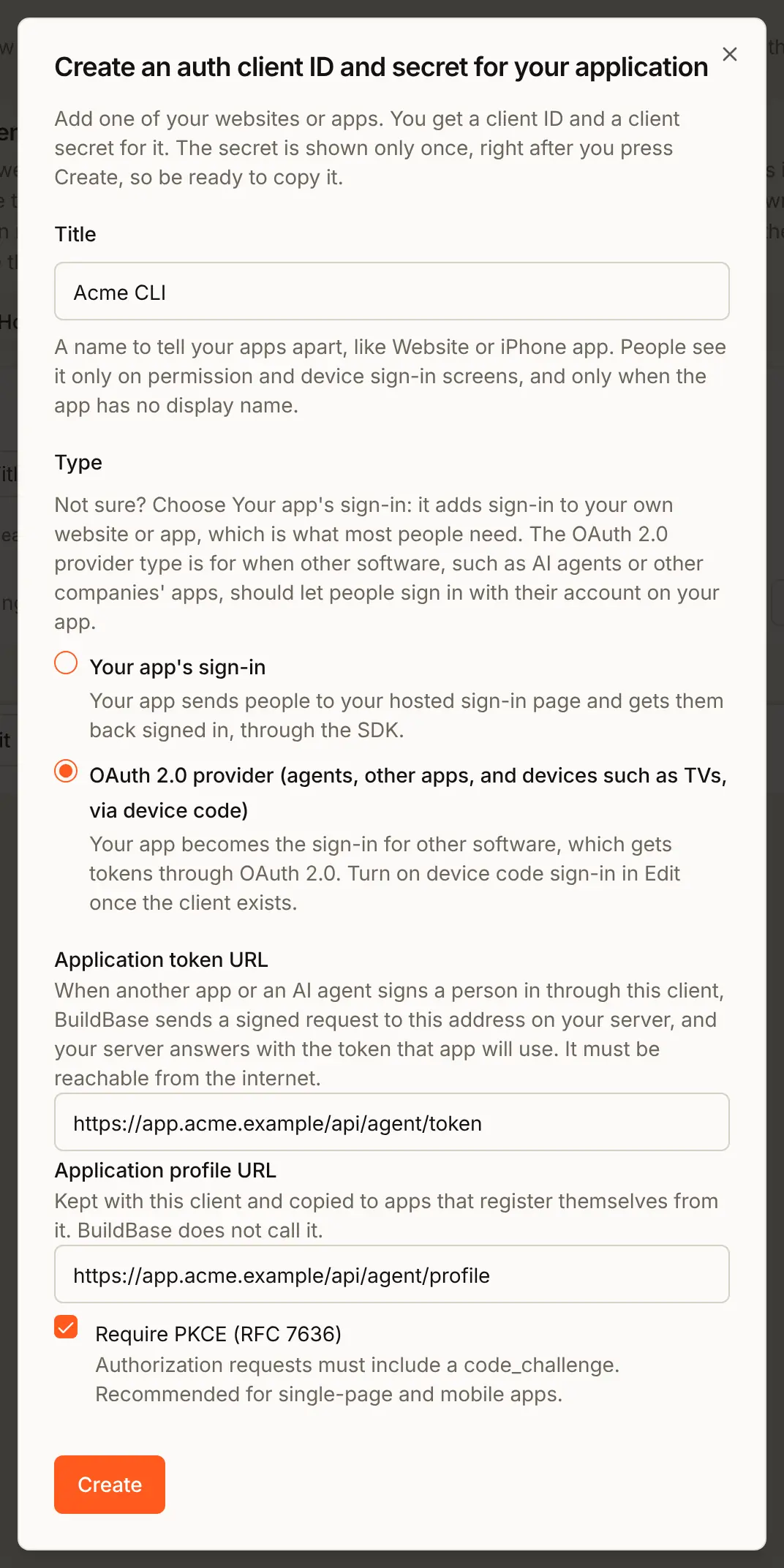
- Press Create. The next dialog shows the Client secret once. Copy the client ID and the secret now and keep the secret on your server. If you lose it, open the client's Edit and press Regenerate.
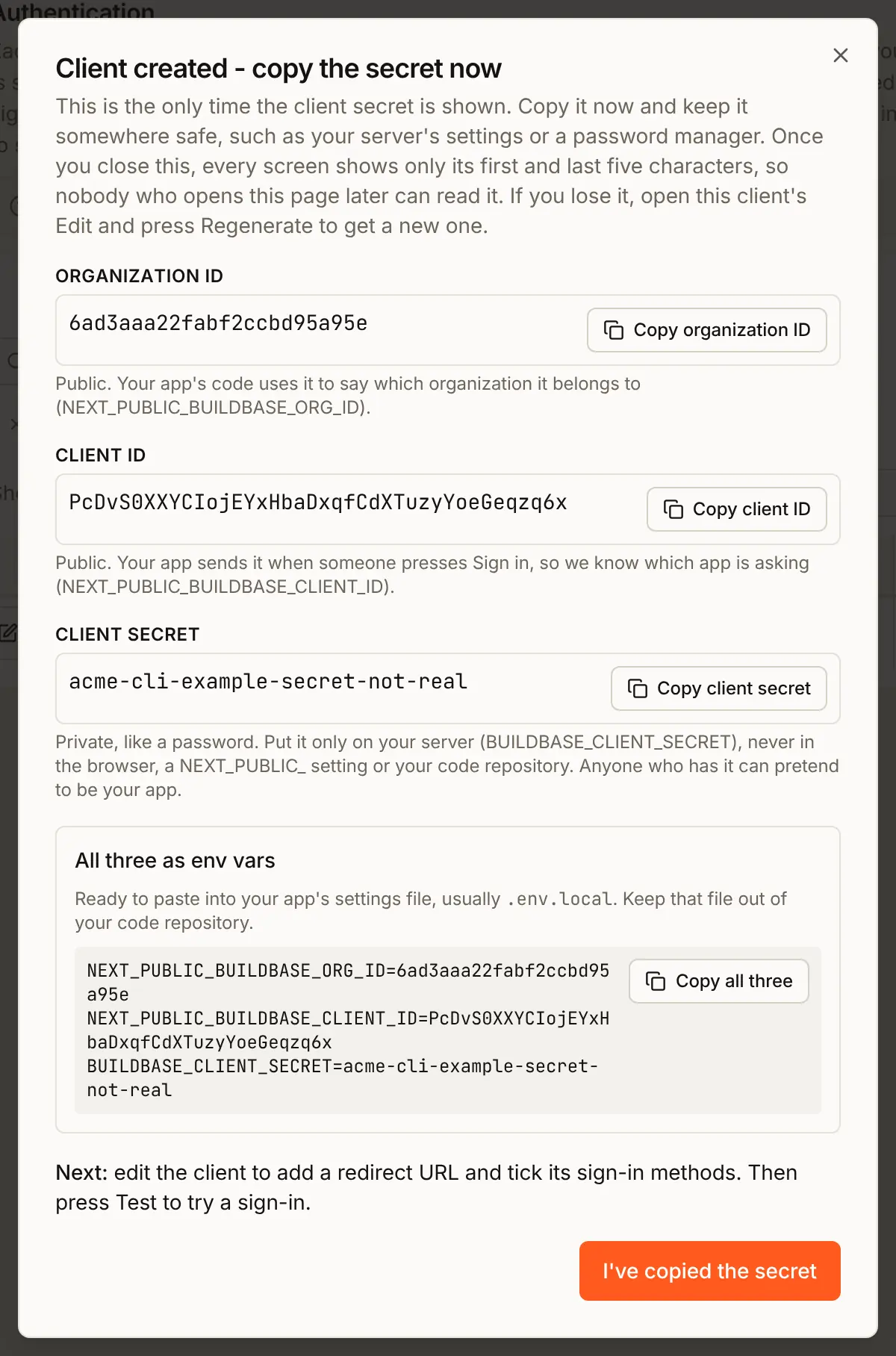
- Press I've copied the secret, then Edit on the Acme CLI row.
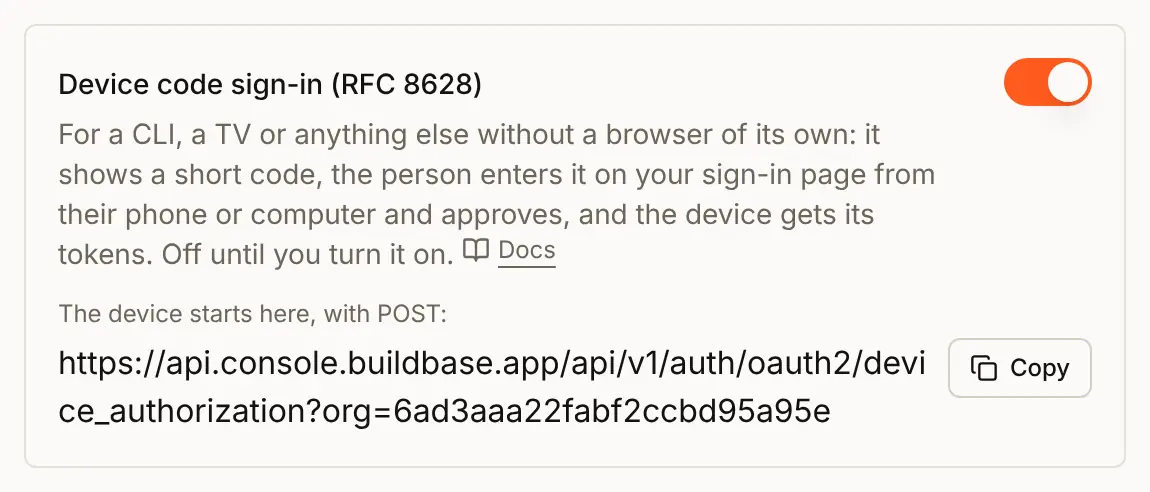
- Switch on Device code sign-in (RFC 8628). It is off until you do. The address under it is where the device starts, with a
POST.
Attach it to your app
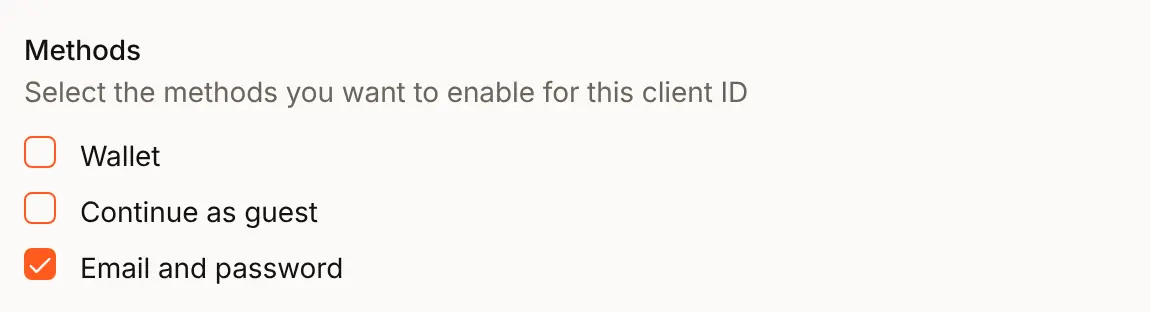
The client is the app here. Under Methods in the same sheet, tick the ways people may sign in when they approve a device, then press Update.
Check the preview
The Sign-in page tab's preview shows the sign-in, sign-up and forgot password screens with your look. The device screens use the same card, logo and colours, so a change there shows on them too. To see the device screens themselves, start a real request with the curl command in Try it with curl and open the link it prints.
Your token address
When a person approves, BuildBase sends a signed request to your Application token URL, and your server answers with the token the device will use. The SDK has the whole handler. In a Next.js app:
// app/api/agent/token/route.ts
import { NextRequest, NextResponse } from 'next/server';
import { handleAppTokenRequest, mintAgentToken } from '@buildbase/sdk';

export async function POST(request: NextRequest) {
  const { status, body } = await handleAppTokenRequest({
    authorization: request.headers.get('authorization'),
    clientSecret: process.env.BUILDBASE_CLIENT_SECRET!, // the Acme CLI client's secret
    mintToken: (claims) =>
      mintAgentToken({ claims, secret: process.env.SYSTEM_SECRET! }),
  });
  return NextResponse.json(body, { status });
}
handleAppTokenRequest checks that the request really comes from BuildBase, signed with the client's secret. claims.grantType is device_code, so you can tell a device from a browser sign-in. SYSTEM_SECRET is your app's own signing key (openssl rand -hex 32), which never leaves your server. See MCP and agents.
What people see
The device shows the link and the code (see The code for your device). The person opens the link on their phone or computer:
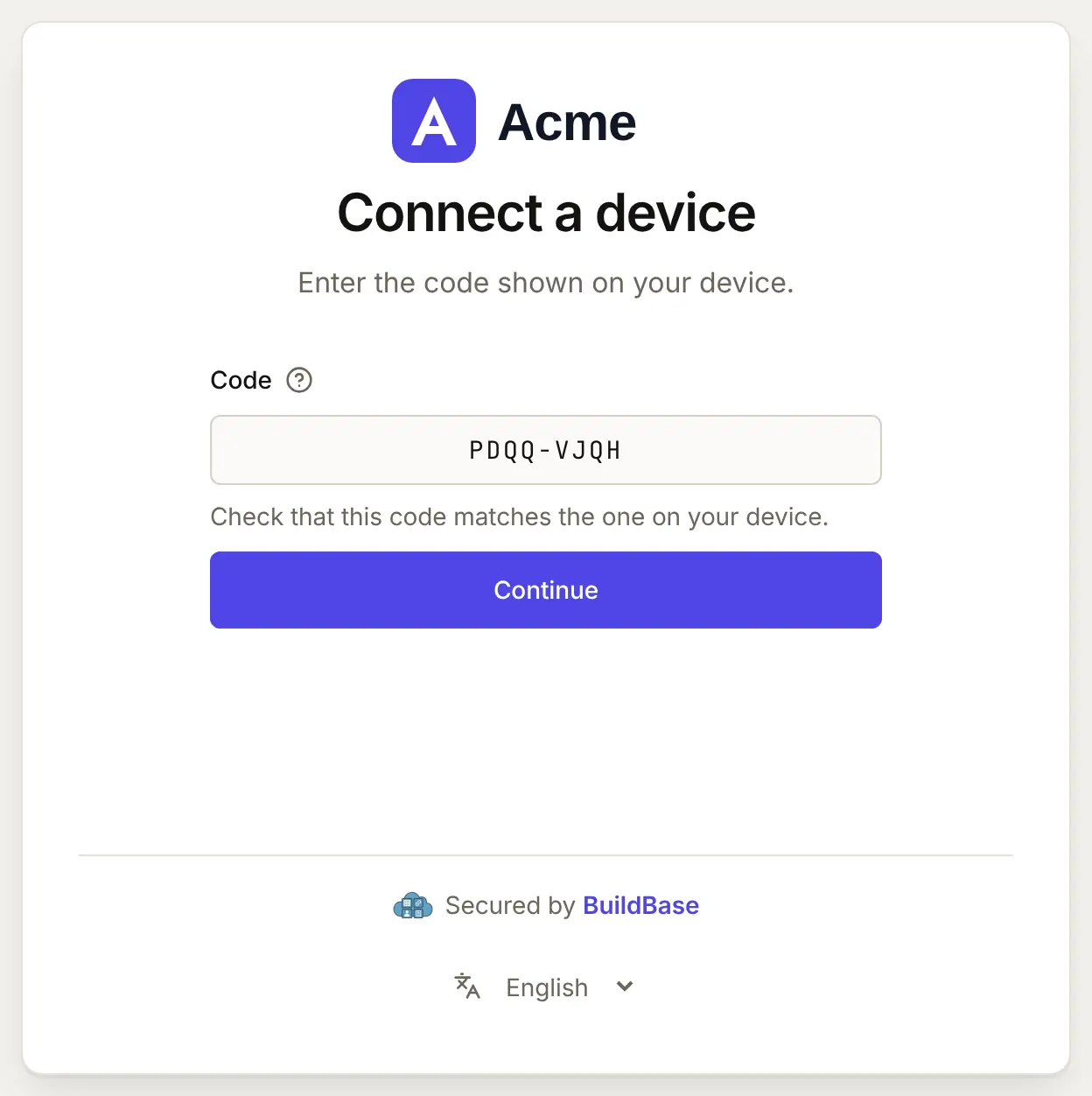
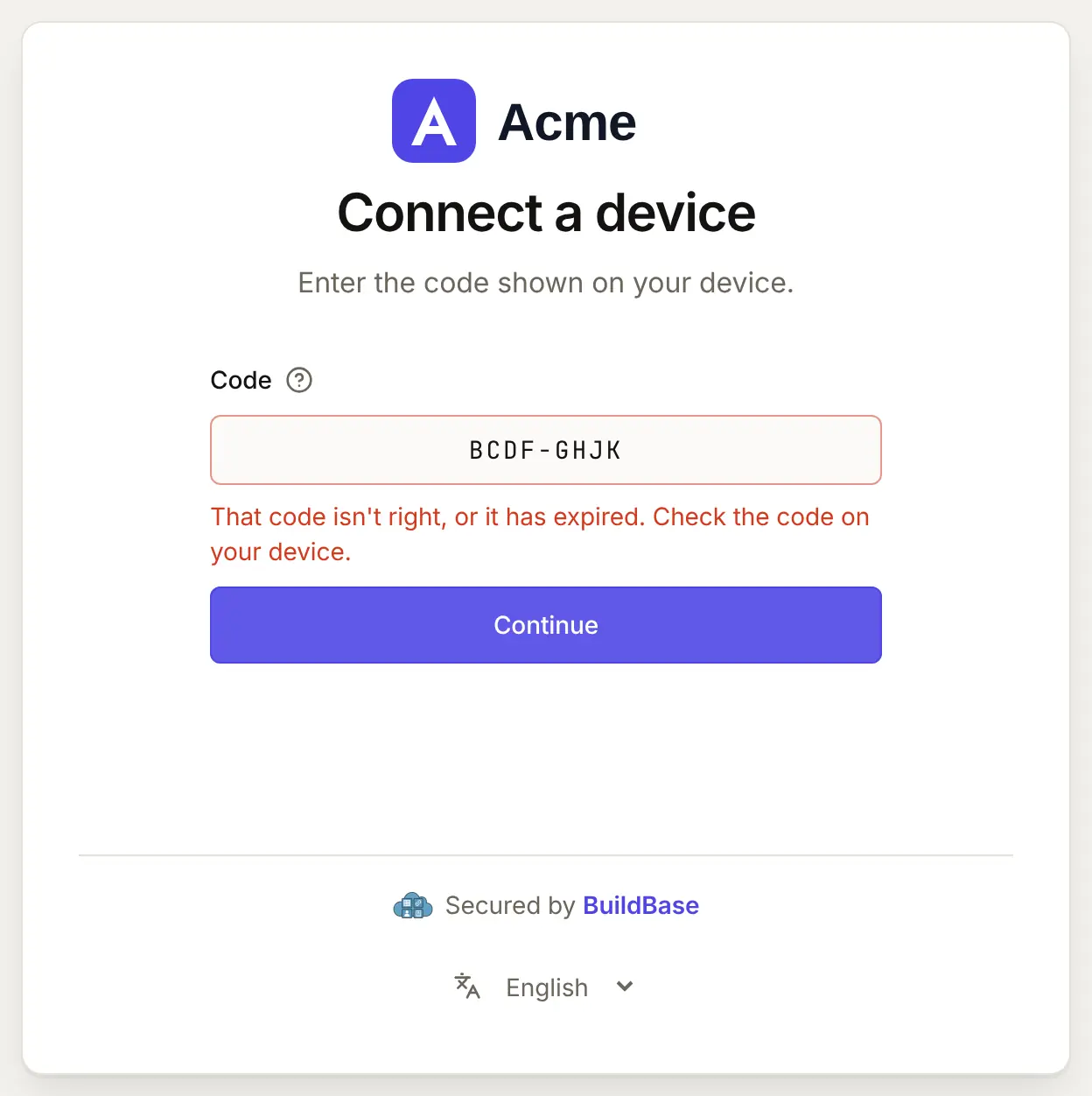
- Connect a device. The link fills the code in. They check it matches the one on the device and press Continue. Someone who opens the page without the code types it: 8 letters, and case and the dash do not matter.
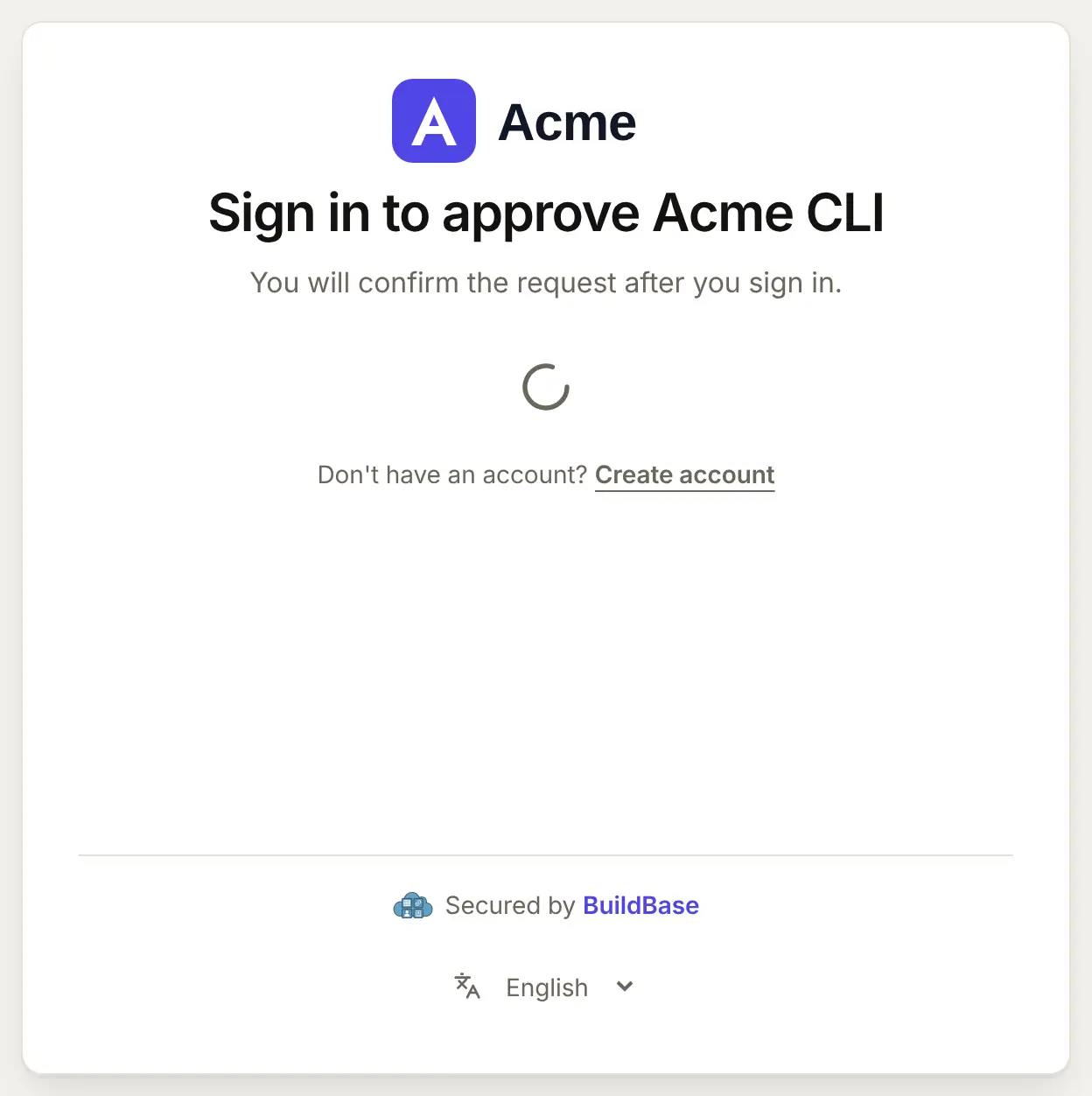
- Sign in to approve Acme CLI. The usual sign-in, with every check it has: a blocked account is refused, and two-step sign-in asks for its code as usual.
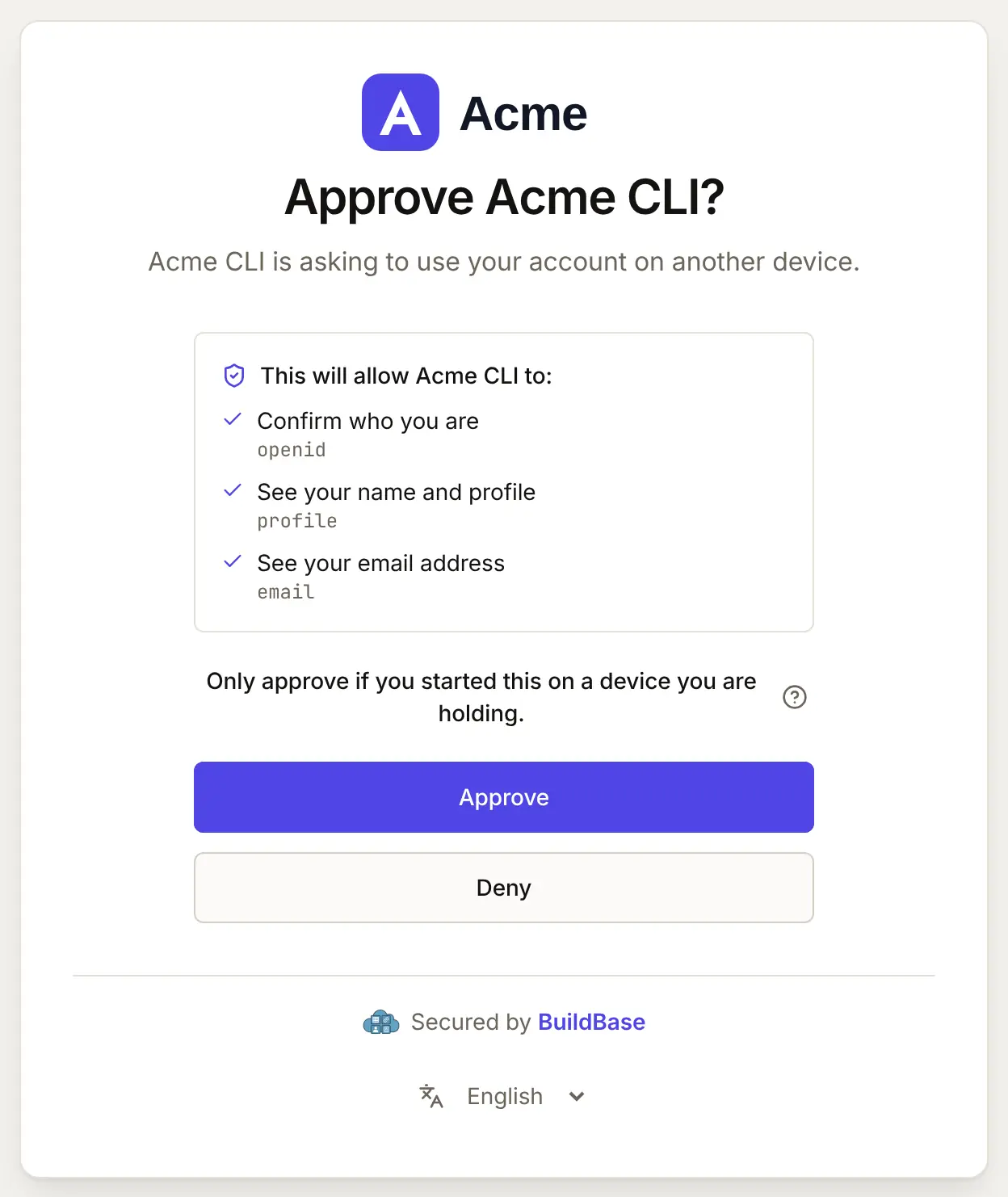
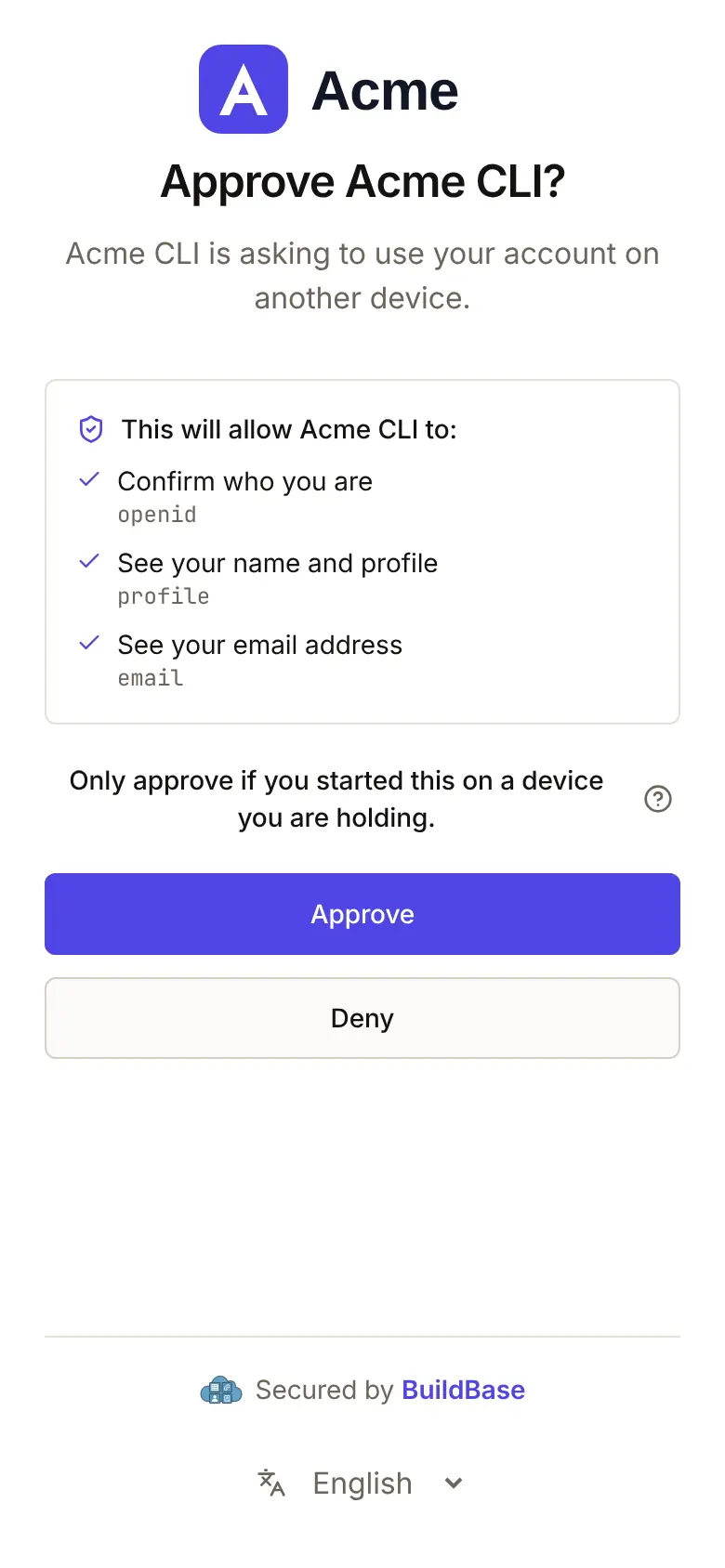
- Approve Acme CLI? The screen lists what the device asked for (
openid,profileandemailhere, in plain words) and warns to approve only a device they are holding. Approve or Deny.
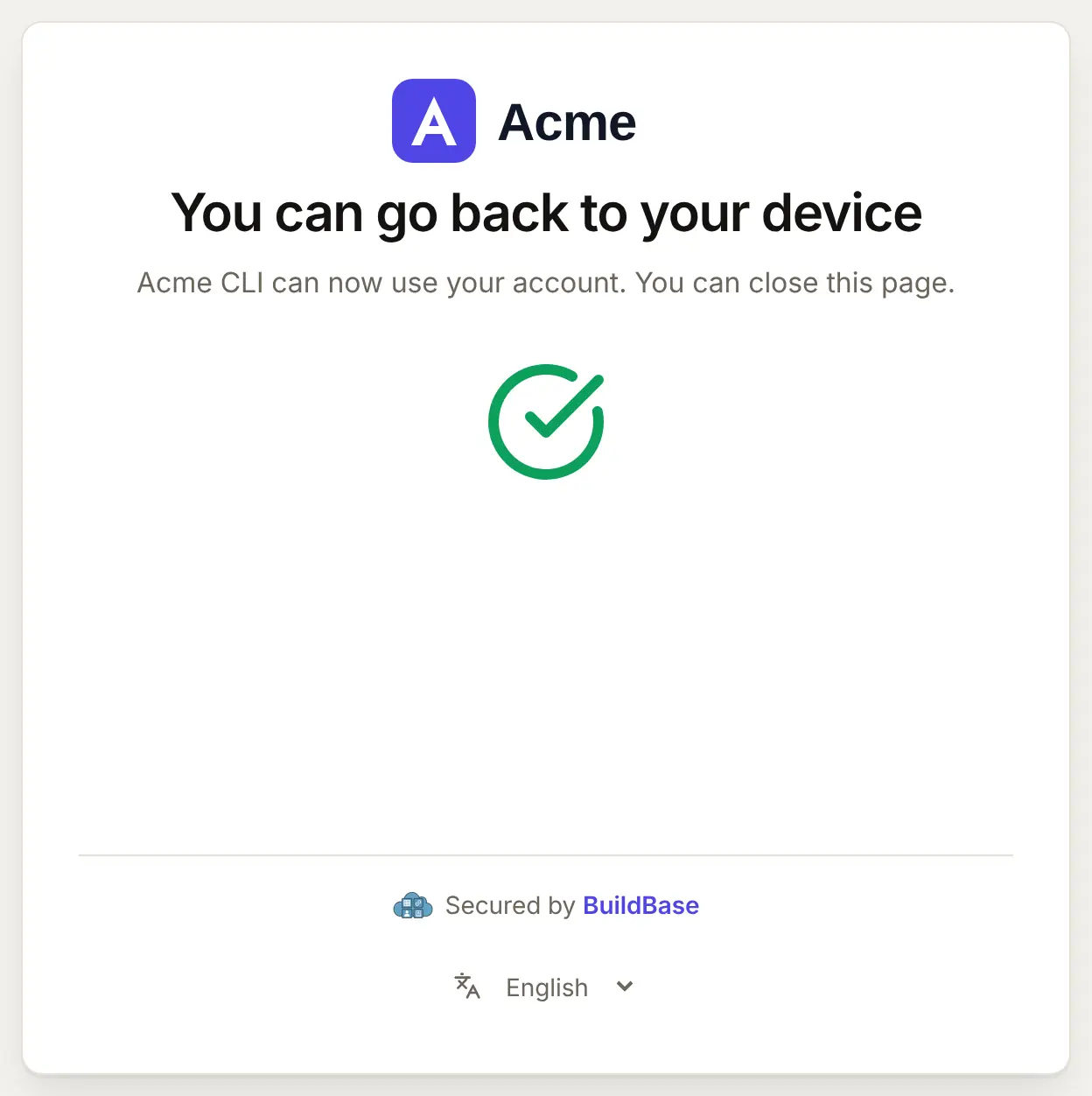
- You can go back to your device. The device's next check receives the tokens.
The same screens on a phone, where most people approve:
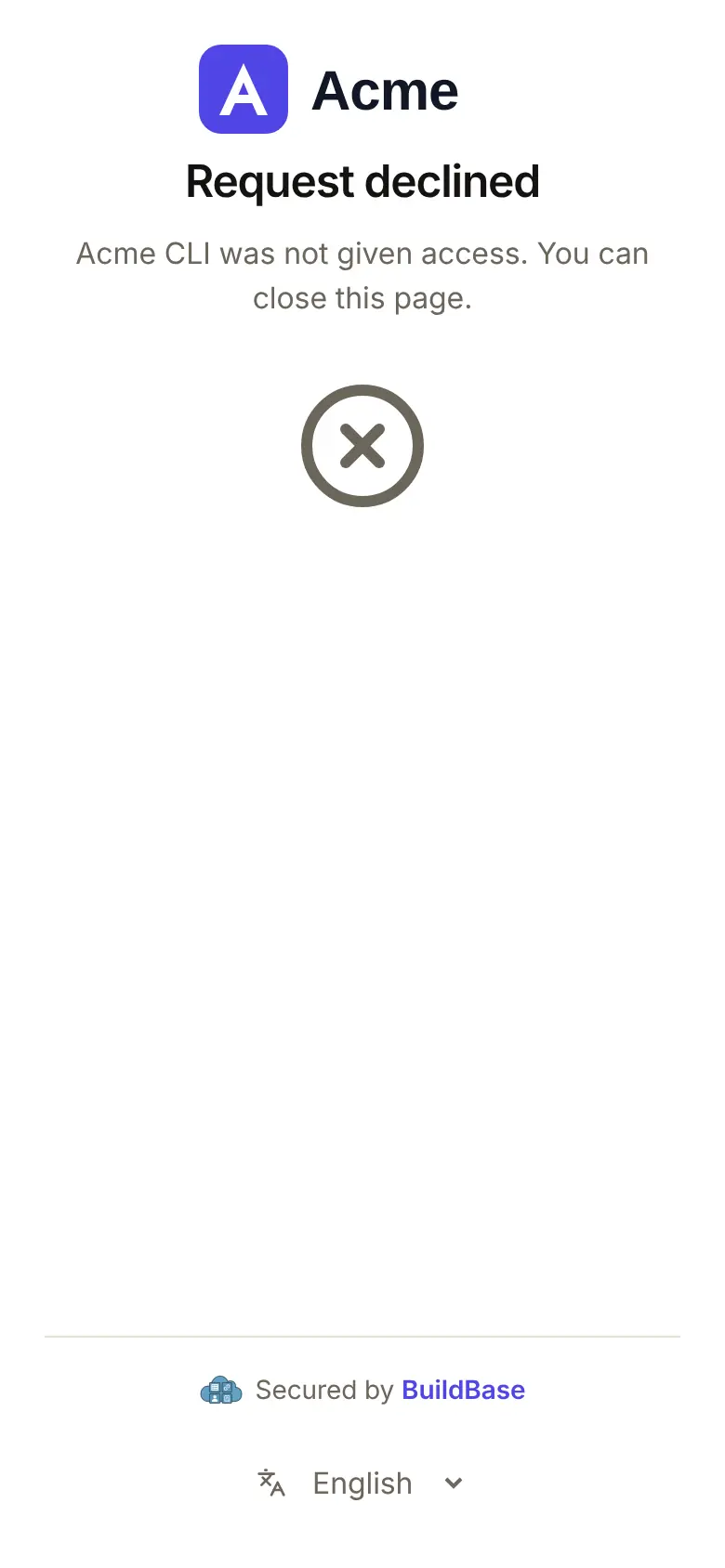
Deny ends the request, and the device is told access_denied:
A code that matches no request, or one that ran out, is refused on the first screen. Five wrong codes from one network address within 10 minutes lock that screen for a while.
An answer is final: once the person approves or denies, a second tab cannot change it. The pages follow the person's language, in any of the 8 languages the sign-in page speaks.
The code for your device
The device makes two calls, both form-encoded, with the client ID and secret:
| Step | Call | Answer |
|---|---|---|
| 1. Ask for a code | POST /api/v1/auth/oauth2/device_authorization?org=<orgId> with client_id, client_secret, optional scope | device_code, user_code, verification_uri, verification_uri_complete, expires_in (600), interval (5) |
| 2. Ask until approved | POST /api/v1/auth/oauth2/token?org=<orgId> with grant_type=urn:ietf:params:oauth:grant-type:device_code, device_code, client_id, client_secret, every interval seconds | 400 with an error until approved, then access_token, refresh_token, expires_in, scope, name, email |
Show the person user_code and verification_uri, or verification_uri_complete as a link or a QR code. Keep device_code on the device.
Try it with curl
curl -s -X POST "https://api.console.buildbase.app/api/v1/auth/oauth2/device_authorization?org=$BUILDBASE_ORG_ID" \
  -d client_id="$BUILDBASE_CLIENT_ID" \
  -d client_secret="$BUILDBASE_CLIENT_SECRET" \
  -d scope="openid profile email"
Open the verification_uri_complete it returns, approve, then exchange the device_code:
curl -s -X POST "https://api.console.buildbase.app/api/v1/auth/oauth2/token?org=$BUILDBASE_ORG_ID" \
  -d grant_type="urn:ietf:params:oauth:grant-type:device_code" \
  -d device_code="$DEVICE_CODE" \
  -d client_id="$BUILDBASE_CLIENT_ID" \
  -d client_secret="$BUILDBASE_CLIENT_SECRET"
A command line tool
// cli/sign-in.ts
const SERVER = 'https://api.console.buildbase.app';
const ORG_ID = process.env.BUILDBASE_ORG_ID!;
const CLIENT_ID = process.env.BUILDBASE_CLIENT_ID!;
const CLIENT_SECRET = process.env.BUILDBASE_CLIENT_SECRET!;

async function post(path: string, fields: Record<string, string>) {
  const res = await fetch(
    `${SERVER}/api/v1/auth/oauth2/${path}?org=${ORG_ID}`,
    {
      method: 'POST',
      headers: { 'Content-Type': 'application/x-www-form-urlencoded' },
      body: new URLSearchParams({
        client_id: CLIENT_ID,
        client_secret: CLIENT_SECRET,
        ...fields,
      }),
    }
  );
  return { ok: res.ok, body: await res.json() };
}

const wait = (seconds: number) =>
  new Promise((resolve) => setTimeout(resolve, seconds * 1000));

export async function signIn() {
  const start = await post('device_authorization', {
    scope: 'openid profile email',
  });
  if (!start.ok) throw new Error(start.body.error_description);

  const {
    device_code,
    user_code,
    verification_uri,
    verification_uri_complete,
  } = start.body;
  console.log(`Open ${verification_uri_complete}`);
  console.log(`or go to ${verification_uri} and enter ${user_code}.`);

  let interval: number = start.body.interval;
  const deadline = Date.now() + start.body.expires_in * 1000;
  while (Date.now() < deadline) {
    await wait(interval);
    const poll = await post('token', {
      grant_type: 'urn:ietf:params:oauth:grant-type:device_code',
      device_code,
    });
    if (poll.ok) return poll.body; // access_token, refresh_token, name, email

    if (poll.body.error === 'authorization_pending') continue;
    if (poll.body.error === 'slow_down') {
      interval = poll.body.interval ?? interval + 5;
      continue;
    }
    // access_denied, expired_token or invalid_grant: stop and say why.
    throw new Error(poll.body.error_description ?? poll.body.error);
  }
  throw new Error('The code expired before anyone approved it.');
}
Run against an Acme organization and approved on a phone, it prints:
Open https://auth.acme.example/v1/device?org=6650f1c2a1b2c3d4e5f60718&user_code=QSRB-WFXN
or go to https://auth.acme.example/v1/device?org=6650f1c2a1b2c3d4e5f60718 and enter QSRB-WFXN.
Signed in as Maria Garcia ([email protected]).
The link is your sign-in page's address: your custom domain once you set one on the Domains tab. The secret stays safe only on a device you control. A tool you hand out to customers is better off as a public client, with no secret: register it through dynamic client registration with token_endpoint_auth_method: none and urn:ietf:params:oauth:grant-type:device_code in its grant_types, and leave client_secret out of both calls.
In your app (SDK)
There is no SDK screen for device sign-in: the person approves on your hosted sign-in page, and the device talks to the API directly. The SDK's part is on your server, in handleAppTokenRequest above.
Check it works
- The
device_authorizationcall answers200with auser_code. A400 unauthorized_clientmeans the switch is off. - The link opens Connect a device with the code filled in, on your sign-in page.
- After Approve, the device's next call answers with an
access_tokenminted by your server. - After Deny, the device stops with
access_denied.
Things to watch out for
- Wait the full interval between checks, the first one too. Start at 5 seconds. Each
slow_downadds 5 seconds, and BuildBase keeps the slower pace for the rest of that code. - A code lasts 10 minutes. After that the device has to start again with a new one.
- The tokens are handed out once. The first check after Approve gets them. A second check with the same
device_codeis refused. - A device code can be used for phishing. Someone can start a request on their own device and send a person the link. The approve screen tells people to approve only a device they are holding: say the same in your own help.
- A secret inside a tool you hand out is not secret. Anyone with the tool can read it. Register a public client with no secret instead, as above.
- Your token address has 10 seconds and gets no redirects. BuildBase does not follow a redirect, so an
http://address that redirects tohttps://, or one that adds a slash, fails with503 temporarily_unavailable.
If something goes wrong
| What you see | Why | What to do |
|---|---|---|
400 unauthorized_client, "This client may not use the device code grant" | Device code sign-in is off on the client | Switch it on in Edit |
401 invalid_client, "Invalid client" | Wrong client ID or secret | Copy them again, or press Regenerate for a new secret |
400 authorization_pending, "The person has not approved this device yet" | Normal while the person is still on the page | Wait interval seconds and ask again |
400 slow_down, "Poll at most every 10 seconds" (the new interval) | The device asked too soon | Add 5 seconds to the interval. The answer carries the new one |
400 access_denied, "The person denied access" | The person pressed Deny | Stop. Start again if they meant to approve |
400 expired_token, "The device code has expired. Start again." | 10 minutes passed, the code is unknown, or its tokens were already handed out | Ask for a new code |
400 invalid_grant, "Invalid device code" | The code was issued to another client | Poll with the client ID and secret that asked for the code |
400 invalid_grant, "User access has been revoked" | The person was blocked or deleted after approving | Stop. The person cannot sign in until the app's team unblocks them |
503 temporarily_unavailable, "The application server failed to issue a token. Try again later." | Your Application token URL did not answer with a token | Check your token route is reachable and uses this client's secret |
| "That code isn't right, or it has expired. Check the code on your device." | The person typed a code that matches no request | Type the code the device shows now |
| "Too many wrong codes. Wait a few minutes and try again." | Five wrong codes from one network address in 10 minutes | Wait, then type the code carefully |
| "That code has expired or was already used. Start again on your device." | The request ended while the person was signing in | Start again on the device |
Next steps
- Device code sign-in - the full reference, scopes and resources.
- Letting agents act for your users - the same OAuth 2.0 server, for AI agents and other apps.
- MCP and agents - the token address in detail.
- Set up sign-in, step by step - every sign-in guide, and the order to set them up in.