
Set up email and password sign-in
Add email and password sign-in to your app, attach it, and see what people meet on sign-up, verification, a wrong password and a reset.
Email and password is the sign-in most people already know. The person types their email address and a password they chose, and they are in. New people create an account with their name, email and a password, then type a 6-digit code from an email to confirm the address. A Forgot password? link lets anyone who lost their password set a new one with a code sent by email. It is on every plan.
Before you start
- An email sender, under Messaging, Sender accounts. Verification and reset codes are emailed, and without a sender nothing is sent. See the email sender.
- An app (client) with a redirect URL. See Set up sign-in, step by step.
Step by step
- In the console's left rail, choose Users, then Authentication under Access, and open the Methods tab.
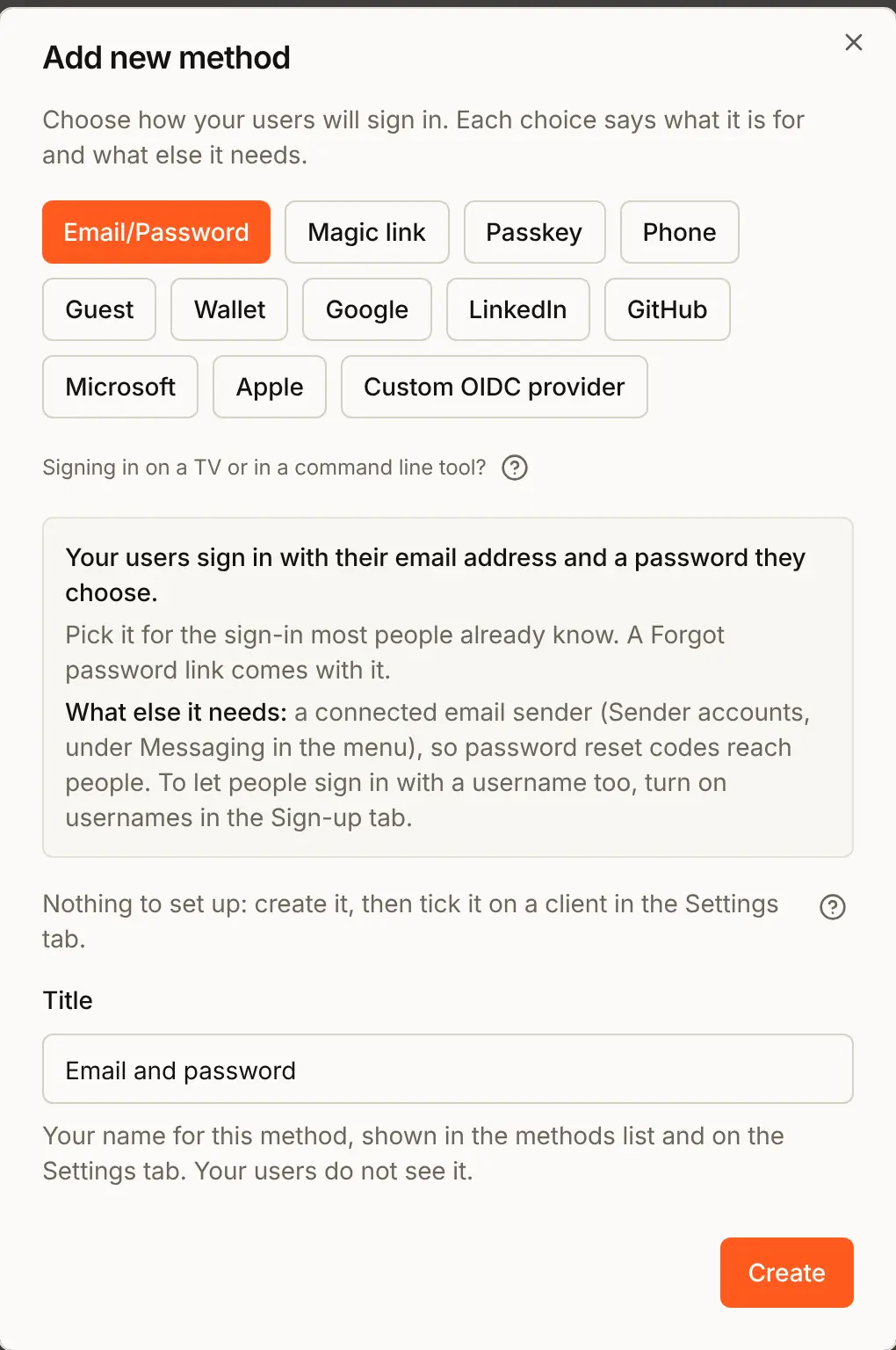
- Press Add auth method and choose Email/Password.
- Keep the Title
Email and password, or type your own. It is your name for the method, shown in the console only. Your users never see it. - Press Create. The method has nothing else to set up.
The rules BuildBase applies
| Rule | What happens |
|---|---|
| Length | At least 8 characters and at most 256. The page says so under the box. |
| Leaked passwords | A password that has appeared in a known data breach is refused on sign-up, on reset and on a change. BuildBase checks it with the Pwned Passwords service without sending the password: only the first five characters of its scrambled form (its SHA-1 hash) leave the server. If that service cannot be reached, the password is allowed, so an outage never blocks a sign-up. |
| Wrong passwords | After 10 wrong passwords for one account within 15 minutes, from any number of places, password sign-in for that account pauses until 15 minutes after the first of them. A password reset lifts the pause at once. |
| Who has an account | A wrong password and an address nobody has get the same answer, and Forgot password? answers the same whether or not the address has an account. Nobody can use the page to find out who signs up to your app. |
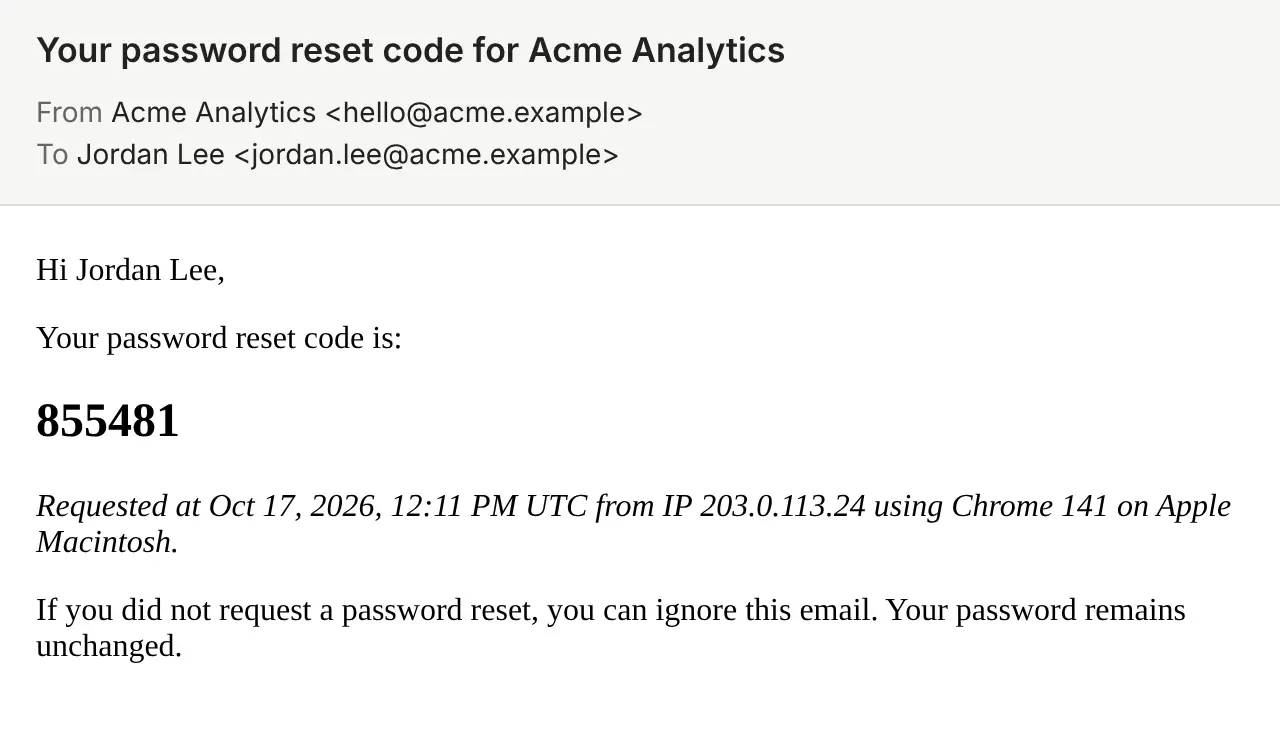
| Reset codes | 6 digits, valid for 10 minutes, 5 tries. At most 5 reset codes, and 5 verification codes, go to one address in an hour. |
| After a change | Setting a new password signs the person out on their other devices. |
| Which apps | A password signs in only through an app with Email and password ticked. Your server refuses it for any other app, from the sign-in page or from a script, before it looks at the address or the password, so the refusal is the same for everyone. A call to the API that names only your organization works while the organization has an Email/Password method. |
Attach it to your app
A method shows on the sign-in page only once it is ticked on the app.
- Open the Settings tab and press Edit beside Acme Analytics.
- Under Methods, tick Email and password.
- Press Update at the bottom of the sheet.

To let people type a short username instead of their email on the same form, turn on usernames as well.
Check the preview
Open the Sign-in page tab. The Preview draws your page with an email and password form, so the look of this method is what you see there: your name in the title, your colours on the Sign in button. Switch the preview to Sign up and Forgot password to see those screens.
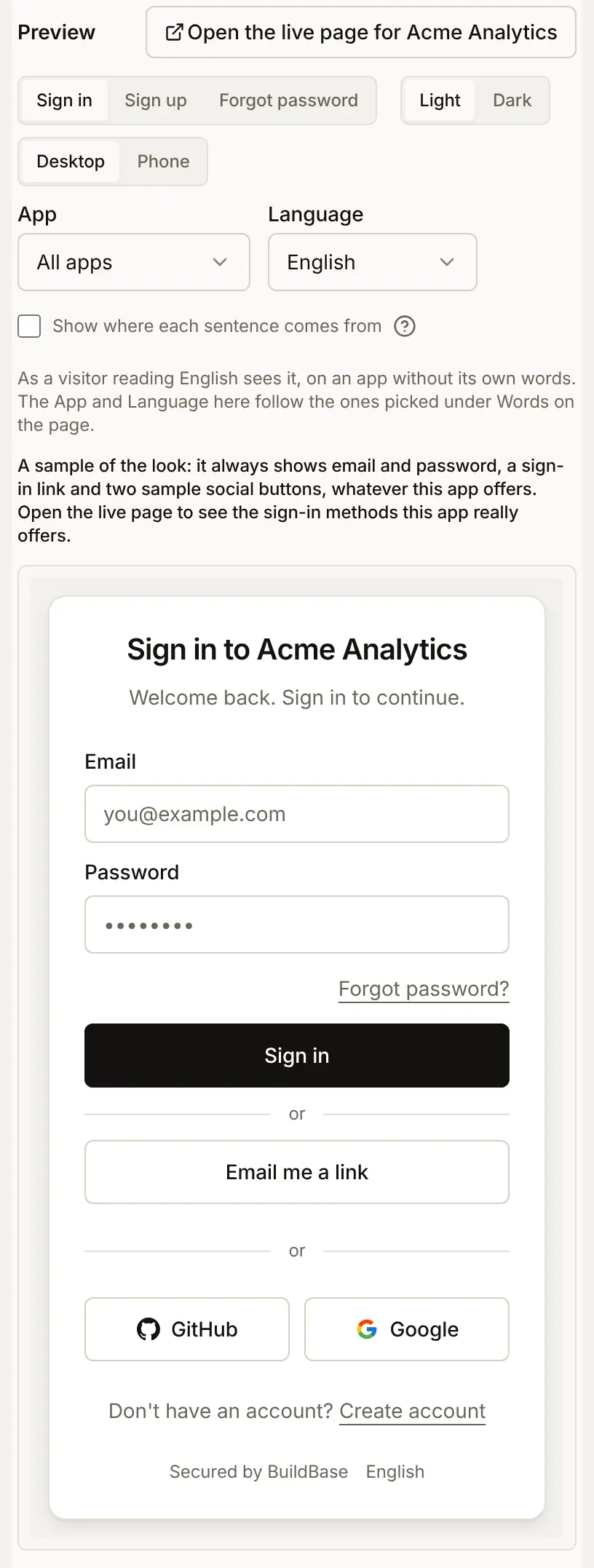
The preview card is a sample, the same for every app, so it also shows an Email me a link button and two sample providers. Press Open the live page for Acme Analytics to see the page with only the methods that app has.
What people see
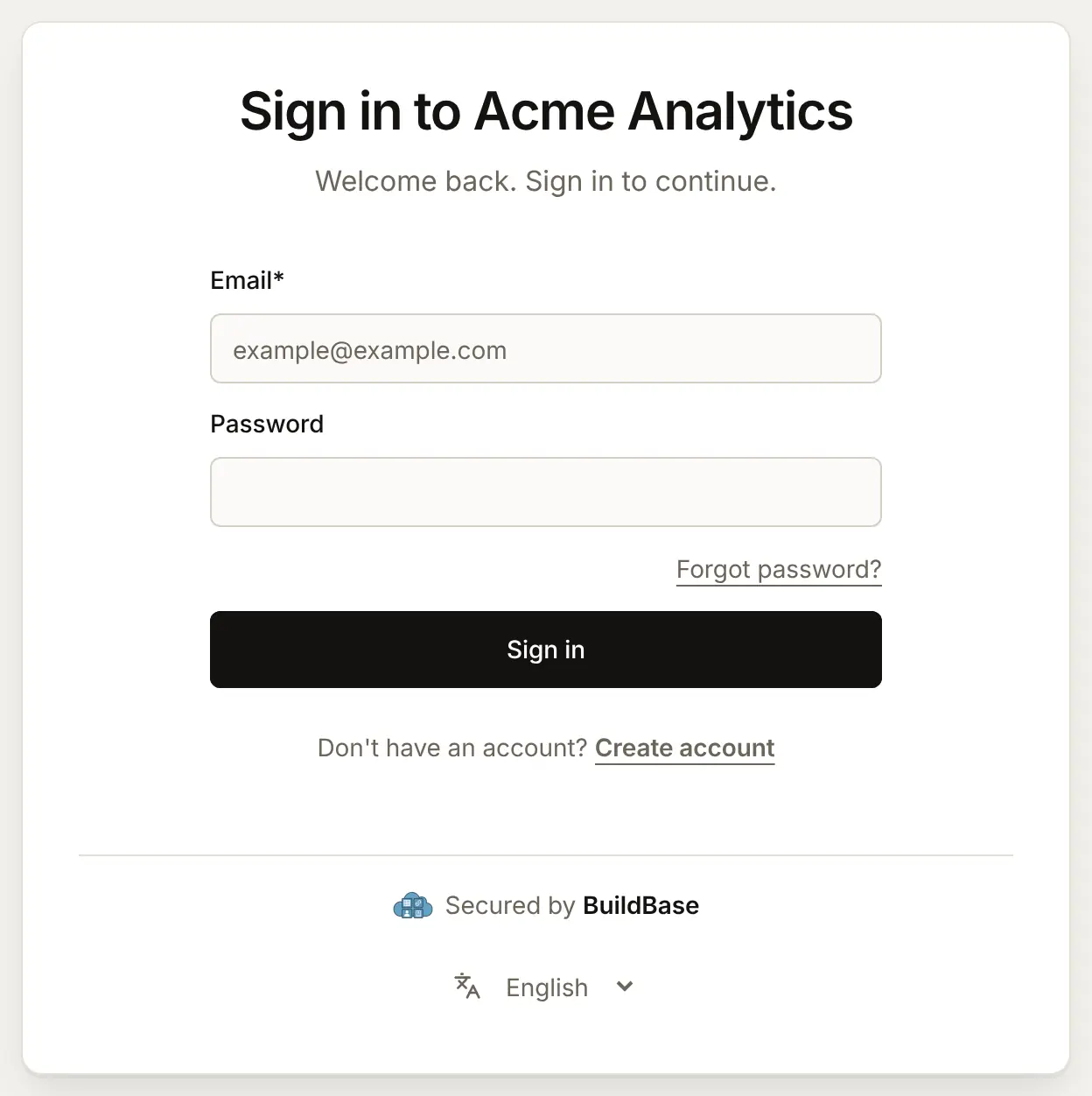
Signing in
With only email and password on the app, the card shows the two fields, Forgot password?, Sign in and a way to Create account.
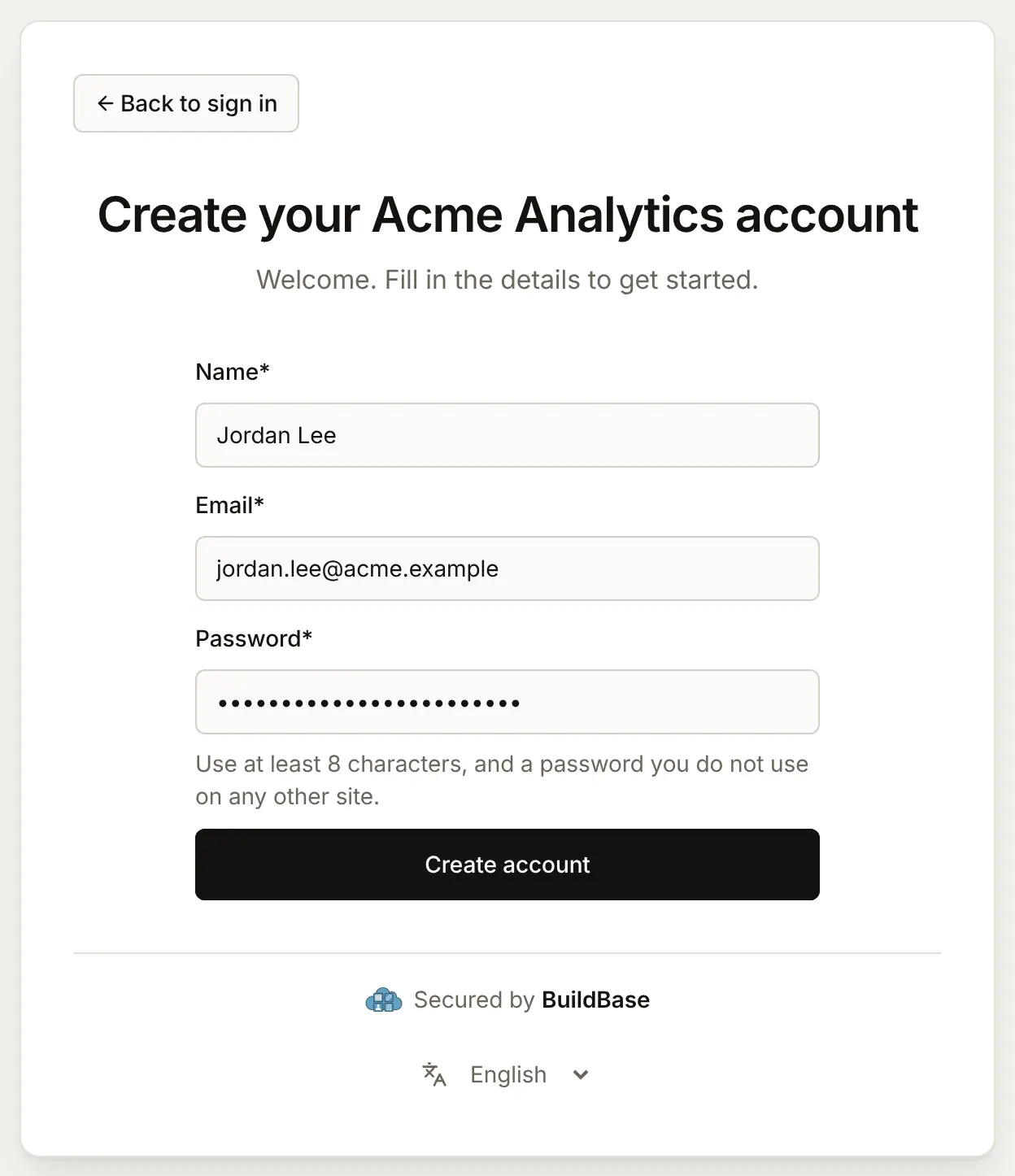
Creating an account
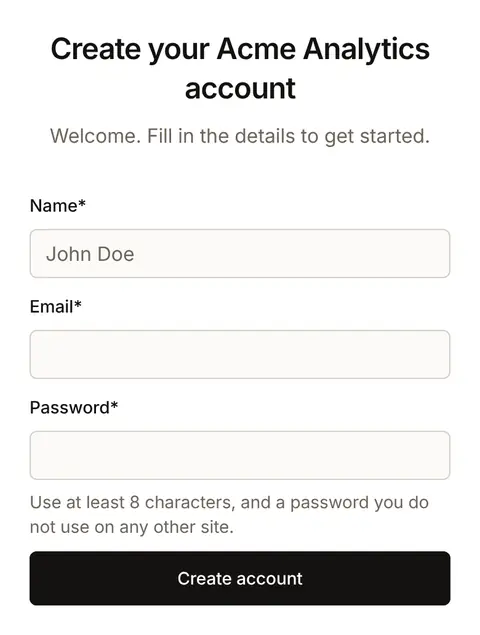
Create account asks for a name, an email address and a password, with the password rule under the box.
On a phone the fields fill the width of the screen.
Confirming the email address
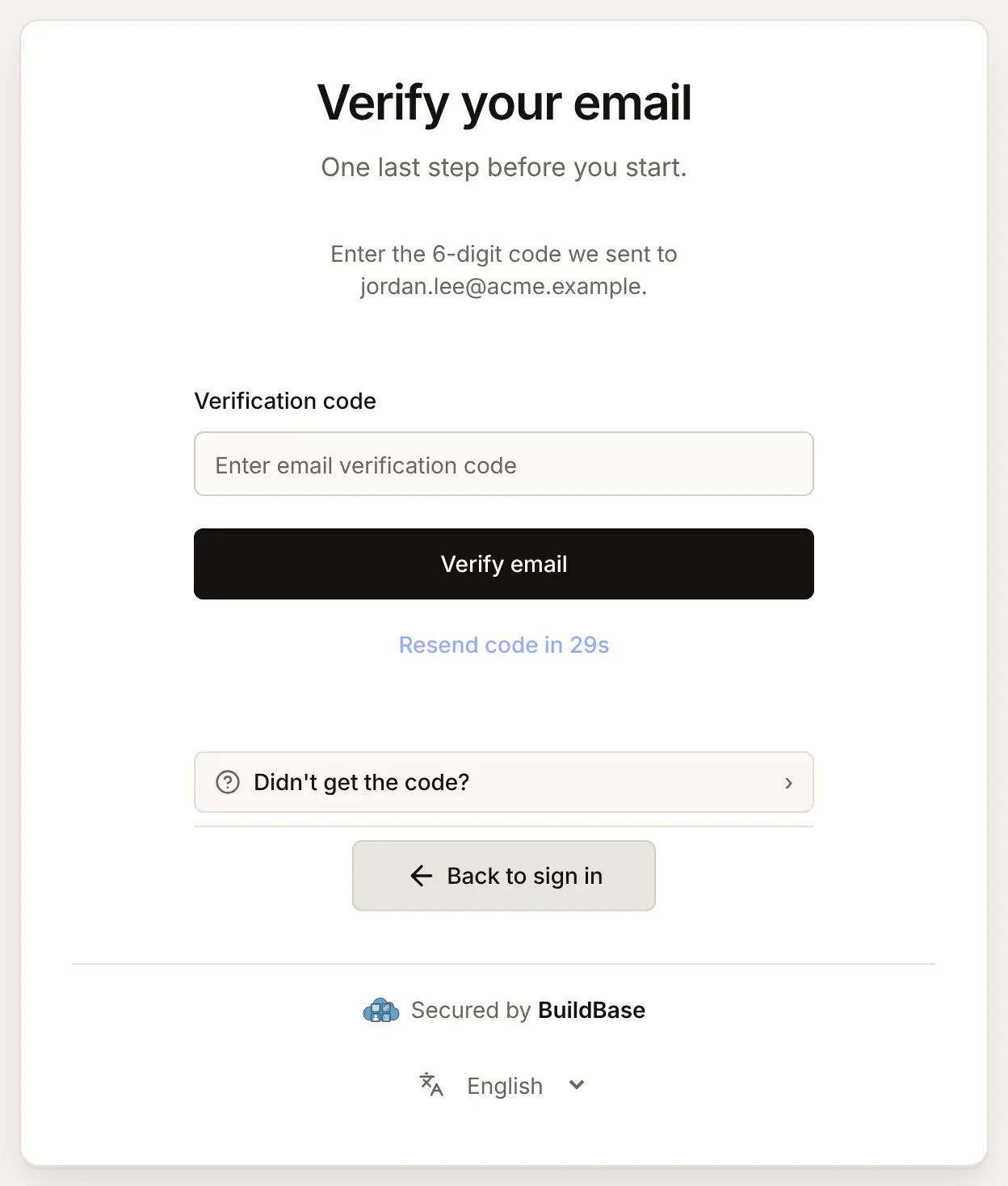
Right after Create account, the page asks for the 6-digit code it has emailed. Resend code works after 30 seconds, and Didn't get the code? lists what to check.
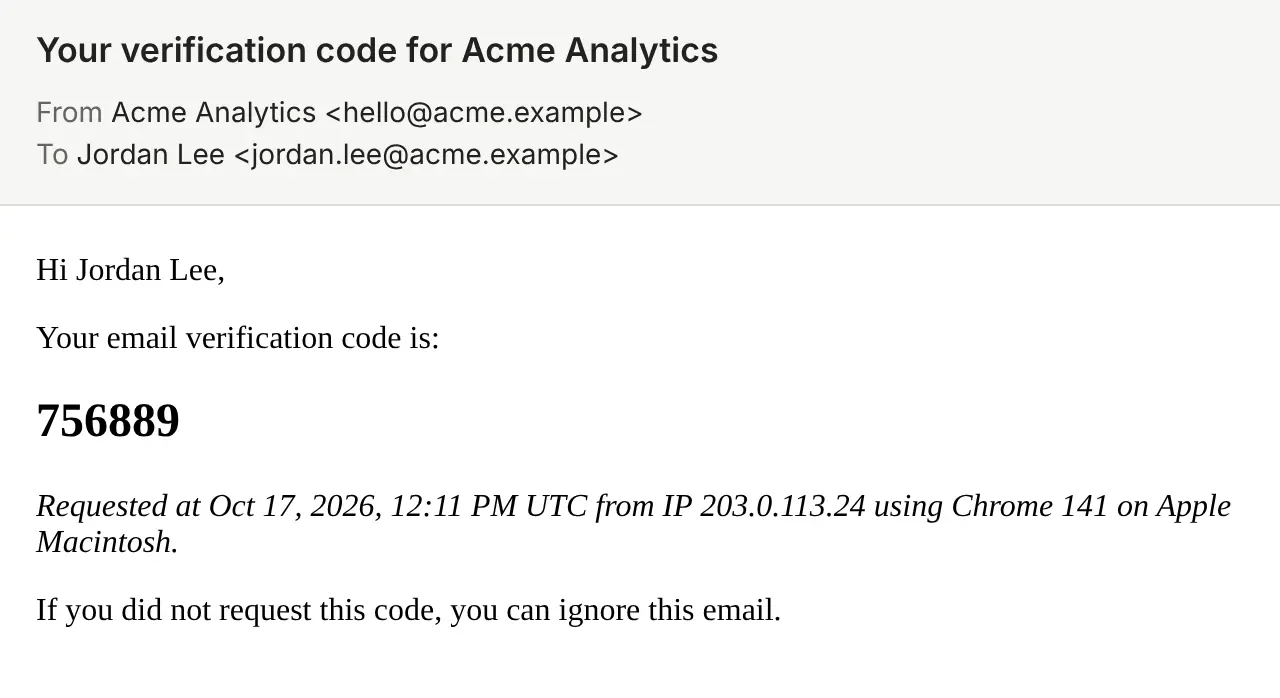
The email comes from your email sender, named after your app. It says when, and from which browser and network address, the code was asked for.
Someone who closes the page before typing the code is brought back to this screen at their next sign-in, and does not reach your app until the address is confirmed.
Trusting the device
After the code, the page asks whether to trust this device. Trust this device keeps the person signed in there for 90 days and skips extra checks, such as a two-step code, next time. Not now goes straight on. Then they are back in your app, signed in.
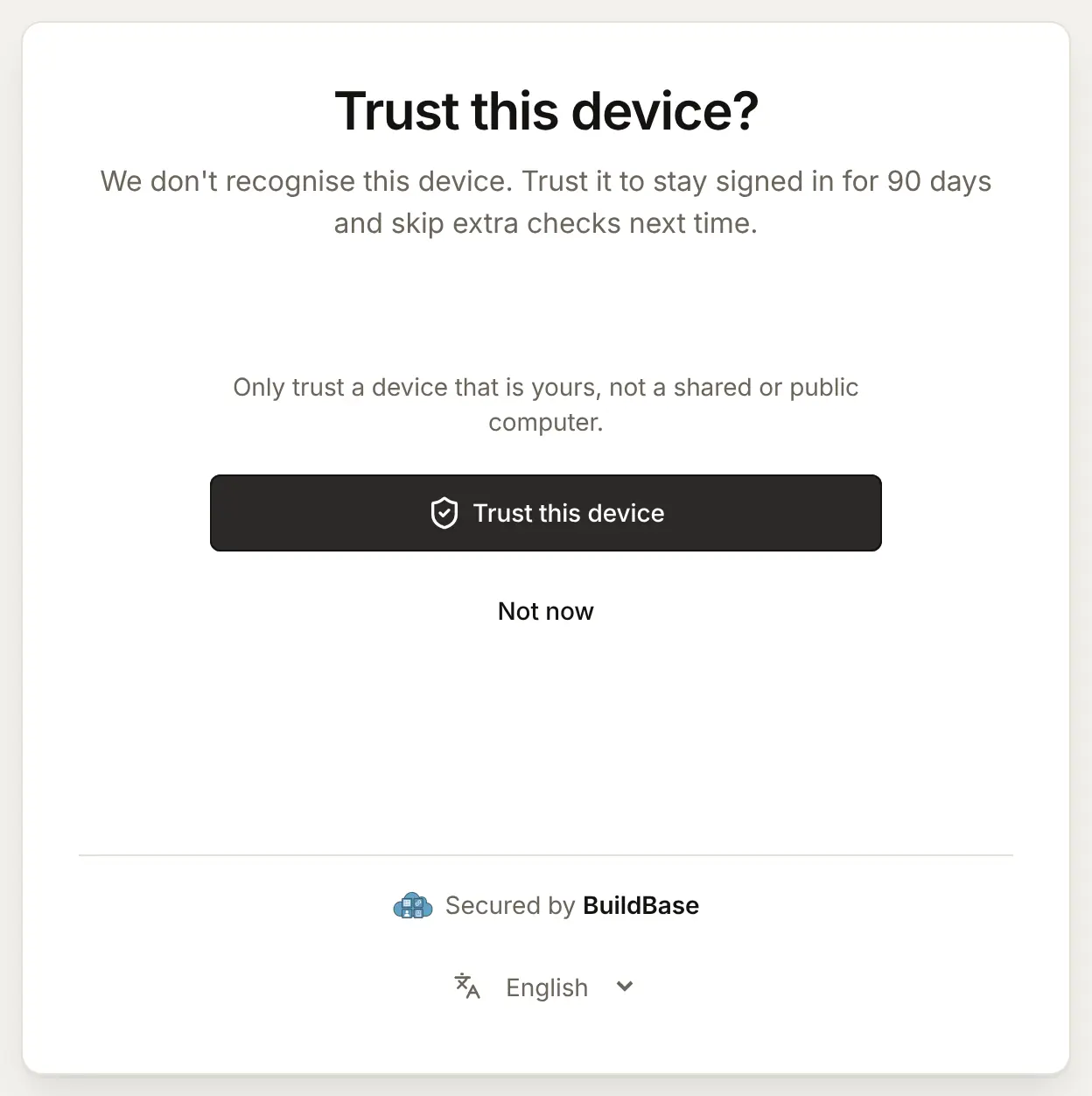
The 90 days and whether the question is asked at all are on the Security tab, in Security & sessions. A session without trust lasts 30 days by default.
A wrong password
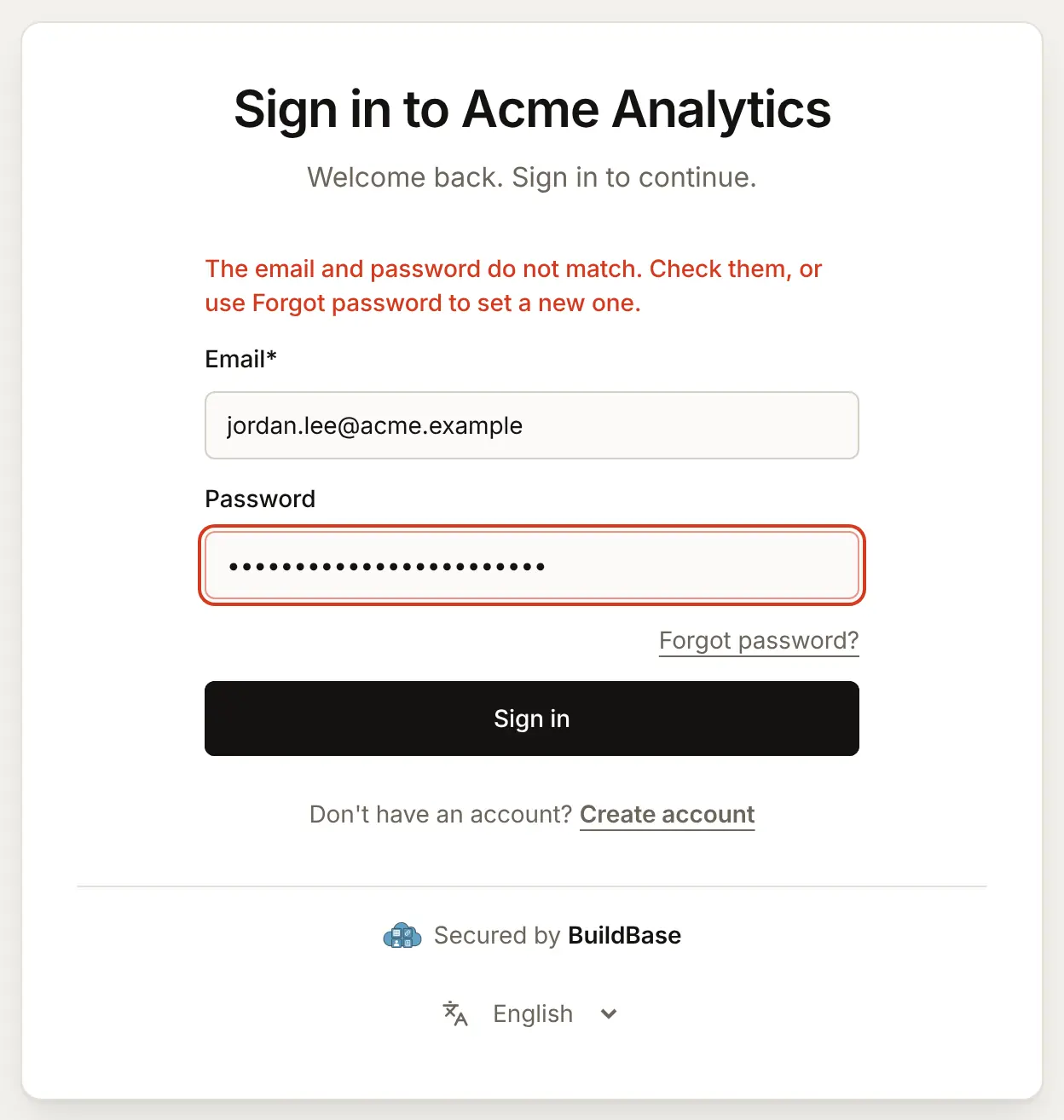
Forgot password and reset
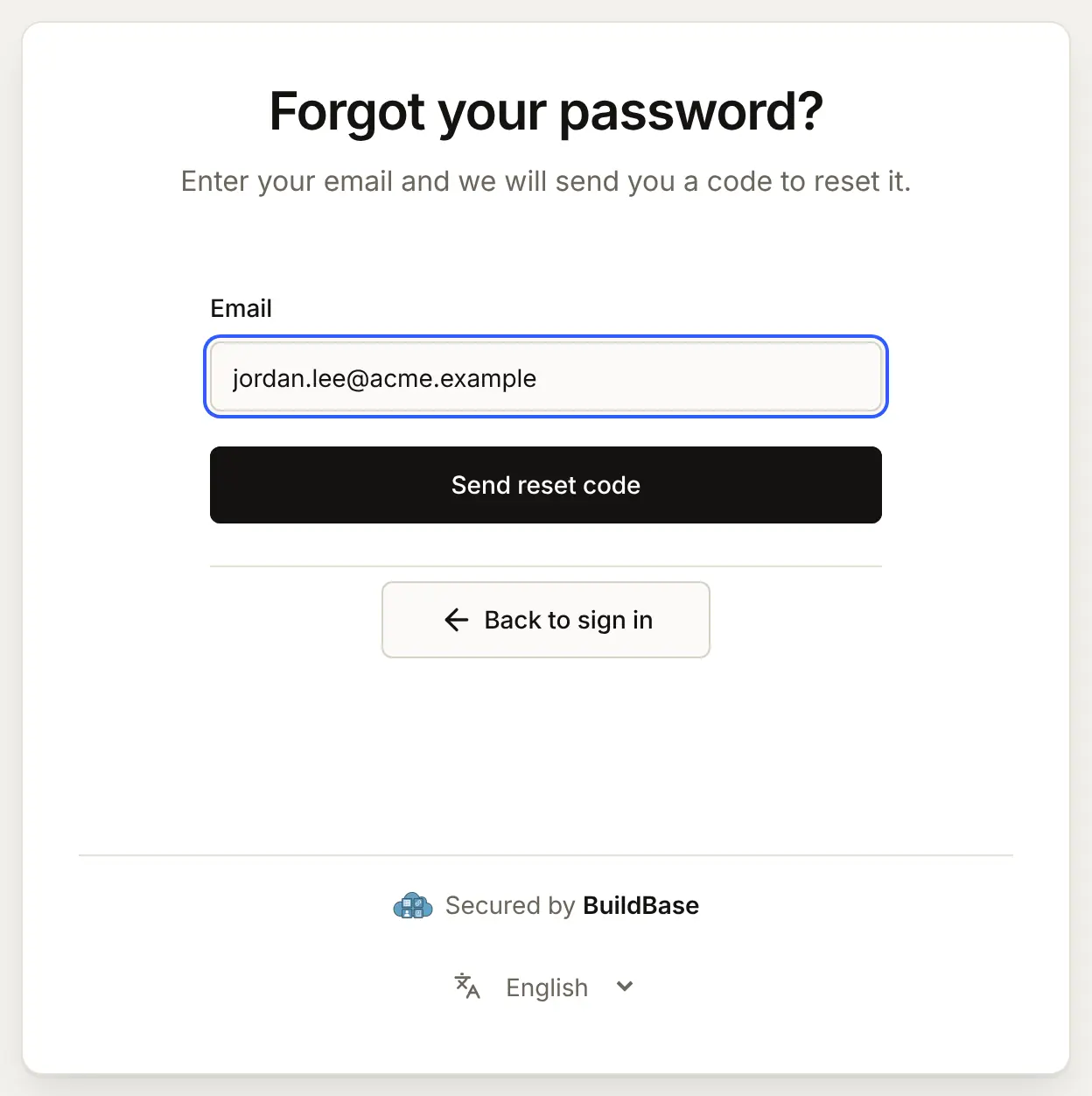
- Forgot password? asks for the email address and sends a reset code.
- The email carries a 6-digit code.
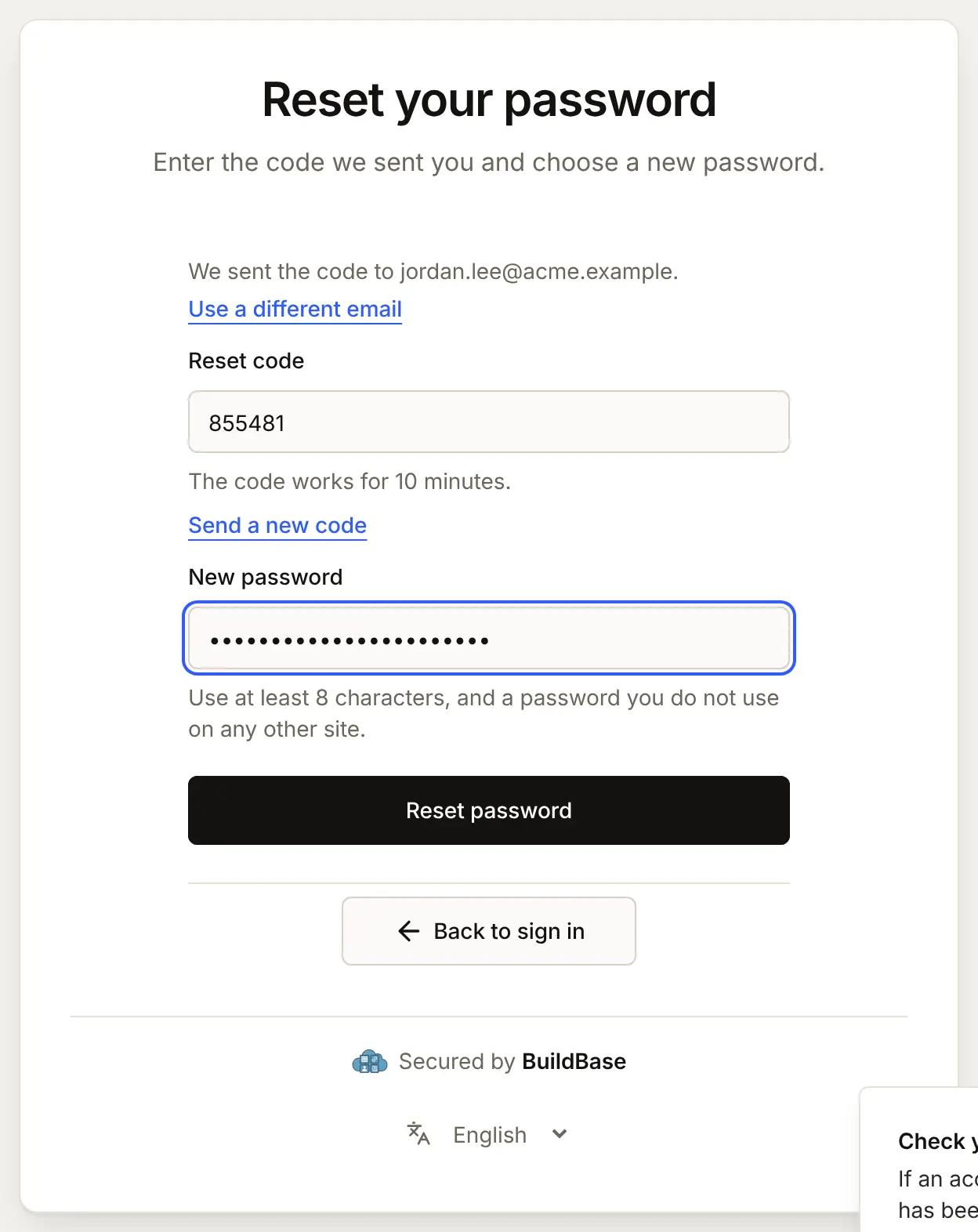
- The person types the code and a new password, and presses Reset password. The page goes back to sign-in with "Password updated. Sign in with your new password."
An account made with Google or another provider has no password of its own. Forgot password? is how its owner sets one, if your app offers email and password.
In your app (SDK)
The SDK's Security screen lets a signed-in person change their password, from @buildbase/sdk 0.0.90. They type the current password and a new one, and stay signed in on that device while their other devices are signed out. Account security screens shows the screen and how to open it from your own button.
Check it works
- The Methods tab lists Email/Password.
- Email and password is ticked on your app, and Update was pressed.
- Test beside the app opens a page with Email and Password boxes.
- A new account gets the verification email from your sender, and the code is accepted.
- Forgot password? sends a reset code, and the new password signs in.
- The test account shows under Users.
Things to watch out for
- Anyone who knows an address can pause its password sign-in. Ten wrong passwords for one account within 15 minutes, from any number of places, pause password sign-in for that account until 15 minutes after the first of them, for its owner too. A password reset lifts the pause. Bot protection slows scripted guessing down.
- Wrong current passwords count too. A wrong Current password on the SDK's Security screen counts toward the same ten.
- The leaked-password check lets a password through when it cannot ask. If the Pwned Passwords service is down or out of reach, the password is accepted, so an outage never blocks a sign-up.
- A new password signs the person out everywhere else. A reset or a change on the Security screen ends their other sessions, and a sign-in still waiting on the hosted page can no longer reach your app.
- Testing uses up the hourly limit. One address gets at most 5 verification codes and 5 reset codes an hour. Use a new address for each test run rather than pressing Resend code again and again.
- People who signed up with Google or another provider have no password. They sign in with that provider, or set a password with Forgot password?.
If something goes wrong
| What the person sees | Why | What to do |
|---|---|---|
| No Password box on the sign-in page | Email and password is not ticked on this app | Tick it in the app's Edit sheet and press Update |
| "Password sign-in is not turned on for this app." or "Password sign-up is not turned on for this app." | The app does not offer Email and password: it was unticked while the page was open, or a script called the sign-in or sign-up API for this app (403, reason method_unavailable) | Tick it on the app if it should take passwords, or sign in another way |
| "Email sign-in is unavailable for this organization." | No working email sender, so codes cannot be sent | Connect a sender under Messaging, Sender accounts |
| No verification or reset email arrives | The email went to spam, the address has no account, or more than 5 such codes went to it this hour | Ask the person to check spam and the address, or wait an hour |
| "The email and password do not match. Check them, or use Forgot password to set a new one." | A wrong password, or an address with no account here | Check the address, or use Forgot password? |
| "Too many failed attempts. Wait up to 15 minutes and try again, or reset your password." | 10 wrong passwords for this account in 15 minutes | Wait, or reset the password, which lifts the pause |
| "This password has appeared in a data breach. Choose a different one." | The password is in a known leak | Choose another password |
| "Password must be at least 8 characters." | Too short | Choose a longer password |
| "Your account has been blocked. Please contact support for assistance." | You blocked the account under Users. It is said only after the right password | Unblock it on the user's page if that was a mistake |
| "If an account exists for this email, a reset code has been sent." and no email | The address has no account | Sign up instead, or check the address |
| "Sign-up isn't available for this address." | Your sign-up rules refuse it | Add the address to the allowlist, or change the mode |
| "Invalid redirect URL" | The address your app sent is not in the app's Redirect URLs | Add it, letter for letter |
Next steps
- Usernames - a short name on the same form.
- Sign-in links and email codes - sign-in without a password.
- Authentication overview - the same method from the developer's side.
- Set up sign-in, step by step - every sign-in guide, and the order to set them up in.