
Account security screens
The SDK's ready-made Account, Security and Devices screens, how to open them from your app, and which console settings each section follows.
The SDK comes with ready-made settings screens, so the people who use your app can look after their own sign-in without you building anything: change their name, email and password, add a phone number, turn on two-step sign-in, connect a Google or other account, see where they are signed in, and delete their account. They open in a settings dialog over your app, in your app's language and theme. You add one button that opens them.
Before you start
- The React SDK set up in your app, with
SaaSOSProvideraround it. See the installation guide. - Most sections on this page (change password, change email, username, phone number, two-step sign-in, connected accounts and deleting the account) come with
@buildbase/sdk0.0.90 and later.
Open the screens from your app
useSaaSAuth(), from @buildbase/sdk/react, gives openWorkspaceSettings, which opens the settings dialog at a screen: 'profile' (shown as Account), 'security' or 'devices'. The same names are on SettingsScreen, as SettingsScreen.Profile, SettingsScreen.Security and SettingsScreen.Devices.
import { useSaaSAuth } from '@buildbase/sdk/react';

export function AccountMenu() {
  const { user, openWorkspaceSettings, signOut } = useSaaSAuth();
  if (!user) return null;
  return (
    <nav aria-label="Your account">
      <button onClick={() => openWorkspaceSettings('profile')}>Account</button>
      <button onClick={() => openWorkspaceSettings('security')}>
        Security
      </button>
      <button onClick={() => openWorkspaceSettings('devices')}>Devices</button>
      <button onClick={() => signOut({ everywhere: true })}>
        Sign out everywhere
      </button>
    </nav>
  );
}
The dialog's sidebar moves between the screens. To hide a section, pass ui to SaaSOSProvider, for example ui={{ settings: { security: { connectedAccounts: false } } }}; the options are listed under each screen below. Hiding a section only hides it: what the person may do is still checked by BuildBase.
Account
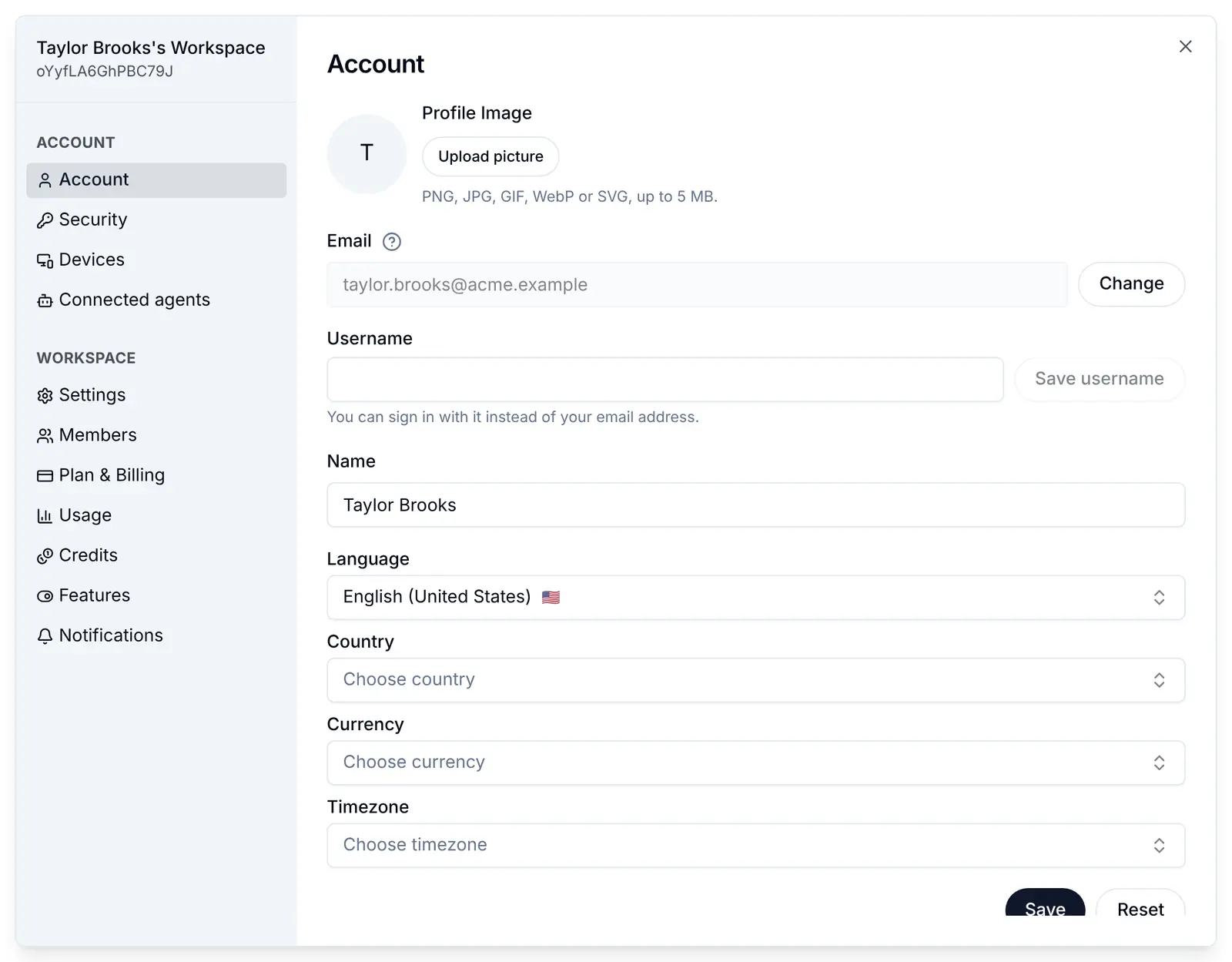
- Profile Image: Upload picture sends the file at once, and Save keeps it as the person's picture; Remove picture takes it off. It shows only while your organization lets your app's users upload, with the file types and the size limit that allows, and each picture counts toward your storage (see Uploads by your app's users).
- Name, Language, Country, Currency and Timezone: the person edits them and presses Save. Hide the last four one by one with
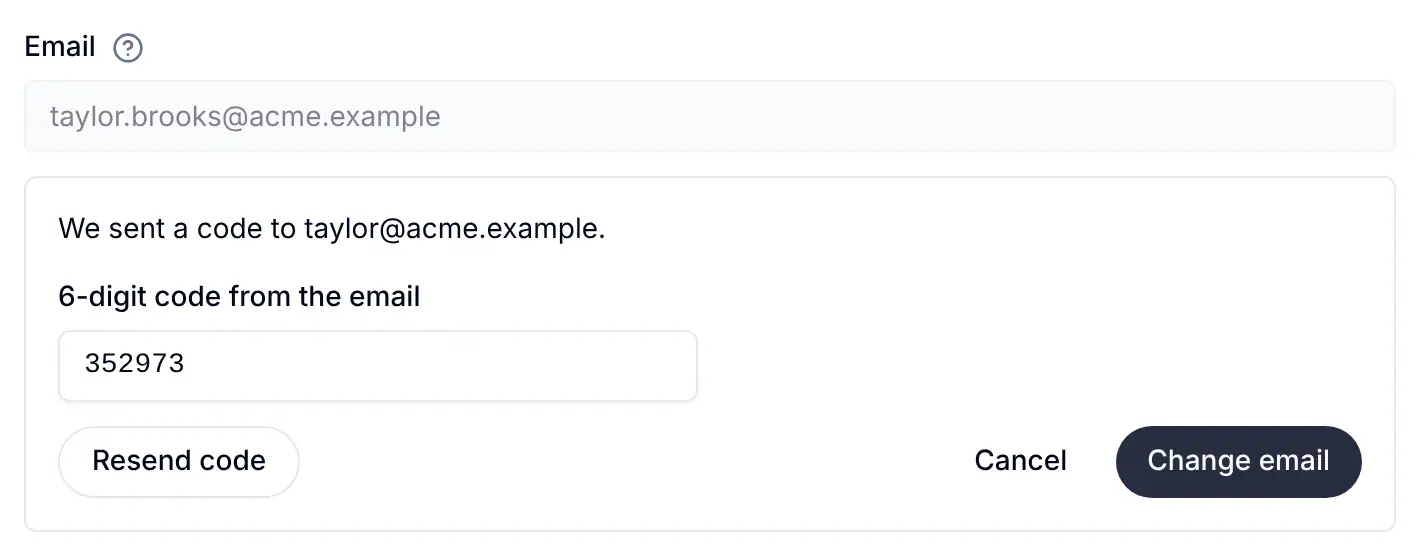
ui.settings.profile.languageand the like. - Email: Change asks for the New email address and emails a 6-digit code there. The email changes only once the person types that code and presses Change email; the old address is told, and they stay signed in. Someone who signs in with Google or another provider can change it too: those sign-ins find the account by the provider's own user ID, so the next one still reaches it. Hide it with
ui.settings.profile.changeEmail: false.
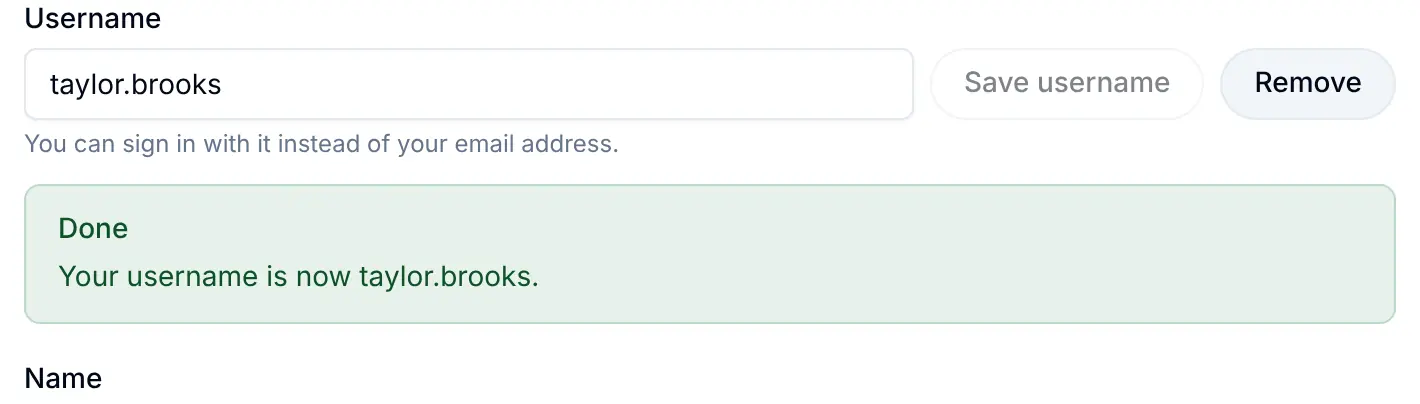
- Username: shown only while usernames are on, under Sign-up, Usernames, Allow usernames in the console (see Usernames). The person can then sign in with it instead of the email.
Security
Password
The person types their Current password and a New password of at least 8 characters, and presses Change password. They stay signed in on this device and are signed out on every other one, and every agent they connected asks for their consent again. Someone who signed up with Google, a code or a link has no password yet: the section says they sign in without one and how to set one with Forgot password?. The section is left out when your app has no Email/Password method.
Phone number
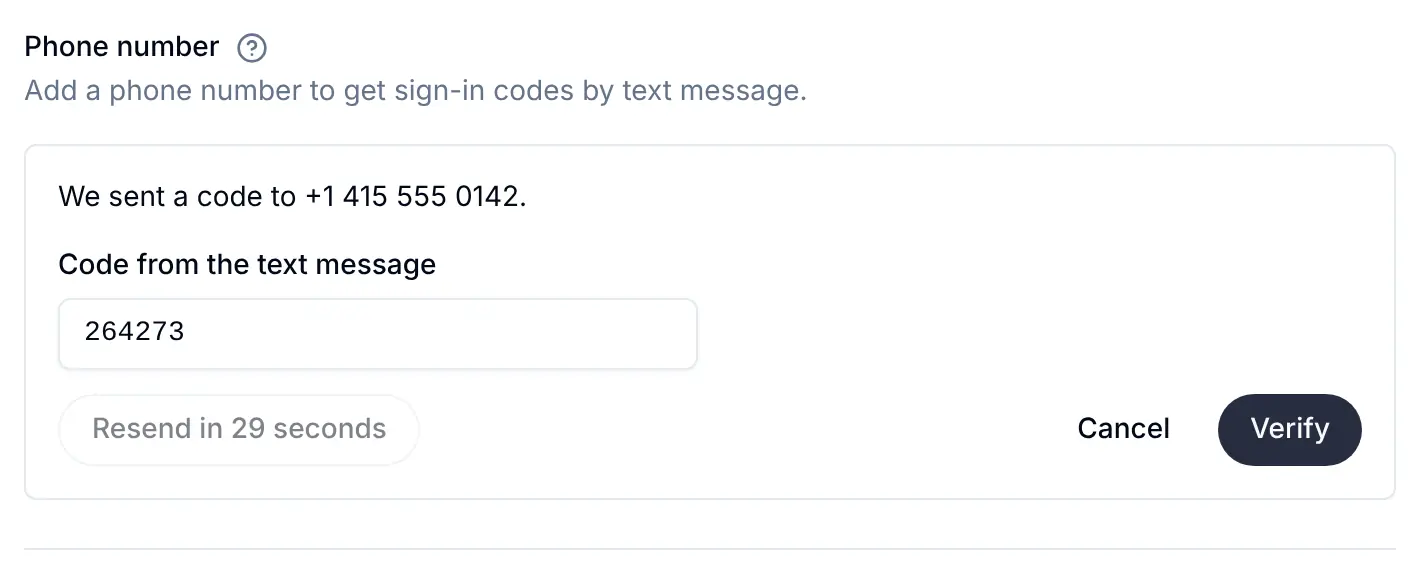
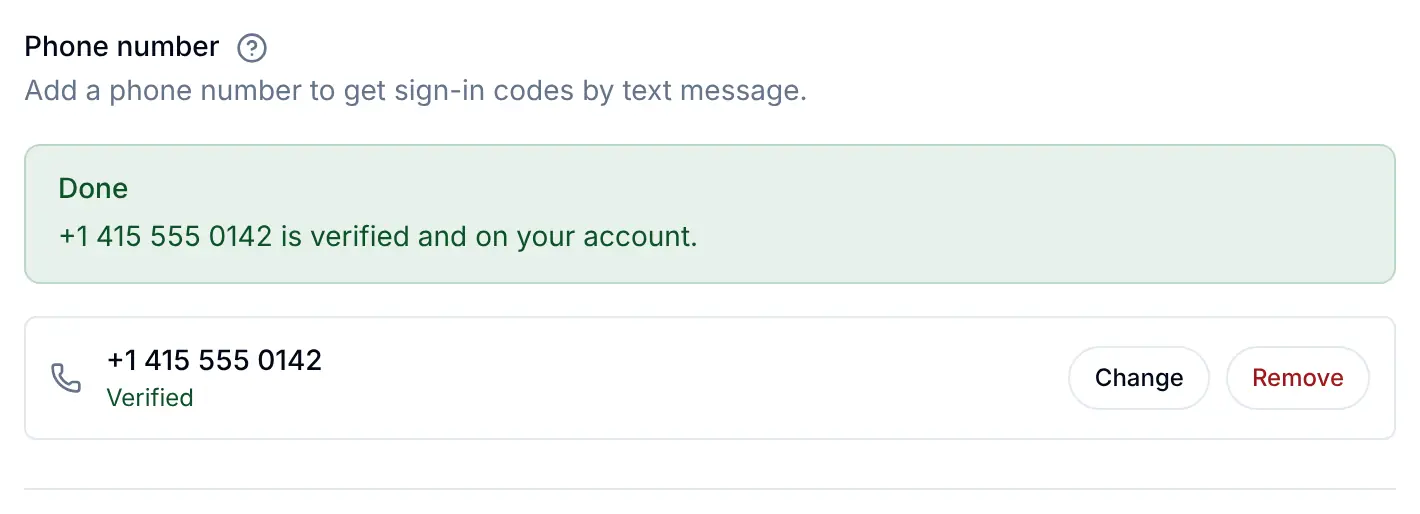
Add phone number asks for the country and number, then texts a code to it. The person types it and presses Verify. A verified number can sign them in by phone and receive text message codes for two-step sign-in. It needs an SMS provider connected on the console's SMS tab.
Two-step sign-in
The authenticator app, backup codes and text message codes. The section follows your policy on the console's Security tab and hides itself while it is Off and nothing is set up. The whole flow is on Two-step sign-in.
Connected accounts
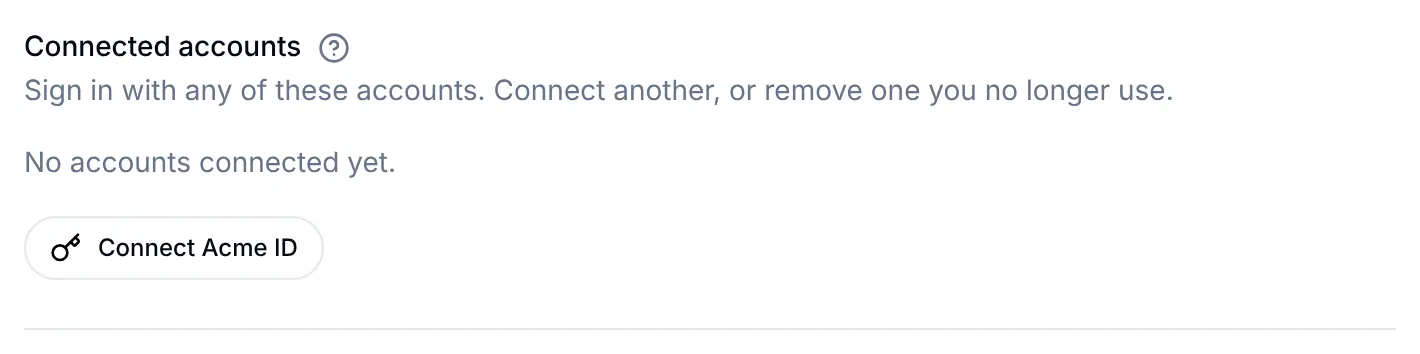
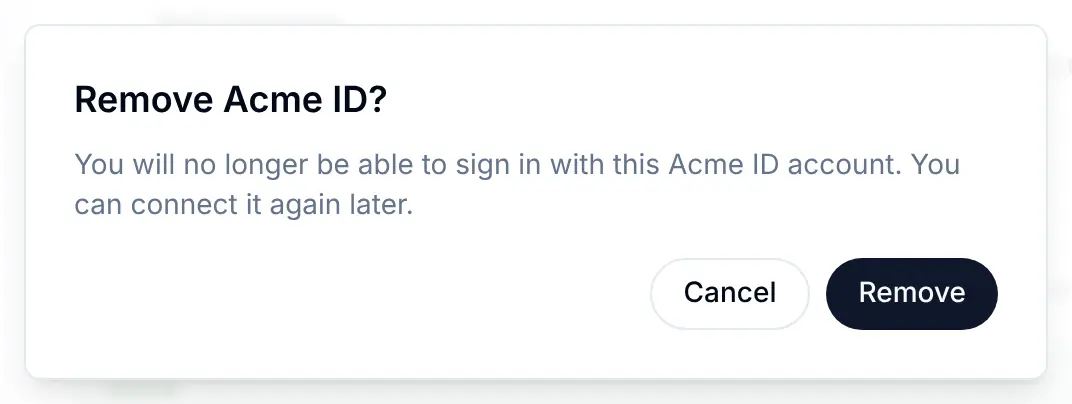
The social accounts (and wallets) linked to the person, each with Remove, and a Connect button for each one your app offers. Connecting opens the provider's own sign-in page and comes back to your app. The screenshots use a custom OIDC provider named Acme ID; with Google it reads Connect Google.
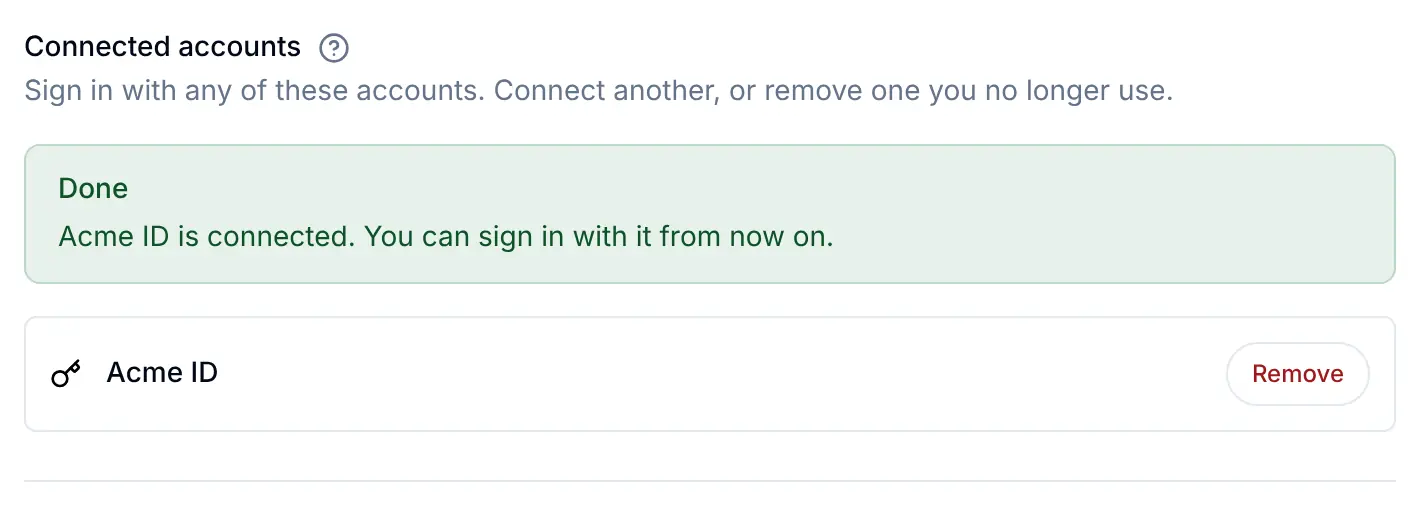
Remove asks first. It needs a sign-in from the last 10 minutes, and the last way a person can sign in cannot be removed.
Passkeys
Each passkey with when it was added or last used, Rename and Remove. Passkeys are added on the sign-in page after a sign-in; see Passkeys.
Signing out everywhere
There is no separate button on the Security screen. Changing the password signs out every other device, the Devices screen signs out one device or one sign-in at a time, and your own button can call signOut({ everywhere: true }), as in the code above, to end every session the person has, and every agent's access with them.
Devices & sessions
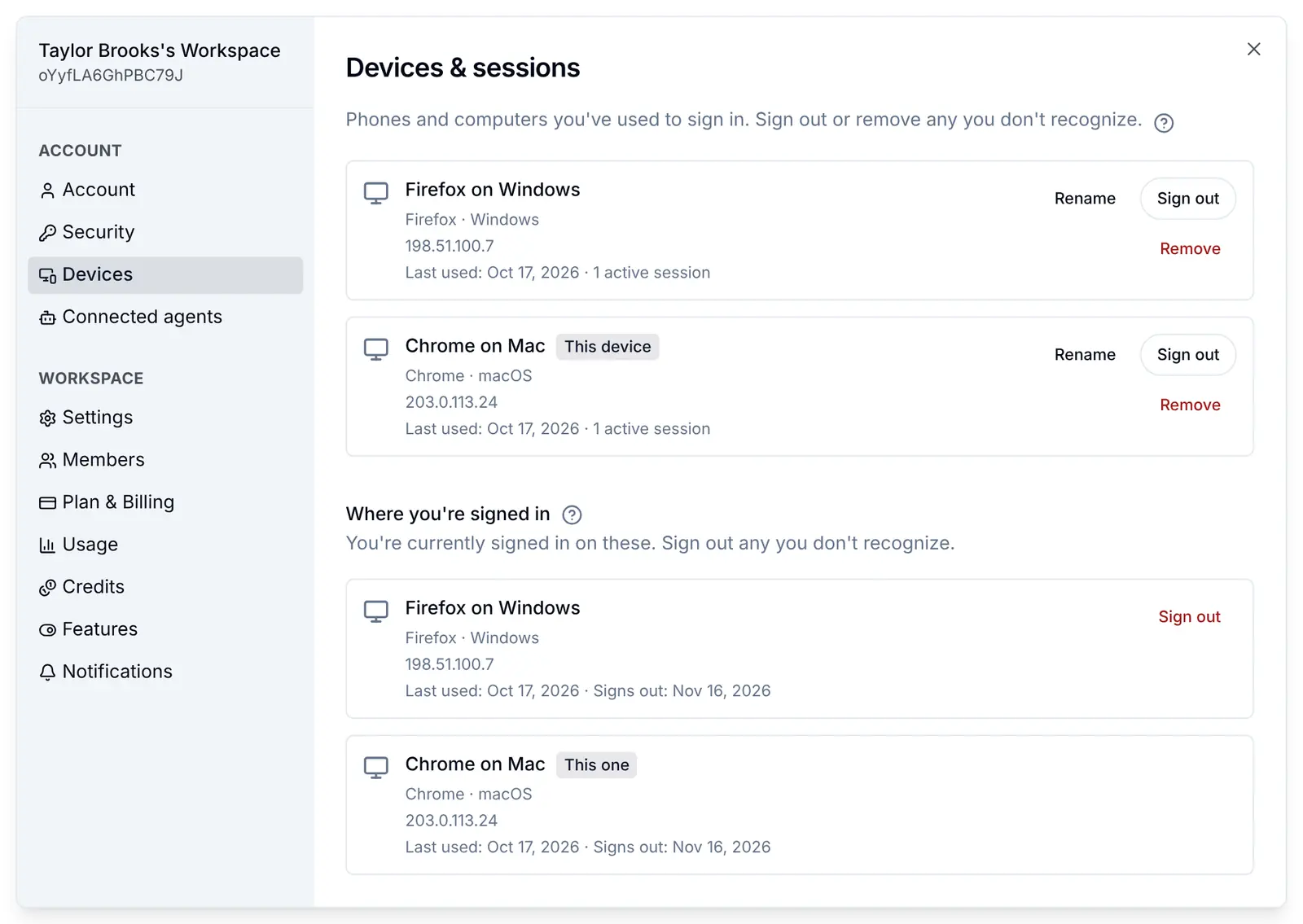
Your devices lists the phones and computers the person signed in from, the one in their hand marked This device, each with Rename, Sign out and Remove. Where you're signed in lists each sign-in, the current one marked This one, with Sign out. Hide the actions with ui.settings.devices.rename, signOut, forget, sessions and sessionSignOut.
Confirm it's you
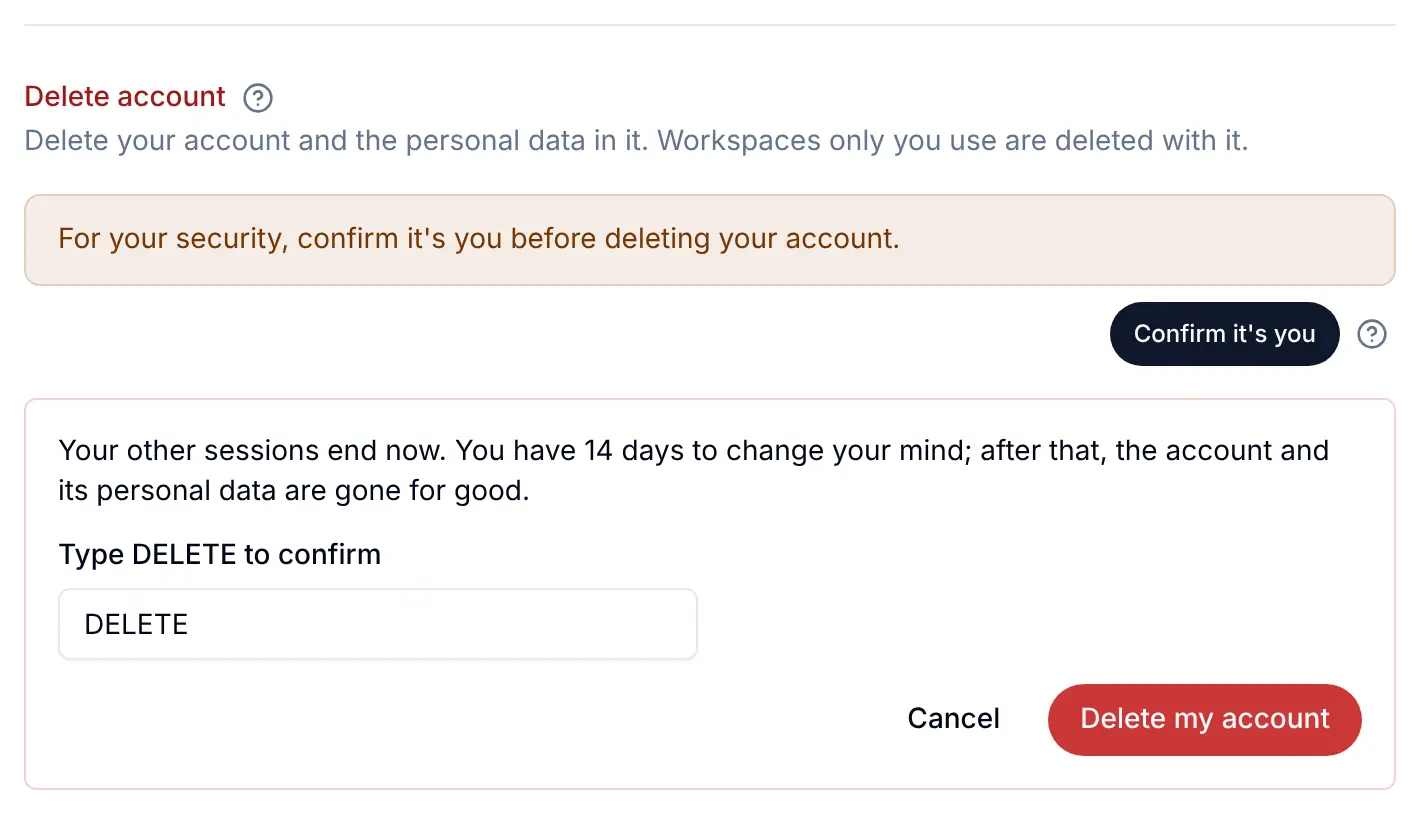
Some changes need a sign-in from the last 10 minutes: removing a connected account or the phone number, turning text message codes off, and deleting the account. On an older sign-in, the section says so and offers Confirm it's you.
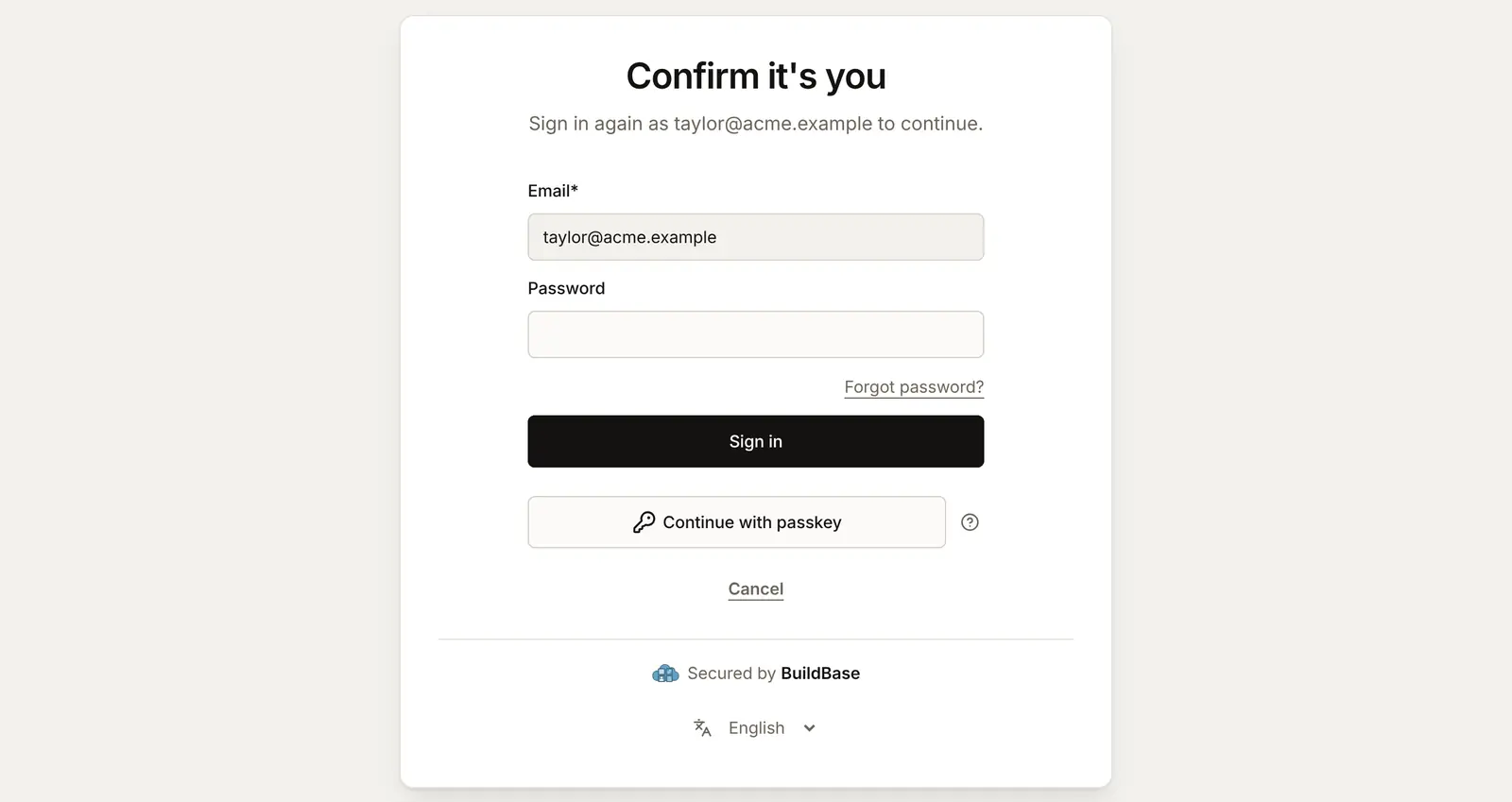
It opens your sign-in page with the person's address filled in. They sign in again with any method your app offers, come straight back, see "Thanks, that's confirmed. You can go ahead now." and make the change again. Nobody is signed out. In your own screens, isReauthRequired(error) spots the same refusal and useSaaSAuth().requireReverification() sends the person to confirm; see Confirm it's you.
Deleting the account
The Grace period is yours to set: on the console's Security tab, in the Account deletion card, from 0 to 30 days, 7 by default. 0 deletes at once.
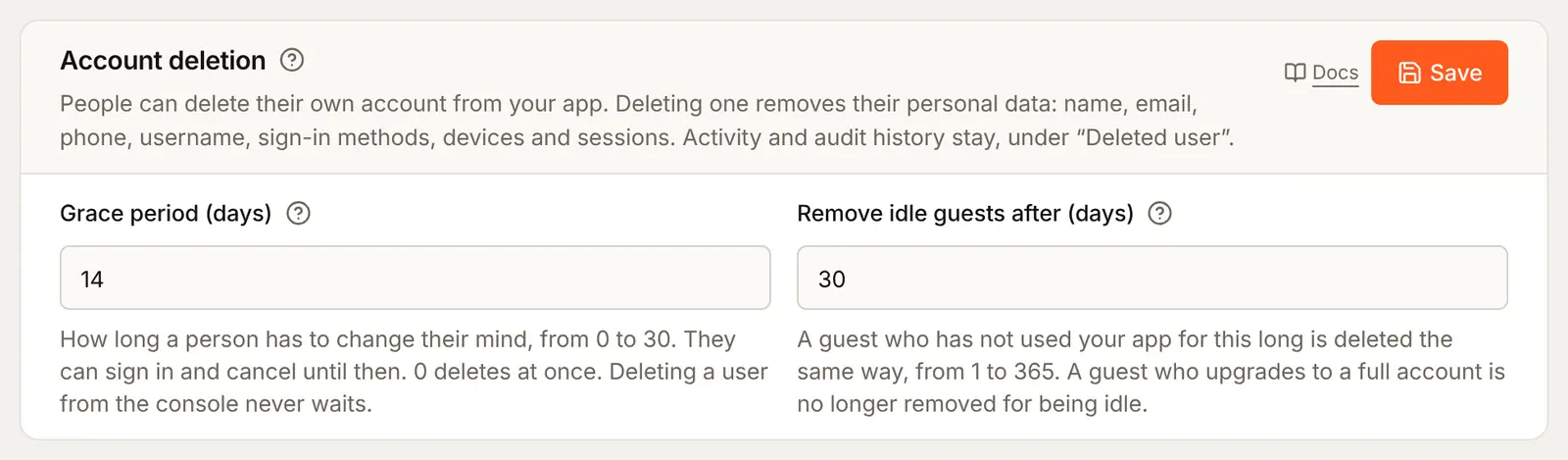
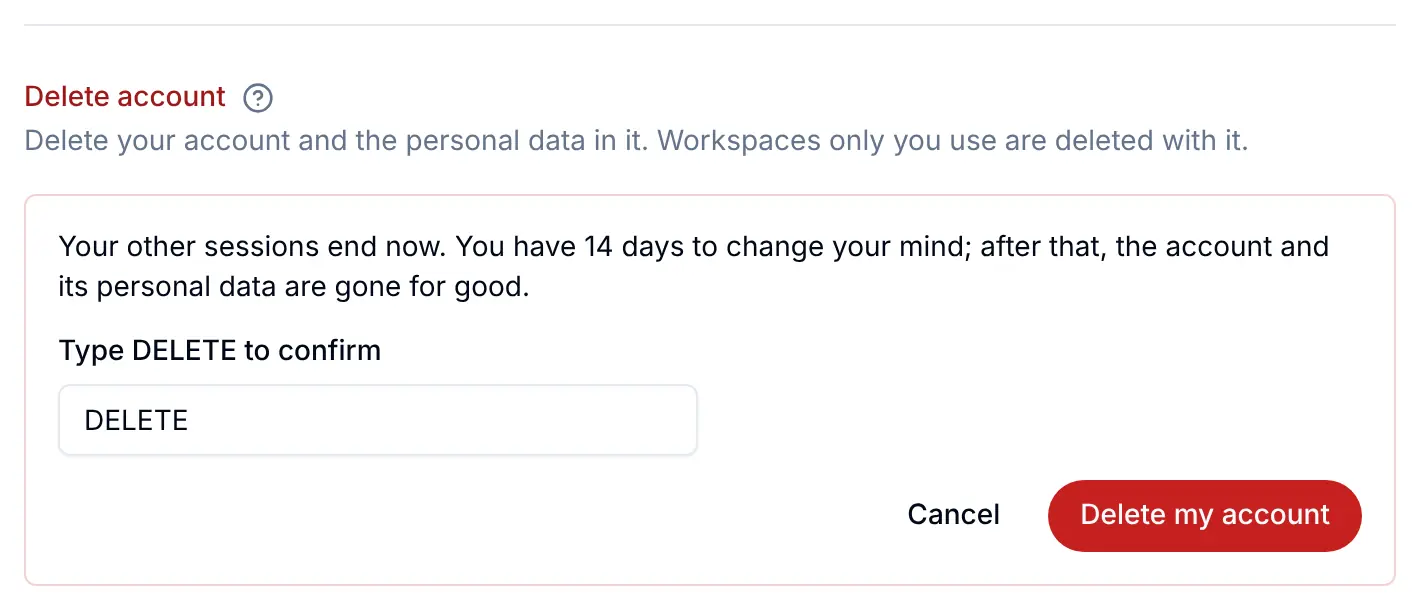
- At the bottom of the Security screen, the person presses Delete account. The warning names your grace period.
- They type
DELETEand press Delete my account.
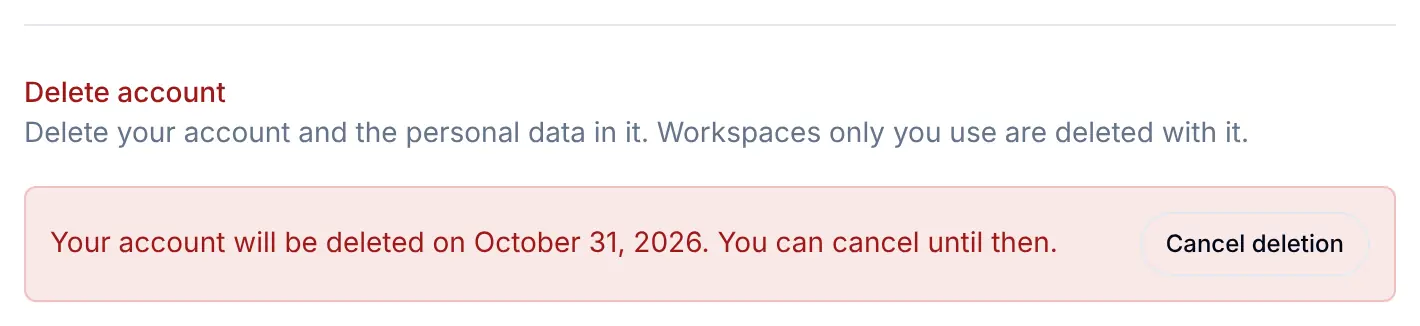
- Their other sessions end at once. Until the date, a notice at the top of every screen of the dialog says when the account will be deleted, with Cancel deletion, and they can still sign in and cancel.
If the person owns a workspace that has other members or a subscription, the deletion is refused: the section lists those workspaces and says to remove the other members and cancel the subscription, or delete the workspace, then try again. Hide the section with ui.settings.security.deleteAccount: false.
Which sections follow a console setting
| Section | Shows when | Where in the console |
|---|---|---|
| Username | Usernames are on, or the person already has one | Sign-up tab, Usernames |
| Password | Your app has the Email/Password method | Methods tab, ticked on the app in Settings |
| Phone number | Always; adding a number needs an SMS provider | SMS tab |
| Two-step sign-in | The policy is Optional or Required, or the person set one up before | Security tab, Two-step sign-in |
| Text message row | Text message codes is ticked and a provider is connected | Security tab and SMS tab |
| Connected accounts | Your app offers a social provider or wallets, or the person has one connected | Methods tab, ticked on the app |
| Passkeys | Always; adding one needs the Passkey method on your app | Methods tab |
| Delete account | Always; the waiting time is yours | Security tab, Account deletion |
Check it works
- Your button opens the dialog at Account, Security and Devices.
- A test account changes its email with the emailed code.
- The Security screen shows the sections your console settings call for.
- Devices marks the browser you are in as This device.
- Delete my account names your grace period, and Cancel deletion keeps the account.
Things to watch out for
- Hiding a section does not switch it off.
uionly hides it. What the person may do is still decided by BuildBase, through the API too. - Some changes need a sign-in from the last 10 minutes. Removing a connected account or the phone number, turning off text message codes and deleting the account all ask for one. A sign-in-as session from the console never counts.
- The last way in cannot be removed. A person with only Google, for example, cannot remove Google until they add a password, a passkey or another provider.
- Deleting is refused for owners of shared workspaces. Someone who owns a workspace with other members or a subscription is told to remove the members and cancel the subscription, or delete the workspace, first.
- A grace period of 0 deletes at once. There is then no Cancel deletion.
- The Password section needs the Email/Password method, and adding a phone needs an SMS provider. Without them the sections are left out or say why.
If something goes wrong
| What the person sees | Why | What to do |
|---|---|---|
| "That is already your email address." | The new address is the current one | Type a different address |
| "This app does not send codes by text message, so a phone number cannot be added here." | No SMS provider, or no phone sign-in | Connect a provider on the SMS tab |
| "This is the only way you can sign in. Add another sign-in method before removing it." | It is the person's last way in | Add another way first, such as a password or a passkey |
| "Two-step sign-in sends codes to this number. Turn off text message codes before removing it." | The number is their second step | Turn off text message codes first |
| "For your security, confirm it's you before deleting your account." | The sign-in is older than 10 minutes | Press Confirm it's you |
| "That account is already connected to a different account here, so it was not connected to this one." | The provider account belongs to another user of your app | Sign in to that account, or use another provider account |
| "The provider did not allow the connection, or it was cancelled. Nothing was changed." | The person cancelled on the provider's page, or it refused | Try again |
| "Your profile couldn't be loaded. Please try again." | The connection dropped | Press Retry |
Next steps
- Two-step sign-in - the policy and every step of setting it up.
- Confirm it's you - asking for a fresh sign-in in your own screens.
- Deleting accounts - what deletion removes and keeps.
- Set up sign-in, step by step - every sign-in guide, and the order to set them up in.