
Set up Ethereum and Solana wallet sign-in
Let people sign in and sign up by signing a free message with an Ethereum or Solana wallet, and connect a wallet to an account they already have.
Wallet sign-in lets people sign in with the crypto wallet in their browser, such as MetaMask for Ethereum or Phantom for Solana, instead of a password. The sign-in page asks the wallet to sign a short message. Signing proves the person holds the wallet: it costs nothing, sends nothing and nothing goes on the blockchain. It suits apps whose customers already use a wallet. Someone signing in with a new wallet adds a name and an email address once to finish their account.
Before you start
- A BuildBase plan that includes crypto wallet sign-in. Without one, Wallet shows locked in the console and adding it is refused.
- A connected email sender: a new wallet's account gets a code to confirm its email address.
- Allow public sign-up on, for new wallets to sign up. A wallet that already has an account signs in either way.
Which wallets work
| Works | Does not work yet |
|---|---|
A browser wallet for Ethereum and the networks built like it (EVM networks), injected as window.ethereum | WalletConnect, the QR code that links a phone wallet to a desktop page |
A browser wallet for Solana, injected as window.solana, as Phantom does | Smart-contract wallets (ERC-1271): BuildBase checks every signature without the blockchain |
Step by step
- In the BuildBase console, press Users in the left-hand bar (the User management area), then Authentication under Access, and the Methods tab.
- Press Add auth method and choose Wallet.
- Keep the Title
Wallet, or name it. Your users do not see it. - Under Ethereum networks, tick each network a wallet may sign in from. Only Ethereum (1) is ticked at first. Here Base (8453) is ticked too.
| Network | Chain ID |
|---|---|
| Ethereum | 1 |
| Polygon | 137 |
| Base | 8453 |
| Arbitrum One | 42161 |
| Optimism | 10 |
- For any other EVM network, type its chain ID in Other chain IDs, separated by commas, for example
56, 324. - Switch Solana on to offer Solana wallets too. It is off at first.
- Press Create.
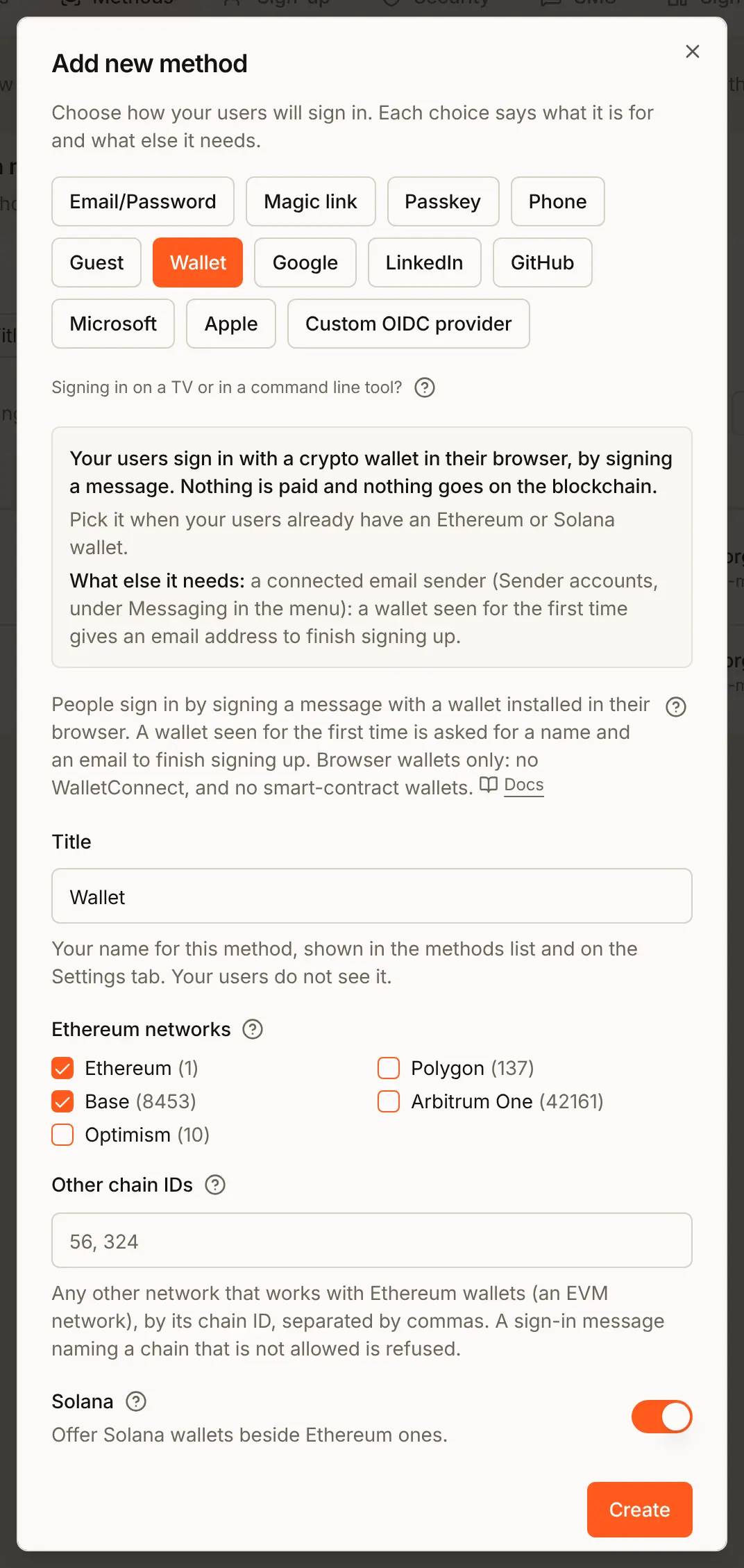
The method has to allow at least one Ethereum network or Solana. The list on the Methods tab names what each wallet method lets in:
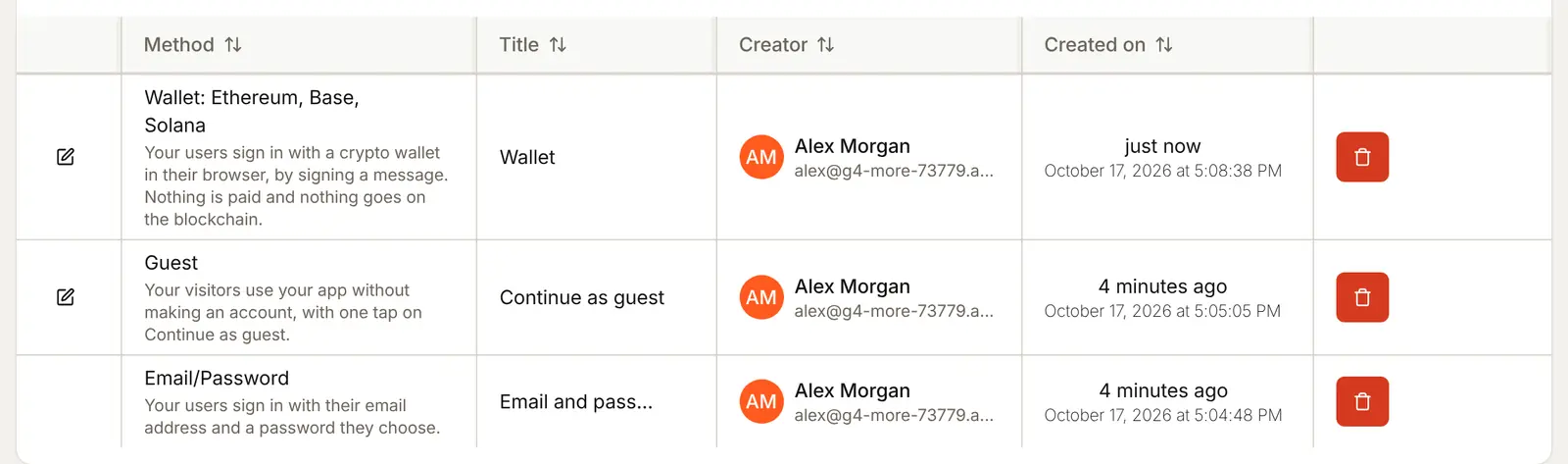
To change the networks later, press the pencil on the row.
Attach it to your app
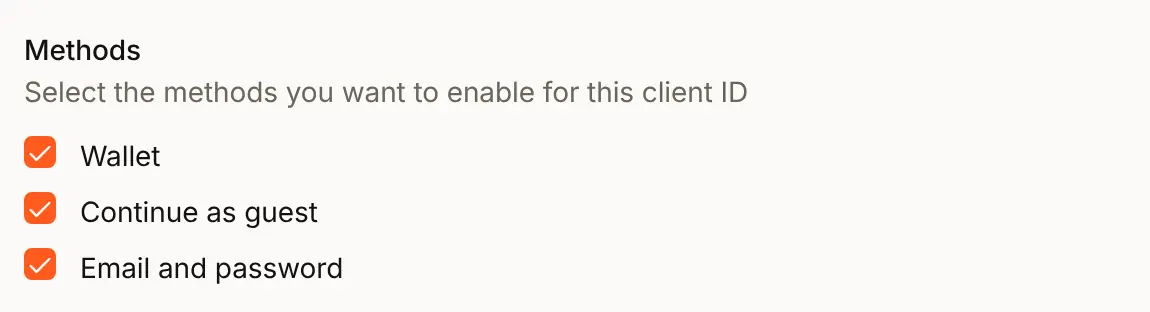
- Open the Settings tab and press Edit on your app, here Acme Analytics.
- Under Methods, tick Wallet and press Update.
Check the preview
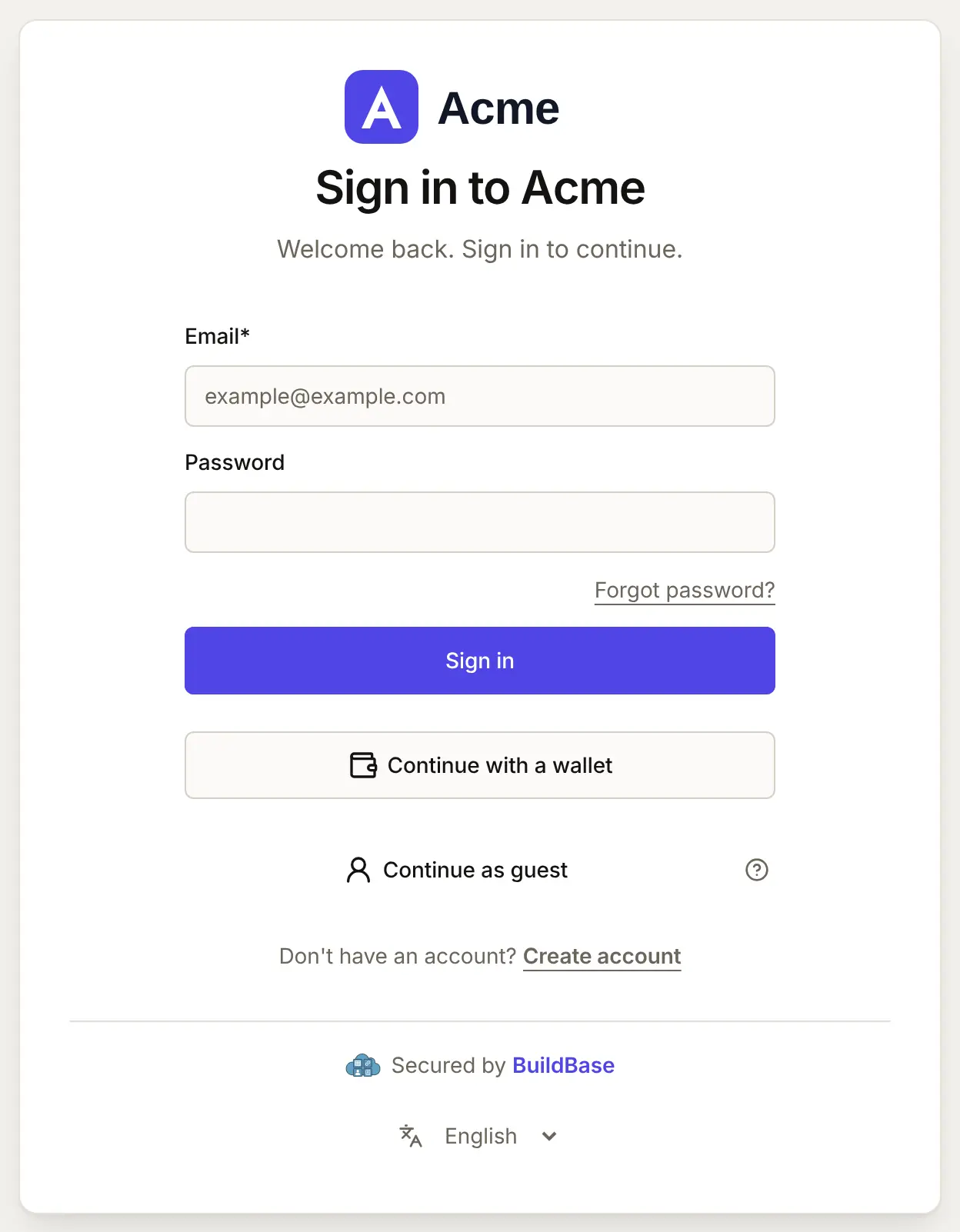
The Sign-in page tab's preview shows your look on a sample card, the same for every app. Press Open the live page for Acme Analytics above it to see the real page, with Continue with a wallet under the form:
What people see
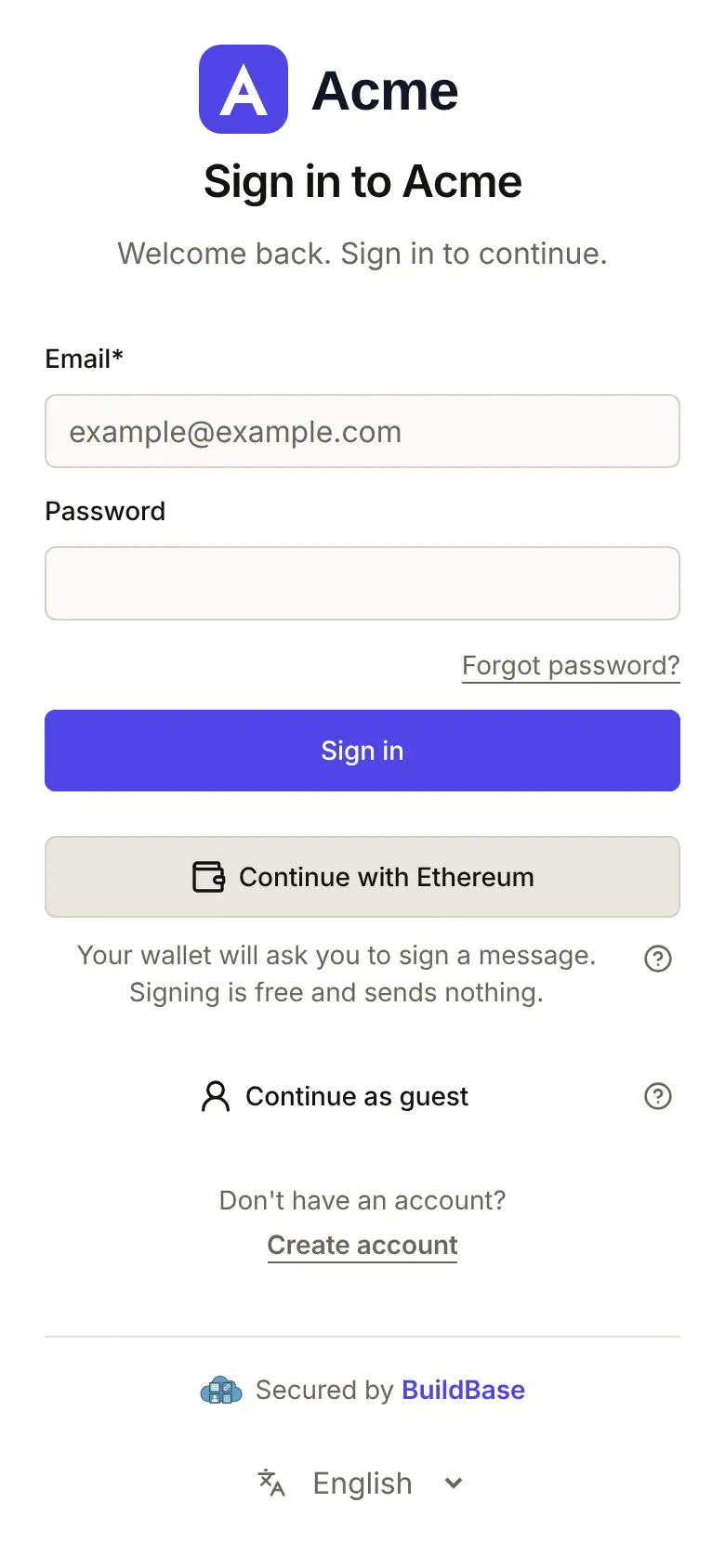
- The person presses Continue with a wallet. The page looks for a wallet in the browser and offers one button per wallet it finds that your method allows: Continue with Ethereum, Continue with Solana or both. The line under it says the wallet will ask them to sign a message, and that signing is free.
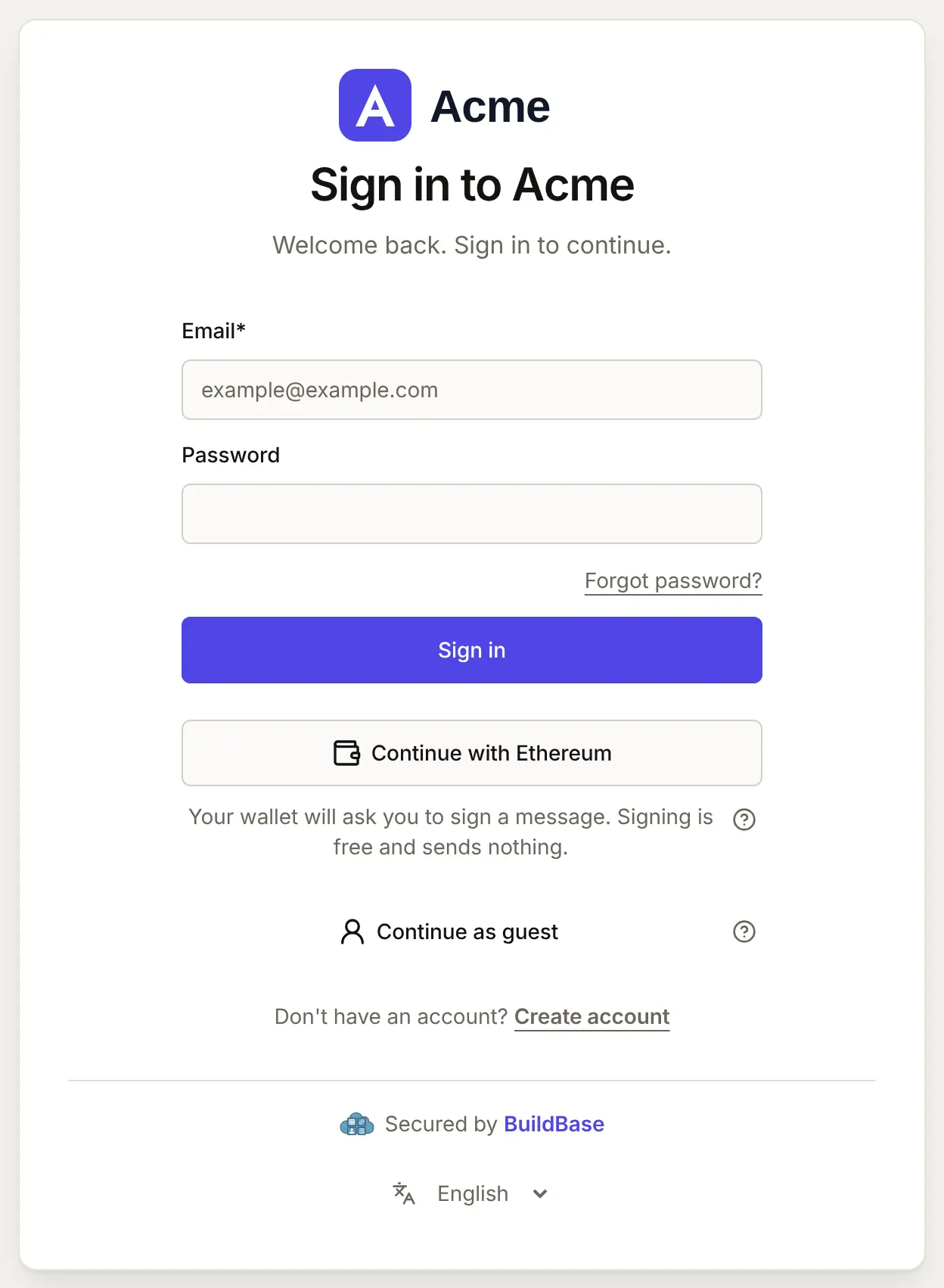
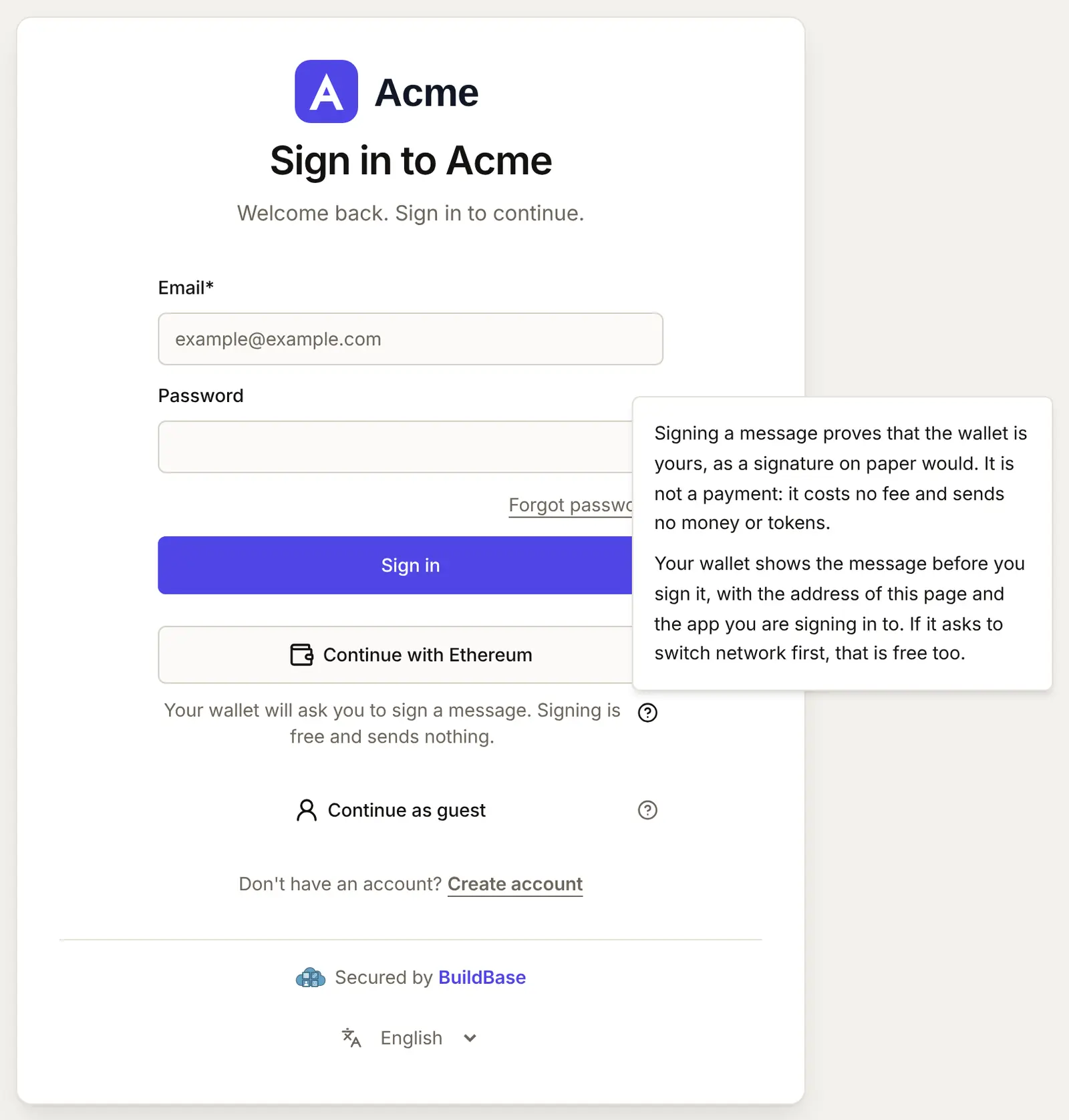
The buttons and notes follow the page's language, in any of the 8 languages it speaks. The question mark beside that line explains what signing means:
- The wallet opens and shows the message. It names your sign-in page and your app, and carries a one-time code (the nonce):
auth.acme.example wants you to sign in with your Ethereum account:
0x72f3e69835b500d6c09a6e8207b1b896370518de

Sign in to Acme.

URI: https://auth.acme.example
Version: 1
Chain ID: 1
Nonce: 5OKkkWl7a8AGxS45RVGqWZrk
Issued At: 2026-10-17T04:59:21.361Z
This is Sign-In with Ethereum (EIP-4361). A Solana wallet signs the same kind of message. If the wallet is on a network your method does not allow, the page asks it to switch first, which is free too.
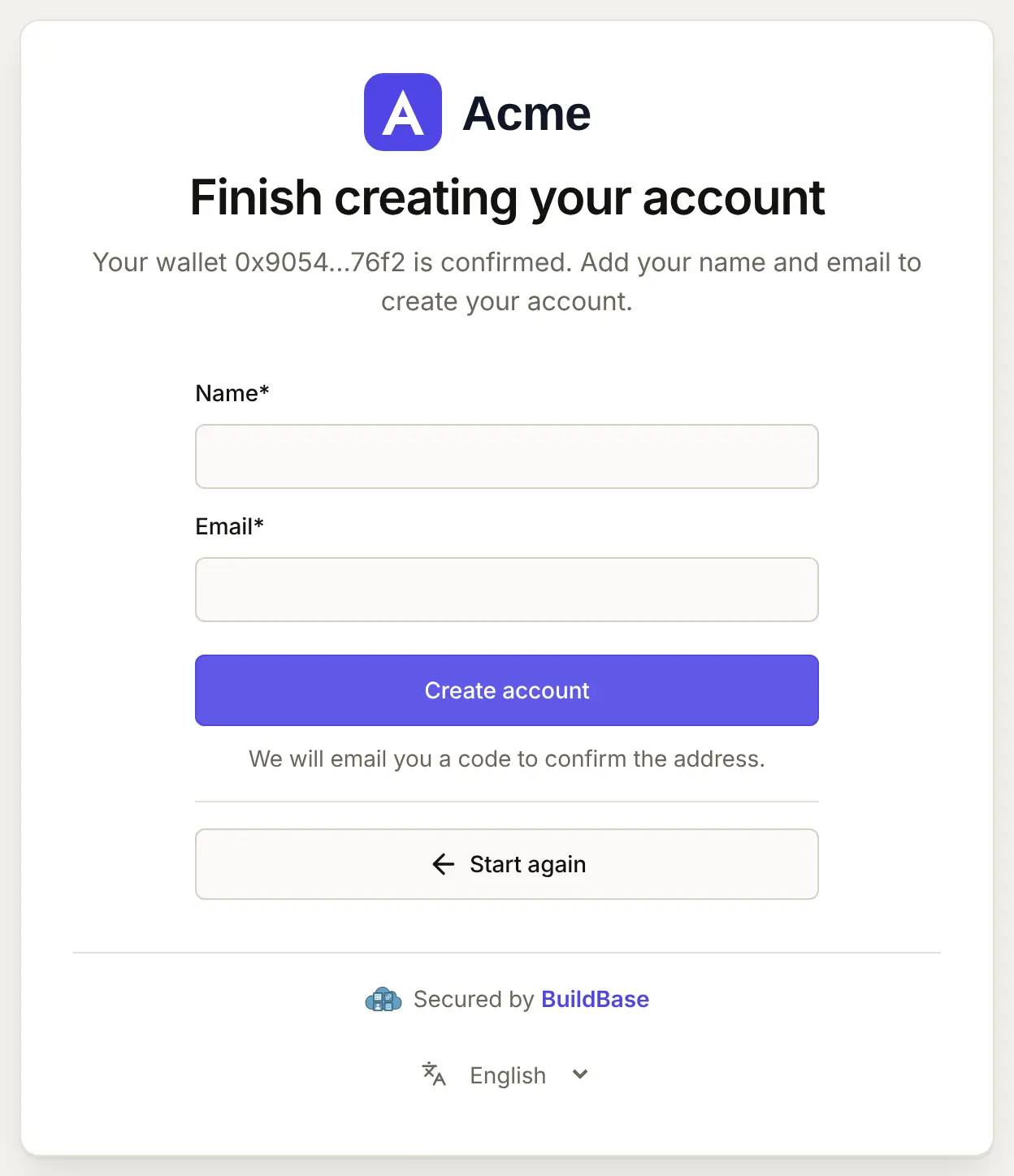
- A wallet already linked to an account signs straight in. A new wallet goes to Finish creating your account, which asks for a name and an email address.
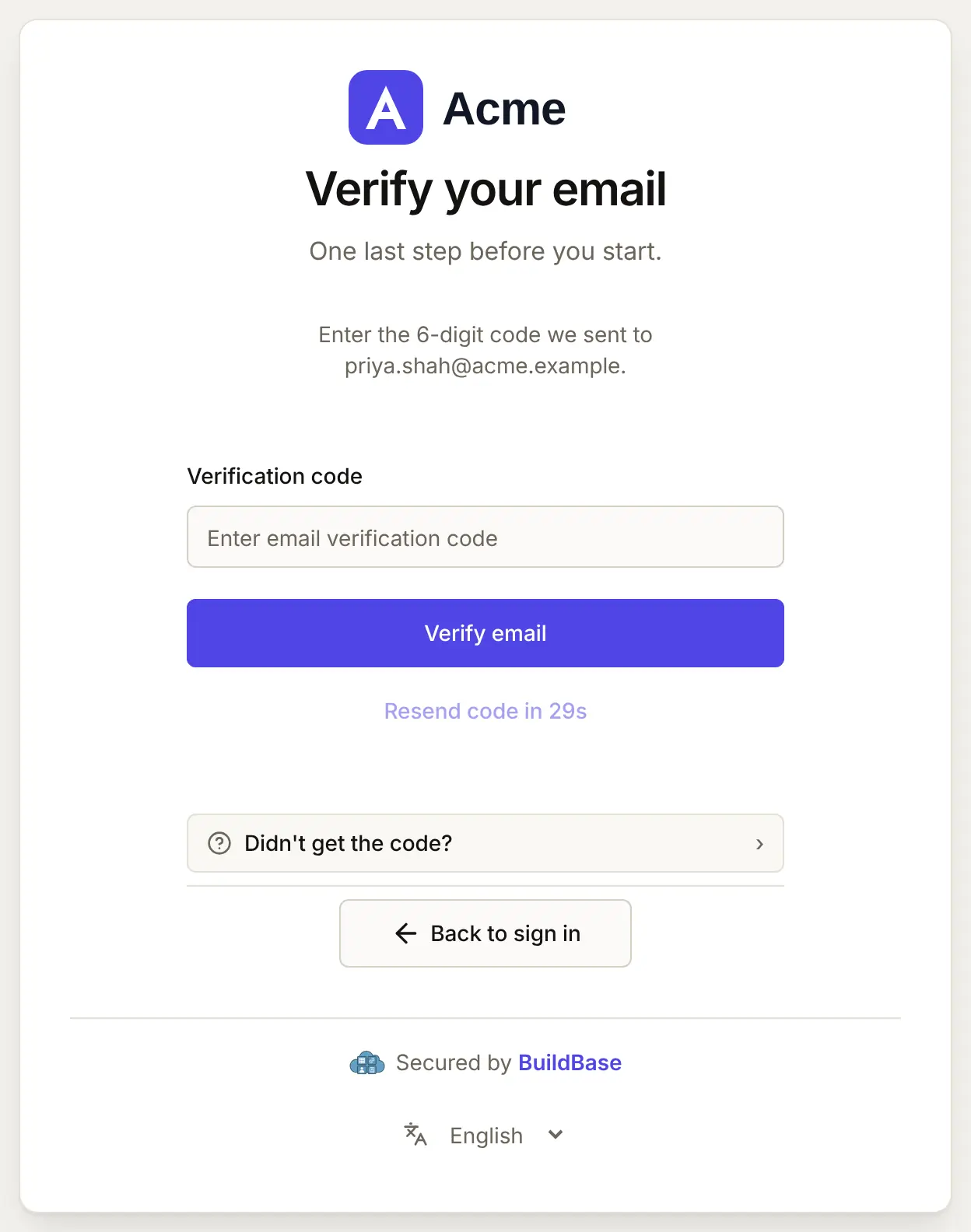
- A code goes to that address, as after any sign-up, and the person types it on Verify your email. Then they are in your app.
An address that already has an account here is refused. Linking the wallet to that account would hand it to whoever holds the wallet, so its owner connects the wallet from inside your app instead (below). The usual sign-up rules hold for a new wallet: who can sign up, disposable addresses if you refuse them, and your plan's end-user limit. Someone with two-step sign-in on is asked for their code after signing, as after a password.
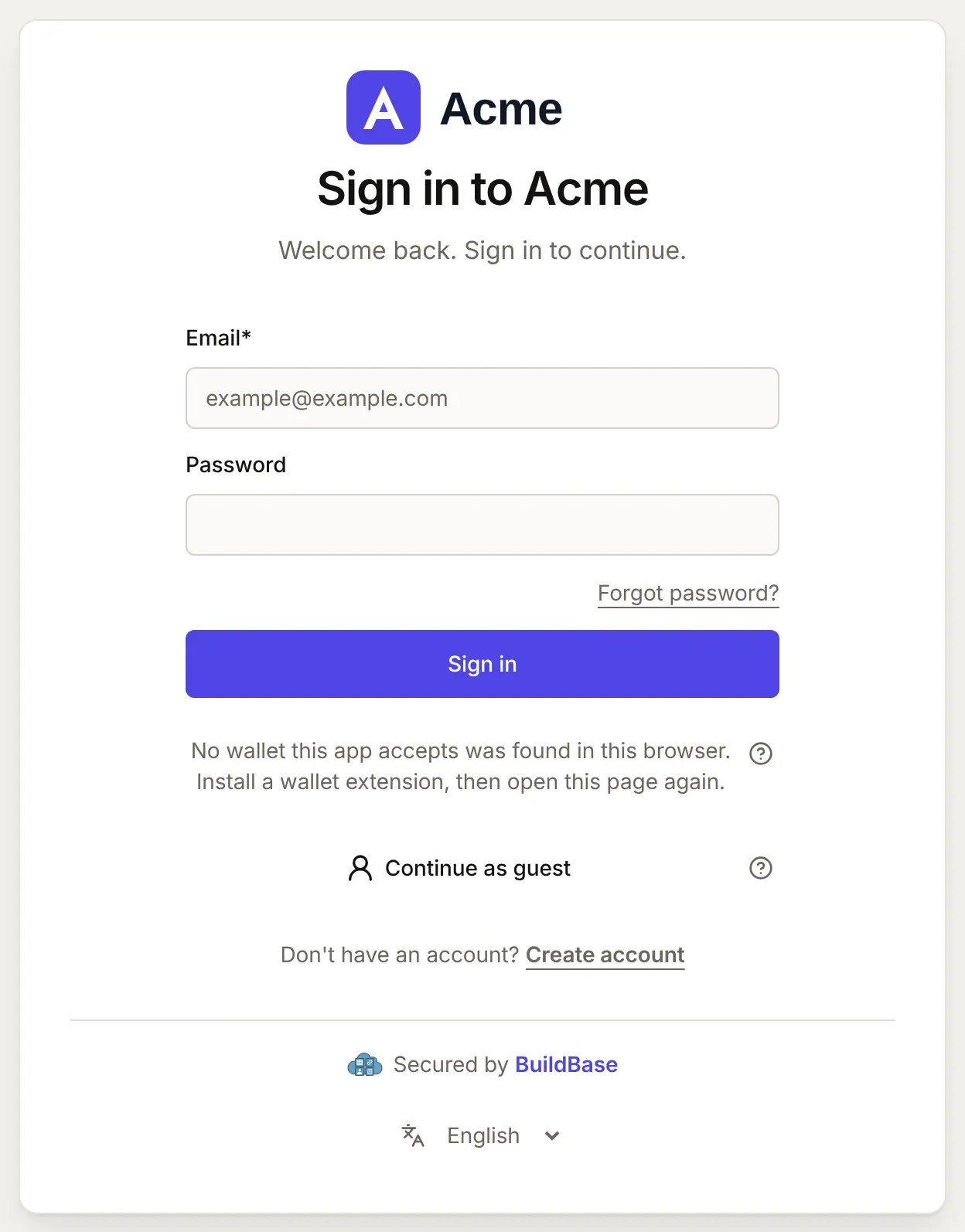
In a browser with no wallet, the page says so:
On a phone, the choice sits under the email form. Wallet sign-in needs a wallet in that browser, such as the browser built into a wallet app.
In your app (SDK)
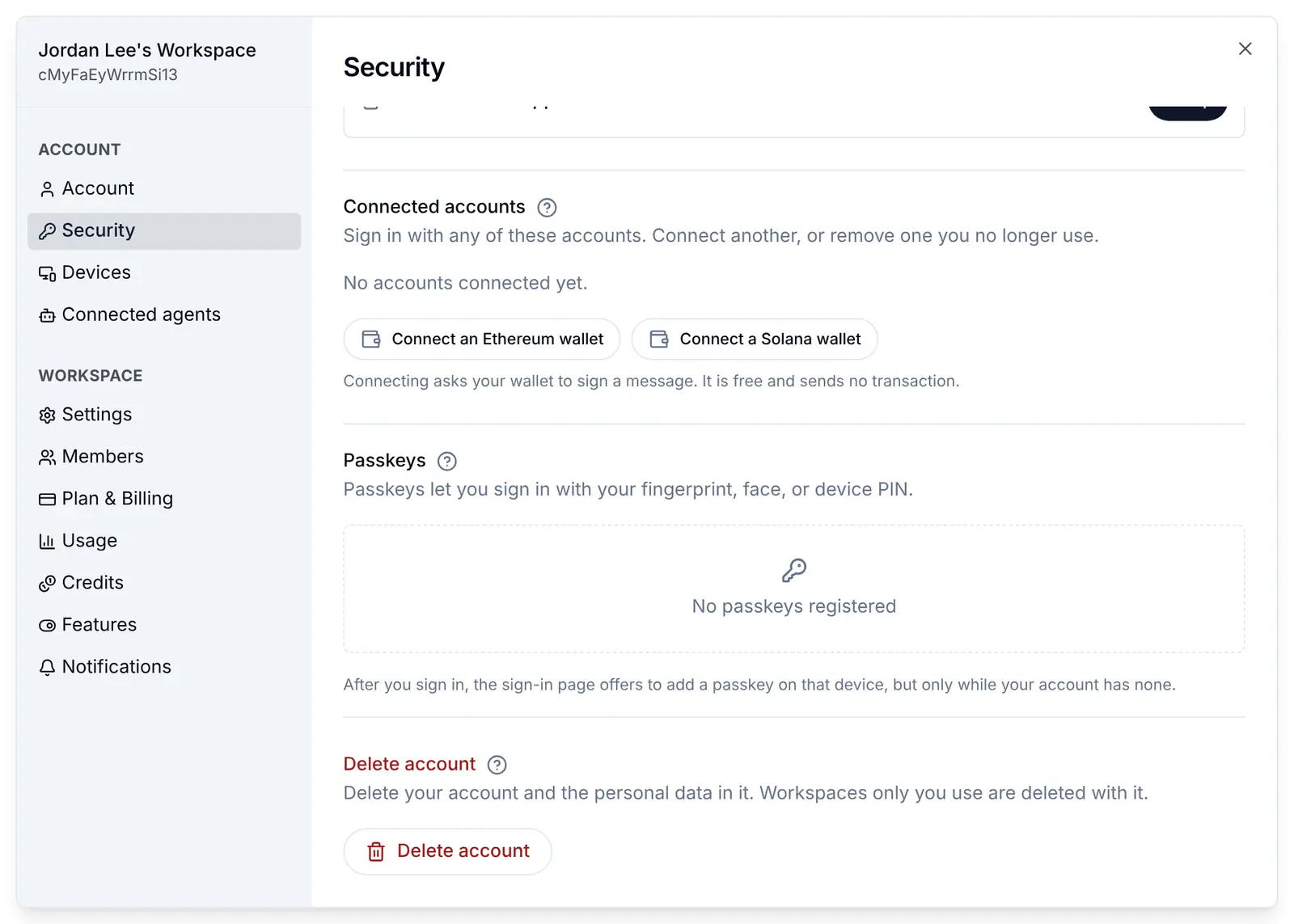
People who signed up another way can connect a wallet to the account they have, from the Security screen of your app's settings dialog. While your app offers wallet sign-in, the Connected accounts section shows Connect an Ethereum wallet and Connect a Solana wallet. This comes with @buildbase/sdk 0.0.90.
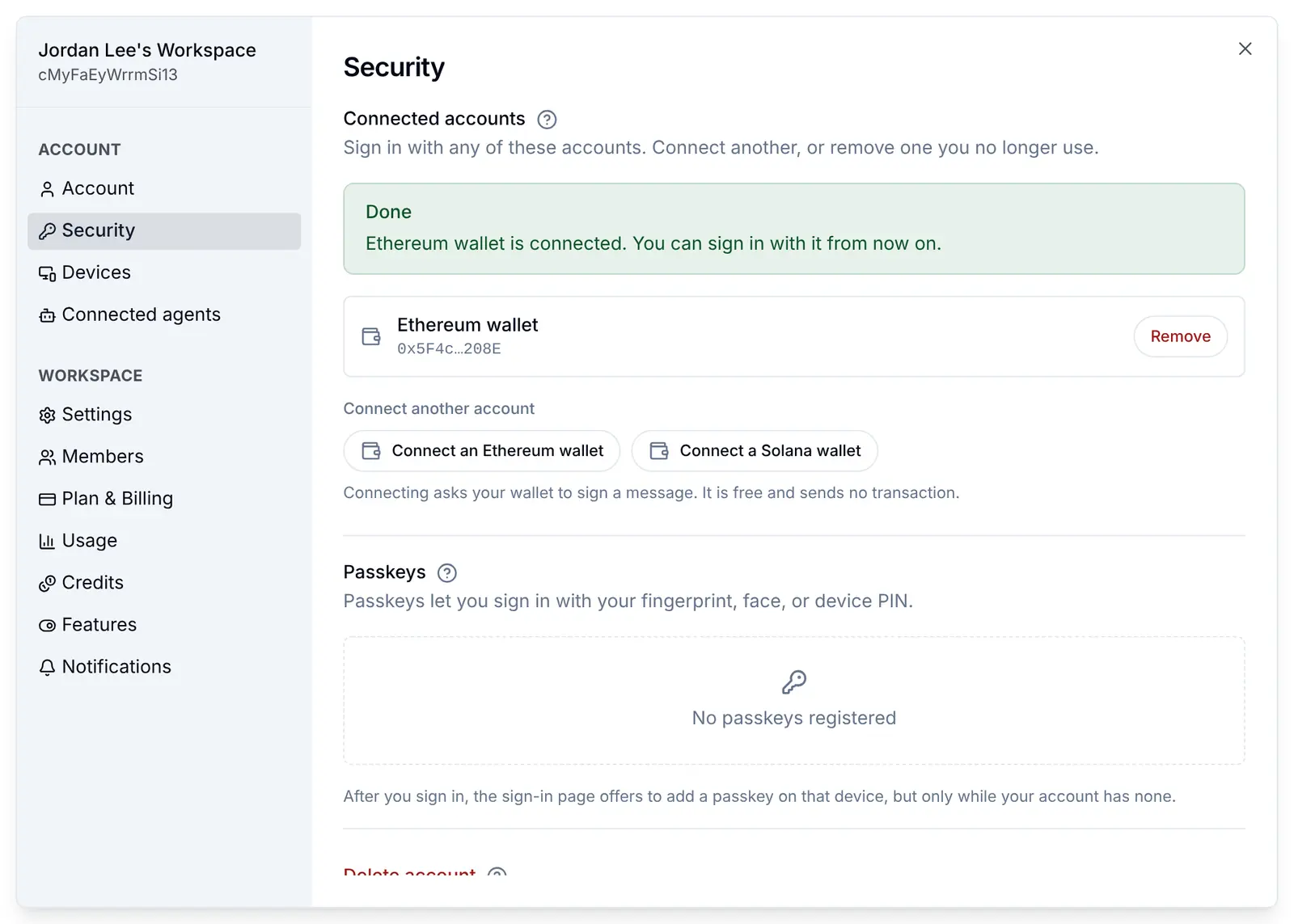
The wallet signs a message, and the wallet is listed by its short address. From then on it signs in to this account.
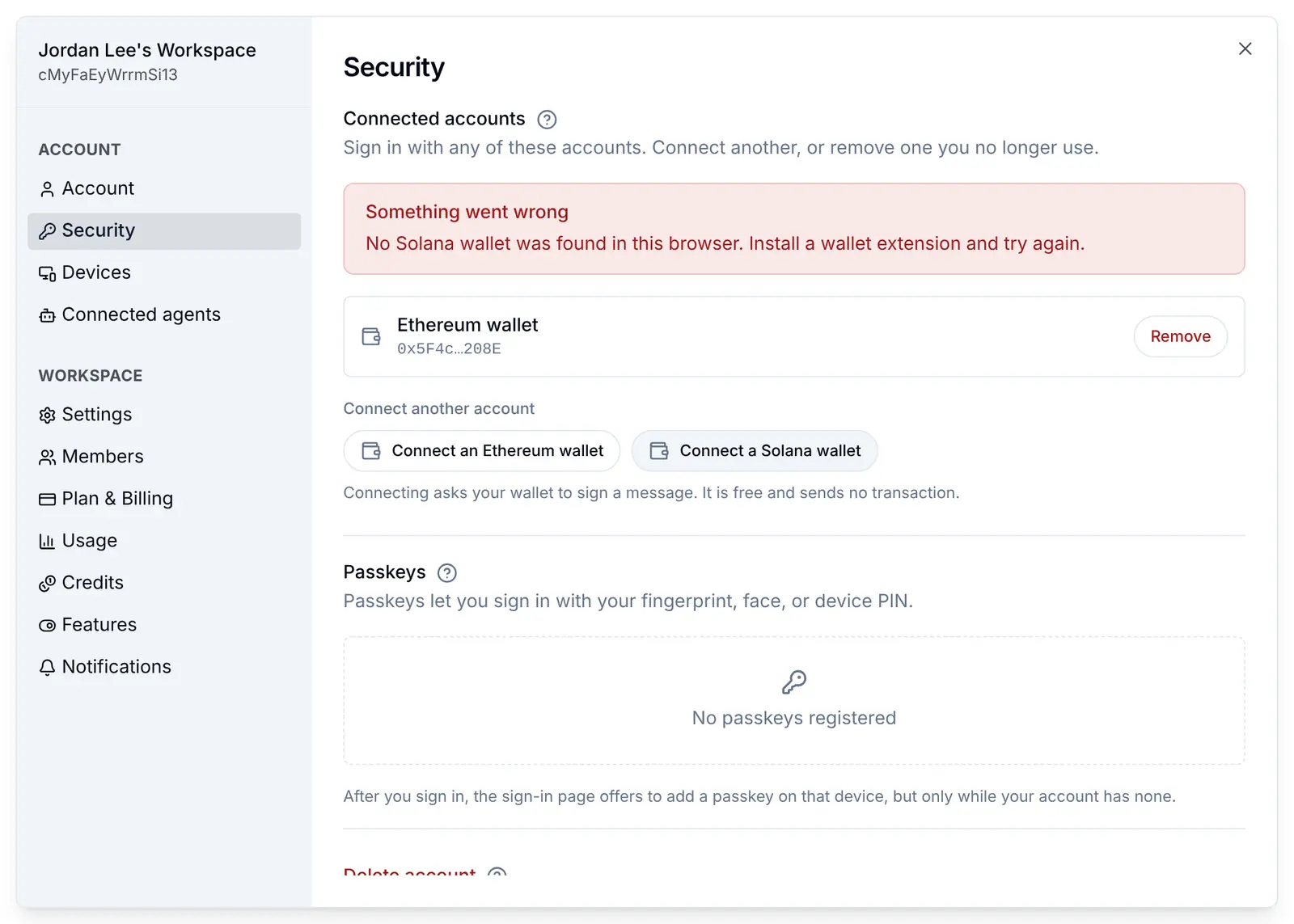
Why connecting happens on your app's own page. A wallet shows the person which website is asking for a signature, and warns when the message names a different one. So the message for connecting names your app's address, not the sign-in page, and BuildBase accepts it only from one of your apps' own addresses: the address of a redirect URL on one of your clients. From anywhere else it is refused with "Connect a wallet from this app's own page." A guest creates an account first.
Open the screen from your own button:
// components/connect-wallet-button.tsx
import { useSaaSAuth } from '@buildbase/sdk/react';

export function ConnectWalletButton() {
  const { openWorkspaceSettings } = useSaaSAuth();
  return (
    <button onClick={() => openWorkspaceSettings('security')}>
      Connect a wallet
    </button>
  );
}
To hide the connect buttons, pass ui={{ settings: { security: { wallets: false } } }} to SaaSOSProvider. For a screen of your own, connectWallet('ethereum', { api }) runs the whole exchange. See Wallet sign-in.
Check it works
- The live page shows Continue with a wallet, and with a wallet in the browser, a button for its chain.
- A new wallet asks for a name and an email, then a code, and lands in your app.
- The same wallet again signs straight in, with no form.
- In your app, Security offers the connect buttons, and a connected wallet is listed by its address.
Things to watch out for
- A signature proves the key, not the person. Whoever holds the wallet's key signs in, and one person can hold many wallets, so a wallet is not proof of one real person. The email address at sign-up is your only way to reach them.
- Smart-contract wallets and WalletConnect do not work yet. Wallets such as Safe sign with a contract (ERC-1271), which BuildBase does not check, and the QR code that links a phone wallet to a desktop page is not supported.
- The sign-in request lasts 5 minutes. A wallet left waiting longer is told "That sign-in request has expired. Try again."
- The message names your sign-in page. Once the page moves to your own domain, the message names that address, and a message that names another address is refused.
- Connecting a wallet works only on your app's own pages. The app's address has to be the address of a redirect URL on one of your clients, or the person sees "Connect a wallet from this app's own page."
- An address that already has an account is refused at wallet sign-up. Its owner connects the wallet from the Security screen instead.
If something goes wrong
| What people see | Why | What to do |
|---|---|---|
| "No wallet this app accepts was found in this browser. Install a wallet extension, then open this page again." | No wallet of a chain your method allows is in this browser | Install one, or sign in another way |
| "Your wallet did not share an account. Unlock it and try again." | The wallet is locked, or the person closed its window | Unlock the wallet and try again |
| "Switch your wallet to a network this app accepts, then try again." | The wallet is on a network your method does not allow, and did not switch | Switch network in the wallet, or allow that network in the console |
| "This app does not take sign-ins from that network." | The signed message names a network the method does not allow | As above |
| "That sign-in request has expired. Try again." | The one-time code is older than 5 minutes, or was already used | Press Continue with a wallet again |
| "The signature does not match that wallet." | The signature is not that address's | Sign again in the same wallet |
| "That email address cannot be used here. Use another, or sign in to the account it belongs to and connect your wallet there." | The address already has an account here, or cannot be used | Sign in to that account and connect the wallet from Security |
| "This sign-up has expired. Start again with your wallet." | The person waited too long on Finish creating your account | Start again with the wallet |
| "That wallet is already connected to another account here." | Connecting a wallet that another account already uses | Remove it from the other account first |
| "Connect a wallet from this app's own page." | The connect request came from an address that is not one of your apps | Add your app's address as a redirect URL on its client |
| "Create your account before connecting a wallet." | A guest tried to connect a wallet | Create the account first, then connect |
Next steps
- Wallet sign-in - what is checked in each signature, and the API.
- Connected accounts - wallets beside social sign-ins, and removing one.
- Continue as guest - the other way to let people in before they give an address.
- Set up sign-in, step by step - every sign-in guide, and the order to set them up in.