
Continue as guest
Let people try your app with one tap on Continue as guest, then keep everything when they add an email address in your app.
Continue as guest puts one more button on your sign-in page. One tap makes a real account with no email address, signs the person in, and takes them into your app. It suits an app people should try before they commit, such as a notes or analytics app with a demo workspace. When the person decides to stay, they add an email address inside your app, and the same account, with everything they made as a guest, becomes an ordinary one.
Before you start
- A BuildBase plan that includes guest users. Without one, Guest shows locked in the console and adding it is refused.
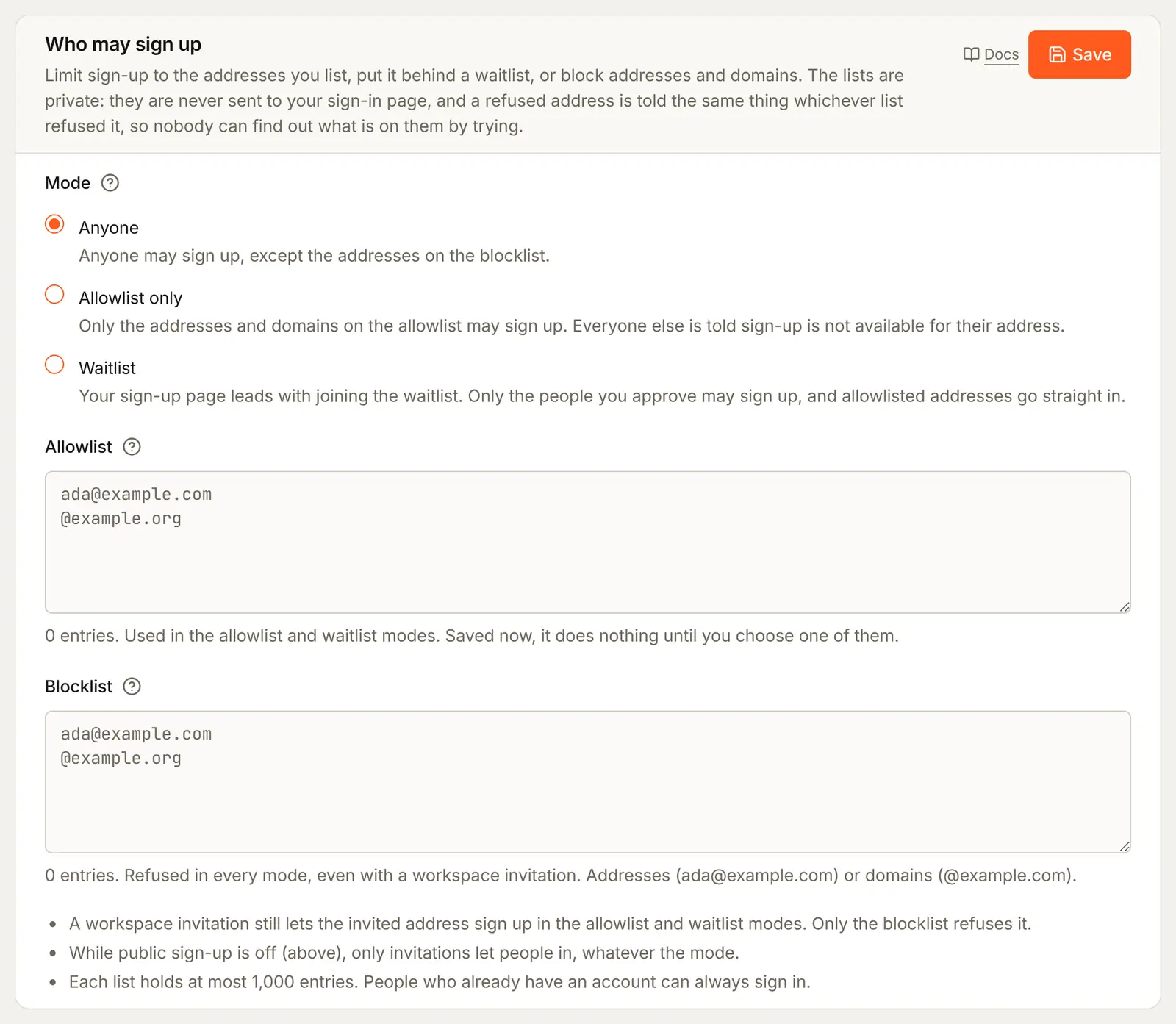
- Allow public sign-up on, and Who may sign up set to Anyone. A guest has no address, so no allowlist or waitlist could name one.
- An email sender, for the code a guest gets when they add their address.
Step by step
- In the BuildBase console, press Users in the left-hand bar (the User management area), then Authentication under Access, and the Methods tab.
- Press Add auth method and choose Guest. The Title is your own name for the method, shown in the console only. Keep
Continue as guest. The button your users see always reads "Continue as guest", in the language the page is showing. - Press Create.
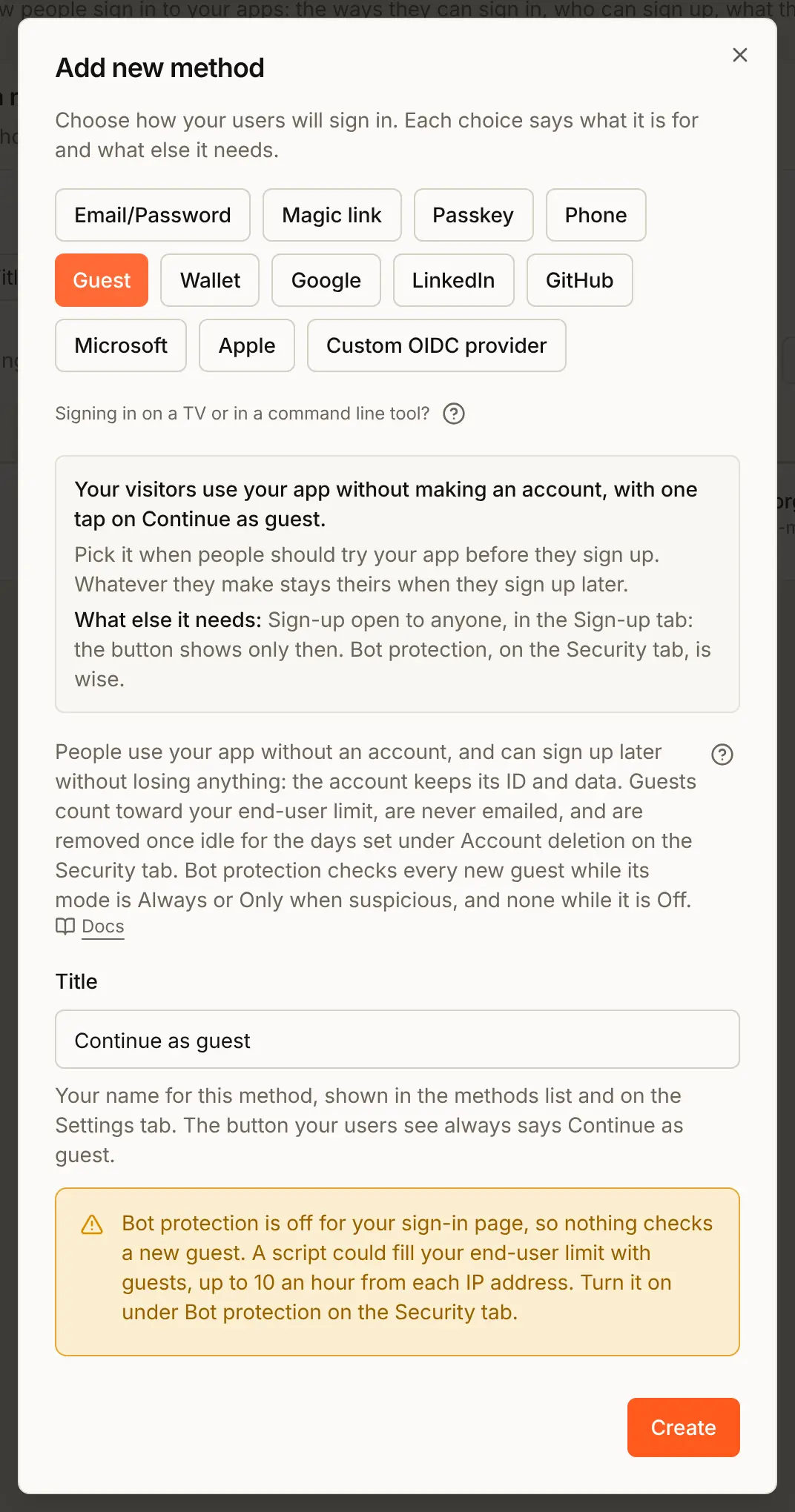
The yellow warning shows while bot protection is off: nothing then checks a new guest, so a script could fill your end-user limit with guests, up to 10 an hour from each network address. Turn bot protection on in the Security tab before you go live.
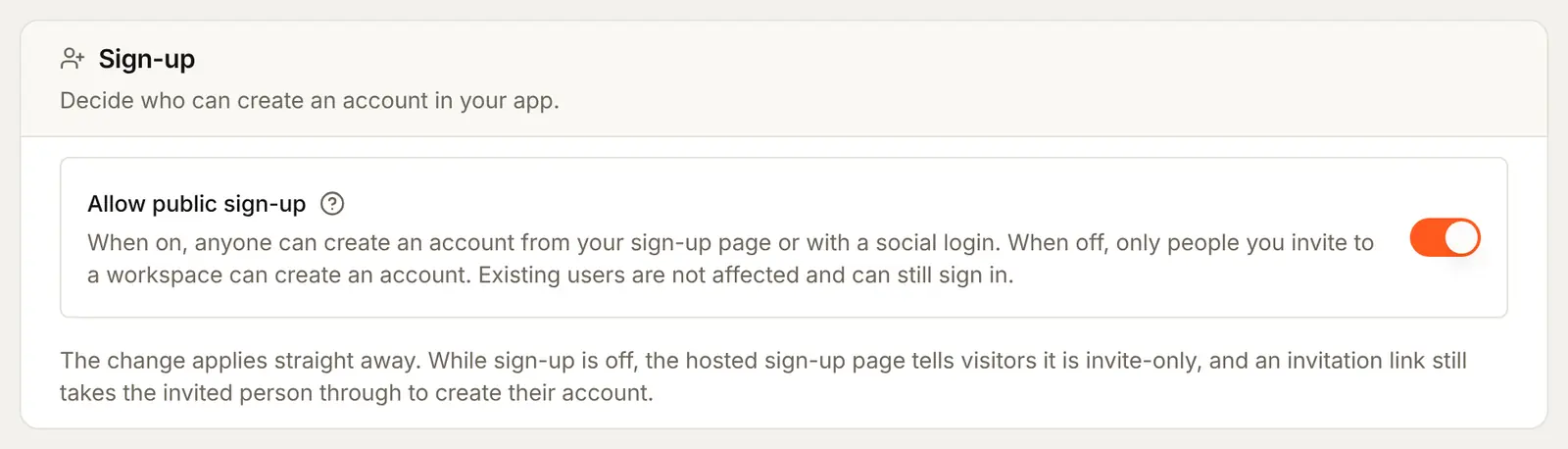
- Open the Sign-up tab and check that Allow public sign-up is on.
- Further down the same tab, in Who may sign up, choose Anyone and press Save. In Allowlist only or Waitlist mode the guest button is hidden.
- Open the Security tab and find the Account deletion card. Remove idle guests after (days) is how long a guest can go unused before the account is deleted, from 1 to 365 days. It is 30 unless you change it. Press Save if you changed it.
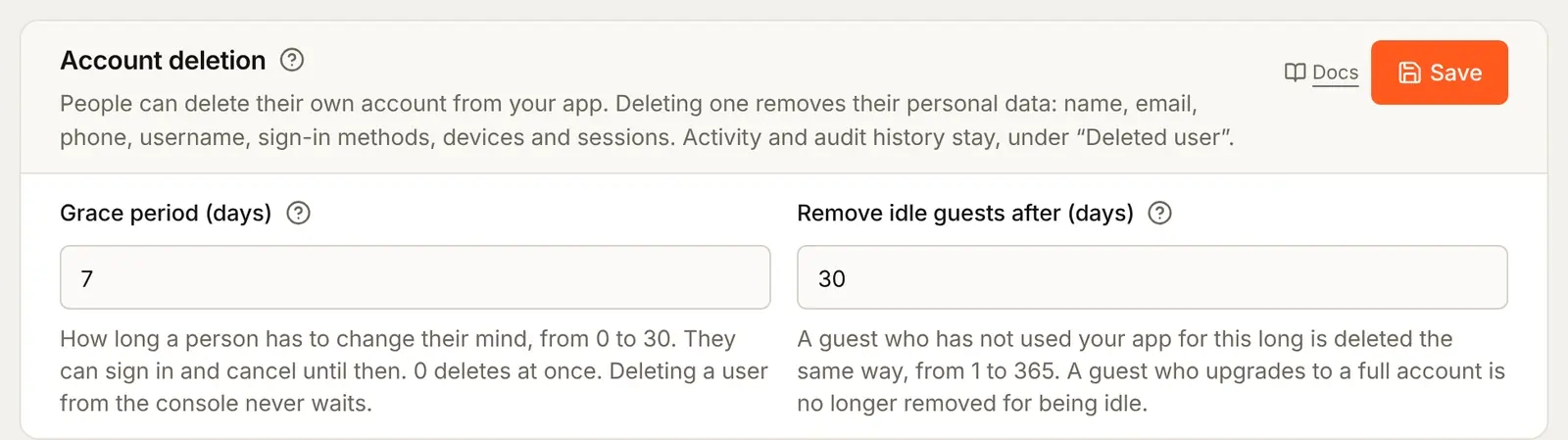
"Unused" means the guest's session was not used: the last-seen time moves at most once an hour while it is. A guest who adds an email address is never removed for being idle. A guest who made a workspace that other people joined is kept, as an account deletion would be.
Attach it to your app
A method shows on the sign-in page only once it is ticked on an app.
- Open the Settings tab and press Edit on your app, here Acme Analytics.
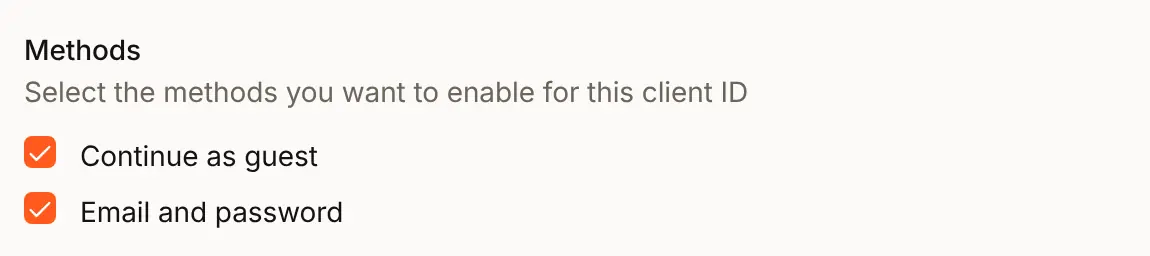
- Under Methods, tick Continue as guest, and press Update.
Check the preview
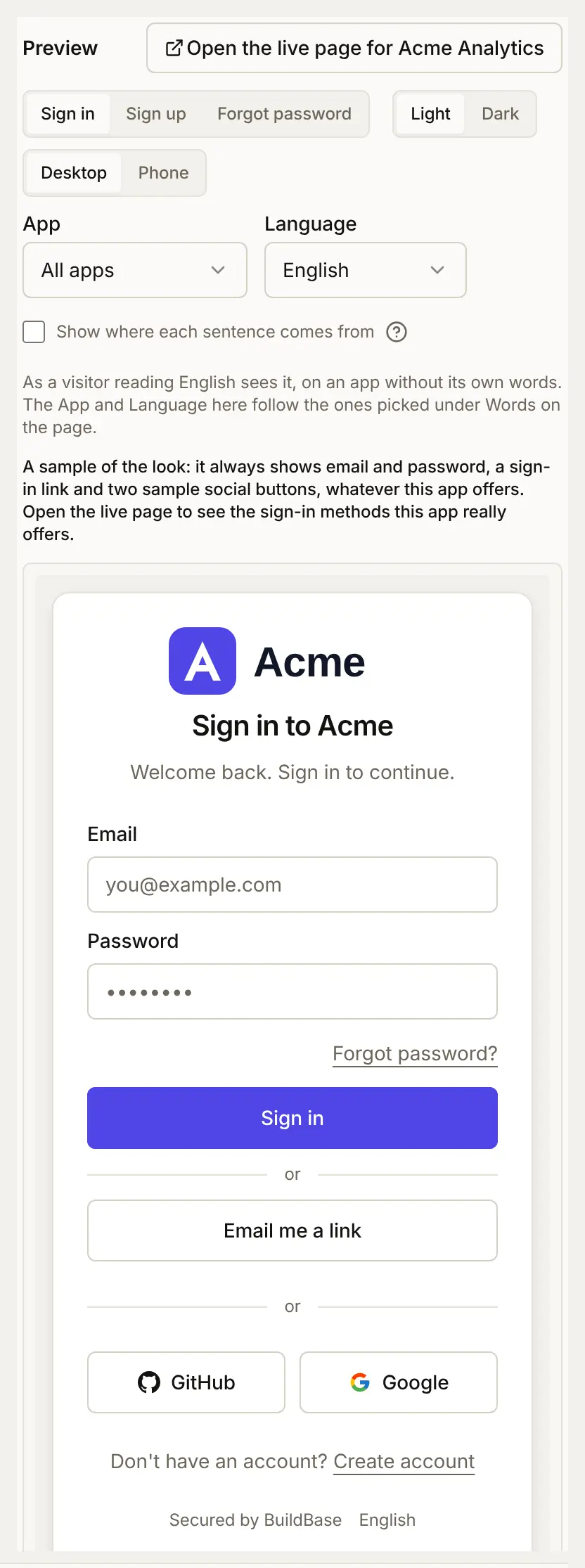
Open the Sign-in page tab. The Preview beside the settings shows your look on a sample card. It draws the same sample buttons for every app, so it does not list your methods. To see the real page with the new button, press Open the live page for Acme Analytics above the preview.
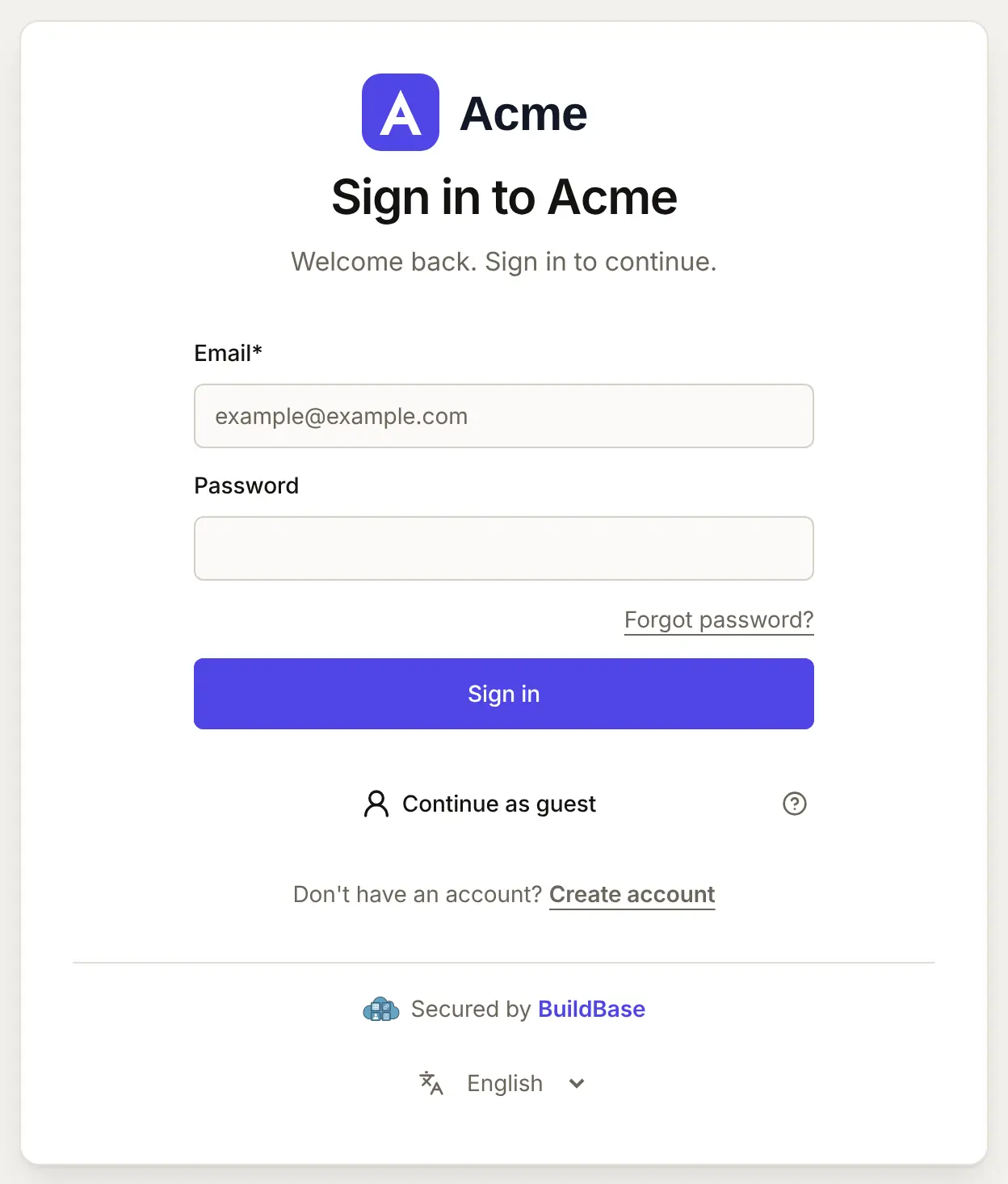
The live page opens in a new tab. Continue as guest sits at the bottom of the card, under every way in that keeps an account.
What people see
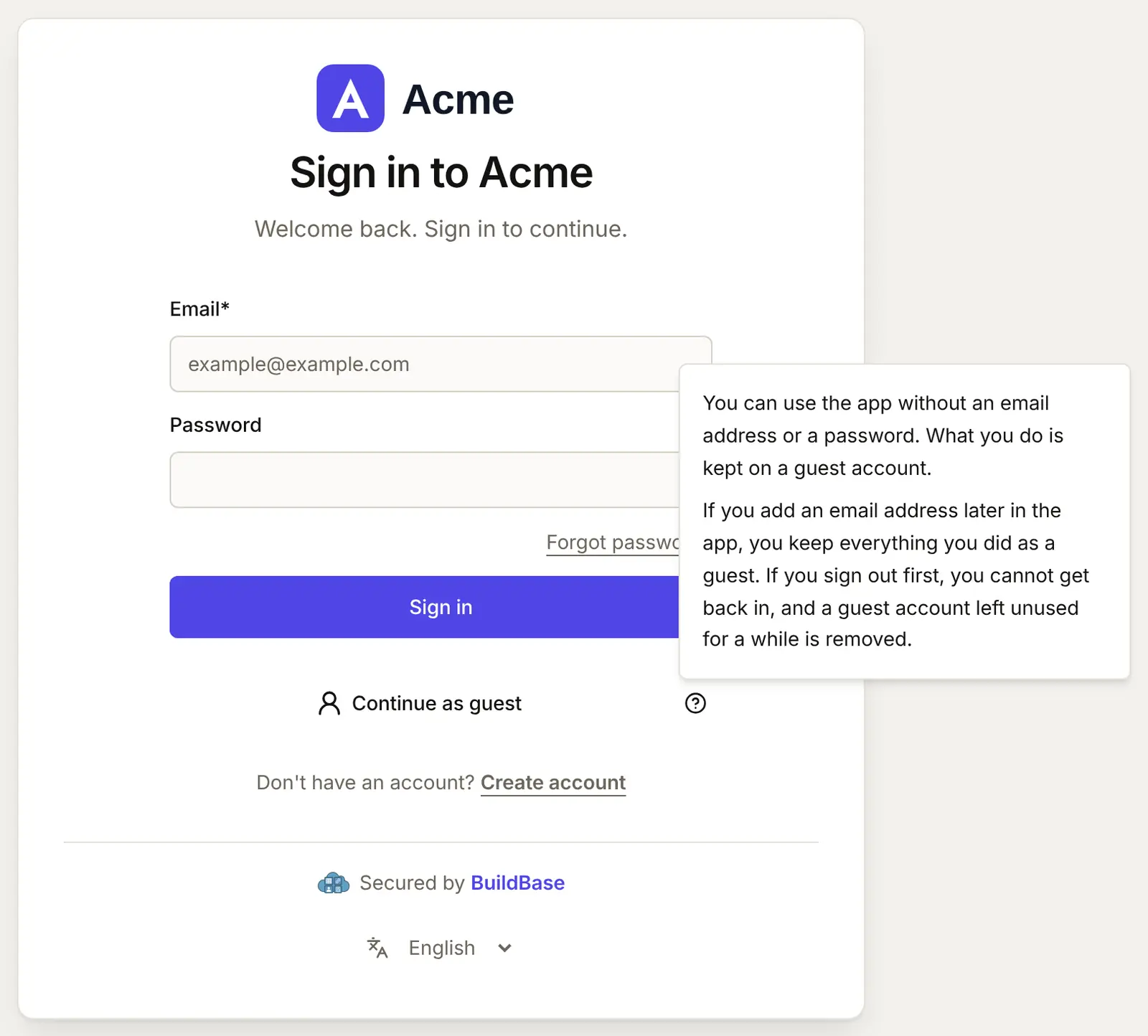
On the hosted sign-in page the person presses Continue as guest and lands in your app straight away, with no form, no email and no code. The question mark beside the button explains what a guest account is. The page speaks 8 languages, and the button and the note follow the page's language.
On a phone the button stays under the form:
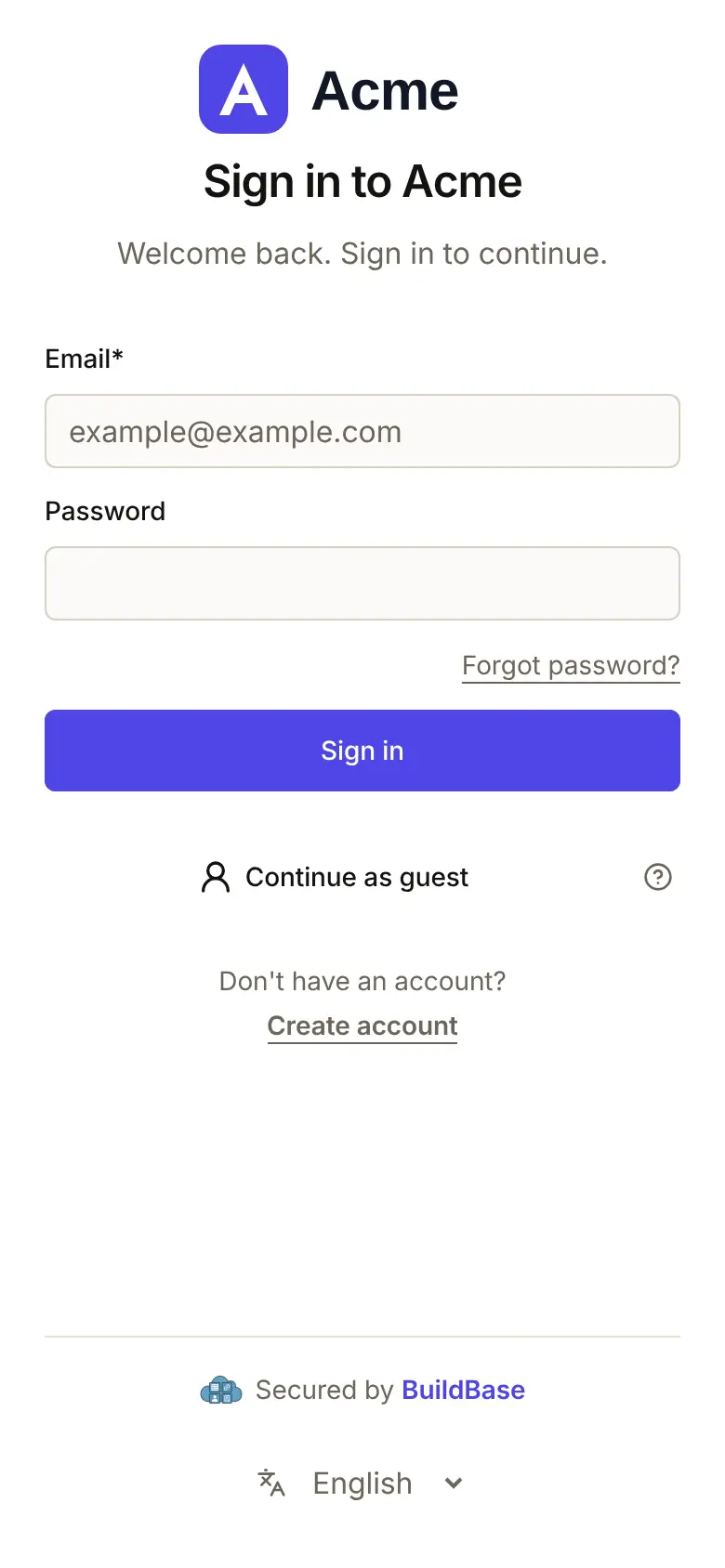
A guest is a real account with a few differences:
- Named
Guest, with no address. Inside the account there is a placeholder address that is never shown and never mailed. No welcome, verification or notification email goes to a guest. - Counted as an end user on your plan. When the plan's end-user limit is reached, Continue as guest is refused.
- No two-step sign-in, no passkey and no wallet: those start once the guest adds an address. The sign-in page does not offer a guest a passkey, and the API refuses all three with
409 guest_account. - Signing out loses the account. A guest has nothing to sign back in with, so tell people to add their address before they leave.
In the console, guests are marked in the Users list: the Email column reads "None, a guest" and the Type column shows a Guest badge. The list's filters can show only guests.
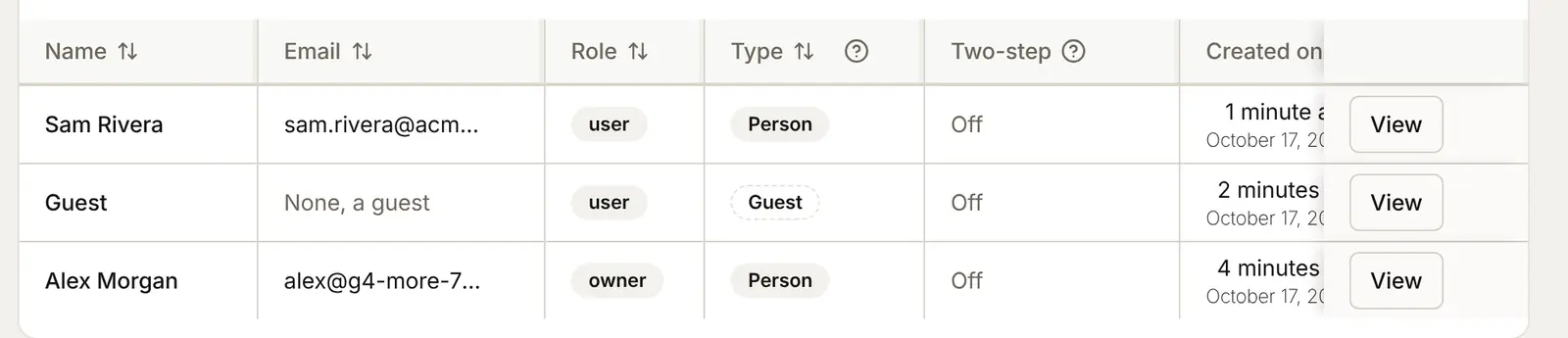
In your app (SDK)
A guest turns into a full account from your app, not from the sign-in page. The SDK's settings dialog does it for you: on the Account screen a guest sees Create your account in place of their email address. The Security screen shows the same form in place of the password, phone, two-step and passkey sections. Both come with @buildbase/sdk 0.0.90.
- The guest types an email address, and optionally a name and a password, then presses Send code.
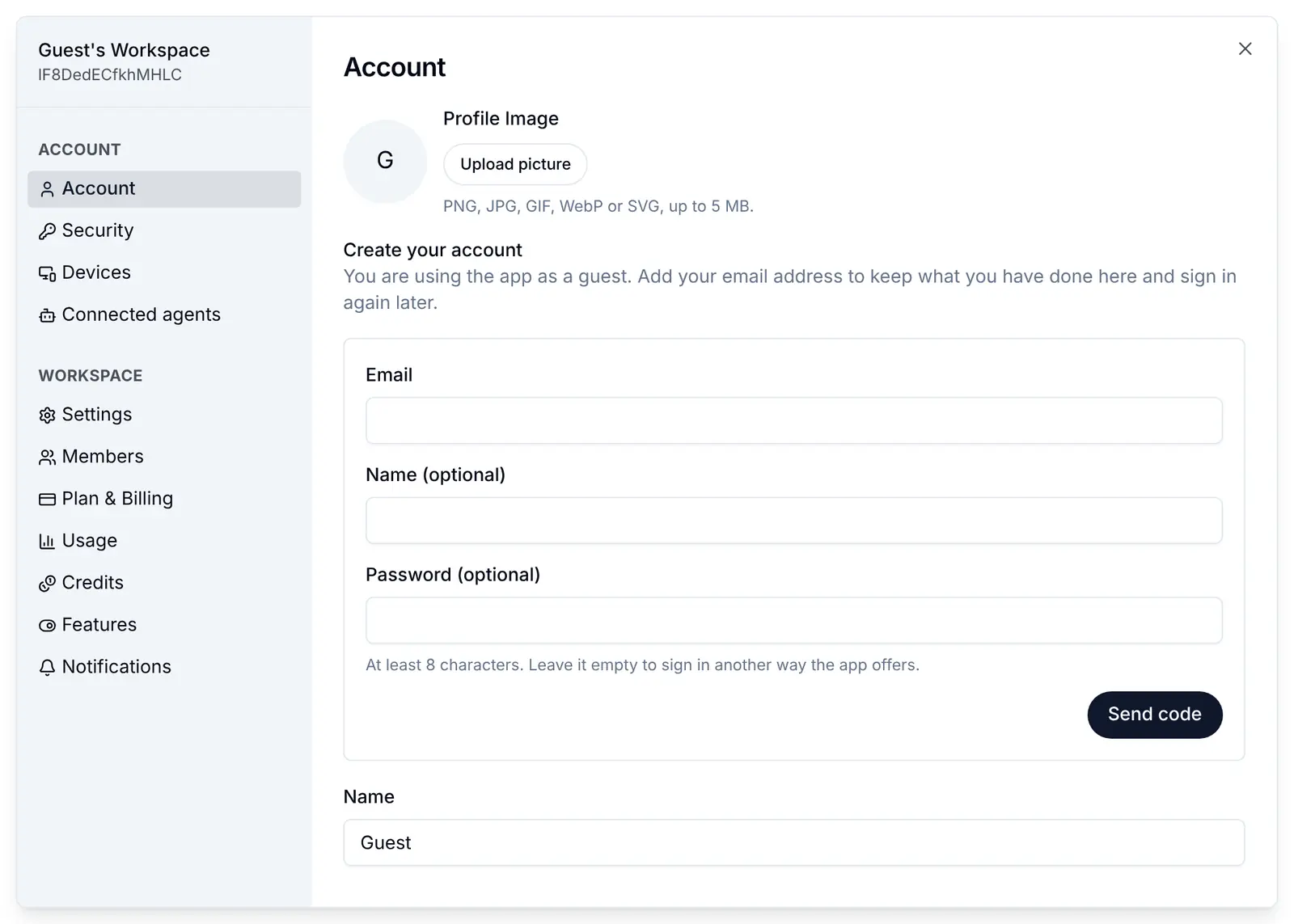
- A 6-digit code goes to that address. Resend unlocks after 30 seconds.
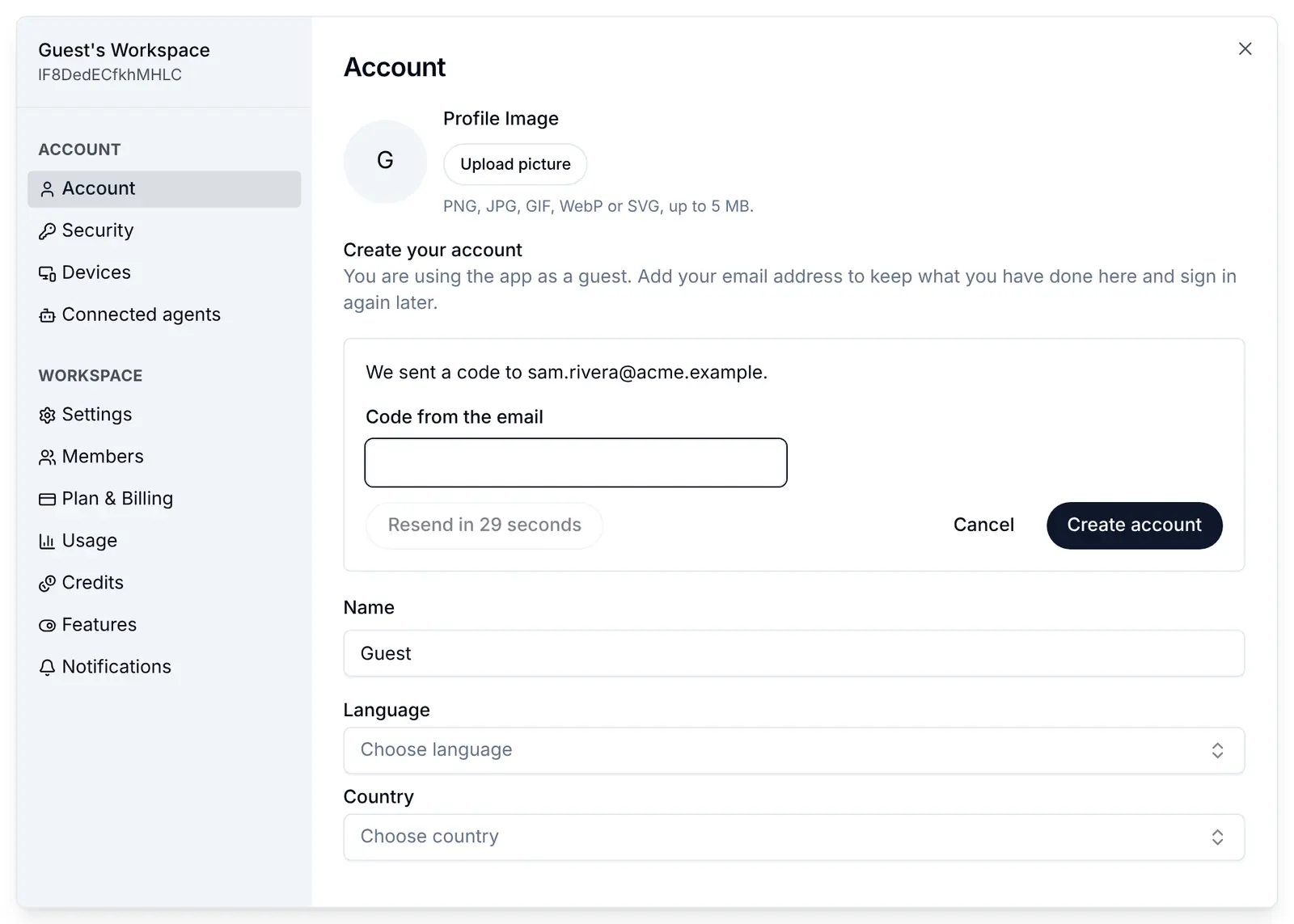
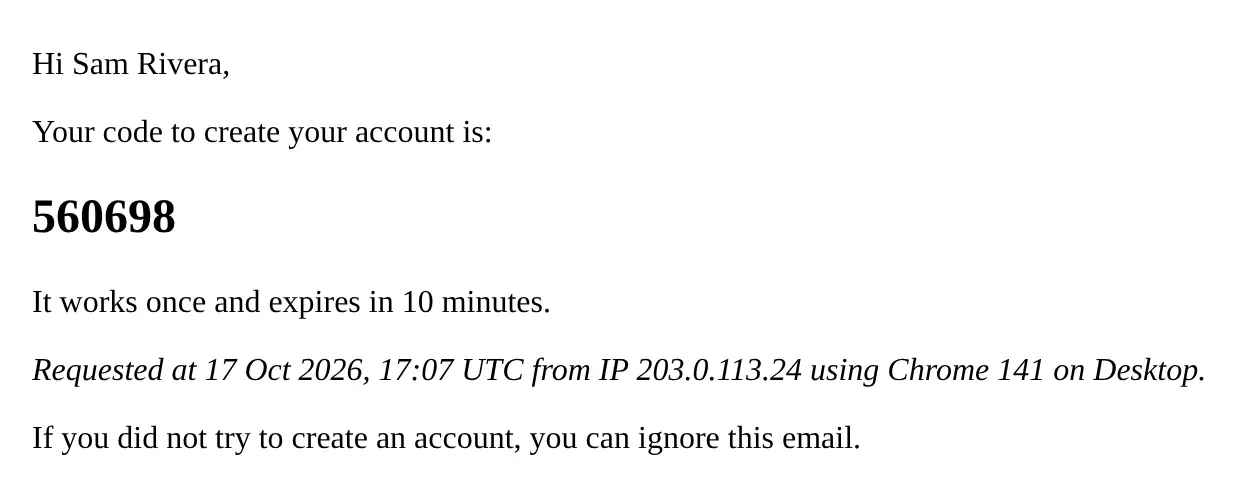
- The guest types the code and presses Create account. They stay signed in, and the account keeps its user ID and everything they made.
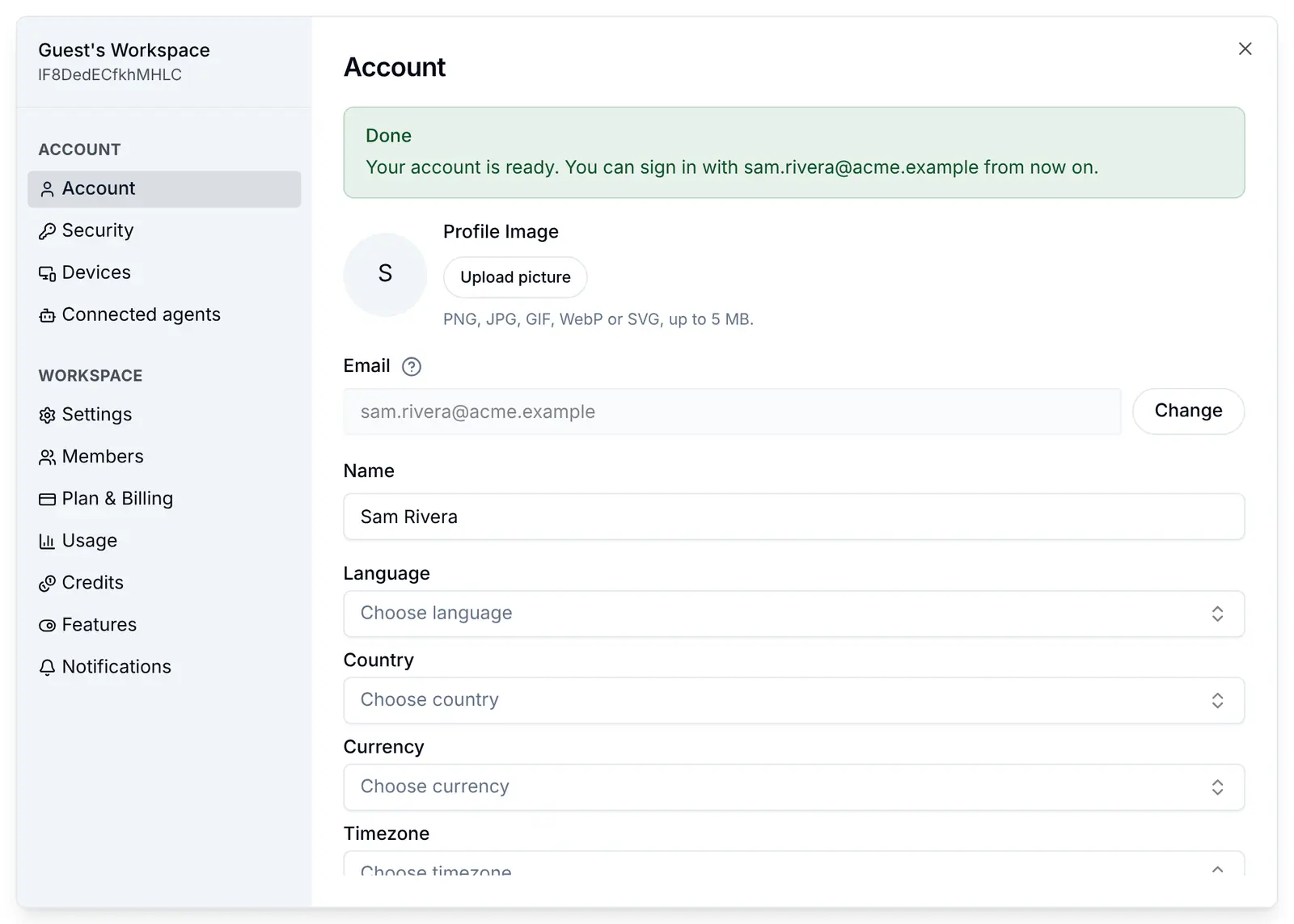
Without a password, the account gets one nobody knows, and Forgot password? on the sign-in page sets a real one. Connecting Google or another provider from the Security screen also turns a guest into an account, with the provider's verified address.
To put the same form anywhere in your app, render GuestUpgrade for guests:
// components/save-your-work.tsx
import { GuestUpgrade, useSaaSAuth } from '@buildbase/sdk/react';

export function SaveYourWork() {
  const { user } = useSaaSAuth();
  if (!user?.isAnonymous) return null;

  return (
    <GuestUpgrade onUpgraded={({ email }) => console.log('Saved', email)} />
  );
}
For a form of your own, useGuestUpgrade() holds the same steps: start({ email, name?, password? }), then confirm(code), with step, pending, error and waitSeconds for your buttons. See Guest users.
Check it works
- The live page for your app shows Continue as guest under the other ways in.
- Pressing it lands in your app signed in, and the console's Users list shows a new row with a Guest badge.
- In your app, the guest's Account screen shows Create your account.
- After the code, the same row in Users shows the address, and the person can sign in with it.
Things to watch out for
- Signing out loses a guest account for good. A guest has nothing to sign back in with. Show
GuestUpgradebefore people leave, so they add an address first. - Guests count toward your end-user limit. While bot protection is off, a script can make up to 10 guests an hour from each network address. Turn bot protection on before launch.
- Idle guests are deleted. A guest unused for 30 days, or the number of days you set, is deleted, unless they made a workspace other people joined.
- The button needs sign-up open to anyone. Invite-only, an allowlist or a waitlist hides Continue as guest.
- No email reaches a guest. No notifications, no two-step sign-in and no wallet until they add an address.
If something goes wrong
On the sign-in page the refusal shows under "Could not continue as a guest". In your app, GuestUpgrade shows the server's sentence.
| What people see | Why | What to do |
|---|---|---|
| No Continue as guest button | The method is not ticked on the app, sign-up is off, or the mode is not Anyone | Tick it on the app, turn on Allow public sign-up, choose Anyone |
| "Continuing as a guest is not available here." | The app that started the sign-in has no guest method | Tick Continue as guest on that app |
| "Sign-up is not enabled for this app." | Public sign-up is off, or the mode is not Anyone | Change it on the Sign-up tab |
| "This app is not taking new sign-ups right now." | Your plan's end-user limit is reached | Raise the plan, or wait for idle guests to be removed |
| "Too many guest accounts from this network. Try again later." | 10 guests came from one network address in the last hour | Wait an hour. Bot protection keeps scripts out before this limit |
| "The security check expired or did not pass. Please try it again." | Bot protection did not pass | Try again |
| "That email address cannot be used. Try a different one, or if it already has an account here, sign in to that account instead." | The address already has an account in your app, or cannot be used | Use another address, or sign in to the existing account |
| "Sign-up isn't available for this address." | The address is on your blocklist | Use another address, or change the blocklist |
| "Please wait 30 seconds before asking for another code." (the number counts down) | A code went out moments ago | Wait for the countdown |
| "That code did not match. Check the newest email and try again." | A wrong code | Use the code in the newest email |
| "This code has expired. Ask for a new one." | 10 minutes passed, or 5 wrong tries | Press Resend code |
| "This account already has an email address." | The person is not a guest any more | Nothing: the account is already full |
Next steps
- Guest users - the API behind each step and every refusal.
- Bot protection - check each new guest.
- Deleting accounts - the clean-up idle guests go through.
- Set up sign-in, step by step - every sign-in guide, and the order to set them up in.