
Set up agent and app access
Let AI agents and other companies' apps act for one of your users, with that person's approval, through BuildBase's OAuth 2.0 server.
Your users may want an AI agent, such as Claude, ChatGPT or Cursor, or another company's app to work in your app for them: read their notes, file a report, start a job. BuildBase is an OAuth 2.0 server for every app, so the agent can ask for that access the standard way. The person signs in on your hosted sign-in page, sees a consent screen that names the agent and what it wants, and presses Allow access. The agent then acts as that person and can never do more than they can. They can take the access back at any time from your app.
Warning
This is not a way for people to sign in, and it adds no button to your sign-in page. People still sign in with the methods you already offer. This page is about what they let an agent or an app do afterwards.
Before you start
- A BuildBase plan that includes the OAuth 2.0 server, for the client the agent uses, and one that includes agent readiness, for the switches on the Agent readiness tab. Your plan's limit on connected agents applies to each new one a person allows.
- A token address on your own server (the Application token URL), reachable from the internet. BuildBase asks it for the agent's token after each approval, so your server decides what the token is.
- For agents that call tools in your app, an MCP server on your side. The SDK has one: see MCP and agents.
Step by step
There are two ways for an agent to get a client: you create one for an agent or app you know, or you let agents register themselves. Both use the consent screen.
1. Create a client for the agent
- In the BuildBase console, press Users in the left-hand bar (the User management area), then Authentication under Access, and the Settings tab.
- Press Create auth client. Give it a Title, such as
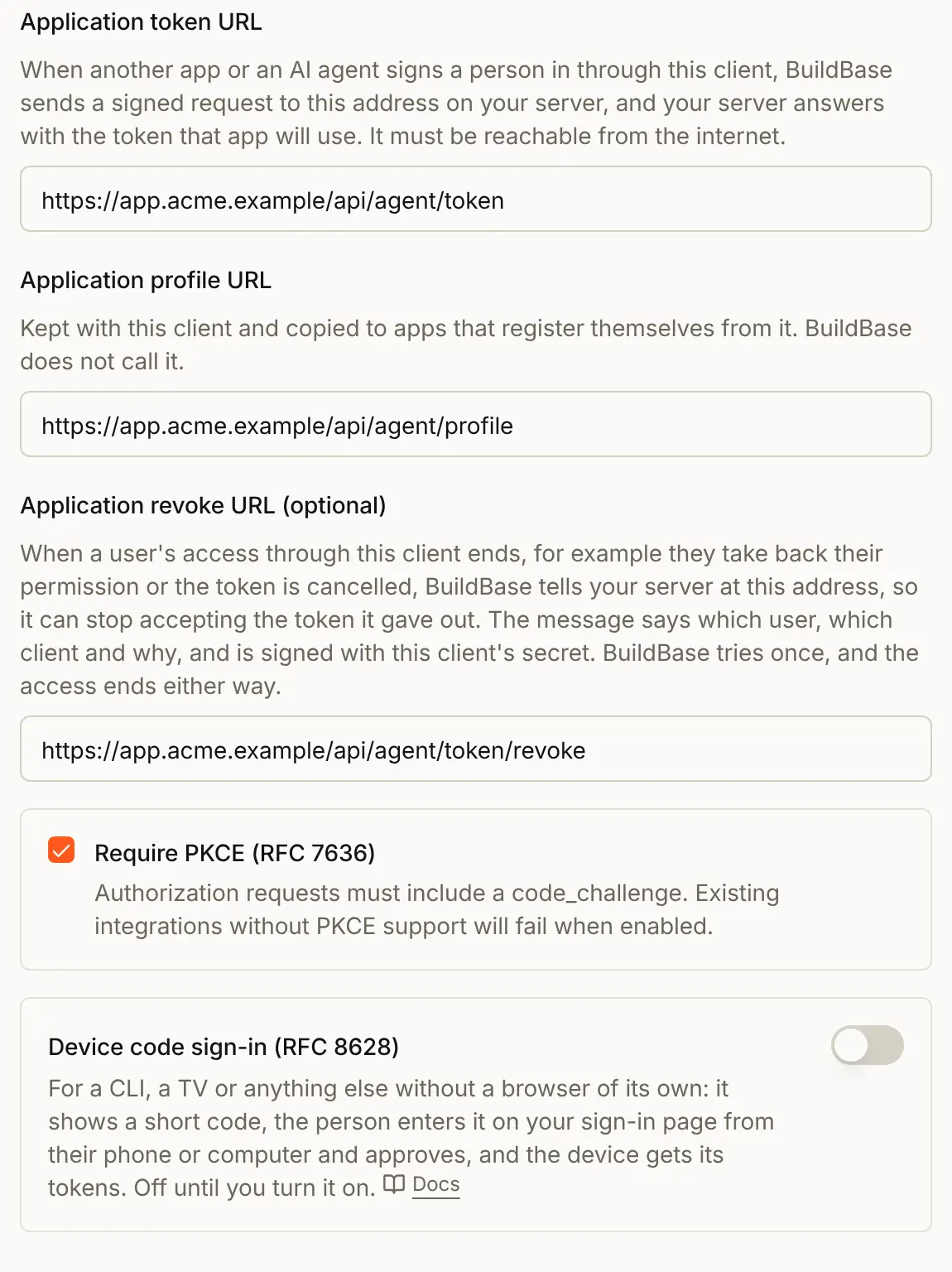
Acme Assistant: it is the name people see on the consent screen. Choose the OAuth 2.0 provider type, fill in the Application token URL (https://app.acme.example/api/agent/token) and the Application profile URL, and press Create. - Copy the client ID and the Client secret from the next dialog. It is shown once. Your token address checks every request from BuildBase with this secret. (The dialog is the same as for a device client.)
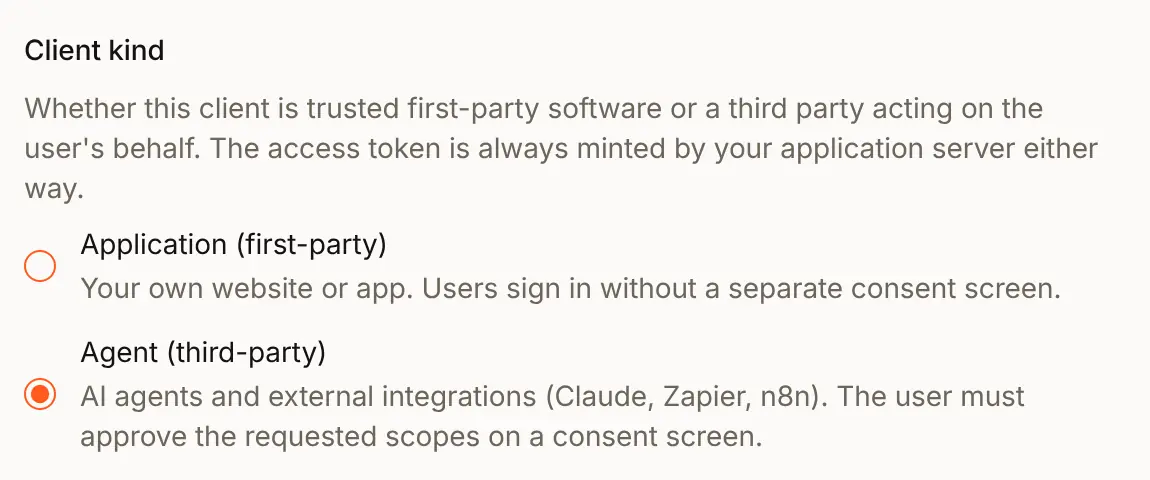
- Press Edit on the new client. Under Client kind, choose Agent (third-party). That is what makes people see the consent screen. An Application (first-party) client is your own software and signs people in without one.
- Fill in the Application revoke URL (
https://app.acme.example/api/agent/token/revoke). When a person takes access back, BuildBase tells your server there, so it can stop accepting the tokens it gave out. It is optional, but without it a token you minted keeps working until it runs out. Keep Require PKCE ticked: agents prove each sign-in with a one-time secret of their own.
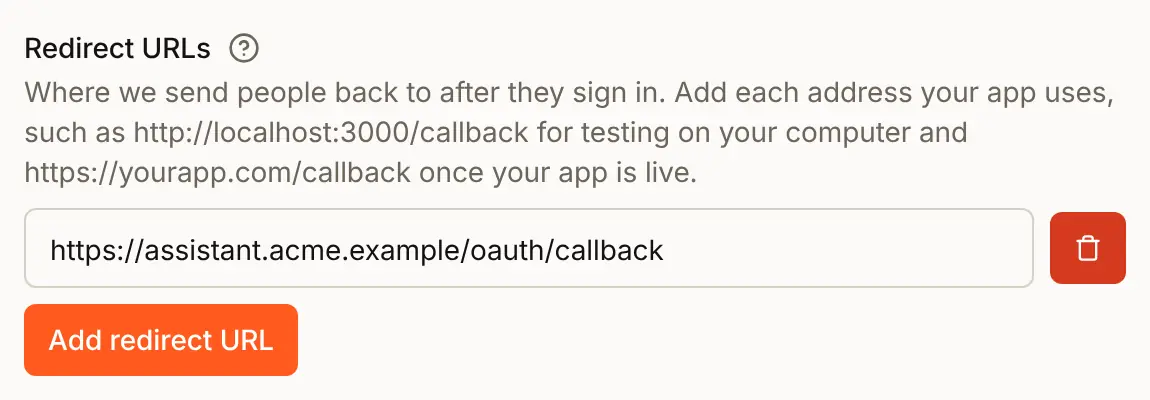
- Under Redirect URLs, press Add redirect URL and paste the address the agent gave you, such as
https://assistant.acme.example/oauth/callback. People are sent back there after they allow or deny.
- Under Methods, tick how people sign in before they approve, such as Email and password, and press Update.
Give the agent its client ID, its secret if it runs on a server it controls, and your OAuth 2.0 addresses (from the client's Edit sheet, under OAuth 2.0 addresses).
2. Turn on agent readiness
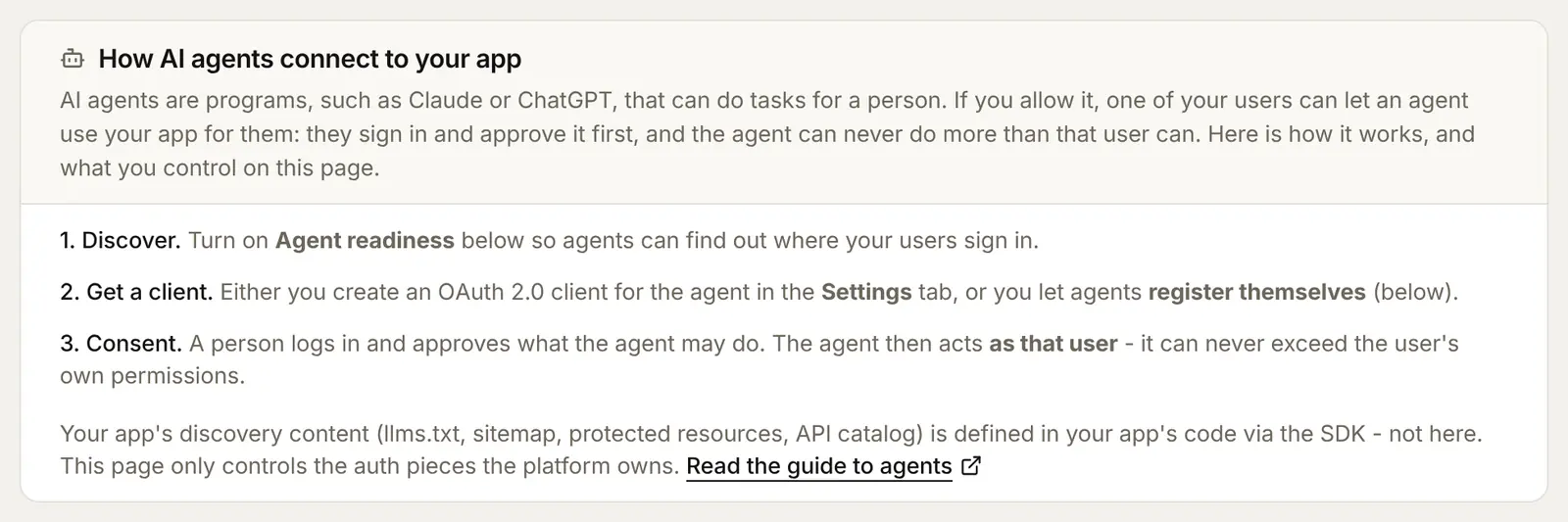
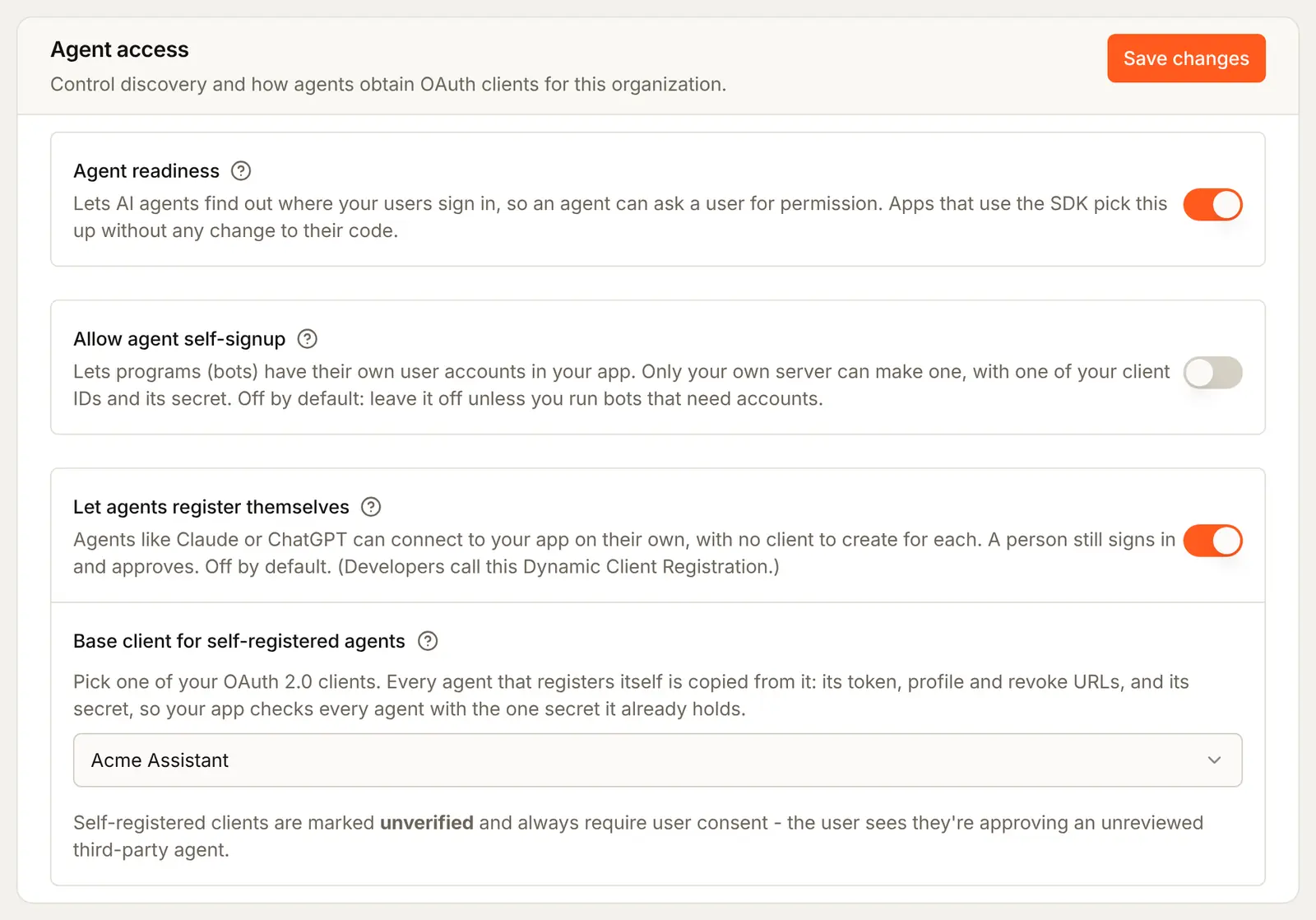
Open the Agent readiness tab. The card at the top explains the three steps: agents discover where your users sign in, get a client, and ask for consent.
In the Agent access card:
| Setting | What it does |
|---|---|
| Agent readiness | Publishes where your users sign in, so an agent can find your OAuth 2.0 addresses by itself |
| Let agents register themselves | Agents such as Claude or ChatGPT connect to your app on their own, with no client to create for each. A person still signs in and approves. Off until you turn it on (Dynamic Client Registration) |
| Base client for self-registered agents | Every agent that registers itself is copied from this client: its token, profile and revoke URLs, its sign-in methods and its secret, so your server checks every agent with the one secret it holds |
| Allow agent self-signup | Something else: lets your own server make user accounts for bots. Leave it off unless you run bots that need accounts. See Agent accounts |
Turn on Agent readiness and, if you want, Let agents register themselves with Acme Assistant as the base client, then press Save changes.
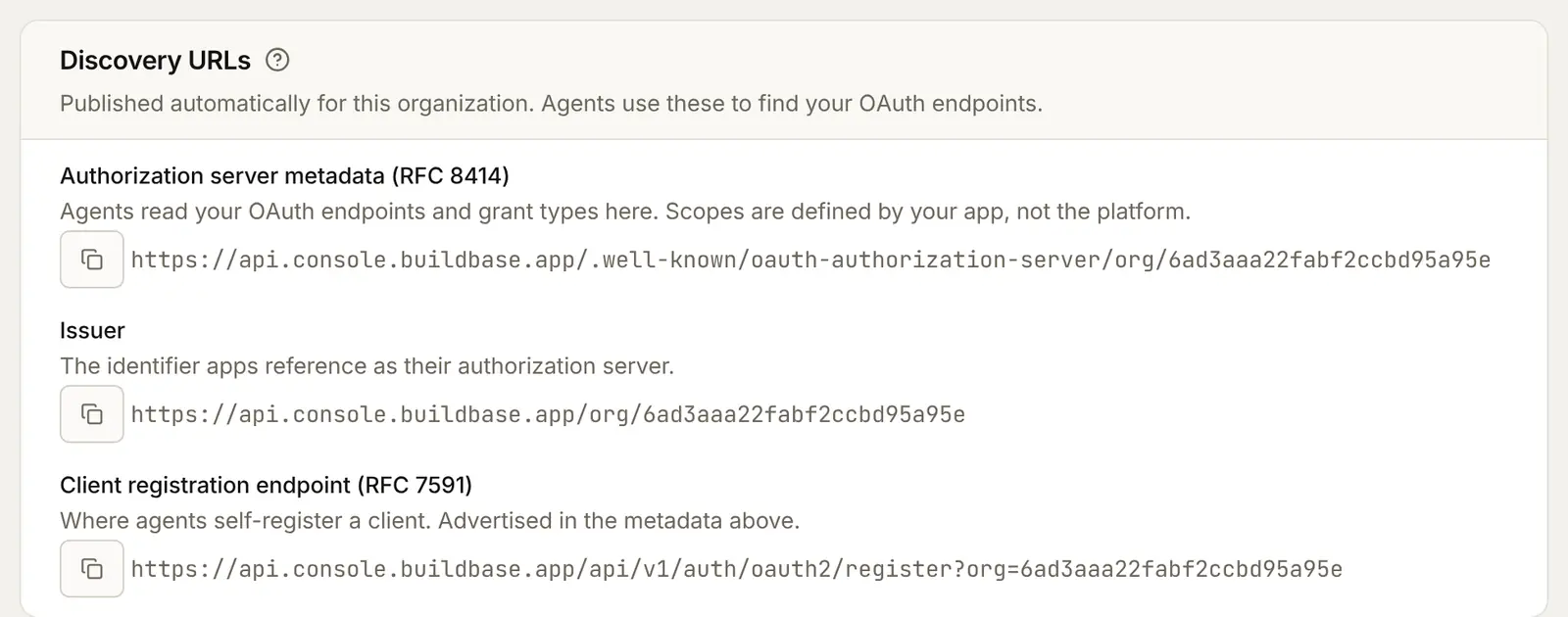
Further down, Discovery URLs lists the addresses agents read, each with a copy button. An MCP server built with the SDK points agents to them, so you rarely send them anywhere yourself.
Self-registered agents do not crowd the Settings tab: they are hidden from the list until you pick Self-registered by agents in its Source filter. Each one is read-only and follows its base client.

3. Your token address
After each approval, BuildBase asks your Application token URL for the token the agent will use, signed with the client's secret. The SDK has the whole handler:
// app/api/agent/token/route.ts
import { NextRequest, NextResponse } from 'next/server';
import { handleAppTokenRequest, mintAgentToken } from '@buildbase/sdk';

export async function POST(request: NextRequest) {
  const { status, body } = await handleAppTokenRequest({
    authorization: request.headers.get('authorization'),
    clientSecret: process.env.BUILDBASE_AGENT_CLIENT_SECRET!,
    mintToken: (claims) =>
      mintAgentToken({ claims, secret: process.env.SYSTEM_SECRET! }),
  });
  return NextResponse.json(body, { status });
}
The revoke address has a matching handleAppRevokeRequest({ authorization, clientSecret, onRevoke }). MCP and agents covers the MCP server and tools that use the token.
Scopes
A scope is a name for one kind of access, such as notes:read. BuildBase passes the scope names an agent asks for through to the consent screen and to your token address, and your app decides what each one allows. The standard ones are said in words on the consent screen:
| Scope | The consent screen says |
|---|---|
openid | Confirm who you are |
profile | See your name and profile |
email | See your email address |
offline_access | Stay connected when you are not using it |
| Your own | The name as written, such as notes:read |
Name your own scopes in your MCP server's scope catalog, so agents can find them, and check them in each tool with requiredScopes.
What people see
The agent opens your hosted sign-in page in the person's browser. They sign in as usual, then see the consent screen, named after the agent: what it will be able to do, Allow access and Deny.
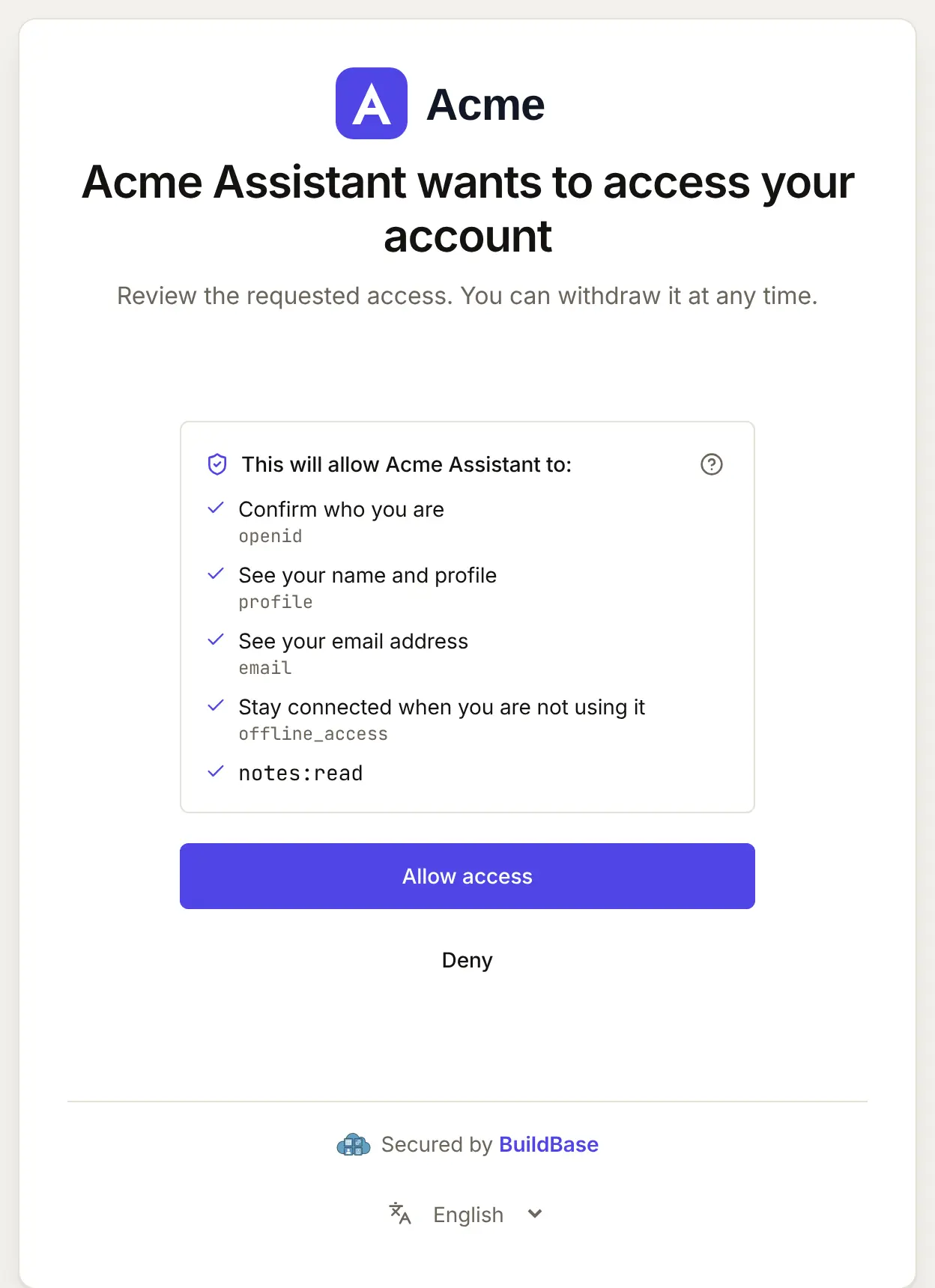
Allow access sends them back to the agent's redirect URL with a one-time code, which the agent exchanges for its tokens. Deny sends them back with error=access_denied, and nothing is recorded.
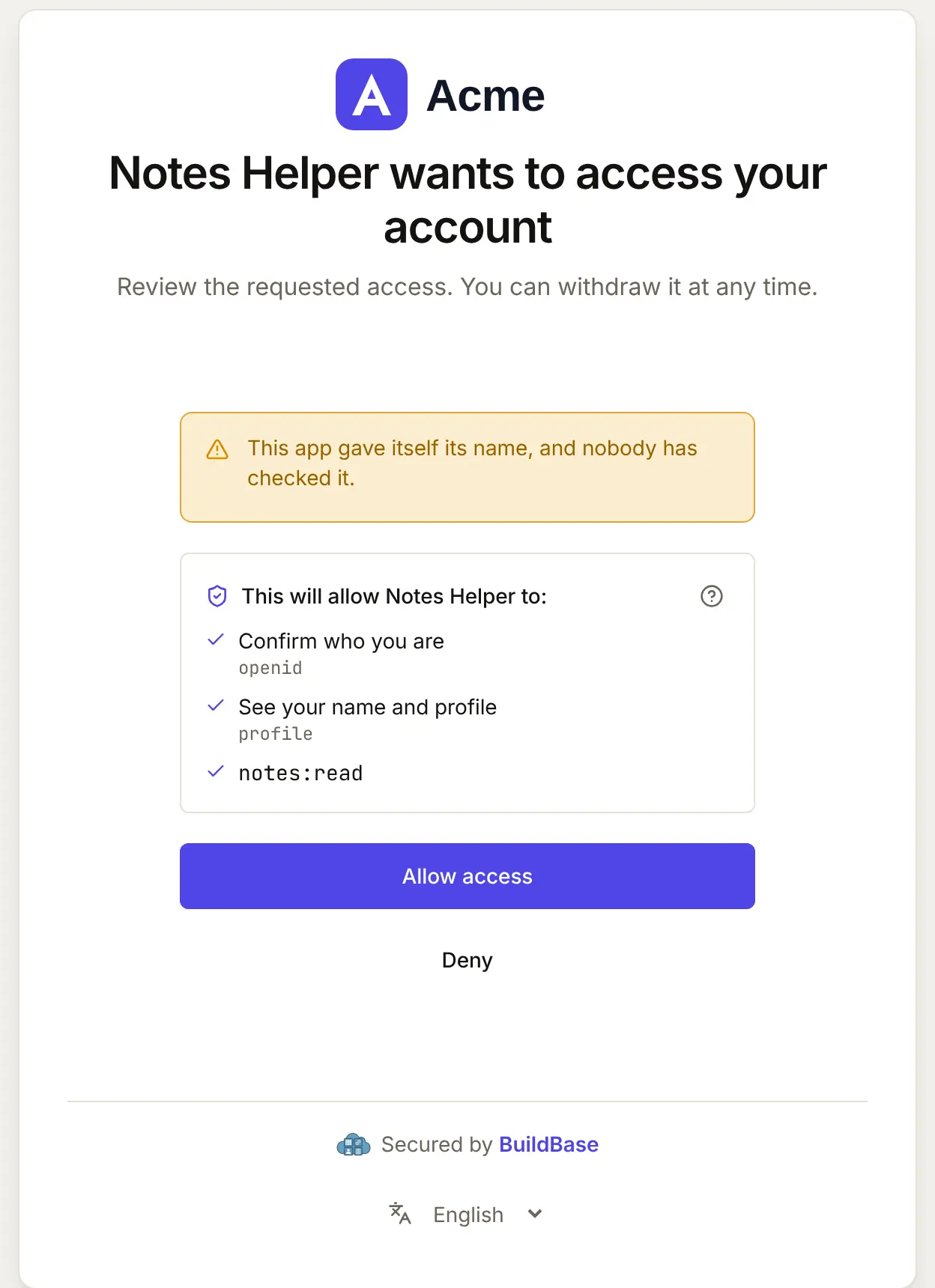
A self-registered agent's consent screen shows the name the agent gave itself:
On a phone:
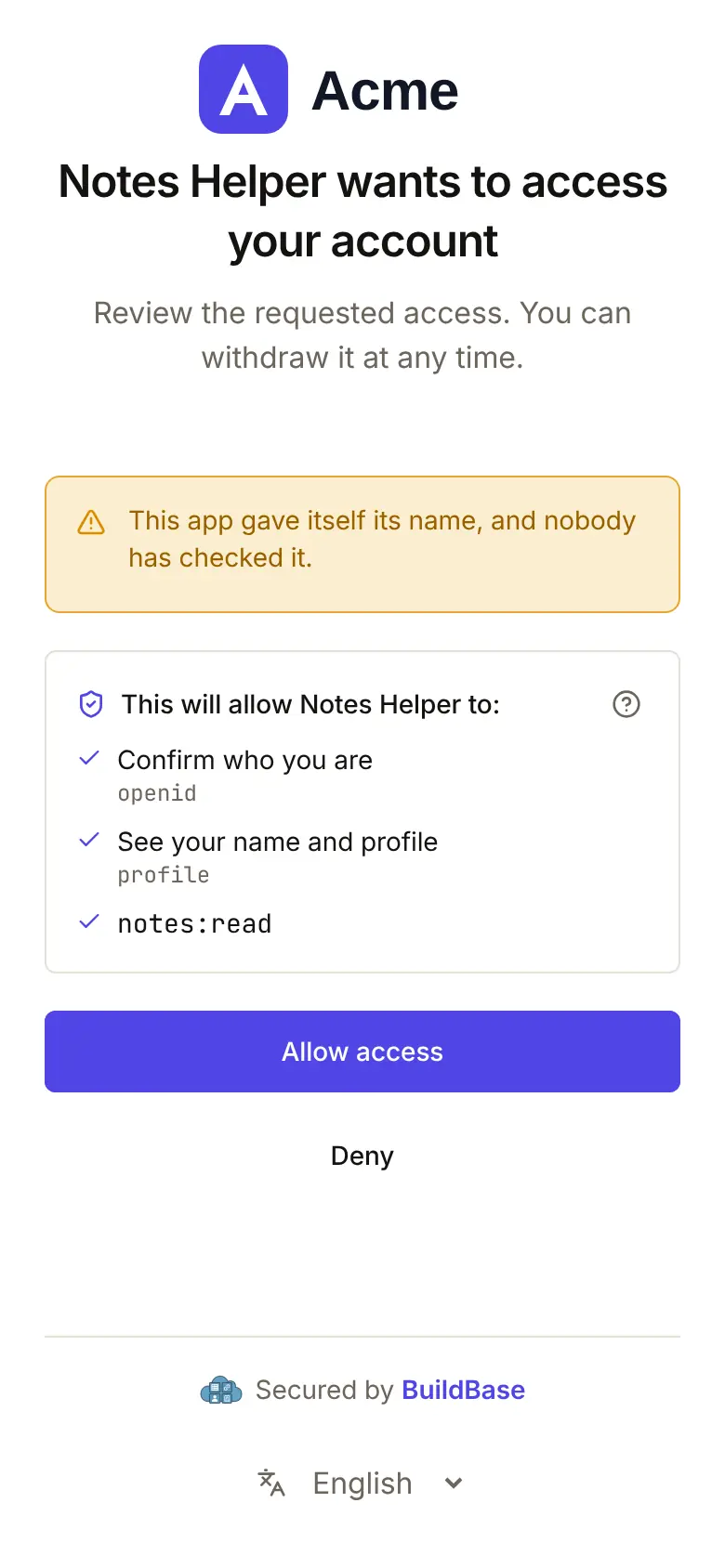
People are asked once for each scope an agent wants. When the same agent comes back for the same scopes, the consent screen is not shown again. When it asks for more, it is shown again. To be asked about everything again, the person disconnects the agent first. The consent screen follows the person's language, in any of the 8 languages the sign-in page speaks.
Check it yourself
The sign-in page preview has no consent screen. To see the real one, have the agent connect, or open an authorization address in a browser. It needs a PKCE pair:
VERIFIER=$(openssl rand -hex 32)
CHALLENGE=$(printf %s "$VERIFIER" | openssl dgst -sha256 -binary | base64 | tr '+/' '-_' | tr -d '=')
echo "https://api.console.buildbase.app/api/v1/auth/oauth2/authorize?org=$BUILDBASE_ORG_ID&client_id=$AGENT_CLIENT_ID&response_type=code&redirect_uri=https%3A%2F%2Fassistant.acme.example%2Foauth%2Fcallback&scope=openid%20profile%20notes%3Aread&state=check&code_challenge=$CHALLENGE&code_challenge_method=S256"
In your app (SDK)
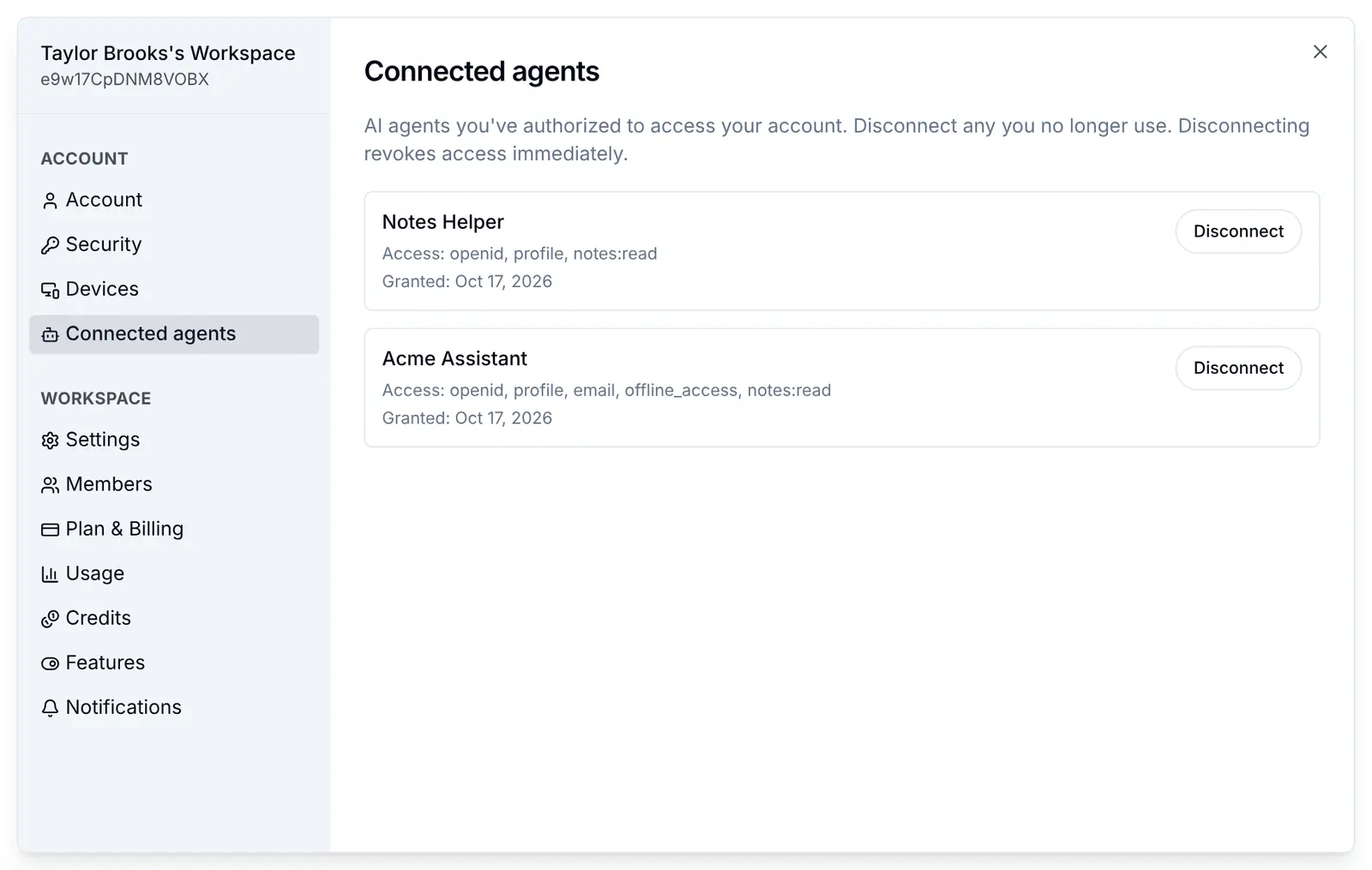
People see and take back the access they gave on the Connected agents screen of your app's settings dialog. Each agent shows the access it was given and when, with Disconnect.
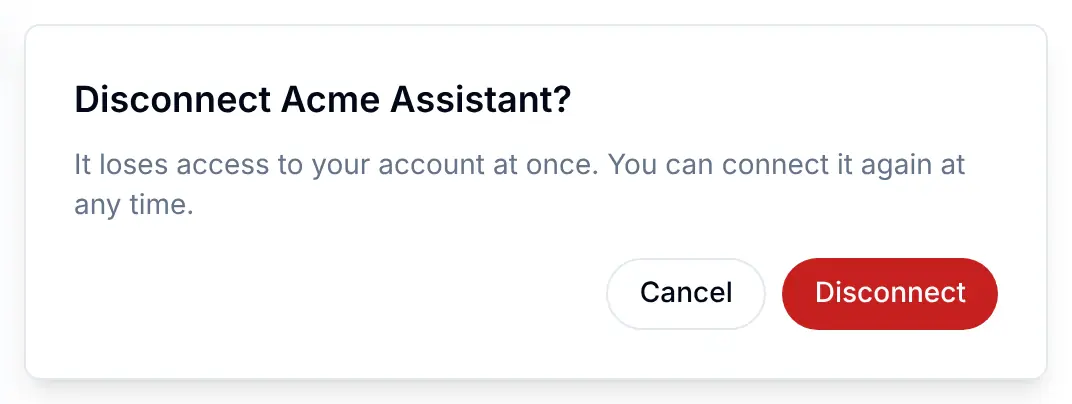
Disconnect asks first, naming the agent, and Cancel leaves it connected.
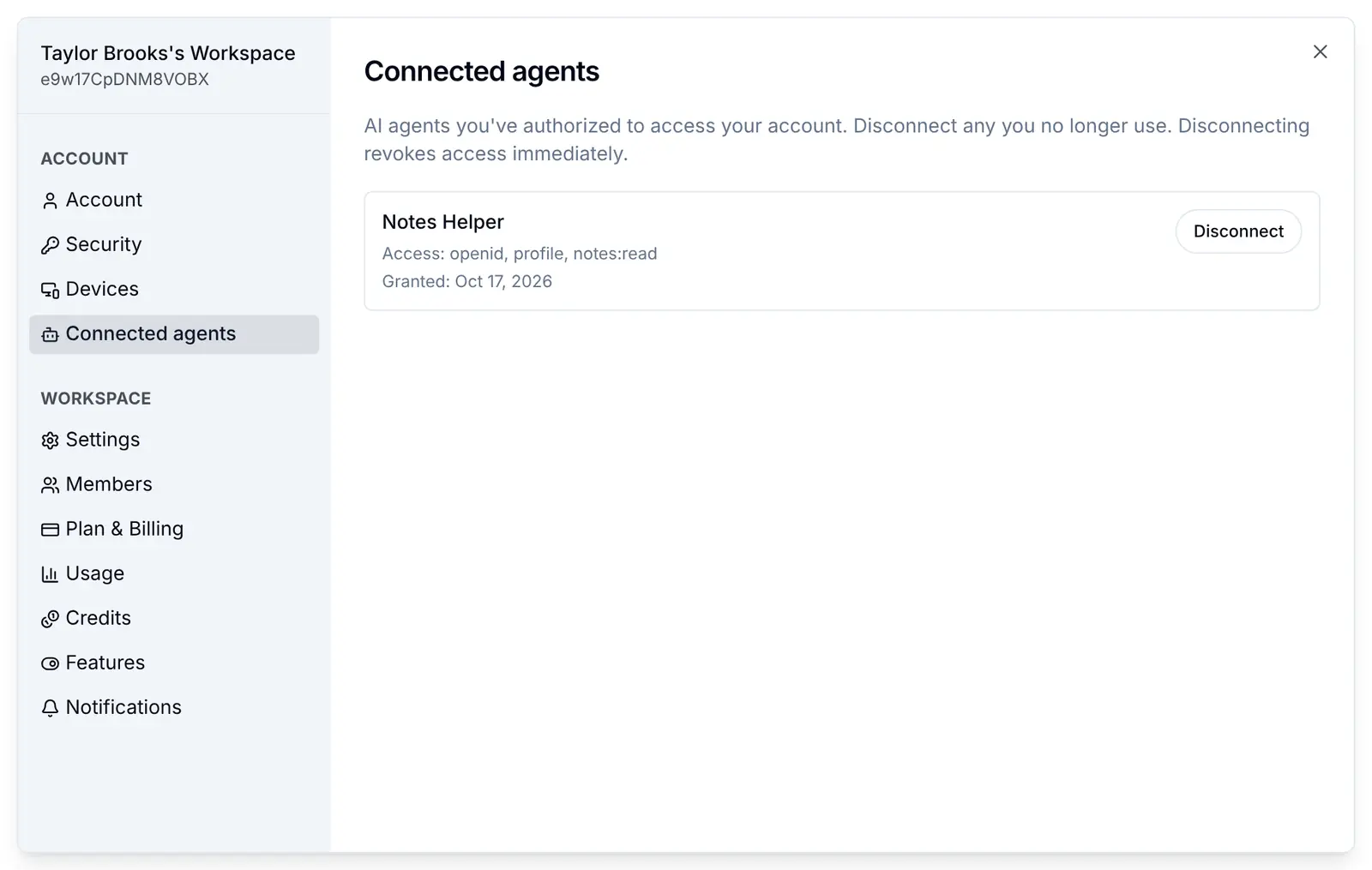
Once confirmed, it takes effect at once: the agent's grant and every token it holds for that person are deleted, its refresh token stops working, and BuildBase calls your Application revoke URL so your server can stop accepting the tokens it minted.
Open it from your own button, or put the screen anywhere with ConnectedAgents:
// components/agent-access.tsx
import { ConnectedAgents, useSaaSAuth } from '@buildbase/sdk/react';

export function ManageAgentsButton() {
  const { openWorkspaceSettings } = useSaaSAuth();
  return (
    <button onClick={() => openWorkspaceSettings('connected-agents')}>
      Connected agents
    </button>
  );
}

export function AgentAccessPage() {
  return <ConnectedAgents />;
}
useConnectedAgents() gives agents, loading, error and revoke(clientId) for a screen of your own. Pass mcp={{ url: 'https://app.acme.example/mcp', name: 'Acme' }} to SaaSOSProvider to add a Connect an agent guide to the screen. To hide the screen, pass ui={{ settings: { sections: { 'connected-agents': false } } }}.
Check it works
- An authorization request for your agent client shows the consent screen after sign-in, named after the client.
- Allow access returns a code to the redirect URL, and the token exchange answers with an
access_tokenyour server minted. - The person's Connected agents screen lists the agent.
- After Disconnect, the agent's refresh token is refused and your revoke address was called.
Things to watch out for
- People are asked again only for new access. An agent that comes back for the same scopes gets them without the consent screen. One that asks for more shows it again. To be asked about everything again, the person disconnects the agent first.
- A self-registered agent chooses its own name. Nothing checks it, so anyone can register an agent named after a well-known one. Leave Let agents register themselves off unless any agent may ask your users for access.
- An agent's refresh token works once. Each refresh gives a new one. Using an old one again, for example from two copies of the agent at once, ends every token in that chain, and the person connects the agent again. An agent's refresh token also expires after 30 days unused.
- If your token address fails during a refresh, the agent has to reconnect. BuildBase spends the refresh token before it asks your server for the new access token.
- Your token address has 10 seconds and gets no redirects. BuildBase does not follow a redirect, so an address that redirects, such as
http://tohttps://, fails with503 temporarily_unavailable. - Without a revoke URL, disconnecting does not stop tokens you minted. They keep working until they expire.
If something goes wrong
| What you see | Why | What to do |
|---|---|---|
| No consent screen; the agent gets a code straight away | The client is Application (first-party), or the person already allowed this agent everything it asks for | Choose Agent (third-party). To ask again, the person disconnects the agent |
error=invalid_request, "code_challenge is required (PKCE)", at the redirect URL | Require PKCE is on and the request has no code_challenge | Send a PKCE pair, as every agent should |
| "Connecting new agents is not available right now." | Your plan's limit on connected agents is reached | Raise the plan, or have people disconnect agents they no longer use |
503 temporarily_unavailable, "The application server failed to issue a token. Try again later." | Your Application token URL did not answer with a token | Check the route is reachable and checks with this client's secret |
400 invalid_grant, "Invalid refresh token" | The person disconnected the agent | The agent asks the person to connect again |
| The agent cannot register itself | Let agents register themselves is off, or no base client is picked | Turn it on and pick a base client on the Agent readiness tab |
Next steps
- MCP and agents - the MCP server, tools, scopes and the token in your app.
- Device code sign-in - the same OAuth 2.0 server, for devices without a browser.
- Authentication overview - every part of the OAuth 2.0 server.
- Set up sign-in, step by step - every sign-in guide, and the order to set them up in.