
Set up bot protection
Turn on Cloudflare Turnstile so scripts cannot create accounts or make your app send emails, and add your own keys when the sign-in page is on your domain.
A bot is a program that fills in forms on its own. Pointed at a sign-in page, it can create thousands of fake accounts, or make your app send thousands of sign-in emails and texts in your name, which hurts your sender's reputation and can cost you money. Bot protection puts Cloudflare Turnstile in front of those forms: a check, run by Cloudflare, that tells people from programs. Most people see it pass by itself, or tick one box. Turn it on before your app goes live.
Before you start
- Nothing, while your sign-in page is on BuildBase's own sign-in address: BuildBase's Turnstile keys are used.
- On your own sign-in domain, such as
auth.acme.example(set up on the Domains tab): a free Cloudflare account, to make a Turnstile widget and get its two keys. Your domain does not have to use Cloudflare.
Step by step
- In the console's left rail, choose Users, then Authentication under Access, and open the Security tab.
- Find the Bot protection card. Its first line says which keys your page uses.
- Under When to check, choose a mode. Only when suspicious is the right start for most apps.
- Press Save at the top of the card.
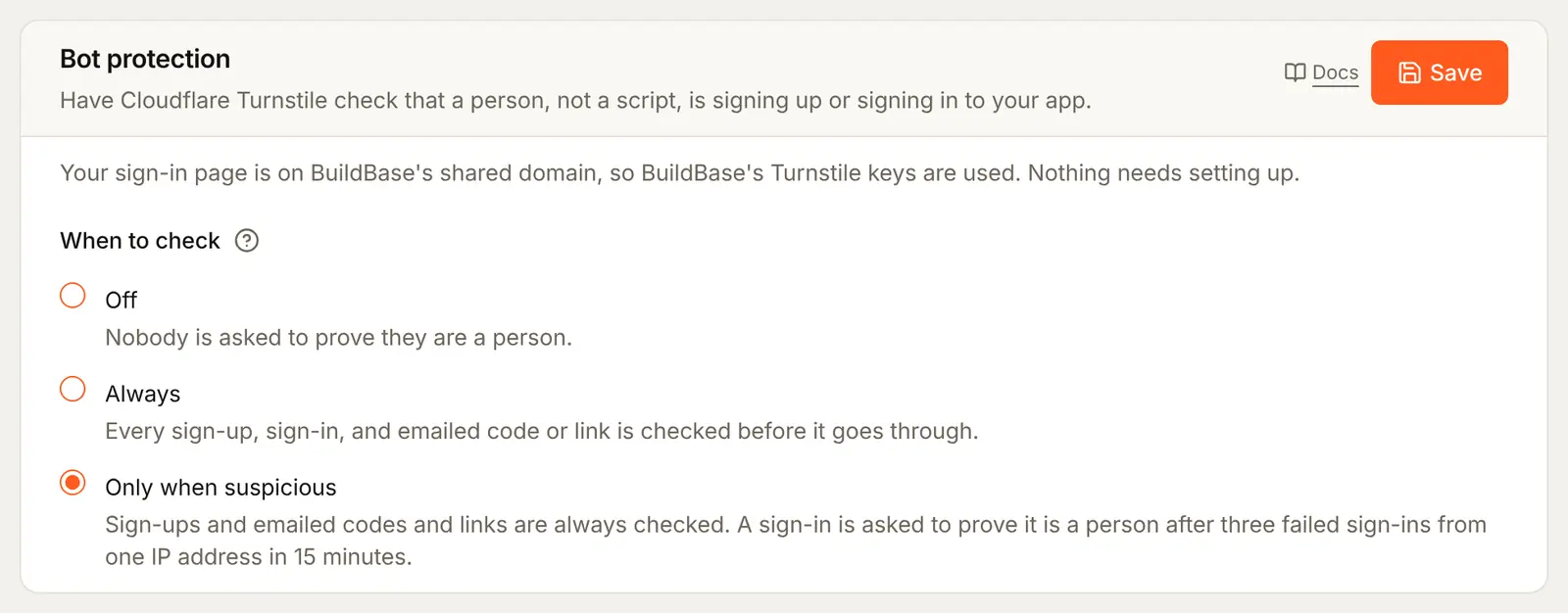
| Mode | What is checked |
|---|---|
| Off (the default) | Nothing |
| Always | Every sign-up, every sign-in, and every emailed code or link before it is sent |
| Only when suspicious | Sign-ups and emailed codes and links, always. A password sign-in only after three failed sign-ins from one IP address in 15 minutes |
Sign-ups and emails are checked in both modes because that is where the cost is: a bot that signs up or asks for a code makes your app send an email. A bot guessing passwords only gets told no, and the account lock after 10 wrong passwords already slows it down. Continue as guest and phone codes are checked like a sign-up.
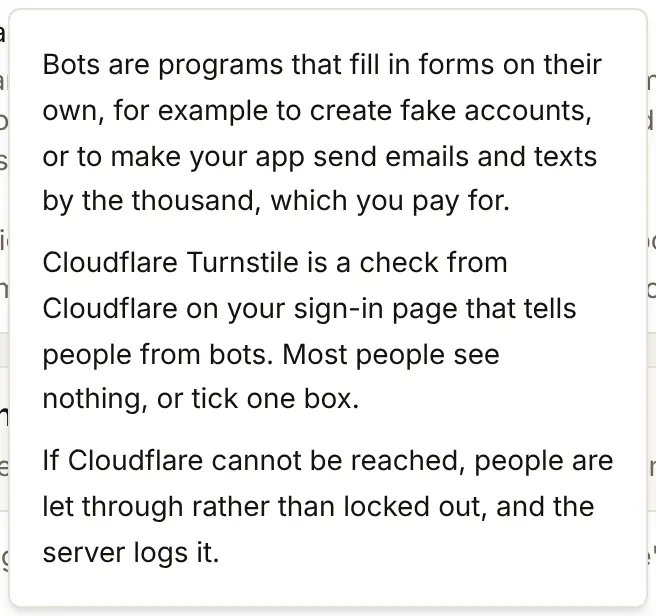
The ? beside When to check says it in short:
On your own sign-in domain: add your keys
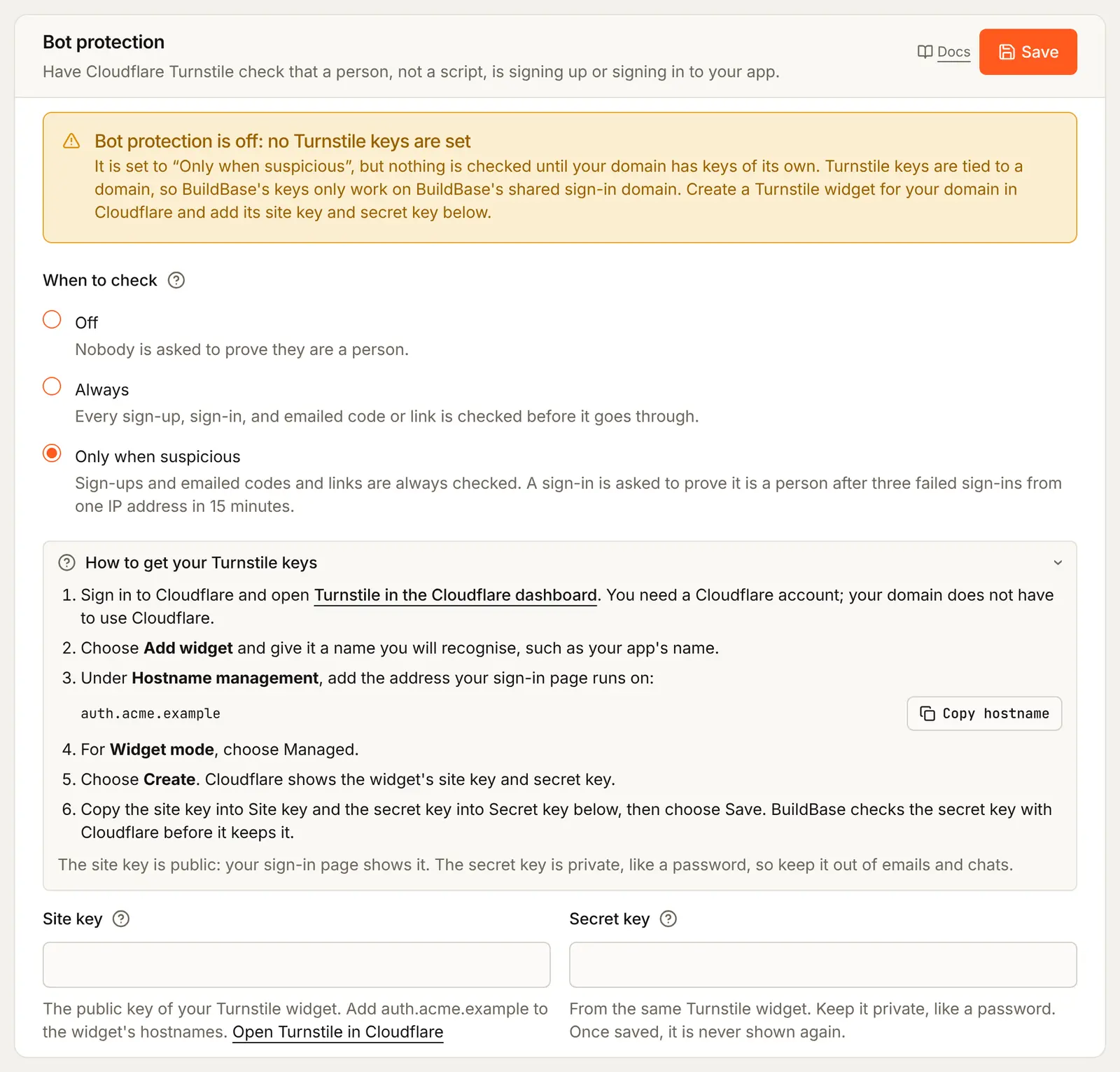
A Turnstile key pair works only on the web addresses listed on it. BuildBase's keys list BuildBase's sign-in address, so once your sign-in page moves to a domain of yours, such as auth.acme.example, you need a pair of your own. Until you add one, nothing is checked there, whatever mode you chose, and the card says so in yellow.
At Cloudflare
These steps happen on Cloudflare's site. They follow the card's How to get your Turnstile keys guide.
- Sign in to the Cloudflare dashboard and open Turnstile. The card's Turnstile in the Cloudflare dashboard link goes straight there. Make a free account first if you have none.
- Choose Add widget, and name it after your app, such as
Acme Analytics sign-in. - Under Hostname management, add the address your sign-in page runs on. The card shows it, here
auth.acme.example, with a Copy hostname button. - For Widget mode, choose Managed.
- Choose Create. Cloudflare shows the widget's site key and secret key.
| Copy this from Cloudflare | Paste it into this BuildBase field | Secret? |
|---|---|---|
| Site key | Site key | No: your sign-in page shows it to Cloudflare |
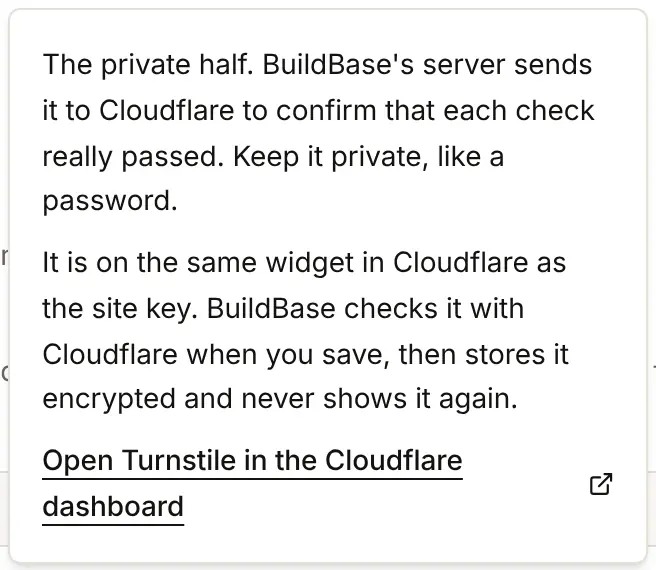
| Secret key | Secret key | Yes: keep it out of emails and chats |
| Copy this from BuildBase | Paste it at Cloudflare |
|---|---|
| Your sign-in address, from the card's guide | Hostname management |
In the console
- Paste the two keys into Site key and Secret key on the card. The keys below are examples, not real ones.

- Press Save. BuildBase asks Cloudflare whether it knows the secret key before it keeps it, so a key copied wrong is refused there and then, rather than quietly checking nothing.
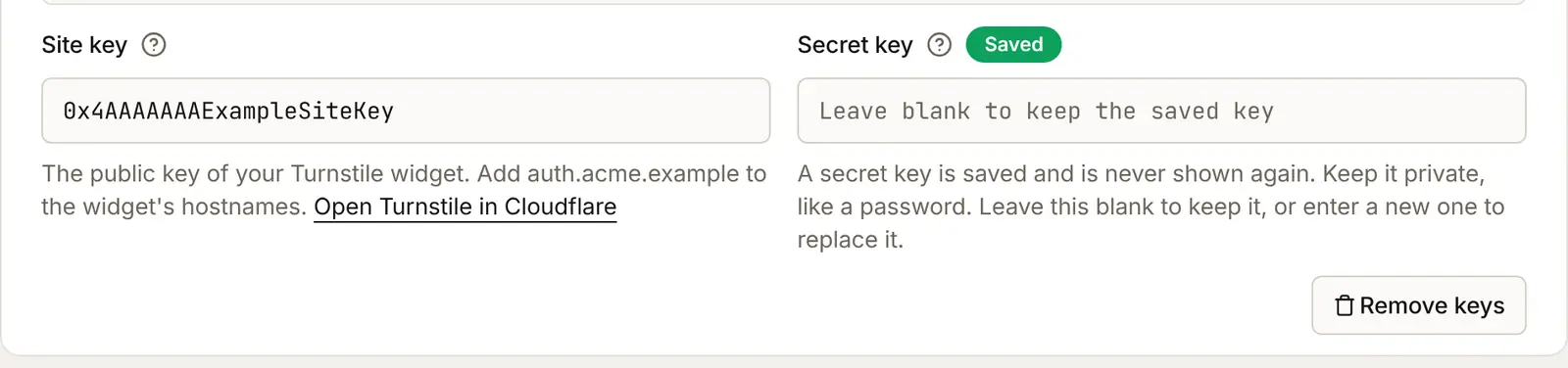
After saving, the secret key is stored encrypted and never shown again: its box is empty, with a Saved badge and "Leave blank to keep the saved key". To change the keys, paste a new pair and save. Remove keys deletes both, after asking.
Attach it to your app
There is nothing to tick. Bot protection belongs to your organization and covers every app's sign-in page.
Check the preview
The Preview on the Sign-in page tab does not draw the check. Use Open the live page for Acme Analytics, or Test on the Settings tab, and look at the Create account page.
What people see
Note
These guides were shot on a test setup that cannot reach Cloudflare, so there is no screenshot of the check itself. This is what it looks like.
- Where it shows. On Create account and on a page that emails a code or link, the check sits above the button from the start, across the width of the form. On a password-only sign-in page it shows from the start in Always mode. In Only when suspicious mode it appears only when a sign-in from that network needs it, and the sign-in goes on by itself once the check passes.
- What it is. A box drawn by Cloudflare, with Cloudflare's logo in it, light or dark to follow the visitor's own setting. In Managed mode it usually checks by itself in a second or two and shows a tick. When Cloudflare is unsure, it asks the person to tick a box first.
- While it runs. If someone presses the button before the check has passed, the page says "Complete the security check above to continue." and sends the form as soon as it passes.
- If it cannot load, for example on a network that blocks Cloudflare, the page says "The security check could not load. Check your connection and try again."
Each answer from the check works once and for a few minutes, so an answer copied from one request cannot be used for another.
If BuildBase's server cannot reach Cloudflare, or cannot read your keys, the request is let through and the server logs why. An outage should not stop your sign-ups, and the per-address limits and account locks still apply.
In your app (SDK)
Nothing changes in your app: the check runs on the hosted sign-in page. If you build your own sign-up form against the API, it has to show the widget itself and send its answer. See Bot Protection.
To watch for bots at work, subscribe to the auth.signup_challenged webhook event. It fires for every sign-up, code or guest that a check refused, and says which form and why. A sudden run of them is a script working through your page.
Check it works
- The Bot protection card shows the mode you chose, saved.
- On your own domain: no yellow warning, and Secret key shows Saved.
- The widget's hostnames at Cloudflare include your sign-in address.
- Create account on the live page shows Cloudflare's check above the button.
Things to watch out for
- It is off until you turn it on. Every organization starts at Off.
- On your own domain, nothing is checked until you add your own keys. Whatever mode you choose, a sign-in page on a custom domain with no Turnstile keys runs no check. The card says so in yellow.
- When the answer cannot be had, people are let through. If Cloudflare cannot be reached, or no longer knows your secret key (the widget was deleted, for example), the request is allowed and the server logs why. Your per-address limits and account locks still apply.
- A free Cloudflare widget takes up to 10 hostnames. Each hostname you add also covers its subdomains.
- A check's answer works once, for 5 minutes. Someone who leaves the form open longer is asked to do the check again: "The security check expired or did not pass."
- Some networks block Cloudflare. Company filters and content blockers can stop the check from loading. Those people see "The security check could not load." and have to try another network.
- Only when suspicious checks password sign-ins late. A password sign-in is checked only after three failed sign-ins from one network address within 15 minutes. Sign-ups and emailed codes are checked from the first try.
If something goes wrong
| What you or the person sees | Why | What to do |
|---|---|---|
| "Bot protection is off: no Turnstile keys are set" on the card | Your sign-in page is on your own domain and has no keys | Add a site key and secret key, as above |
| "Cloudflare does not recognise this secret key. Copy it again from the widget in your Cloudflare dashboard." | The secret key was copied wrong, or belongs to another widget | Copy it again from the same widget |
| "Add the secret key too. Turnstile needs both." or "Add the site key that goes with this secret key." | Only one of the two keys was filled in | Fill in both |
| The check never appears on your own domain, or Cloudflare shows an error in its box | The widget's Hostname management does not list your sign-in address | Add the address at Cloudflare |
| "The security check could not load. Check your connection and try again." | The person's browser cannot reach Cloudflare | Try another network, or turn off a blocker for the page |
| "Complete the security check above to continue." | The button was pressed before the check passed | Wait for the tick, or tick the box |
| "The security check expired or did not pass. Please try it again." | The check's answer ran out, was used already, or Cloudflare turned it down | Do the check again |
| "Please complete the security check to continue." | The request needed a check and sent none | Do the check, then press the button again |
Next steps
- Who can sign up - refuse throwaway inboxes as well as bots.
- The sign-in page - move the page to your own domain.
- Bot Protection reference - modes, self-hosted keys and the API.
- Set up sign-in, step by step - every sign-in guide, and the order to set them up in.