
Sign in as a user for support
Open your app as one of your users from the console, to see what they see when they ask for help, read-only by default and recorded in the audit log.
When a customer writes in to say a button is missing, the quickest way to find out why is to look at their screen. Sign in as this user, on the user's page in the BuildBase console, opens your app in a new tab signed in as them. The session is read-only unless the owner chooses otherwise, it ends on its own after the minutes you pick, and starting it is written to the security audit log. The person is not told and stays signed in on their own devices.
Before you start
- A console role that can create users and read the auth settings. Only the owner can turn Read-only off.
- A redirect URL on the app you want to open, such as
https://app.acme.example/. Your app's backend exchanges the sign-in code there, as after any sign-in, so your app needs no new code. - For the bar at the bottom of the app, an app built with the SDK (
@buildbase/sdk0.0.90 or later).
Step by step
- In the BuildBase console, press Users in the left-hand bar, then Users in the list beside it, and open the person, here Jamie Chen.
- Press More at the top of the page and choose Sign in as this user.
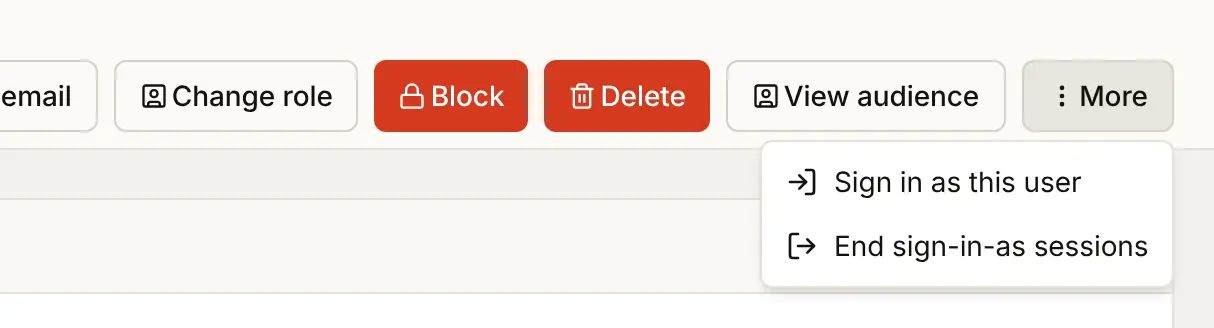
- Fill in the dialog:
| Field | Example | What it does |
|---|---|---|
| App | Acme Analytics | The app to open. An agent client cannot be used |
| Open at | https://app.acme.example/ | One of that app's redirect URLs, where your app lands after a sign-in |
| Minutes | 15 | How long the session lasts, from 5 to 60. It ends on its own when the time is up |
| Read-only | On | On by default. You can look around but not change anything BuildBase keeps for them |
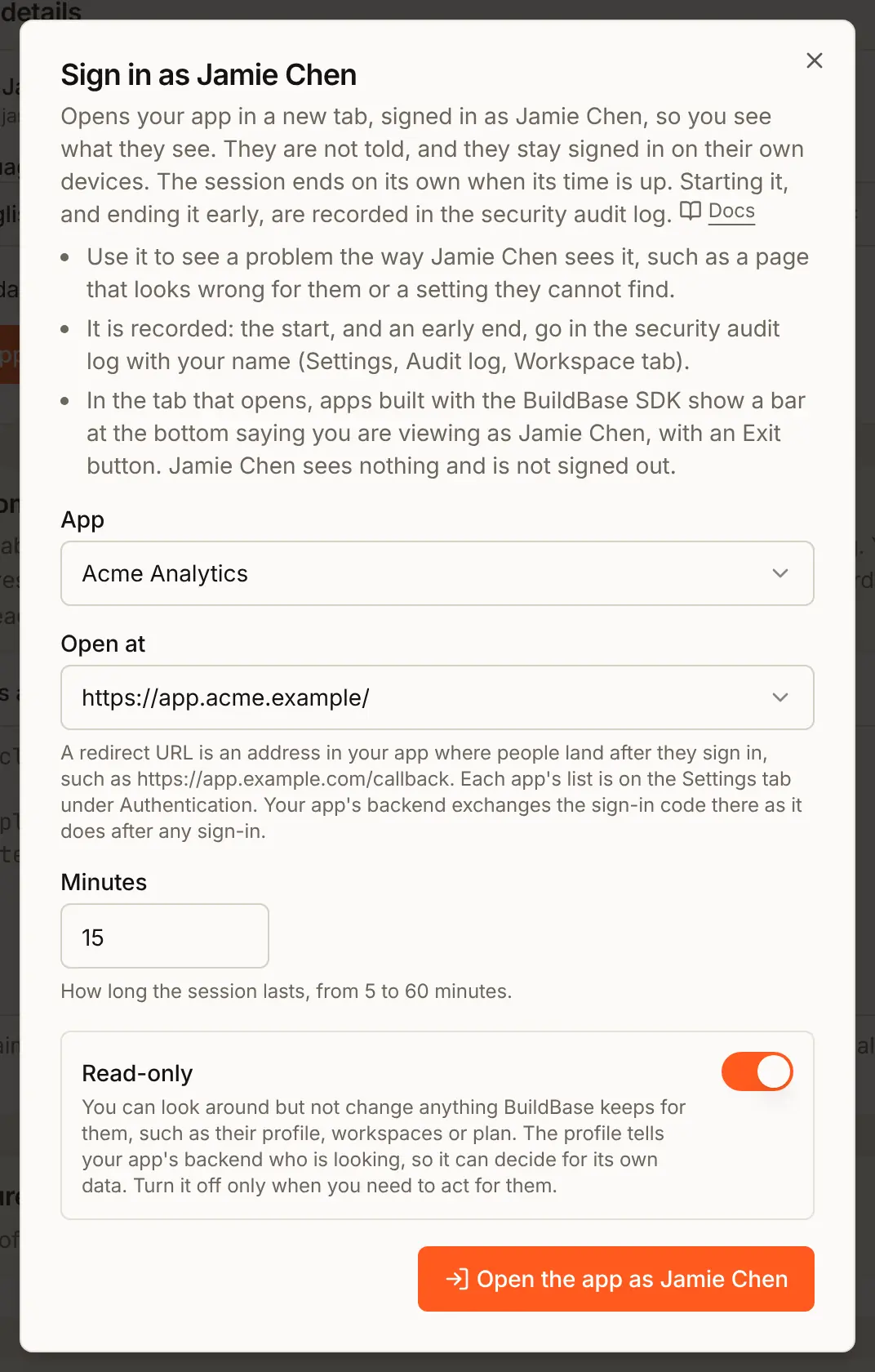
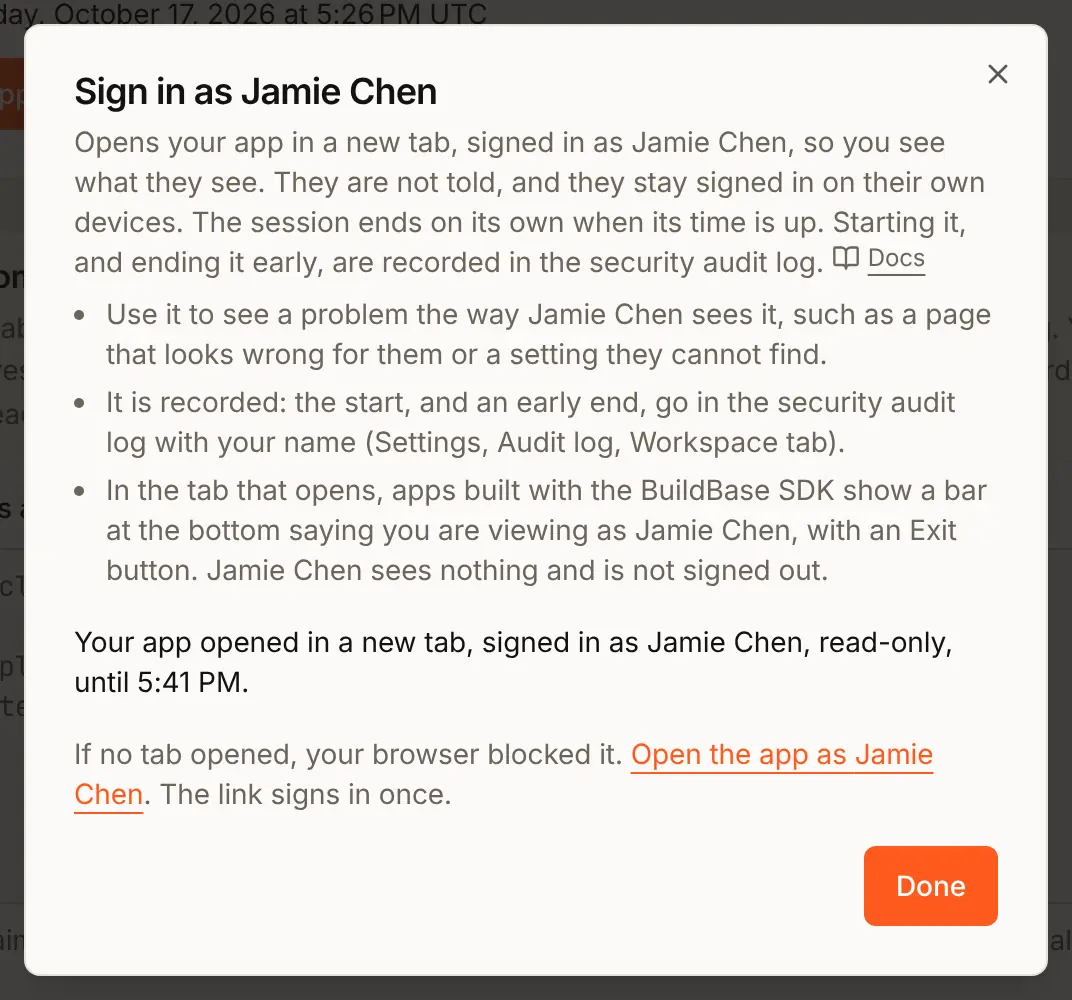
- Press Open the app as Jamie Chen. Your app opens in a new tab. If the browser blocked the tab, the dialog has a link that signs in once.
Read-only, and how to allow changes
Read-only is on unless you turn it off, and only the owner can turn it off.
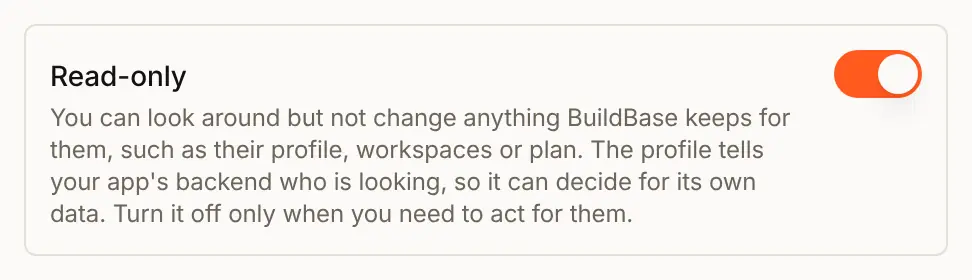
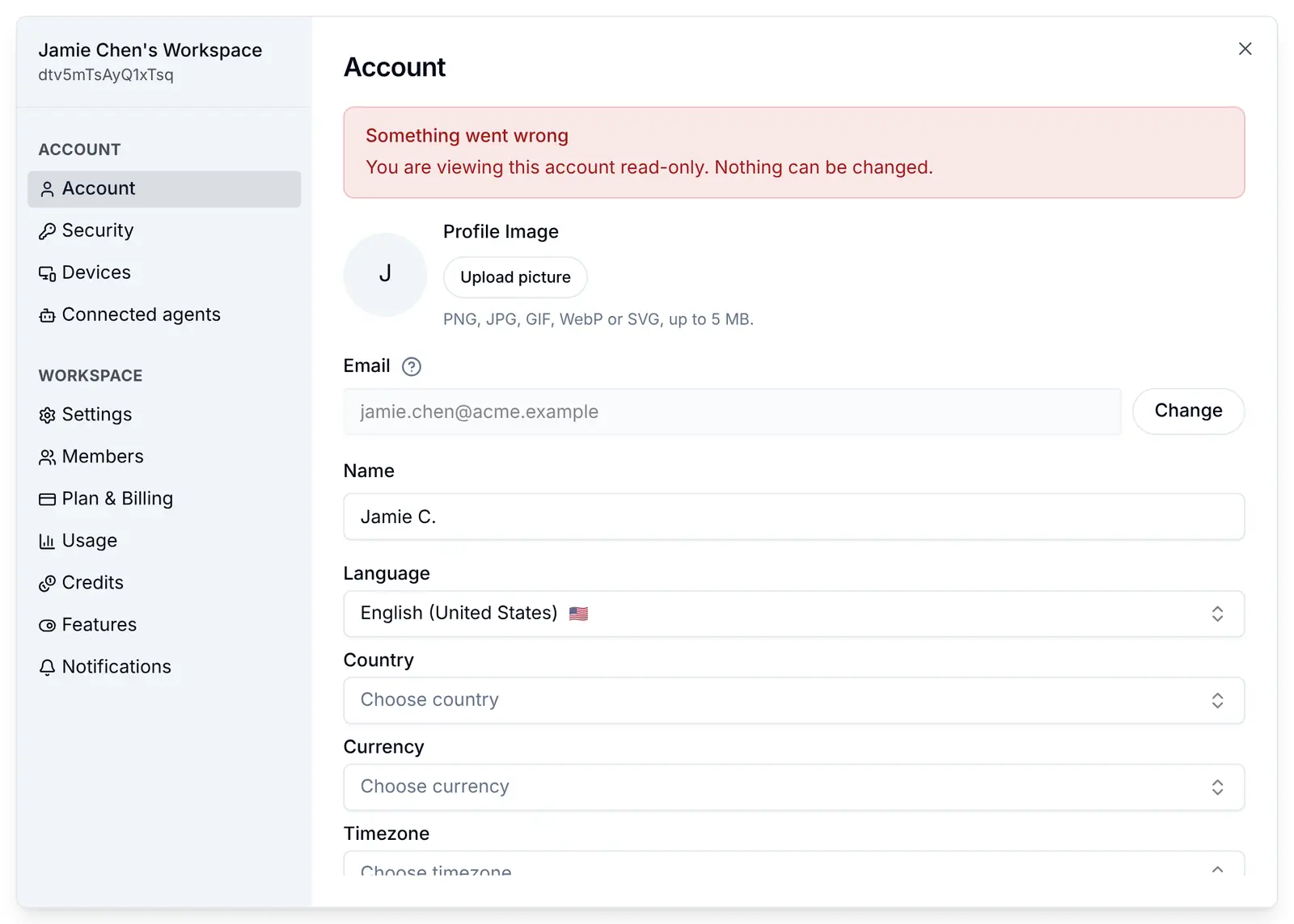
- Read-only on. Everything BuildBase keeps for the person (their profile, workspaces, plan and settings) can be read and not changed. Every change is refused with "You are viewing this account read-only. Nothing can be changed." Signing out still works, for that tab only.
- Read-only off. What you do in that tab is saved to their account, as if they did it. Use it only when you need to act for them, such as fixing a setting they cannot reach.
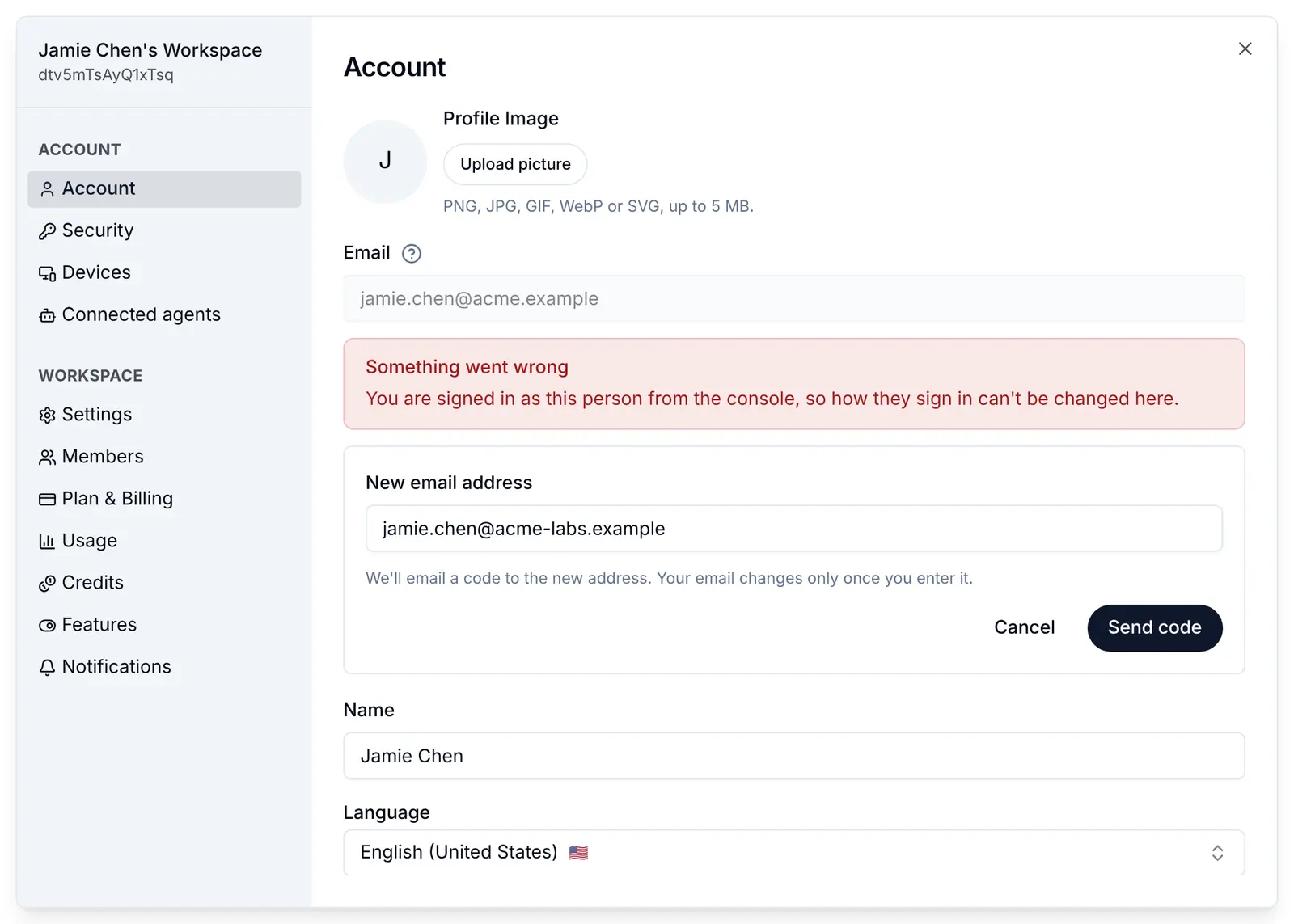
- Either way, how they sign in stays theirs. Their email address, phone number, username, password, second step, passkeys and connected accounts cannot be changed in a sign-in-as session, and a guest cannot be turned into an account from it. Each of those changes is refused with "You are signed in as this person from the console, so how they sign in can't be changed here."
Your own data is your backend's call. BuildBase cannot see your app's database, so read-only stops at BuildBase. Your backend can tell who is looking: the profile (GET /api/v1/public/profile, and the user in the code exchange's answer) carries impersonation: { actorName, readOnly, expiresAt } for as long as the session lasts. Refuse your own writes while readOnly is true.
What your app shows
For as long as the session lasts, the SDK pins a bar to the bottom of the window, so you never forget whose account you are in. Exit signs that tab out. The bar follows your app's language, in any of the 8 languages the SDK speaks.

A change in a read-only session is refused on the spot, with the server's sentence:
With Read-only off, the bar says changes are saved to their account:

and a change to how they sign in, such as a new email address, is still refused:
SaaSOSProvider renders the bar already. To place it in your own layout:
// app/providers.tsx
import type { ReactNode } from 'react';
import { ImpersonationBanner, SaaSOSProvider } from '@buildbase/sdk/react';

export function Providers({ children }: { children: ReactNode }) {
  return (
    <SaaSOSProvider
      // ...serverUrl, orgId and auth, as before
      ui={{ impersonationBanner: false }}
    >
      <ImpersonationBanner fixed={false} />
      {children}
    </SaaSOSProvider>
  );
}
useSaaSAuth().session.impersonation holds the same three facts, and isReadOnlySession(error) recognises the read-only refusal in your own code.
The session also:
- ends when its minutes run out, however long your sessions normally last
- never counts as a recent sign-in, so it cannot pass a change that asks the person to confirm it's them
- does not count the person as an active user
How it is audited
Each start goes into the security audit log with your name, the person, the app, whether it is read-only and when it ends. Open Settings, then Audit log, and the Workspace tab:

| Row in the log | Written when |
|---|---|
| Signed in as a user | A session starts |
| Stopped signing in as a user | Sessions are ended early from the console, with how many |
Exit on the bar, and a session running out, are not written to the log.
Ending it early
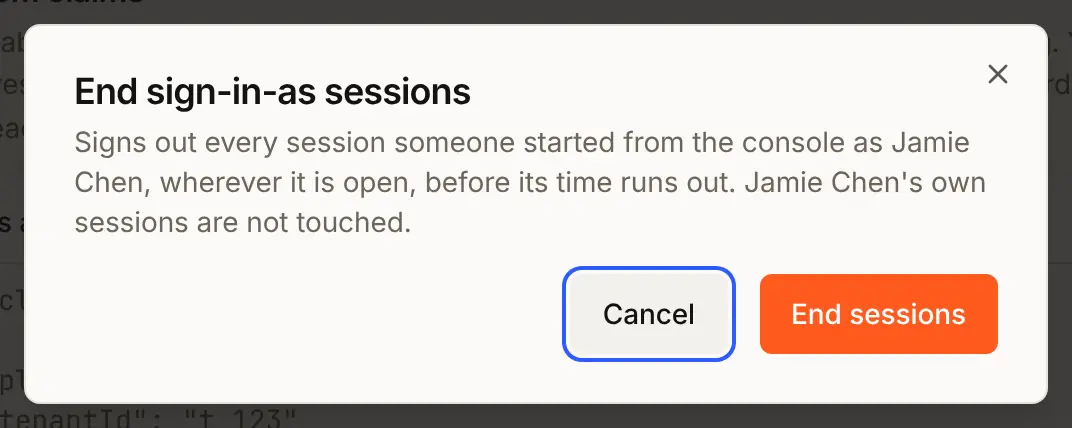
End sign-in-as sessions, in the same More menu, signs out every session anyone opened as that person from the console, wherever it is open. The person's own sessions are not touched.
When it is refused
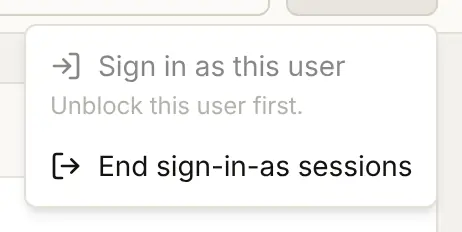
A blocked user cannot be signed in as: the menu item is greyed out and says why. Unblock them first.
| What you see | Why | What to do |
|---|---|---|
| "This user is blocked. Unblock them to sign in as them." | The user is blocked | Unblock them on their page, then try again |
| "Only the owner can sign in as a user with full access." | Read-only was turned off by someone without the owner role | Leave Read-only on, or ask the owner |
| "Sign in as yourself the usual way." | You picked your own account | Use your app's normal sign-in |
| "Choose one of your apps to sign in to." | No such app, or it is an agent client | Pick one of your own apps |
| "That address isn't one of this app's redirect URLs." | Open at is not on the app's list | Add the address on the Settings tab under Authentication |
| "Sign in to the console to view the app as a user." | The request came with an API token | Start it from the console, signed in |
| "None of your apps has a redirect URL to open." | No app has a redirect URL a browser can open (agents and wildcards do not count) | Add a redirect URL to an app |
| "You are viewing this account read-only. Nothing can be changed." | A change in a read-only session | Expected. Start a full-access session if you are the owner and must act |
| "You are signed in as this person from the console, so how they sign in can't be changed here." | A change to their email, phone, password, second step, passkeys or connected accounts | Expected in every session. The person changes these themselves |
Things to watch out for
- Read-only stops at BuildBase. Your own database is your backend's job: while the profile's
impersonation.readOnlyistrue, refuse your own writes. - The person is not told. Nothing reaches them, and they stay signed in on their own devices. Say in your support terms that your team may view an account to help.
- Only the start and an early end are logged. Exit on the bar and a session running out are not in the audit log.
- It never counts as a recent sign-in. Changes that ask the person to confirm it's them, such as deleting the account, cannot be done from a sign-in-as session.
- The app opens at one of its redirect URLs. Your app finishes the sign-in there as after any sign-in, so pick an address your app handles. A wildcard address cannot be used.
Check it works
- Open the app as Jamie Chen opens your app signed in as Jamie, with the bar at the bottom.
- A change in the read-only tab is refused.
- The audit log's Workspace tab shows Signed in as a user with your name.
- End sign-in-as sessions signs that tab out, and Jamie's own sessions stay signed in.
Next steps
- Signing in as a user - the reference and the API.
- Custom claims - the other per-user setting on the same page.
- Sessions and tokens - how sessions are stored and ended.
- Set up sign-in, step by step - every sign-in guide, and the order to set them up in.