
Add a custom OpenID Connect provider
Add a sign-in button for an identity provider BuildBase has not built, such as Keycloak, Okta or your own, with every field and URL check explained.
A custom provider puts one more sign-in button on your hosted page, for an identity provider BuildBase has not built in: a Keycloak server, Okta, Auth0, or a sign-in service your company runs itself. It works with any provider that speaks OpenID Connect (OIDC, the standard way one site confirms who someone is for another), or plain OAuth 2.0 with a user info address. The person presses the button, signs in on your provider's page, and comes back to your app signed in. You make a client (an application) in the provider, and swap a few values with BuildBase. The screenshots below use a small test provider named Acme ID, run on its own server, and show a real sign-in through it.
Before you start
- An identity provider where you can register a client: its issuer URL, a client ID and a client secret.
- One per organization. Every app in it can tick the same custom provider. Once one exists, Custom OIDC provider is no longer offered in Add new method, and adding a second is refused with "This app already has a custom provider. Edit that one instead."
- A plan that includes the custom OIDC sign-in provider. A plan without it shows the choice locked with "Your plan does not include custom OIDC sign-in provider.", and adding one is refused. While your plan does not name the feature at all, the add goes through. It also counts toward your plan's limit of social sign-in providers.
What goes where
| Copy this | From | Paste it into |
|---|---|---|
| Issuer URL | Your provider, such as https://id.acme.example/realms/acme | BuildBase, Issuer URL |
| Client ID | Your provider, the client you made | BuildBase, Client ID |
| Client secret | Your provider, the same client | BuildBase, Client secret |
| Redirect URL | BuildBase, after you press Create | Your provider, the client's allowed redirect URLs |
Okta calls the last one Sign-in redirect URIs, Auth0 Allowed Callback URLs, and Keycloak Valid redirect URIs.
1. Make a client in your provider
These are the steps the console shows under How to connect your identity provider. In Keycloak, as an example:
- In your realm, open Clients and choose Create client. Keep OpenID Connect as the type, and give a Client ID, such as
acme-analytics. - Turn Client authentication on, so the client has a secret, and keep Standard flow, the one that sends the person to the sign-in page and back.
- Leave Valid redirect URIs for now: you paste BuildBase's at the end of the next part.
- On the client's Credentials tab, copy the Client secret.
- Your issuer URL is your Keycloak address with
/realms/and the realm's name, such ashttps://id.acme.example/realms/acme. In Okta it is your Okta address, and in Auth0 your Auth0 domain withhttps://in front.
2. Add the provider in the BuildBase console
- In the console, open User management, then Authentication under Access, and the Methods tab.
- Press Add auth method and choose Custom OIDC provider.
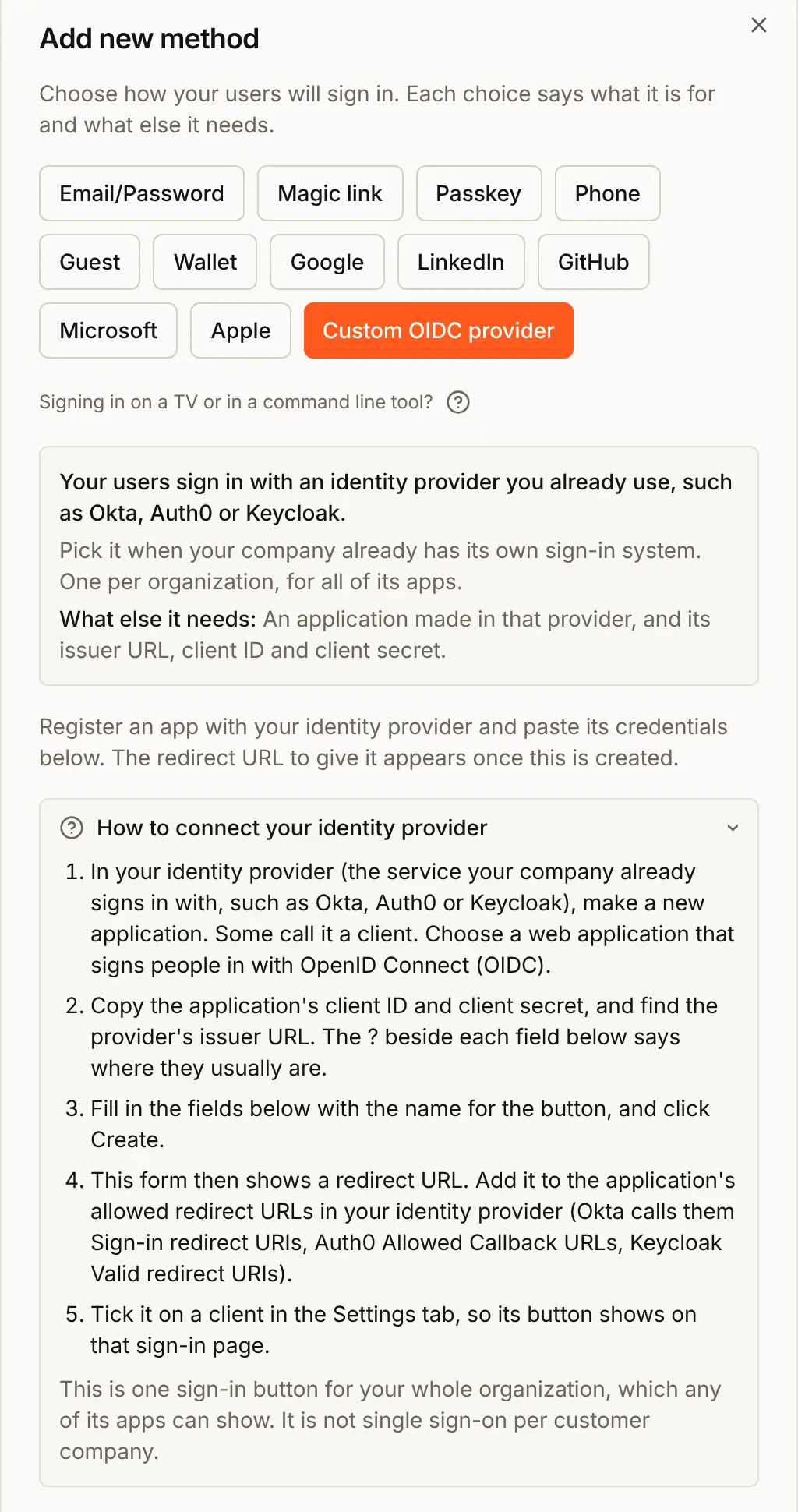
- Fill in the form. Each field:
| Field | What to give it |
|---|---|
| Title | Your own name for the method, shown in the console only. Here Acme ID. |
| Button label | Required. What the button on the sign-in page says, such as Acme ID. |
| Issuer URL | For a provider with OIDC discovery. Paste it without /.well-known/openid-configuration: BuildBase reads every other address from that document. |
| Client ID, Client secret | Required. From the client you made. |
| Authorization URL | Only for a provider without discovery: the page where people type their password. Give all three addresses and leave Issuer URL empty. |
| Token URL | Only without discovery: where BuildBase collects the sign-in, behind the scenes. |
| User info URL | Only without discovery: where BuildBase reads the person's email address and name. |
| Icon URL | A square image over https://. Without one, or if it fails to load, the button shows a key. |
| Trust its email addresses | Never (the default), When it sends email_verified: true, or Always. See Trusting its email addresses. |
| Scopes | openid profile email by default. Keep them: a new account is made with the email address. |
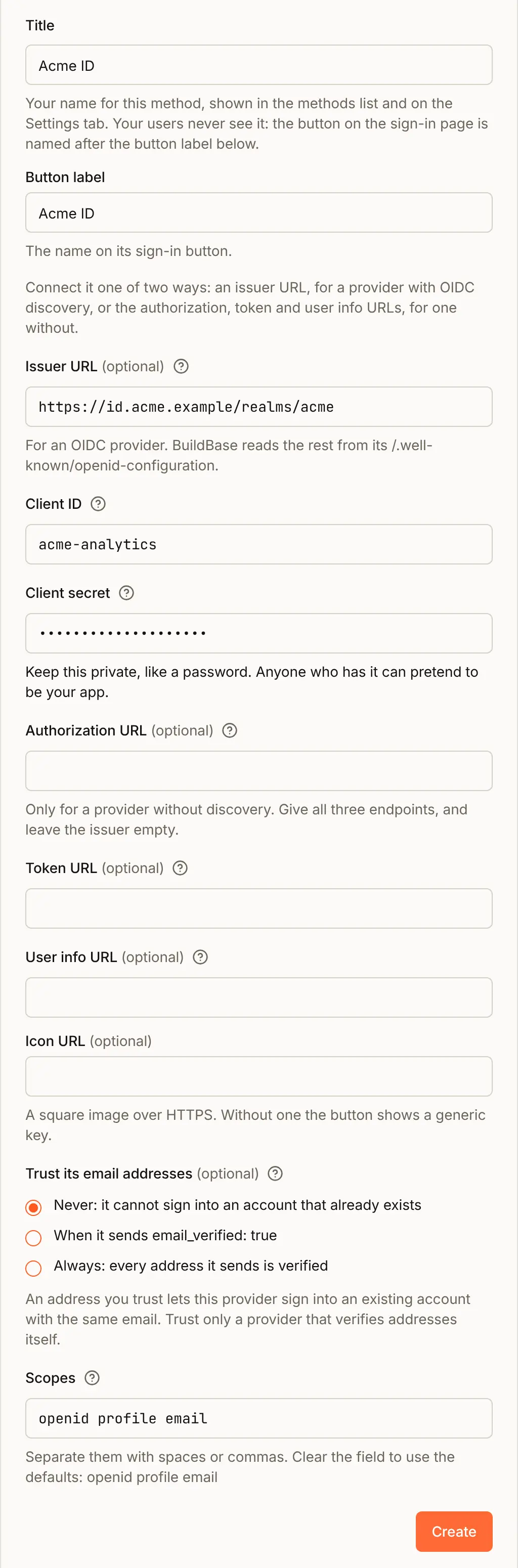
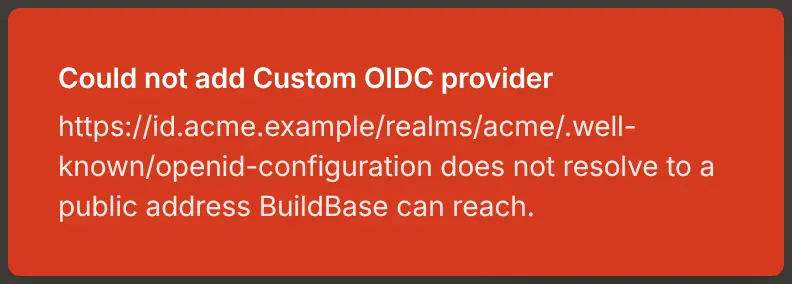
- Press Create. BuildBase reads the provider's discovery document before it saves, so a mistyped issuer is refused now rather than at someone's sign-in:
- With a working issuer, the dialog says One step left and shows the Redirect URL. Press Copy, then Done.
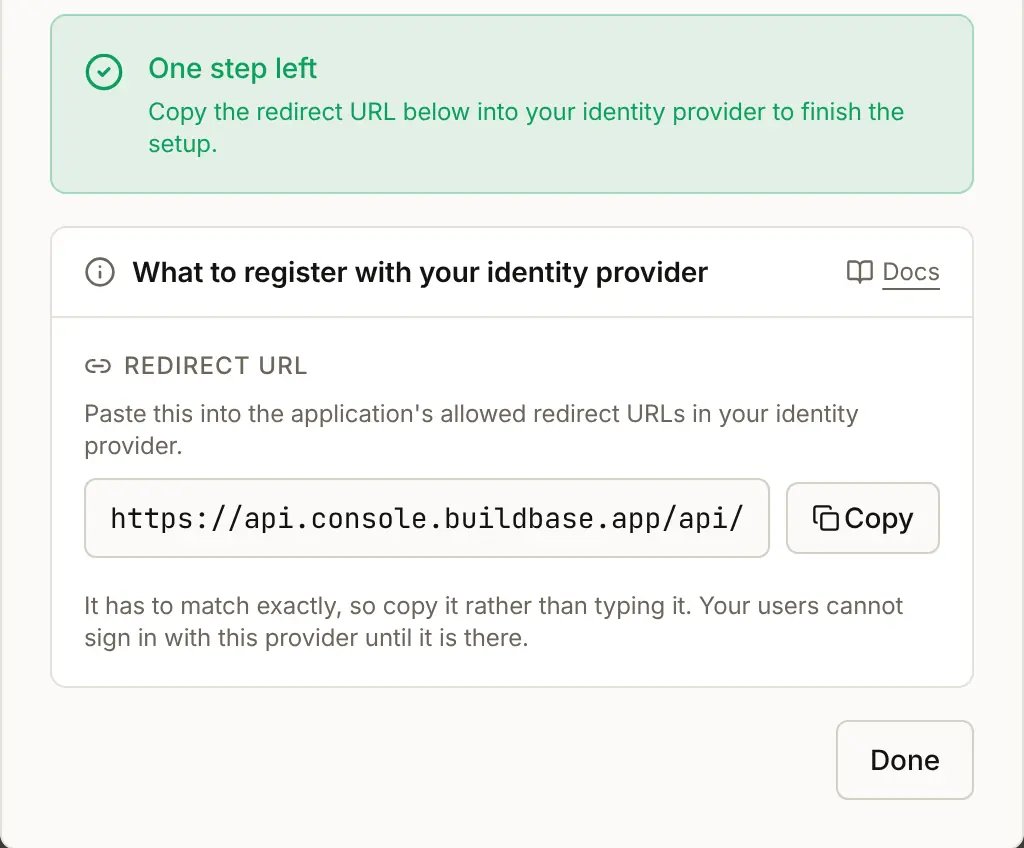
- In your provider, paste the URL into the client's allowed redirect URLs (Keycloak: Valid redirect URIs) and save.
The redirect URL has this shape:
https://api.console.buildbase.app/api/v1/auth/social/custom/<orgId>/<methodId>/callbackIt starts with your BuildBase server, https://api.console.buildbase.app{/* @endstat */} on BuildBase's cloud.
The URL checks
- Discovery or three addresses. Saving with neither an issuer nor all three addresses is refused with "Give an issuer URL, or all three endpoints."
- Every address BuildBase calls must be public. The issuer, and the token, JWKS (signing keys) and user info addresses, including the ones the discovery document names, must resolve to a public address. One that does not is refused with "... does not resolve to a public address BuildBase can reach." A provider on a private network has to be reachable at a public address first. A self-hosted BuildBase may use addresses on its own network; cloud metadata and link-local addresses are refused everywhere.
- The authorization URL is not checked. BuildBase never calls it; it only sends the person's browser there.
- The discovery document must name the same issuer it was fetched for, and list authorization, token and JWKS addresses. Otherwise the save is refused with "The discovery document names a different issuer" or "The discovery document has no authorization, token or JWKS endpoint."
https://only on a BuildBase server running in production: a plainhttp://address is refused with, for example, "Issuer URL must be an https:// URL." Icon URL is alwayshttps://, everywhere: "Icon URL must be an https:// URL."
3. Attach it to your app
- Open the Settings tab and press Edit on Acme Analytics.
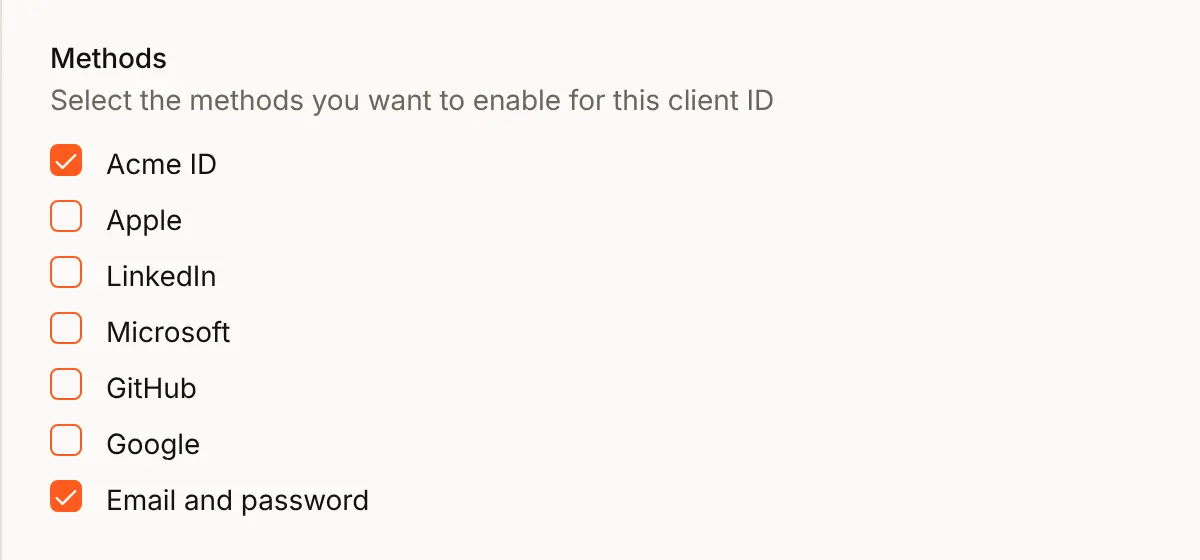
- Under Methods, tick the provider, listed by its Title, here Acme ID, and press Update.
4. Check the preview
The Preview on the Sign-in page tab shows your look with sample GitHub and Google buttons, not your methods. Press Open the live page for Acme Analytics above it to see the real page with your button.
5. What people see
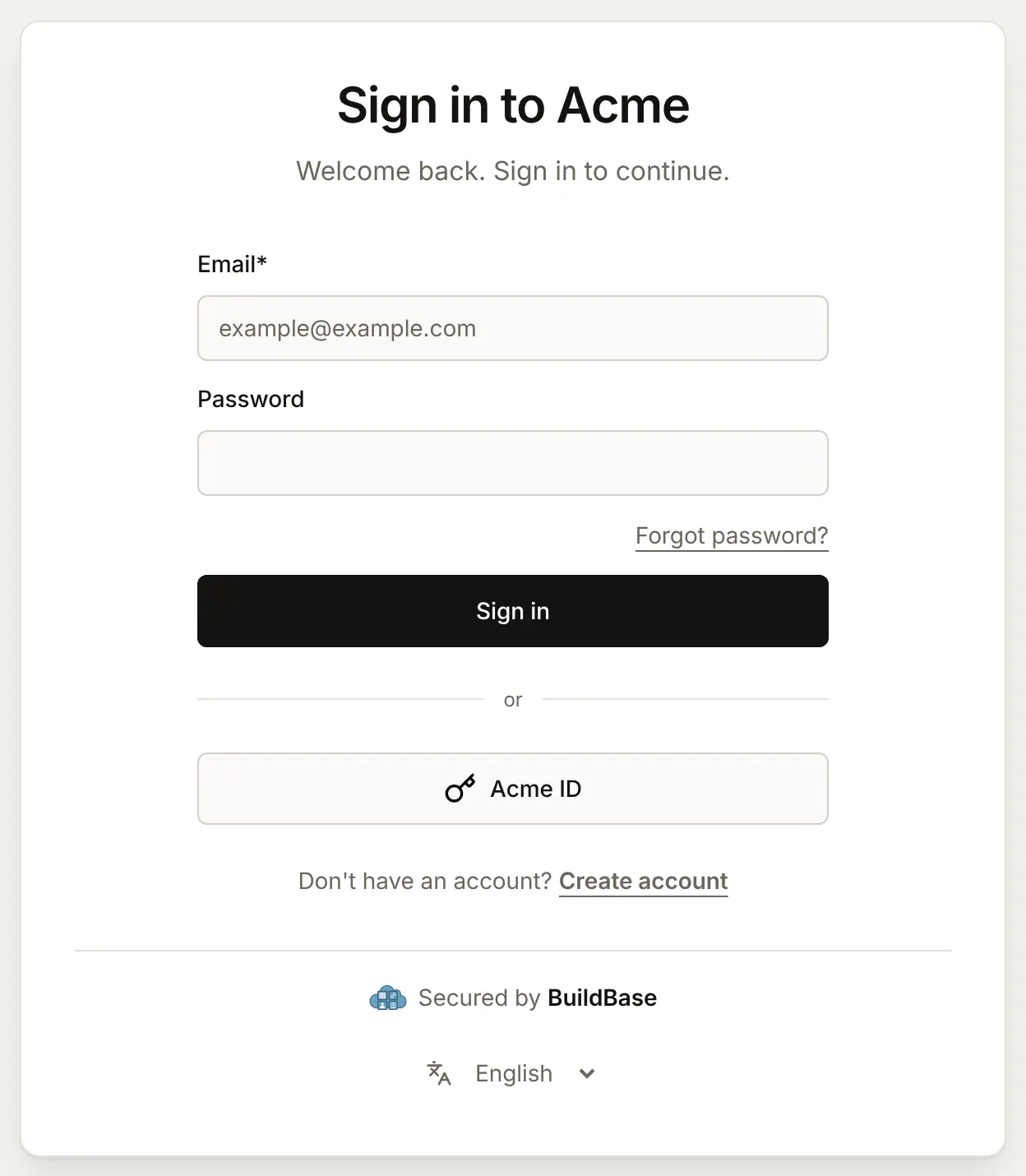
The hosted sign-in and register pages now have a button with your Button label. With no Icon URL, it shows a key.
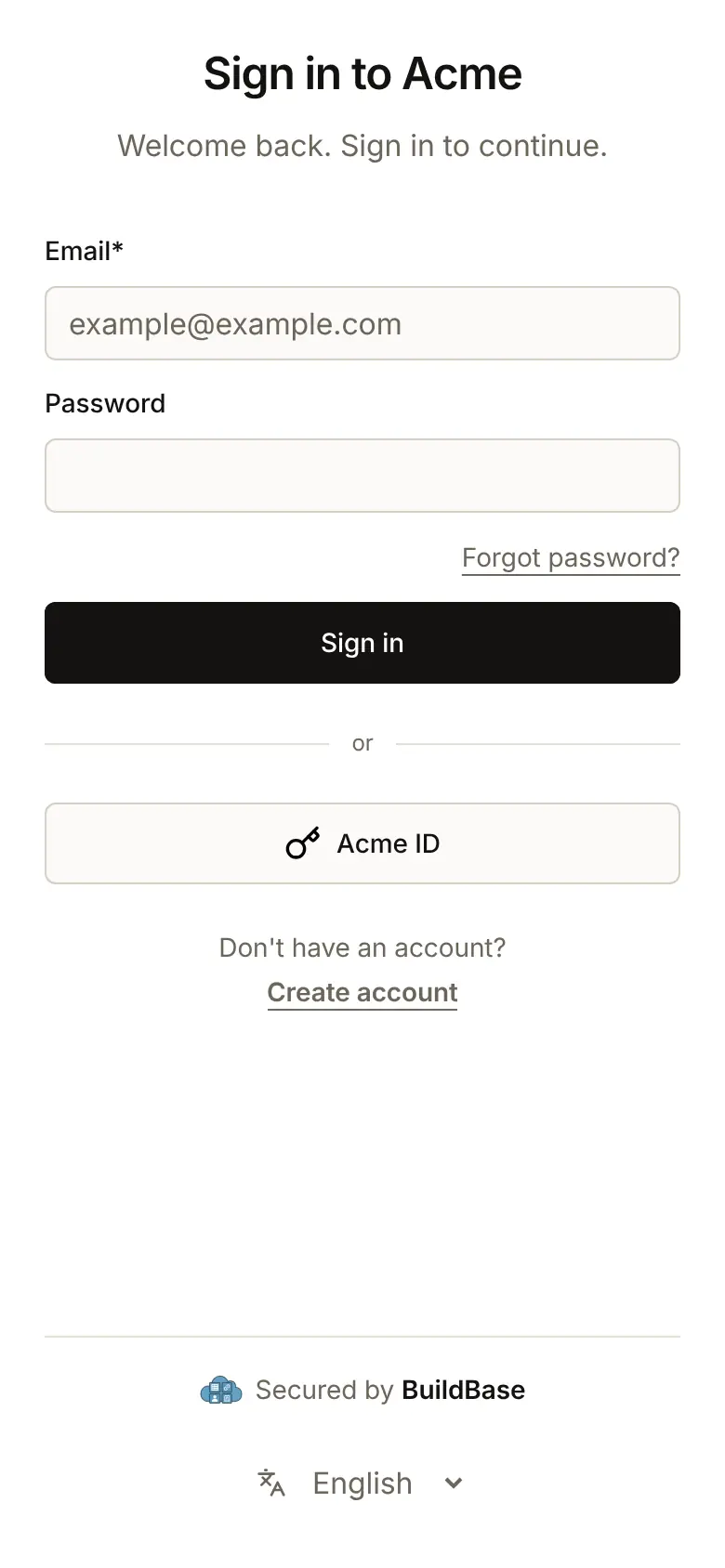
On a phone it runs the full width under the form:
Here is a whole first sign-in, for Riley Chen, who has no account yet:
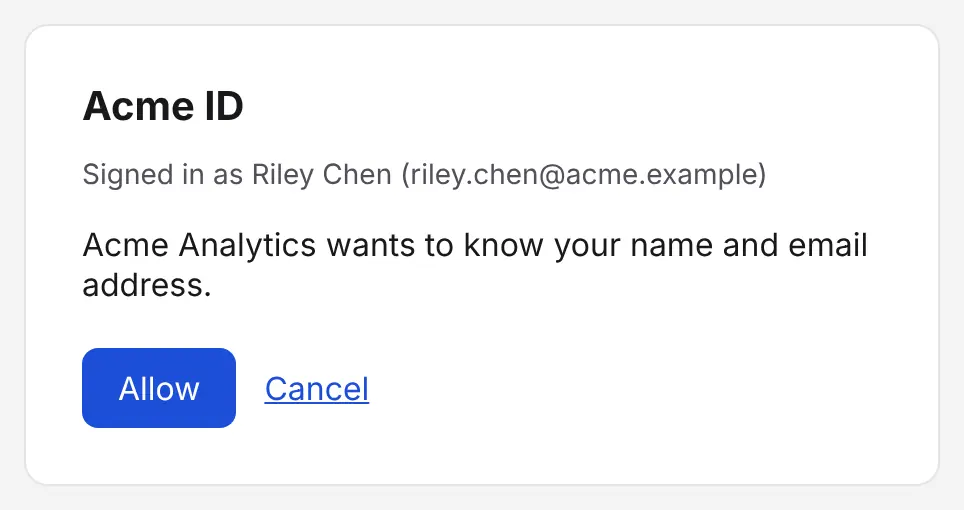
- Riley presses Acme ID. Their browser goes to the provider's own page, which asks them to sign in, and the first time to share their name and email address with your app.
- The provider sends them back, and BuildBase makes their account with the name and address the provider sent. Trust is still Never, so BuildBase has not taken the address on the provider's word: the sign-in page asks Riley to type a 6-digit code sent to it. With When it sends email_verified: true and a provider that says so, this step is skipped.
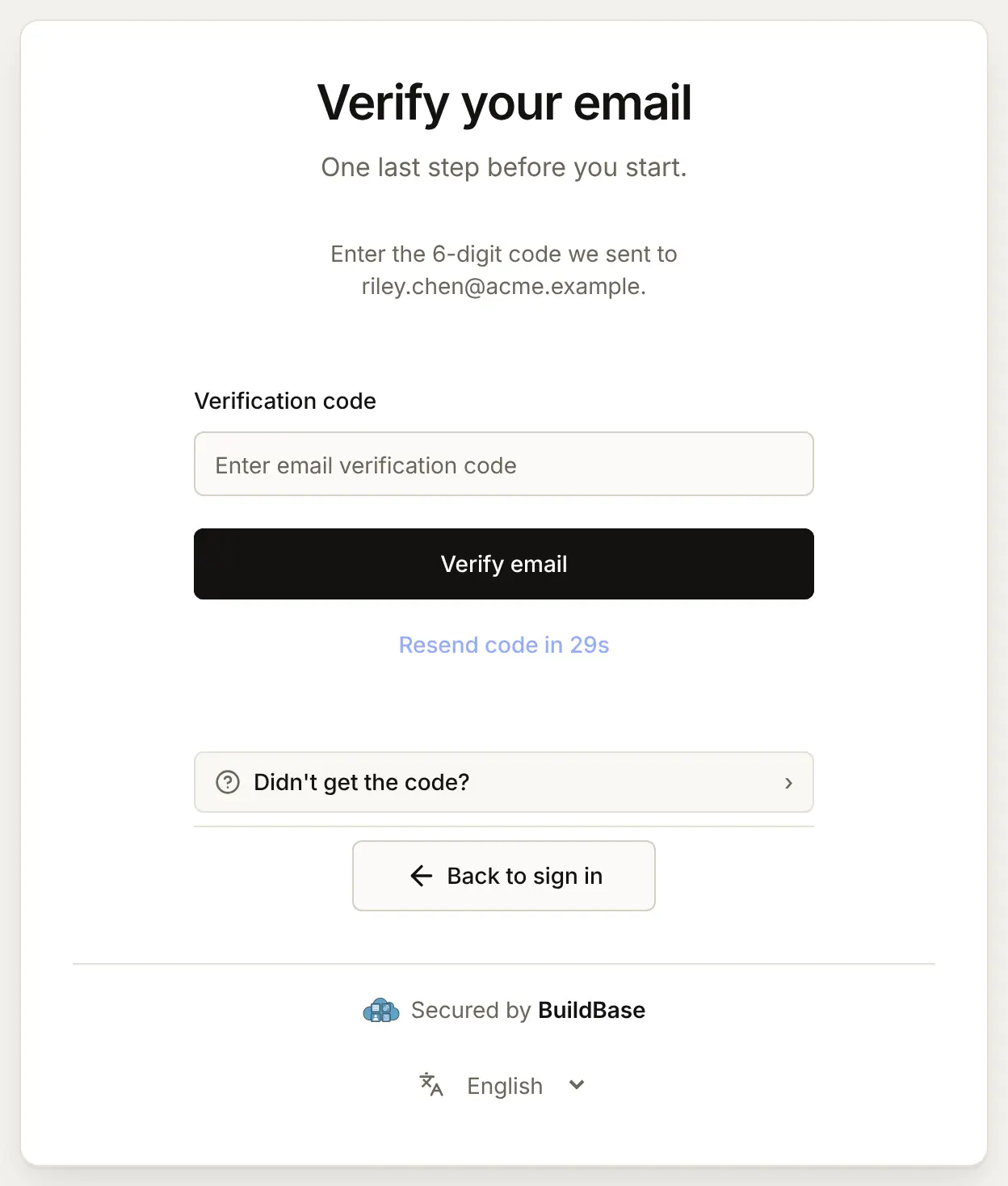
- After the usual Trust this device? question (and the passkey offer, if your app offers passkeys), Riley is in your app.
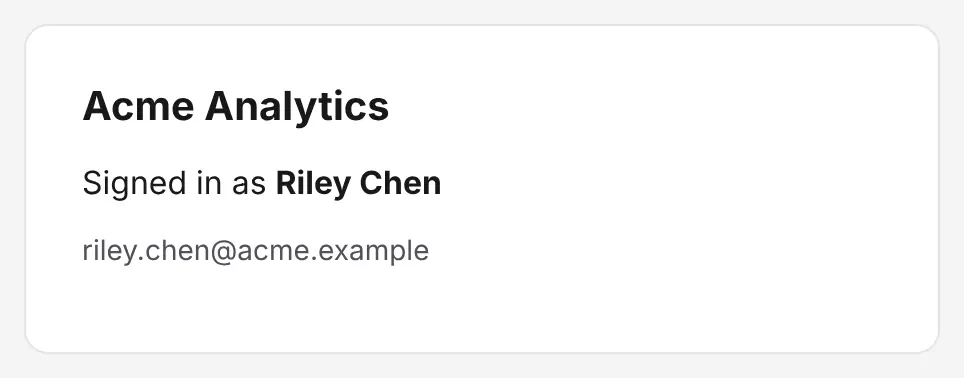
Riley now appears under Users in the console, with Sam Rivera from the next section:

Trusting its email addresses
Trust decides whether this provider may sign someone into an account that already has the same email address. BuildBase knows nothing about a provider you added, so it starts at Never.
| Setting | What it means |
|---|---|
| Never (default) | It cannot sign into an account that already exists with the same address. It can create new accounts, which confirm their address with an emailed code, and it finds them again by the provider's own user ID. |
| When it sends email_verified: true | It can sign into an existing account when, on that sign-in, it says the address is verified. Keycloak, Okta and Auth0 send email_verified. |
| Always | Every address it sends is treated as verified. |
Trust a provider only if it checks that people own the addresses it sends. Trusting one where anyone can type in any address lets anyone sign into anyone's account.
With Never, Sam Rivera, who already has an account at [email protected], is turned away when he first tries the button:
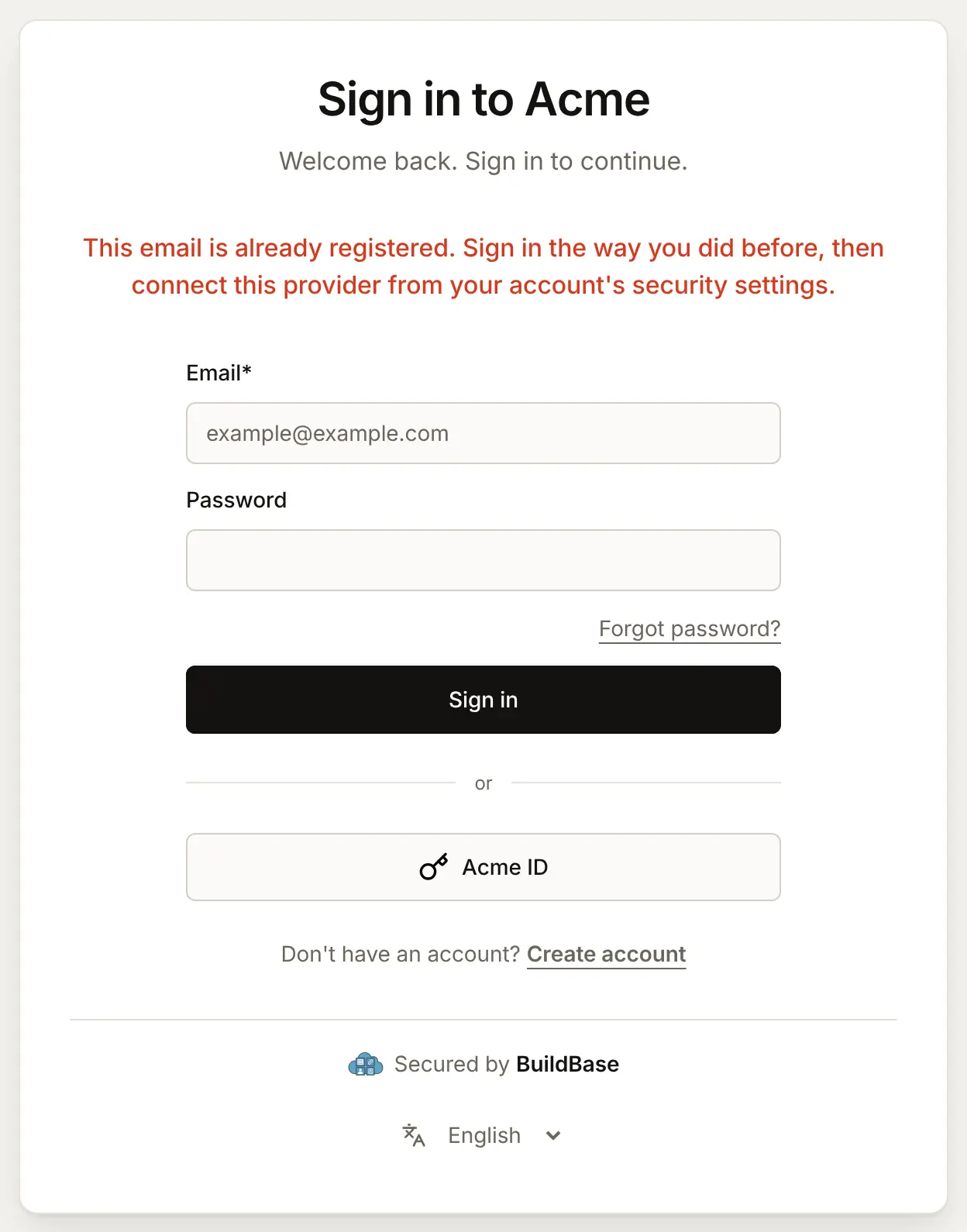
Sam can sign in as before and connect Acme ID from the Security screen of your app. Or, for a provider that checks addresses, change the trust: press the edit button on the provider's row in Methods, choose When it sends email_verified: true, and press Save.
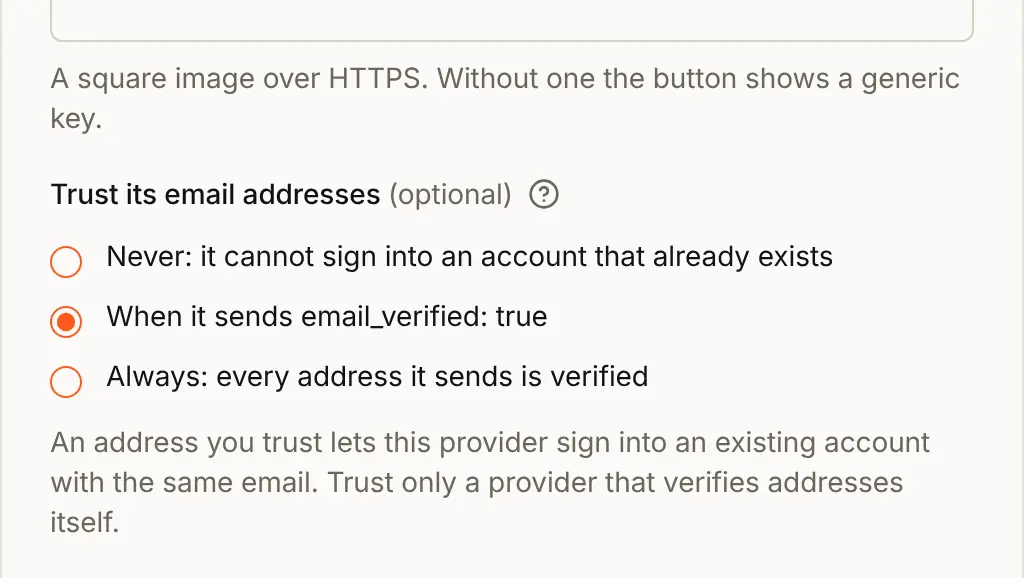
Sam's next press of the button signs him into his own account and connects Acme ID to it, so later sign-ins find him by the provider's user ID:
What BuildBase reads from your provider
With discovery, BuildBase checks the ID token: its signature against the provider's JWKS (RS256, ES256 or PS256), the issuer, the audience (your client ID) and the sign-in's nonce. The request carries a PKCE challenge, and the client signs in at the token address with HTTP Basic, unless the provider supports only client_secret_post. Without discovery, the profile comes from the user info address, and the client secret goes in the form.
| Field | Used for |
|---|---|
sub, or id from a plain OAuth 2.0 user info | The provider's user ID, which finds the account on every later sign-in |
email | The account's address. Without one, no account can be made |
email_verified | Whether the address is proven, when trust is When it sends email_verified: true |
name, else given_name and family_name, else preferred_username | The name on a new account |
Edit, do not replace. People who signed in with the provider are linked to it. A new custom provider starts with no links, so after deleting and adding one again, those people are found only by email, which needs the trust above. Change the issuer, keys or label with the edit button instead.
In your app
Nothing changes in your code. People connect and remove the provider on the SDK's Security screen, listed under its button label: see Account security screens.
import { useSaaSAuth } from '@buildbase/sdk/react';

export function SecurityButton() {
  const { openWorkspaceSettings } = useSaaSAuth();
  return (
    <button onClick={() => openWorkspaceSettings('security')}>Security</button>
  );
}
Check it works
- Saving the provider succeeded, so BuildBase could read its discovery document.
- The redirect URL is in the client's allowed redirect URLs at the provider.
- The provider is ticked on your app, and Open the live page shows your button.
- A new person can sign in and lands in your app; they appear under Users.
- Trust its email addresses is what you decided, not left at Never by accident if your provider verifies addresses.
Things to watch out for
- ID tokens must be signed with RS256, ES256 or PS256. A client set to sign with a shared secret (HS256) fails every sign-in with "Sign-in with that provider failed." In Auth0, keep the application's JSON Web Token signature algorithm on RS256.
- The issuer must match the provider's own. Copy the
issuervalue from the discovery document. In Keycloak it ends with/realms/and the realm's name. A slash at the end is ignored, anything else is not. - Trusting addresses can hand over accounts. Always and When it sends email_verified: true let the provider sign into any existing account with the same address. Choose them only for a provider that checks people own the addresses it sends.
- Deleting the provider unlinks everyone. People are linked to this one provider. A new one starts with no links, so edit the existing provider to change its issuer, keys or label.
- Changes at your provider can take an hour to reach BuildBase. BuildBase keeps the discovery document it read for up to an hour.
- Finish at your provider within 10 minutes. A sign-in left open on your provider's page for more than 10 minutes cannot finish: BuildBase sends the browser to your sign-in page, with a note that the sign-in expired. Start again from your app's Sign in button.
If something goes wrong
| What you see | Why | What to do |
|---|---|---|
| In the console: Give an issuer URL, or all three endpoints. | Neither an issuer nor the three addresses | Give the issuer, or the authorization, token and user info URLs. |
| In the console: ... does not resolve to a public address BuildBase can reach. | The address is mistyped, or the provider is on a private network (url_not_public) | Check the address; make the provider reachable at a public address. |
| In the console: BuildBase could not read ... /.well-known/openid-configuration. Check the issuer URL. | The discovery document is not at that address (discovery_failed) | Paste the issuer exactly as the provider names it, without the /.well-known part. |
| In the console: The discovery document names a different issuer (...). | The issuer you typed differs from the one the provider states, often by a trailing part | Copy the issuer value from the discovery document. |
| In the console: This app already has a custom provider. Edit that one instead. | There is one already (custom_provider_exists) | Edit the existing one. |
| In the console: Your plan does not include custom OIDC sign-in provider. | Your plan withholds the feature | Upgrade. |
| The provider's page says the redirect URI is not valid | The redirect URL is not in the client's allowed list | Paste it from the console. |
| Sign-in with that provider failed. Please try again. | BuildBase could not finish: a wrong client secret, an ID token it could not verify, or the provider unreachable (provider_failed) | Check the secret and the client's settings at the provider. |
| Sign-in with that provider did not finish. Please try again. | The person cancelled at the provider, or it answered with an error (provider_error) | Try again. |
| This email is already registered. Sign in the way you did before, then connect this provider from your account's security settings. | An account has this address and trust does not allow the provider to sign into it (email_unverified) | The person connects the provider from the Security screen, or you change the trust. |
| This provider did not share an email address, so an account cannot be created. Allow access to your email address and try again. | The provider sent no email (email_missing) | Keep the email scope, and check the provider releases the address to this client. |
| Sign-up is invite-only here, and there is no account for that address yet. Ask the team for an invitation, or sign in with an account you already have. | Public sign-up is off (signup_disabled) | Invite the person, or open sign-up. See who can sign up. |
| This app is not taking new sign-ups right now. | Your plan's end-user limit is reached (signup_unavailable) | Upgrade, or remove users you no longer need. |
Next steps
- Social providers - the reference for the custom provider and every built-in one.
- Who can sign up - who a provider may create accounts for.
- Account security screens - connected accounts inside your app.
- Set up sign-in, step by step - every sign-in guide, and the order to set them up in.