
Import your users from another service
Move your users from Clerk, Auth0, Firebase or Supabase with one command, keeping their passwords, phone numbers, old IDs and Google or Apple sign-ins.
When you move to BuildBase from another sign-in service, your users can come with you. The SDK's command line tool reads the export file that Clerk, Auth0, Firebase or Supabase gives you, and creates each person in BuildBase with their email address, name, password, phone number, their ID in the old system and the Google, GitHub, Microsoft, Apple or LinkedIn sign-ins they used. Nobody has to reset a password: at their next sign-in, people type the password they always had, or press the Google button they always pressed. This guide moves three people from a Supabase project into Acme Analytics.
Before you start
- The export from your old service, and for some services its password hashes too. See Get the export.
- Node.js 18 or later on the computer you run the command on, to run
npx. - An API key for your BuildBase organization that can create users. Step 3 makes one.
- The sign-in methods your users had, set up first: email and password, and each social provider, such as Google or Apple, ticked on your app.
- Room on your plan: imported people count toward its end-user limit, like anyone who signs up.
What comes across
| From the old system | In BuildBase |
|---|---|
| Email address | The account's address. A record without one is not imported. |
| Verified or not | Kept. A verified address is not asked to verify again. |
| Name | The account's name. |
| The user's ID | Kept on the user as externalId, so your own data can find the new account. |
| Password hash | Checked at the next password sign-in with the old system's algorithm. Nobody sees or sends the password itself. |
| Phone number | The account's phone, and whether it was verified, for phone sign-in. |
| Social sign-ins | Google, GitHub, Microsoft, Apple and LinkedIn, connected to the account. |
Sessions, passkeys and authenticator apps do not come across: people sign in once more, and add a passkey or two-step sign-in again if they want one. A passkey belongs to the domain it was made on, so it could not move anyway.
1. Get the export
| From | How to export | --from |
|---|---|---|
| Supabase | Query the auth.users table and save the result as JSON or CSV, with each user's rows from auth.identities to keep their social sign-ins (below). Passwords are bcrypt and come across as they are. | supabase |
| Clerk | The CSV from the Clerk Dashboard has password hashes but no social sign-ins. To keep both, list users through Clerk's Backend API as JSON, and pass the dashboard CSV with --passwords. | clerk |
| Auth0 | A bulk user export job, as JSON (it may arrive gzipped; the command reads it either way). Auth0 never puts password hashes in it: ask Auth0 support for the password hash export and pass it with --passwords. | auth0 |
| Firebase | firebase auth:export users.json --format=JSON with the Firebase CLI. The password hash parameters (signer key, salt separator, rounds, memory cost) are in the Firebase console, under Authentication. | firebase |
For Supabase, this query in the SQL editor returns what the command reads, with the identities as a column:
select u.id, u.email, u.email_confirmed_at, u.phone, u.phone_confirmed_at,
       u.encrypted_password, u.raw_user_meta_data, u.deleted_at,
       (select json_agg(json_build_object('provider', i.provider, 'provider_id', i.provider_id))
          from auth.identities i where i.user_id = u.id) as identities
from auth.users u;
Save it as supabase-users.json. The export used here has four people: Priya Shah, who signed in with a password and has a phone number; Jordan Lee, who signed in with Google; Morgan Diaz, who signed in with Apple and hid their address behind Apple's relay; and Casey Brooks, who deleted their account. The export holds password hashes, so keep it as safe as a password, and delete it when you are done.
2. Try it with a dry run
--dry-run converts the export and shows what would be sent, without a key and without sending anything:
npx buildbase import --from supabase supabase-users.json --dry-runbuildbase: read 4 records from supabase-users.json (supabase): 3 to import
note: Apple user ids are per team: imported Apple links match only if this app uses the same Apple developer team as the old system.
The first 3 users, as they would be sent (hashes redacted):
record 1: {"email":"[email protected]","emailVerified":true,"name":"Priya Shah","externalId":"7d1c2b3a-1111-4a5b-8c9d-0e1f2a3b4c01","phone":"+14155550123","phoneVerified":true,"password":{"hasher":"bcrypt","hash":"<redacted>"}}
record 2: {"email":"[email protected]","emailVerified":true,"name":"Jordan Lee","externalId":"7d1c2b3a-2222-4a5b-8c9d-0e1f2a3b4c02","links":[{"provider":"google","providerAccountId":"110022003300440055006"}]}
record 3: {"email":"[email protected]","emailVerified":true,"name":"Morgan Diaz","externalId":"7d1c2b3a-3333-4a5b-8c9d-0e1f2a3b4c03","links":[{"provider":"apple","providerAccountId":"001234.0a1b2c3d4e5f60718293a4b5c6d7e8f9.1234"}]}
Not sent:
record 4 ([email protected]): deleted: the user is deleted in Supabase, so they are not imported
buildbase: dry run, nothing was sent. 3 users would be sent in 1 batch.Read it before you go on. Each user shows what BuildBase will receive: Priya's phone has its + back, her password is a bcrypt hash, and Jordan's and Morgan's sign-ins are links to Google and Apple. Casey is left out, because the account was deleted in Supabase. The note is about Morgan: Apple gives each developer team its own user IDs, so the Apple link matches only if your Apple method uses a Services ID in the same team as before. Otherwise Morgan is found by email address at their first Apple sign-in instead.
npx buildbase runs the SDK installed in your project. Without it, npx @buildbase/sdk import does the same. npx buildbase import --help lists every option.
3. Make an API key
The command signs in to BuildBase with an API key of your organization.
- In the console, open Settings at the bottom of the menu, then API keys under Organization.
- Press Create API key. Give it a Name, such as
User import, and a Description. Leave Role on Your own role, or pick an API role that can create users; Settings, API roles makes one.
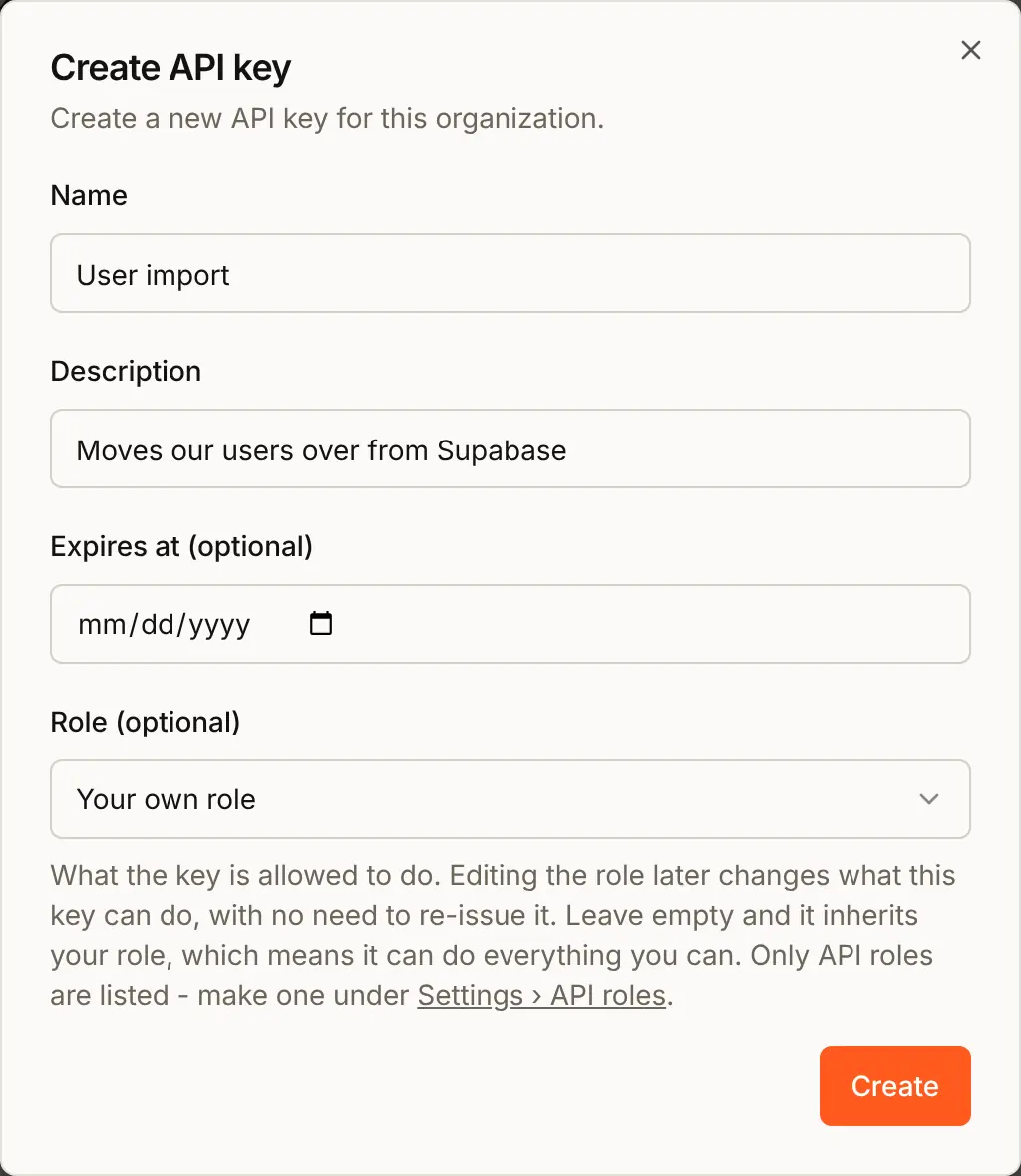
- Press Create, then Copy key. The key is your organization ID, a colon and a secret. It is shown only this once.
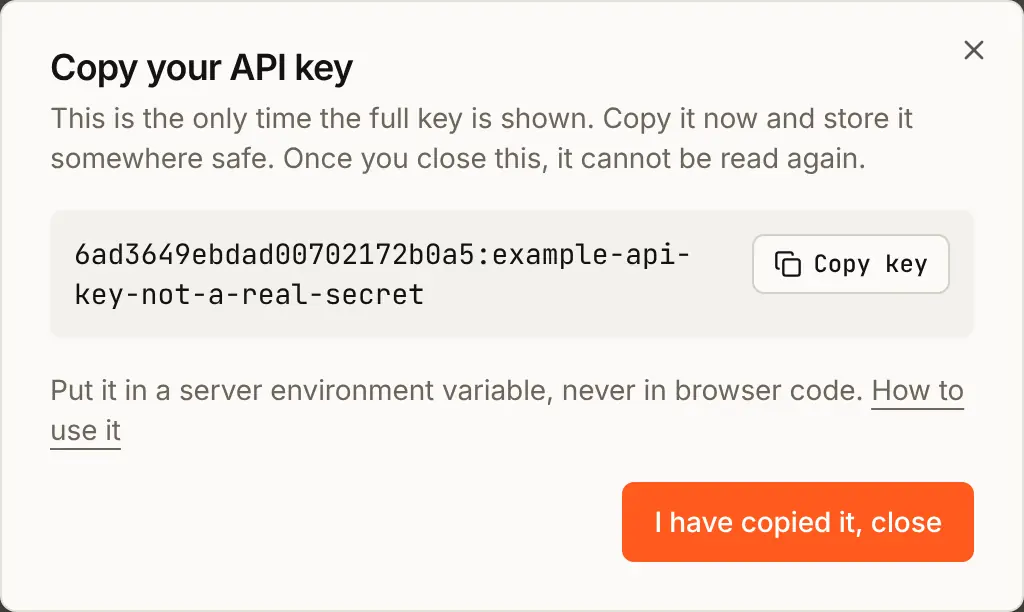
When the import is done, deactivate or delete the key on the same page.
4. Run the import
Give the command your BuildBase server and the key in the environment. read -rs takes the key from a paste without showing it, so it stays out of your shell history:
export BUILDBASE_SERVER_URL=https://api.console.buildbase.app
read -rs BUILDBASE_API_TOKEN && export BUILDBASE_API_TOKEN
npx buildbase import --from supabase supabase-users.json
The server is https://api.console.buildbase.app{/* @endstat */} on BuildBase's cloud, or your own for a self-hosted one. The command sends the users in batches of 500 and prints the totals:
buildbase: read 4 records from supabase-users.json (supabase): 3 to import

buildbase: 3 created, 0 updated, 0 skipped, 0 failed (3 users sent, 1 not sent)
note: Apple user ids are per team: imported Apple links match only if this app uses the same Apple developer team as the old system.

Failed:
  record 4 ([email protected]): deleted: the user is deleted in Supabase, so they are not imported
Running it again is safe: people already imported are skipped, so a run cut short can simply be run again.
buildbase: 0 created, 0 updated, 3 skipped, 0 failed (3 users sent, 1 not sent)--overwrite updates people who are already there instead of skipping them. It never changes the address someone signs in with, and never replaces a password they have set in BuildBase since.
The command ends with exit code 0 when every record was imported, 1 when any record failed or was not sent (as Casey's here), and 2 when it could not start, for example without a key. That matters if you run it from a script.
5. Check the users in the console
Open User management, then Users. The imported people are there, with Priya's phone number:

An import is not a sign-up: nobody is sent a welcome or verification email, so tell people about the move yourself, when you are ready. Each person created emits the user.imported event, not user.registered, so a workflow or webhook that listens for sign-ups does not run for them; subscribe to user.imported to sync them to your own systems.
6. What people see at their first sign-in
With a password. Priya opens your sign-in page and types her email address and the password she had in Supabase:
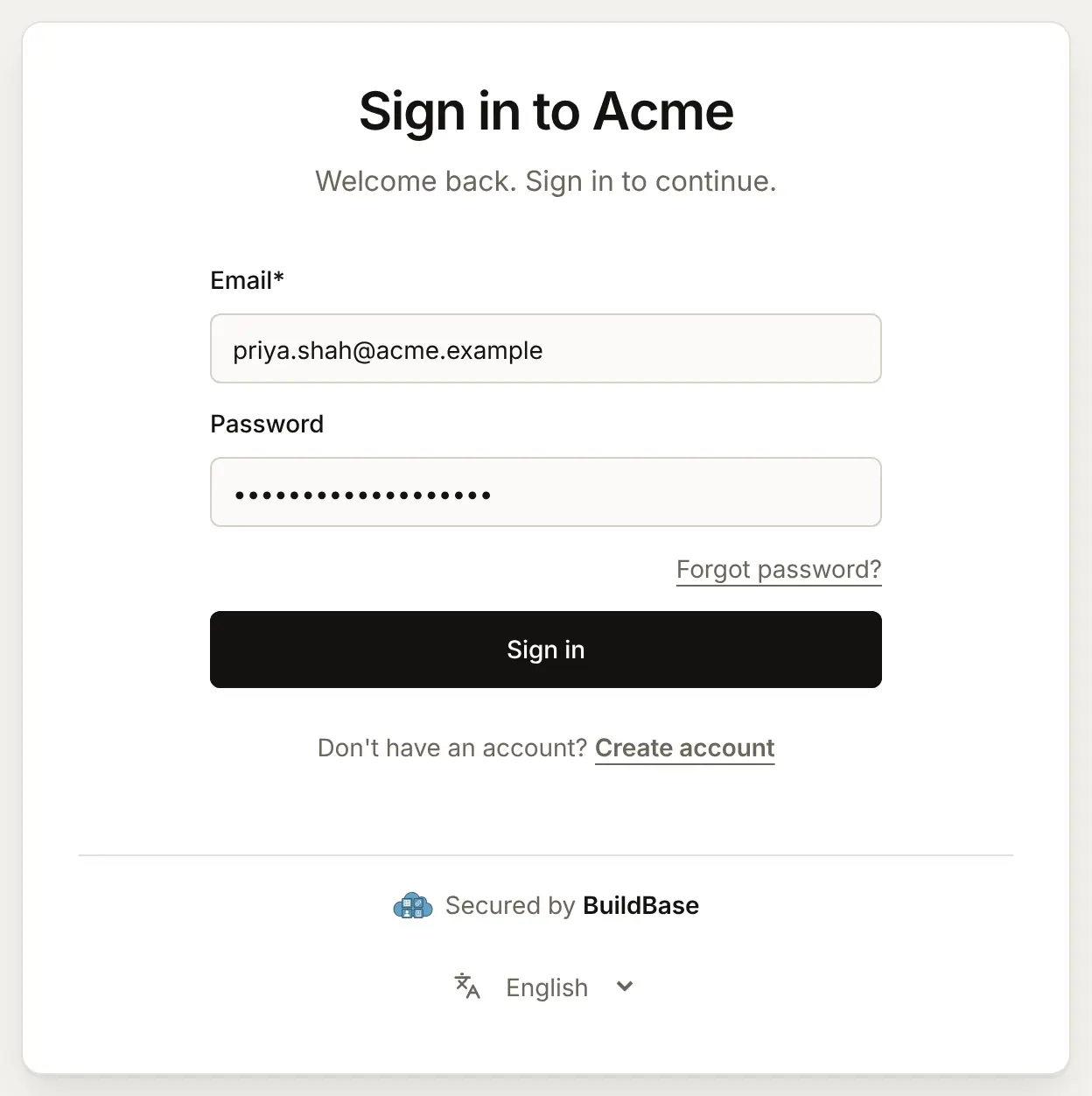
BuildBase checks it against the imported hash with the old system's algorithm. It matches, so she is signed in. Her verified address needs no code. After the Trust this device? question, she is in your app:
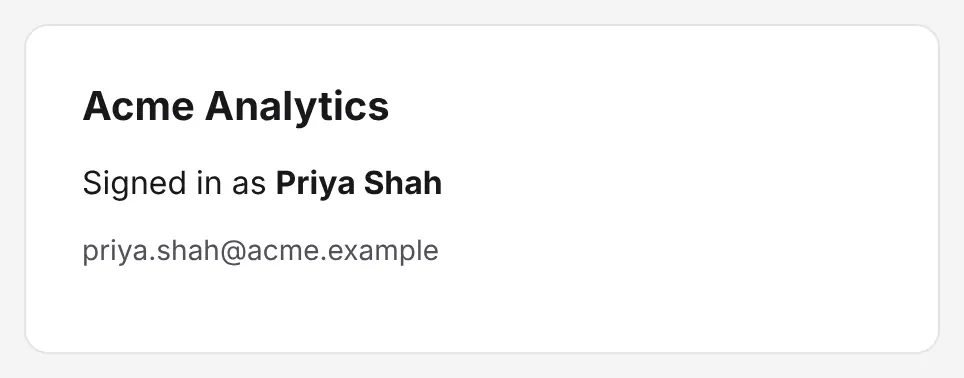
From then on her password is stored the way BuildBase stores every password, and the old hash is gone. Someone whose old hash BuildBase cannot check is imported with no password, and the command says so: they sign in with a magic link, an email code or a social provider, or set a new password with Forgot password?.
With Google or GitHub. Jordan presses Google. Google gives a person the same user ID in every app, so BuildBase finds Jordan's account by that ID and signs them in, whichever Google client your method uses.
With Microsoft, Apple or LinkedIn. These give each app registration (Microsoft), developer team (Apple) or developer app (LinkedIn) its own user IDs. The imported link matches only while your method uses the same registration, team or app as the old system, and the command's note after the totals says so for each of them the export holds. With a new one, BuildBase finds the person by their verified email address instead, as for any first social sign-in. Someone who hid their address, like Morgan, is the exception: Apple gives each developer team its own relay address too, so with a new team neither the ID nor the address matches, and their first Apple sign-in makes a new account. Keep the old team for them.
Unverified addresses. Someone whose address was not verified in the old system is asked for an emailed code at their first sign-in, as a new sign-up would be.
With a phone. Priya's verified number works for phone sign-in at once. An unverified imported number becomes verified the first time a code sent to it signs the person in.
Inside your app, imported Google, Apple and other sign-ins show in Connected accounts on the SDK's Security screen, where people can remove one or connect another. Account security screens shows it.
Check it works
- The dry run shows every user you expected, and nothing you did not.
- The import reports no failed rows other than ones you meant to leave out.
- The people are under Users.
- One test person signs in with their old password, and one with each social provider they used.
- The API key is deactivated or deleted, and the export file deleted.
Things to watch out for
- Microsoft, Apple and LinkedIn sign-ins match only the same app. Microsoft gives each app registration, Apple each developer team and LinkedIn each developer app its own user IDs. Google and GitHub give the same ID everywhere. With a new registration, team or app, people are found by their verified address instead, and an Apple hidden address never matches.
- Auth0 keeps password hashes out of its export. Ask Auth0 support for the password hash export before you plan the move, and pass it with
--passwords. - An import is not a sign-up. Nobody gets an email, and each person emits
user.imported, notuser.registered, so a workflow or webhook that waits for sign-ups does not run for them. - The plan limit stops the rest. When your plan's end-user limit is reached, that person and every later new one fail with
limit_reached. Raise the limit before a large import. - The export holds password hashes. Keep it as safe as a password, delete it when you are done, and deactivate the API key.
If something goes wrong
| What you see | Why | What to do |
|---|---|---|
| buildbase: set BUILDBASE_API_TOKEN to an org API token allowed to create users | No key in the environment | Export BUILDBASE_API_TOKEN as in step 4. |
| buildbase: set BUILDBASE_SERVER_URL (for example https://api.console.buildbase.app) | No server in the environment | Export BUILDBASE_SERVER_URL, or pass --server-url. |
| buildbase: the API token was refused (401). Check BUILDBASE_API_TOKEN and that its role can create users. | A mistyped, deactivated or expired key, or a role that cannot create users (403) | Make a new key in API keys, with your own role or a role that can create users. |
| buildbase: --from is required: clerk, auth0, firebase, supabase | No --from | Add --from and the service the file came from. |
| buildbase: --passwords is for Auth0's hash export or Clerk's CSV, not supabase | --passwords with another service | Leave it out: Supabase and Firebase exports carry their hashes. |
| buildbase: read the JSON export: firebase auth:export users.json --format=JSON (the CSV has no Microsoft or Apple sign-ins) | A Firebase CSV | Export again as JSON. |
skipped in the totals | The person is already here, matched by email or old ID (exists) | Nothing to do; --overwrite updates them instead. |
A row with limit_reached | Your plan's end-user limit is reached. That person and every later new one fail | Upgrade, then run the same command again. |
A row with deleted, invalid_email or plaintext_password | The old system had deleted them, the address is not one, or the file holds a password instead of a hash | Fix the export if they should come across; a plaintext password is never imported. |
| An imported Microsoft, Apple or LinkedIn person gets a new, empty account at first sign-in | Your method uses a new app registration, team or app, and their address did not match, as with an Apple relay address | Use the old registration, team or app for your method. |
Next steps
- Importing users - the reference: every option, the API behind the command and its answer.
- Account security screens - connected accounts inside your app.
- Phone sign-in - for people who came with a phone number.
- Set up sign-in, step by step - every sign-in guide, and the order to set them up in.