
Set up Google One Tap
Offer one-click Google sign-in to people already signed in to Google. Turn on One Tap for your Google method and register your sign-in page's origin.
Google One Tap is a small prompt Google draws on your sign-in page for someone already signed in to Google in that browser, offering to continue as their Google account. One click and they are signed in, without leaving the page. The Google button stays where it was, for everyone else. It is a setting on your Google method, so it uses the same Google client and needs no new keys: only one more address registered with Google.
Before you start
- Your Google method, working, with the redirect URL registered and Google ticked on your app.
- Your sign-in page on
https://. Google shows One Tap only on HTTPS pages, and onhttp://localhostwhile you test. - Access to the same OAuth client in Google Cloud, to add an Authorized JavaScript origin.
What goes where
| Copy this | From | Paste it into |
|---|---|---|
| Your sign-in page's origin | The Google method in BuildBase, once One Tap is on | Google Cloud, the same OAuth client, Authorized JavaScript origins |
An origin is the start of a web address: https:// and the domain, with nothing after it, such as https://auth.acme.example. It is your sign-in page's, not your BuildBase server's. Google shows One Tap only on an origin listed on the client.
1. Turn it on in the console
- In the console, open User management, then Authentication under Access, and the Methods tab.
- Press the edit button on the Google row.
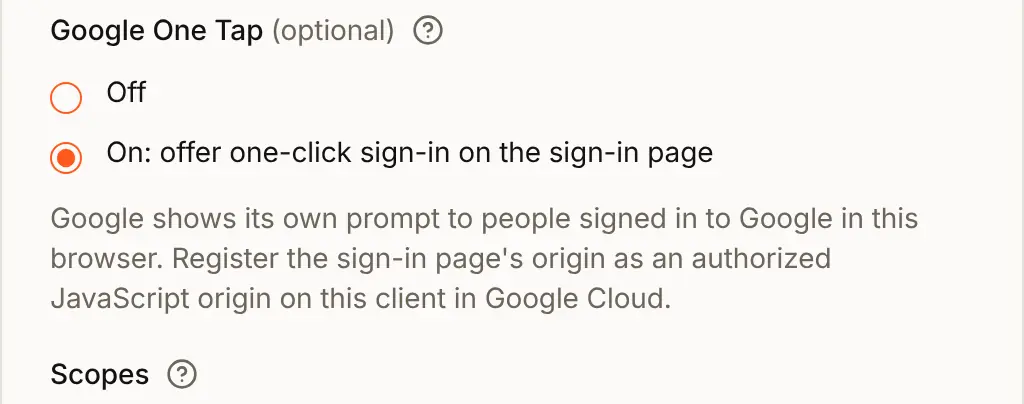
- Under Google One Tap, choose On: offer one-click sign-in on the sign-in page.
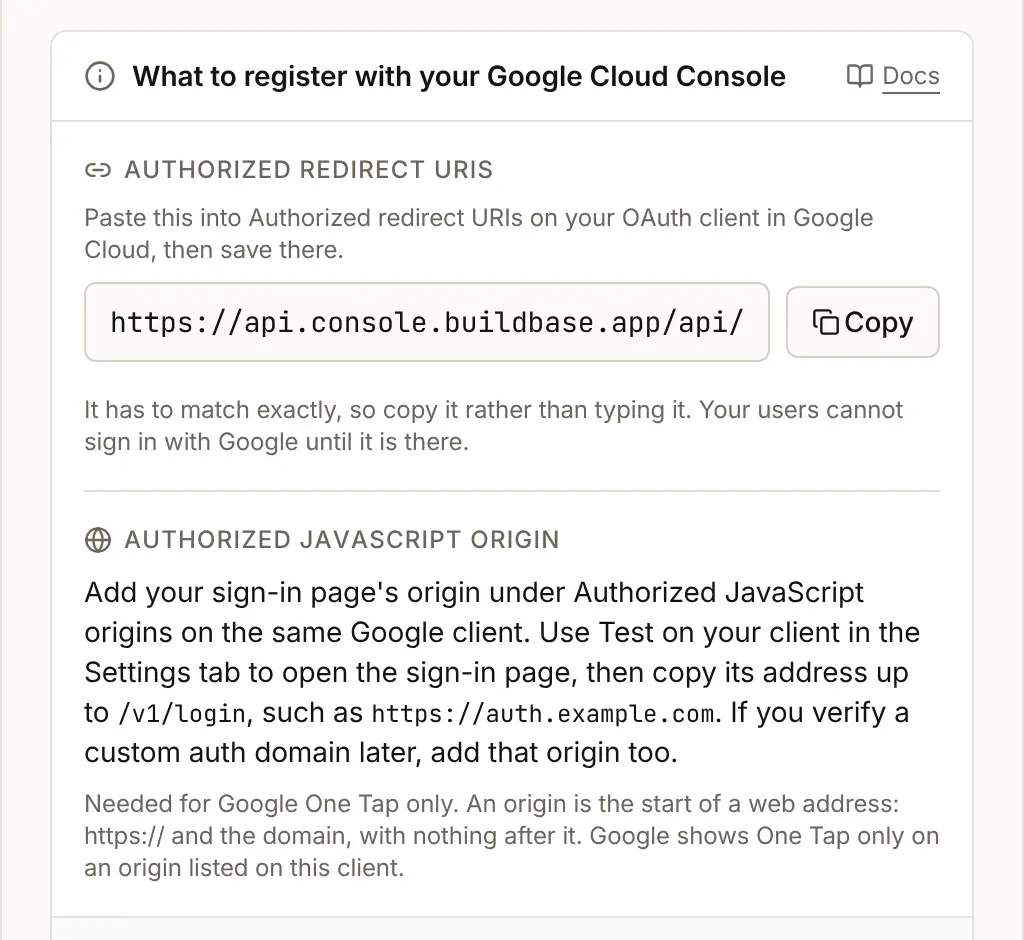
- The box at the top of the form, What to register with your Google Cloud Console, now asks for an Authorized JavaScript origin as well as the redirect URL. With a verified custom domain, it shows that origin, such as
https://auth.acme.example, with Copy. Without one, it says how to find yours: press Test on your app in the Settings tab, which opens the sign-in page, and copy its address up to/v1/login.
- Press Save. The console says Google saved.
- In Google Cloud, open the same OAuth client, add the origin under Authorized JavaScript origins, and press Save.
Nothing changes in your app's code, and nothing else needs ticking: an app that offers Google offers One Tap once it is on.
2. A custom domain
When you verify a custom domain for your sign-in page, on the Domains tab, the page moves to it, and Google needs that origin too. The console warns you as you connect one:
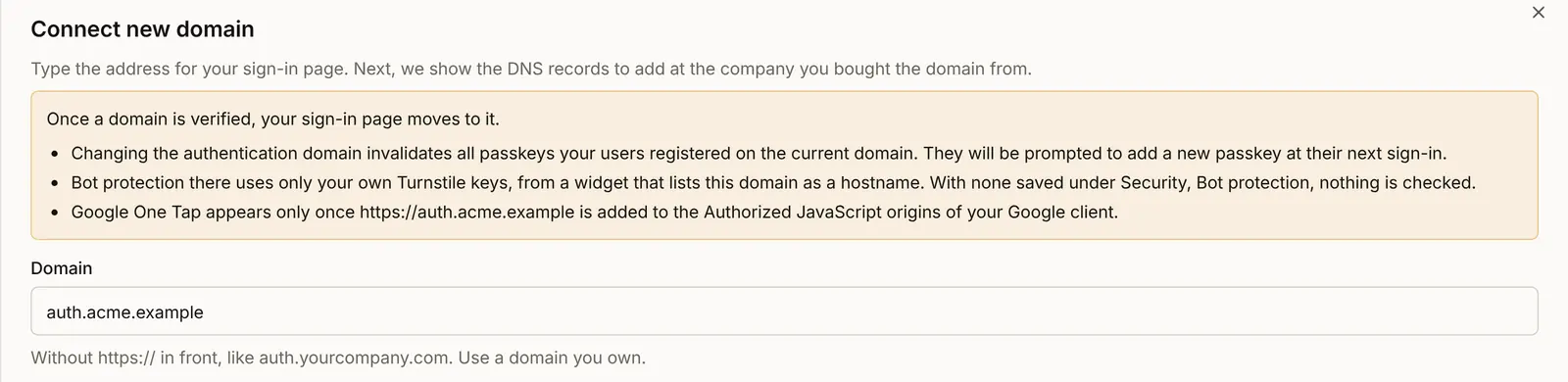
Add the new origin, such as https://auth.acme.example, to Authorized JavaScript origins before the domain is verified, and keep the old one until no sign-in page uses it. Until Google has the new origin, the prompt simply does not appear there, and the Google button works as before.
3. What people see
The page looks the same as with the Google button alone. Behind it, the sign-in and register pages now do two more things as they open: they load Google's own script from accounts.google.com, and they ask BuildBase for a single-use code that ties Google's answer to this page (a nonce, valid for 10 minutes). Then Google decides whether to show its prompt:
- Someone signed in to Google in this browser sees Google's prompt, offering to continue as their Google account. Where the browser supports it (FedCM, in Chrome and others), the prompt is the browser's own account chooser and does not depend on third-party cookies. Where a browser has neither FedCM nor third-party cookies, Google may not show it.
- Anyone else sees nothing new. The Google button works as it always has.
- Someone who closes the prompt is not shown it again straight away. Google decides when.
These guides do not show the prompt: Google draws it, only for a real Google account, and only on an origin registered with a real client.
After the person picks their account, the page shows Signing in with Google, and the sign-in carries on exactly as one through the button: the account is found the same way (the first sign-in), a second step if your two-step policy asks social sign-ins for one, then Trust this device? and, if your app offers passkeys, the passkey offer.
Check it works
- Google One Tap is On on the Google method, and saved.
- The sign-in page's origin is under Authorized JavaScript origins on the same OAuth client.
- Opening the live sign-in page in a browser signed in to Google shows Google's prompt; picking the account signs you in.
- In a private window, with no Google session, only the Google button shows.
Things to watch out for
- Safari, Firefox and Chrome on iPhone and iPad do not show it. Google says its usual One Tap prompt does not work in browsers with tracking prevention, and the hosted page does not turn on Google's separate mode for them. People there use the Google button.
- Closing the prompt hides it for a while. In a browser without FedCM, Google waits 2 hours after the first close, then a day, a week and four weeks. Browsers with FedCM set their own waits. Test in a new browser profile.
- People who turned off third-party sign-in in their browser never see it. Google does not show One Tap to them.
- Register the sign-in page's origin, nothing more.
https://and the host, with no path and no slash at the end, and not your app's or your BuildBase server's address. - Content blockers can stop Google's script. Then no prompt appears and the Google button works as usual.
- A prompt is good for 10 minutes. A page left open longer says "This sign-in prompt has expired. Please try again." Reloading the page fixes it.
If something goes wrong
| What you see | Why | What to do |
|---|---|---|
| No prompt, for someone signed in to Google | The origin is not under Authorized JavaScript origins, the page is not https://, or the person closed the prompt recently | Add the exact origin (no path, no trailing slash). Google reports origin problems in the browser's console. |
| No prompt after you verified a custom domain | The new domain's origin is not registered | Add https:// and the new domain. |
| This sign-in prompt has expired. Please try again. | The prompt was used already, or opened more than 10 minutes ago (nonce_invalid) | Reload the page, which asks for a new one. |
| Google could not confirm this sign-in. Please try again. | Google's answer could not be checked for your client ID (invalid_credential) | Check that the method's Client ID is the client that has the origin. |
| Google sign-in could not be completed. Try again, or continue with the Google button. | The sign-in failed with no reason to show | Use the Google button. |
| This email is already registered. Sign in the way you did before, then connect this provider from your account's security settings. | An account has this address, and Google did not say it is verified (email_unverified) | The person signs in as before, then connects Google from the Security screen. |
| Your account has been blocked, or a sign-up refusal | The same refusals as the Google button: blocked, signup_disabled, signup_unavailable and the rest | See the Google guide. |
Each refusal shows above the form, and the Google button is still there.
Next steps
- Google - the Google method One Tap is part of.
- Social providers - the reference for One Tap.
- Two-step sign-in - ask One Tap sign-ins for a code as well.
- Set up sign-in, step by step - every sign-in guide, and the order to set them up in.