
Set up passkeys
Add the Passkey method, attach it to your app, and see how people add a passkey after signing in, manage it in your app and sign in with it.
A passkey lets someone sign in the way they already unlock their phone or computer: with a fingerprint, their face or the screen lock PIN. There is no password to remember, and a passkey works only on the site it was made for, so a look-alike site cannot use it. People add a passkey after they first sign in another way: the sign-in page offers to save one on that device. Next time they press Continue with passkey, unlock it, and they are in. It suits any app as a faster, safer extra beside another method.
Before you start
- Another sign-in method on your app, such as email and password: people add a passkey after signing in with it.
- A plan that includes passkey sign-in. Without one, the console refuses to create the method.
- Nothing from another service. BuildBase ties each passkey to your sign-in page's address.
1. Add the Passkey method
- In the console's left rail, choose Users, then Authentication under Access, and open the Methods tab.
- Press Add auth method and choose Passkey.
- Keep the Title
Passkey, or type your own. Your users never see it. - Press Create.
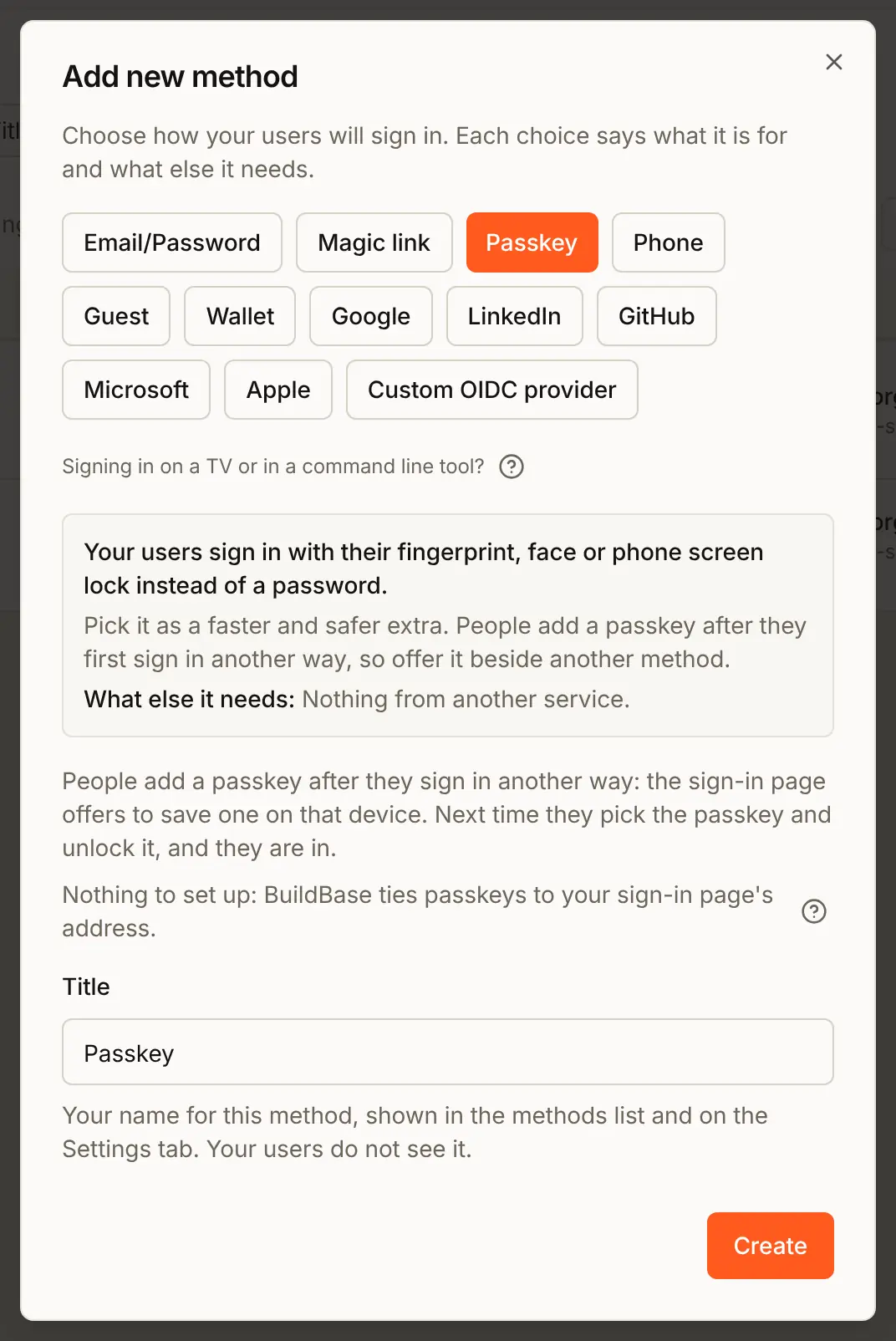
There is nothing else to fill in. If you later move your sign-in page to another address, passkeys made for the old one stop working: people sign in another way once, and the page offers them a new passkey.
2. Attach it to your app
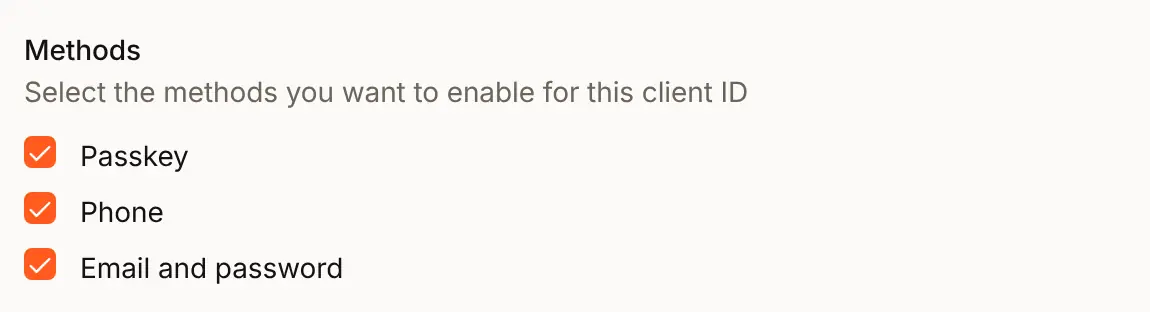
A method shows on the sign-in page only once it is ticked on the app. Open the Settings tab, press Edit beside Acme Analytics, tick Passkey under Methods and press Update.
3. Check the preview
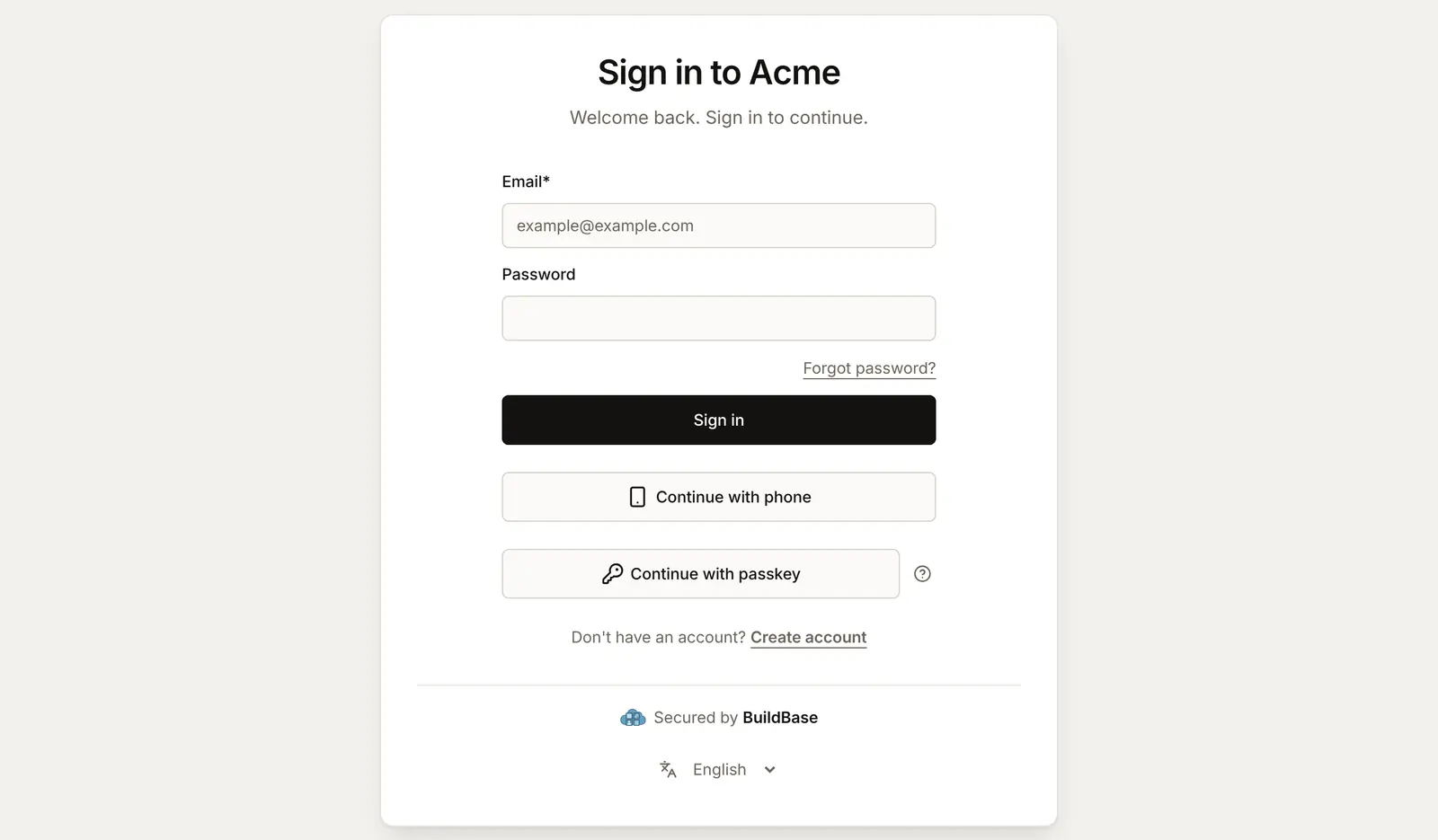
The Preview on the Sign-in page tab draws your page's look with sample buttons, the same for every app. Press Open the live page for Acme Analytics above it to see your real page, now with Continue with passkey and a What is a passkey? button beside it.
What people see
Adding a passkey after signing in
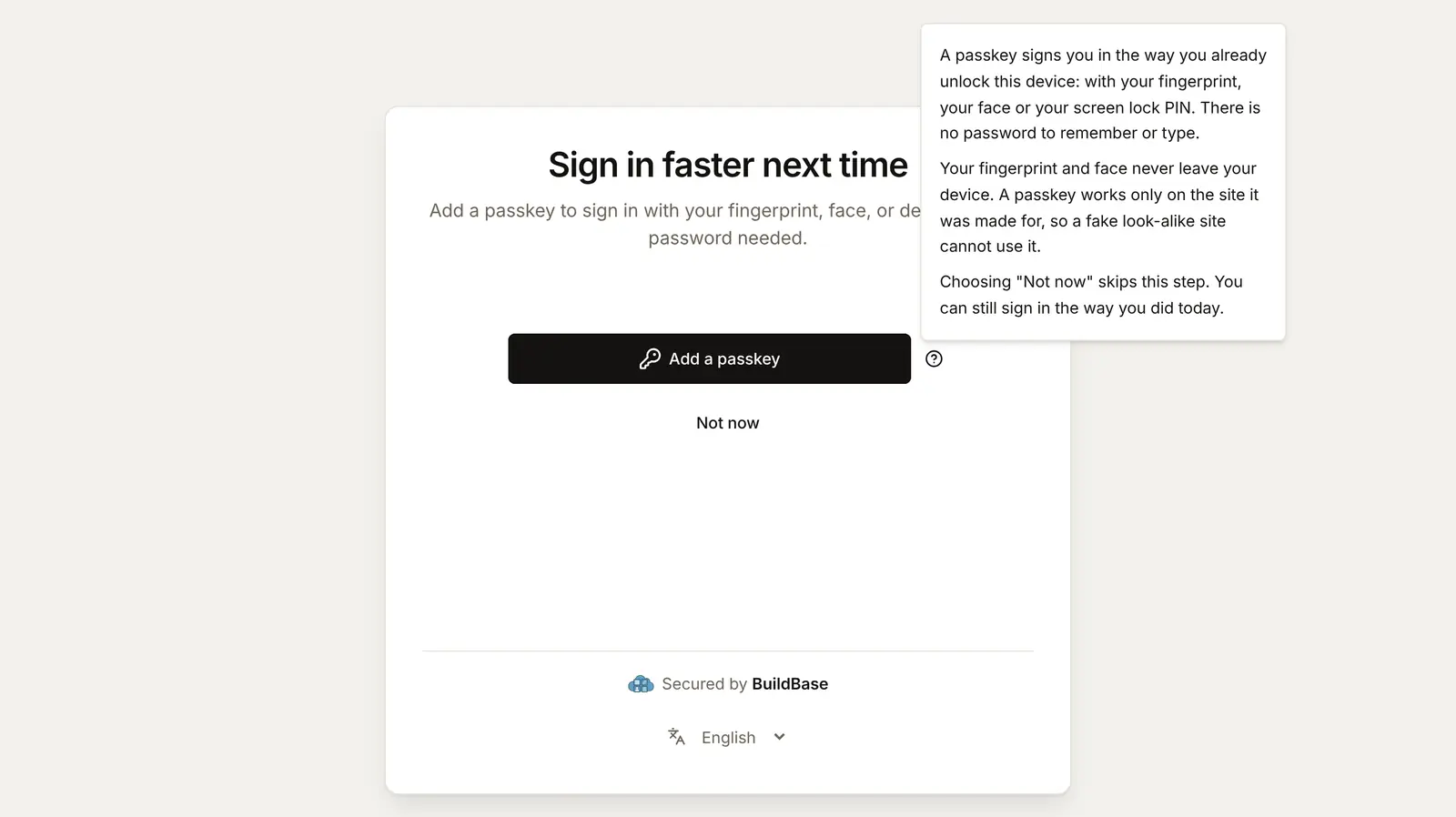
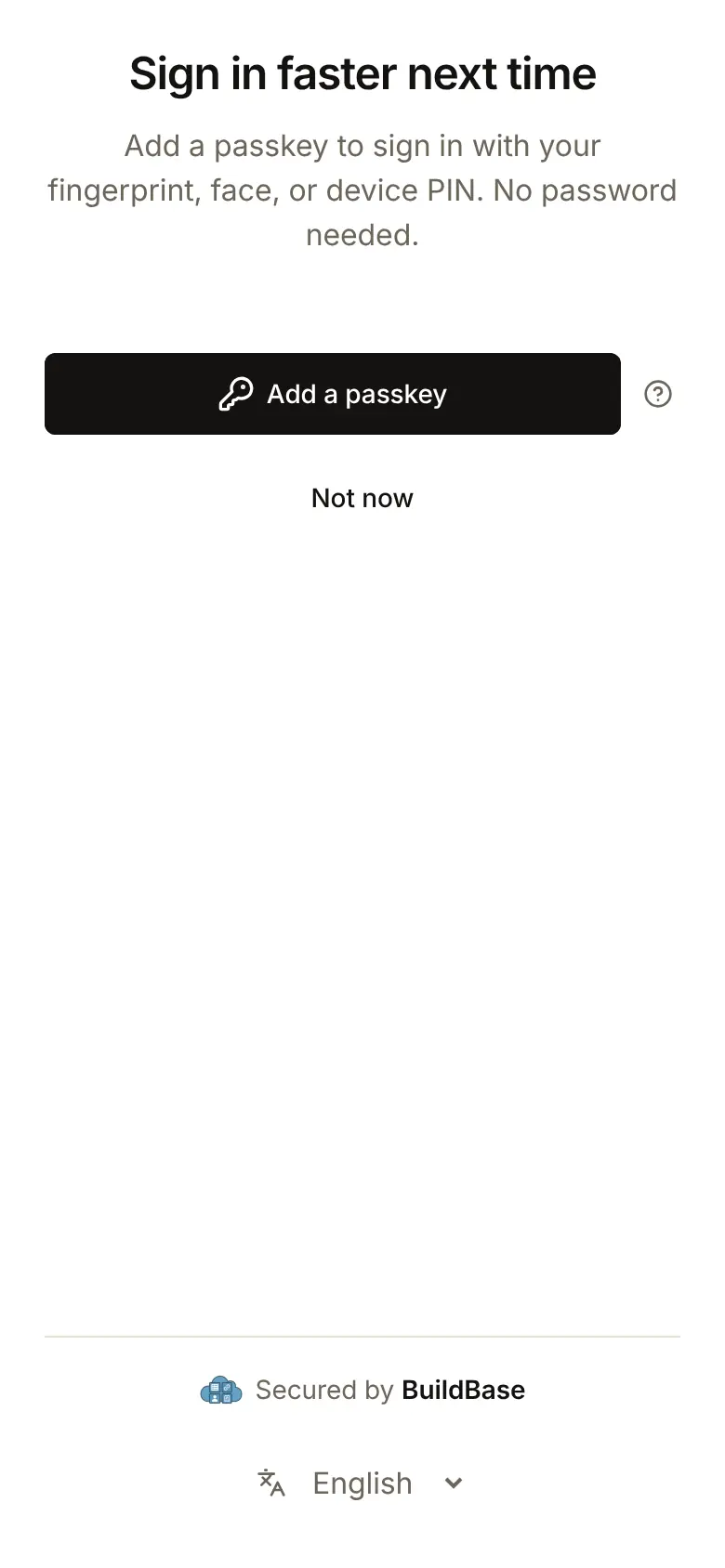
After a sign-in with another method, the page offers Sign in faster next time. It appears when the device can make passkeys and the account has none yet for your sign-in page. Add a passkey opens the device's own prompt: a fingerprint, face or PIN, or a password manager. Not now skips it, and the page does not ask again in that browser session.
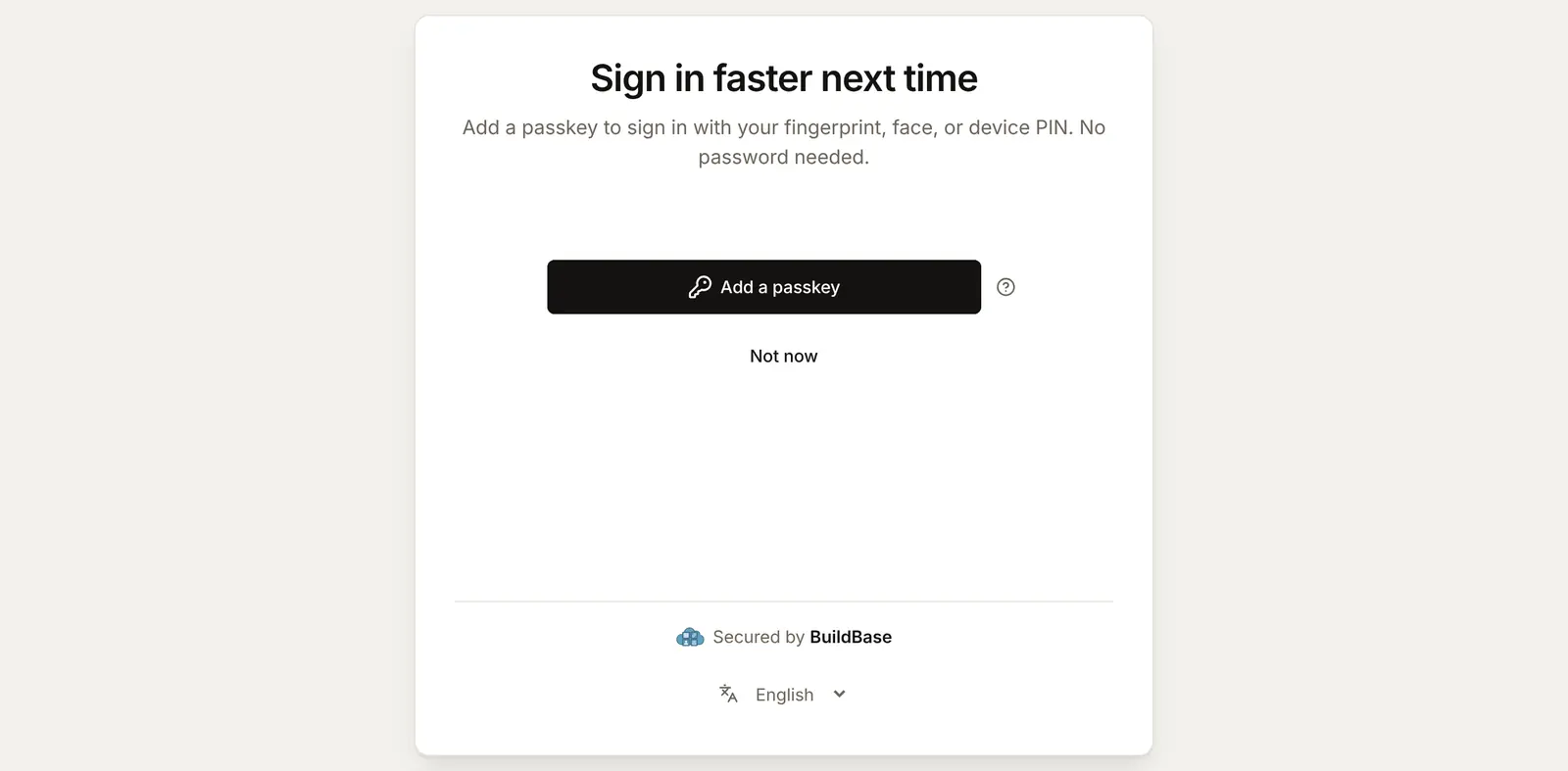
The ? beside the button explains passkeys in plain words, for someone offered one for the first time:
On a phone the offer fills the screen:
Once the device saves it, the page says Passkey added and carries on into your app.
Signing in with it
On the next visit, the person presses Continue with passkey and unlocks it. They are signed in with no email, no password and, when the device checked their fingerprint, face or PIN, no two-step code: that check already counts as both steps.
In your app (SDK)
The SDK's Security screen has a Passkeys section that lists each passkey with when it was added or last used, a rename button and a remove button. Passkeys are added on the sign-in page, not here, and the section says so. Open it with openWorkspaceSettings('security') from useSaaSAuth, as on Account security screens.
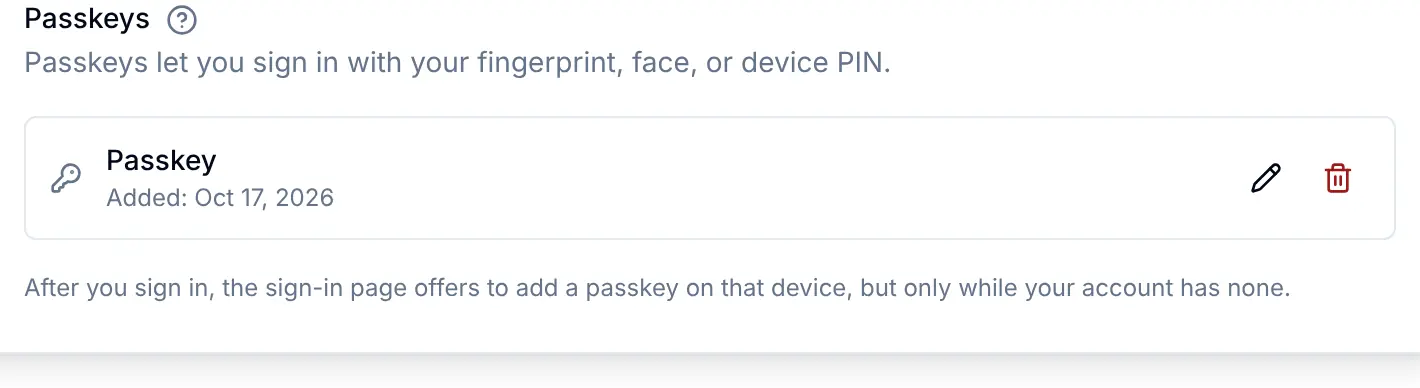
After a rename and a sign-in with it:

A passkey made for an earlier sign-in address shows Inactive, with "Registered on a previous sign-in domain and can no longer be used. You can remove it." To hide the row buttons, pass ui={{ settings: { security: { passkeyRename: false, passkeyDelete: false } } }} to SaaSOSProvider from @buildbase/sdk/react.
Check it works
- The Methods tab lists Passkey, and it is ticked on your app.
- The live page shows Continue with passkey.
- After a password sign-in on a device with a fingerprint reader, face unlock or a password manager, the page offers Sign in faster next time.
- Continue with passkey signs that account in on the same device.
- The passkey shows in the Passkeys section of your app's Security screen.
Things to watch out for
- A passkey belongs to one address. A passkey made on
localhost, a staging address or BuildBase's own sign-in address does not work once your sign-in page moves to your domain, such asauth.acme.example. It shows as Inactive. If you plan your own domain, move before launch. - On BuildBase's shared sign-in address, every BuildBase app shares one passkey site. BuildBase adds your app's address, from its redirect URLs, to each passkey's name so people can tell them apart in their password manager. On your own domain the passkey carries your address alone.
- People need another way in first. A passkey is added after a sign-in with another method. Nobody signs up with a passkey.
- An account can hold only so many passkeys. Past your plan's limit, adding one is refused with "This account already has the most passkeys it can hold. Remove one to add another."
- Only a passkey that checked the person counts as both steps. When the device did not ask for a fingerprint, face or PIN, a two-step code is still asked.
- A passkey signs in only through an app with Passkey ticked. Your server refuses a passkey sign-in for any other app, from the sign-in page or from a script, before it looks at the passkey, so the refusal is the same for everyone. Untick Passkey and that app stops taking passkeys at once; the passkeys stay on the accounts and work on any app that still offers them.
If something goes wrong
| What the person sees | Why | What to do |
|---|---|---|
| No Continue with passkey button | Passkey is not ticked on this app | Tick it in the app's Edit sheet and press Update |
| No offer to add a passkey after signing in | The account already has a passkey, the person chose Not now in this browser session, the device cannot make passkeys, or they signed in with a passkey | Expected. Sign in on another device, or remove the old passkey from the Security screen |
| "Could not add passkey" | The device or password manager refused, or the server refused the new passkey | Try again; the toast carries the reason |
| "Passkey sign-in failed" | No passkey for this site on the device, or the prompt was cancelled | Sign in another way, and add a passkey on this device when offered |
| "Passkey sign-in failed" and "Passkey sign-in is not turned on for this app." | The app does not offer Passkey: it was unticked while the page was open, or a script asked for a passkey sign-in for this app (403, reason method_unavailable) | Tick Passkey on the app if it should take passkeys, or sign in another way |
| Inactive on a passkey in the Security screen | It was made for an earlier sign-in address | Remove it, sign in another way and add a new one |
Next steps
- Two-step sign-in - a second step for everyone who signs in without a passkey.
- Account security screens - the rest of the Security screen.
- Authentication overview - every sign-in method from the developer's side.
- Set up sign-in, step by step - every sign-in guide, and the order to set them up in.