
Make the sign-in page yours
Give the hosted sign-in page your name, logos, colours, font, layout, links, languages and words, for all your apps or one, and check it in the preview.
The hosted sign-in page is the first screen of your product many customers see, so it should look like yours. Everything on it is set on one tab in the BuildBase console: your name and logos, colours, font, layout, links, languages and the sentences at the top of each screen. A preview beside the settings follows every change before you save, and one button opens the real page. Your app's code changes for none of it.
Before you start
- Your logo as an image file (PNG, JPG, GIF or SVG), ideally a second version for dark mode, and a small square favicon.
- For Hide BuildBase badge and Custom CSS: a plan with white-label. For your own address, such as
auth.acme.example: a plan with custom auth domains.
Open the tab
In the BuildBase console, press Users in the left-hand bar (the User management area), then Authentication under Access, and the Sign-in page tab. The settings are in cards on the left, the Preview on the right. Nothing reaches your users until you press Save changes in the bar at the bottom. Discard puts back what was saved.
The preview has its own controls:
| Control | What it does |
|---|---|
| Sign in, Sign up, Forgot password | The screen shown. The other screens use the same card with their own title and line |
| Light, Dark | Preview either theme |
| Desktop, Phone | The width |
| App, Language | The app and the language the preview shows, following the ones picked under Words on the page |
| Show where each sentence comes from | Labels each sentence: ours, your words, from all apps, not translated or may be out of date |
| Open the live page for Acme Analytics | Opens the real hosted page for that app in a new tab, with what is saved |
The preview draws two sample social buttons for every app and uses the console's own font. The live page shows your real methods, your font and your stylesheet.
Name, logos and favicon
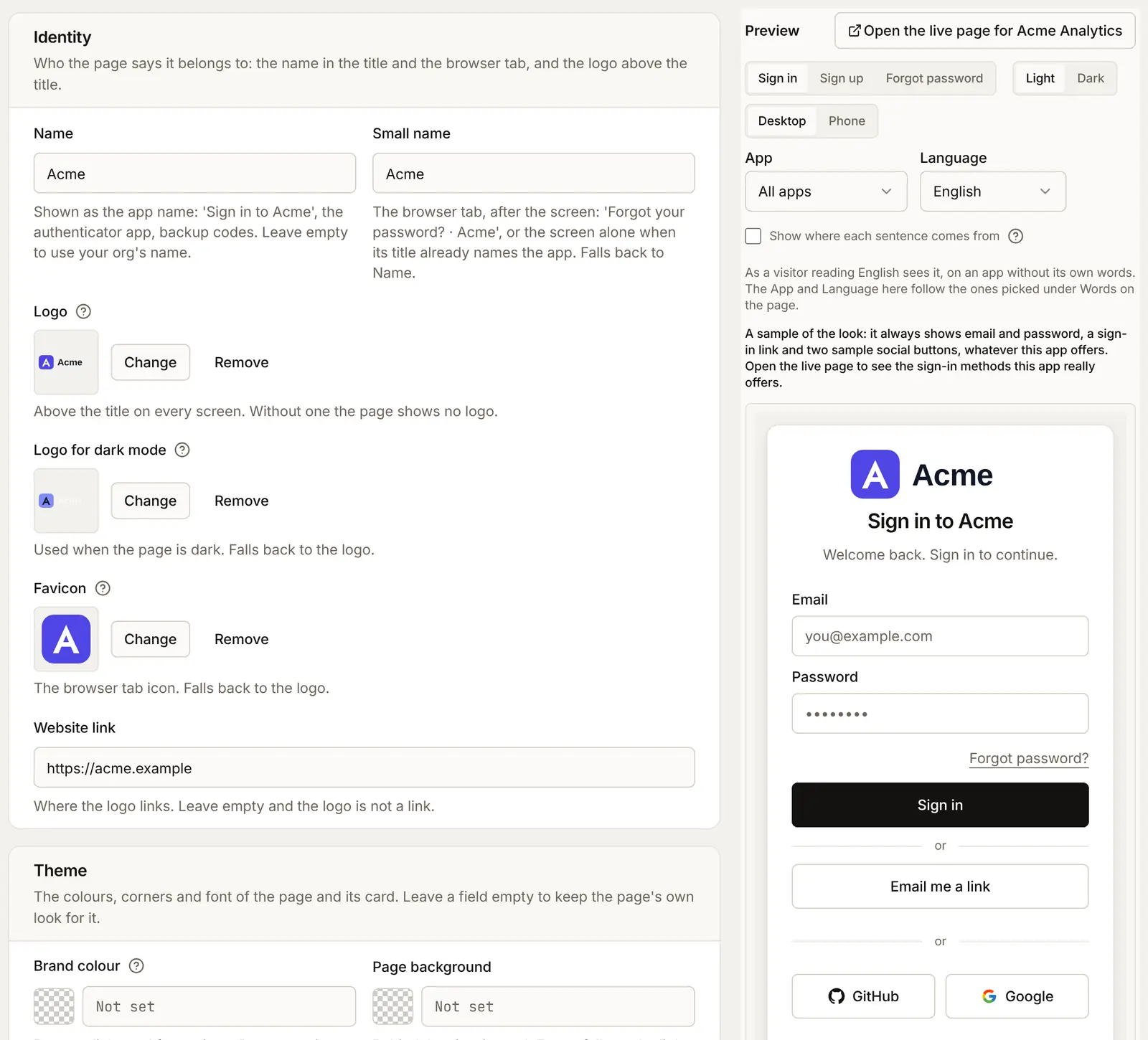
In the Identity card:
- Name: your app's name, here
Acme. It is the{app}in "Sign in to Acme", the name in people's authenticator apps and on their backup codes. Empty uses your organization's name. - Small name: the browser tab, after the screen's title ("Forgot your password? · Acme"). Empty uses Name.
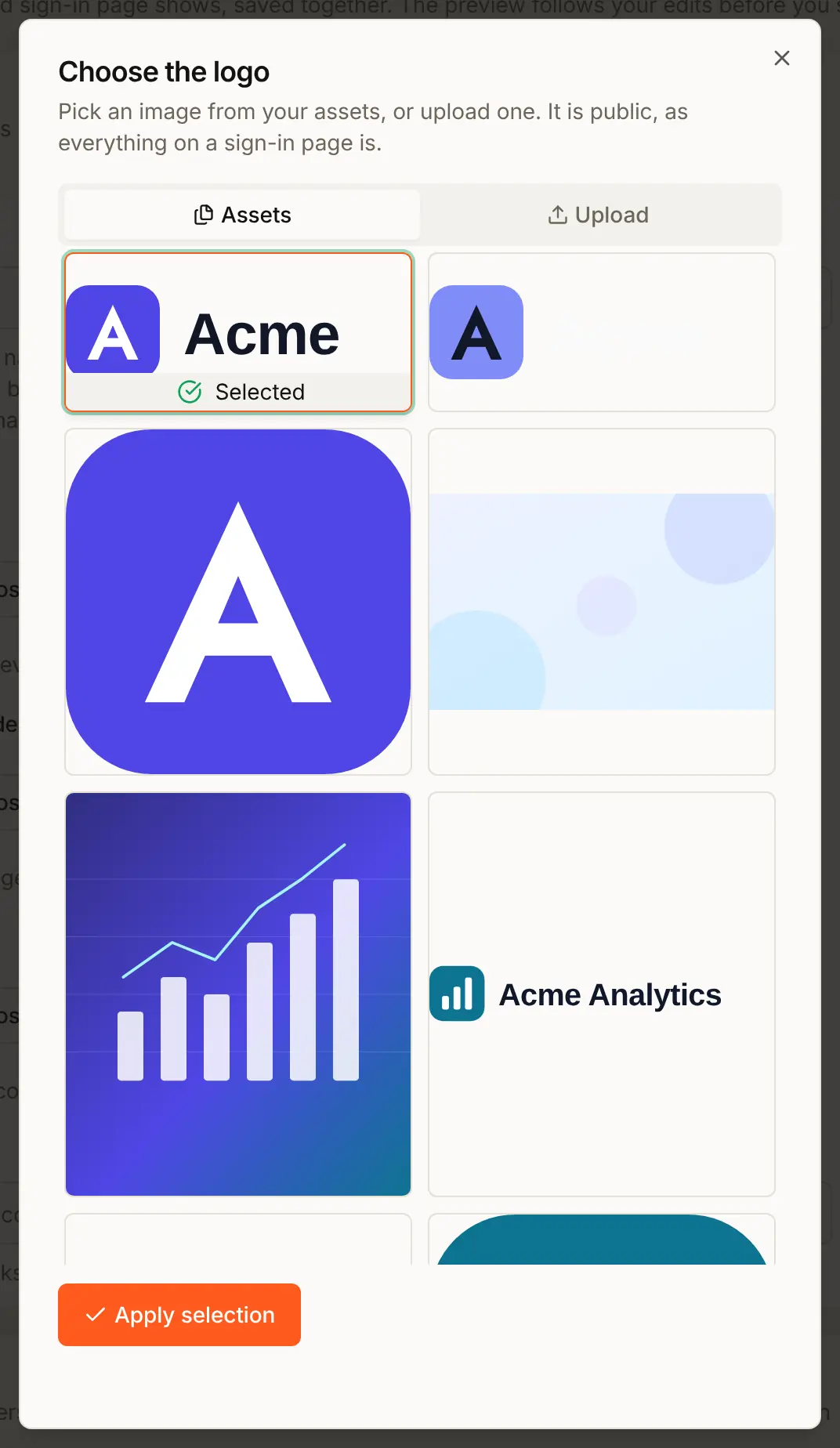
- Logo: press Choose, pick an image on the Assets tab or add one on the Upload tab, then Apply selection. It sits above the title on every screen, at most 32, 48 or 80 pixels tall (see Logo size under Layout). A see-through PNG or SVG at least twice that tall stays sharp on phones.
- Logo for dark mode: a light version, such as white lettering, for when the page is dark. Without one, the normal logo sits on a light patch.
- Favicon: the tiny icon in the browser tab. A simple square works best. Empty uses the logo.
- Website link: where the logo links, here
https://acme.example. Empty and the logo is not a link.
Colours, background and font
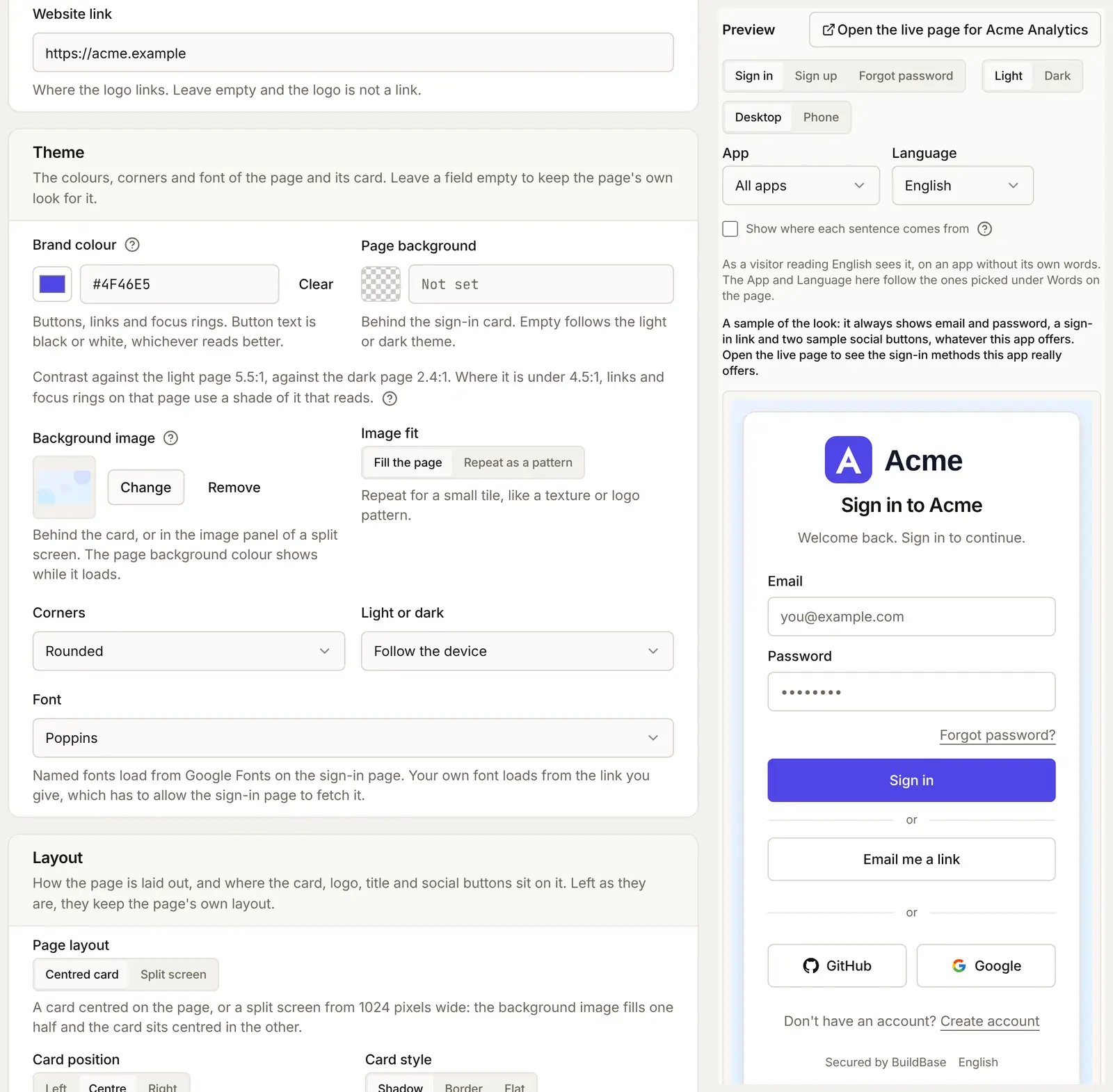
In the Theme card:
| Field | Example | What it sets |
|---|---|---|
| Brand colour | #4F46E5 | Buttons, links and focus rings. Button text is black or white, whichever reads better |
| Page background | Empty | The colour behind the card. Empty follows the light or dark theme |
| Background image | The Acme backdrop | An image behind the card, or in the panel of a split screen. Image fit: Fill the page or Repeat as a pattern |
| Corners | Rounded | Square, slightly rounded, rounded or very rounded: the card, fields and buttons |
| Light or dark | Follow the device | Follow the device, always light, or always dark |
| Font | Poppins | Inter (the page's own), the device's own font, a Google font from the list, or your own font file (.woff2) |
Under the brand colour, a line gives its contrast against the light and the dark page. Where it is under 4.5:1, links and focus rings on that page use a shade of your colour that reads; buttons keep the colour as you set it. Named fonts load from Google Fonts on the sign-in page.
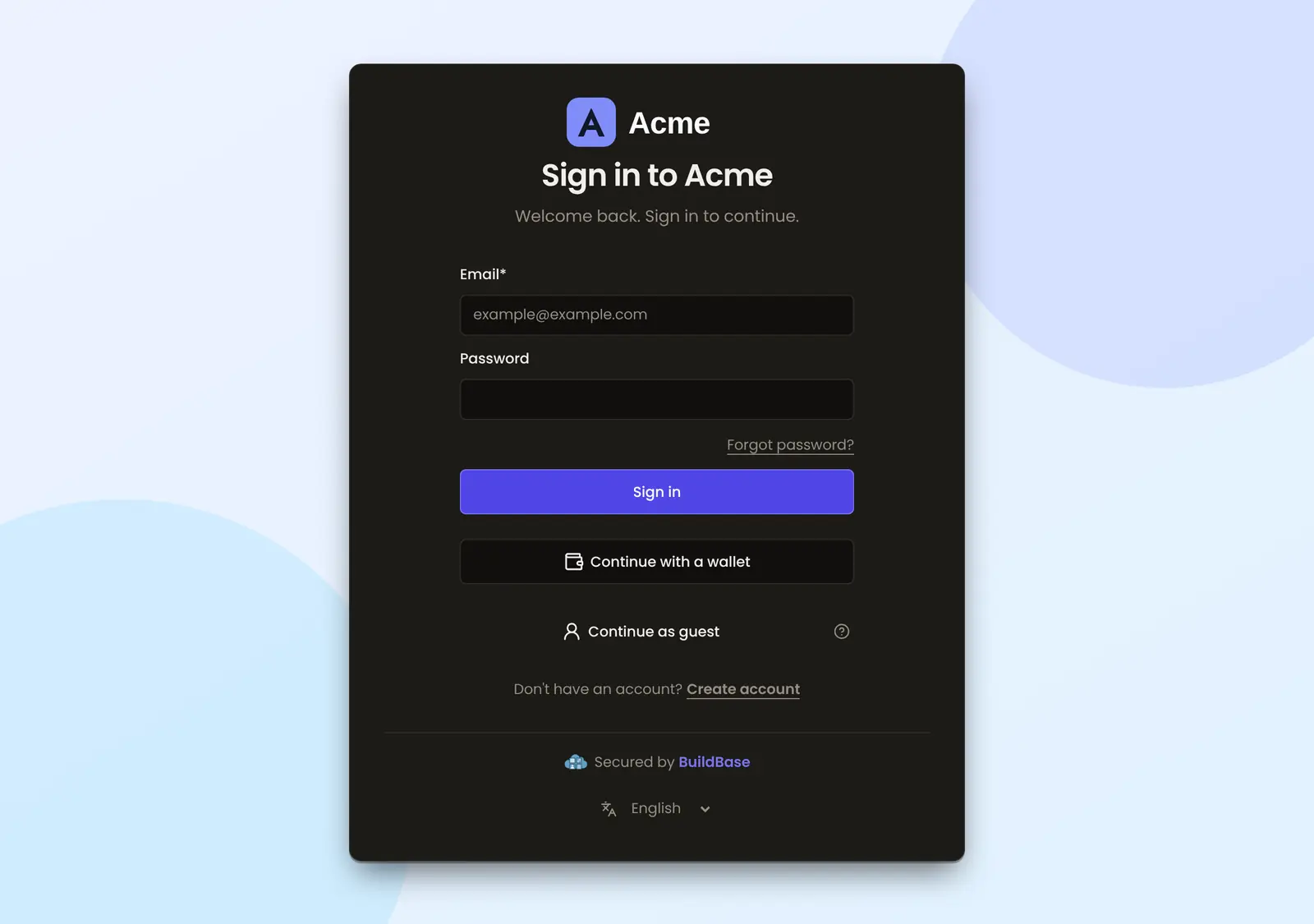
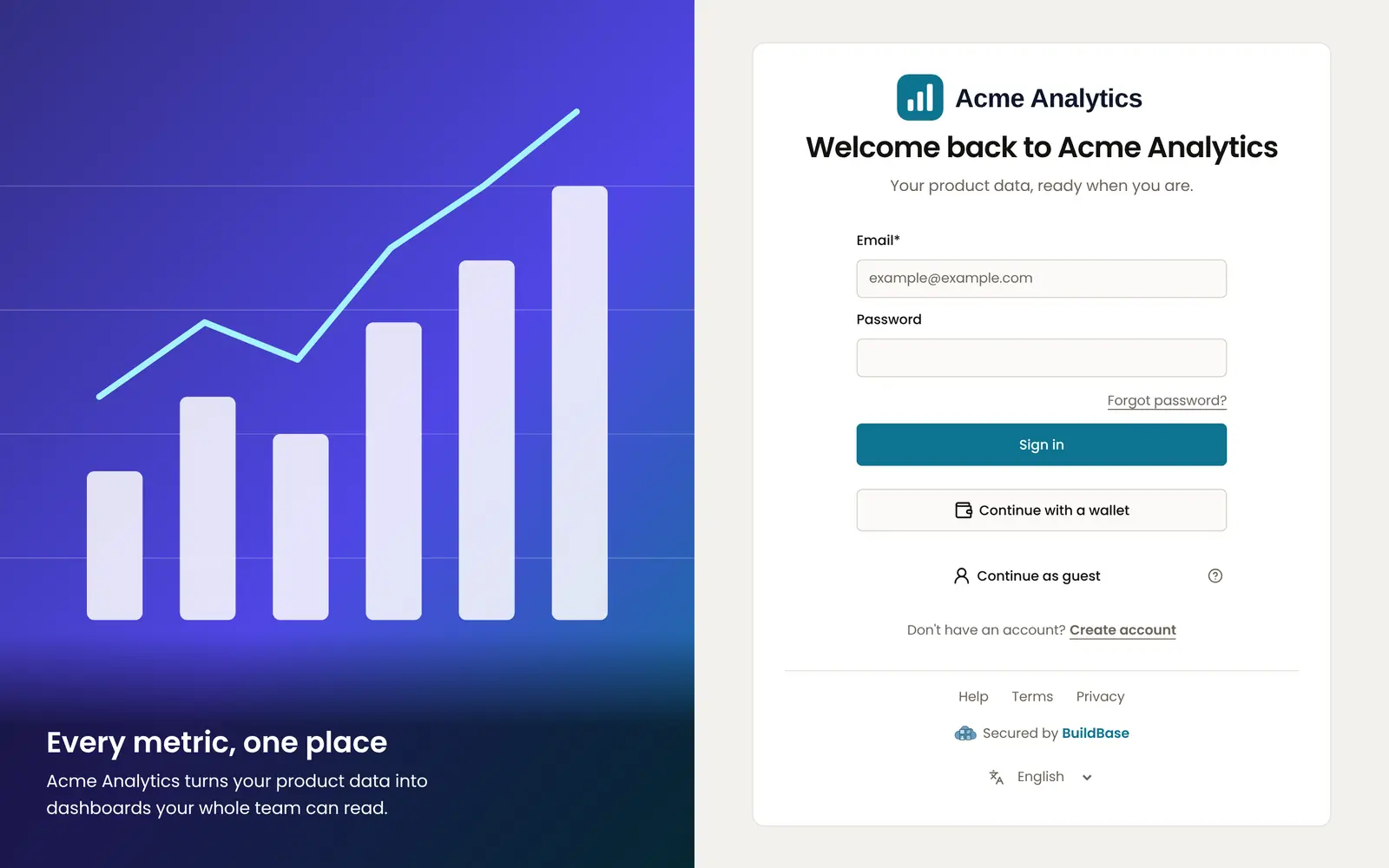
Saved, the live page in light mode:
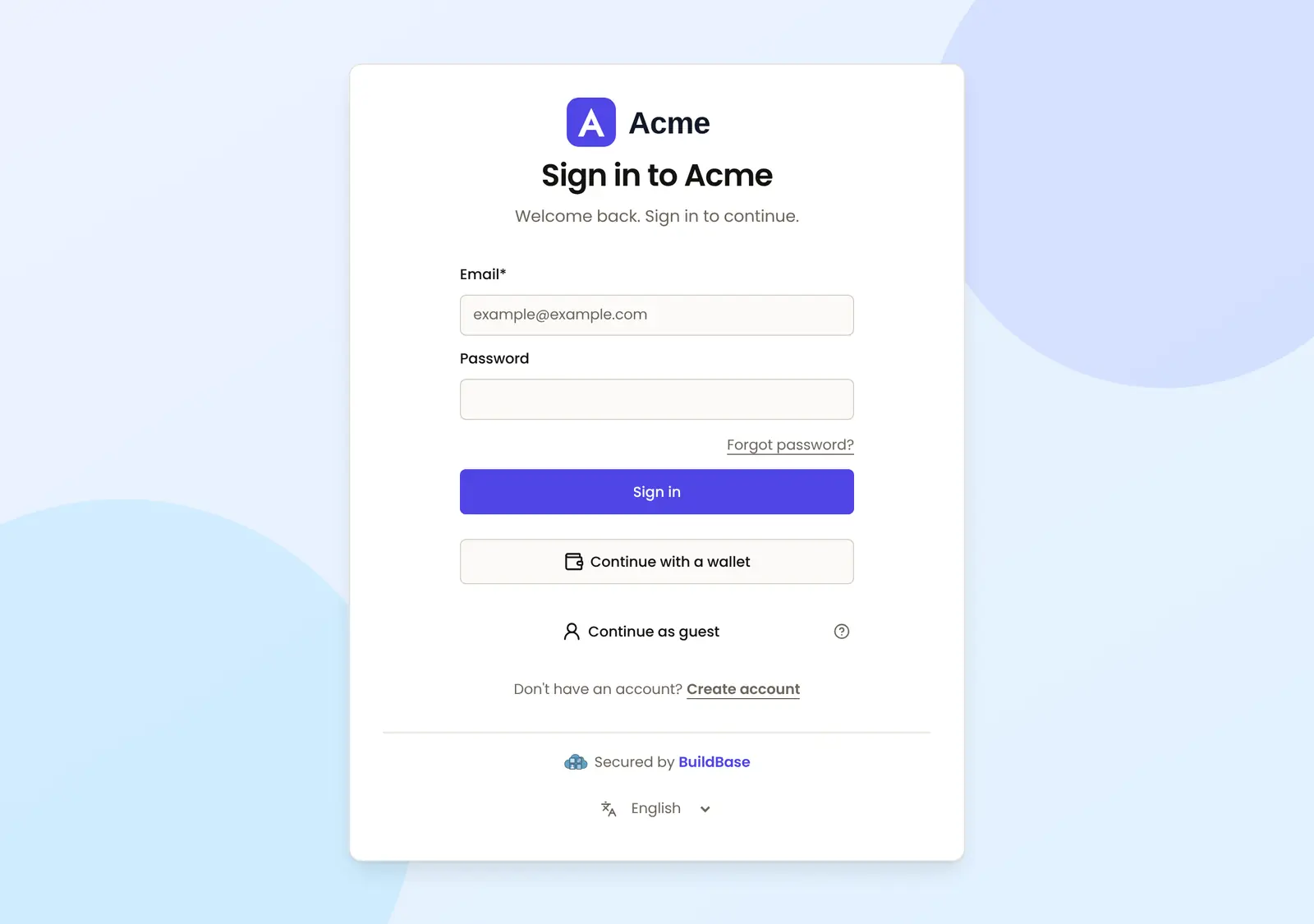
and on a device set to dark mode, with the logo for dark mode:
Layout and split screen
In the Layout card:
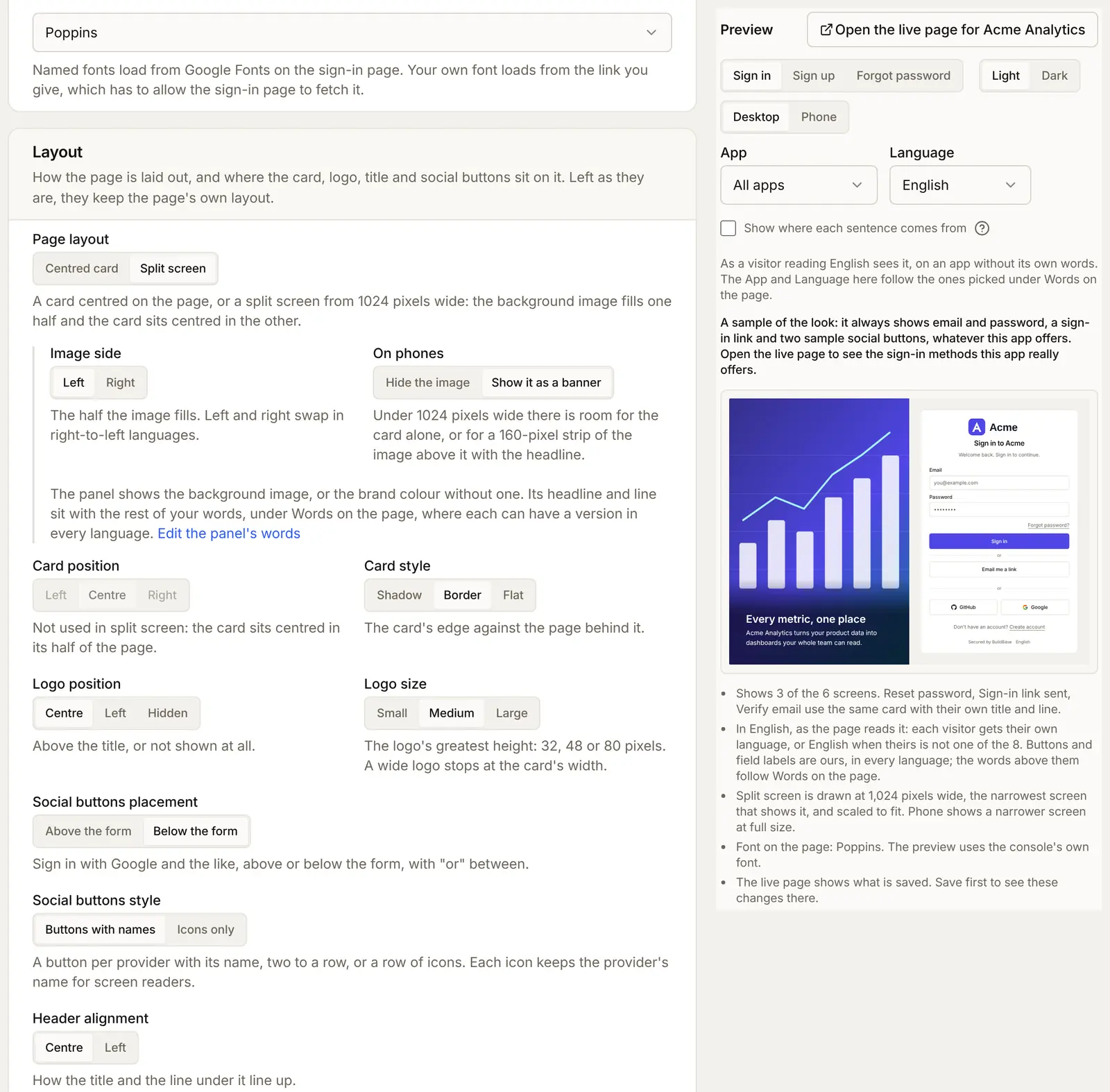
| Setting | Choices | Default |
|---|---|---|
| Page layout | Centred card, Split screen | Centred card |
| Card position | Left, Centre, Right (wide screens only) | Centre |
| Card style | Shadow, Border, Flat | Shadow |
| Logo position | Centre, Left, Hidden | Centre |
| Logo size | Small (32px), Medium (48px), Large (80px) | Large |
| Social buttons placement | Above the form, Below the form | Below the form |
| Social buttons style | Buttons with names, Icons only | Buttons with names |
| Header alignment | Centre, Left | Centre |
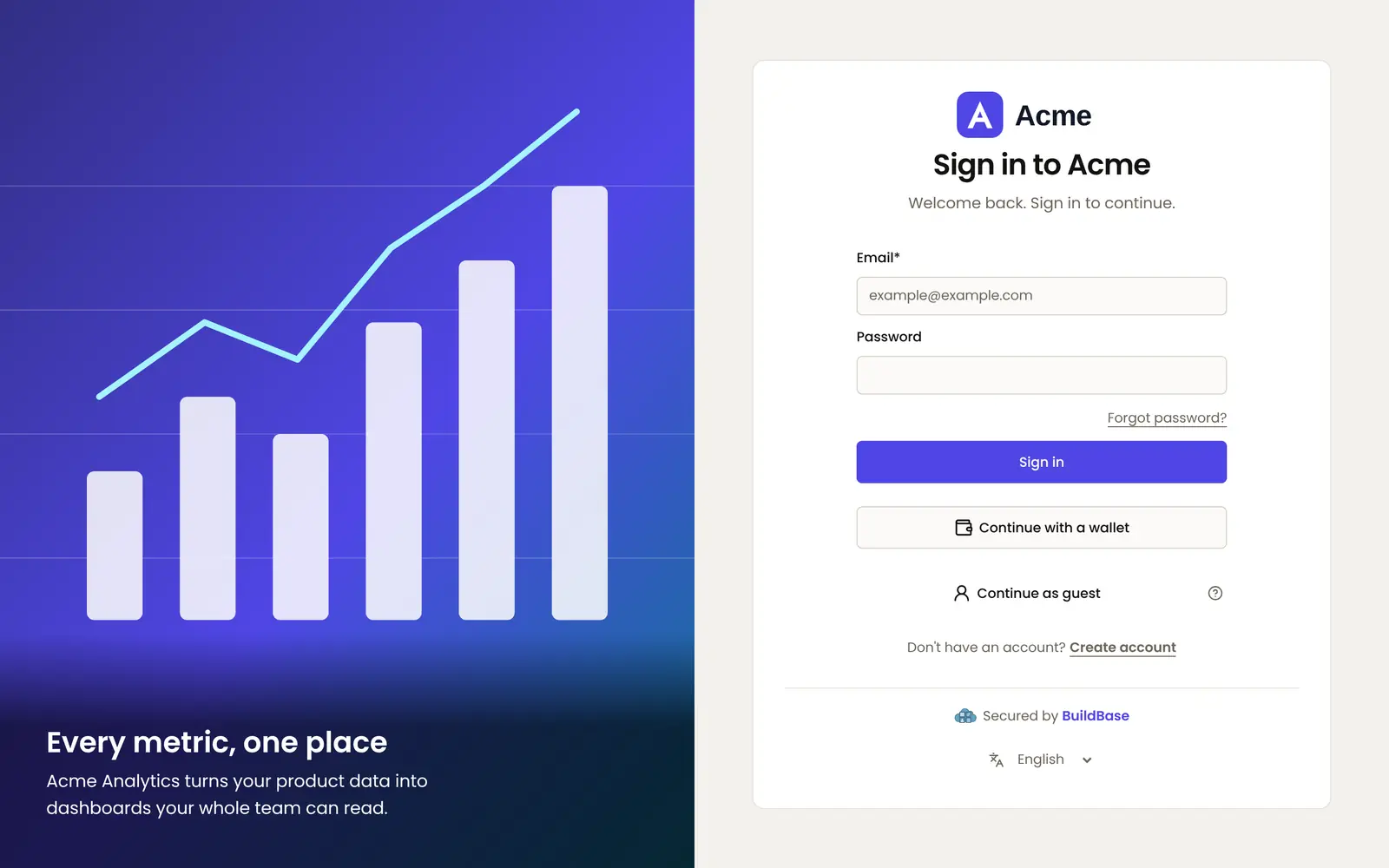
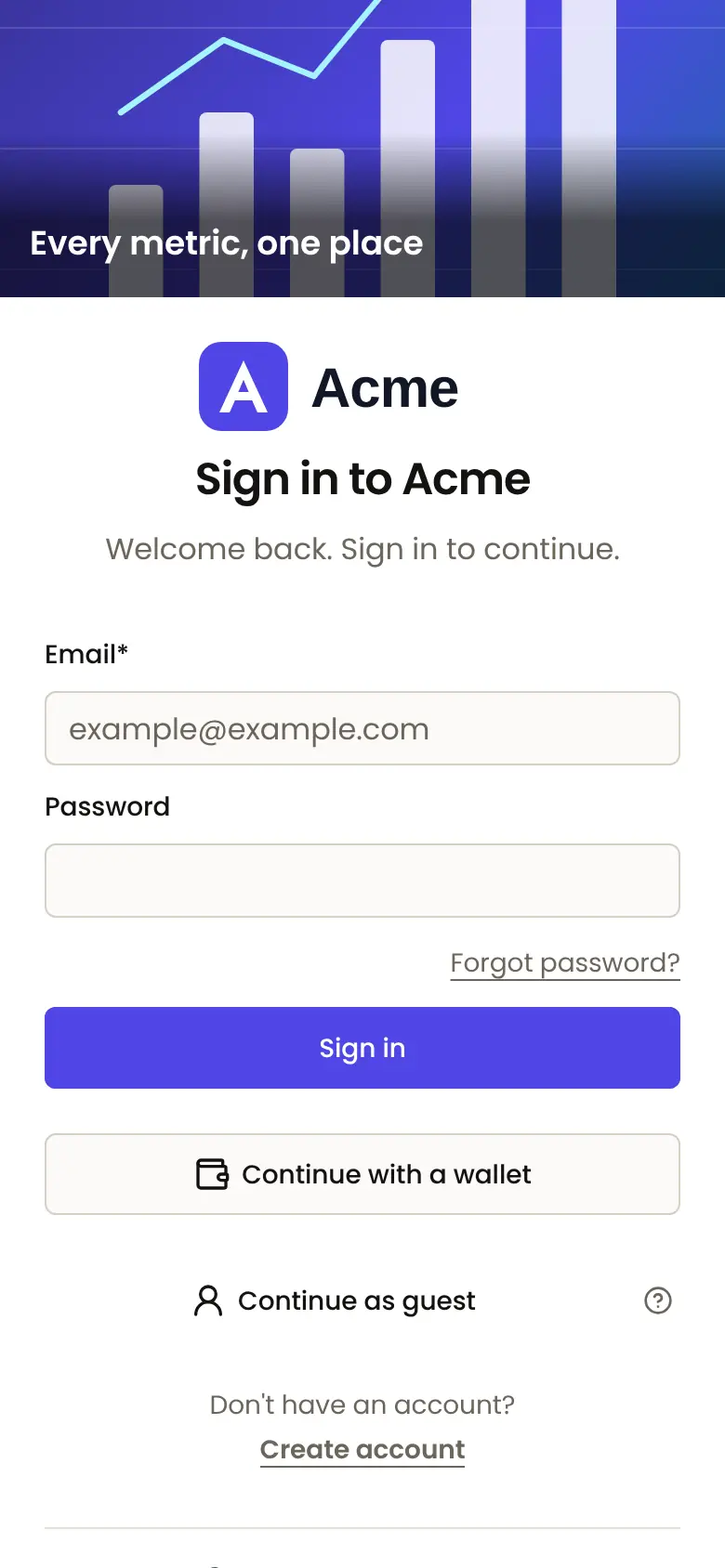
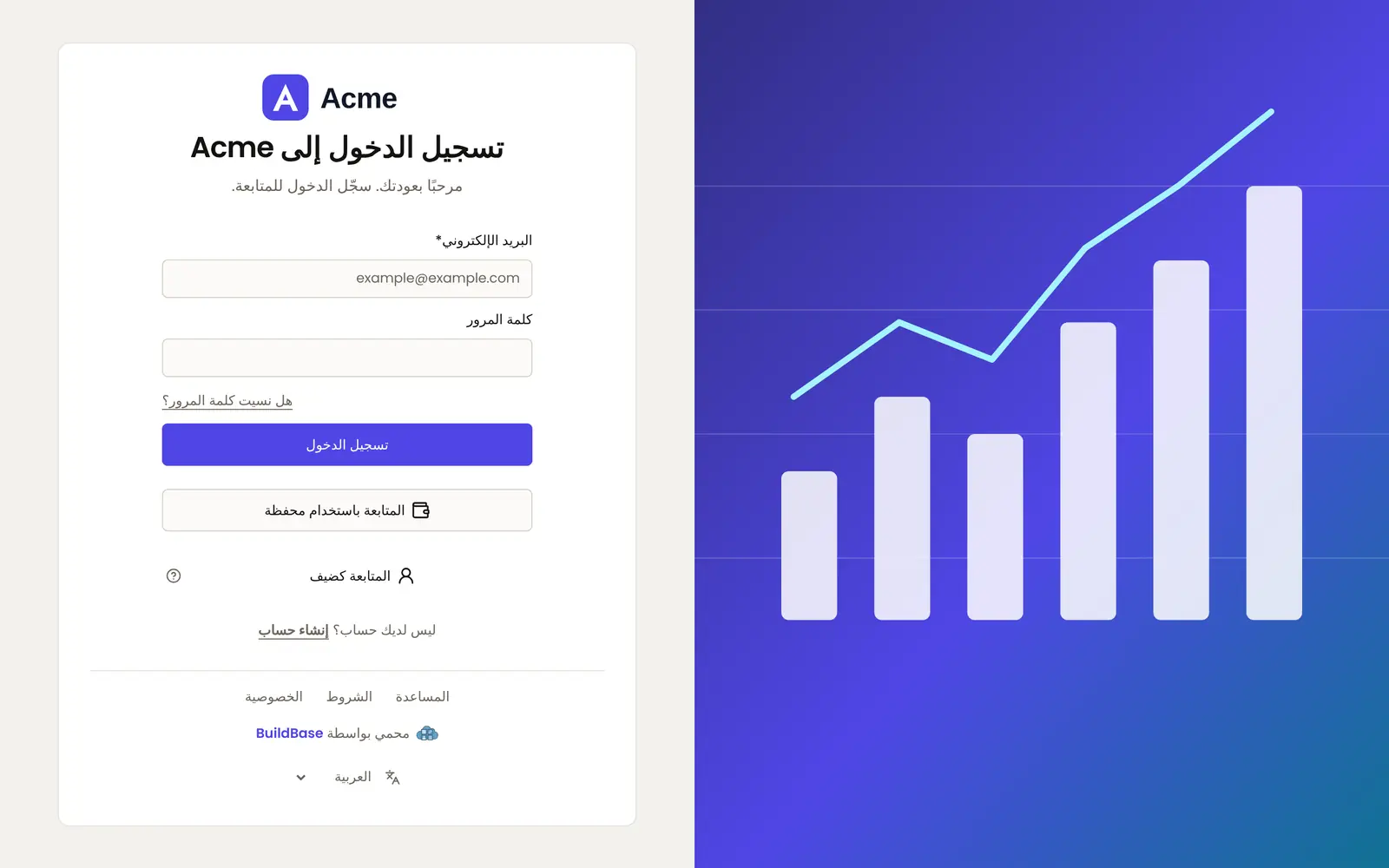
Split screen puts your background image in a panel beside the card from 1024 pixels wide, with the card centred in the other half. Image side picks the half (left and right swap in right-to-left languages). On phones hides the image, or shows it as a 160-pixel banner above the card with the headline. Without a background image, the panel is your brand colour. The panel's headline and line are written under Words on the page.
Support and legal links
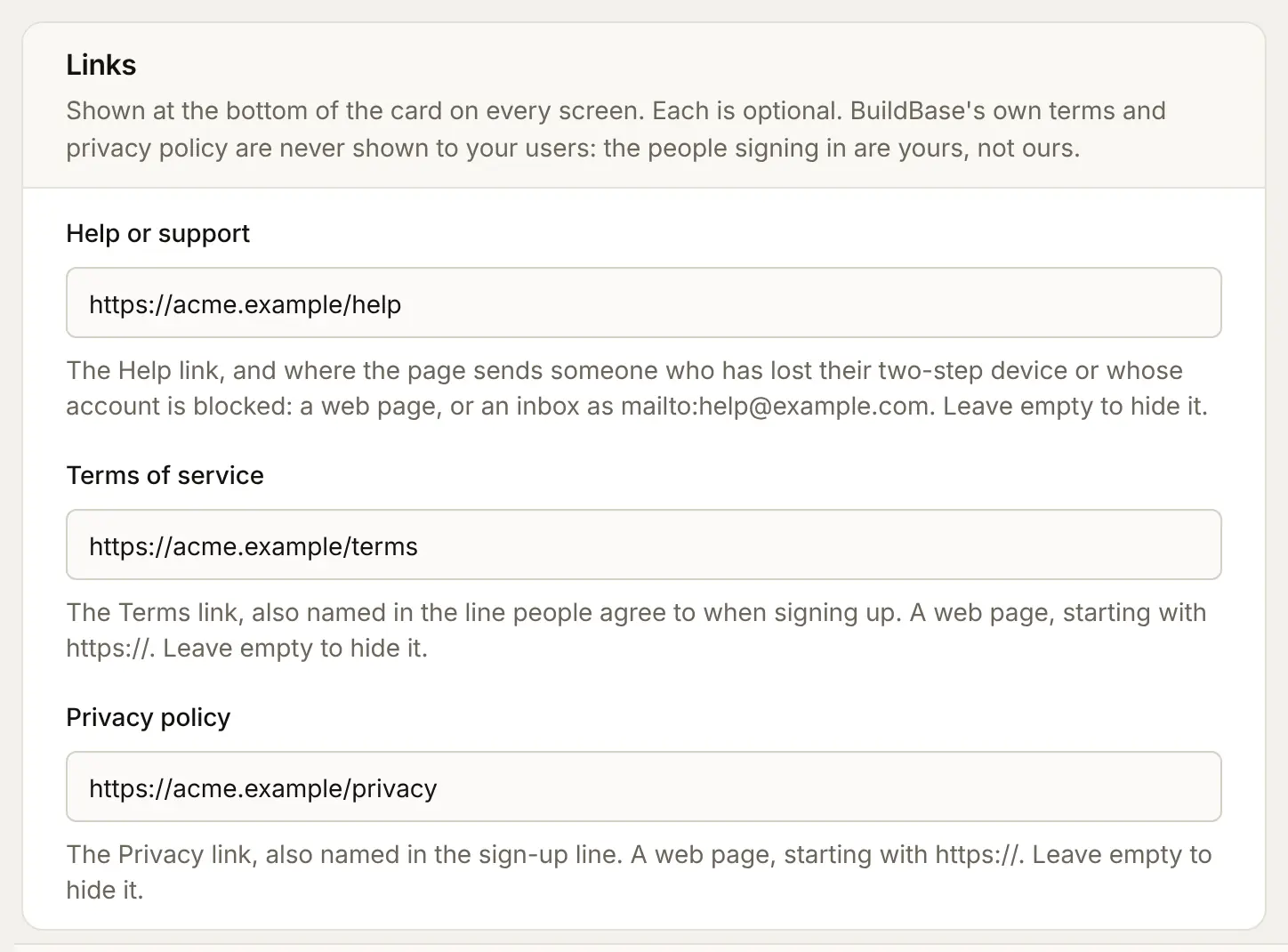
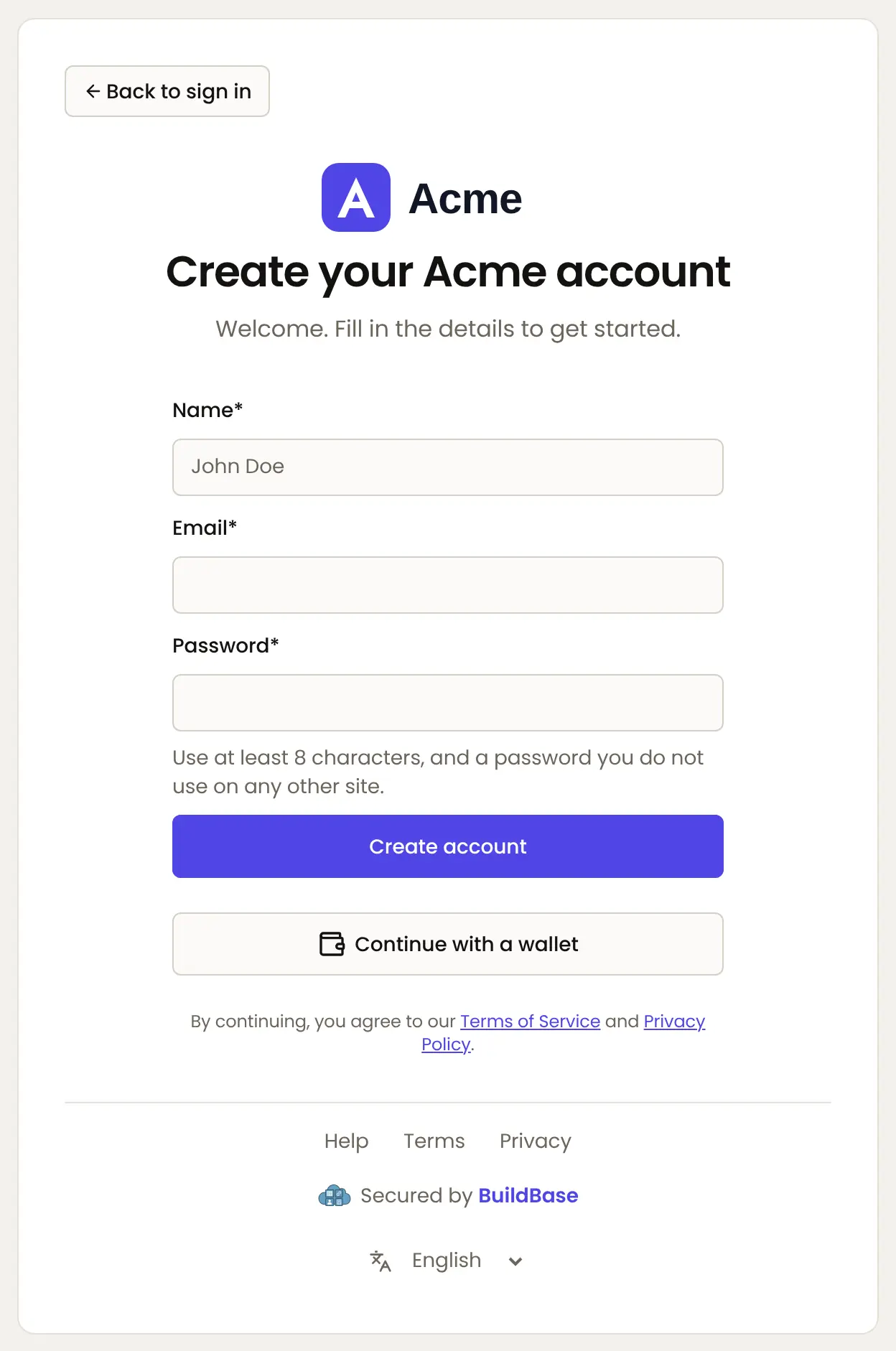
In the Links card, fill in Help or support (a web page, or an inbox as mailto:[email protected]), Terms of service and Privacy policy. Each shows at the foot of every screen when set, and sign-up names your terms and policy. The help link is also where the page sends someone who lost their two-step device or whose account is blocked. BuildBase's own terms and policy are never shown to your users.
Languages
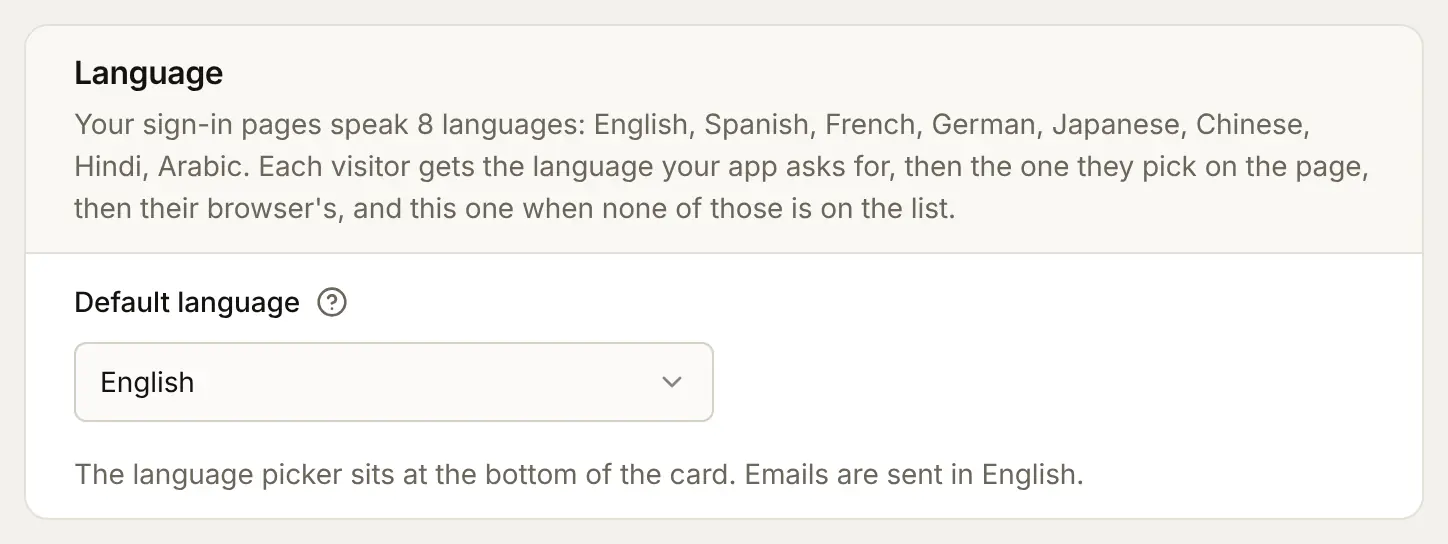
The sign-in page speaks 8 languages: English, Spanish, French, German, Japanese, Chinese, Hindi, Arabic. Each visitor gets the language your app asks for, then the one they pick in the page's footer, then their browser's, then the Default language in the Language card. Buttons, field labels and errors are always translated. Emails go out in English.
To open the page in your app's language, set locale on the provider (or auth.locale for the sign-in page alone). This needs @buildbase/sdk 0.0.90 or later:
// app/providers.tsx
import type { ReactNode } from 'react';
import { SaaSOSProvider } from '@buildbase/sdk/react';

export function Providers({ children }: { children: ReactNode }) {
  return (
    <SaaSOSProvider
      serverUrl="https://api.console.buildbase.app"
      version="v1"
      orgId={process.env.NEXT_PUBLIC_BUILDBASE_ORG_ID!}
      locale="ar"
      auth={{
        clientId: process.env.NEXT_PUBLIC_BUILDBASE_CLIENT_ID!,
        redirectUrl: '/callback',
        callbacks: {
          /* your session callbacks */
        },
      }}
    >
      {children}
    </SaaSOSProvider>
  );
}
Arabic is laid out right to left, the split screen panel included:
Words on the page
Words on the page holds every sentence you can write: each screen's title and the line under it, the waitlist's two screens, the sign-up consent checkbox, and the split screen panel's headline and line. Ours name your app and are already in every language, so most apps never change them. Write {app} where the app's name goes.
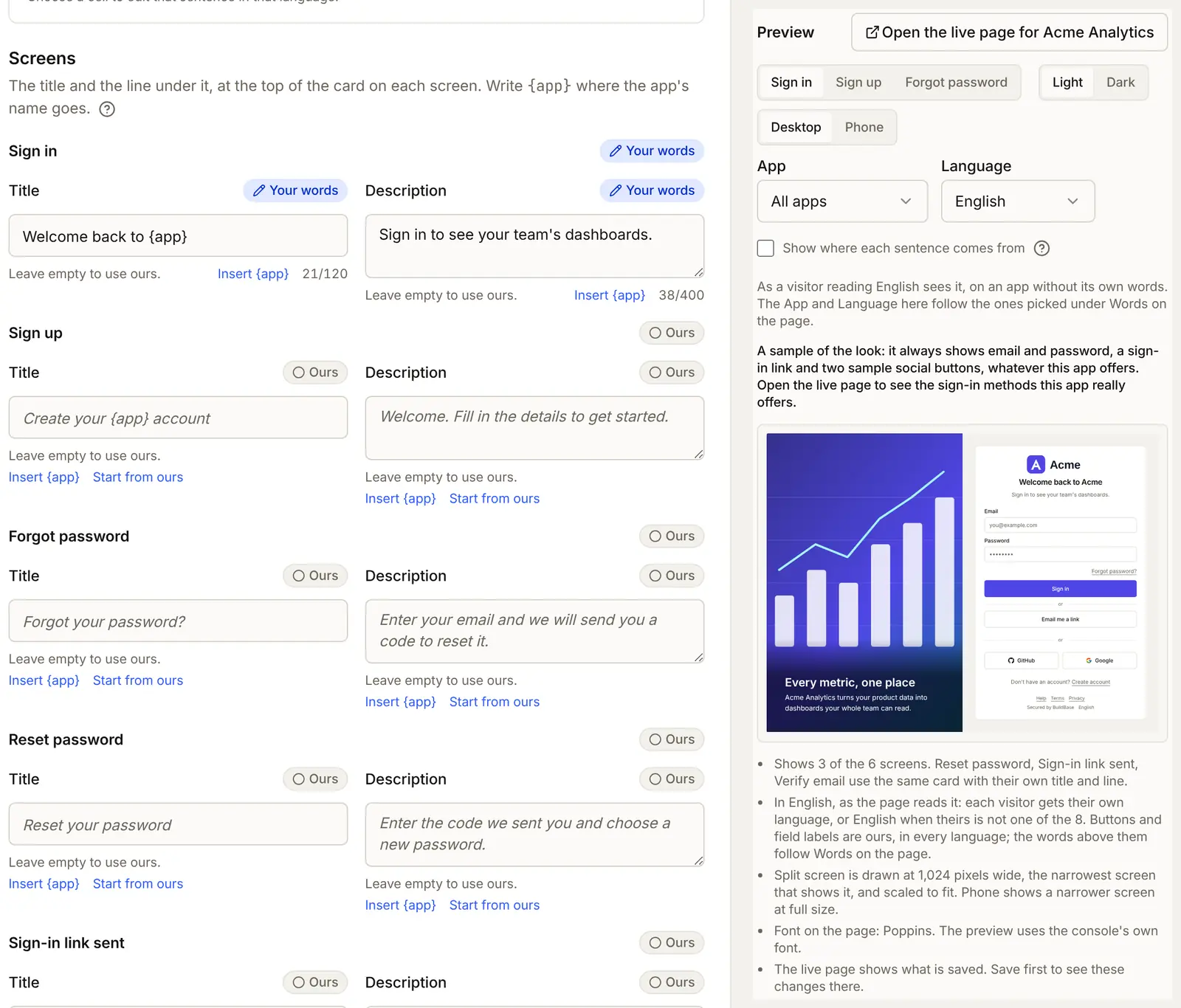
- Under Screens, type your sentence in a box. Here the Sign in title becomes
Welcome back to {app}and its descriptionSign in to see your team's dashboards., marked Your words. A box left empty shows ours, greyed in the box. Start from ours copies ours in to edit.
-
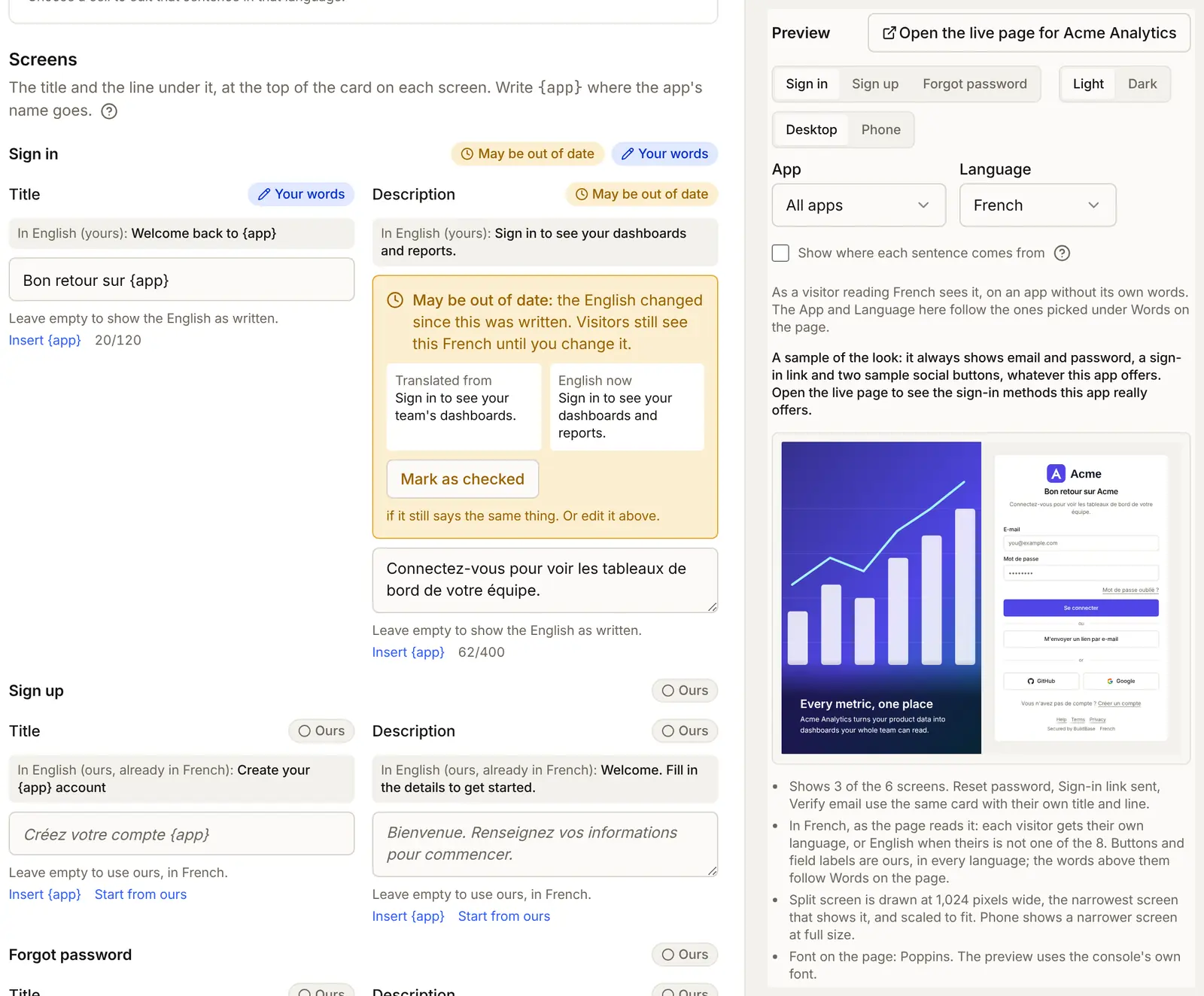
In another language. Pick a language beside Editing ... in, such as French, and write your words in it. Each box shows the English above it. Nothing is machine translated: every sentence in another language is one you wrote.
-
Out of date. A translation remembers the English it was written from. When the English changes, the translation is marked May be out of date, with Translated from beside the English now. The page keeps showing it until you edit it or press Mark as checked.
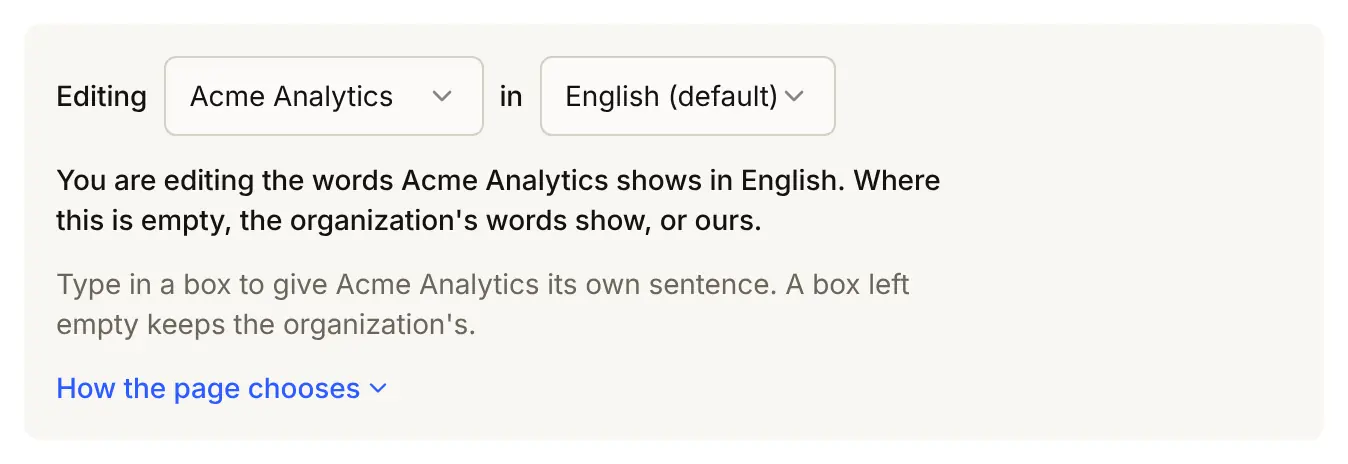
- For one app. Pick an app beside Editing, such as Acme Analytics, to give it words of its own, for example when a staff app sits beside a customer app. A box left empty keeps the organization's words. The app's words are saved with its client, by the same Save changes.
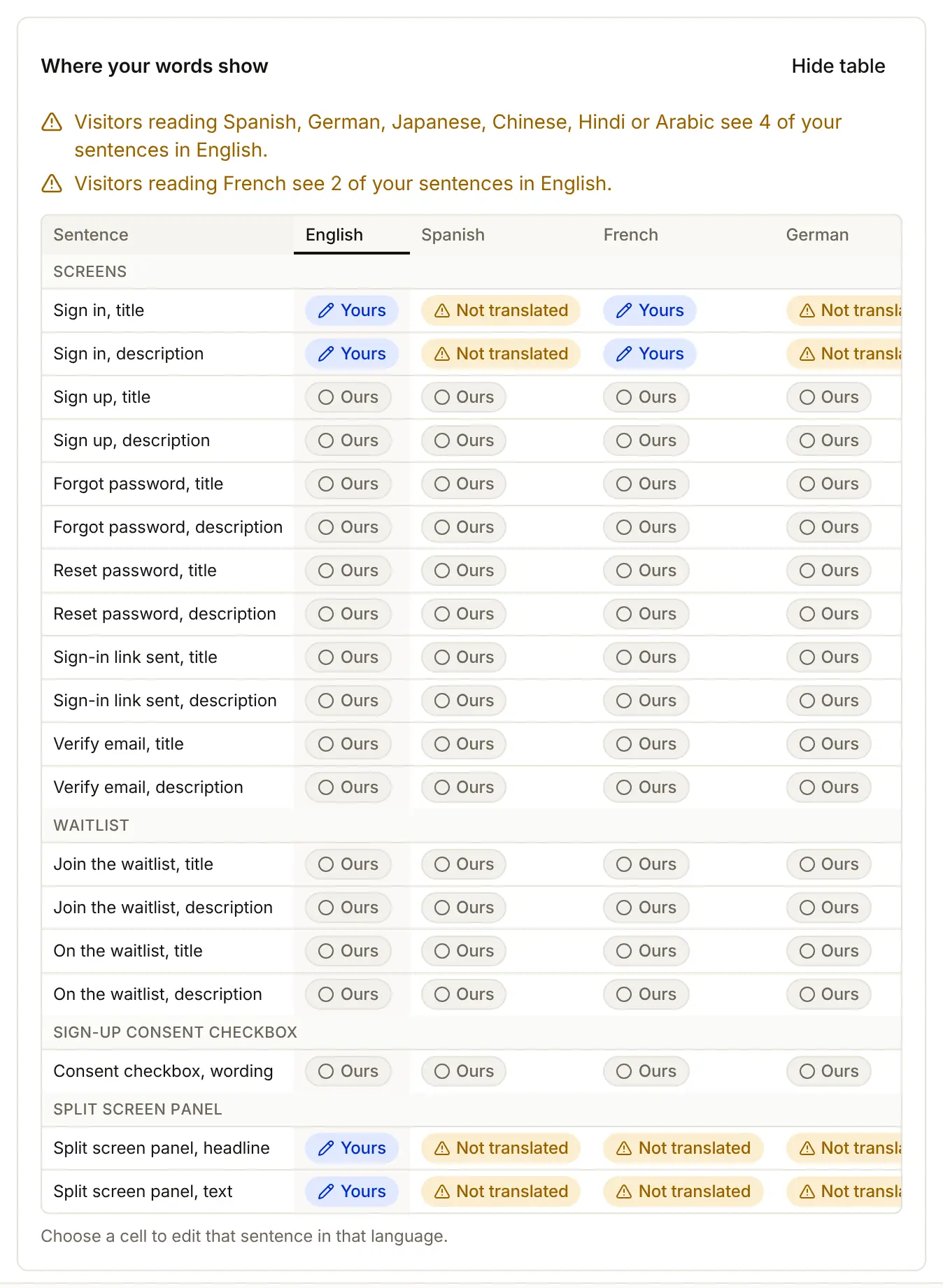
- Where your words show (press Show table) lists every sentence in every language and what it reads: yours, ours, ours translated, not translated, or may be out of date. Choose a cell to edit that sentence.
- When a language has no version of your words, choose what its visitors read: Show your words as written (the default, so nothing changes until you choose), or Show our default in their language, so the whole page speaks theirs. Each choice shows what a visitor would read.
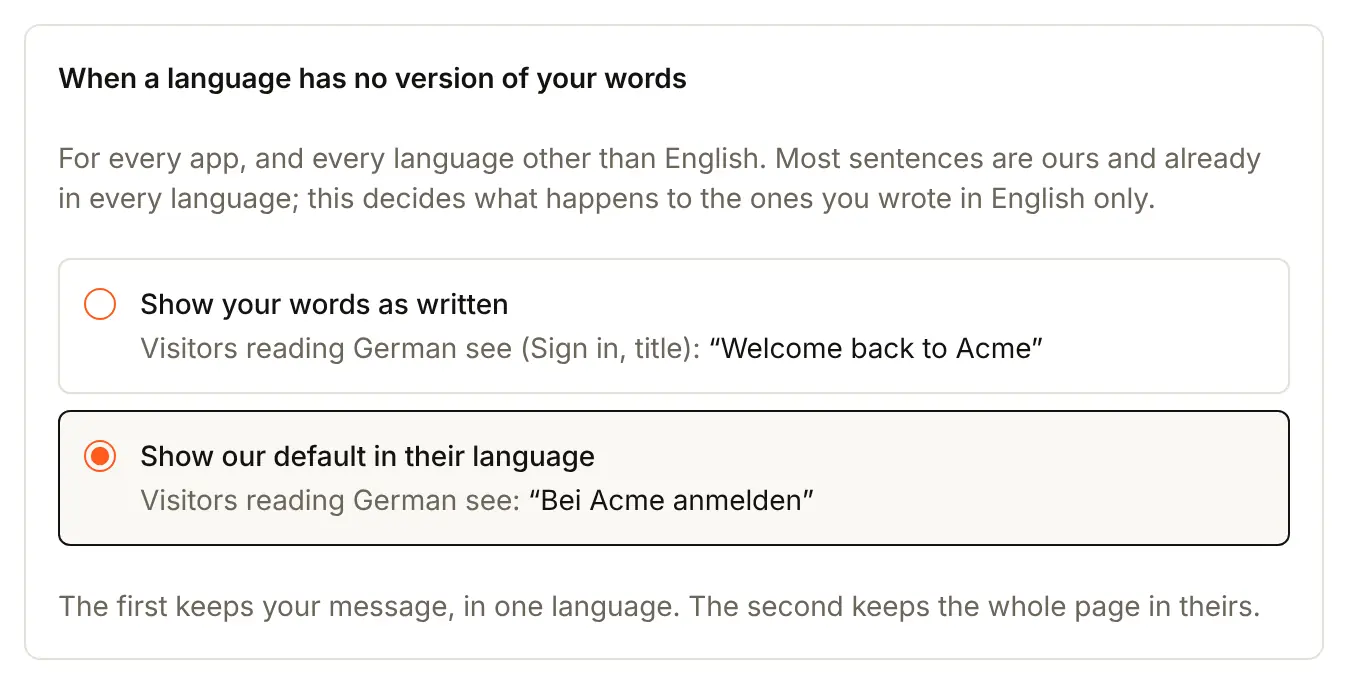
For each visitor, each sentence is the first of: the app's words in their language, the app's words, the organization's words in their language, the organization's words, then ours in their language.
One app with its own look
Each client can have its own display name, logo, dark logo, favicon and brand colour. Open the Settings tab, press Edit on the app, and fill in its Sign-in page section, then press Update. Anything left empty uses the Sign-in page tab's settings. The section also says whether the app has words of its own, with a link to edit them.
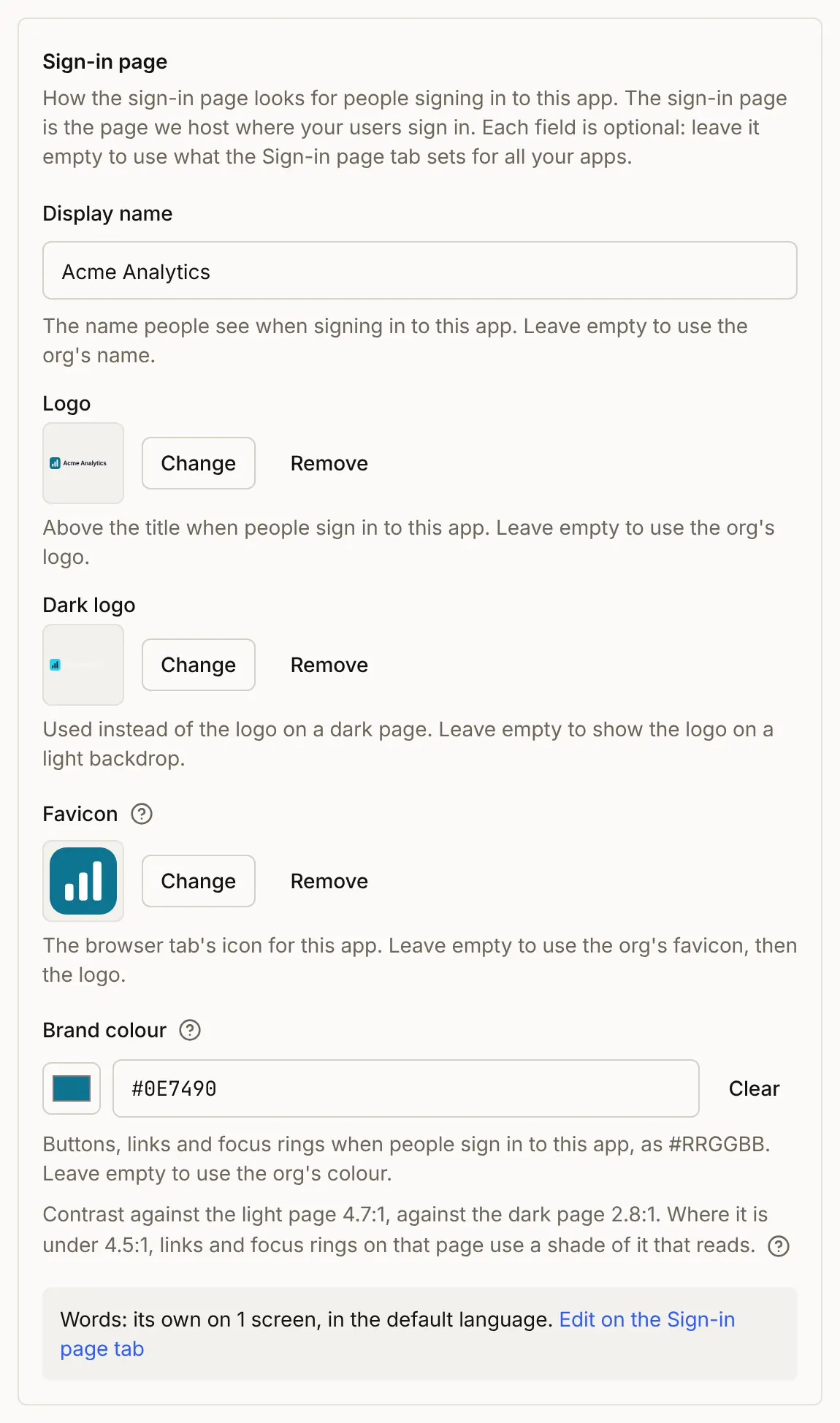
A sign-in started by that app shows its look, and so do the consent and device screens that name it, and the sign-in emails it sends:
Your own address
By default the page lives on BuildBase's address. To put it on yours, such as auth.acme.example, open the Domains tab, press Connect new domain, type the address and press Connect domain. Add the DNS records it shows at the company you bought the domain from, then press Verify. A change can take from a few minutes to several hours to reach everyone. A domain still not verified 24 hours after you add it is removed, and you can add it again.
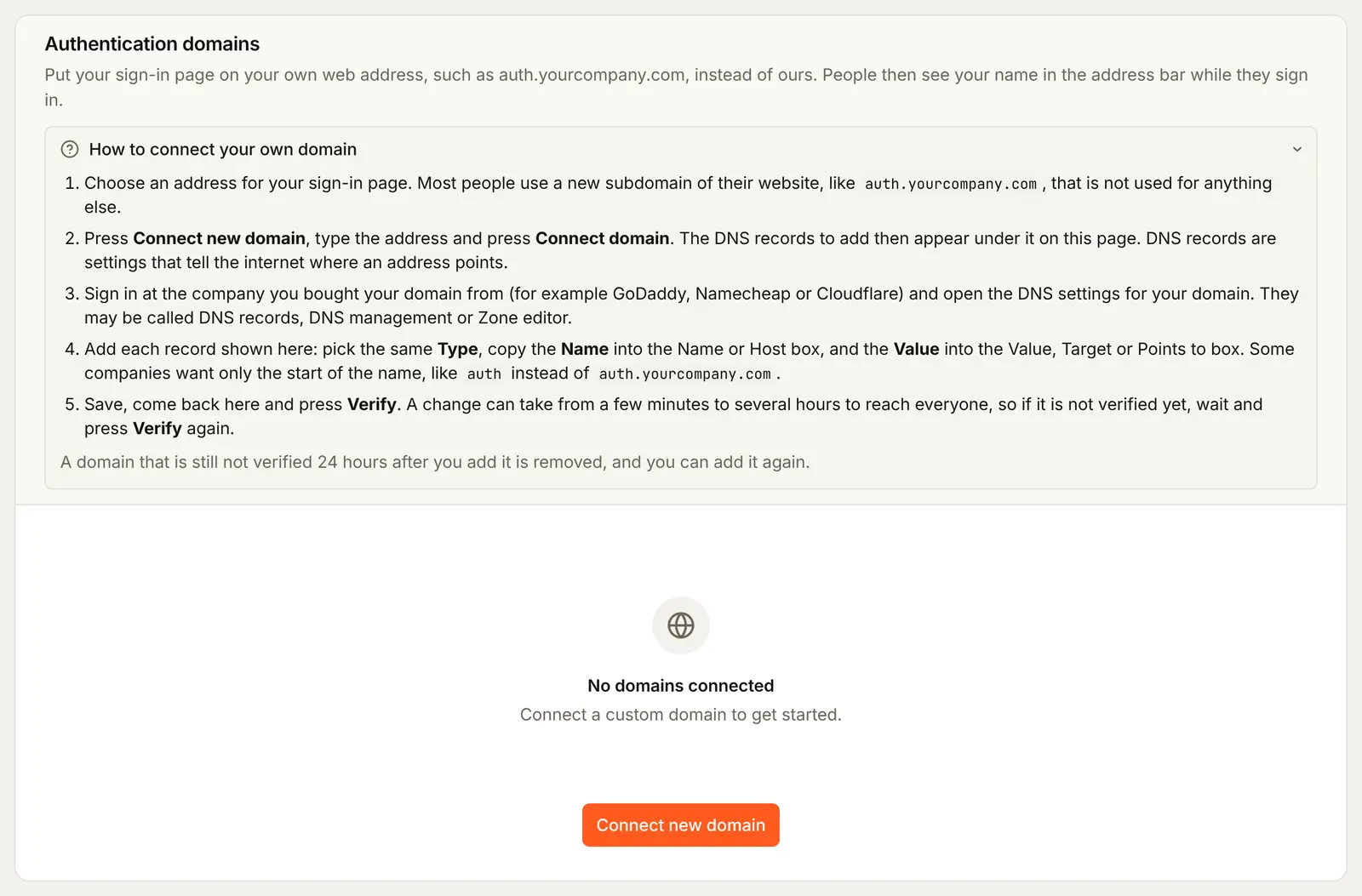
Verify checks three things: that you own the domain, that its DNS points at us, and that your sign-in page loads on it over HTTPS with a working certificate. Until all three pass, sign-in stays on BuildBase's address, and the tab says which one is missing. The certificate is usually issued a few minutes after the DNS record is in place, so press Verify again shortly. The same checks run every six hours: if your address keeps failing them for about an hour, sign-in moves back to BuildBase's address until they pass again.
Once it is verified, the sign-in page, the device code link and the wallet's sign-in message all name your address.
Badge and custom CSS
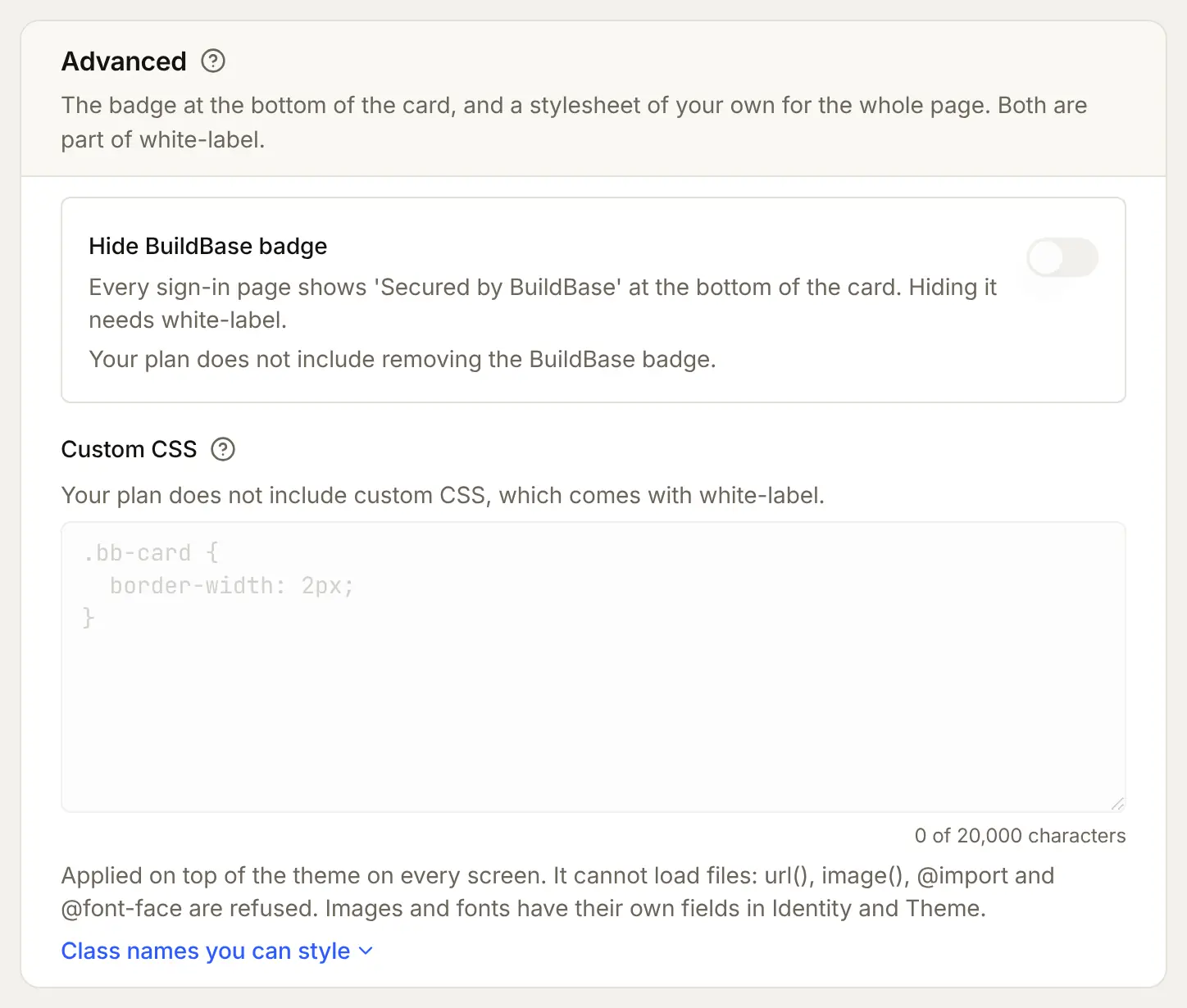
The Advanced card holds two white-label settings. Hide BuildBase badge removes "Secured by BuildBase" from the foot of every screen. Custom CSS adds your own stylesheet, up to 20,000 characters, on top of the theme. It cannot load files: url(), image(), @import and @font-face are refused, because the page holds a password; images and fonts have their own fields. Target the stable class names (bb-card, bb-title, bb-logo and the others under Class names you can style). The preview does not apply your stylesheet: open the live page to check it. On a plan without white-label, both are locked and say why.
/* Custom CSS */
.bb-card {
  border-width: 2px;
}
[data-bb-screen='register'] .bb-title {
  letter-spacing: -0.02em;
}
Check it works
- The preview shows your logo, colour and words before you save.
- After Save changes, Open the live page for Acme Analytics shows the same, in light and dark.
- With
?lang=ar, or Arabic picked in the footer, the page reads right to left. - An app with its own look shows it on its live page, and the others keep the organization's.
Things to watch out for
- Your own address changes four things at once. Passkeys made on the old address stop working, Google One Tap needs the new origin, bot protection needs your own Turnstile keys, and the device code link and the wallet's message name the new address.
- Use a new subdomain. Pick one that serves nothing else, such as
auth.acme.example. The record the Domains tab shows is usually a CNAME, which cannot sit on a bare domain such asacme.example. - If your DNS is at Cloudflare, set the record to DNS only. A proxied record can stop the certificate for your sign-in page from being issued.
- If your domain limits who may issue its certificates, allow Let's Encrypt. A CAA record that names other issuers stops the certificate for your sign-in page. Add
0 issue "letsencrypt.org". - A domain not verified within 24 hours is removed. Add it again once the DNS record is in place.
- The preview is not the page. It uses the console's font, two sample social buttons and none of your custom CSS. Check the live page.
- Emails go out in English, whatever language the page shows.
If something goes wrong
| What you see | Why | What to do |
|---|---|---|
| The live page still shows the old look | The changes are not saved | Press Save changes, then open the live page again |
| The preview has your font or stylesheet missing | The preview uses the console's font and never applies custom CSS | Check on the live page |
| A box shows "May be out of date" | The English changed after the translation was written | Edit the translation, or press Mark as checked |
| Visitors in another language see your English | The sentence has no version in their language | Write one, or choose Show our default in their language |
| Hide BuildBase badge and Custom CSS are locked | Your plan has no white-label | Upgrade, or keep the badge |
| "Small name must be at least 2 characters" under the box | Small name is one character long | Use 2 characters or more, or leave it empty |
| The dark page shows your logo on a light patch | No Logo for dark mode is set | Choose a light version of the logo |
Next steps
- Customize the sign-in page - the reference for every setting, field names and class names.
- Internationalization - the SDK's own screens in the same languages.
- Theming - your colours on the SDK's screens inside your app.
- Set up sign-in, step by step - every sign-in guide, and the order to set them up in.