
Set up Sign in with LinkedIn
Put a LinkedIn button on your sign-in page. Create a LinkedIn app with the Sign In with LinkedIn using OpenID Connect product and paste its keys into BuildBase.
Sign in with LinkedIn puts a LinkedIn button on your hosted sign-in page. The person signs in on LinkedIn's own page and comes back to your app signed in. It suits apps people use for work, hiring or networking. You create an app on the LinkedIn Developer Portal, add the Sign In with LinkedIn using OpenID Connect product to it (OpenID Connect is the standard way one site confirms who someone is for another), copy its two keys into BuildBase, and give LinkedIn one address from BuildBase.
Before you start
- A LinkedIn account, and a LinkedIn Page for your company, such as Acme's. LinkedIn asks which Page every app belongs to.
- An app in the BuildBase console, on the Settings tab of Authentication. Here it is Acme Analytics.
- Room on your plan. LinkedIn counts toward your plan's limit of social sign-in providers.
What goes where
| Copy this | From | Paste it into |
|---|---|---|
| Client ID | LinkedIn, your app's Auth tab | BuildBase, Client ID |
| Primary Client Secret | LinkedIn, the same Auth tab | BuildBase, Client secret |
| Redirect URL | BuildBase, after you press Create | LinkedIn, Authorized redirect URLs for your app, Auth tab |
A LinkedIn client ID is a short code such as 86acmeexample01. It is not secret. The client secret is.
1. Create the app on LinkedIn
These are the steps the console shows under How to get your LinkedIn keys.
- Open My apps on the LinkedIn Developer Portal and create an app, such as
Acme Analytics. LinkedIn asks which LinkedIn Page (your company page) the app belongs to, and for a logo. - On the app's Products tab, add Sign In with LinkedIn using OpenID Connect. This product grants the three scopes BuildBase asks for:
openid,profileandemail. - On the Auth tab, copy the Client ID and the Primary Client Secret. Keep the tab open for the redirect URL.
2. Add LinkedIn in the BuildBase console
- In the console, open User management, then Authentication under Access, and the Methods tab.
- Press Add auth method and choose LinkedIn. The dialog opens How to get your LinkedIn keys, the steps above.
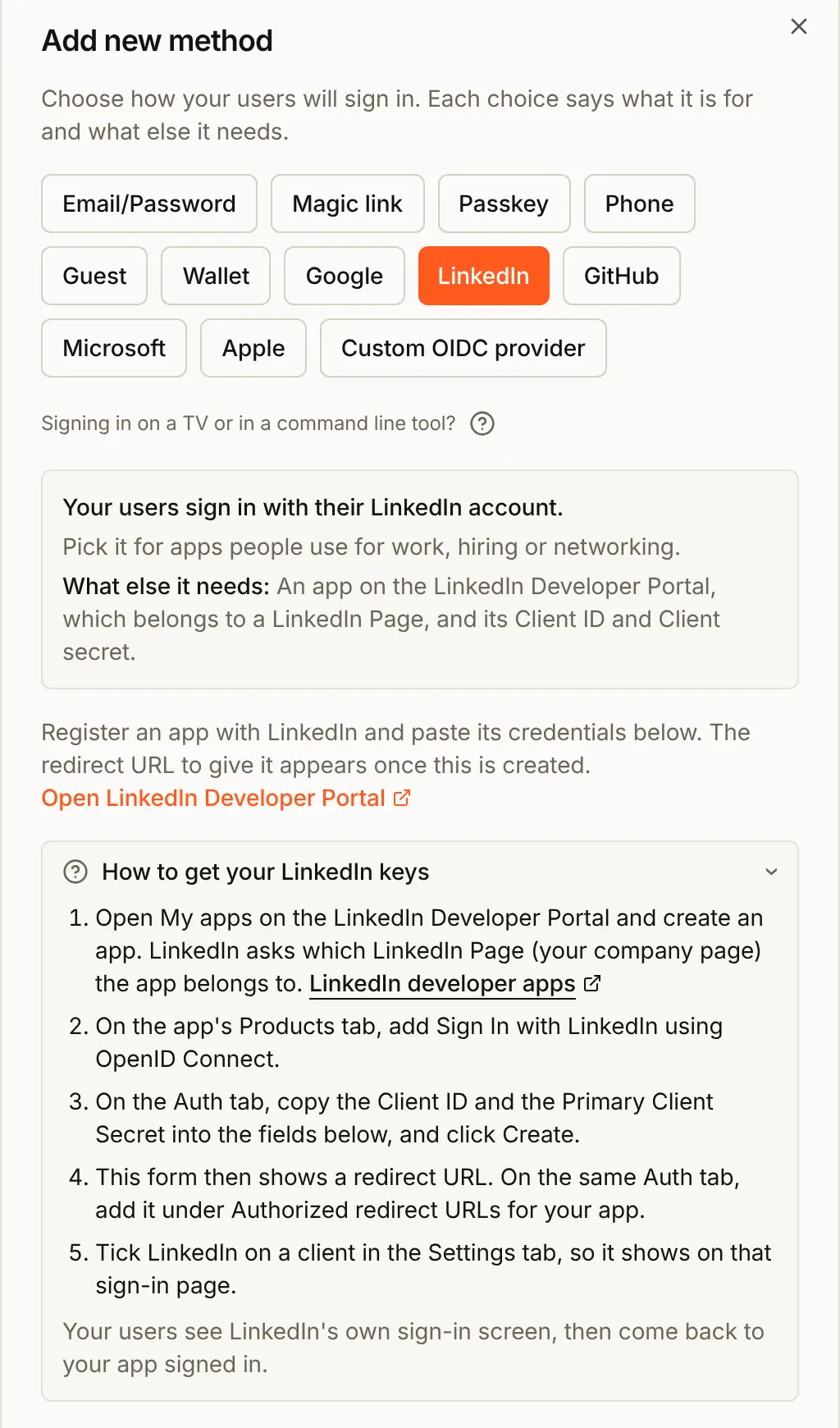
- Fill in the form:
- Title: your own name for the method, shown in the console only. The button always says LinkedIn.
- Client ID and Client secret: the Client ID and the Primary Client Secret.
- Scopes: keep
openid profile email. They are exactly what the product grants; a scope LinkedIn has not granted your app makes LinkedIn refuse the sign-in.
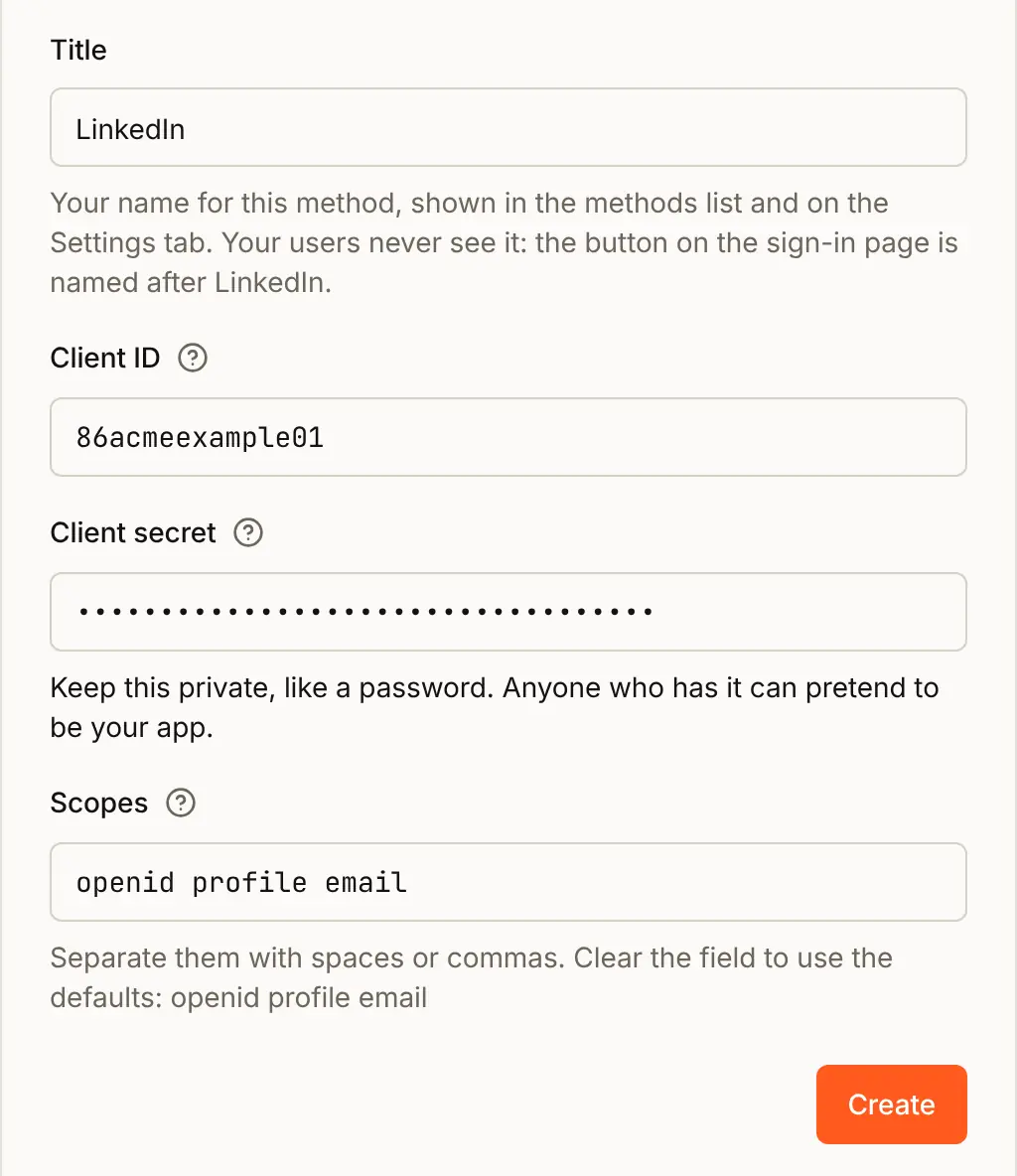
- Press Create. The dialog says One step left and shows the Redirect URL. Press Copy, then Done.
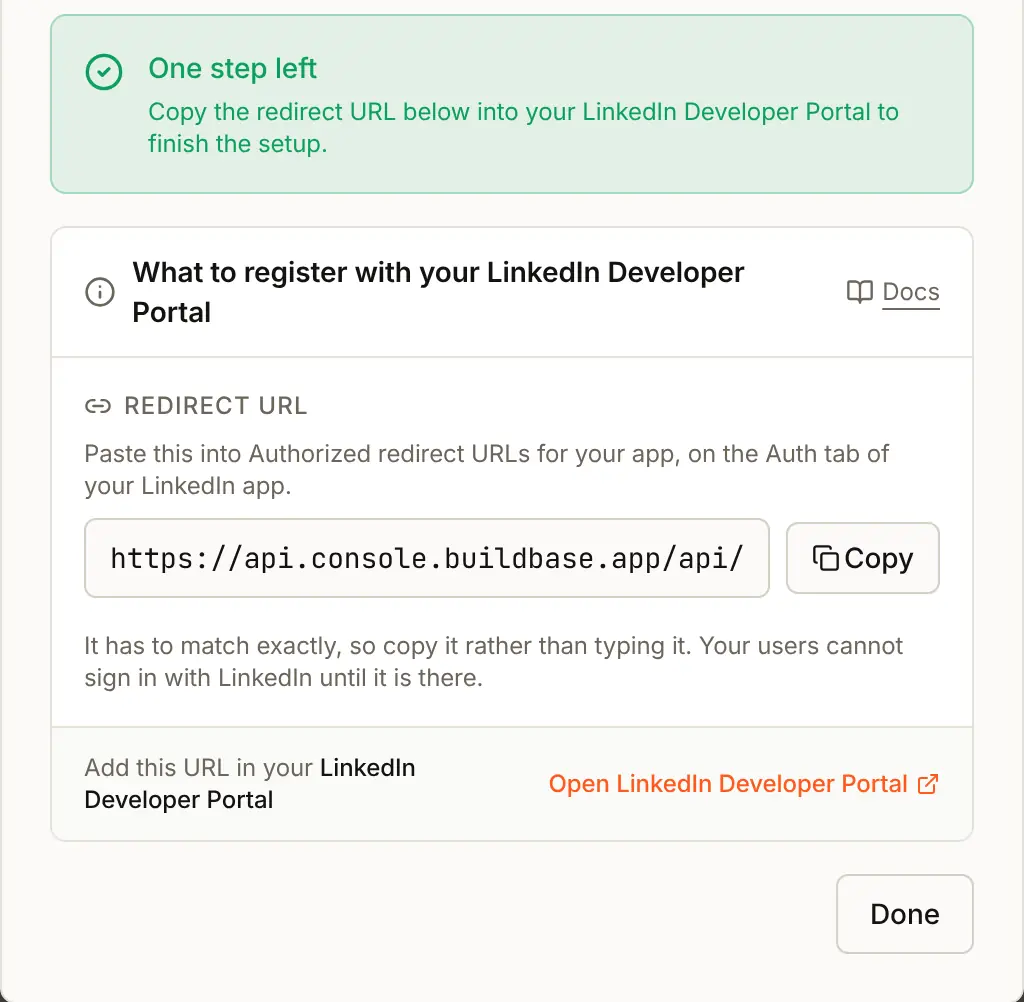
- On LinkedIn's Auth tab, add the URL under Authorized redirect URLs for your app and save.
The redirect URL has this shape:
https://api.console.buildbase.app/api/v1/auth/social/linkedin/<orgId>/<methodId>/callbackIt starts with your BuildBase server, https://api.console.buildbase.app{/* @endstat */} on BuildBase's cloud. Copy it rather than typing it: LinkedIn compares it letter for letter. It never changes while the method exists.
The secret is write-only in BuildBase: when you edit the method later, its box is empty and shows only the saved secret's first and last five characters. Leave it empty to keep it.
3. Attach it to your app
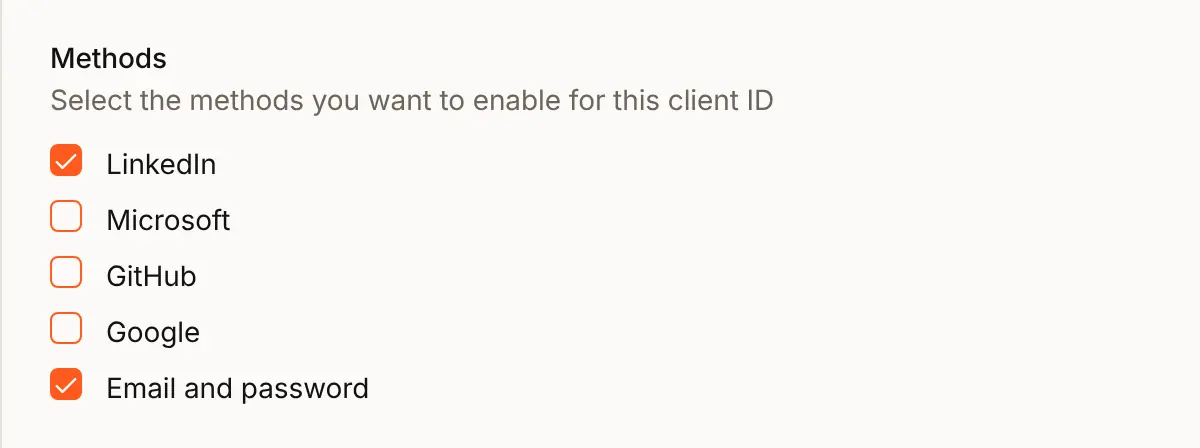
- Open the Settings tab and press Edit on Acme Analytics.
- Under Methods, tick LinkedIn and press Update.
4. Check the preview
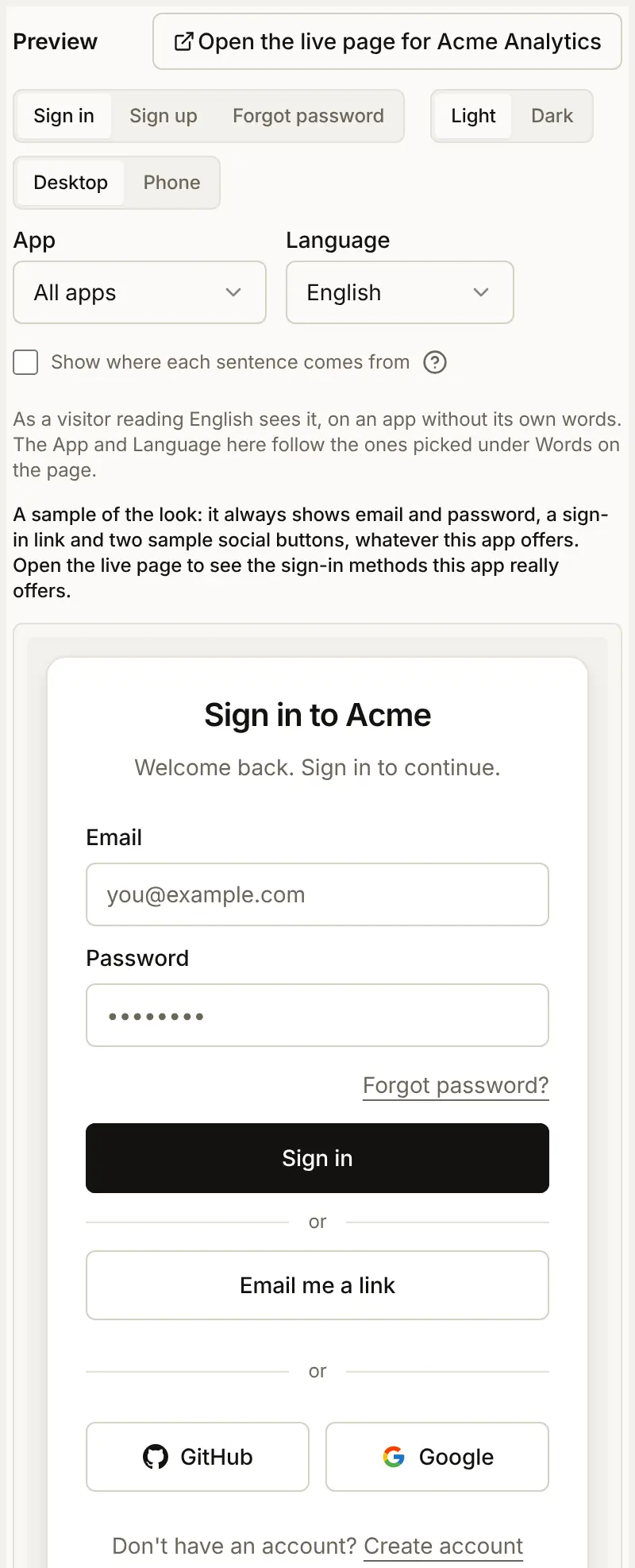
The Preview on the Sign-in page tab shows your look with sample GitHub and Google buttons, whatever your app offers. Press Open the live page for Acme Analytics above it to see the real page with the LinkedIn button.
5. What people see
The hosted sign-in and register pages now have a LinkedIn button.
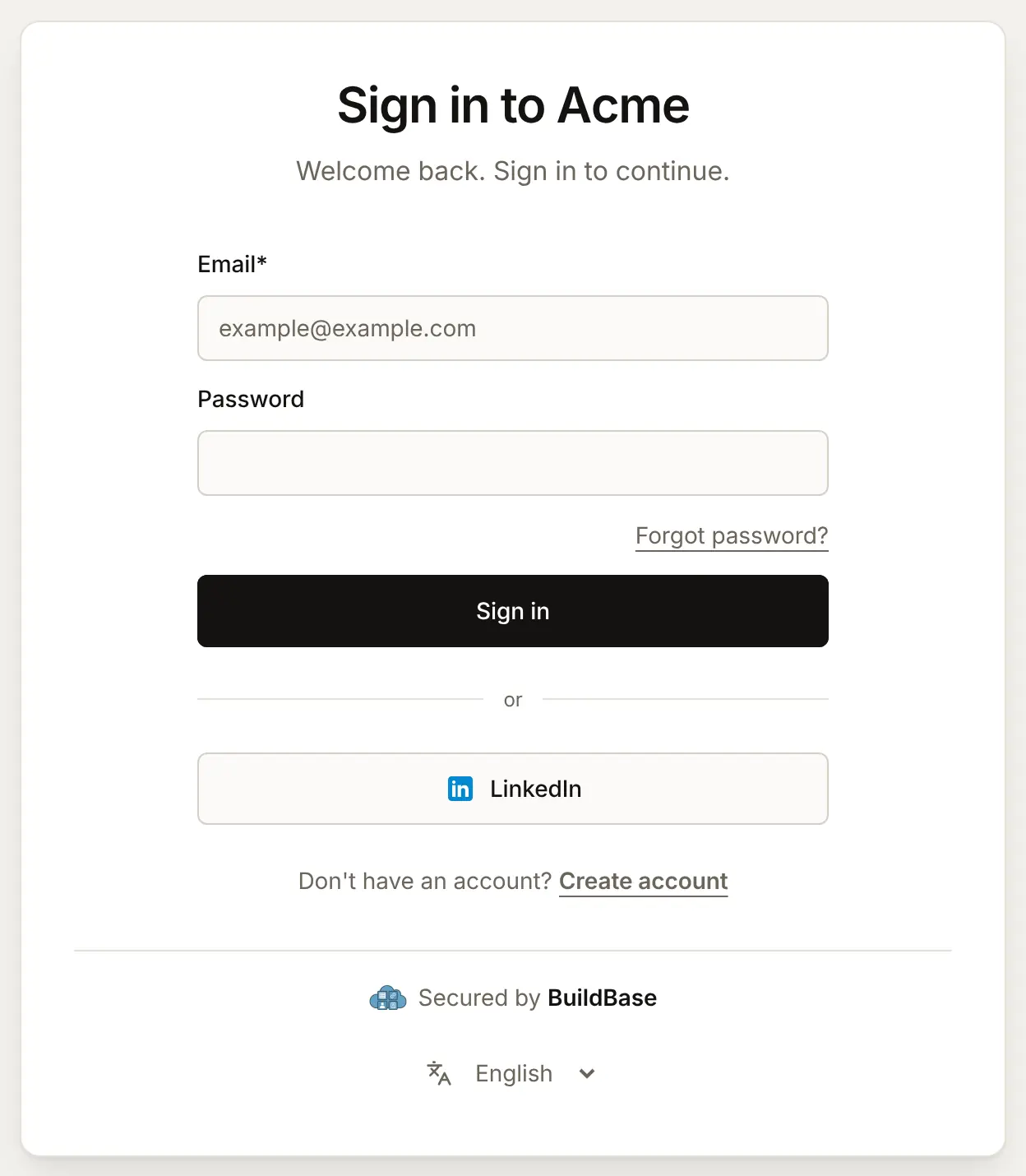
Pressing it opens LinkedIn's sign-in page, which the first time asks the person to allow your app to use their name, photo and email address. LinkedIn then sends them back, and the sign-in page carries on as after any sign-in: a second step if your two-step policy asks social sign-ins for one, Trust this device?, and the passkey offer if your app offers passkeys.
The first sign-in
- Finding the account: by the person's LinkedIn user ID first, then by their email address when LinkedIn says it is verified, then as a new account if sign-up is open to them and your plan has room. See who can sign up.
- A verified address connects LinkedIn to an account the person made another way, and gives a new account a verified address, so no code is emailed.
- The name on a new account is the one on their LinkedIn profile.
Someone who signed up with LinkedIn has no password. They can make one later with Forgot password? on a client that offers email and password.
In your app
Nothing changes in your code. People connect and remove LinkedIn on the SDK's Security screen: see Account security screens.
import { useSaaSAuth } from '@buildbase/sdk/react';

export function SecurityButton() {
  const { openWorkspaceSettings } = useSaaSAuth();
  return (
    <button onClick={() => openWorkspaceSettings('security')}>Security</button>
  );
}
Check it works
- The LinkedIn app has the Sign In with LinkedIn using OpenID Connect product.
- The redirect URL is under Authorized redirect URLs for your app.
- LinkedIn is ticked on your app, and Open the live page shows the button.
- Signing in with a LinkedIn account creates a user, and signing in again reaches the same one.
Things to watch out for
- Add the product first. Without Sign In with LinkedIn using OpenID Connect on the app's Products tab, LinkedIn refuses the scopes BuildBase asks for.
- LinkedIn IDs belong to one LinkedIn app. LinkedIn gives each app its own user ID for a person (its OpenID Connect settings list its user IDs as pairwise, one set per app). Keep the same LinkedIn app: with a new one, people are found by their verified email address instead, and LinkedIn sign-ins imported from another system match only the LinkedIn app they came from.
- LinkedIn may leave the email address out. LinkedIn documents the address and whether it is verified as optional. Without an address, no account can be made, and the person is told the provider did not share one.
- A LinkedIn sign-in proves the account, not the person. LinkedIn says this sign-in does not verify who someone is, so do not treat the name or job on the profile as checked.
- Finish at LinkedIn within 10 minutes. A sign-in left open on LinkedIn's page for more than 10 minutes cannot finish: BuildBase sends the browser to your sign-in page, with a note that the sign-in expired. Start again from your app's Sign in button.
If something goes wrong
| What you see | Why | What to do |
|---|---|---|
| LinkedIn's page says the redirect_uri does not match the registered value | The redirect URL is not under Authorized redirect URLs for your app, or differs by a character | Copy it again from the console and add it on the Auth tab. |
| LinkedIn's page says a scope is not authorized for your application | The product is missing, or Scopes asks for more than it grants | Add the product, and clear Scopes to go back to the defaults. |
| Sign-in with that provider did not finish. Please try again. | The person cancelled at LinkedIn, or LinkedIn answered with an error (provider_error) | Try again. |
| Sign-in with that provider failed. Please try again. | BuildBase could not finish with LinkedIn: most often a wrong client secret (provider_failed) | Copy the Primary Client Secret again, or generate a new one, and paste it in. |
| This email is already registered. Sign in the way you did before, then connect this provider from your account's security settings. | An account has this address, and LinkedIn did not say it is verified (email_unverified) | The person signs in as before, then connects LinkedIn from the Security screen. |
| This provider did not share an email address, so an account cannot be created. Allow access to your email address and try again. | The email scope was removed (email_missing) | Clear the Scopes box to go back to the defaults. |
| Sign-up is invite-only here, and there is no account for that address yet. Ask the team for an invitation, or sign in with an account you already have. | Public sign-up is off (signup_disabled) | Invite the person, or open sign-up. |
| Sign-up isn't available for this address. | The address is blocked or not on your allowlist (signup_restricted) | Change the lists in Who may sign up. |
| Join the waitlist, and you can sign up once you're approved. | Sign-up is by waitlist (waitlist_required) | Approve them on the waitlist. |
| This app is not taking new sign-ups right now. | Your plan's end-user limit is reached (signup_unavailable) | Upgrade, or remove users you no longer need. |
| Your account has been blocked. Please contact support for assistance. | The account is blocked (blocked) | Unblock the user in the console if that was a mistake. |
| In the console: Your plan includes 2 social sign-in providers. Upgrade for more, or remove one. | Your plan's social provider limit is reached; the number is your plan's | Upgrade, or delete a provider you no longer use. |
Next steps
- Social providers - the reference for every provider.
- Google - the same steps for Google, with the refusal page shown.
- Account security screens - connected accounts inside your app.
- Set up sign-in, step by step - every sign-in guide, and the order to set them up in.