
Set up sign-in links and email codes
Let people sign in without a password, with a link or a 6-digit code sent to their email, and choose which one your app sends.
With sign-in links and email codes, nobody has to make up or remember a password. The person types their email address, and BuildBase emails them either a link to tap or a 6-digit code to type on the sign-in page. New people sign up the same way, with their name and email address. It suits apps people use now and then, where a forgotten password would be the usual way back in anyway. It is on every plan.
Links and codes are one method in the console, Magic link, with a setting for what its email sends:
| What the email sends | What the person does | Pick it when |
|---|---|---|
| A link | Taps the link in the email. It signs them in on the device and in the browser where they asked for it. | People read email on the same computer or phone they use your app on |
| A 6-digit code | Types the code from the email on the sign-in page. | People read email on their phone and use your app on a computer |
| Either | Gets a code, with a button to have a link sent instead. | You are not sure, or your users do both |
Before you start
- An email sender, under Messaging, Sender accounts. Every link and code is an email, and without a sender nothing is sent. See The email sender below.
- An app (client) with a redirect URL. See Set up sign-in, step by step.
Step by step
- In the console's left rail, choose Users, then Authentication under Access, and open the Methods tab.
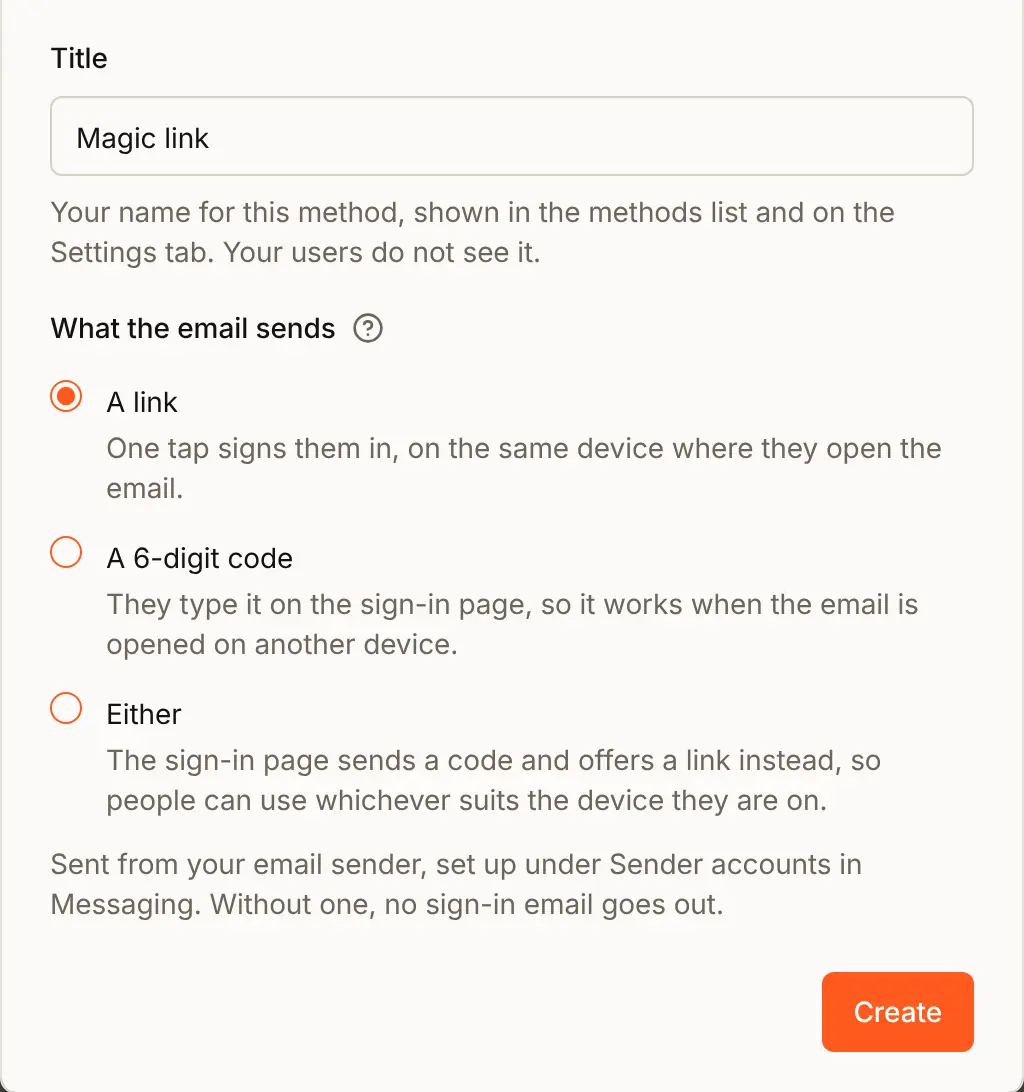
- Press Add auth method and choose Magic link. It is picked already when the dialog opens.
- Keep the Title
Magic link, or type your own. Your users never see it. - Under What the email sends, choose A link, A 6-digit code or Either.
- Press Create.
The ? beside What the email sends gives the rules for each:
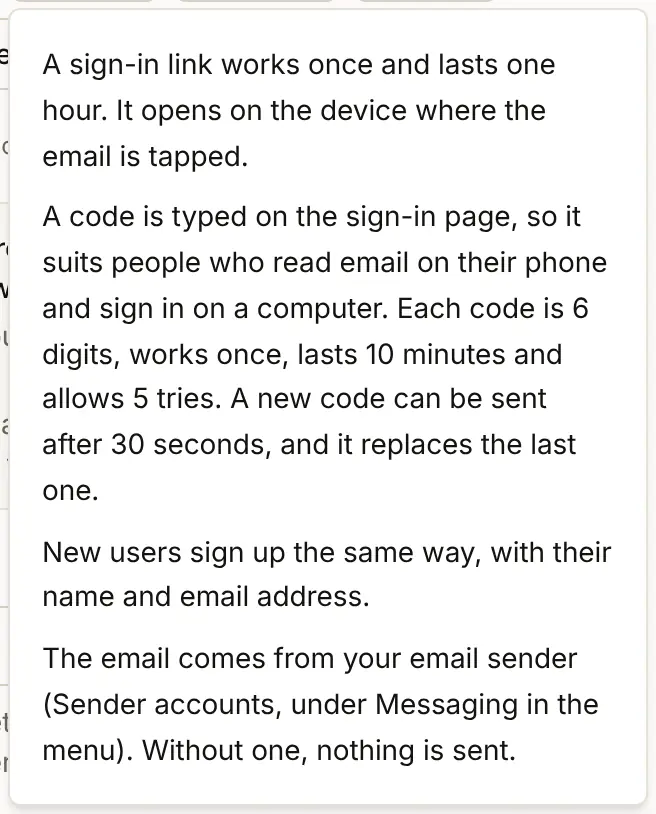
| Rule | Link | Code |
|---|---|---|
| How long it works | 1 hour | 10 minutes |
| How many times | Once | Once, with 5 tries to type it right |
| Asking for another | Ask again on the sign-in page | Resend code after 30 seconds. The new code replaces the last one |
| Where it works | Only in the browser where it was asked for | Anywhere the sign-in page is open |
| How many an hour | 5 links to one address | 5 codes to one address |
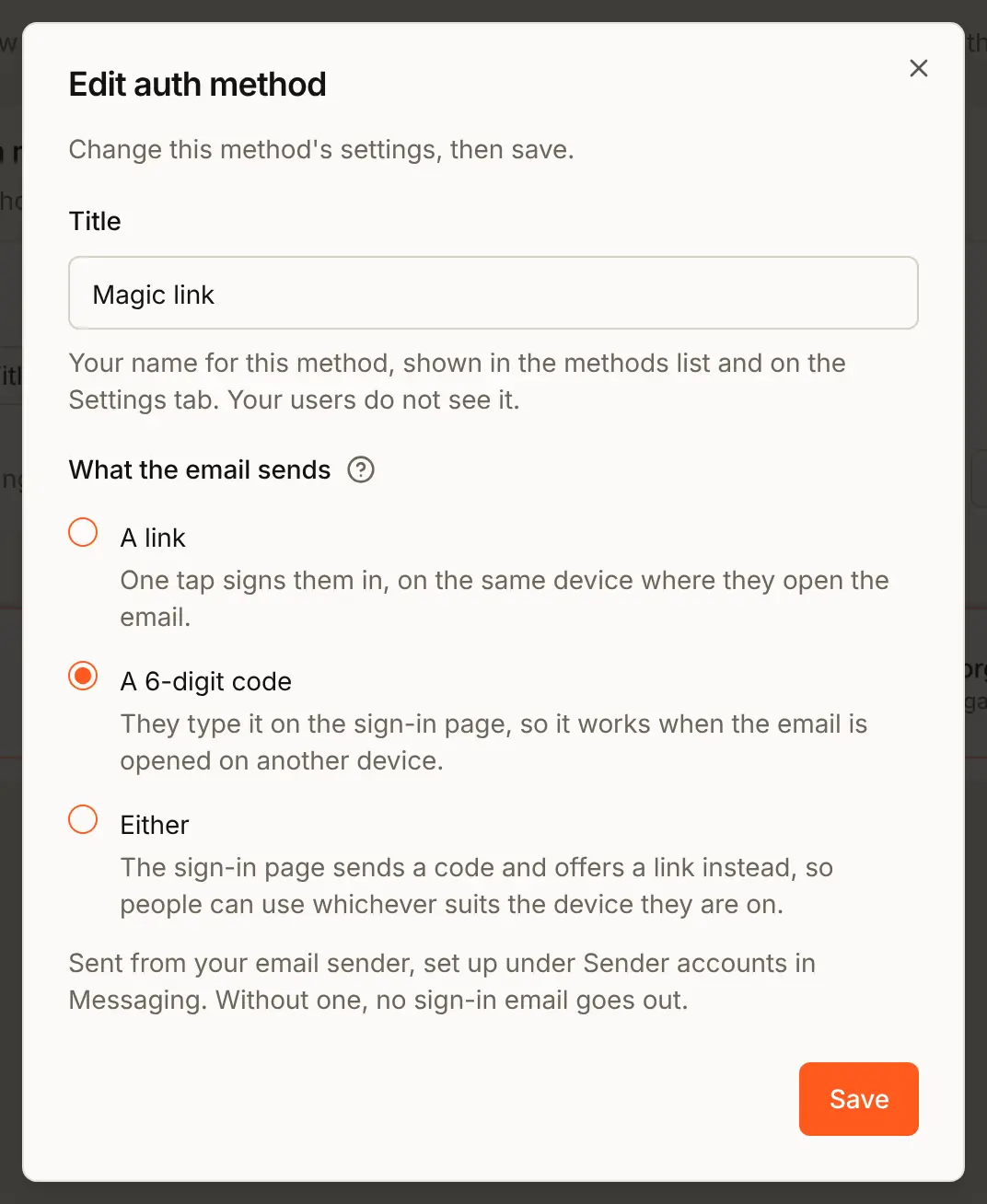
To change what the email sends later, press the pencil (Edit this login method) beside Magic link on the Methods tab, choose again, and press Save. The sign-in page follows at once.
The email sender
Every sign-in link and code goes out through your organization's default email sender. Open Messaging in the left rail, then Sender accounts under Configuration. The sender marked System default sends your users' sign-in codes, links, password resets and invitations.
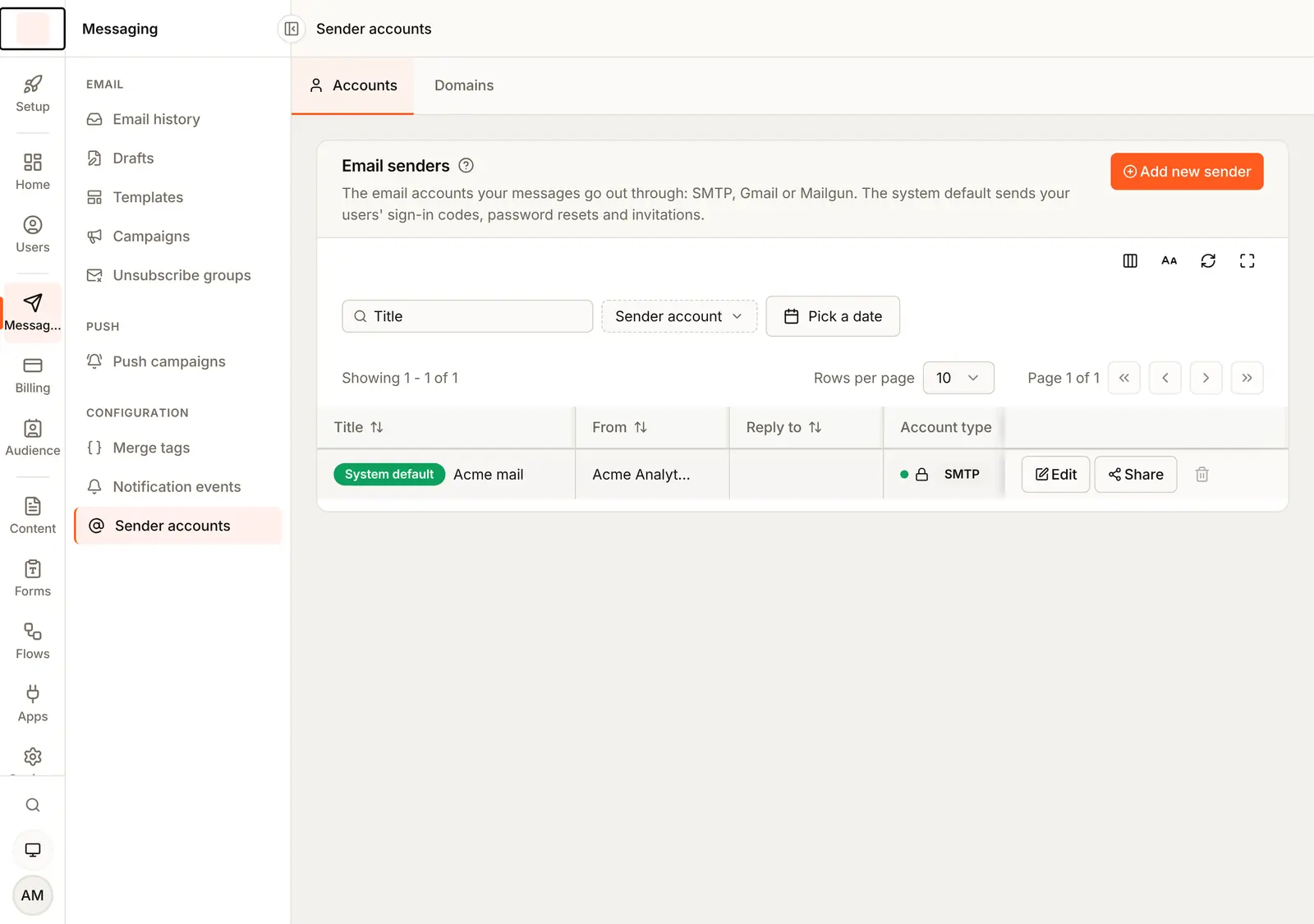
Add new sender connects one of three kinds:
| Kind | What it is |
|---|---|
| SMTP | Your email provider's mail server, with its host, port, username and password |
| A Gmail or Google Workspace address | |
| Mailgun | An email delivery service that sends from your own domain, once the domain is verified |
Why it matters:
- No sender, no sign-in. Without one, asking for a code or a link is refused with "Email sign-in is unavailable for this organization."
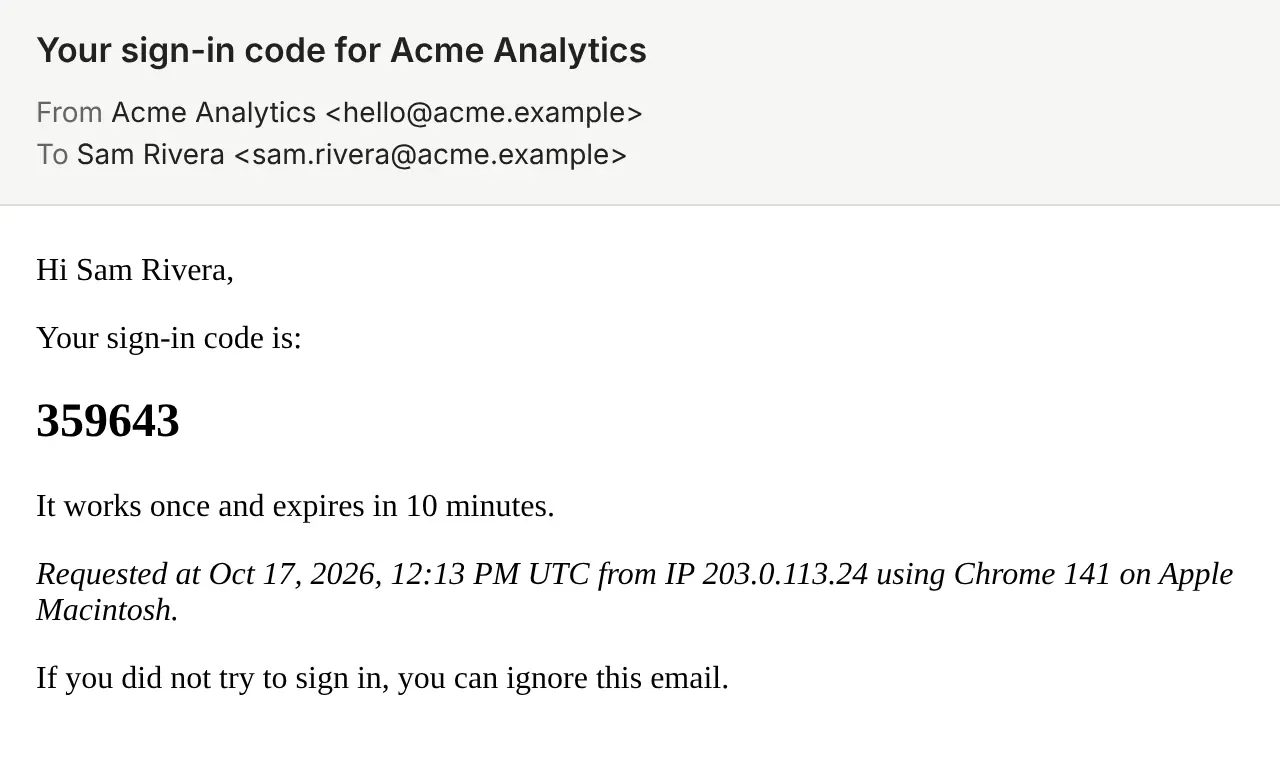
- People trust a name they know. The email comes from the sender's address and name, here
Acme Analytics <[email protected]>, and its subject names your app. Use an address on your own domain, such as[email protected], not a personal inbox. - Mail from a domain that proves it is yours reaches inboxes. Mail that inbox providers cannot check is often put in spam or turned away, and a sign-in email in spam is a person who cannot sign in. For a Mailgun sender, add and verify your domain on the Domains tab of the same page. For SMTP and Google, your email provider says which DNS records prove the domain is yours.
- A sender can stop working. If a send fails, for example because the password changed, the sender is marked inactive and nothing goes through it until you fix it.
Attach it to your app
A method shows on the sign-in page only once it is ticked on the app.
- Open the Settings tab and press Edit beside Acme Analytics.
- Under Methods, tick Magic link. Tick Email and password too if your app should offer both.
- Press Update.

Check the preview
The Preview on the Sign-in page tab draws a sample card with an Email me a link button under the password form, the same for every app. It shows your name, colours and words, but not which of the three choices your method sends. Press Open the live page for Acme Analytics above it to see the real page with the right button.
What people see
With a code
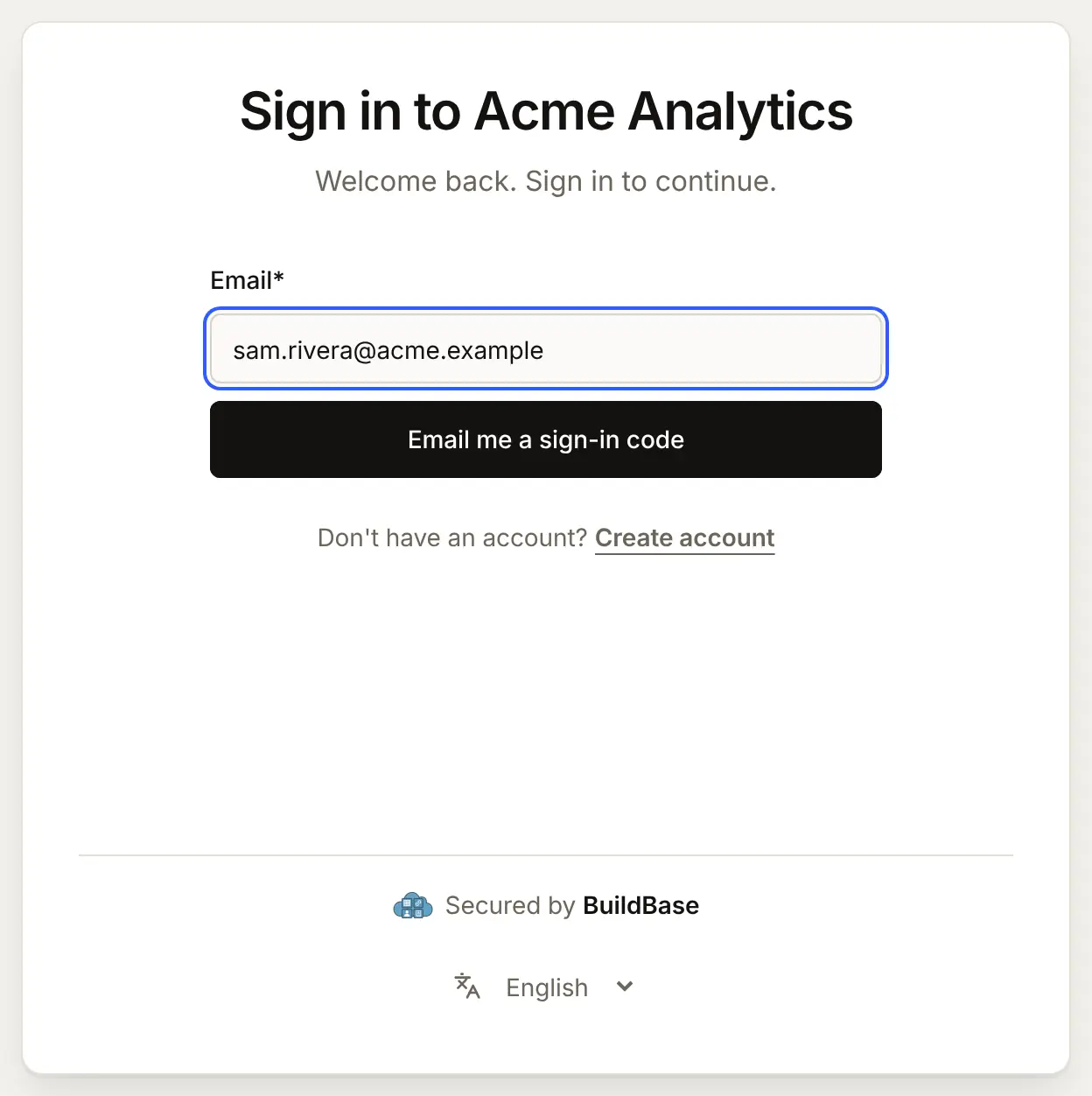
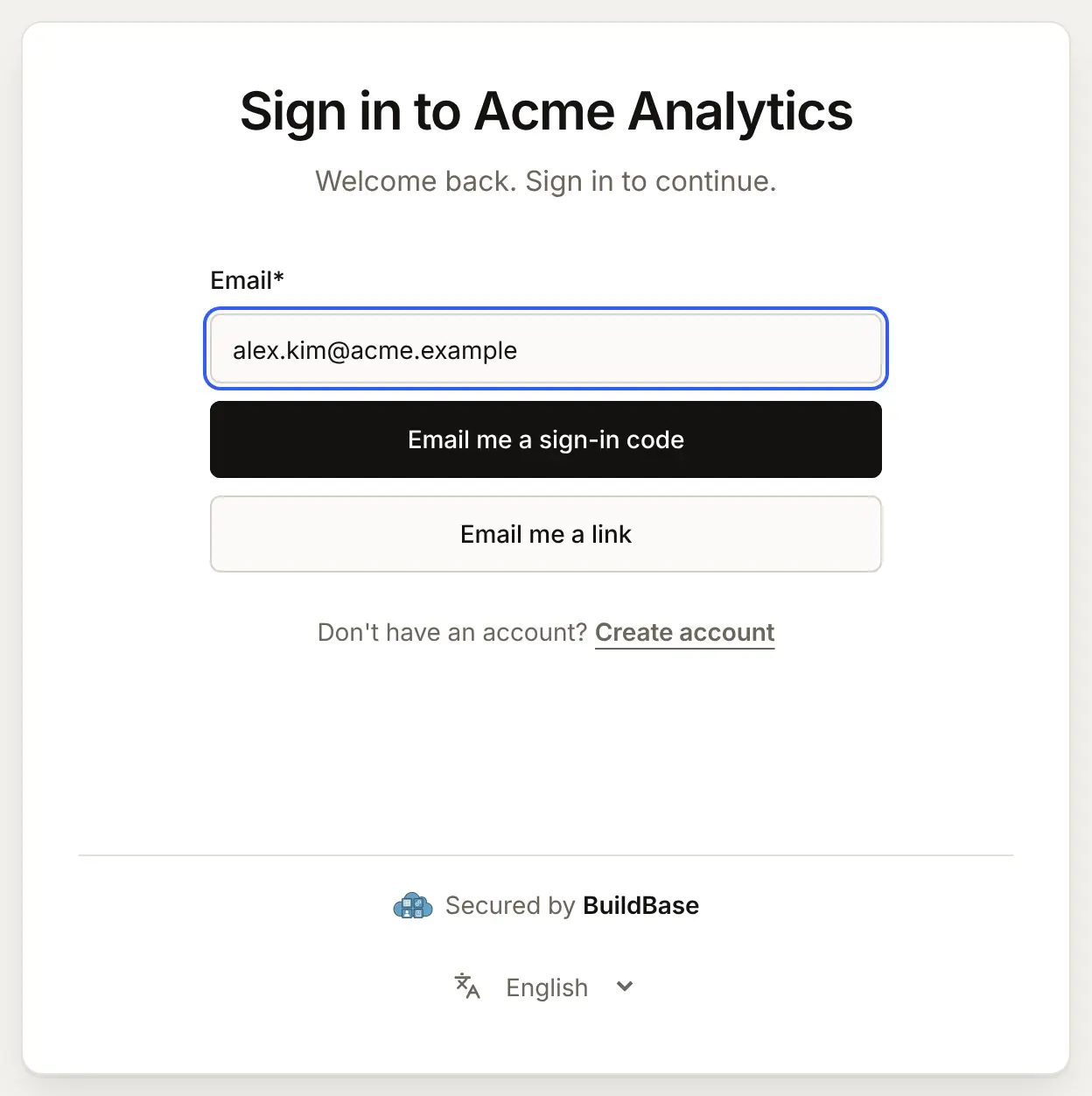
The sign-in page asks for the email address and offers Email me a sign-in code.
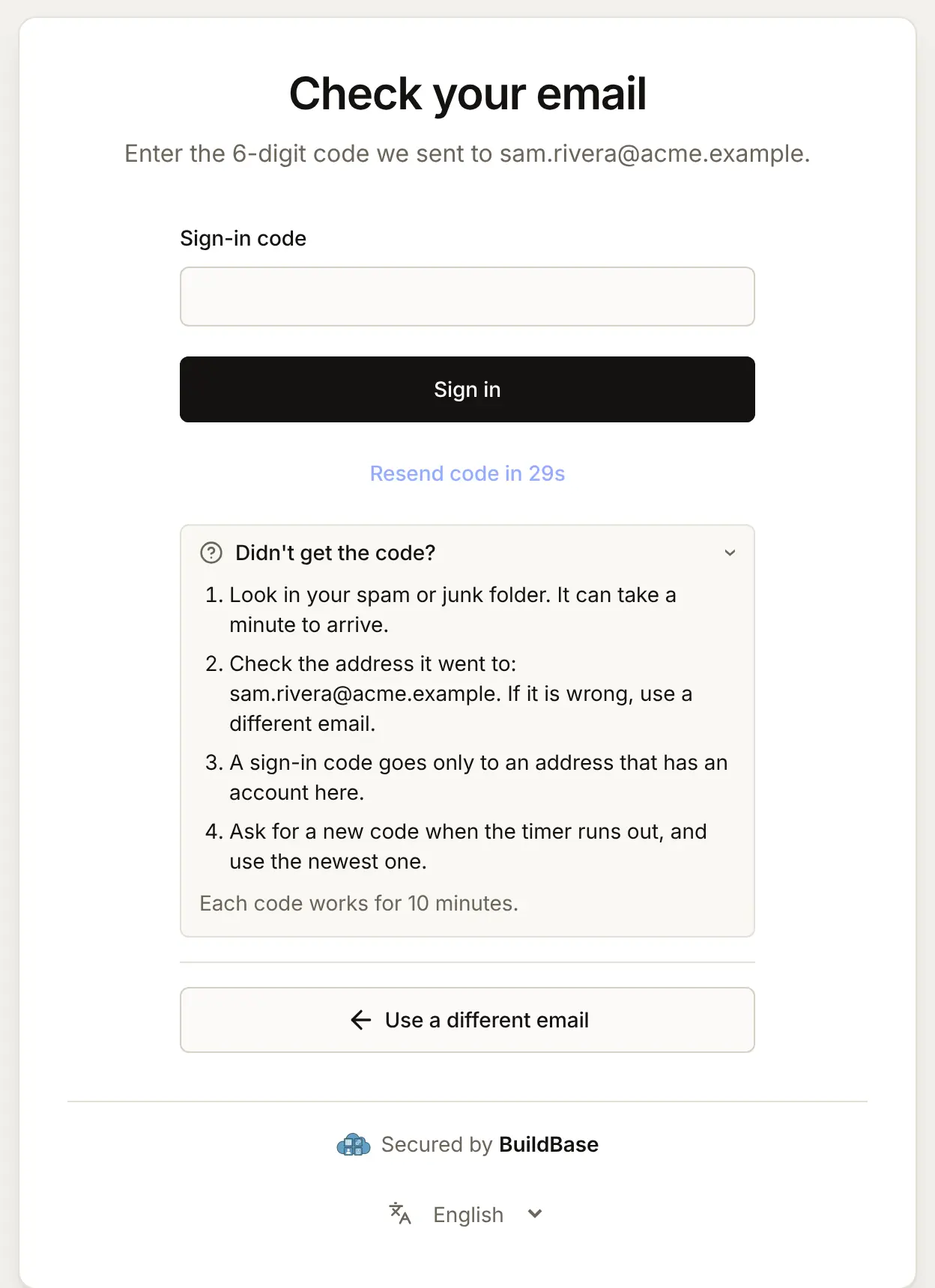
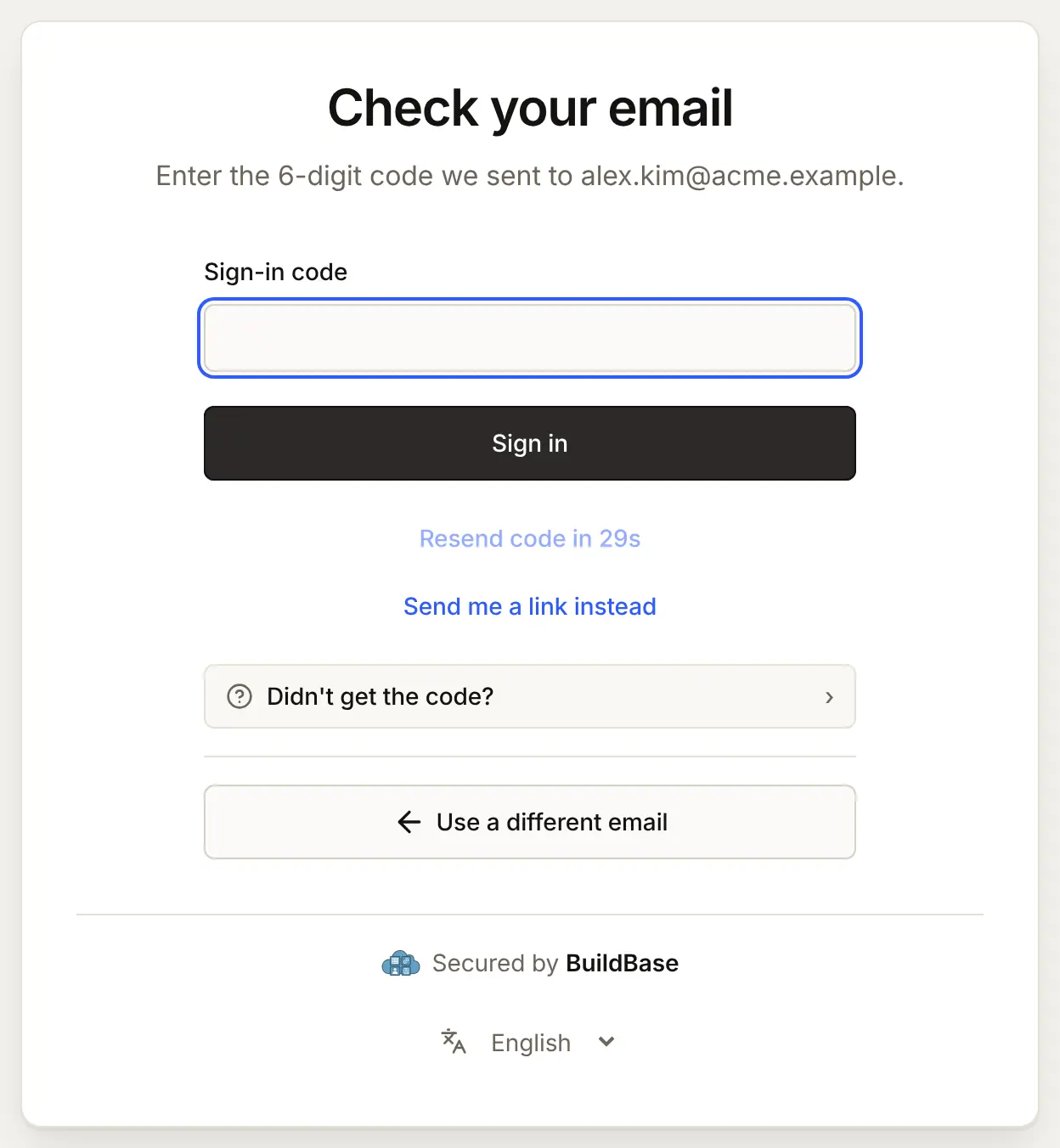
The next screen takes the code. Didn't get the code? says what to check.
The email:
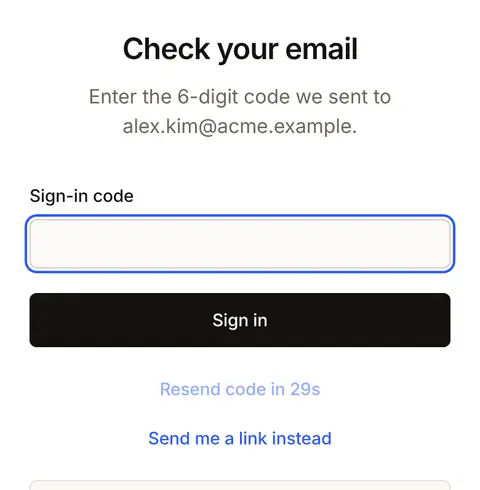
On a phone, the code box fills the width, so the code can be typed straight from the email app.
An address with no account gets the same screen and no email, so nobody can use the page to find out who has an account.
With a link
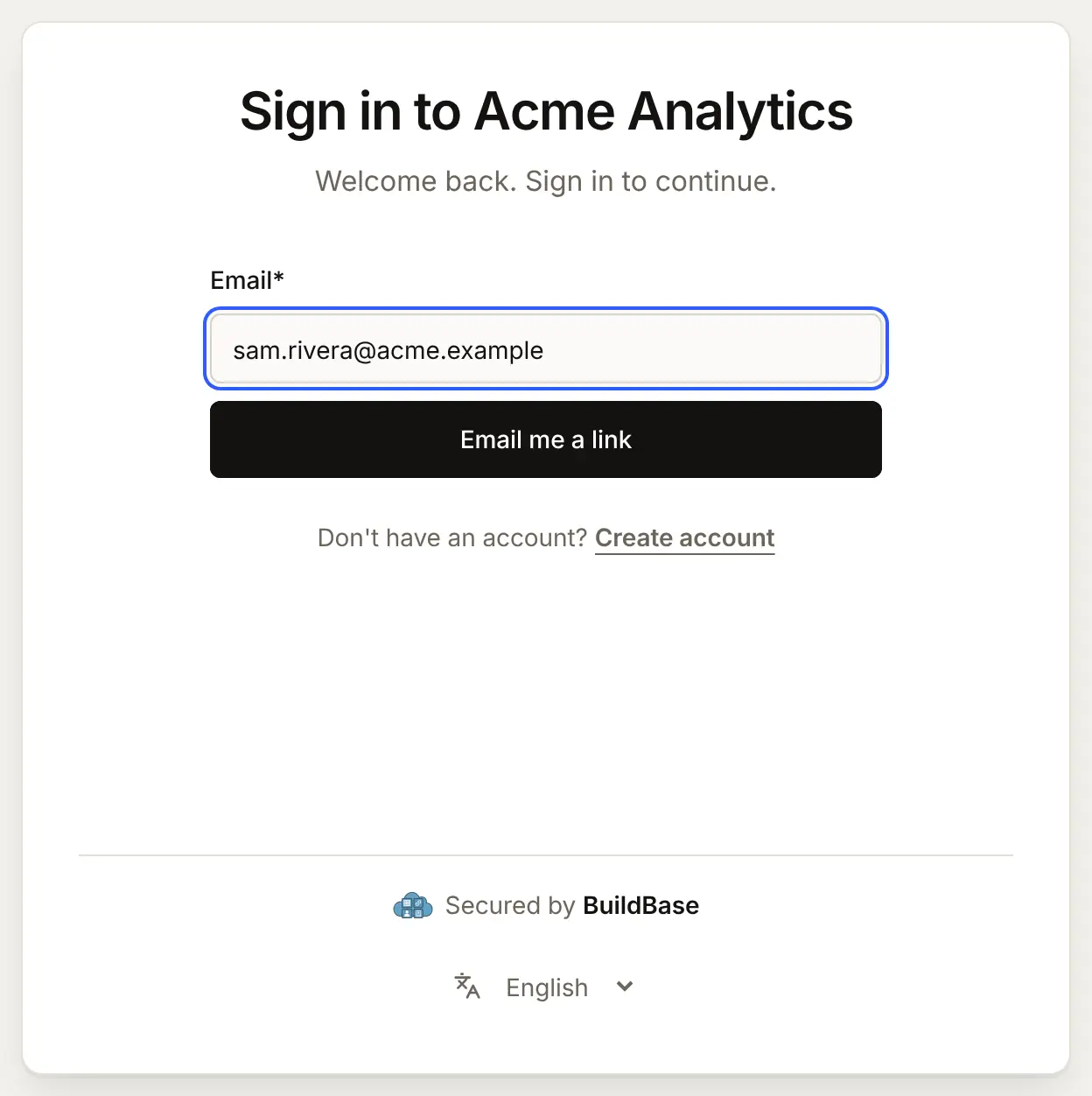
The sign-in page offers Email me a link.
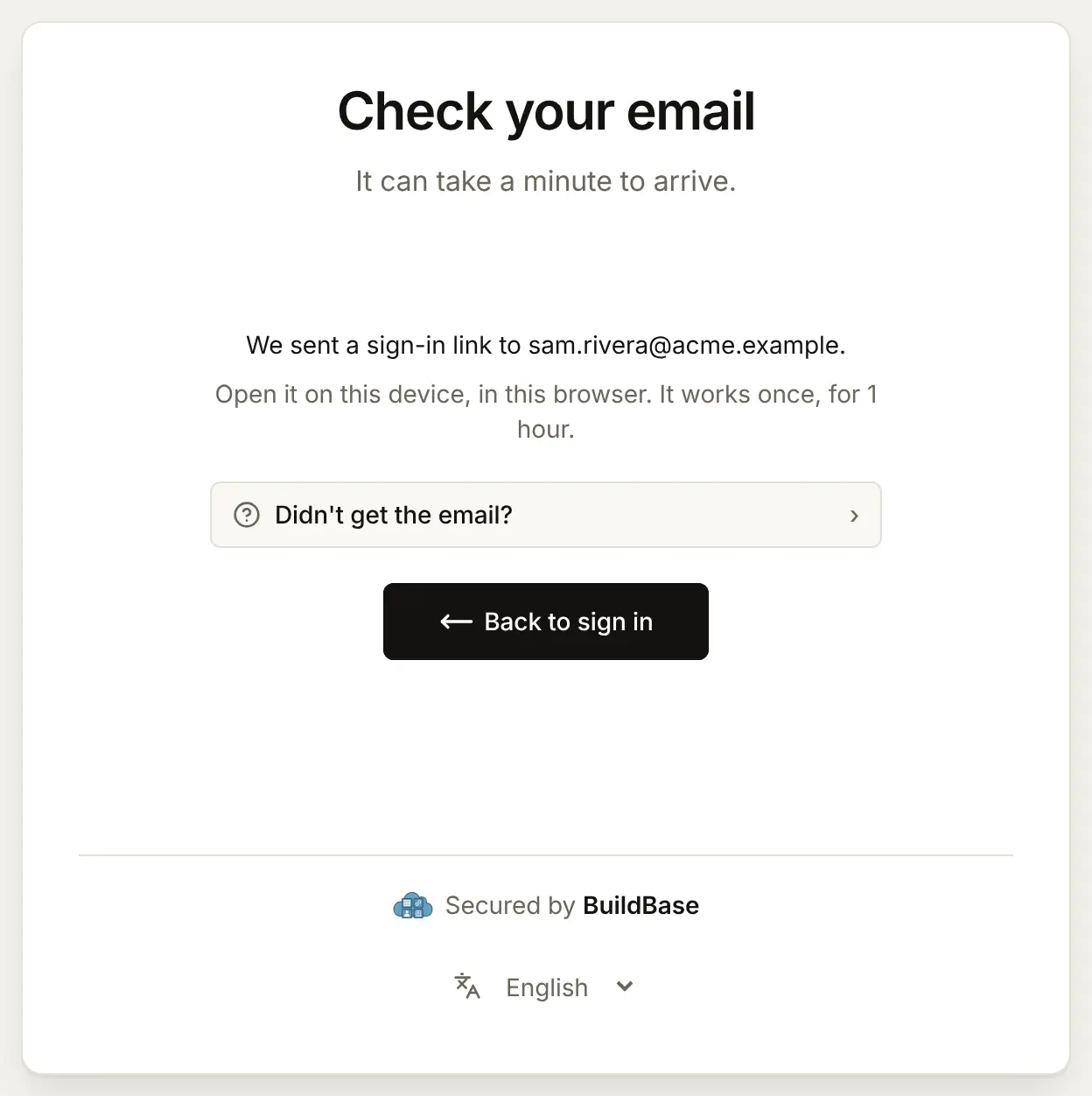
The page then says where the link went, and that it has to be opened in the same browser.
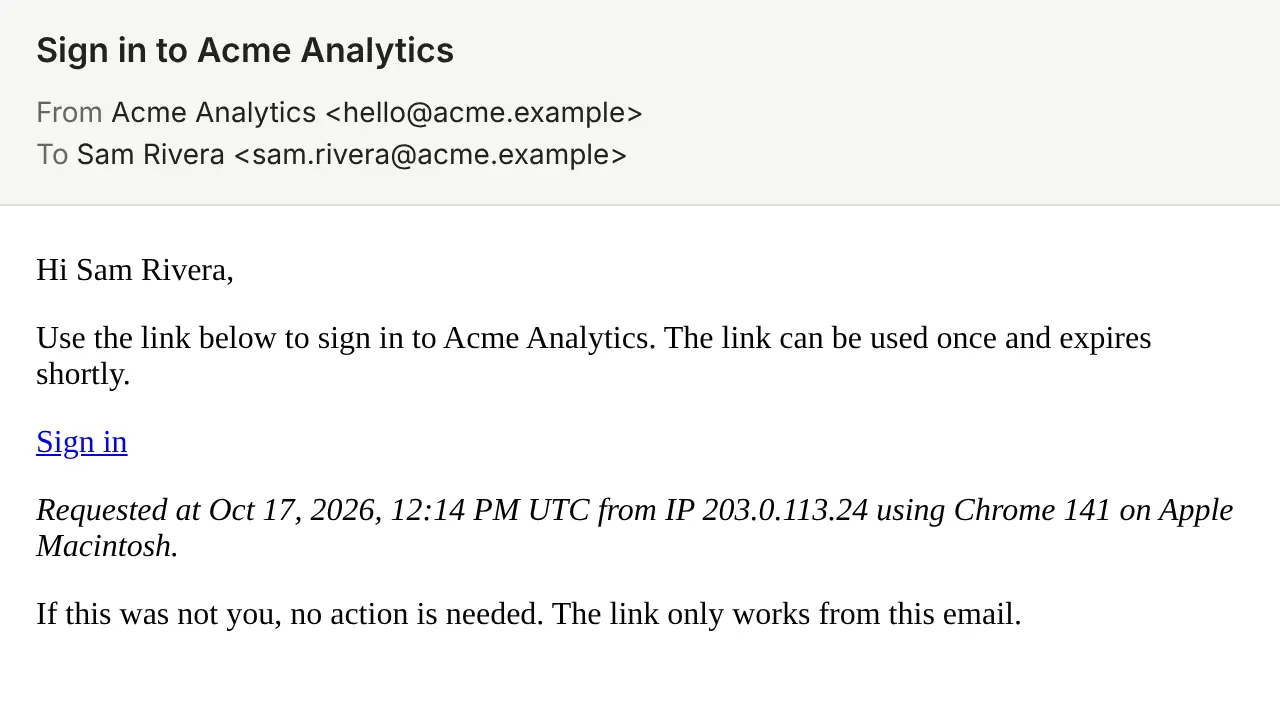
Tapping the link signs the person in and takes them back to your app.
A link opened in another browser
A link only finishes the sign-in it was asked for, in that browser. Someone who asks for a link on their laptop and taps it on their phone, or opens it in a different browser on the same computer, sees "Could not sign you in with this link", and that the link was requested in a different browser, to open it there or ask for a new one here. Opening it there still works: looking at it in the wrong browser does not use it up.
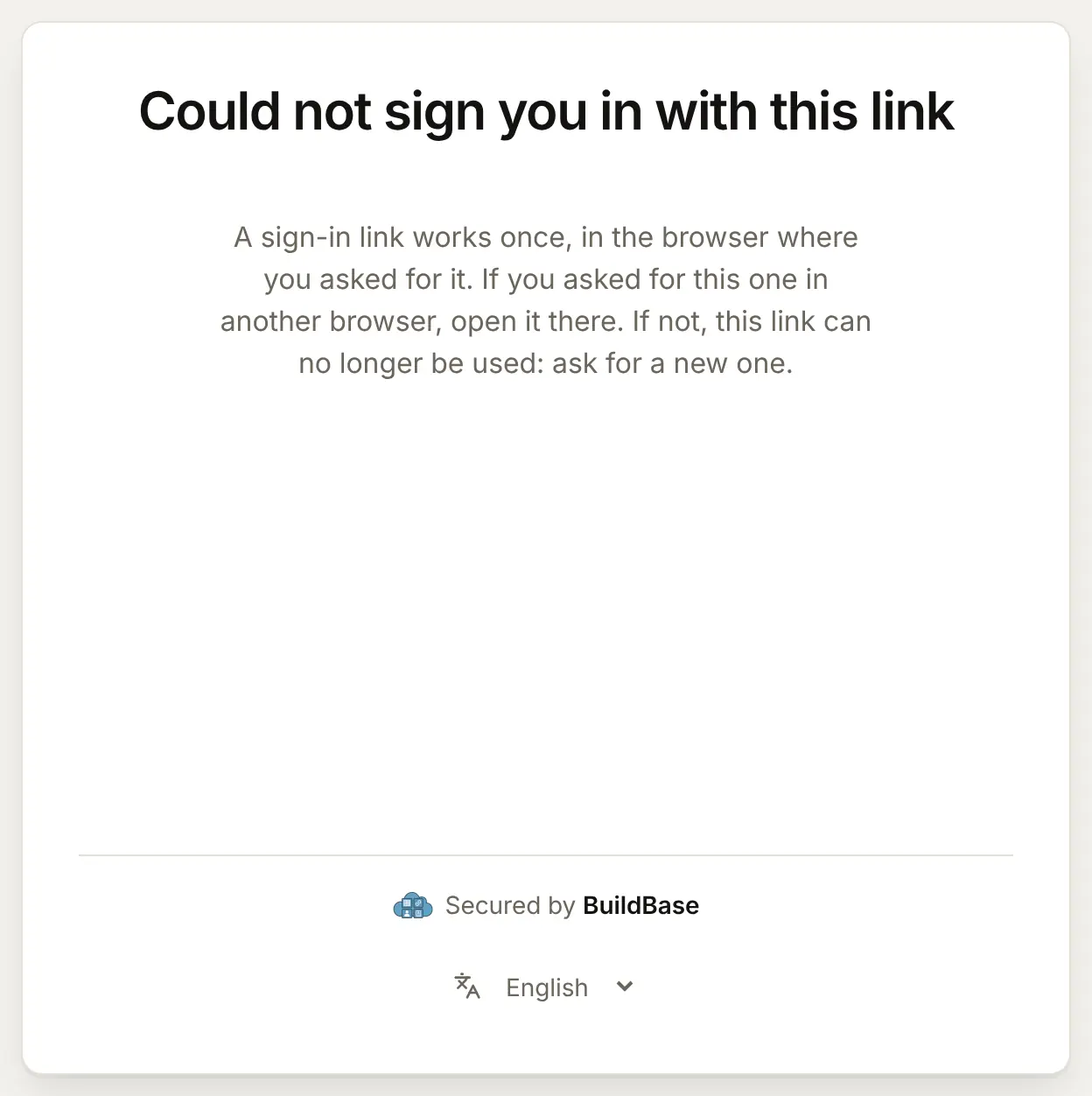
This keeps a forwarded or intercepted link from signing anyone else in. A link that was already used, or is more than an hour old, says so instead: "This link has expired or was already used. Ask for a new one on the sign-in page." If your users often open links on another device, switch the method to A 6-digit code or Either.
With either
The sign-in page offers both buttons. The code comes first, and the code screen has Send me a link instead.
Signing up
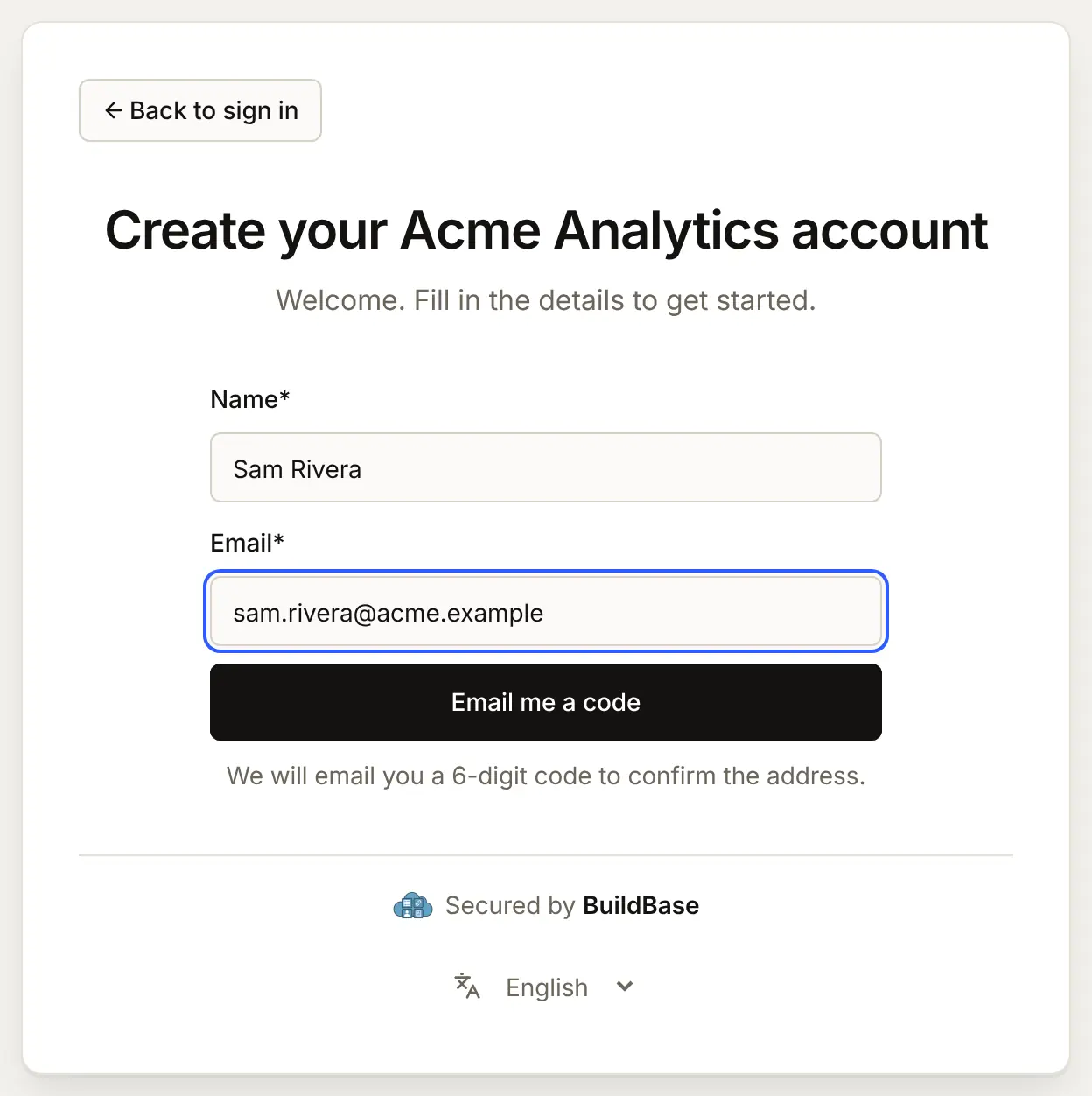
When the method sends a code (A 6-digit code or Either) and the app has no password method, Create account asks for a name and an email, then sends a code. The account is made when the code is typed, with the address already confirmed.
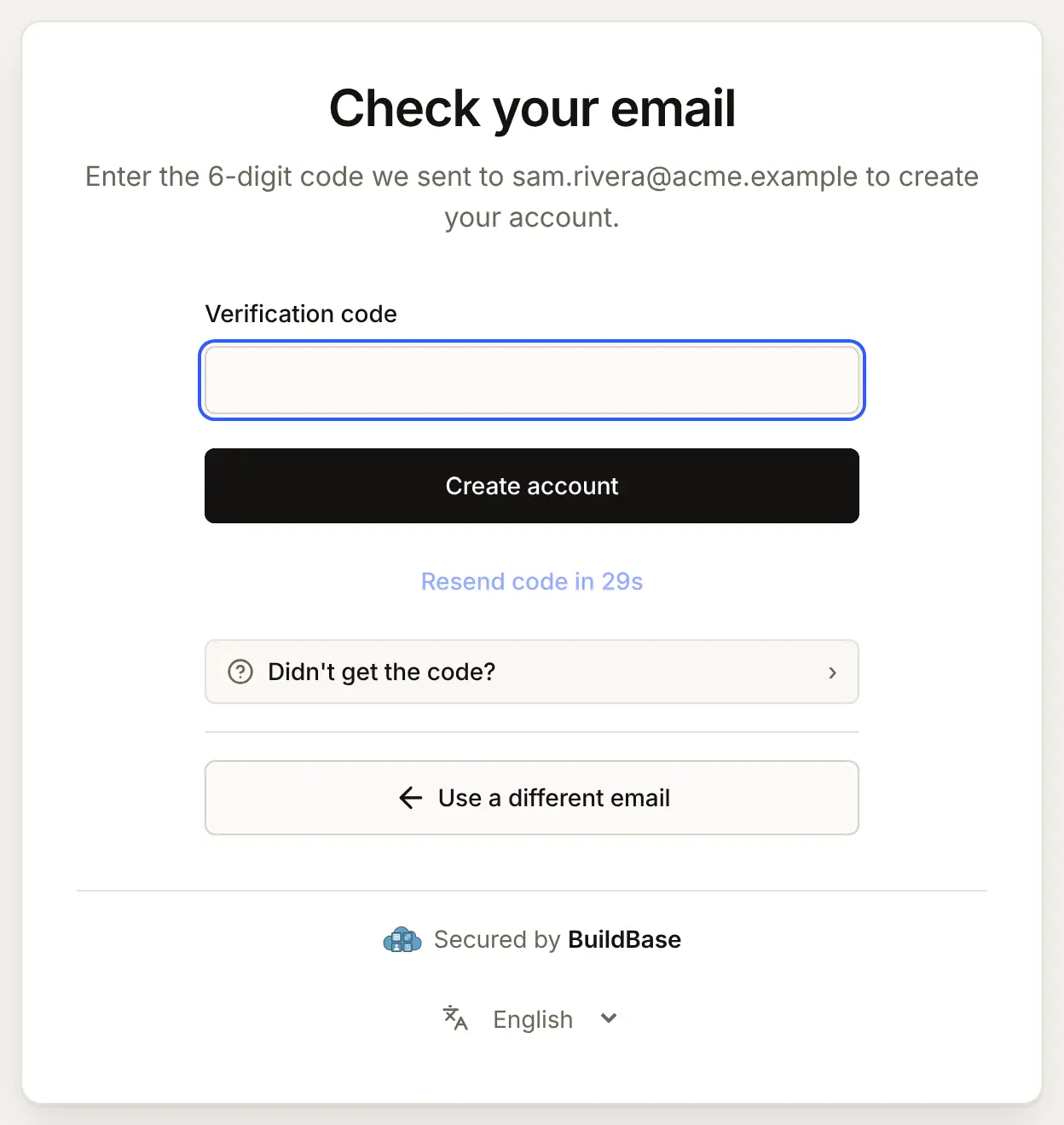
When the method sends only A link, Create account asks for a name and an email, makes the account, and then asks for a 6-digit code from an email to confirm the address, as after a password sign-up. When the app also has Email and password, the sign-up form asks for a password as usual, and the code or link is a second way to sign in later. If you closed public sign-up or set who can sign up, the same rules apply to code sign-ups.
If the person has two-step sign-in on, the code or link is followed by their second step, as after a password.
Check it works
- Sender accounts has a sender marked System default.
- The Methods tab lists Magic link, with the choice you want.
- Magic link is ticked on your app, and Update was pressed.
- Test beside the app shows Email me a sign-in code, Email me a link, or both.
- The email arrives from your sender's address, and the code or link signs you in.
- A link opened in a private window says it was requested in a different browser.
Things to watch out for
- A link signs in only the browser that asked for it. A private window, another browser, or an email app that opens links in its own built-in browser all count as a different browser, and the person sees "This link was requested in a different browser." If your users read email on a phone and use your app on a computer, choose A 6-digit code or Either.
- A new code replaces the last one. Someone who pressed Resend code and types the code from the first email is told it did not match. Point them at the newest email.
- Codes last 10 minutes and links one hour. Someone who comes back to an old email has to ask again.
- A sign-in email in spam is a person who cannot sign in. Send from your own domain with the DNS records your email provider gives (see The email sender), and turn on bot protection before launch so a script cannot make you send thousands of emails.
If something goes wrong
| What the person sees | Why | What to do |
|---|---|---|
| "Email sign-in is unavailable for this organization." | No working default email sender | Connect one under Messaging, Sender accounts, and mark it System default |
| No email arrives | The email is in spam, the address has no account, or the hourly limit was reached | Check Sender accounts; verify your sending domain; ask them to check spam and the address |
| "That code did not match. Try the newest code." | A wrong code, or an older code after a new one was sent | Type the newest code |
| "This code has expired. Ask for a new one." | More than 10 minutes passed | Resend code |
| "Please wait 20 seconds before asking for another code." (the number counts down) | A new code was asked for within 30 seconds of the last | Wait for the timer, then Resend code |
| "Too many codes were requested for this address. Use the latest one, or try again in an hour." | More than 5 codes, or 5 links, went to this address within an hour | Use the newest email, or wait an hour |
| "This link was requested in a different browser. Open it in the browser where you asked for it, or request a new link here." | The link was opened in a browser other than the one that asked for it | Open it in that browser, or ask for a new link |
| "This link has expired or was already used. Ask for a new one on the sign-in page." | The link ran out or was used | Ask for a new link |
| "Please use a permanent email address." | You refuse throwaway addresses | Sign up with another address |
| "Sign-up isn't available for this address." | Your sign-up rules refuse it | Add the address to the allowlist, or change the mode |
| "The security check expired or did not pass. Please try it again." | Bot protection did not pass | Try the check again |
Next steps
- Email and password - offer a password beside the code or link.
- Bot protection - keep scripts from sending emails in your name.
- Authentication overview - the same method from the developer's side.
- Set up sign-in, step by step - every sign-in guide, and the order to set them up in.