
Set up usernames
Let people sign in with a short username instead of their email address, choose one when they sign up, and decide whether everyone needs one.
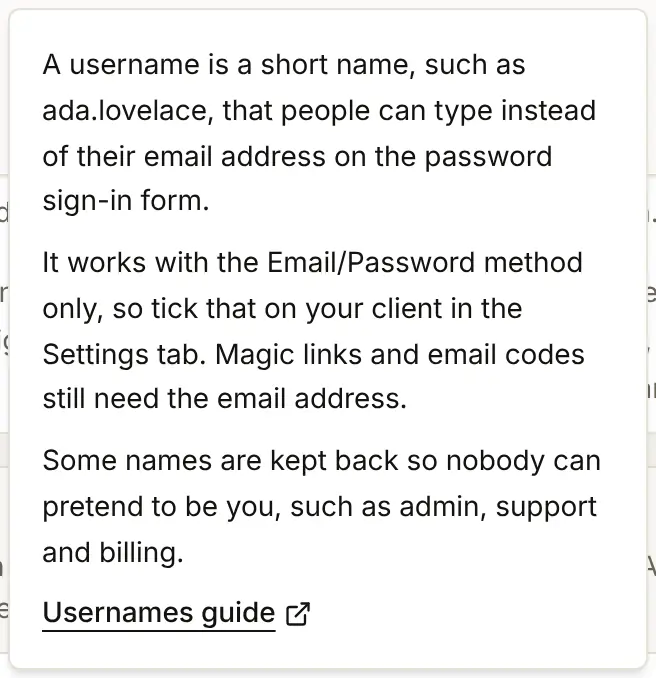
A username is a short name, such as jordan.lee, that people can type instead of their email address on the password form. It suits communities, games and tools where people know each other by a handle, or where an email address is long to type. The email address stays the account's identity: a username is a second way to fill in the first box, not a replacement for the email. Usernames are off until you turn them on.
Before you start
- The Email and password method, ticked on your app. Usernames work with password sign-in only. See Email and password.
- Nothing else: usernames are not tied to a plan.
Step by step
- In the console's left rail, choose Users, then Authentication under Access, and open the Sign-up tab.
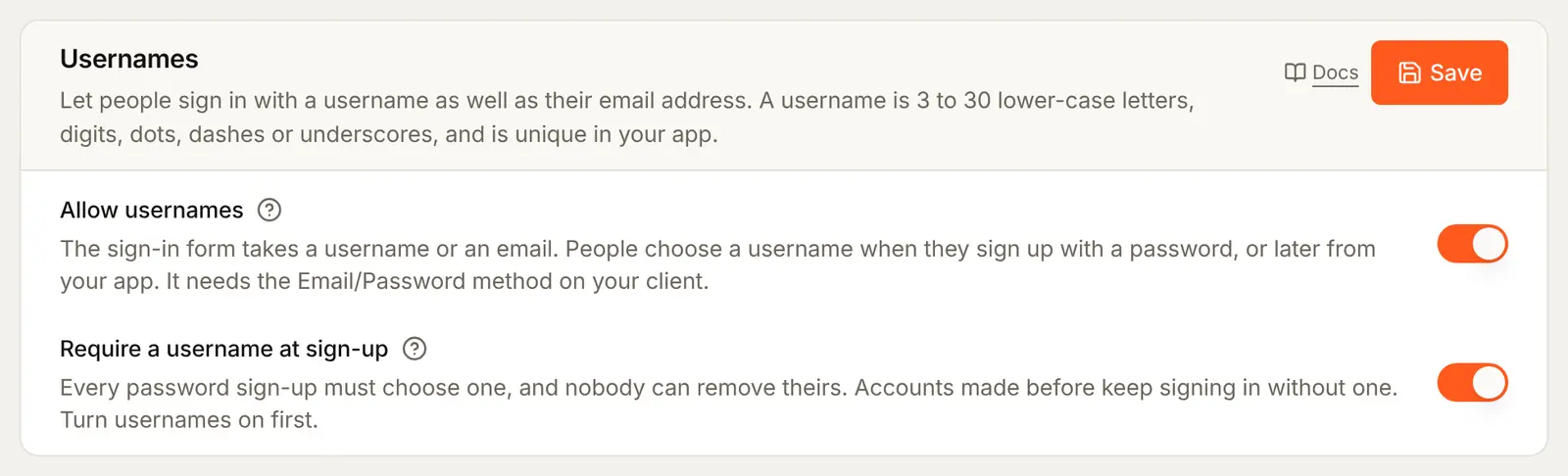
- Scroll to the Usernames card.
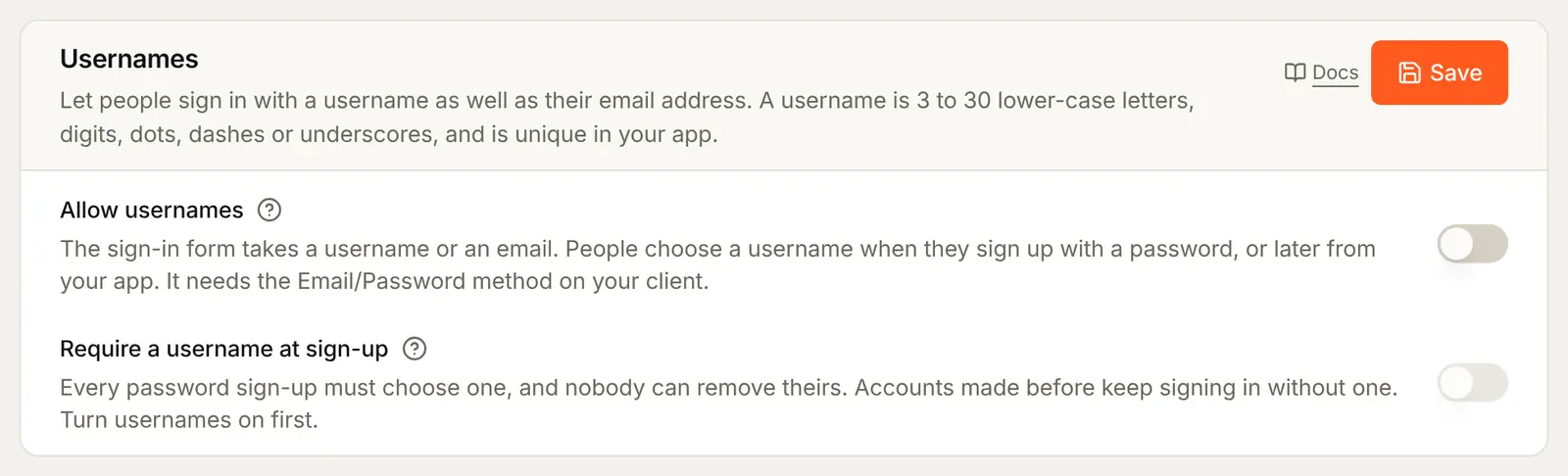
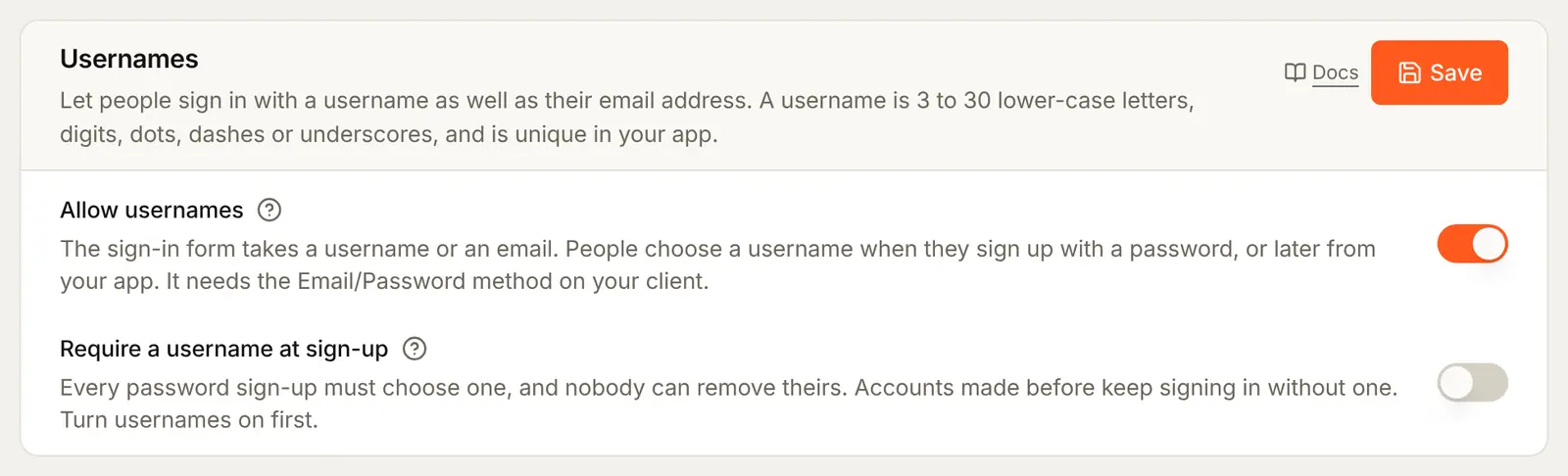
- Switch on Allow usernames.
- Leave Require a username at sign-up off, unless every new account must have one. See Requiring a username.
- Press Save at the top of the card.
The ? beside Allow usernames explains it in short:
The rules for a username
| Rule | Detail |
|---|---|
| Length | 3 to 30 characters |
| Characters | Lower-case a to z, digits, dots (.), dashes (-) and underscores (_). Only Latin letters, so two names that look alike are the same name |
| Start and end | A letter or a digit, and no two dots in a row |
| Capitals | Typed capitals are saved in lower case, so Jordan.Lee and jordan.lee are the same name |
| One each | Each username belongs to one account in your app |
| Kept back | Nobody may take admin, administrator, root, support, help, system, api, null, undefined, owner, staff, security, billing, moderator or buildbase |
Attach it to your app
Usernames are not a method of their own, so there is nothing new to tick. They appear on every app that has Email and password ticked. Check that it is: on the Settings tab, press Edit beside Acme Analytics and look under Methods. See Attach it to your app.
Check the preview
The Preview on the Sign-in page tab draws a sample card that always says Email, so it does not show the username. Press Open the live page for Acme Analytics above it to see the real page, where the box reads Email or username.
What people see
Signing in
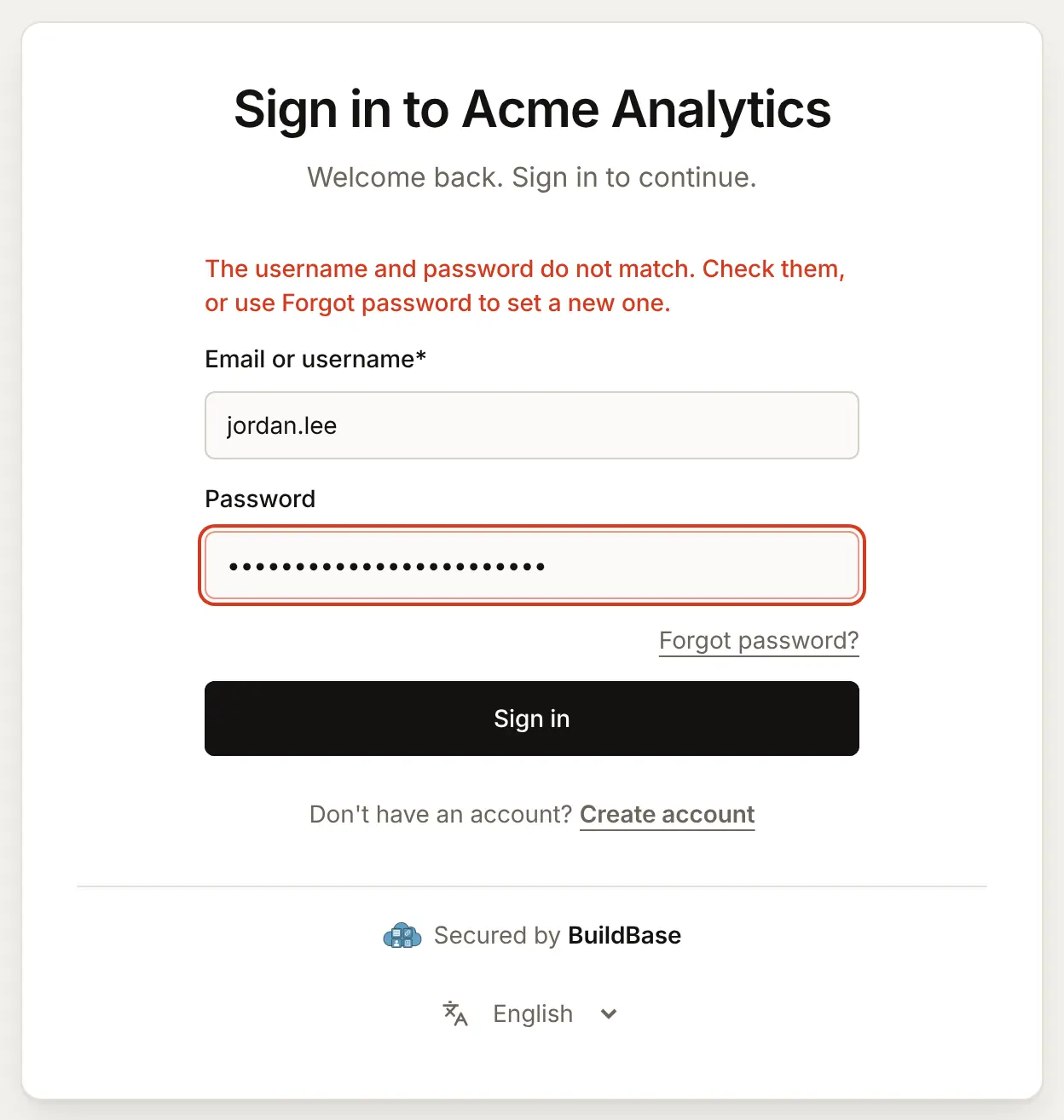
With usernames on, the first box on the sign-in page reads Email or username. Links and email codes still need the email address, since that is where they are sent.
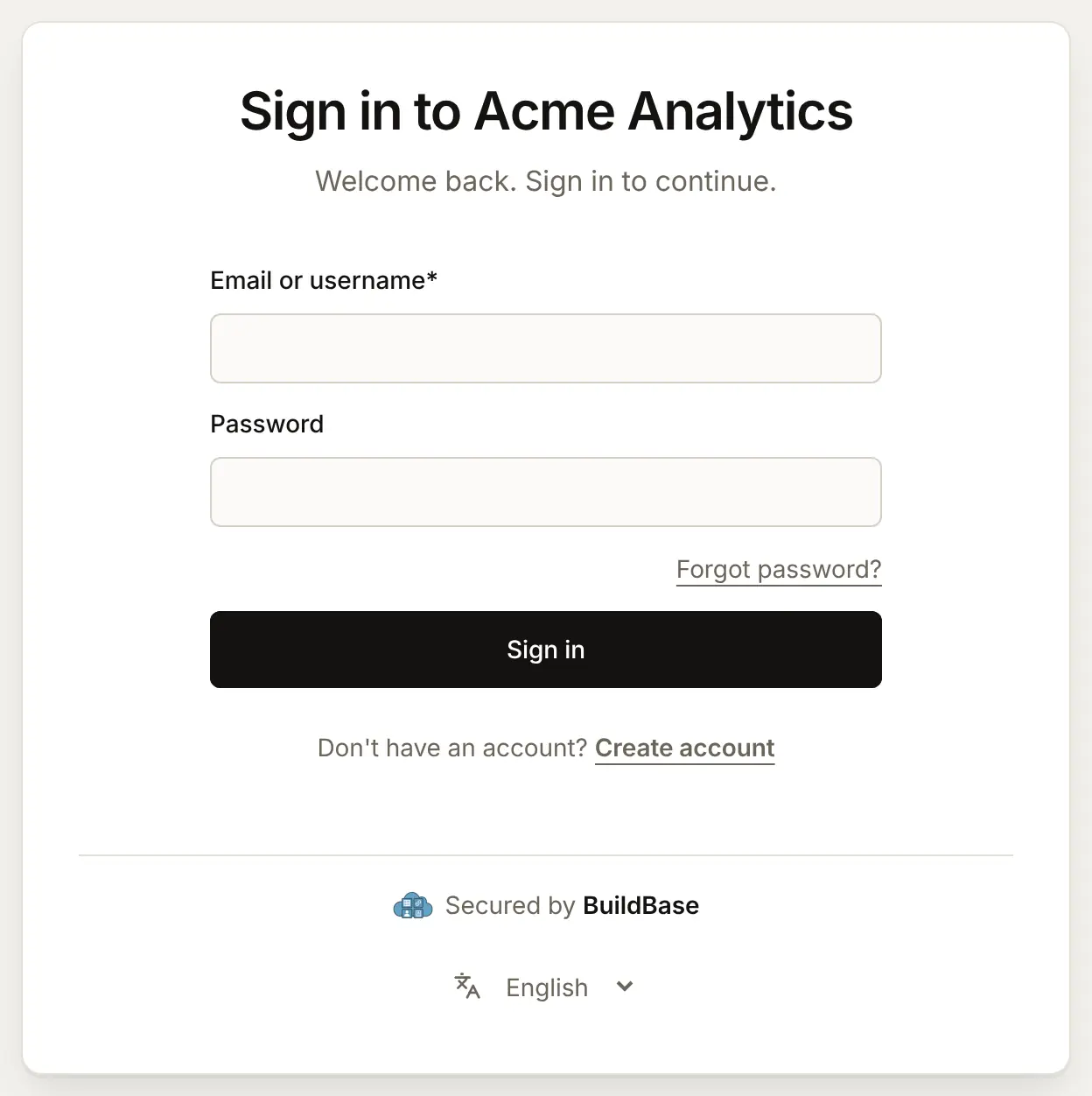
A username that does not exist and a wrong password get the same answer, so nobody can use the page to find out which usernames are taken.
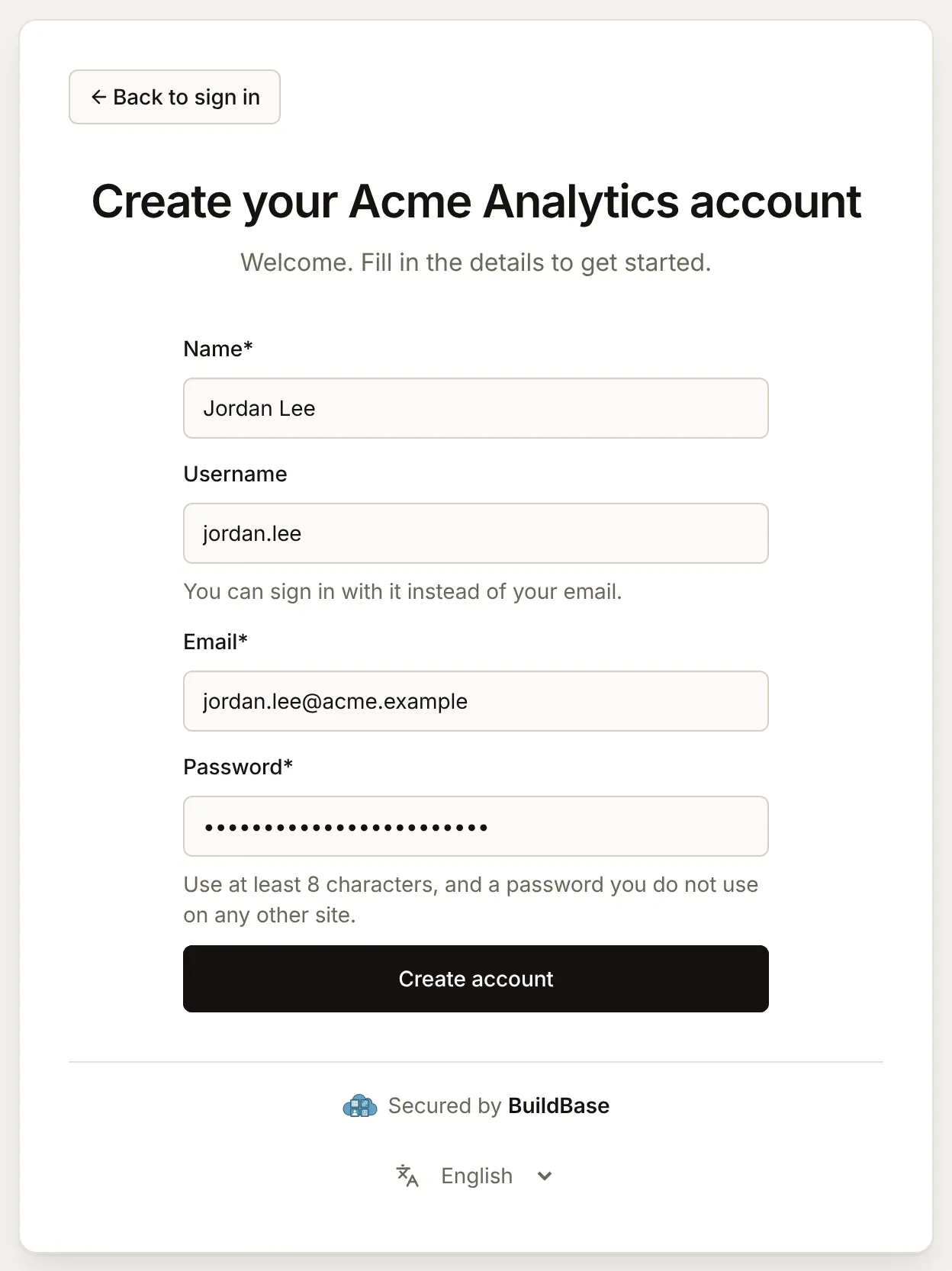
Choosing one when signing up
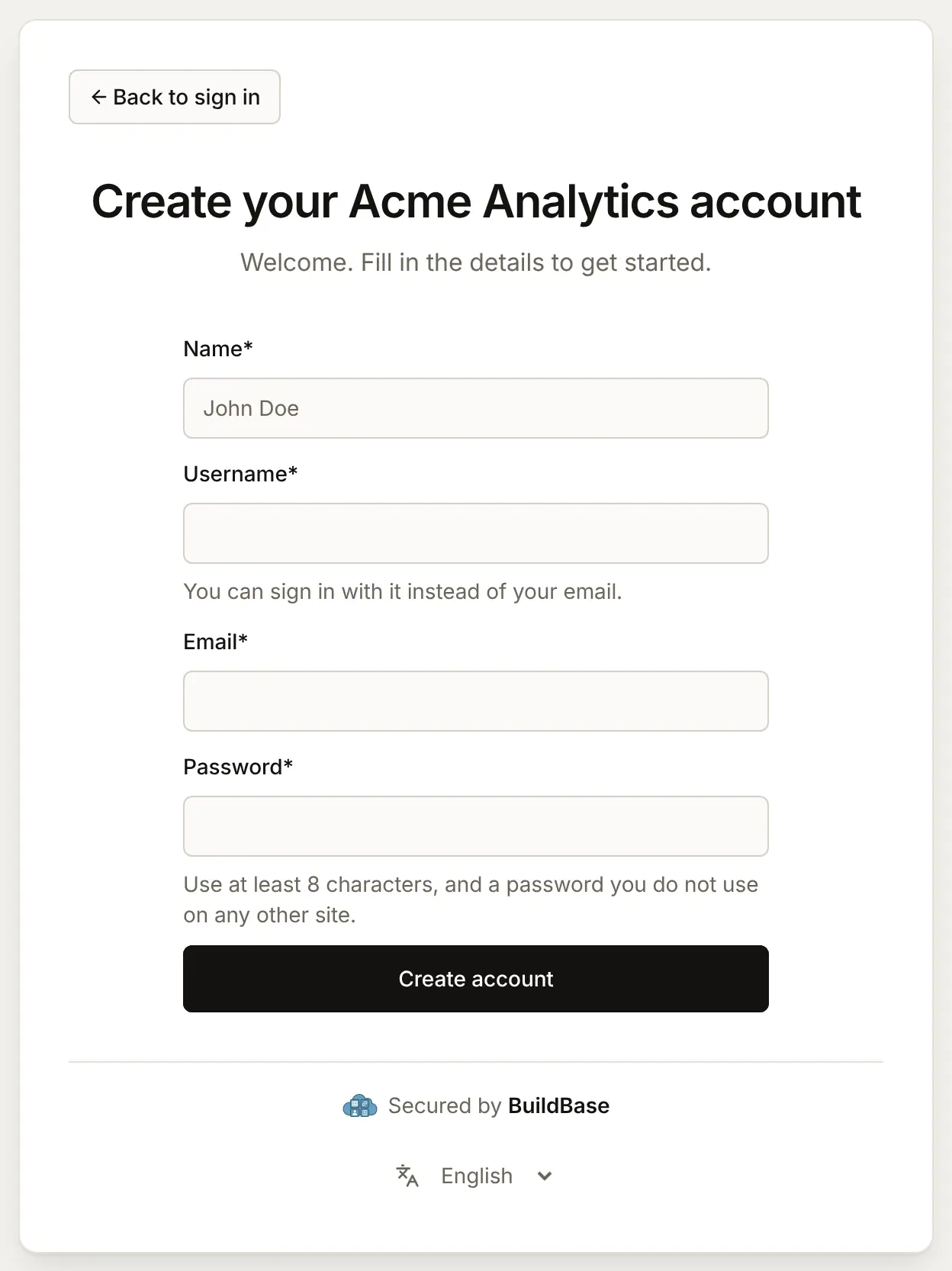
Create account asks for a username under the name. It is optional unless you require it, and the line under it says what it is for.
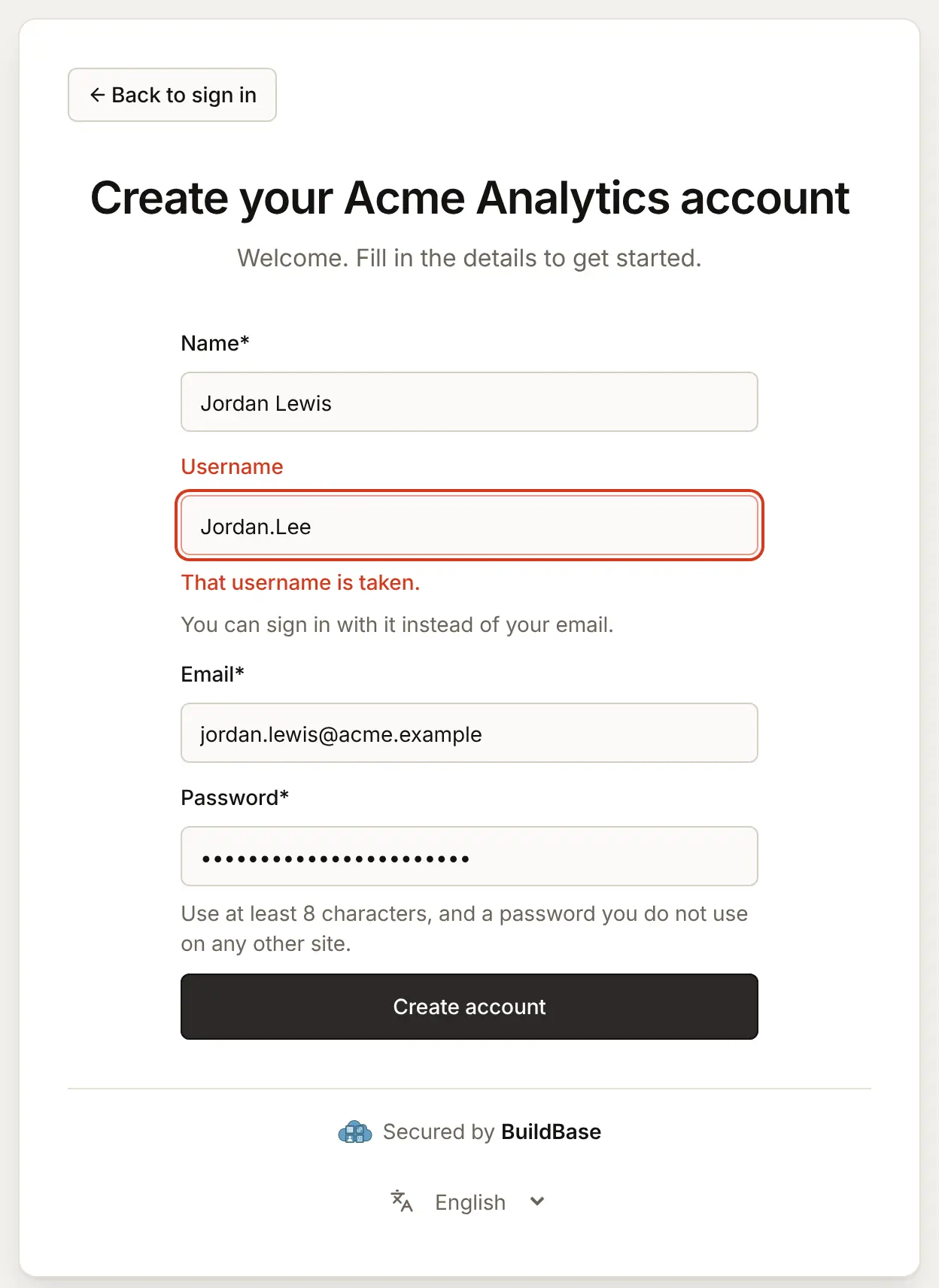
A name someone else has is refused, capitals or not:
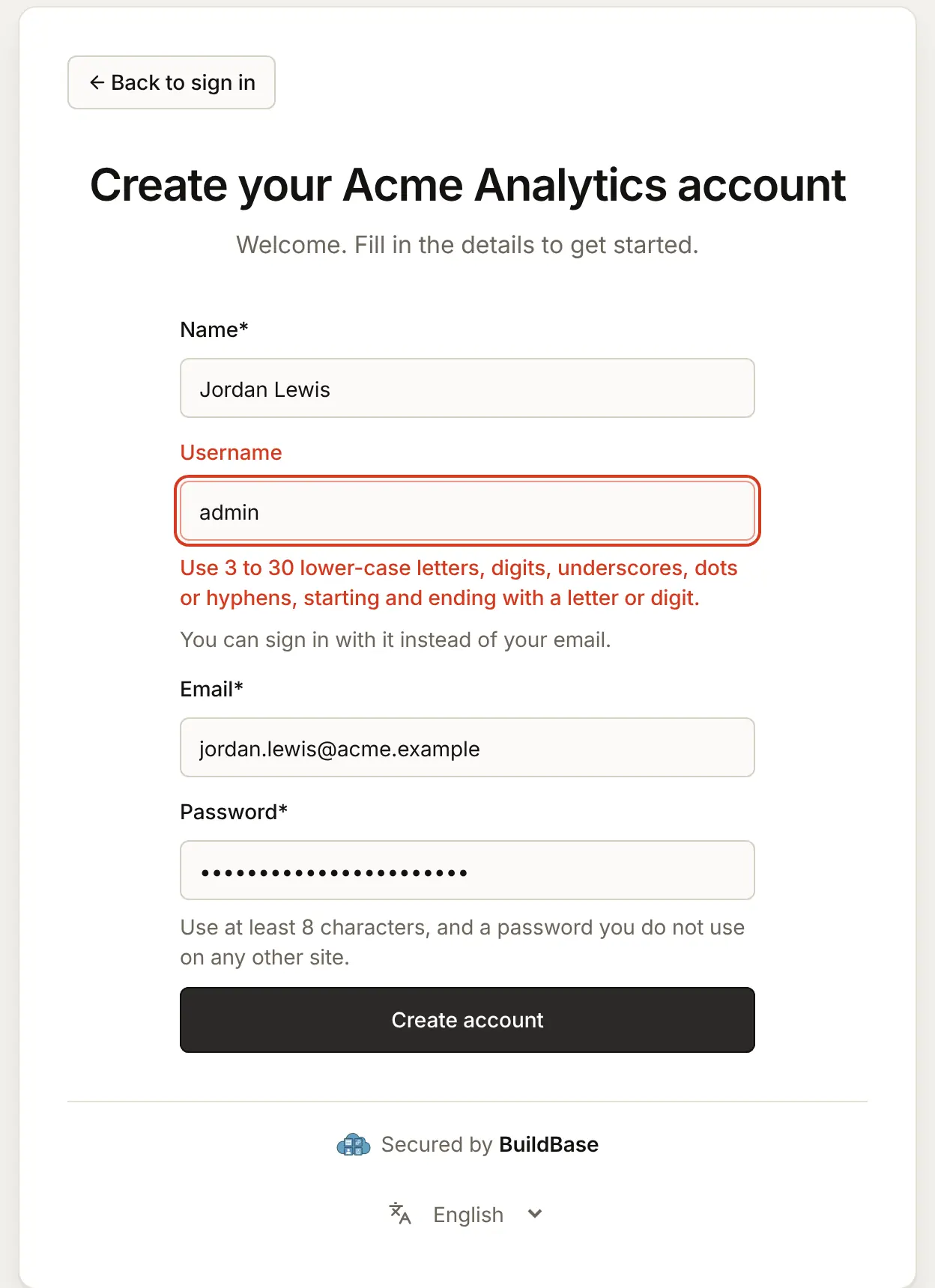
A name that breaks a rule, or is kept back, gets the rule:
Only the password sign-up form asks. People who sign up with Google, an email code, a phone or another way are not asked, and can add a username later in your app.
Requiring a username
Switch on Require a username at sign-up and press Save to make every new password sign-up choose one.
The Username box on Create account is then marked required, like the others.
- Accounts made before keep signing in without one.
- Nobody can remove their username while it is required. Turning it off lets them.
- Require a username at sign-up cannot be on while Allow usernames is off. Saving that pair is refused with "Turn usernames on before requiring one."
In your app (SDK)
The Account screen of the SDK's settings shows a Username field while usernames are on, or when the person already has one, from @buildbase/sdk 0.0.90. People choose, change or remove their username there, and Remove is hidden while a username is required. Account security screens shows the settings screens and how to open them.
For a form of your own, the SDK has the same rules the page and the server use:
import { isValidUsername, normaliseUsername } from '@buildbase/sdk';

normaliseUsername('Jordan.Lee'); // 'jordan.lee'
normaliseUsername('admin'); // null: kept back
isValidUsername('jordan..lee'); // false: two dots in a row
Check it works
- Allow usernames is on in the Usernames card, and Save was pressed.
- Email and password is ticked on your app.
- The live sign-in page says Email or username.
- Create account shows a Username box, and a taken name is refused.
- Signing in with the username and the password works.
Things to watch out for
- Only the password form takes a username. Email codes, sign-in links and Forgot password? need the email address, so people still need to know it.
- Taken usernames are not secret. The sign-up form tells anyone that a name is taken. The sign-in form does not: a username nobody has gets the same answer as a wrong password.
- Turning usernames off stops username sign-in at once. People who only remember their username have to use their email address. Their usernames stay on their accounts and work again if you turn usernames back on.
- Requiring a username covers password sign-ups only. People who sign up with Google, a code, a phone or a wallet are not asked, and neither are accounts made before.
- Only Latin letters. A username is
atoz, digits,.,-and_, so people who write their name in another script choose a Latin handle.
If something goes wrong
| What you or the person sees | Why | What to do |
|---|---|---|
| The sign-in page still says Email | Allow usernames is off or not saved, or the app has no Email and password | Switch it on and Save; tick Email and password on the app |
| "That username is taken. Choose another." | Another account here has that name, in any capitals | Choose another |
| "Use 3 to 30 lower-case letters, digits, underscores, dots or hyphens, starting and ending with a letter or digit." | The name breaks a rule, or is kept back | Choose a name that follows the rules |
| "Choose a username." | A username is required and the box was empty | Type one |
| "The username and password do not match. Check them, or use Forgot password to set a new one." | A wrong password, or a username nobody has | Check both, or use Forgot password? with the email address |
| "Turn usernames on before requiring one." | Require a username at sign-up was saved with usernames off | Switch on Allow usernames too |
Next steps
- Email and password - the method usernames sit on.
- Account security screens - where people manage their username in your app.
- Usernames reference - the API, events and imports.
- Set up sign-in, step by step - every sign-in guide, and the order to set them up in.