
Choose who can sign up
Open sign-up to anyone, make it invite-only, let in only the addresses you list, run a waitlist you approve, and refuse throwaway inboxes.
By default anyone who reaches your sign-in page can create an account. That is right for most apps, until it is not: a private beta, a tool for your own customers only, or a run of fake trial accounts. These settings decide who may create an account. They never stop someone who already has one from signing in. They apply to every way of signing up at once: the sign-up form, email codes, Google and the other providers, phone, wallets and guests.
Before you start
- A console role that can change the organization's settings and the auth configuration.
- For a waitlist: a role that can manage Beta users.
- Nothing else: none of this is tied to a plan.
| You want | Set |
|---|---|
| Anyone can sign up | Allow public sign-up on, mode Anyone (the default) |
| Only people you invite to a workspace | Allow public sign-up off |
| Only your company and a few partners | Mode Allowlist only, with their addresses and domains |
| Everyone except some addresses or domains | Mode Anyone, with the Blocklist |
| A queue you let people out of one by one | Mode Waitlist, then approve on Beta users |
| No throwaway inboxes | Refuse disposable email addresses at sign-up, on Security |
Open or invite-only
- In the console's left rail, choose Users, then Authentication under Access, and open the Sign-up tab.
- The Sign-up card has one switch, Allow public sign-up. It saves as soon as you flip it.
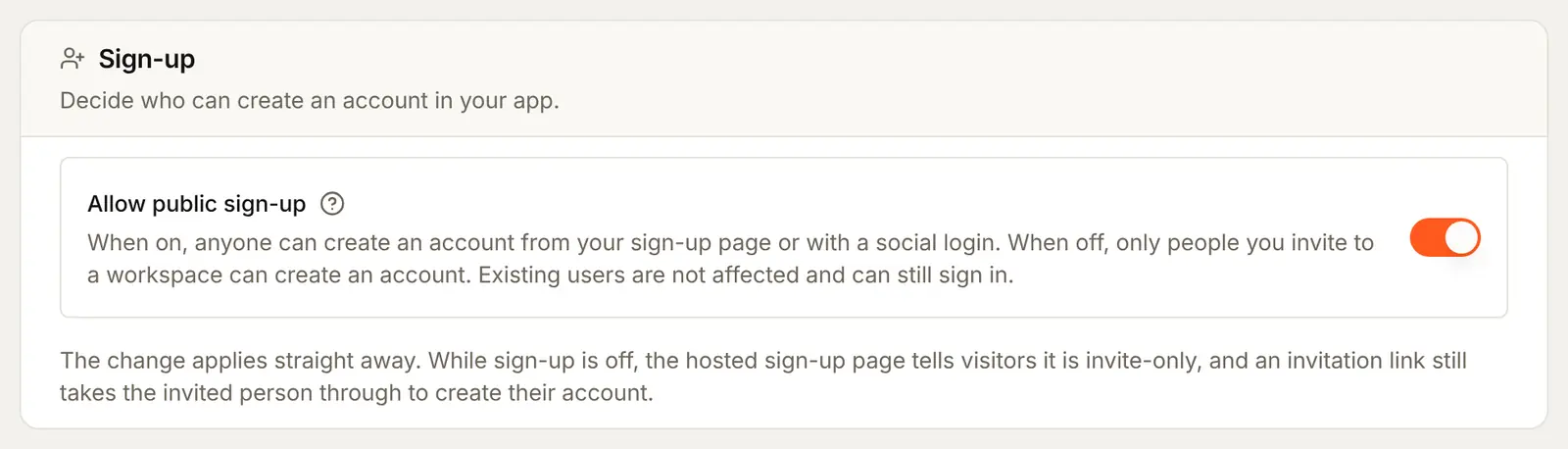
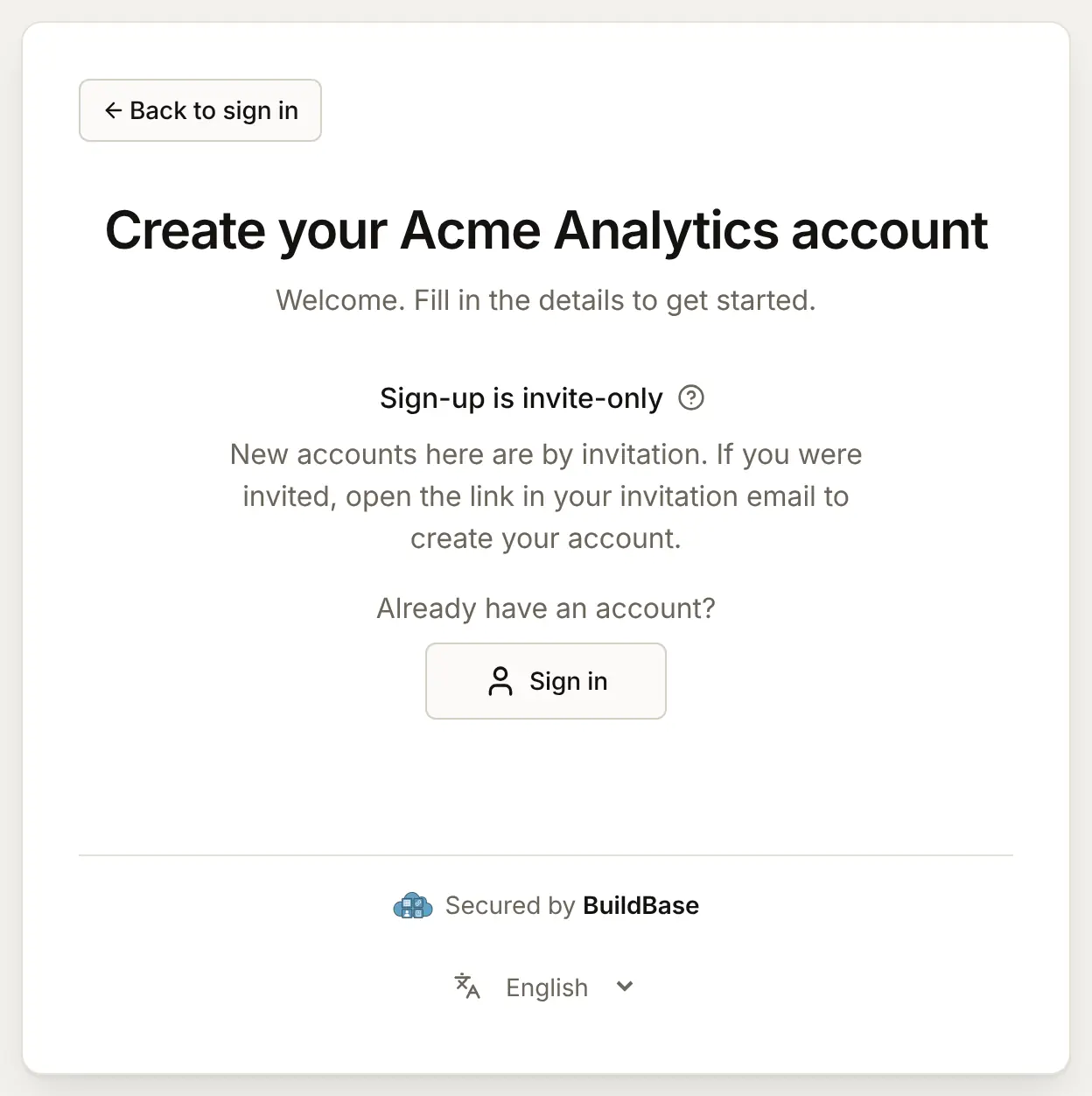
Off makes sign-up invite-only, not shut:
- The Create account page tells visitors that sign-up is by invitation.
- A first sign-in with Google or another provider cannot make an account either.
- Continue as guest stops working.
- Someone you invite to a workspace can still create an account, by opening the link in their invitation email, with the address it was sent to.
- Everyone who already has an account signs in as before.
An allowlist and a blocklist
The Who may sign up card, under the Sign-up card, holds a mode and two lists.
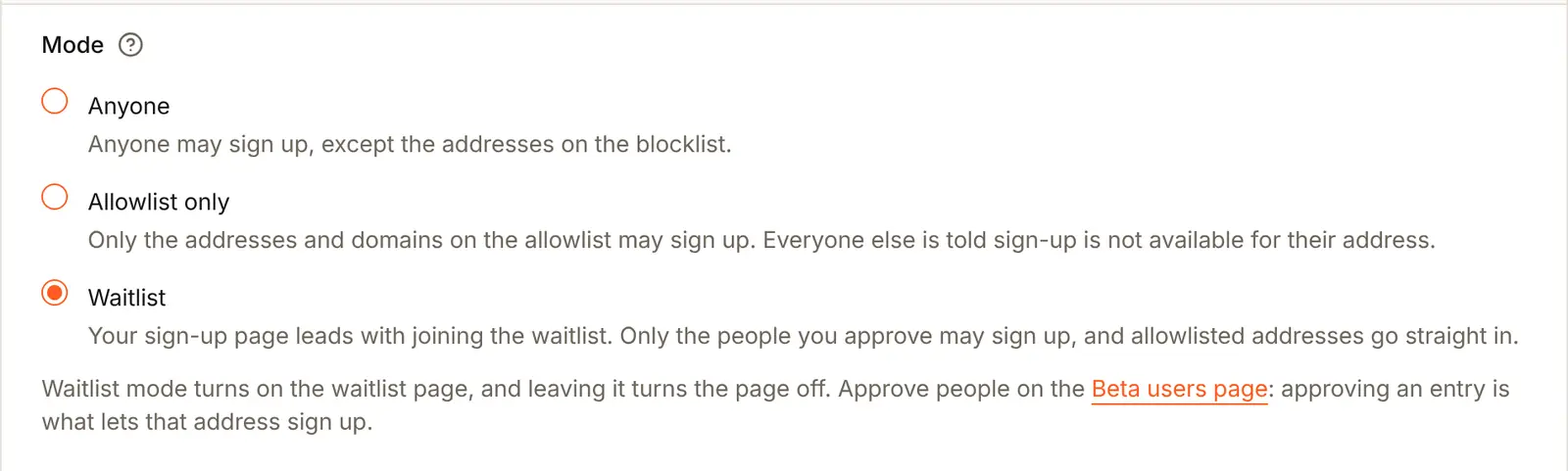
- Under Mode, choose Allowlist only.
- In Allowlist, type one entry per line: a whole address, such as
[email protected], or a domain with@in front, such as@acme.example, which lets in everyone with an address there and at its subdomains. - In Blocklist, type any addresses or domains that may never sign up, such as
@rival.example. - Press Save at the top of the card.
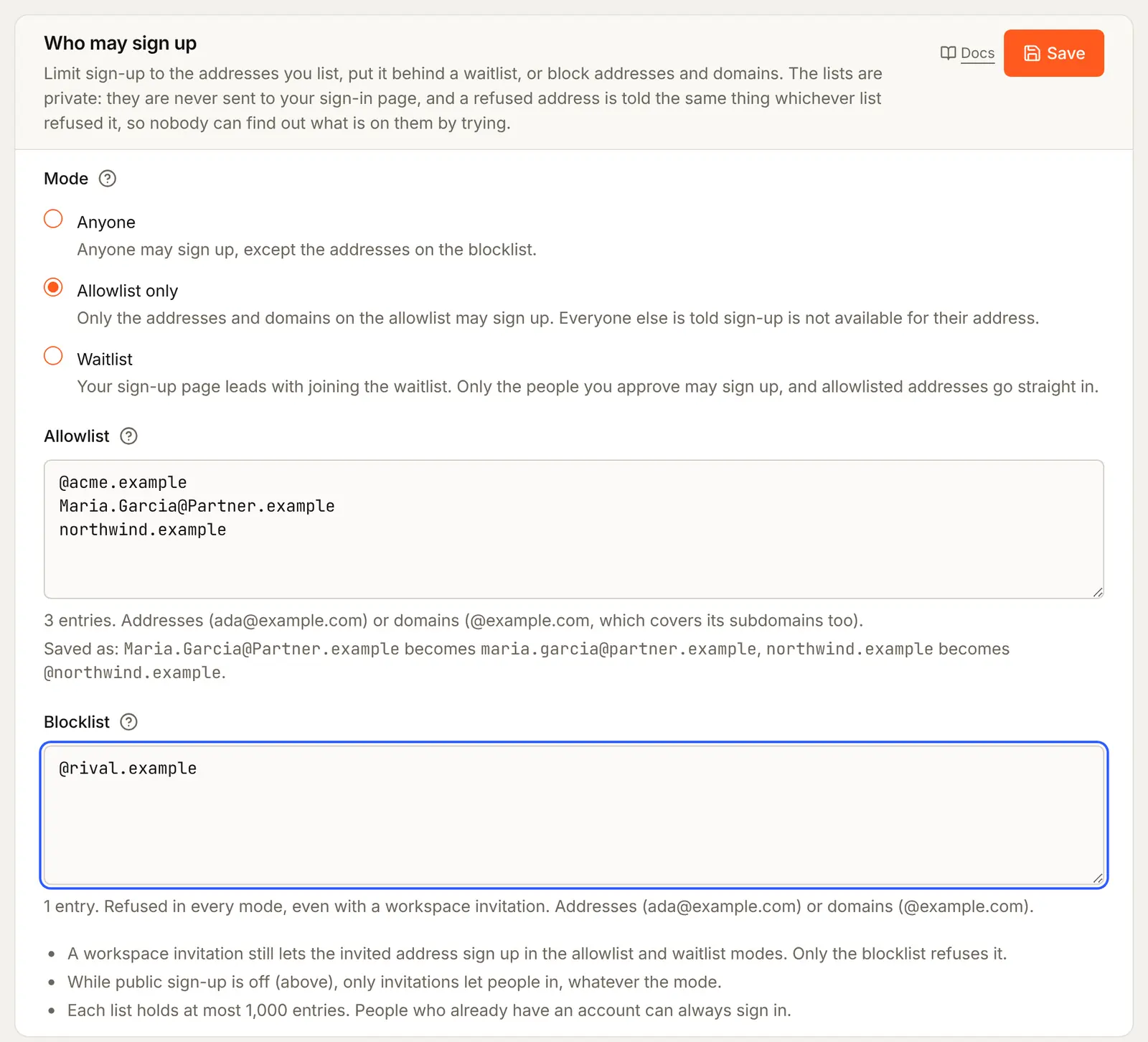
Under each list, the card counts the entries and shows how it will save them before you save: a domain typed without @ gets one, and capitals become small letters. Anything that is neither an address nor a domain is named in red, and Save waits until it is fixed. Each list holds up to 1,000 entries. For more, list domains rather than people.
The three modes:
| Mode | Who may sign up |
|---|---|
| Anyone | Everyone except the blocklist. The default |
| Allowlist only | Only the addresses and domains on the allowlist |
| Waitlist | People whose waitlist request you approved, and the allowlist |
How a sign-up is decided, in this order:
- The blocklist refuses, even someone with a workspace invitation.
- A workspace invitation to that address lets the person in, whatever the mode.
- Allow public sign-up off refuses everyone else.
- The mode decides the rest.
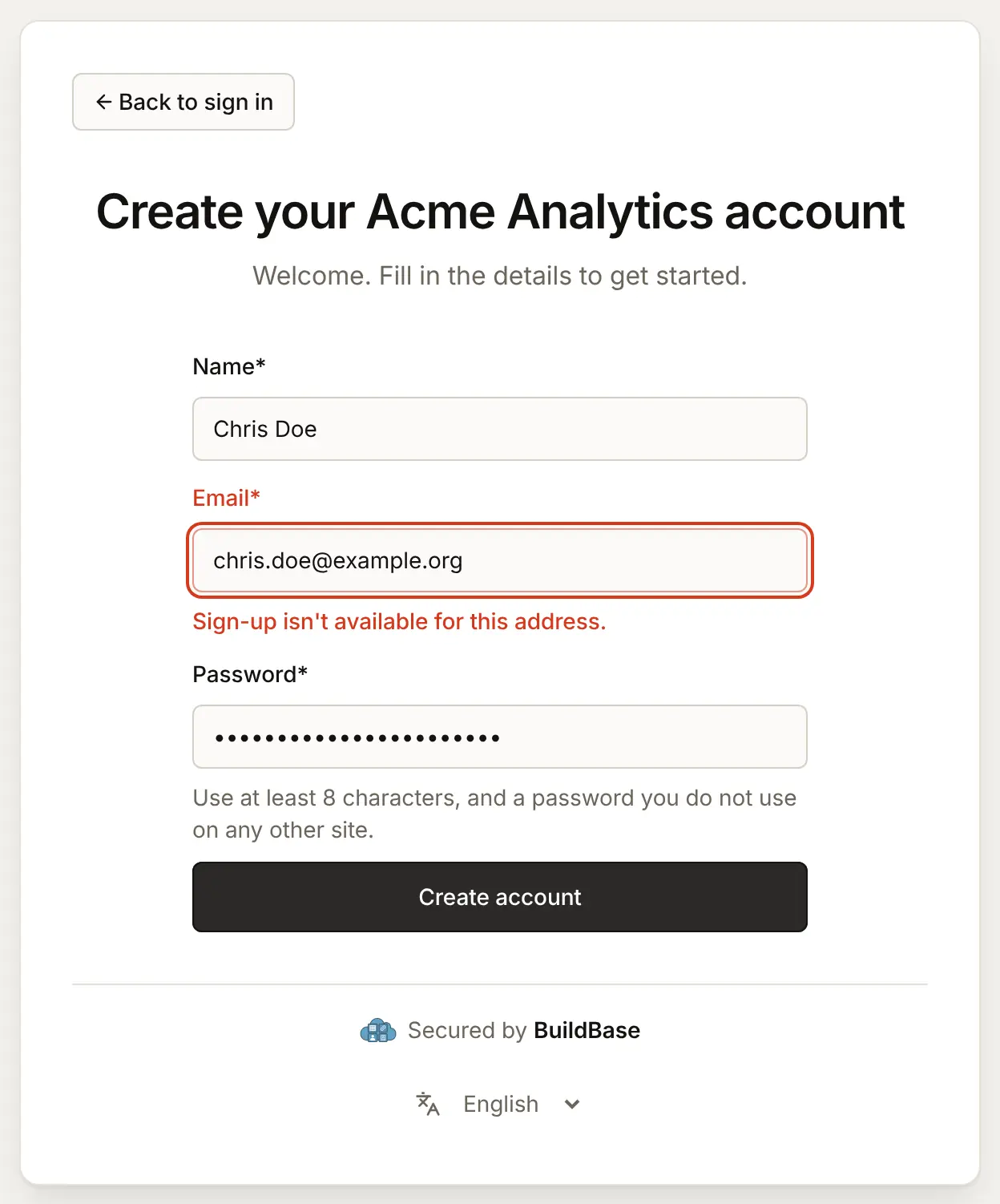
The lists are private: they are never sent to your sign-in page, and an address on the blocklist and one missing from the allowlist get the same sentence, so nobody can find out what is on them by trying addresses.
A waitlist
A waitlist lets anyone ask to join, and you choose who gets in.
- On the Sign-up tab, in Who may sign up, choose Waitlist.
- Optionally, put your own team on the Allowlist, so they go straight in.
- Press Save. Choosing Waitlist turns the waitlist page on, and leaving it turns the page off.
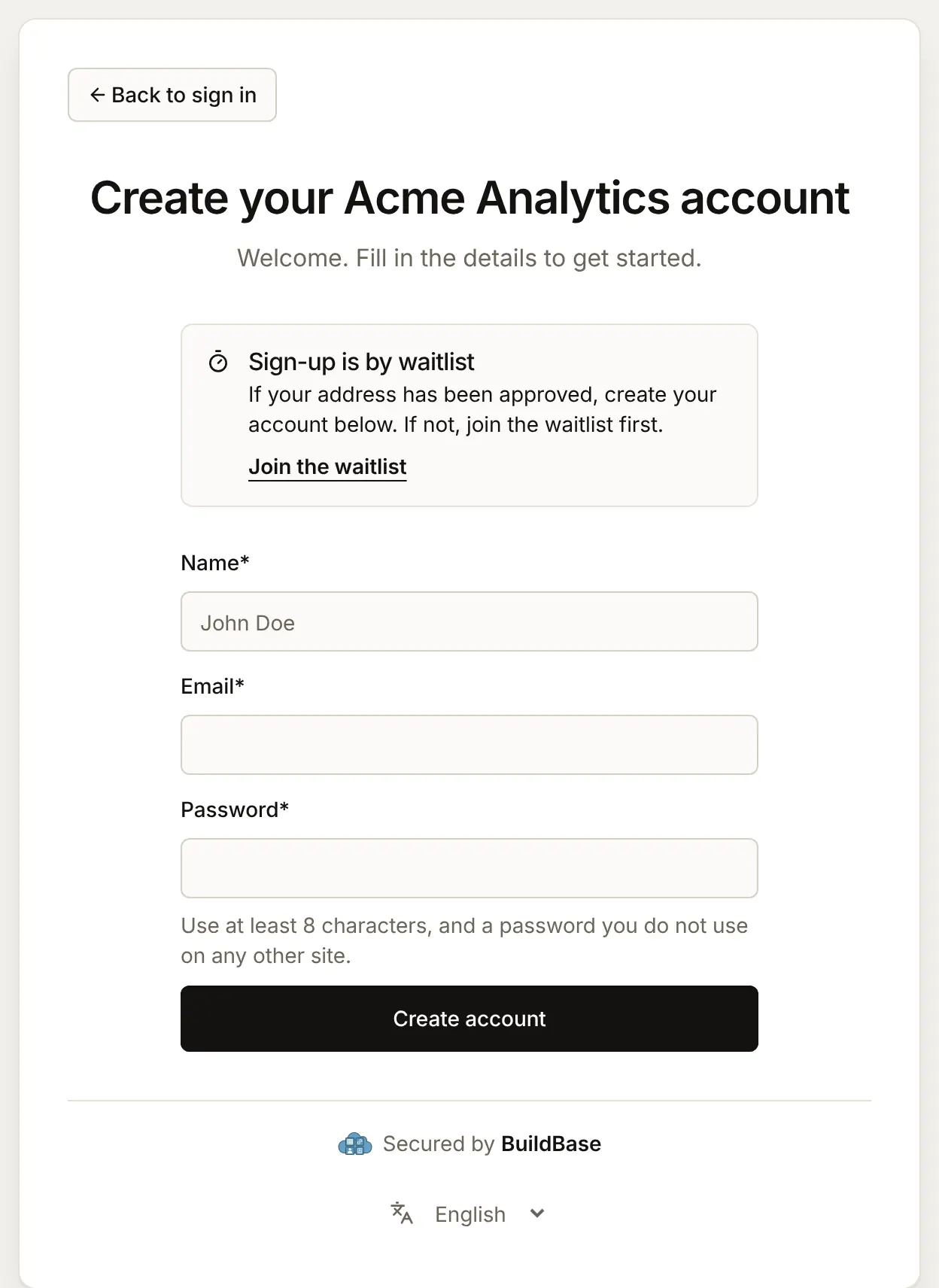
What visitors see
The Create account page now leads with the waitlist, and keeps the form for people already approved.
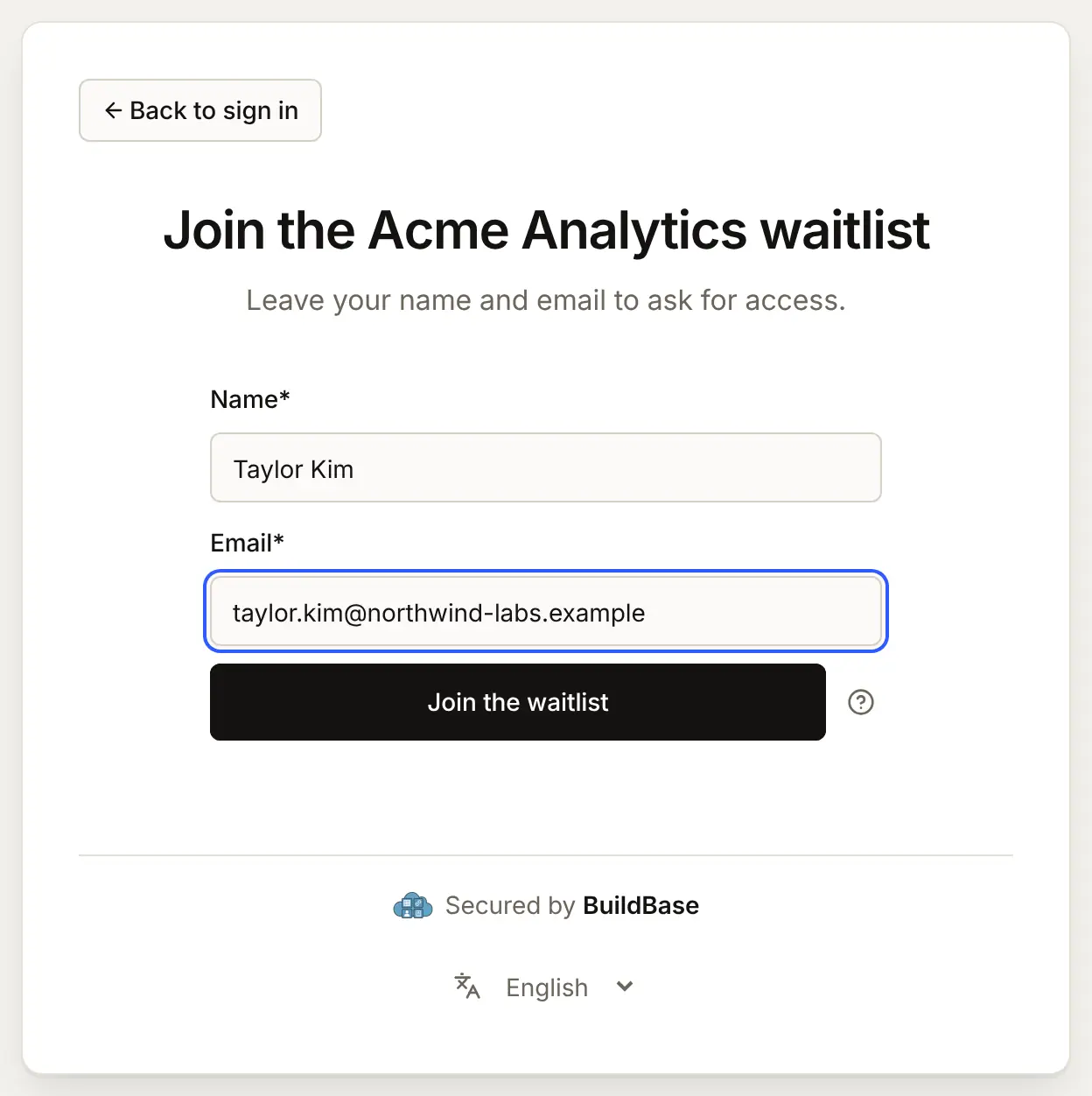
Join the waitlist asks for a name and an email address.
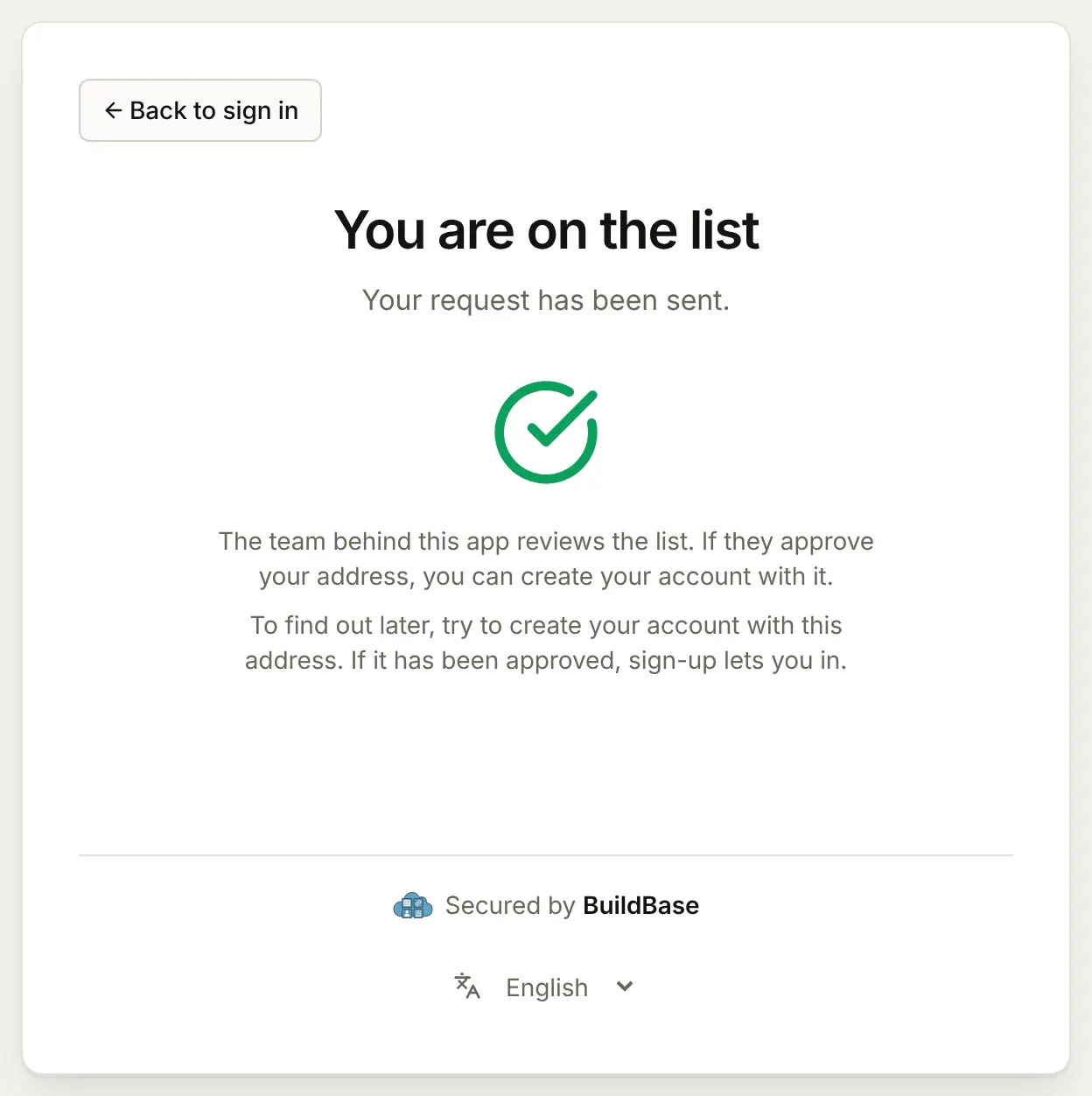
Approving people from Beta users
- In the left rail, choose Users, then Beta users under Users.
- Each request waits in the Beta users list with Approve and Reject.
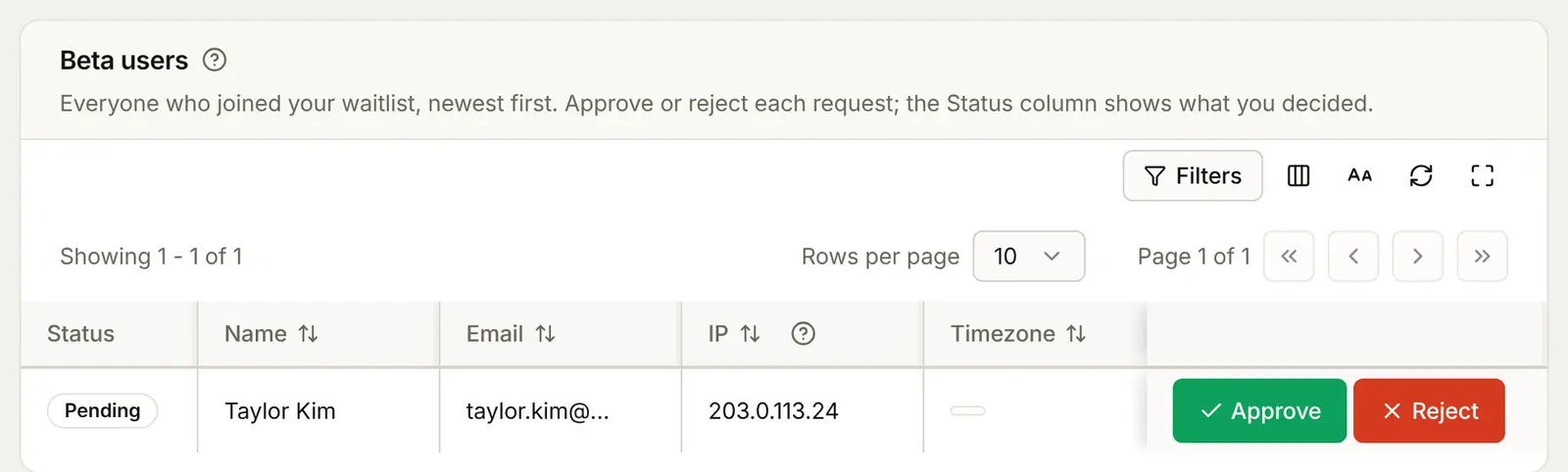
- Press Approve, then Approve again in the dialog.
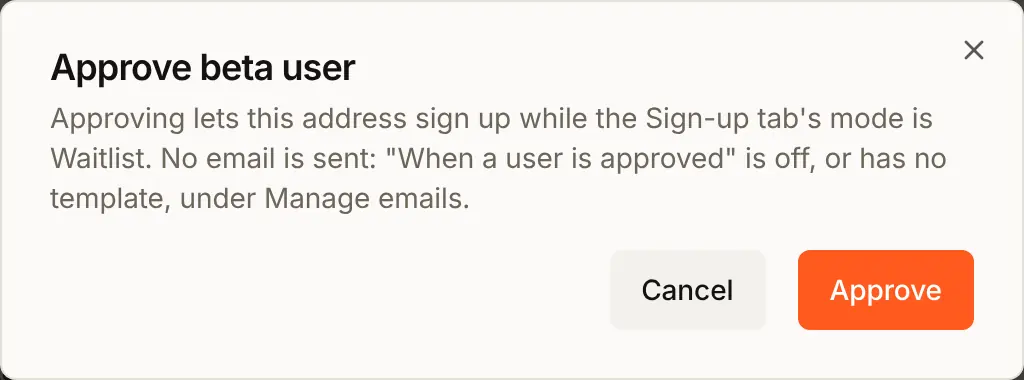
Approving does not email the person by itself. To tell them, turn on When a user is approved under Manage emails on the Beta users page and give it a template. Once that email is on, the waitlist page says that people will be emailed if their request is approved, and not before. Rejecting keeps the address from signing up while the mode is Waitlist. An account it already has is not affected.
Once approved, the person signs up with any method your app offers, and goes straight through:
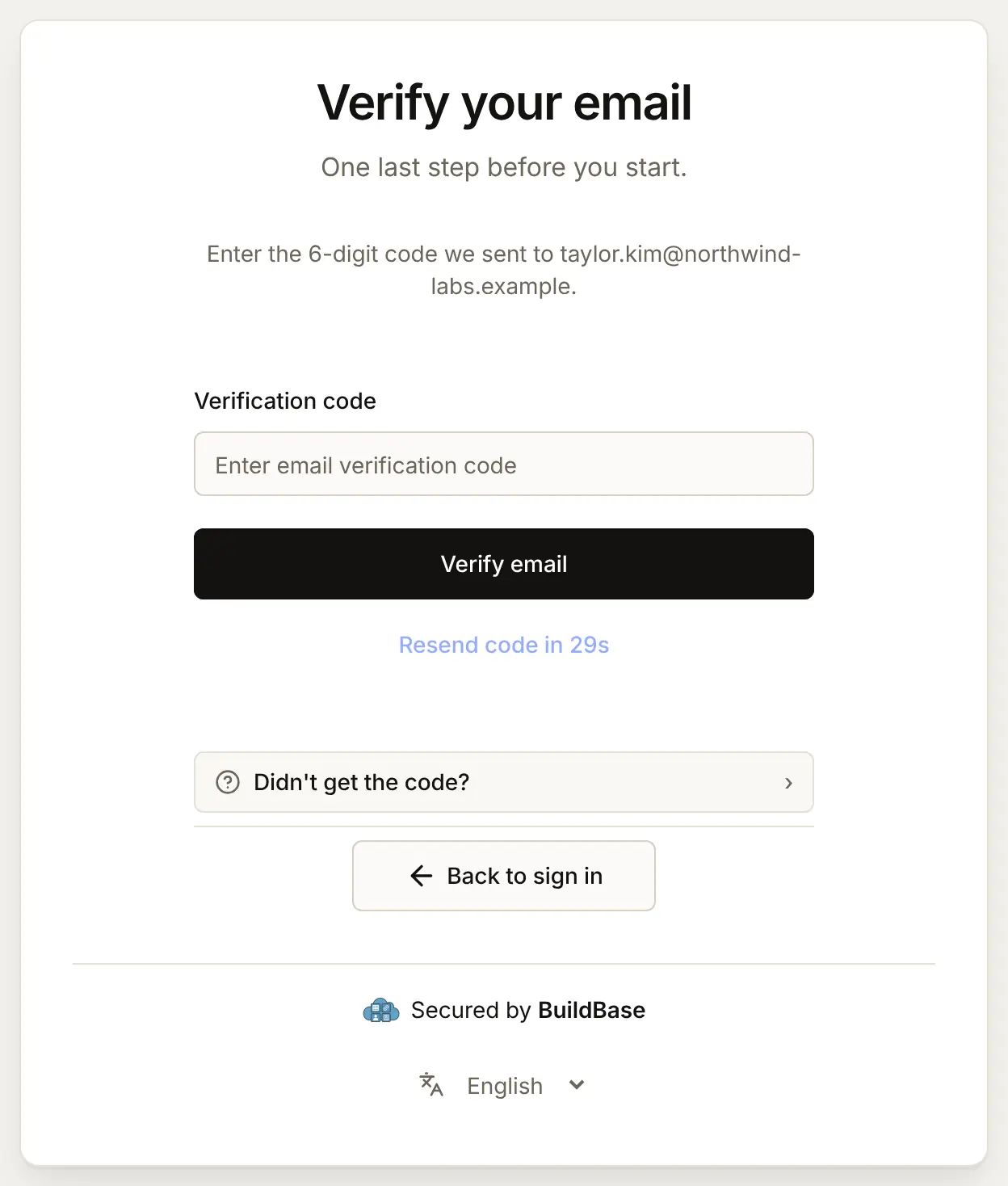
The waitlist page answers everyone who joins the same way, whether their address is new, waiting, approved or turned down, so nobody can read your list by trying addresses. To find out whether they are in, people try to create their account: once approved, sign-up lets them in.
Refuse throwaway addresses
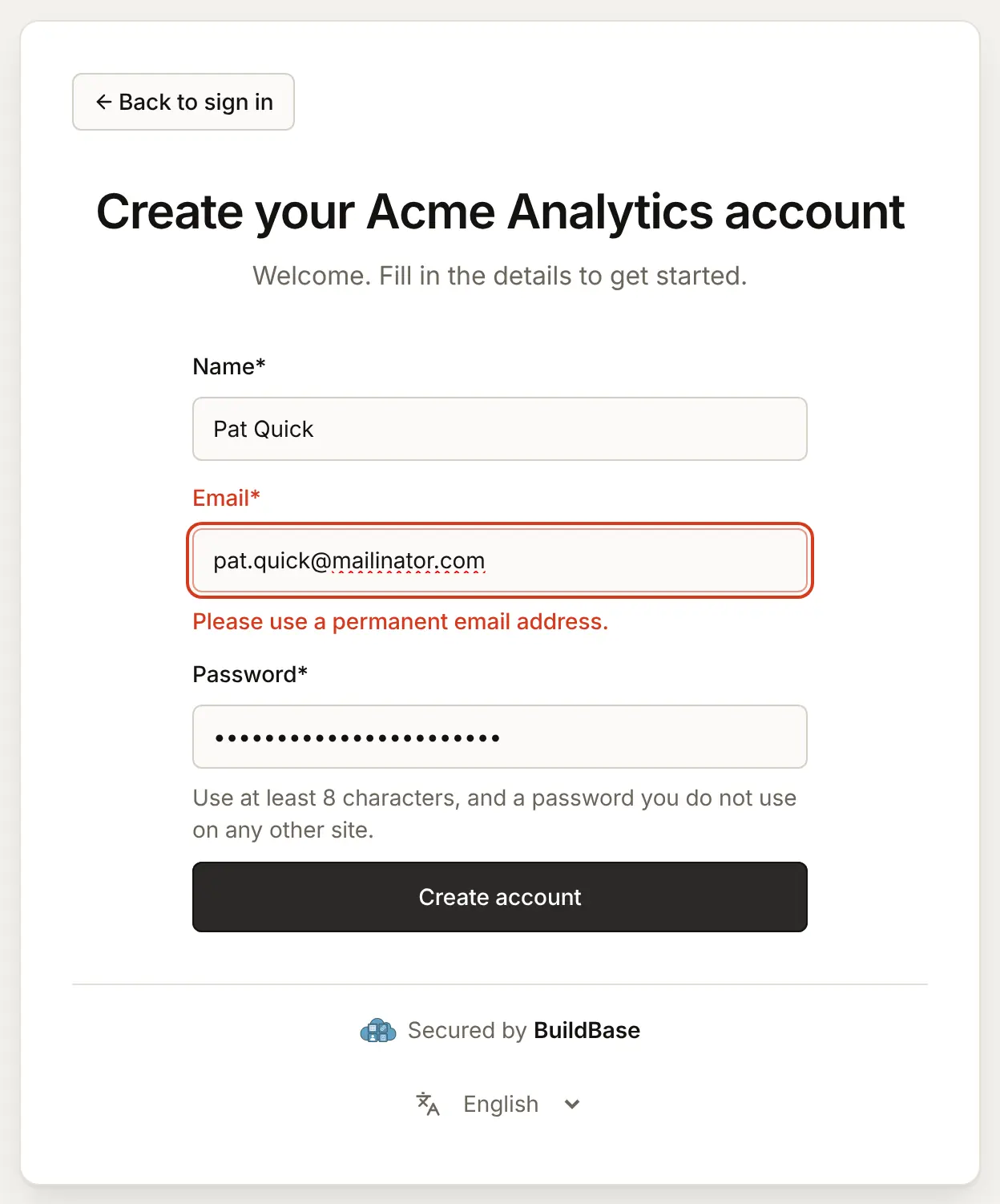
Throwaway inboxes, from sites such as mailinator.com, last minutes or hours. They let one person make a stack of trial accounts. BuildBase keeps a list of known throwaway-mail sites, and an address at any of their subdomains counts too.
- Open the Security tab and find the Disposable email addresses card.
- Switch on Refuse disposable email addresses at sign-up.
- Press Save.

It applies to new accounts and to someone changing their account's email address. It never applies to signing in, so turning it on locks nobody out. The trade-off: fewer fake accounts, but a few real people who guard their privacy need another address.
Block throwaway email addresses on the Sign-up tab does the same thing: either switch turns it on, and someone invited to a workspace is never refused.
Attach it to your app
There is nothing to tick. These settings belong to your organization and apply to every app's sign-in page at once.
Check the preview
The Preview on the Sign-in page tab draws the usual Sign up form whatever these settings are. Press Open the live page for Acme Analytics and choose Create account to see the invite-only notice or the waitlist on the real page.
In your app (SDK)
There is no screen for this in your app. Two things to know:
- An invitation reaches the hosted pages through the SDK from release 0.0.75. With an older SDK, an invited person meets the invite-only notice instead of the form, so upgrade before you switch off Allow public sign-up.
- If you build your own sign-up form, a refusal carries a
reasonofsignup_restrictedorwaitlist_required, as in the table below. See Who can sign up.
Check it works
- With Allow public sign-up off, Create account says sign-up is invite-only.
- With Allowlist only, an address on the list can sign up and one off it is refused.
- With Waitlist, joining puts a request on Beta users, and approving it lets that address sign up.
- With throwaway addresses refused, a mailinator.com address is turned away.
- An account made before any of this still signs in.
Things to watch out for
- The blocklist beats an invitation. An address on the blocklist cannot sign up even from a workspace invitation.
- These rules stop new accounts only. Blocking a domain does not sign anyone out or stop someone who already has an account there. Block those people under Users.
- Invitations need SDK 0.0.75 or later. With an older SDK, an invited person meets the invite-only notice once you switch off Allow public sign-up.
- A domain covers its subdomains.
@acme.exampleon a list also covers@mail.acme.example, on the allowlist and the blocklist alike. - Apple's hidden addresses match no domain you list. Someone who hides their address with Sign in with Apple arrives as an address at
privaterelay.appleid.com, which your allowlist domains never match. - Approving someone on the waitlist sends no email by itself. Turn on When a user is approved under Manage emails on the Beta users page, or tell them yourself.
- The throwaway-address check knows only the sites on its list. Treat it as one layer beside bot protection, not a guarantee.
If something goes wrong
| What the person sees | Why | What to do |
|---|---|---|
| "Sign-up is invite-only" | Allow public sign-up is off | Invite them to a workspace, or switch it back on |
| "Sign-up isn't available for this address." | The address is on the blocklist, or not on the allowlist | Add it to the allowlist, or take it off the blocklist |
| "Join the waitlist, and you can sign up once you're approved." | Waitlist mode, and the address is not approved | Approve it on Beta users |
| An approved person is still refused | Allow public sign-up is off, which lets in only invitations; the card warns of it | Switch Allow public sign-up on |
| "Please use a permanent email address." | The address is at a throwaway-mail site | They sign up with another address, or you switch the setting off |
| "This app is not taking new sign-ups right now." | Your plan's limit on users is reached | Raise the limit with your plan |
| Continue as guest is gone | Guests need Allow public sign-up on and mode Anyone | See Continue as guest |
Next steps
- Bot protection - keep scripts off the sign-up form.
- Continue as guest - the way in that needs sign-up open to anyone.
- Who can sign up reference - the API and the exact order of checks.
- Set up sign-in, step by step - every sign-in guide, and the order to set them up in.