
Set up two-step sign-in
Choose Off, Optional or Required in the console, then see how people set up an authenticator app, backup codes and text codes, and sign in with them.
Two-step sign-in asks for a second proof after the first one. Someone signs in with their password, an email code, a phone code or another method, then types a short code that only they can get: from an authenticator app on their phone, such as Google Authenticator, Microsoft Authenticator, 1Password or Authy, or, if you allow it, from a text message. A stolen password alone is then not enough. You may know it as two-factor authentication, 2FA or MFA. It is for the people who sign in to your app, not your team in the console.
Before you start
- A sign-in method on your app, such as email and password.
- For text message codes only: an SMS provider connected as in Phone sign-in, and a plan that includes phone sign-in codes. The authenticator app needs nothing else.
- For people to set it up from inside your app: the SDK's settings screens (see Account security screens).
1. Choose who is asked
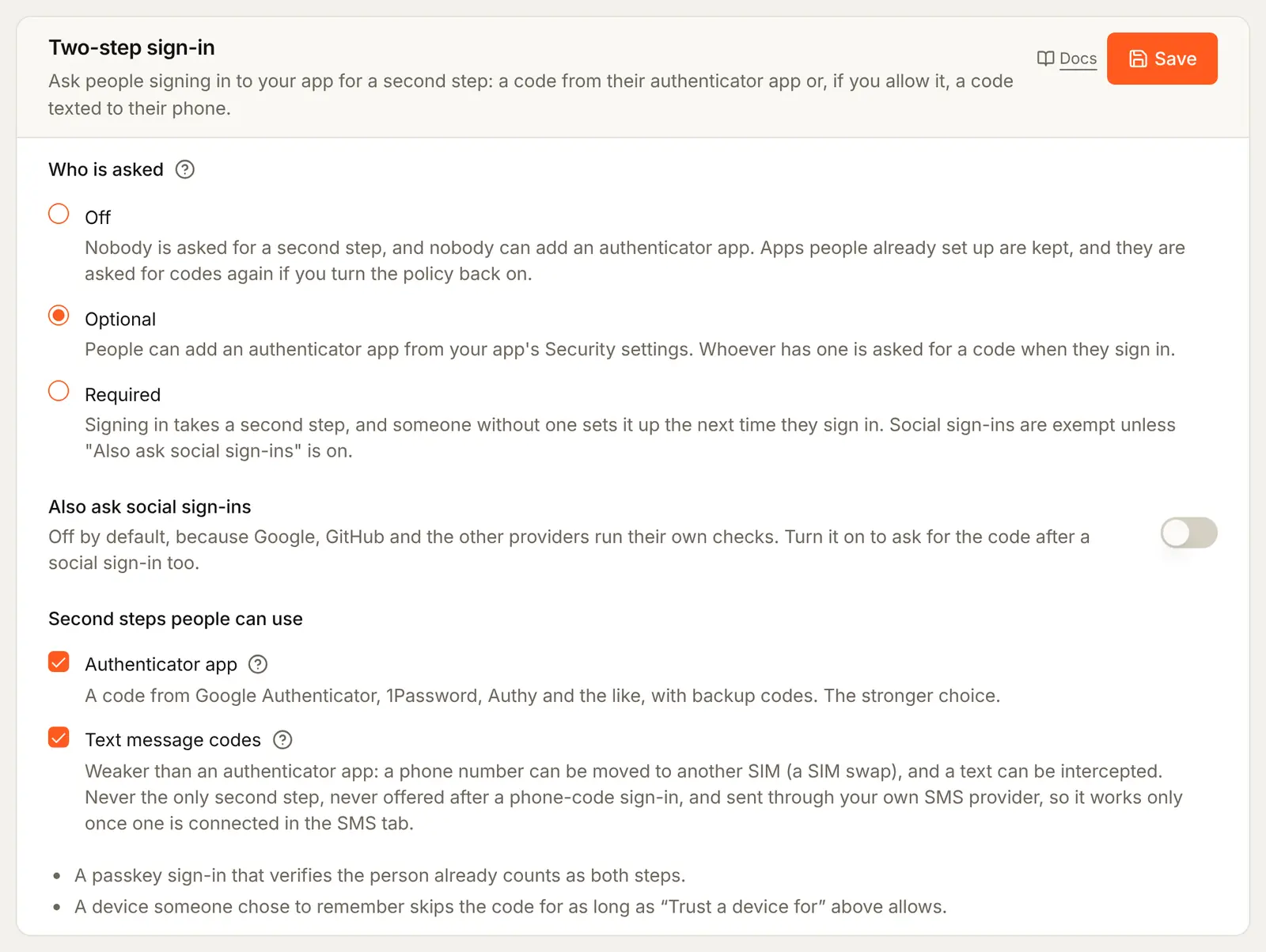
In the console's left rail, choose Users, then Authentication under Access, and open the Security tab. In the Two-step sign-in card:
- Under Who is asked, pick a policy:
- Off: nobody is asked, and nobody can add an authenticator app. What people set up before is kept.
- Optional (the default): each person chooses. Whoever has a second step is asked for a code when they sign in.
- Required: everyone is asked. Someone without a second step sets one up at their next sign-in, before they reach your app.
- Leave Also ask social sign-ins off unless you want the code after a Google, GitHub or other social sign-in too. Those providers run their own checks.
- Under Second steps people can use, Authenticator app is always on. Tick Text message codes to offer them as well. They are weaker: a phone number can be moved to another SIM card (a SIM swap), and a text can be intercepted. They are never the only second step.
- Press Save.
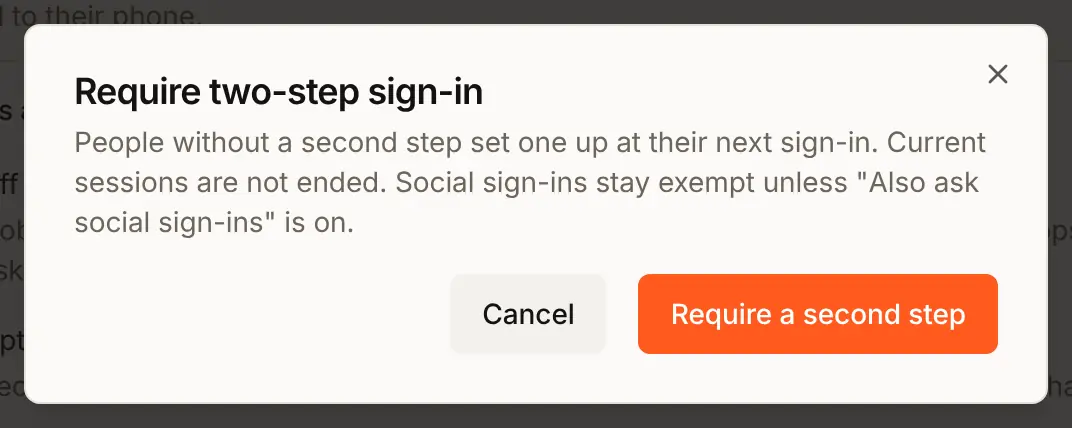
Saving Required asks first. Nobody is signed out: the policy is read at each sign-in.
2. Trusted devices
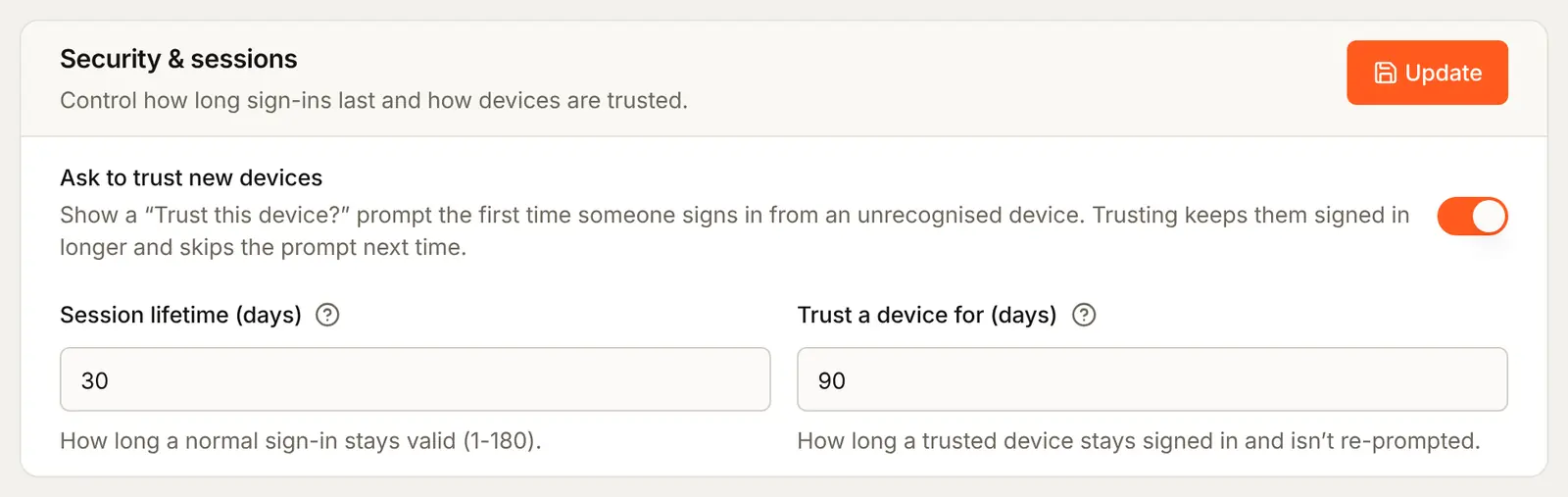
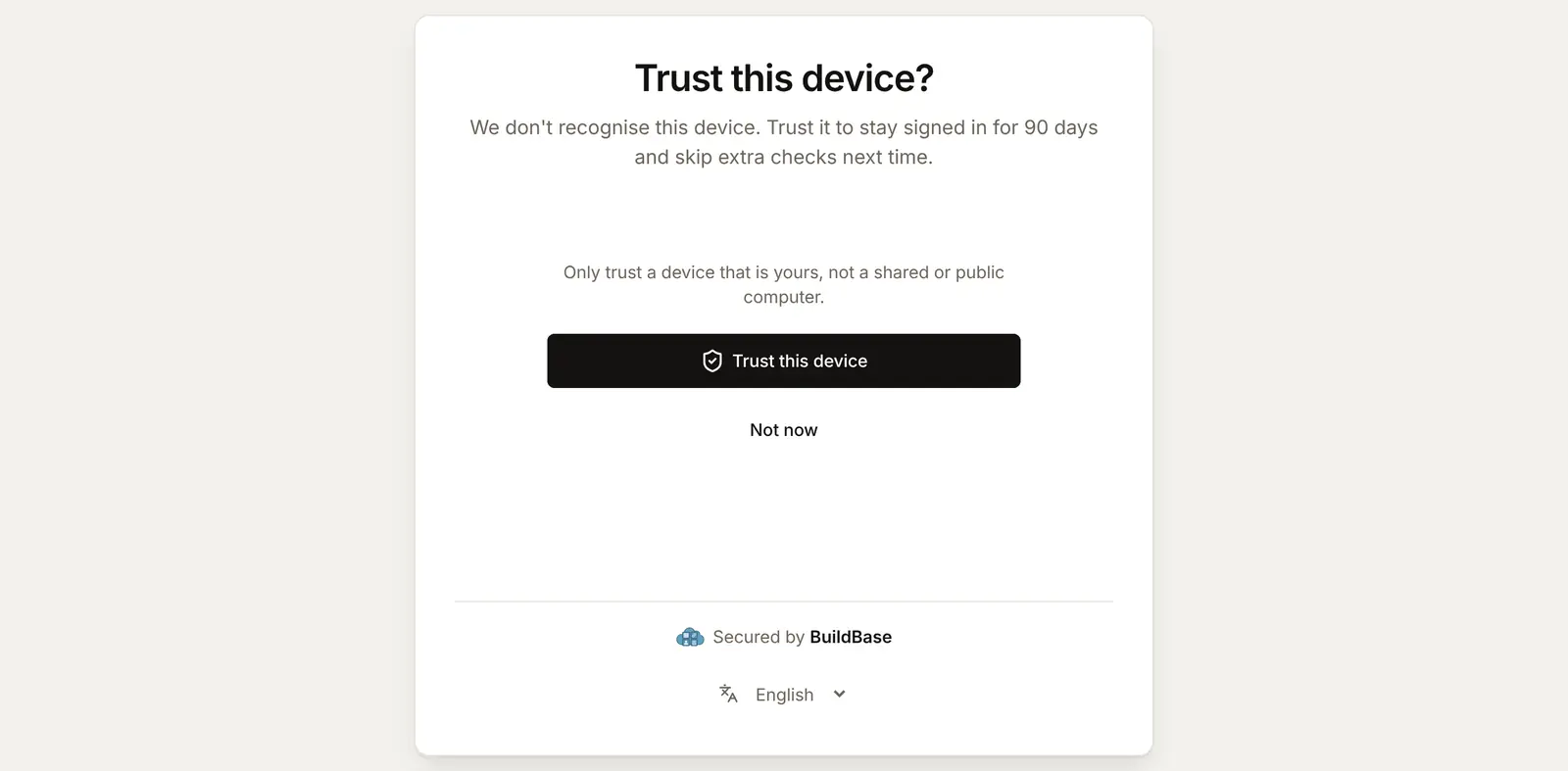
After a sign-in on a new device, the sign-in page asks Trust this device?. A device the person trusts skips the code there for the Trust a device for window, which is in the Security & sessions card on the same tab: 90 days by default, and Ask to trust new devices turns the question off. Without trust, a sign-in lasts the Session lifetime, 30 days by default.
There is nothing to attach to your app: the policy applies to every app in your organization.
3. Setting up the authenticator app in your app
The Security screen of the SDK's settings has a Two-step sign-in section, from @buildbase/sdk 0.0.90. Open it from your own button:
import { useSaaSAuth } from '@buildbase/sdk/react';

export function SecurityButton() {
  const { user, openWorkspaceSettings } = useSaaSAuth();
  return (
    <button onClick={() => openWorkspaceSettings('security')}>
      {user?.mfaEnabled ? 'Security settings' : 'Turn on two-step sign-in'}
    </button>
  );
}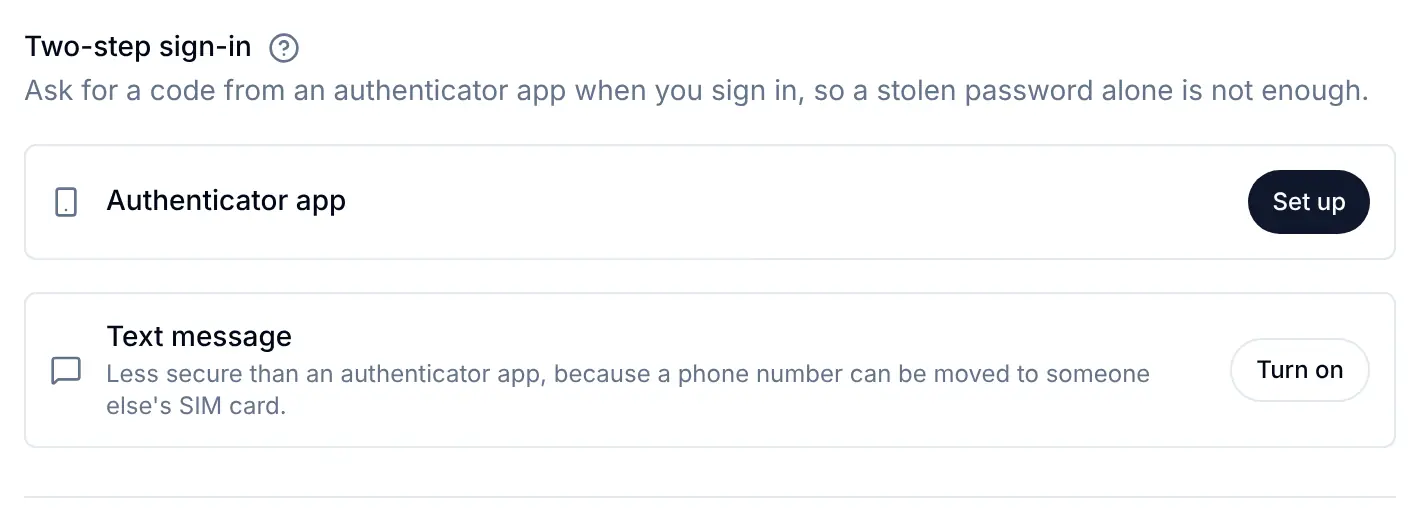
- Beside Authenticator app, the person presses Set up.
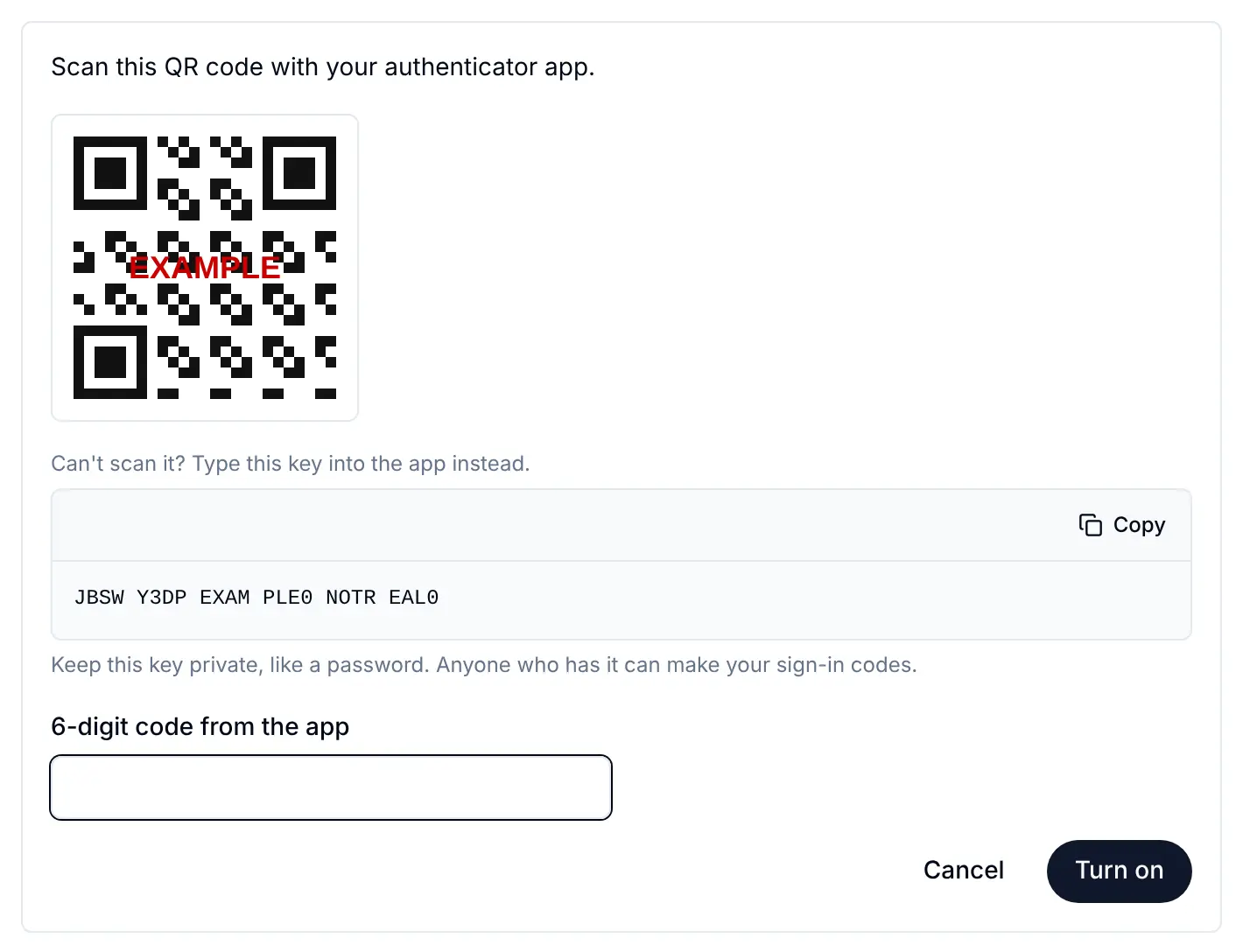
- They scan the QR code with their authenticator app, or type the key under it. The entry in their app carries your app's name.
- They type the 6-digit code from the app and press Turn on.
- Save your backup codes shows 10 codes, once. Each one signs them in once if they lose their phone. They press Copy, keep the codes somewhere safe, such as a password manager, and press Done.
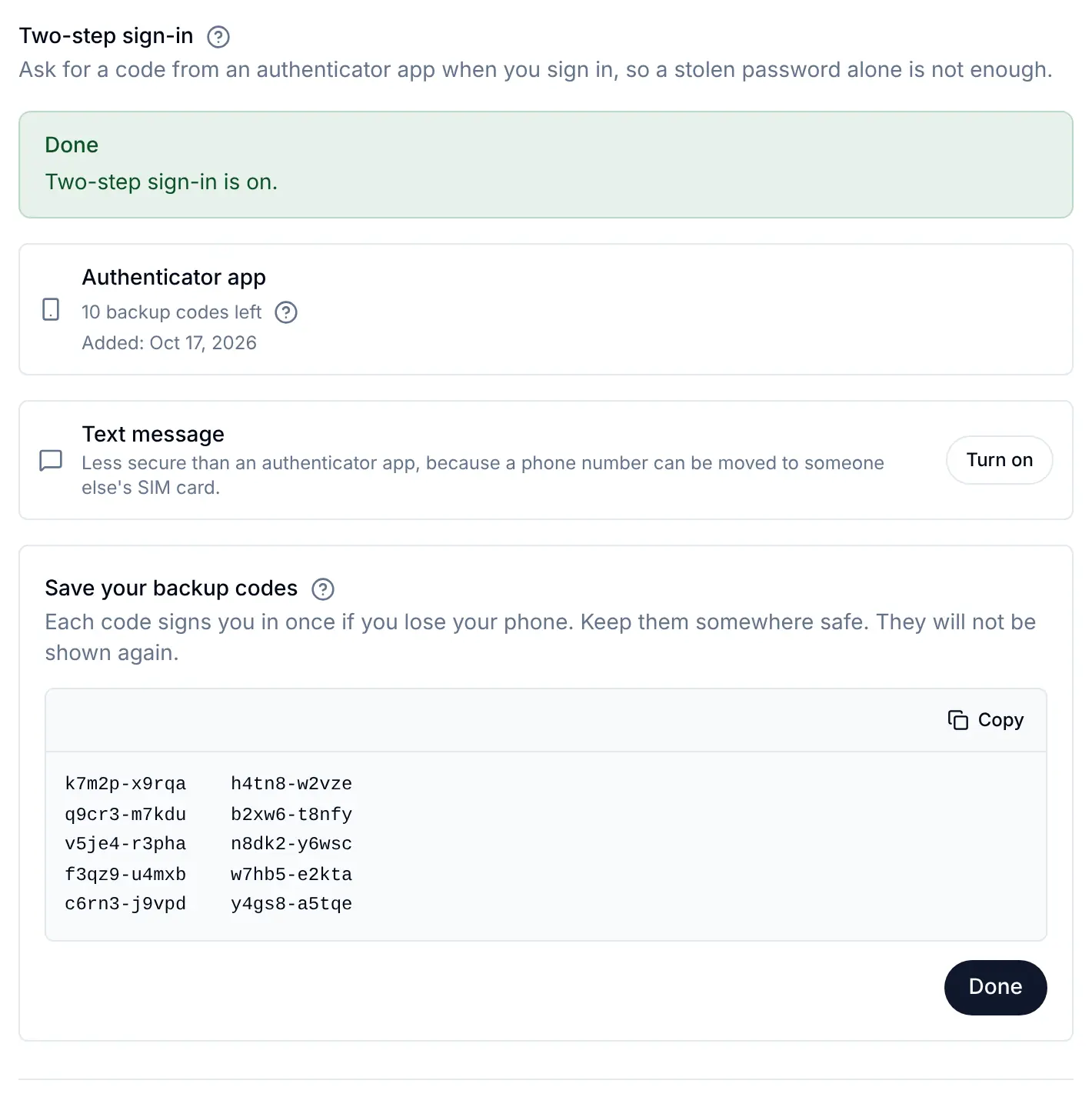
New backup codes makes a fresh set later, after a current code; the old set stops working at once. Turn off removes the app, after a current code. Under Required, Turn off is not offered.
4. Text message codes as a second step
With Text message codes ticked in the console, the person first adds and verifies a number in the Phone number section of the same screen (see Account security screens). Then, beside Text message, they press Turn on, type the code that arrives and press Turn on again.
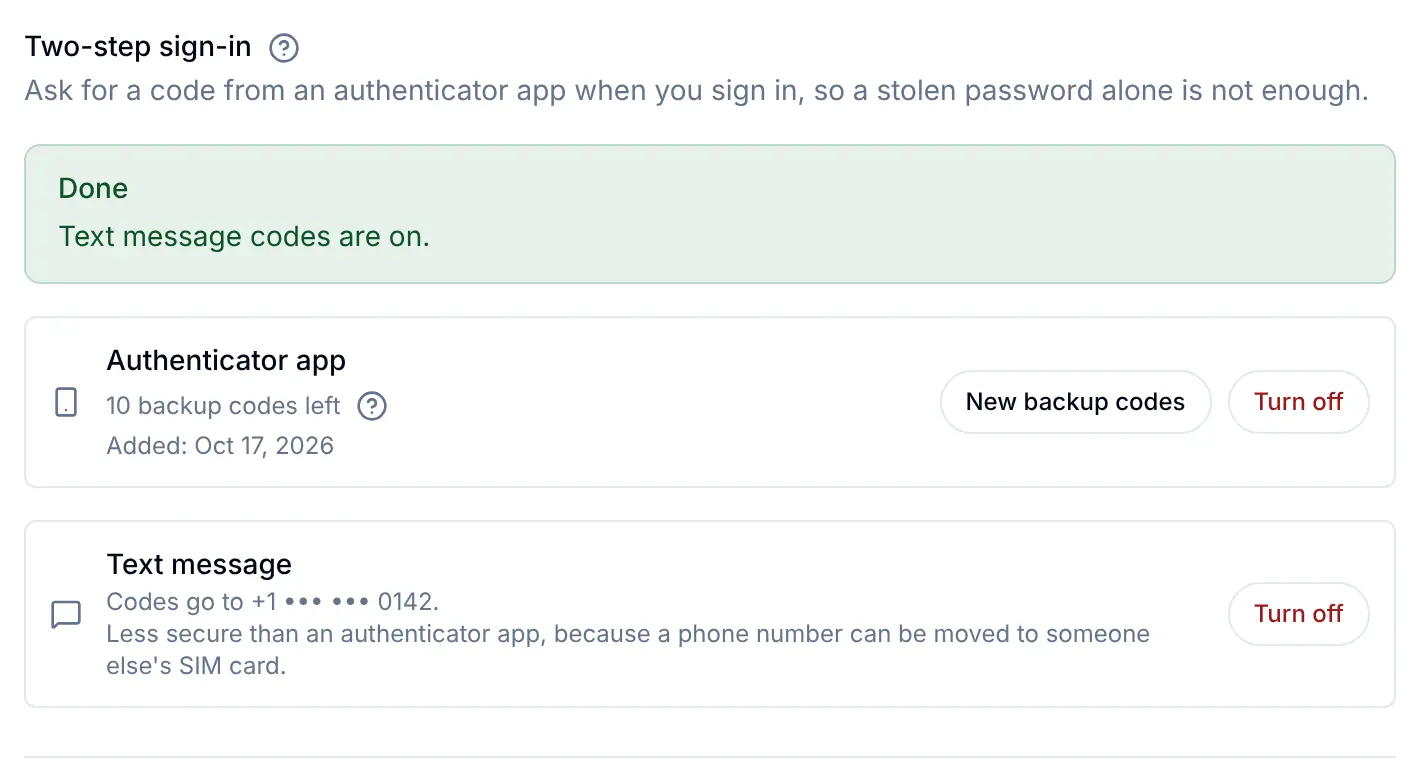
Turning text message codes off asks for a sign-in from the last 10 minutes, or to confirm it's you first. A person cannot remove the number their codes go to until they turn text message codes off.
What people see at sign-in
A code from the app
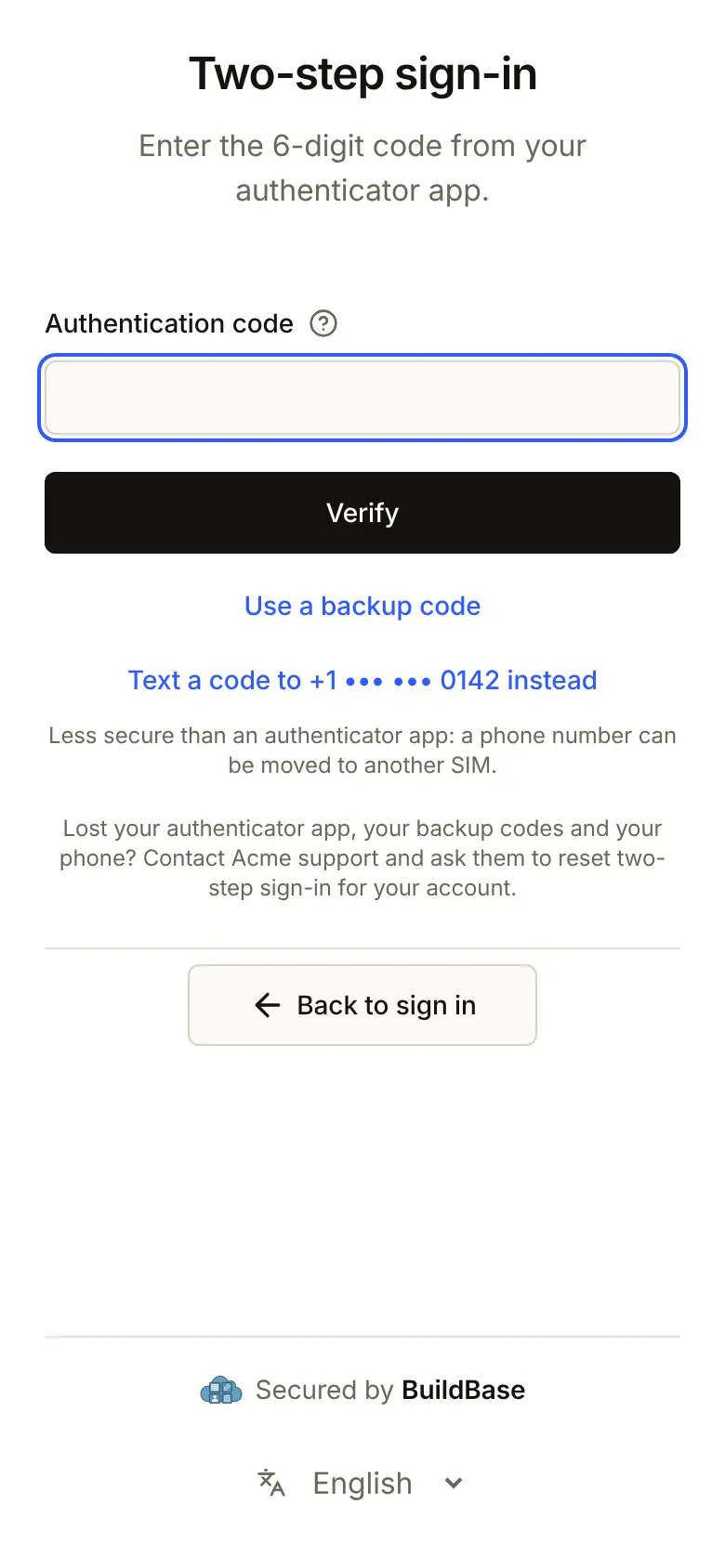
After the first step, the Two-step sign-in page asks for the Authentication code from the app. Links under it switch to Use a backup code or, for someone with text message codes, Text a code to their masked number.
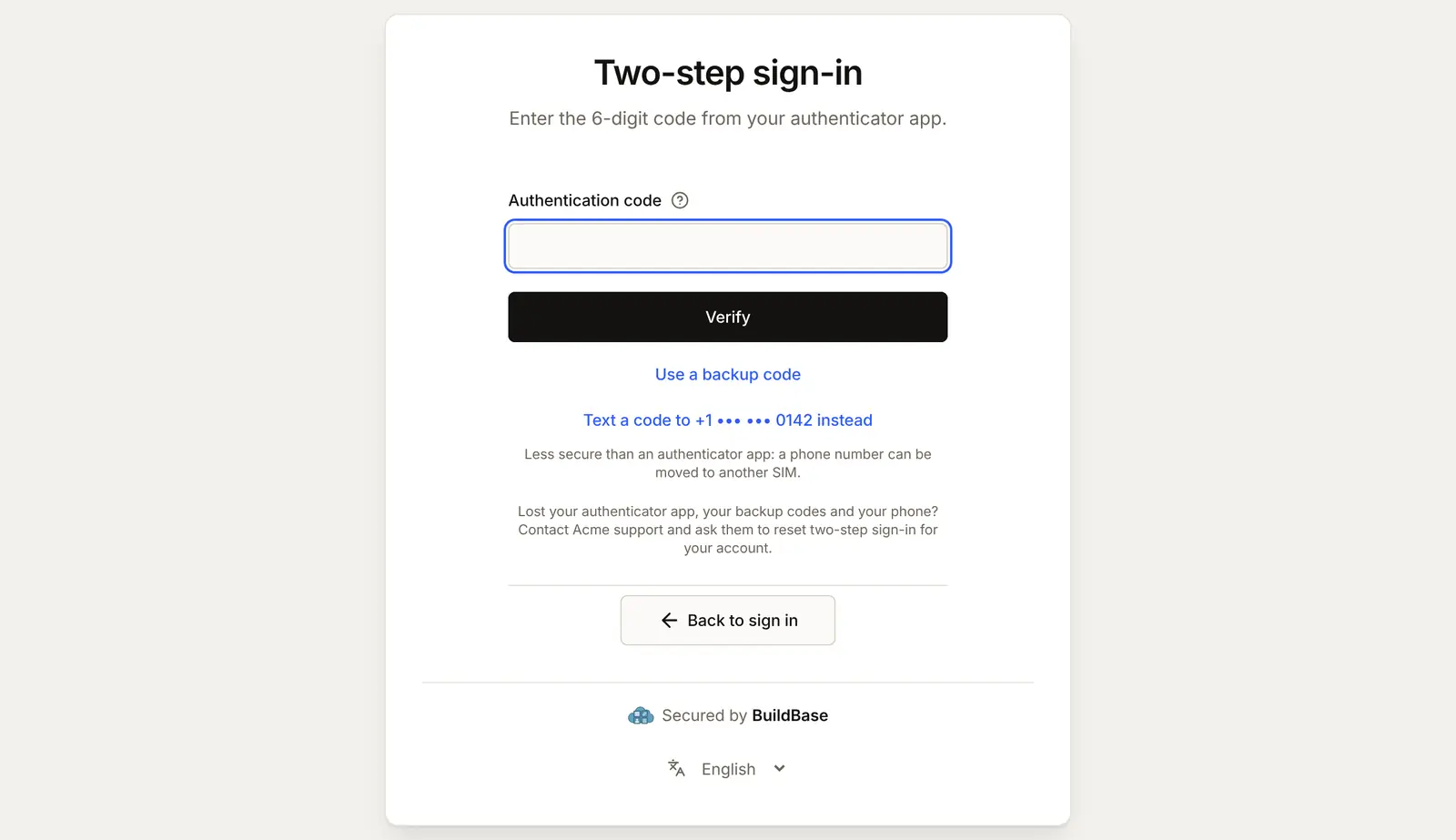
On a phone the page is the same, one column wide:
Then the page asks whether to trust the device. Trust this device skips the code there next time; Not now asks again next time.
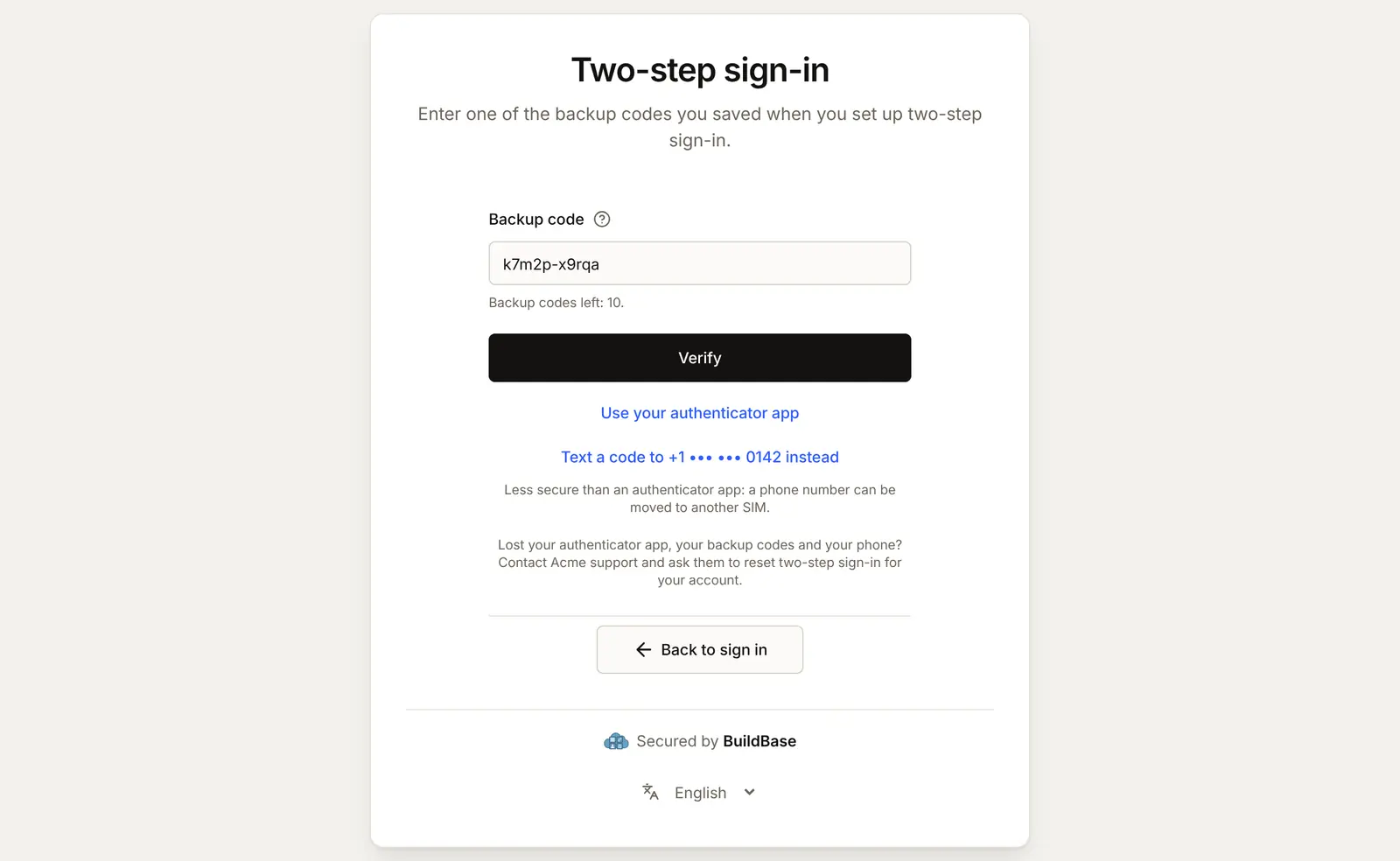
A backup code
Use a backup code asks for one of the saved codes and says how many are left. Capitals, spaces and the dash do not matter. Each code works once.
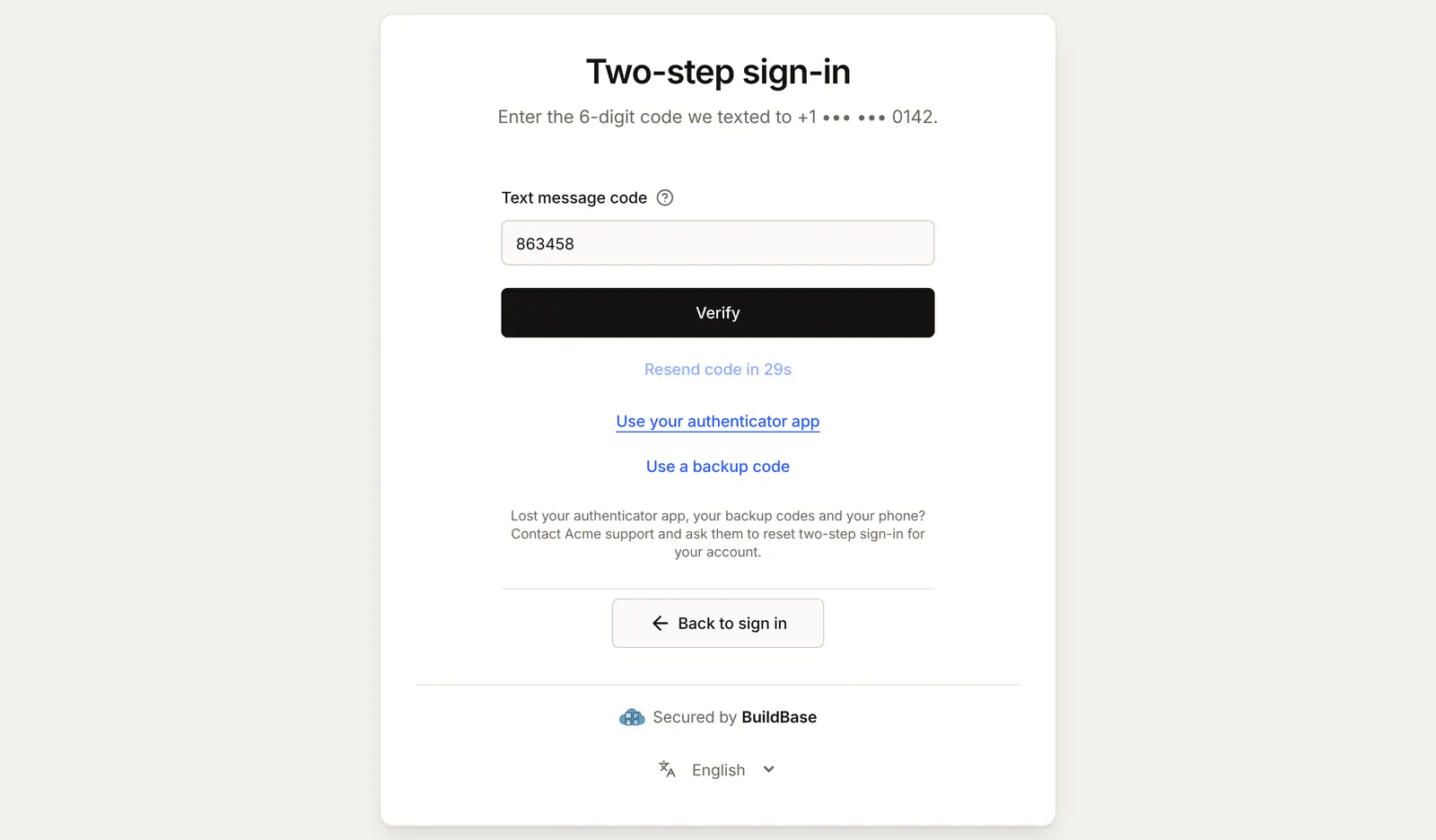
A code by text message
Text a code to sends nothing until it is pressed. A new code can be sent after 30 seconds. Someone who signed in with a phone code is never offered a text as the second step: the same phone would be both steps.
Required, at the next sign-in
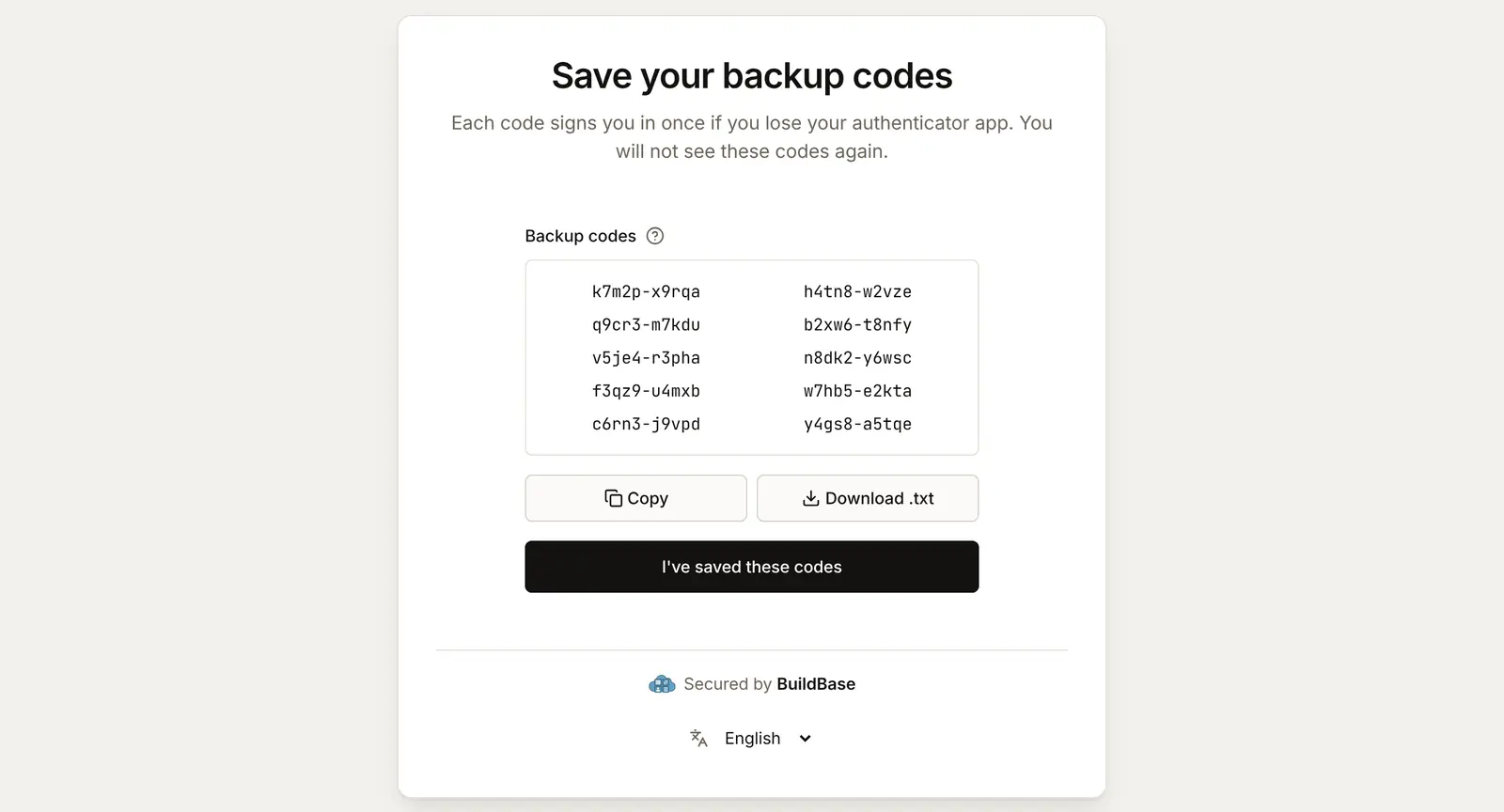
Under Required, someone signed in without a second step sees a warning on the Security screen, and keeps using your app until they sign in again.
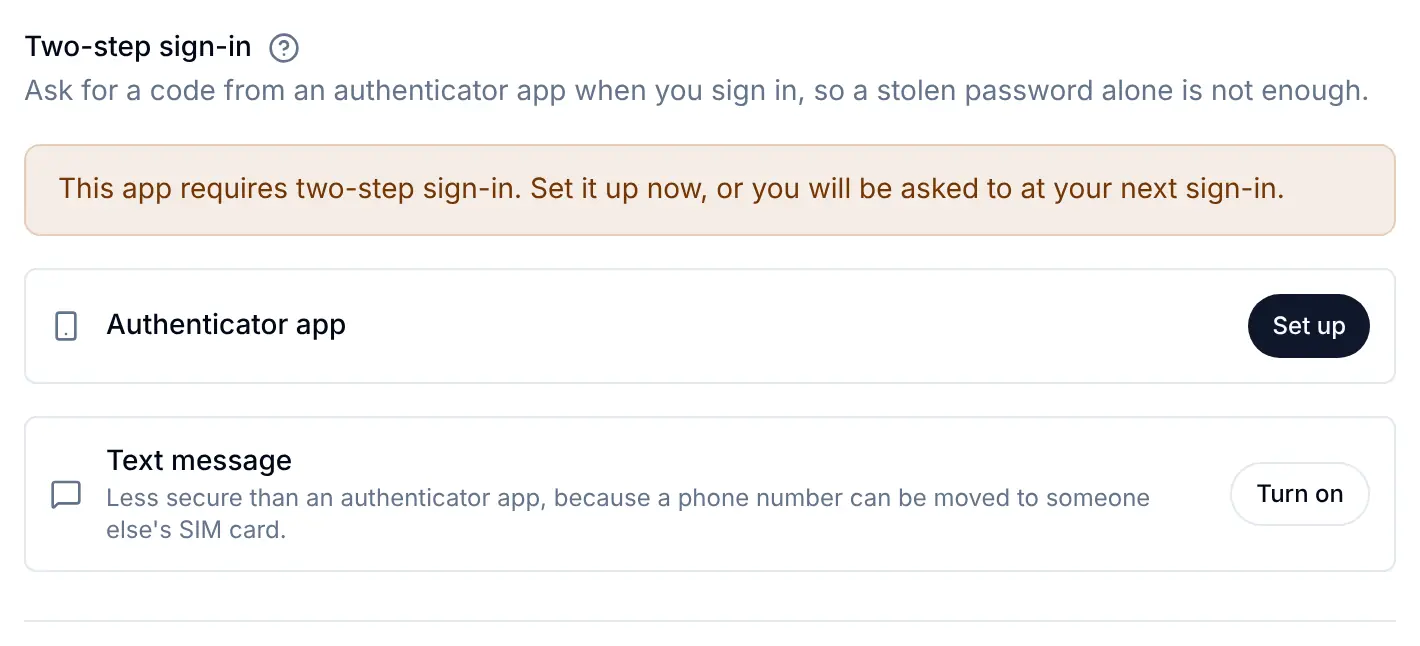
At their next sign-in, after the first step, the page shows Set up two-step sign-in. They scan the QR code, or use Copy key or Open in authenticator app on a phone, type the code and press Verify and continue. The sign-in page offers only the authenticator app here.
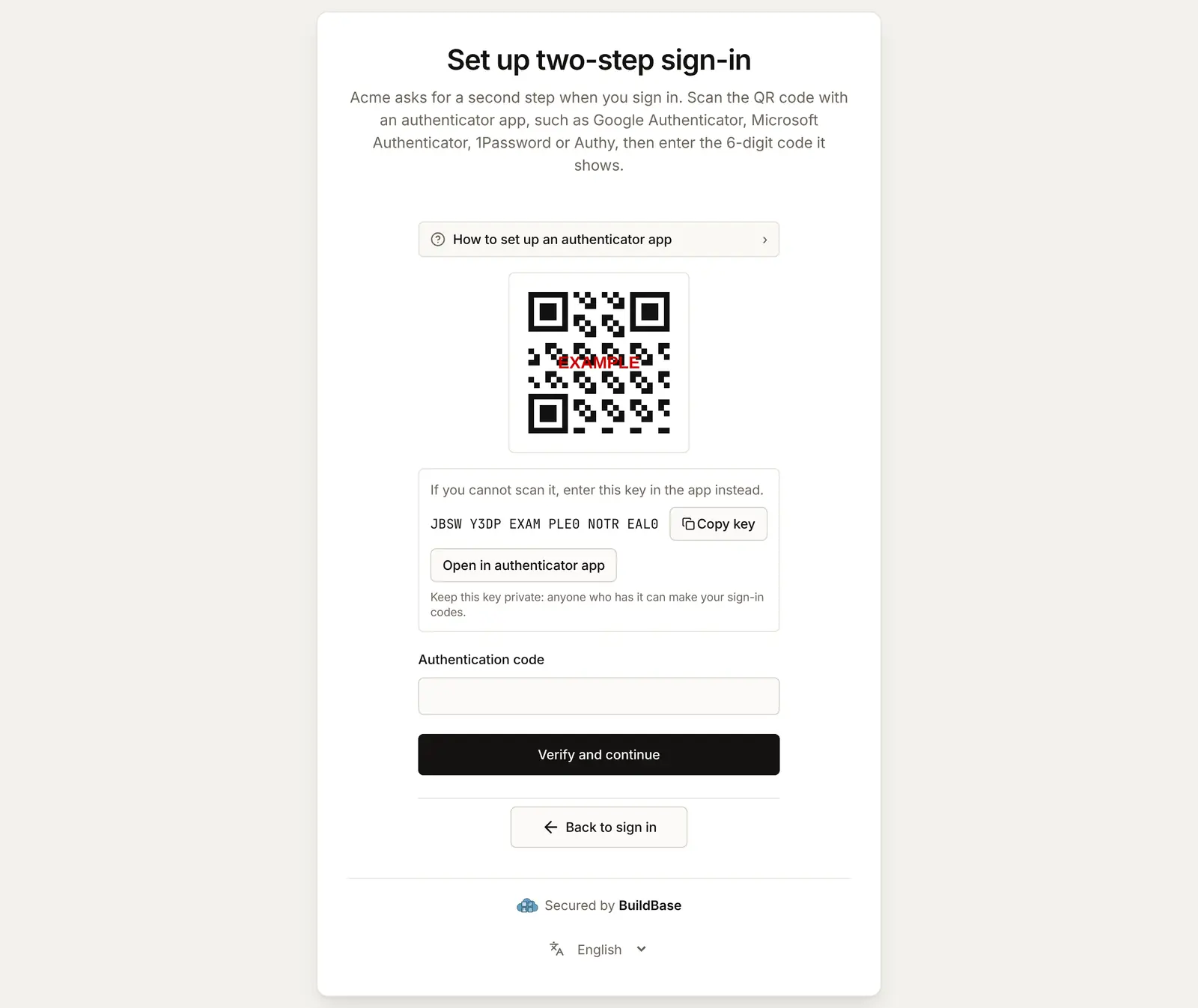
They save their backup codes with Copy or Download .txt, and press I've saved these codes to carry on into your app. A new sign-up under Required goes through the same set-up.
A lost phone
With a backup code, the person signs in and sets the app up again on their new phone from the Security screen. Without one, they ask you: make sure they are who they say, open them under Users, press More and choose Reset two-step sign-in. The two-step page itself tells someone who lost everything to contact your support team.
Check it works
- The Two-step sign-in card shows the policy you picked, and Text message codes only if an SMS provider is connected.
- A test account turns on the authenticator app from your app's Security screen and saves its backup codes.
- Signing in again asks for the code; a backup code works once.
- Under Required, a test account without a second step is asked to set one up at its next sign-in.
Things to watch out for
- Required does not cover social sign-ins until you say so. People who sign in with Google, GitHub or another provider skip the code until you switch on Also ask social sign-ins. Agent accounts and guests are never asked.
- Backup codes are the only way back without you. Someone who loses their phone and their backup codes can only get in through your team, with Reset two-step sign-in on their page under Users. Decide how you check who they are before you choose Required.
- A trusted device skips the code. For 90 days by default. A trusted laptop that is lost or stolen skips it too. If that matters for your app, shorten Trust a device for or turn off Ask to trust new devices.
- The phone's clock matters. An app code is accepted 30 seconds either side of the right time. A phone whose clock is further off gets "That code did not match".
- Each code works once. Signing in twice within the same 30 seconds needs the next code from the app.
- Under Required, the sign-in page sets up only the authenticator app. Text message codes are added later, from the Security screen.
If something goes wrong
| What the person sees | Why | What to do |
|---|---|---|
| No Two-step sign-in section on the Security screen | The policy is Off, or your app hides it with ui.settings.security.twoStep: false | Choose Optional or Required |
| No Text message row | Text message codes is not ticked, or no SMS provider is connected | Tick it, and connect a provider on the SMS tab |
| "Add and verify a phone number first, then turn on text message codes." | The account has no verified phone | Add one in the Phone number section |
| "That code did not match. Try the newest code from your app." | A wrong or old app code, or the phone's clock is far off | Type the code the app shows now; check the phone sets its time automatically |
| "That code did not match. Try the newest code we texted you." | A wrong or older texted code | Type the newest code |
| "That backup code did not match, or it was already used. Each backup code works once." | A used or mistyped backup code | Use another backup code |
| "This sign-in has expired or had too many incorrect codes. Please sign in again." | 5 wrong codes, or the sign-in waited too long | Sign in again |
| "Too many incorrect codes. Please wait up to 15 minutes and try again." | 10 wrong codes on the account within 15 minutes | Wait 15 minutes |
| "This app requires two-step sign-in, so it cannot be turned off." | The policy is Required | Expected. You can reset someone from their page under Users |
Next steps
- Passkeys - a passkey that checks a fingerprint or face counts as both steps.
- Account security screens - the rest of the Security screen.
- Two-step sign-in reference - the policy in detail, the API routes and events.
- Set up sign-in, step by step - every sign-in guide, and the order to set them up in.