
Set up phone sign-in
Send sign-in codes by text message, WhatsApp or voice call through Twilio or your own webhook, set the limits, and see the code flow your users get.
Phone sign-in lets people sign in, or create an account, with a 6-digit code sent to their phone by text message, WhatsApp or a voice call. They type their number, then the code, and they are in; someone new also gives a name and an email. It suits apps whose users would rather type a phone number than an email address. Every message goes out through your own provider, which bills you for it.
Before you start
- A way to send messages: a Twilio account, or an HTTPS endpoint of your own that sends texts through any provider you already use.
- A plan that includes phone sign-in codes. Without one, the console refuses to save the SMS provider and the Phone method.
- An email sender, under Messaging, Sender accounts. People who sign up by phone also give an email address, and a code is emailed to confirm it.
1. Open the SMS tab
In the console's left rail, choose Users, then Authentication under Access, and open the SMS tab. Under How codes are sent, pick Twilio or Webhook. The card opens a guide for the one you pick.
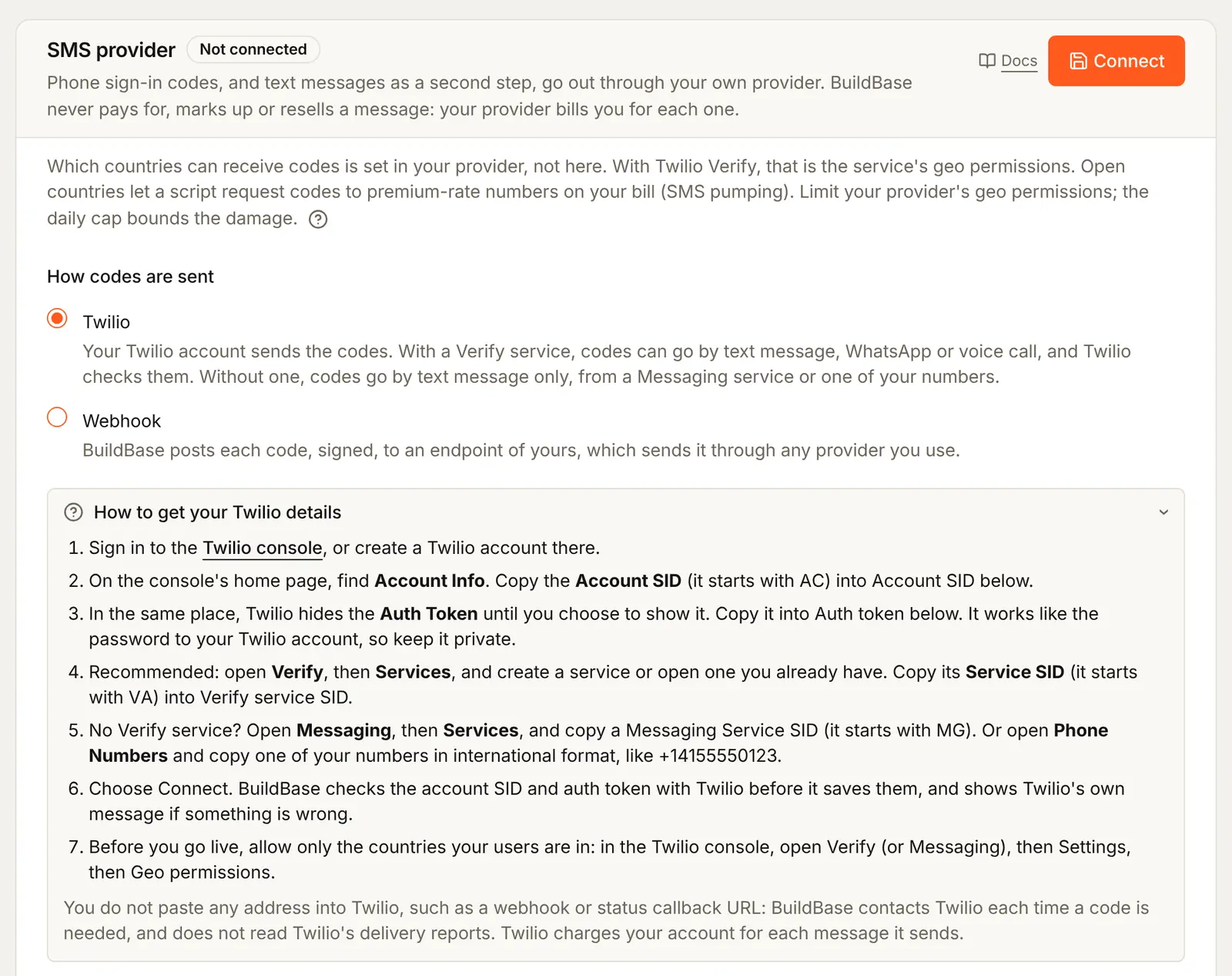
2a. Connect Twilio
Twilio's console is at console.twilio.com. Copy these values from it into the matching BuildBase fields:
| Copy this from Twilio | Where it is in Twilio | Paste it into BuildBase |
|---|---|---|
Account SID (starts with AC) | The console's home page, under Account Info | Account SID |
| Auth Token | Same place, hidden until you choose to show it | Auth token |
Service SID (starts with VA) | Verify, then Services. Recommended | Verify service SID |
Messaging Service SID (starts MG) | Messaging, then Services | Messaging service SID, if you have no Verify service |
One of your numbers, like +14155550123 | Phone Numbers | Or a number to send from, if you have neither |
Fill in the first two and one of the last three, then press Connect. BuildBase checks the account SID and auth token with Twilio before it saves them, and shows Twilio's own message if something is wrong. The auth token works like the password to your Twilio account: it is stored encrypted and never shown again.
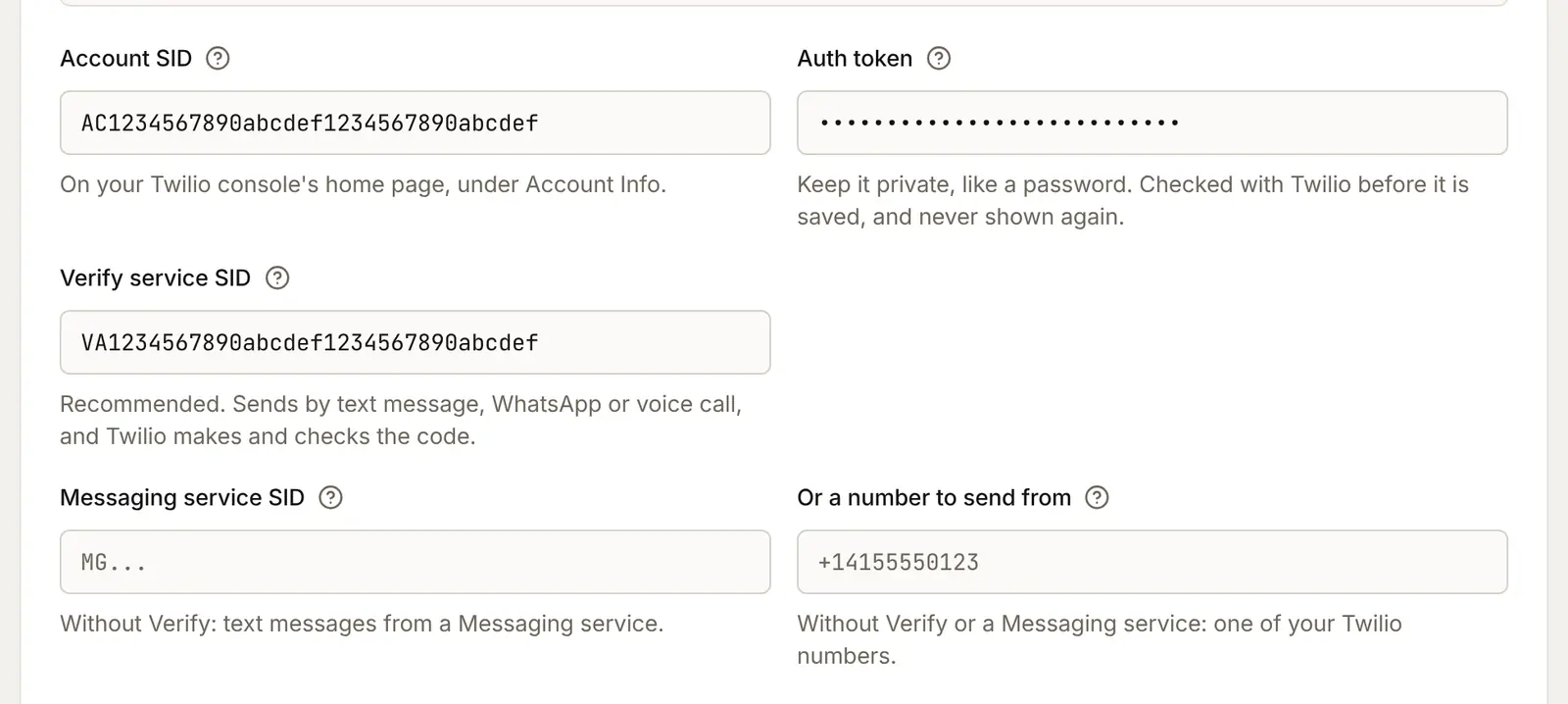
Nothing goes back the other way: you paste no BuildBase address into Twilio. A Verify service can send by text message, WhatsApp or voice call, and Twilio makes and checks the code. A Messaging service or a number sends text messages only.
2b. Or connect your own endpoint
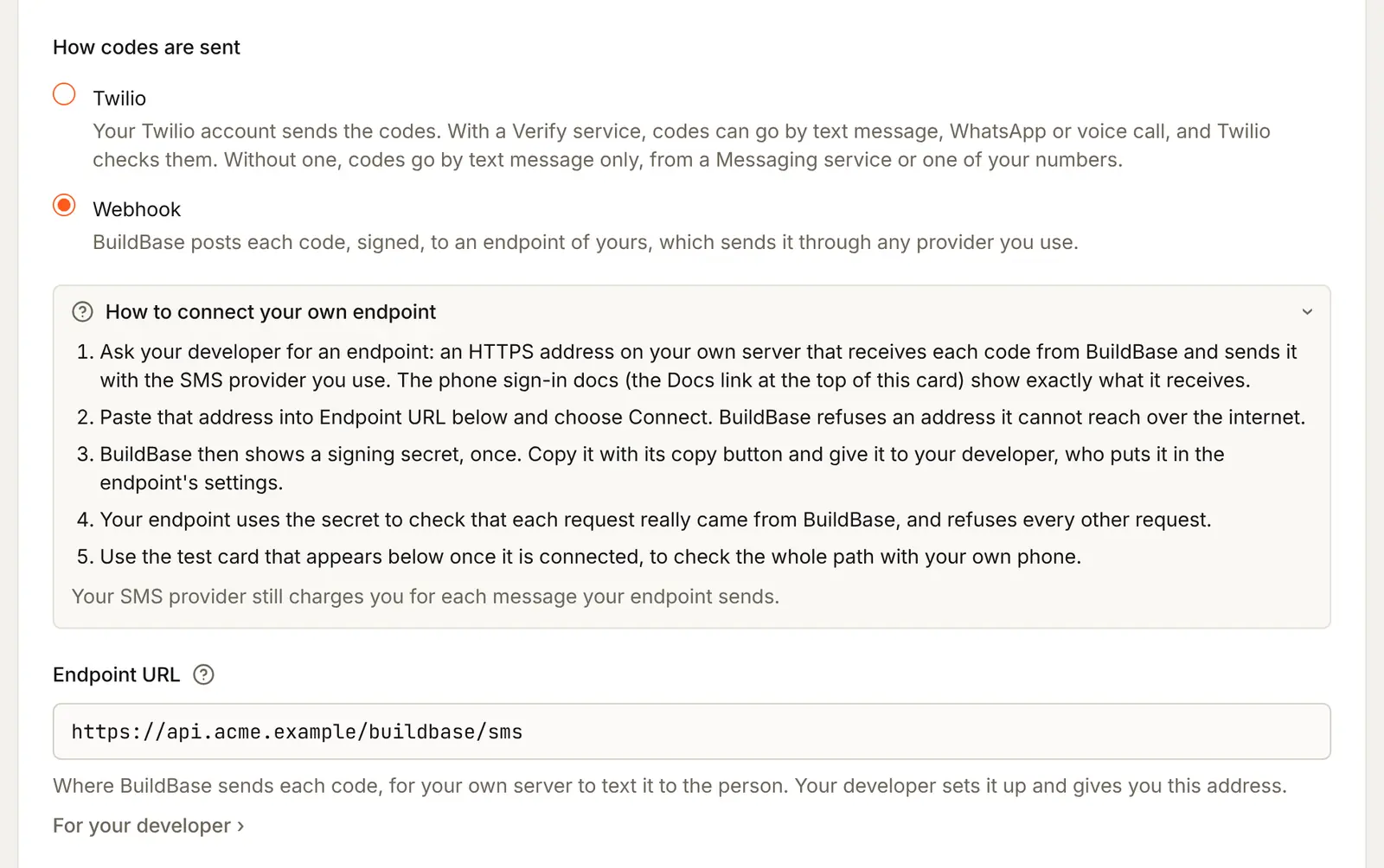
Pick Webhook when you already send texts through another provider. Your developer builds an HTTPS endpoint that receives each code from BuildBase and sends it on.
- Paste the endpoint's address into Endpoint URL, for example
https://api.acme.example/buildbase/sms, and press Connect. BuildBase refuses an address it cannot reach over the internet. - Copy your signing secret now appears, once. Press Copy and give the secret to your developer, who keeps it in the endpoint's settings. Rotate secret makes a new one later; the old one stops working at once.

For each code, BuildBase sends your endpoint a POST like this one, waits up to 5 seconds, and does not retry:
{
  "to": "+14155550177",
  "code": "123456",
  "channel": "sms",
  "locale": "en-US",
  "purpose": "sign-up",
  "test": false
}
purpose is sign-in, sign-up, phone-add, mfa or test. Two headers sign it: x-buildbase-timestamp (Unix seconds) and x-buildbase-signature, sha256= followed by the HMAC-SHA256 of <timestamp>.<raw body> made with your signing secret. Check it on the raw body before you parse it; verifyWebhookSignature from the SDK does that in constant time and refuses a request older than 5 minutes:
import { verifyWebhookSignature } from '@buildbase/sdk';

export async function POST(req: Request) {
  const body = await req.text();
  const valid = verifyWebhookSignature({
    body,
    signature: req.headers.get('x-buildbase-signature'),
    timestamp: req.headers.get('x-buildbase-timestamp'),
    secret: process.env.BUILDBASE_SMS_SECRET!,
  });
  if (!valid) return new Response('Invalid signature', { status: 401 });

  const { to, code, channel } = JSON.parse(body);
  const sent = await sendWithYourProvider({ to, code, channel });
  // A number your provider will not deliver to: answer 422 with a reason.
  if (!sent.ok) return Response.json({ reason: sent.reason }, { status: 422 });
  return Response.json({ sent: true });
}
Any 2xx means sent. A 422 with { "reason": "..." } means the number was refused: the sign-in page says so, and the delivery log keeps your reason. Anything else, or no answer in 5 seconds, is a failure.
3. Send a test
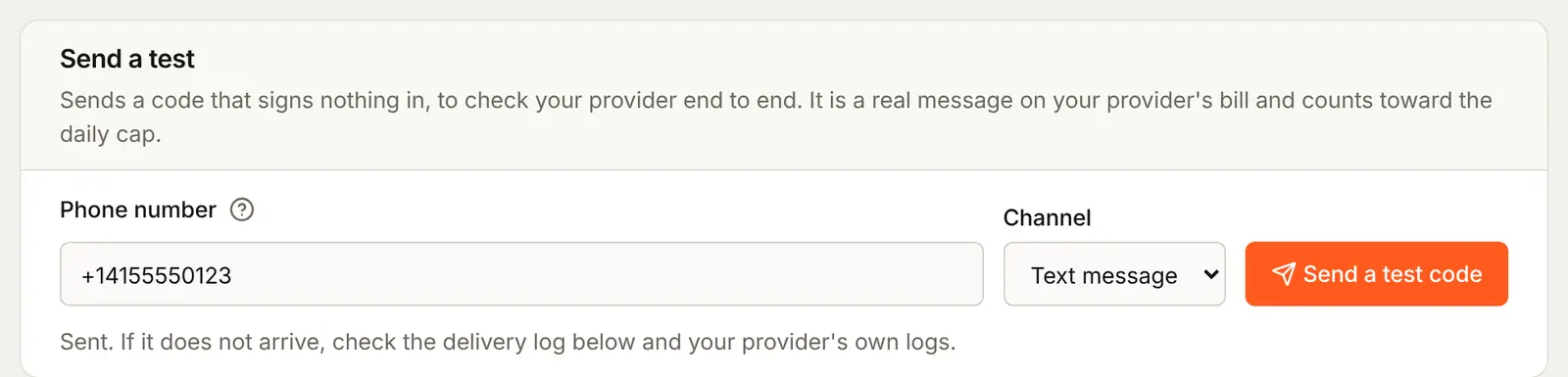
Once a provider is connected, the Send a test card appears. Type your own number with its country code, pick a Channel and press Send a test code. The code signs nothing in, but it is a real message on your provider's bill and counts toward the daily cap.
4. Set the limits
Daily cap is the most codes your app sends in a day (UTC), tests included, from 1 to 100,000; the default is 1,000. Past it, nothing is sent and the sign-in page says codes cannot be sent right now. Warn at sends the auth.sms_budget_exceeded event to your webhooks when the day's codes reach that share of the cap, and again when the cap stops a code, each at most once a day. Sent today counts against the cap.
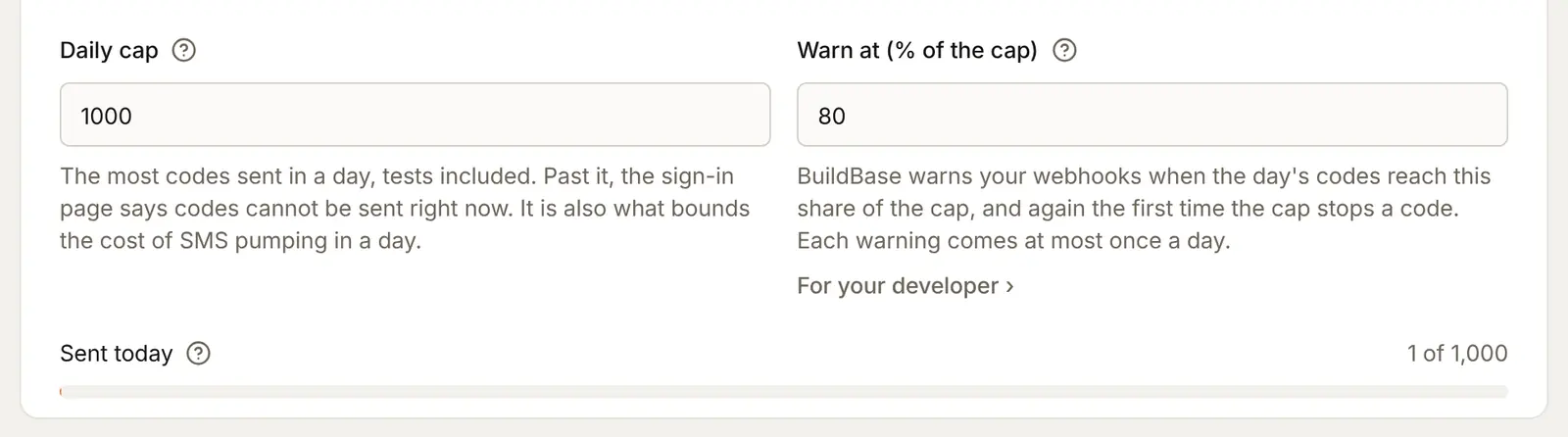
BuildBase also limits each number and each network address, on every install, before it looks the number up:
| Limit | Default |
|---|---|
| One number, between two codes | 30 s |
| One number, an hour / a day | 5 / 10 |
| One network address, an hour / a day | 20 / 50 |
Warning
SMS fraud. Some people run scripts that ask sign-in pages to text codes to expensive premium-rate numbers, and earn a share of what you pay (it is called SMS pumping). BuildBase sends to any valid number, because which countries can receive codes is set in your provider. Before you go live, allow only the countries your users are in: in Twilio, open Verify (or Messaging), then Settings, then Geo permissions. The daily cap limits how much a bad day can cost.
5. Choose the country and the channels
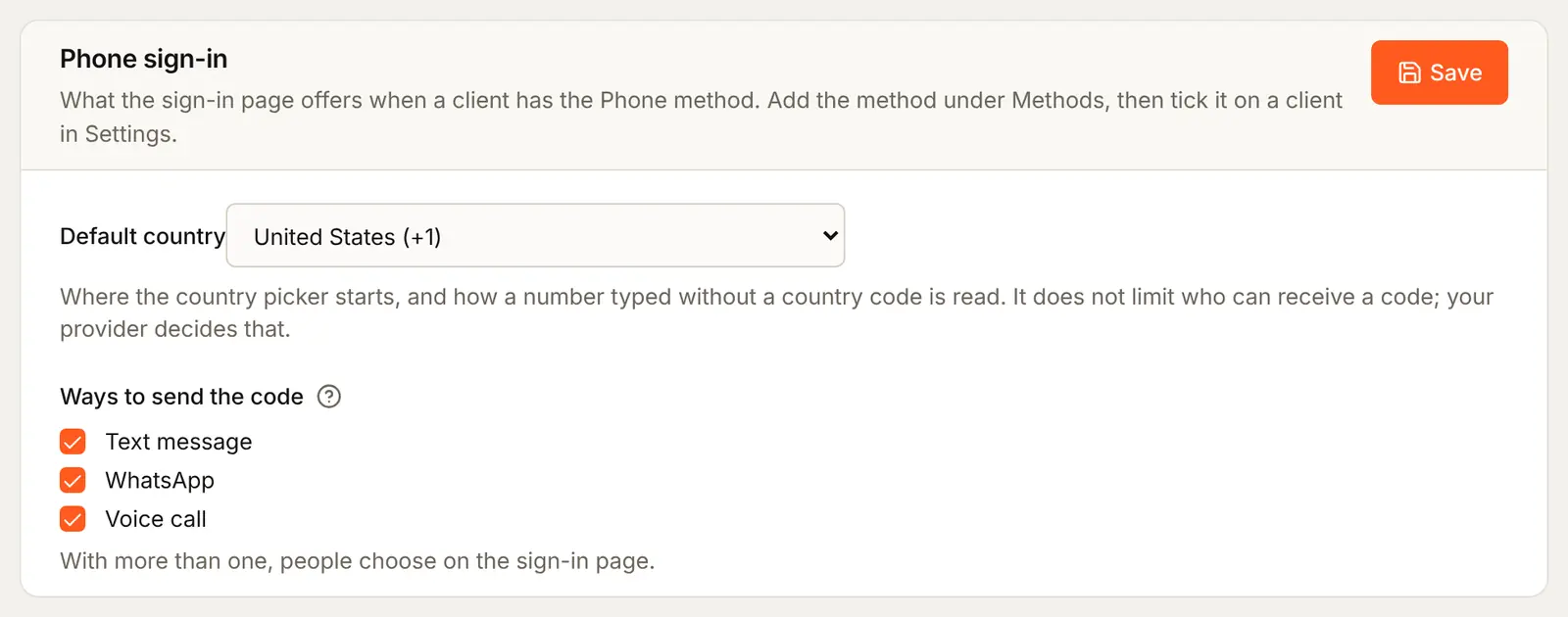
Under Phone sign-in on the same tab, pick the Default country: where the picker on the sign-in page starts, and how a number typed without a country code is read. Tick the Ways to send the code; with more than one, people choose on the sign-in page. Press Save.
6. Add the Phone method and attach it to your app
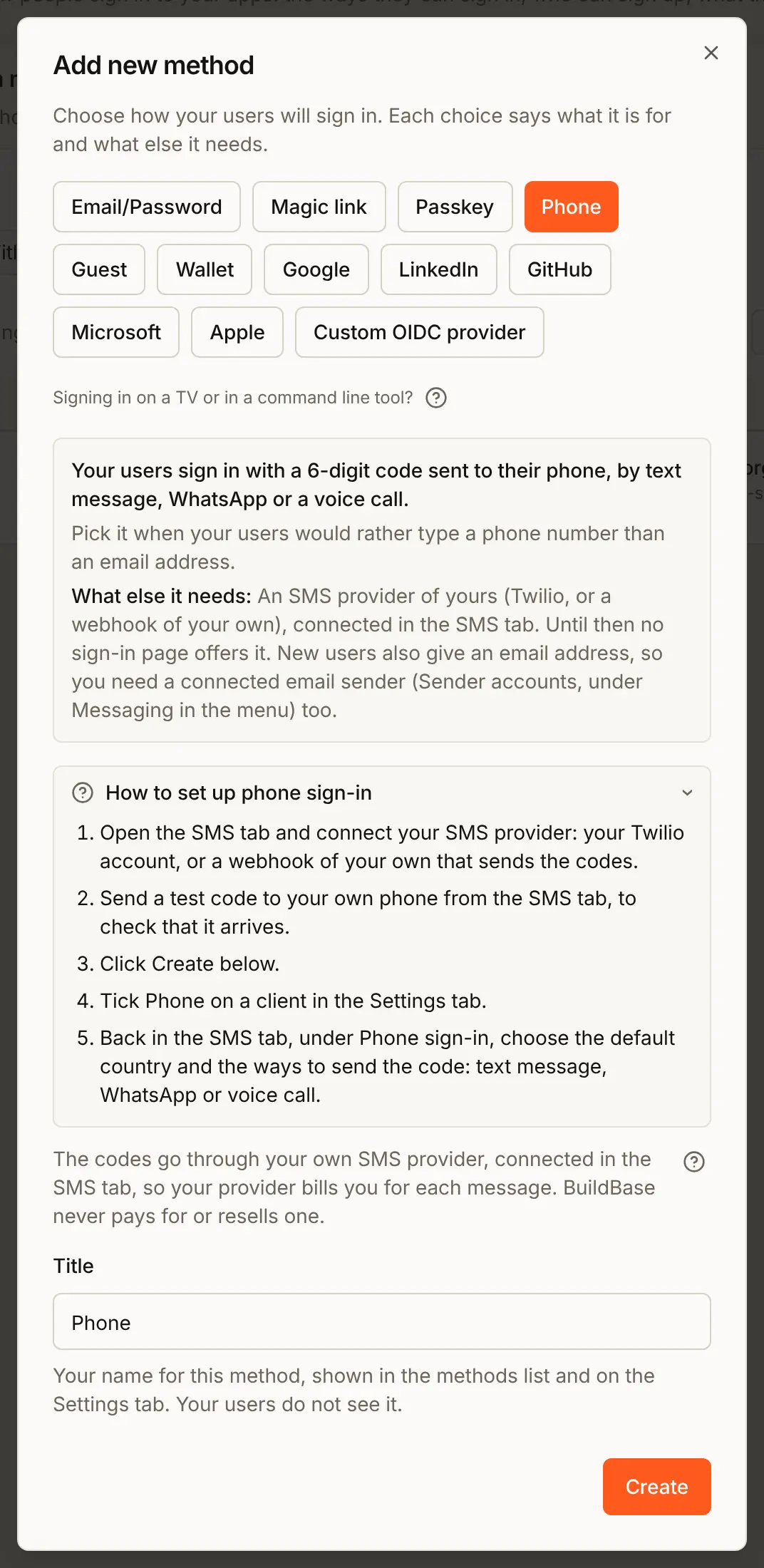
- Open the Methods tab, press Add auth method and choose Phone. Keep the Title
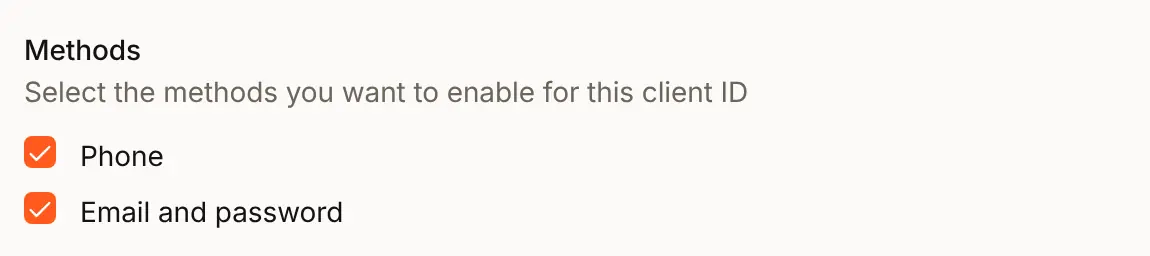
Phoneand press Create. - Open the Settings tab, press Edit beside Acme Analytics, tick Phone under Methods and press Update. A method shows on the sign-in page only once it is ticked on the app.
7. Check the preview
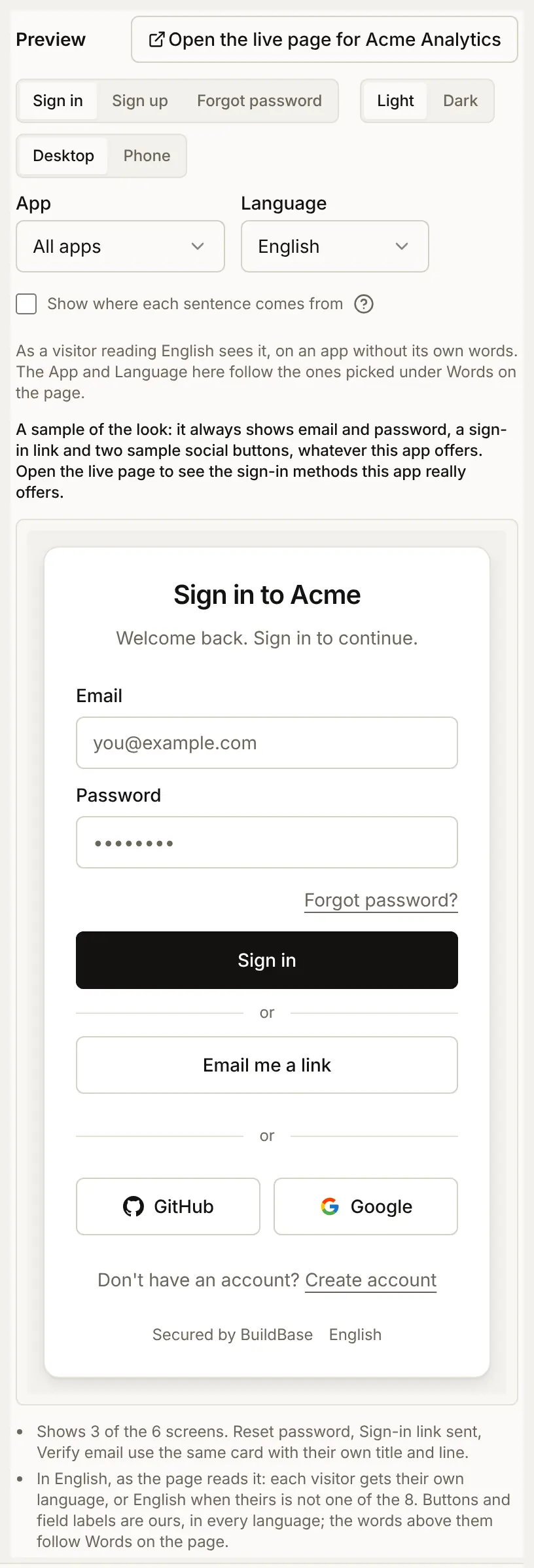
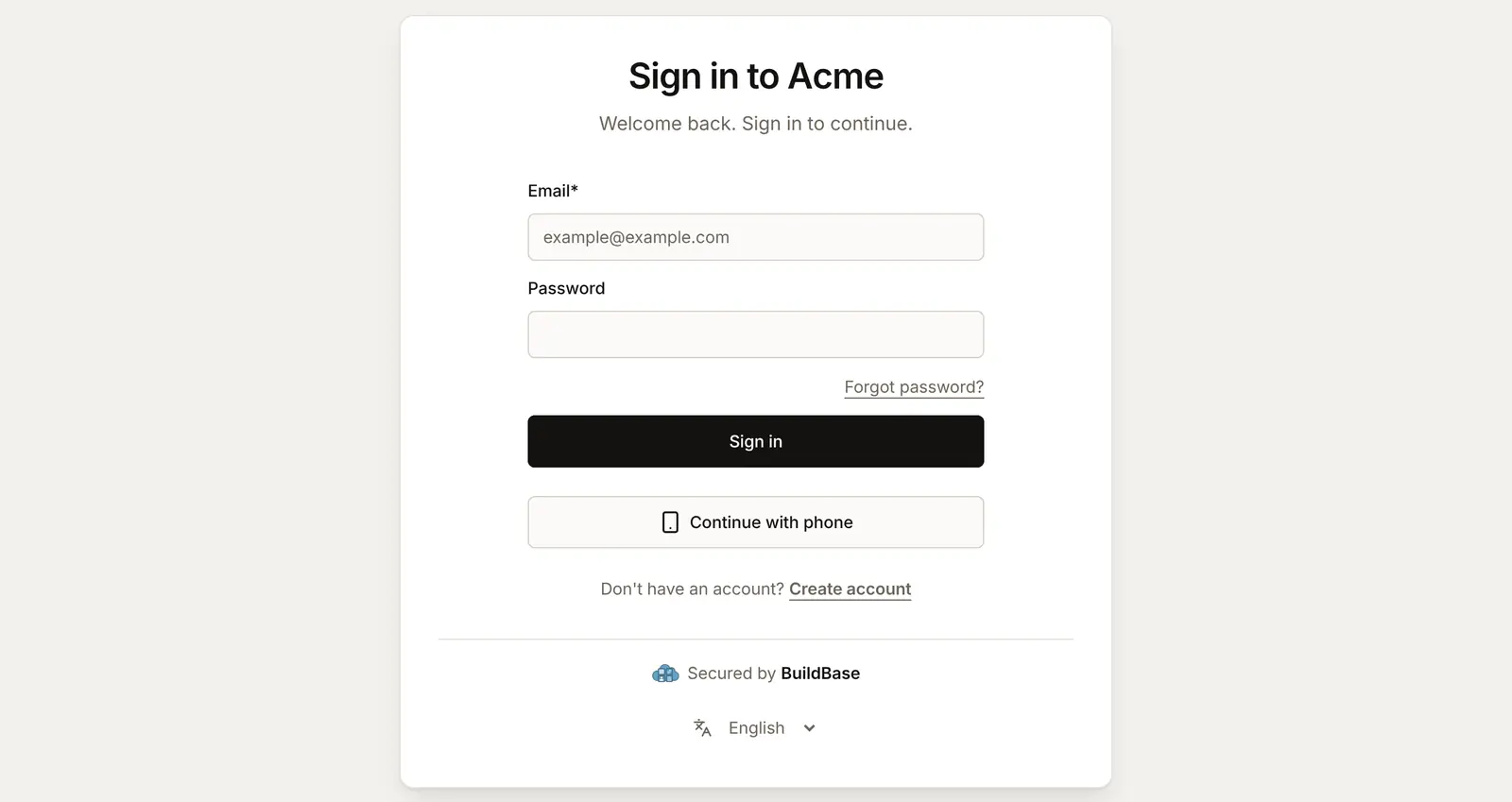
The Preview on the Sign-in page tab draws your page's look with sample buttons, the same for every app, so it does not show the phone button. Press Open the live page for Acme Analytics above it: your real sign-in page opens in a new tab, with Continue with phone.
What people see
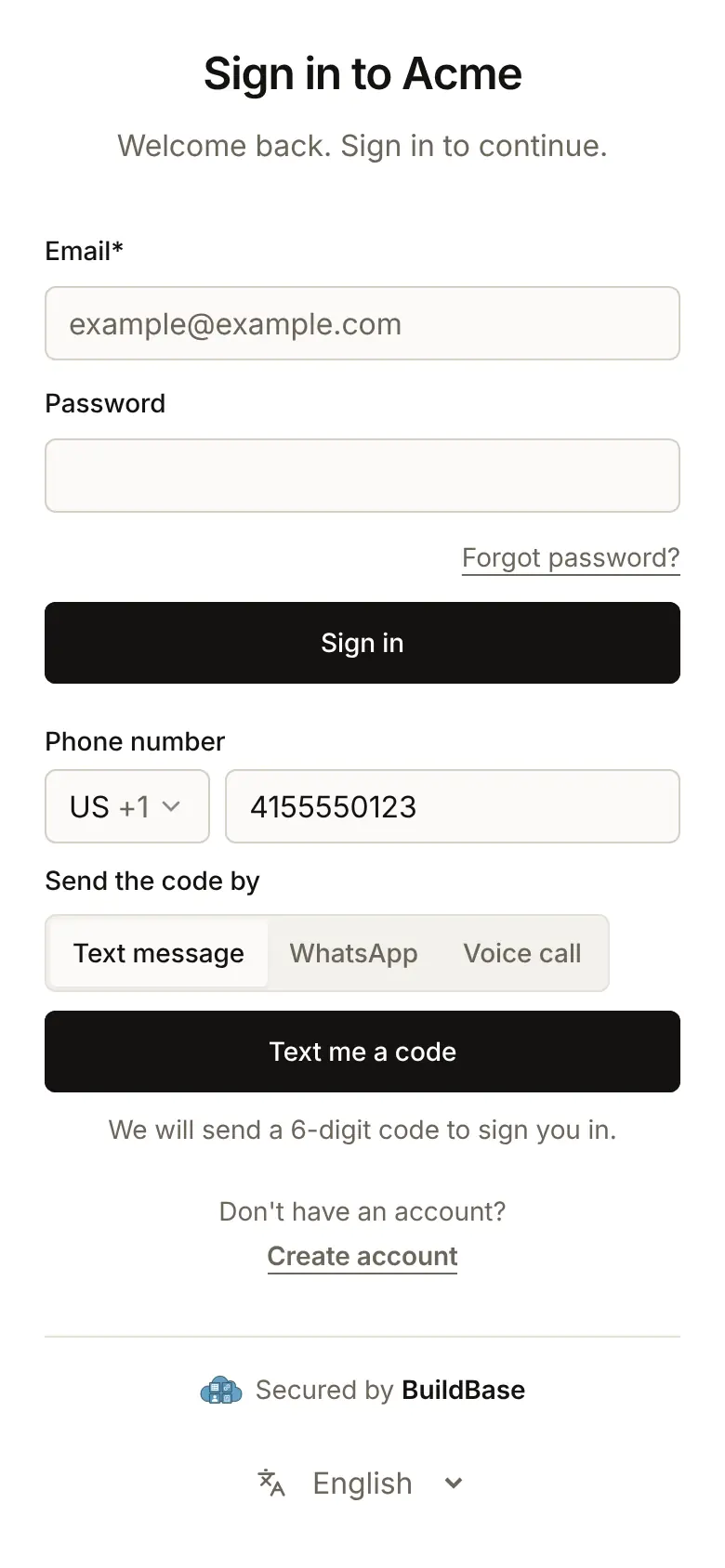
- Continue with phone opens the phone form: the country, the number and, with more than one channel, how to send the code. The button names the channel, such as Text me a code.
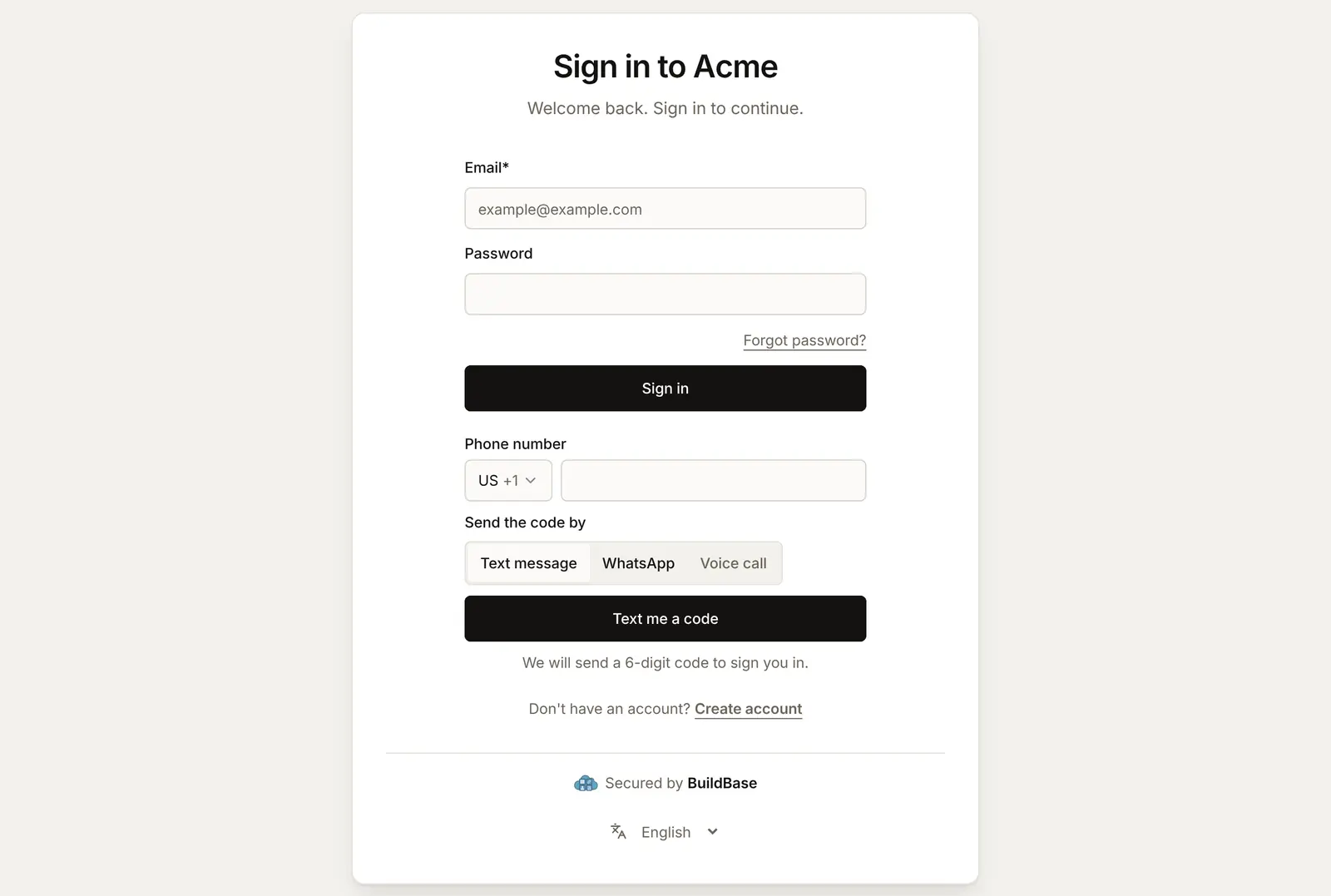
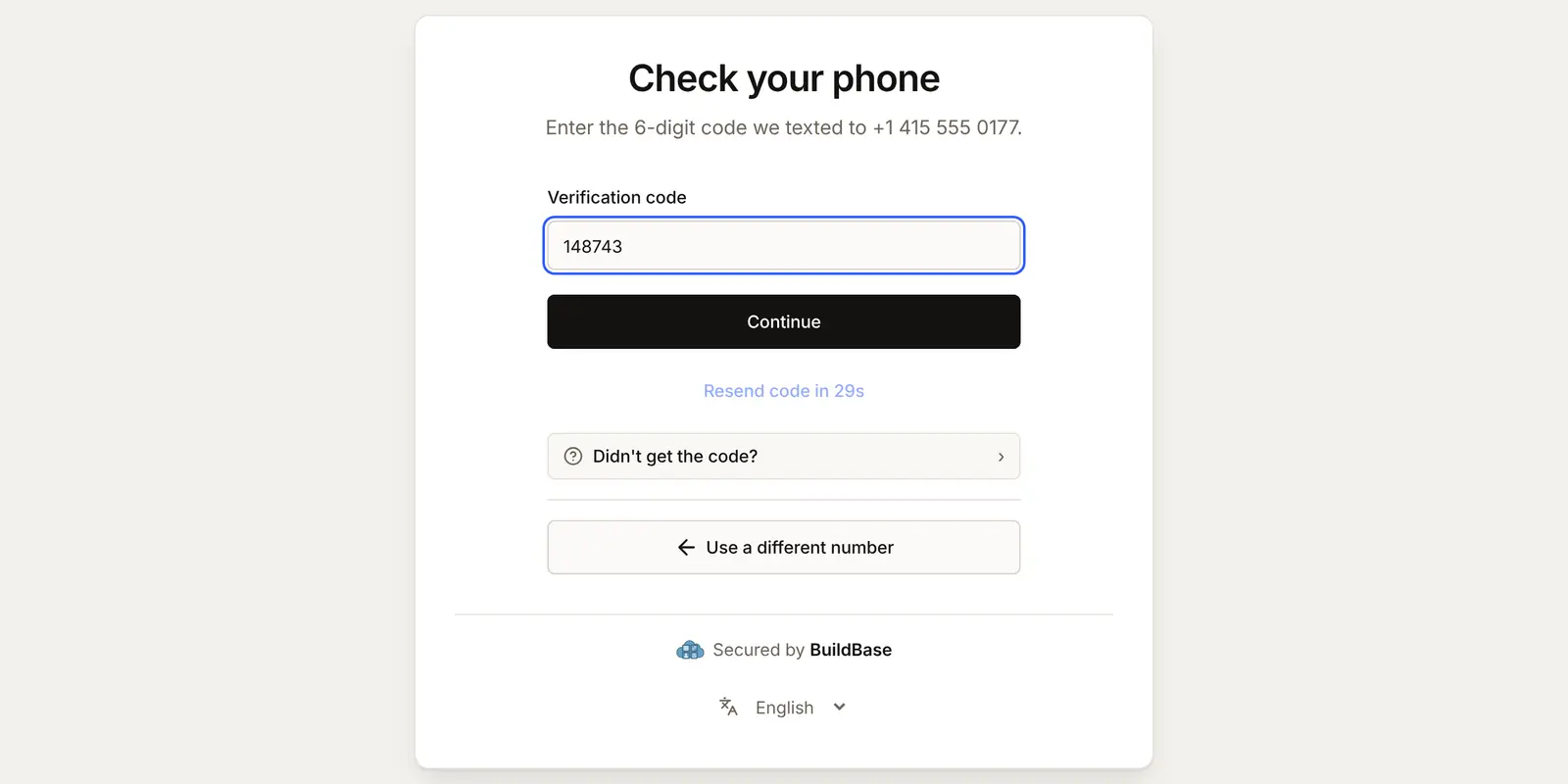
- Check your phone asks for the 6-digit code. It lasts 10 minutes and allows 5 tries; Resend code works after 30 seconds, and a new code replaces the last.
- A number with no account goes to Finish creating your account for a name and an email, then confirms the email with a code, as after any sign-up. A number that has an account is signed in, after a second step if you ask for one.
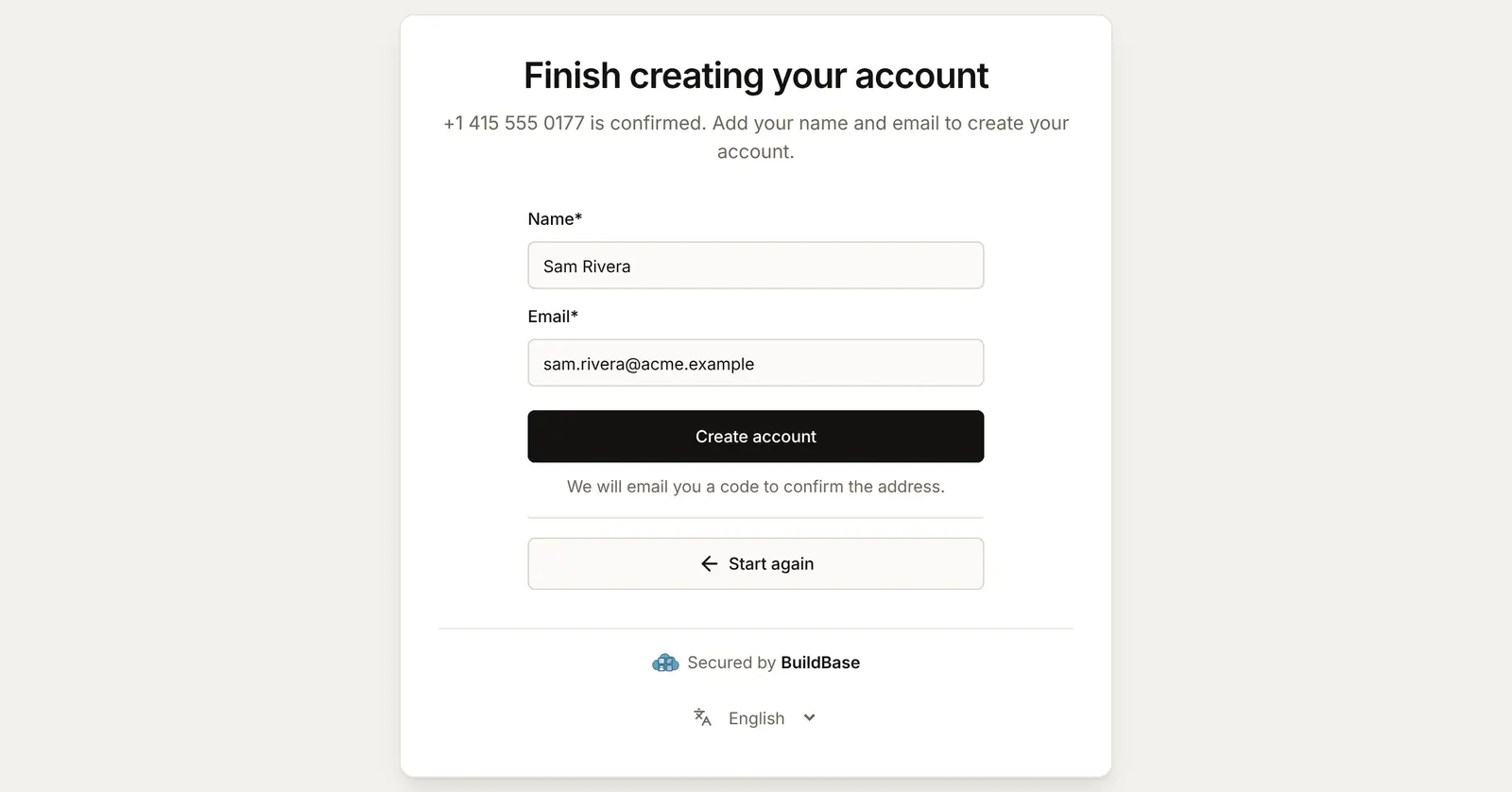
A number with an account and one without get the same answers until the code is right, so nobody can use the page to find out who has an account. An email that already belongs to another account is never given the phone. On a phone the form fills the screen:
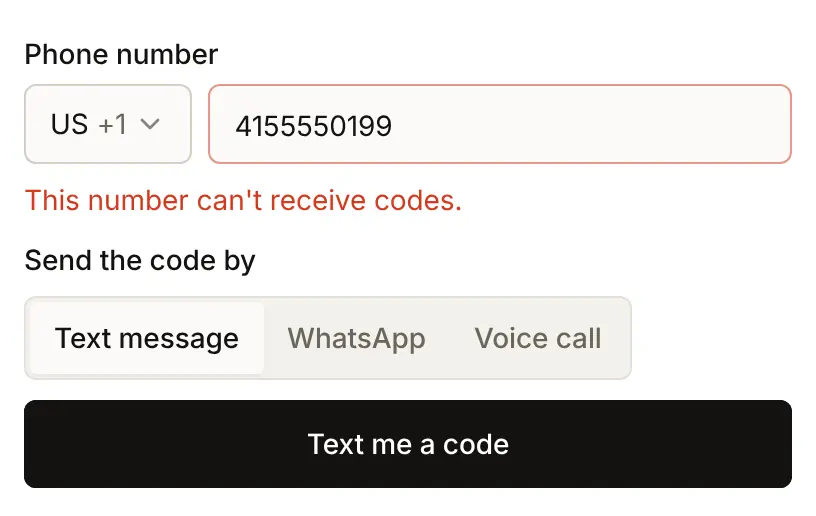
A number your provider refuses is said under the field:
The delivery log
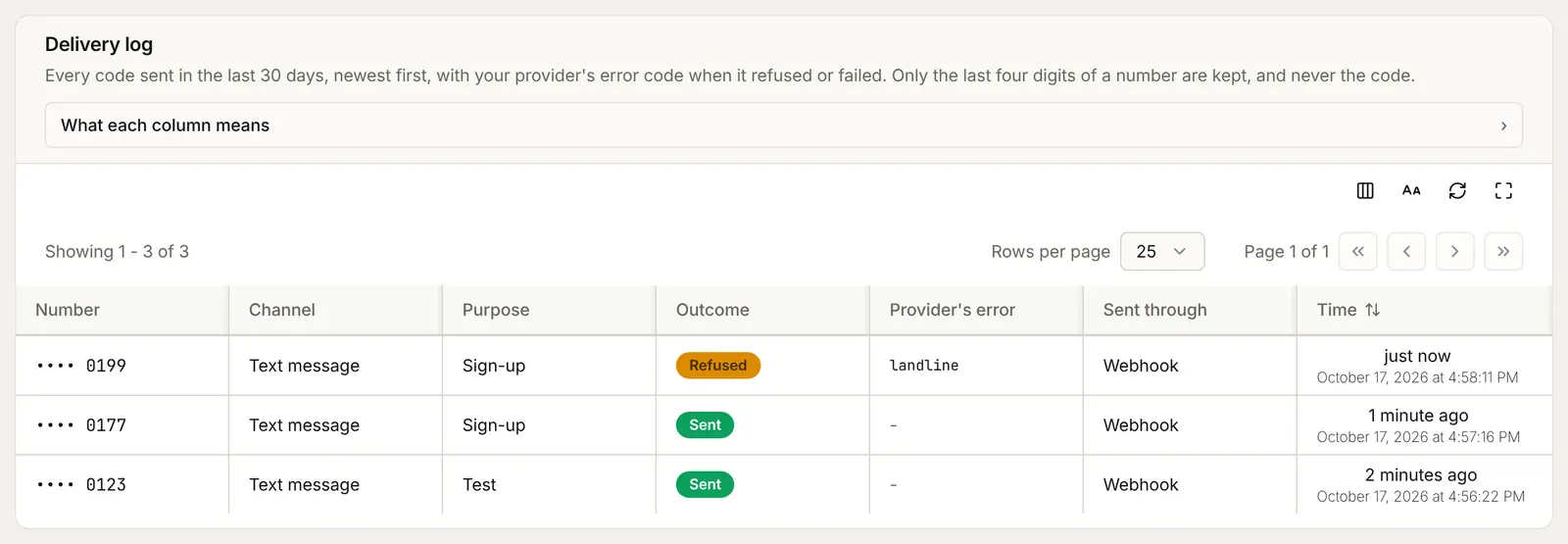
The Delivery log at the bottom of the SMS tab lists every code of the last 30 days, newest first: the last four digits of the number, the channel, what it was for, the outcome and your provider's error code. The full number and the code are never kept. Sent means your provider accepted the message, not that it arrived; your provider's own logs have the rest.
In your app (SDK)
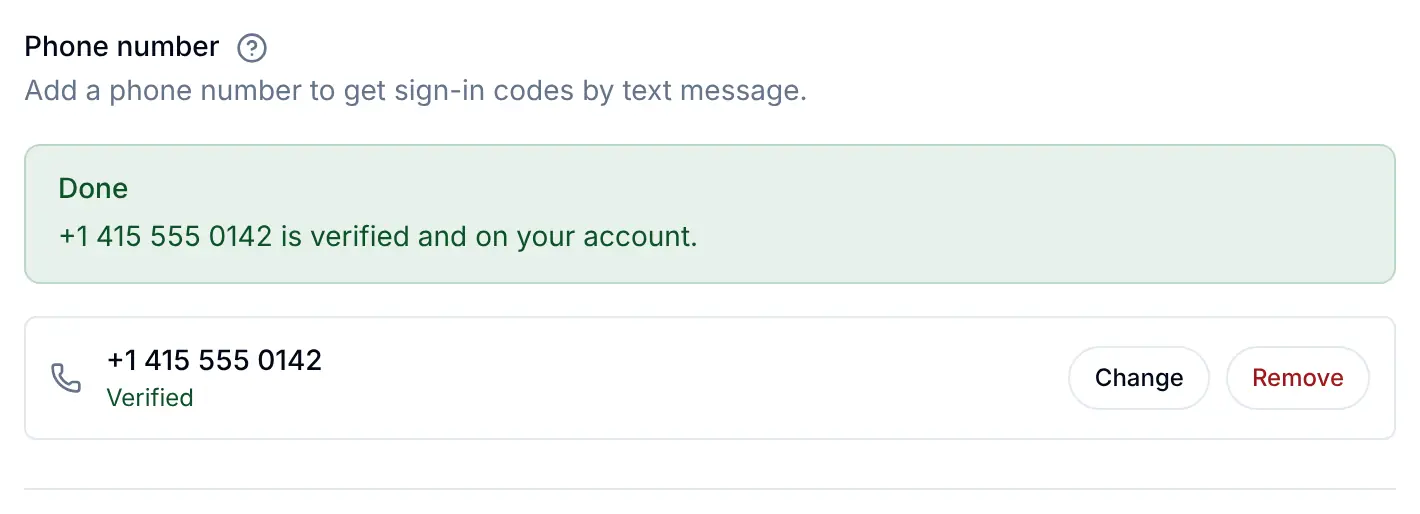
The SDK's Security screen has a Phone number section where a signed-in person adds a number, confirms it with a texted code, changes it or removes it. A verified number is also where text message codes for two-step sign-in go. See Account security screens.
Check it works
- The SMS tab says Connected, and a test code reaches your phone.
- The Delivery log shows the test as Sent.
- Phone is listed on the Methods tab and ticked on your app.
- The live page shows Continue with phone, and a new number can sign up with the code it receives.
- Your provider allows only the countries your users are in.
Things to watch out for
- A Twilio trial account sends only to numbers you have verified in Twilio. Upgrade the account before real people try to sign in.
- WhatsApp needs a WhatsApp sender of your own. Since 1 March 2024, Twilio Verify sends WhatsApp codes only from your own WhatsApp sender. Tick WhatsApp only once your Verify service has one. A Messaging Service or a single number sends text messages only.
- Without Verify, the text is fixed and in English. Through a Messaging Service or a number, the message always reads "Your verification code is" and the code. Verify sends Twilio's own wording in the person's language.
- A United States number of your own needs A2P 10DLC registration. Twilio says anyone texting United States numbers from an app over a regular 10-digit number must register, and charges extra carrier fees otherwise. Verification codes sent through Verify are the exception.
- Allow only the countries your users are in. Turn off every other country under Geo permissions in Twilio, and turn on Twilio's SMS fraud protection, before you go live.
- Your own endpoint has 5 seconds and one try. A slow or failing endpoint means the person sees "Codes can't be sent right now." BuildBase does not try again.
- Test codes are real messages. Each one is on your provider's bill and counts toward the daily cap.
If something goes wrong
| What you or the person sees | Why | What to do |
|---|---|---|
| Twilio's own message when you press Connect, or "Twilio could not be reached. Try again." | Twilio refused the account SID, auth token or Verify service | Copy the values again from Account Info and Verify |
| "That URL cannot be reached from BuildBase. Use a public HTTPS address." | The endpoint address is private or not reachable | Use a public HTTPS address |
| No Continue with phone on the sign-in page | No provider connected, or Phone is not ticked on the app | Connect a provider, tick Phone and press Update |
| "Enter a valid phone number, with its country code if it is not local." | Not a valid number | Type the number with its country code |
| "This number can't receive codes." | Your provider refused the number (a 422 from your endpoint) | The delivery log shows the reason |
| "Wait 30 seconds before asking for another code." (the number is the seconds left) | A code went to this number moments ago | Wait, then press Resend code |
| "Too many codes have been sent to this number. Try again later." | The number's or the address's hourly or daily limit | Wait |
| "Codes can't be sent right now. Try another way to sign in." | The daily cap is reached, the provider failed, or none is connected | Check Sent today, the delivery log and your provider |
| "That code did not match. Check the newest message and try again." | A wrong code, or an older one | Type the code from the newest message |
| "This code has expired. Ask for a new one." | More than 10 minutes, or 5 wrong tries | Ask for a new code |
| "That email address cannot be used here. Use another, or sign in to the account it belongs to and add your phone there." | The email at sign-up already has an account | Sign in to that account and add the phone from its Security screen |
Next steps
- Two-step sign-in - text message codes as a second step.
- Bot protection - a Turnstile check before codes are sent.
- Phone sign-in reference - the API routes, events and every refusal.
- Set up sign-in, step by step - every sign-in guide, and the order to set them up in.