
How long sign-ins last, and signing people out
Set how long a sign-in and a trusted device last, how long a connected app or agent keeps working, and sign one person out of a device or a session.
A sign-in lasts a set number of days. A device the person chose to trust stays signed in longer and is not asked again. An app or AI agent a person approved keeps working for its own number of days. You set all three on the Security tab of Authentication. When one person needs signing out, of one device or one session, you do it from their page in Users.
Before you start
A console role that can change your sign-in settings. Changes apply to new sign-ins; a shorter limit also ends older connections at their next refresh, as each field says.
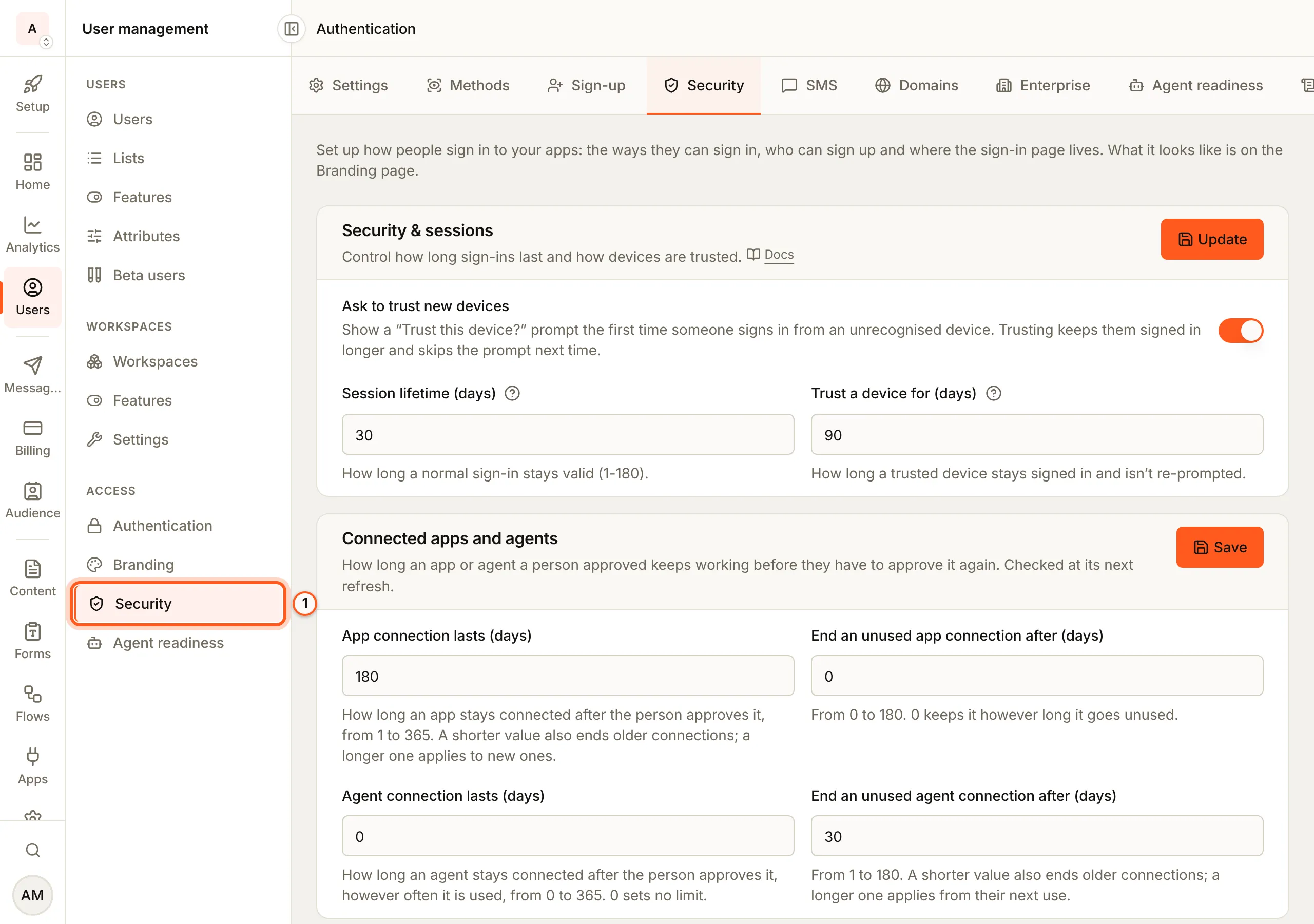
1. Open Security
Open Security in the console (opens the console in a new tab)In the left rail choose Users, then Security under Access. It is the Security tab of Authentication.
2. How long a sign-in lasts
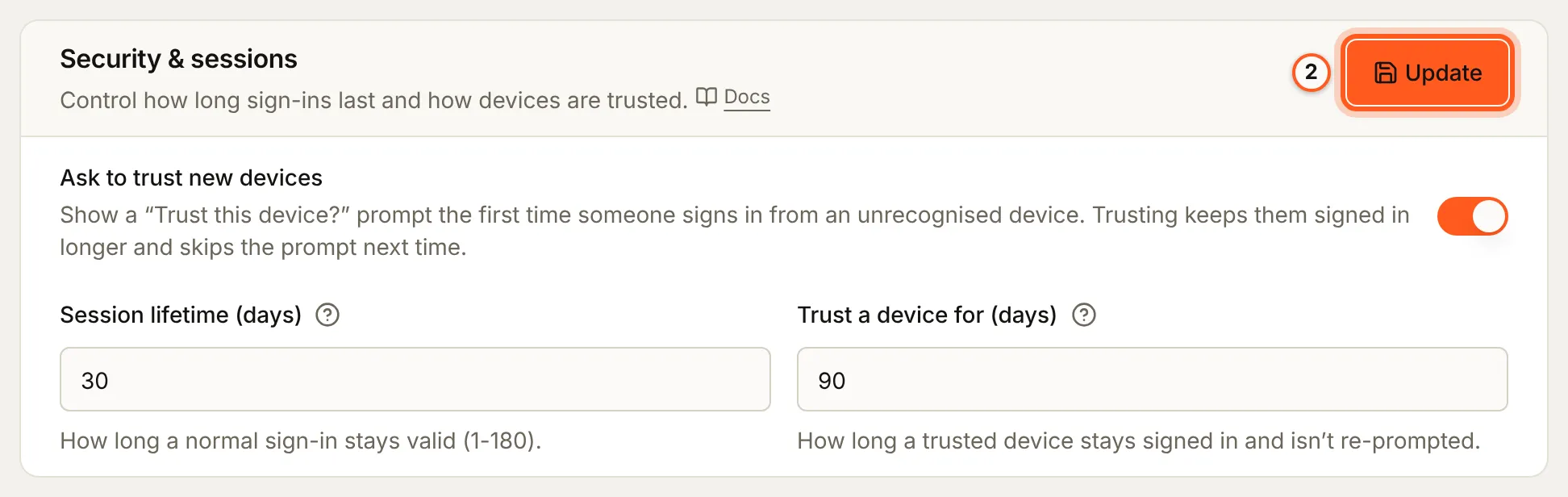
In Security & sessions:
- Ask to trust new devices: the first time someone signs in from a device the platform does not recognise, they are asked Trust this device? Trusting keeps them signed in longer and skips the question next time.
- Session lifetime (days): how long a normal sign-in stays valid, from 1 to 180.
- Trust a device for (days): how long a trusted device stays signed in and is not asked again.
Press Update.
3. How long a connected app or agent lasts
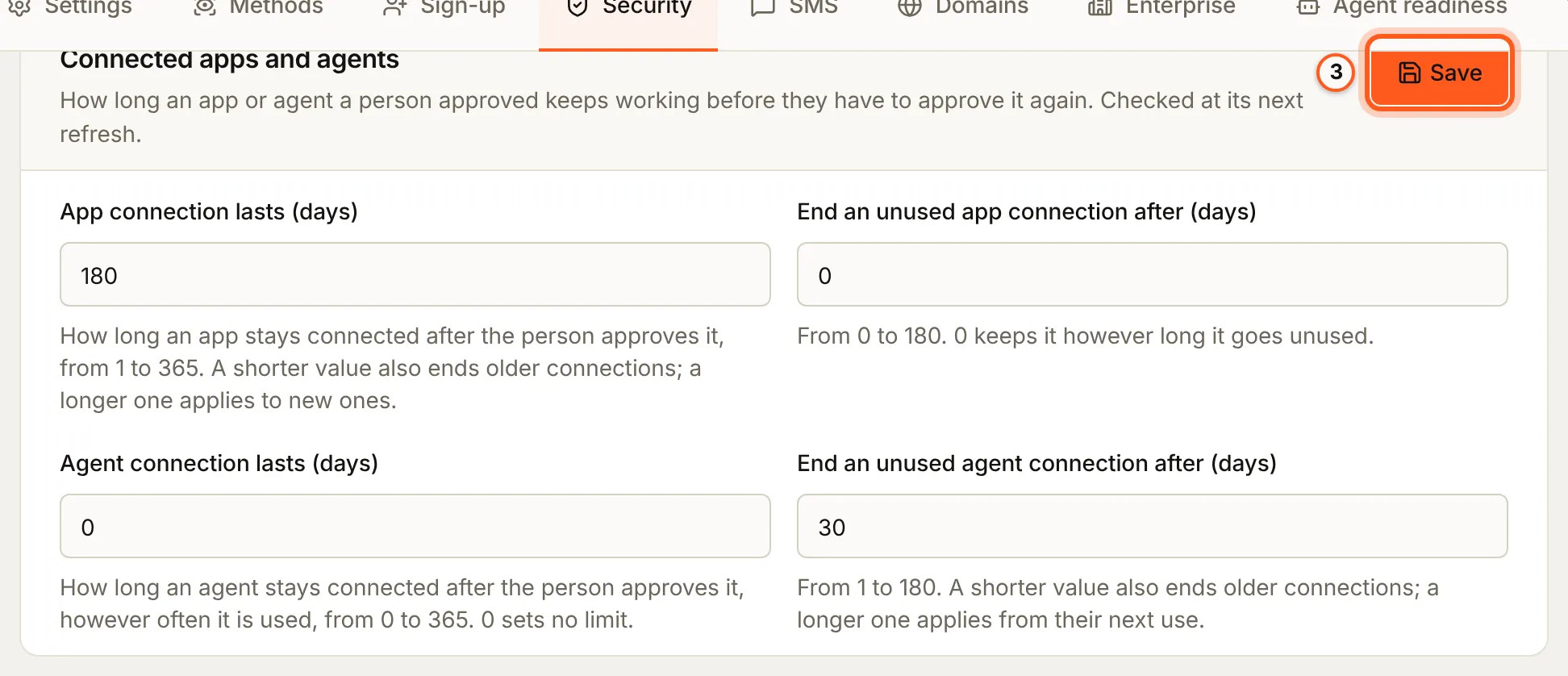
When a person approves another app or an AI agent to act for them, the connection keeps working until it ends here. In Connected apps and agents:
- App connection lasts (days): from 1 to 365, however often the app is used.
- End an unused app connection after (days): from 0 to 180; 0 keeps it however long it goes unused.
- Agent connection lasts (days): from 0 to 365; 0 sets no limit.
- End an unused agent connection after (days): from 1 to 180.
Press Save. A shorter value also ends older connections; a longer one applies from their next use.
4. See one person's devices
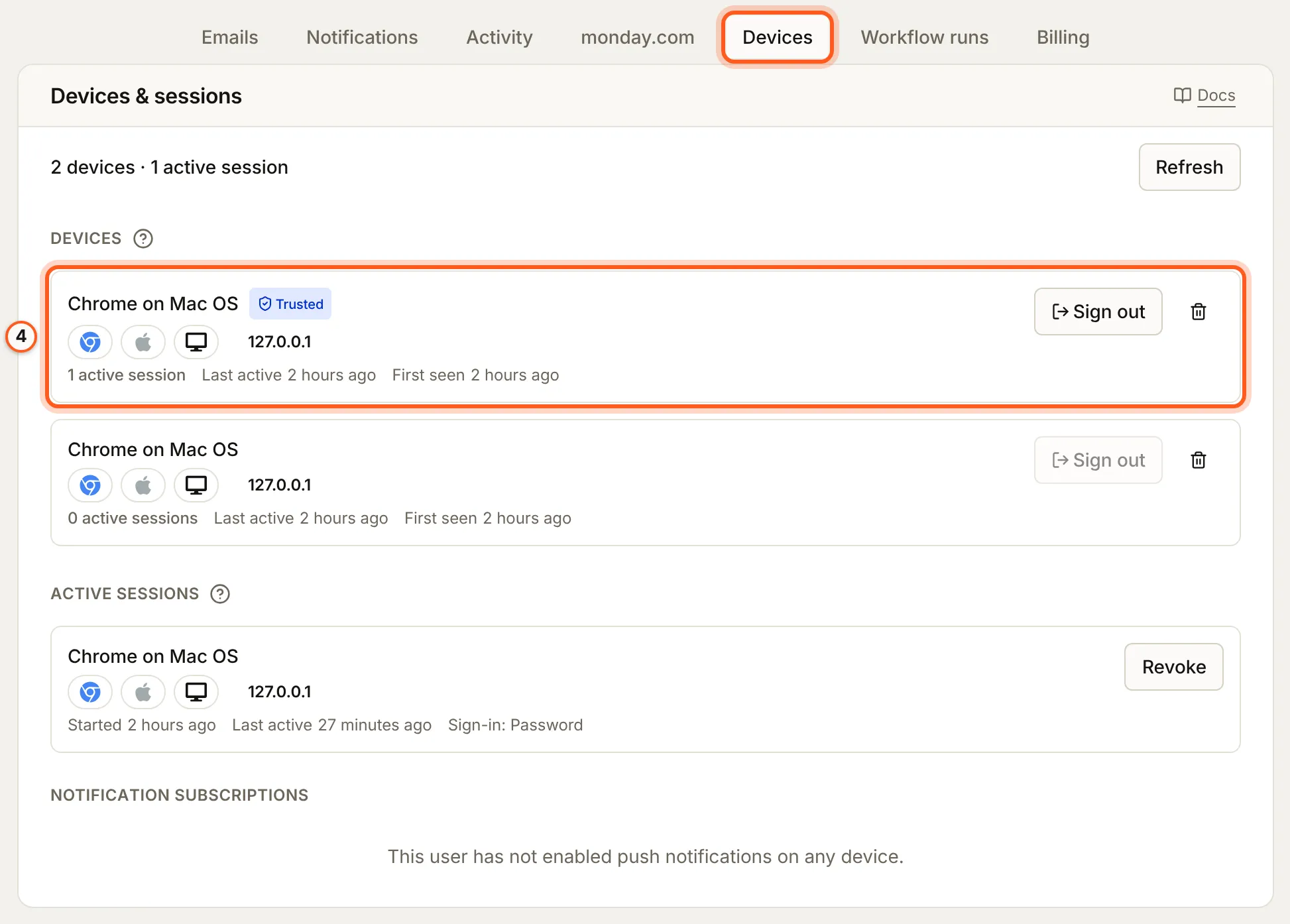
In the left rail choose Users, open the person, and choose the Devices tab. Devices & sessions lists each device they signed in on, with its browser, system and IP address, how many sessions are live on it, and whether they trusted it. Under it, Active sessions lists each live sign-in.
5. Sign them out
- Sign out on a device ends every session on it. They stay signed in on their other devices.
- The bin beside it, Sign out and remove, also removes the device from their history, so it is unrecognised, and asked to be trusted, next time.
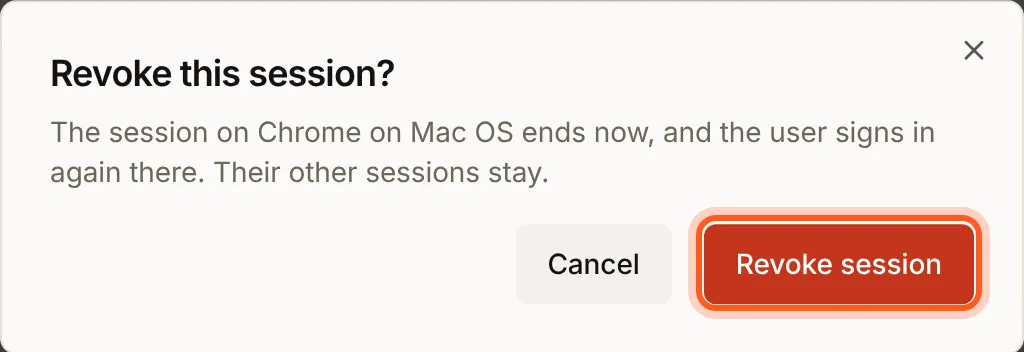
- Revoke on a session under Active sessions ends that one session. Confirm with Revoke session.
The person can do the same for themselves in your app, on the Devices screen of the SDK's settings dialog. Over the API, DELETE /api/users/:id/devices/:deviceId and DELETE /api/users/:id/sessions/:sessionRef do it for a support tool of your own (Users).
A lost phone
When someone with two-step sign-in loses their phone and their backup codes, open their page and choose More, then Reset two-step sign-in. The item shows only for someone who has two-step sign-in on. See Two-step sign-in.
Check it works
Sign in to your app as a test user in two browsers. Their Devices tab shows two devices. Sign out one: that browser is signed out on its next request, and the other stays signed in.
Things to watch out for
- Signing out does not block. The person can sign in again at once. To stop them, use Block on their page.
- A trusted device lasts longer than a session. Trust a device for (days) decides how long a trusted device stays signed in, not Session lifetime (days).
- A shorter connection limit ends older connections. Lowering a limit under Connected apps and agents ends the connections already older than it; raising one applies from each connection's next use.
Next steps
- Set up sign-in, step by step - every guide, in the order to set them up.
- Sessions and tokens - devices and sessions from the developer's side.
- Two-step sign-in - a second step at sign-in, and trusted devices.
- Users - everything on a person's page.
- Agent access - agents that act for your users.