
A Company's Admins, Roles and Groups
Make a company's own roles, group its people with the workspaces and role each group gives, and let its IT admin assign roles in WorkOS.
A company's own admins can manage parts of its setup in your app: its activity, its people, its access policy. What each of them may do is a company role, held by a person directly or through a group, and the company's IT admin can assign them from its identity provider through WorkOS. The reference has how roles add up.
Before you start
- A company with Enterprise SSO set up (Enterprise SSO).
- An owner or admin role in the console.
Open the Enterprise tab in the console
(opens the console in a new tab)1. Make a company role
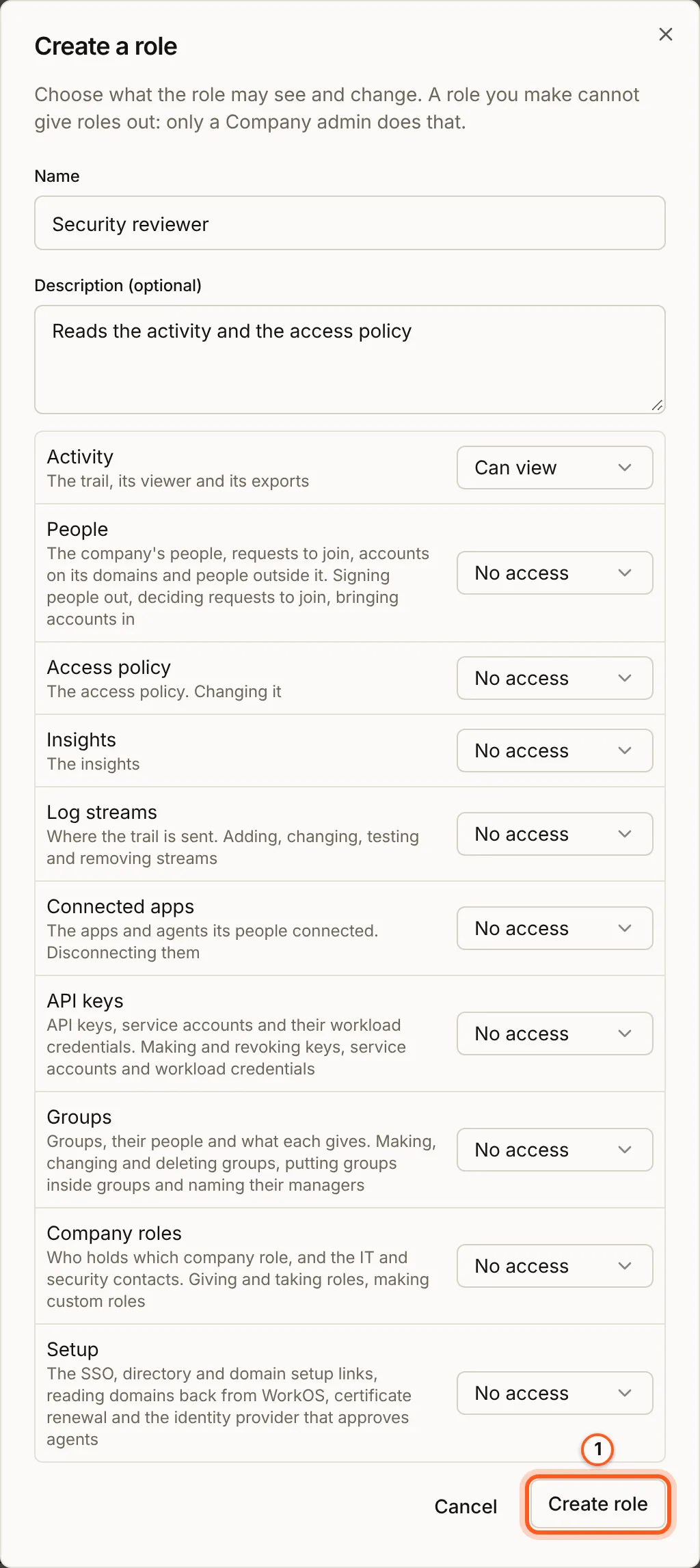
On the Enterprise tab, open the company and scroll to Company roles. Press Create role. In Create a role, give it a Name and a Description (optional), and choose what it reaches in each area, from No access to Can view or more: Activity, People, Access policy, Insights, Log streams, Connected apps, API keys, Groups, Company roles and Setup. Press Create role. A role you make cannot give roles out: only a Company admin does that.
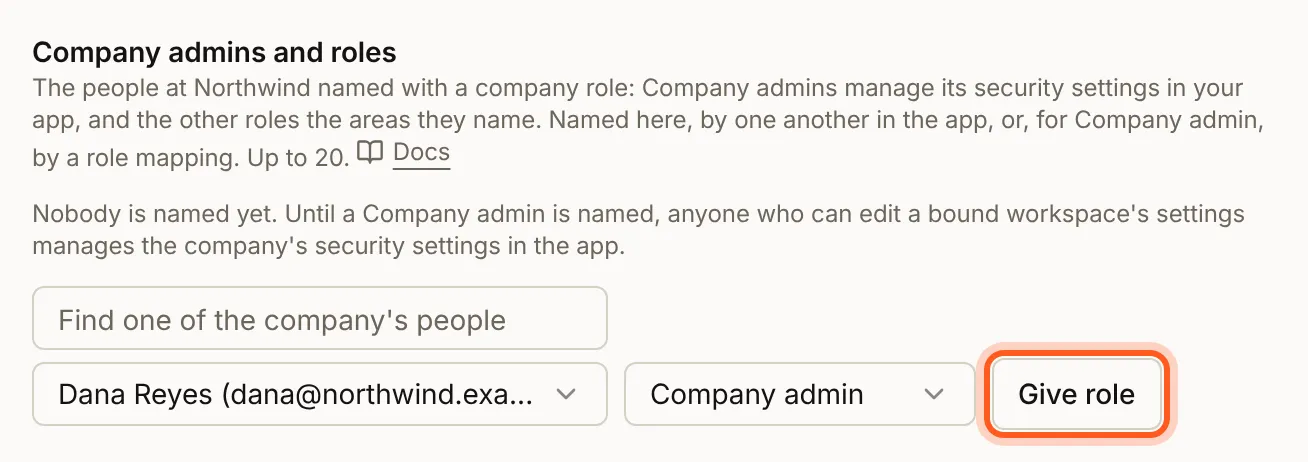
Give it to one of the company's people with Give role under Company admins and roles: choose the person, then the role.
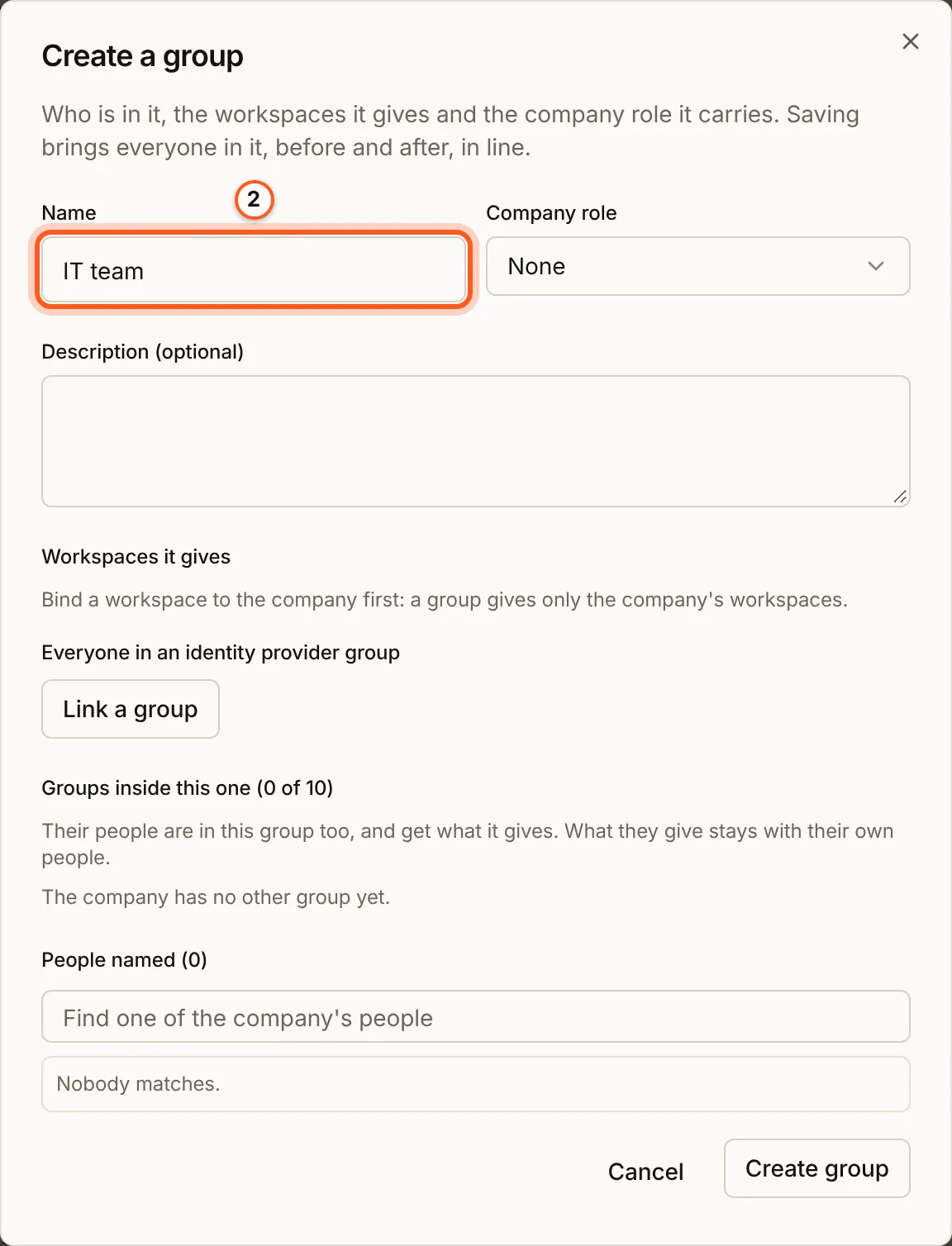
2. Group the company's people
Under Groups, press Create group. In Create a group, give it a Name, the Company role it carries, the Workspaces it gives, and its people: named one by one, Everyone in an identity provider group with Link a group, or Groups inside this one. Press Create group; saving brings everyone in it in line. Name manager lets one of its people manage the group from your app (group managers).
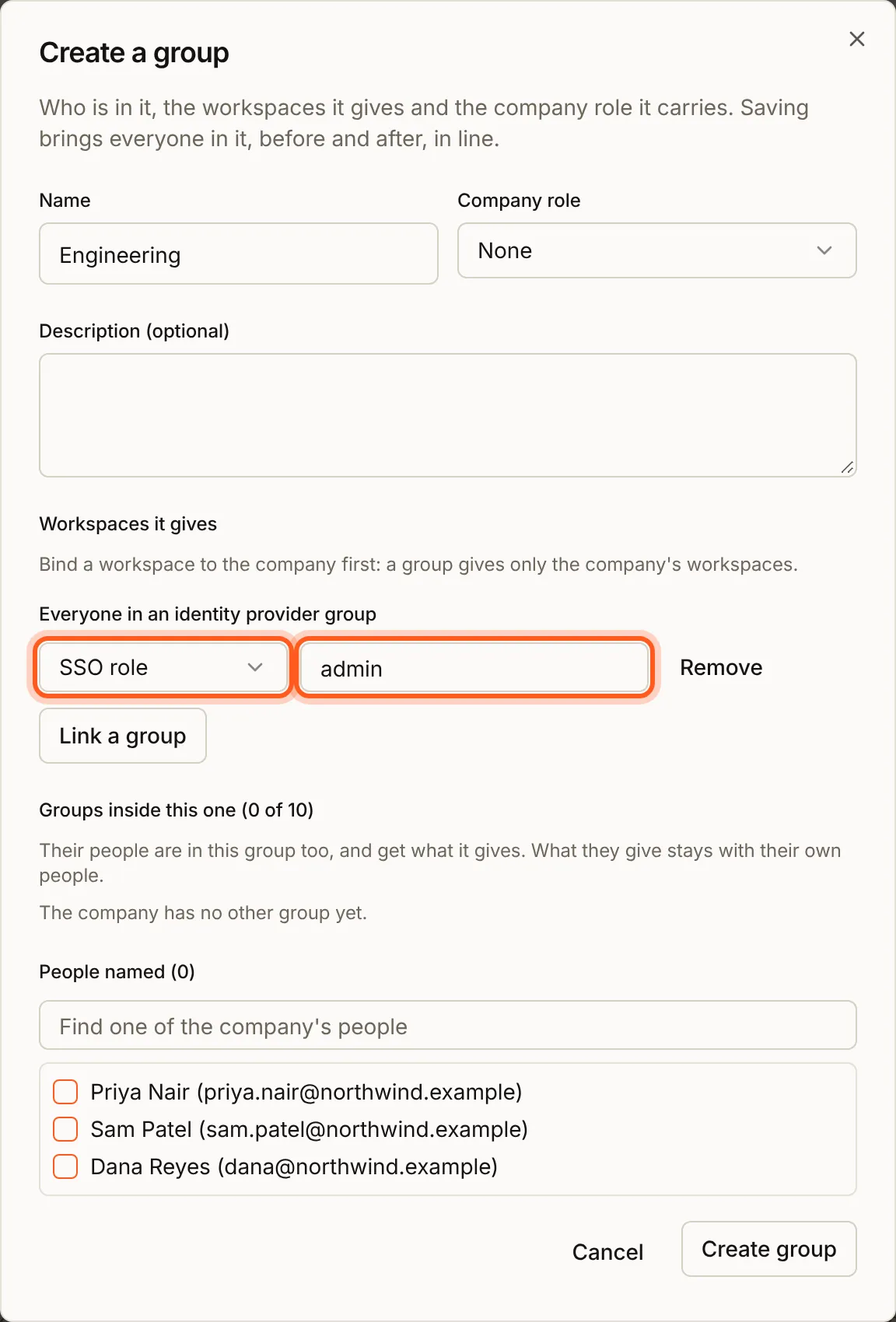
For everyone in one of the company's own groups, press Link a group, choose SSO role and type the role's slug: the role the company's IT admin gave that group in the setup portal (admin here, for everyone in Okta's Northwind Engineering). WorkOS sends the role at sign-in, not the group (groups from the identity provider). Directory group links a group from the company's directory, and SSO group a group name, only where a connection's sign-ins carry them:
3. Let the IT admin assign roles in WorkOS
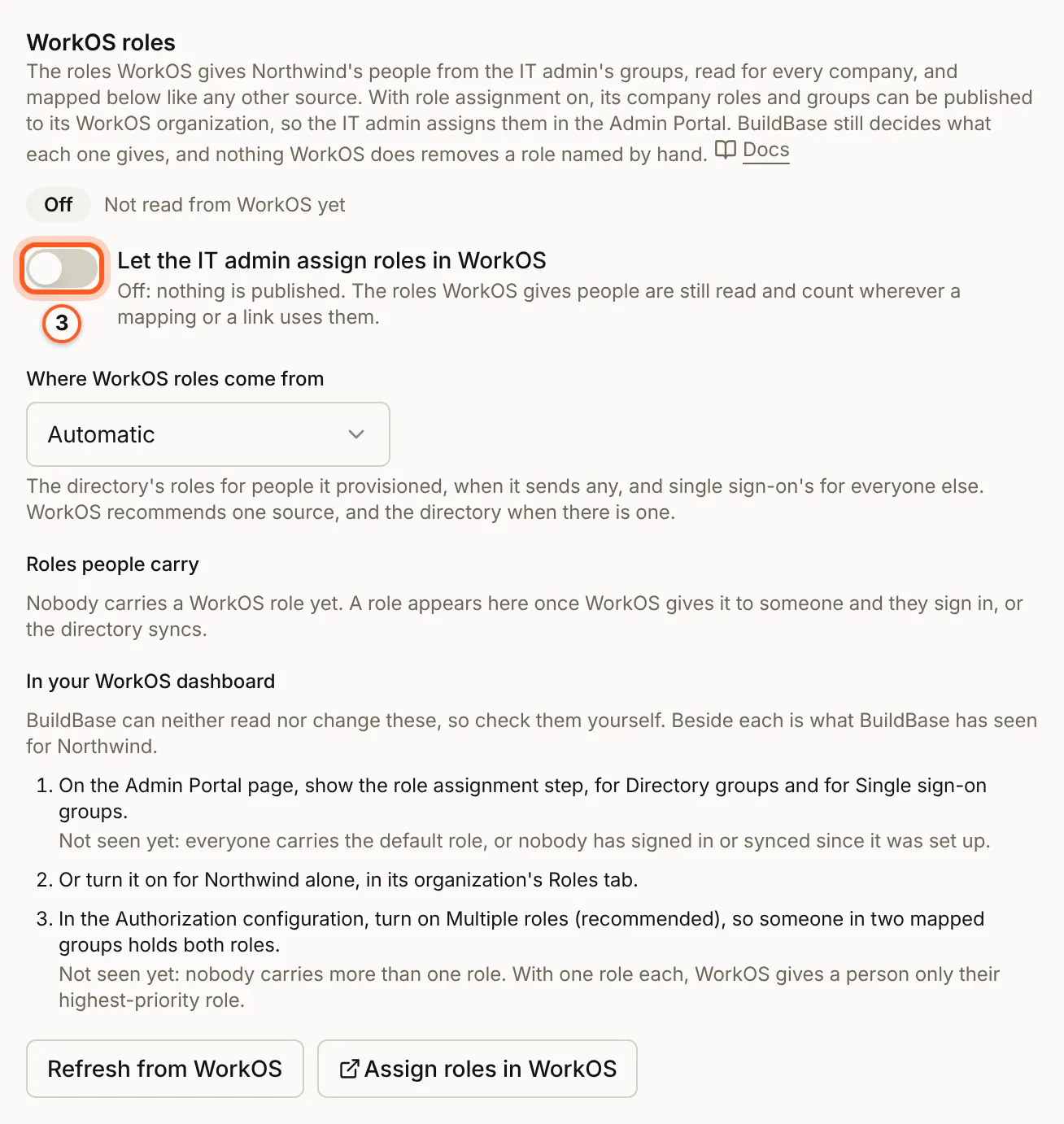
WorkOS roles shows the roles WorkOS gives the company's people from the IT admin's groups. Turn on Let the IT admin assign roles in WorkOS to publish the company's roles and groups to its WorkOS organization, so the IT admin assigns them in the Admin Portal; BuildBase still decides what each one gives. Where WorkOS roles come from says which source counts (Automatic takes the directory's roles for people it provisioned and single sign-on's for everyone else); Assign roles in WorkOS opens the portal, and Refresh from WorkOS reads the roles again (let the IT admin assign roles in WorkOS).
Check that it worked
Sign in to your app as a person given a company role: the company settings show only the sections that role reaches.
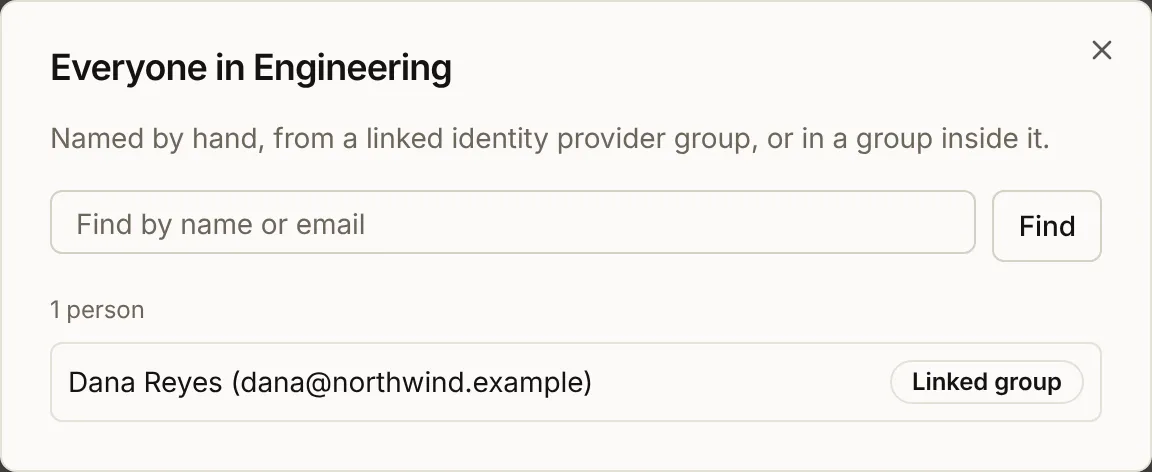
A linked group holds whoever the identity provider gives the role, from their next sign-in. On the group, Everyone in it lists them and how each one is in it:
Things to watch out for
- Name a Company admin first. Until the company has one, anyone who can edit a bound workspace's settings manages everything. A request beyond someone's role is refused with
403 company_role_required. - A personal company API key can do no more than its owner's roles, and stops when they lose every role.
- Deleting a role published to WorkOS is refused; Delete anyway deletes it here and leaves it in WorkOS until the IT admin removes it there.
Next steps
- Groups and roles - how roles add up, and WorkOS roles in sync
- Directory sync - people and groups from the company's directory
- Sign-in setup guides - every other way to sign in