
A Company's API Keys, Service Accounts and Agents
Give a company's tools a service account and an API key, let its workloads in without a stored key, and let its identity provider approve agents.
A company you sell to can call your app's company API from its own tools: its SIEM reading the activity, a script managing its people. Each tool gets a service account, which is not a person and never signs in, and an API key that keeps working when people leave. Its CI jobs and cloud workloads can use the account with no stored key at all, and its identity provider can approve the AI agents that act for its people. The company API reference has every route and scope.
Before you start
- A company with Enterprise SSO set up (Enterprise SSO).
- An owner or admin role in the console.
Open the Enterprise tab in the console
(opens the console in a new tab)1. Add a service account
On the Enterprise tab, open the company and scroll to Service accounts. Type a Name and, if you like, a Description (optional), and press Add service account. A company has up to 20; deleting one revokes its keys.
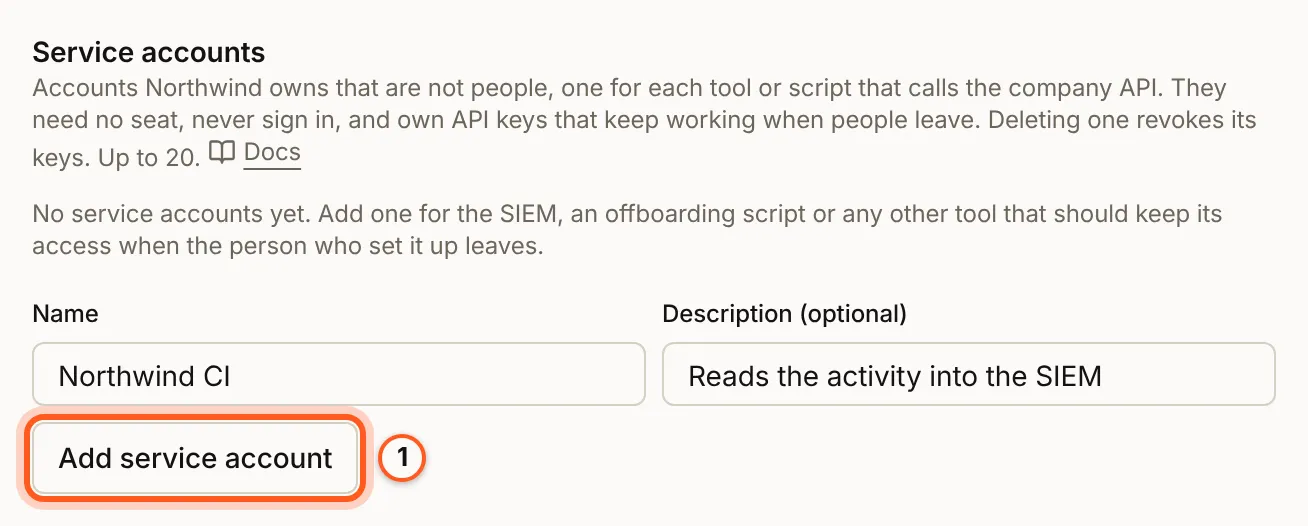
2. Create a key
Under API keys, press Create key. In Create an API key for the company, give it a Name, choose the Service account that owns it, tick only the Scopes its tool needs, choose its Lifetime, and list Addresses (optional) it may be used from. Press Create key.
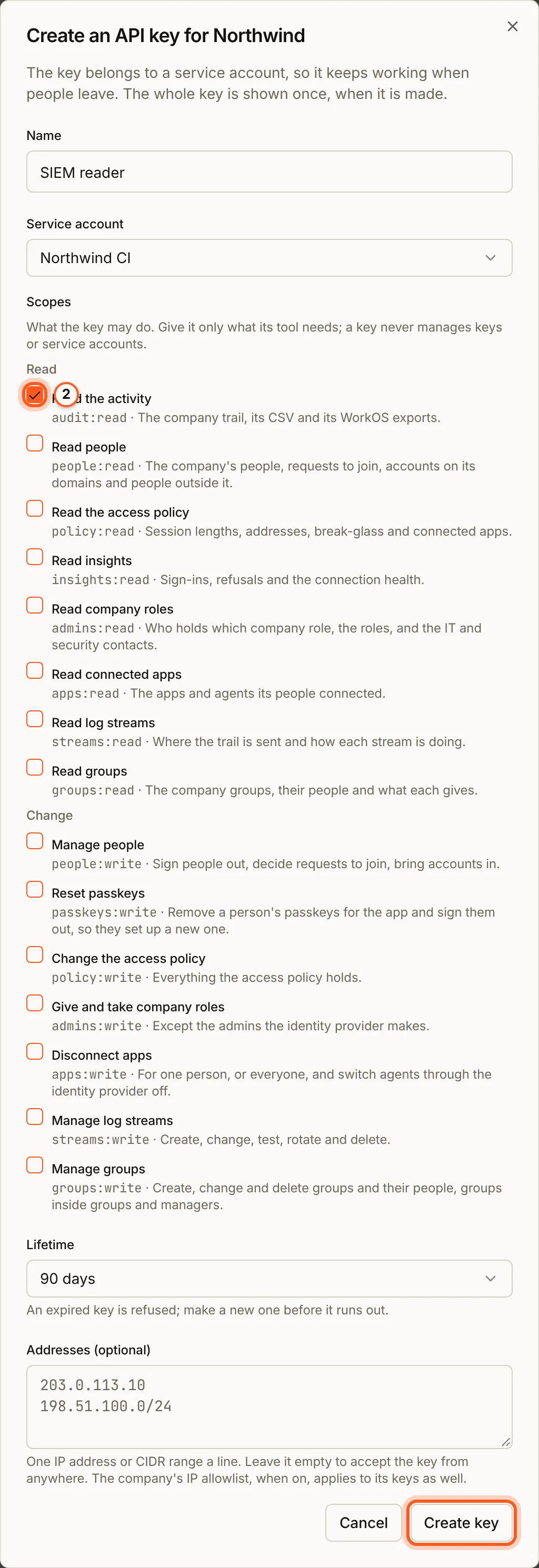
3. Copy it now
The whole key is shown once, with the company API's address and a command to try it. Copy it into the tool, then press I have copied it. BuildBase keeps only a hash: a lost key is revoked and made again. It starts with bbck_, so secret scanners can spot it.
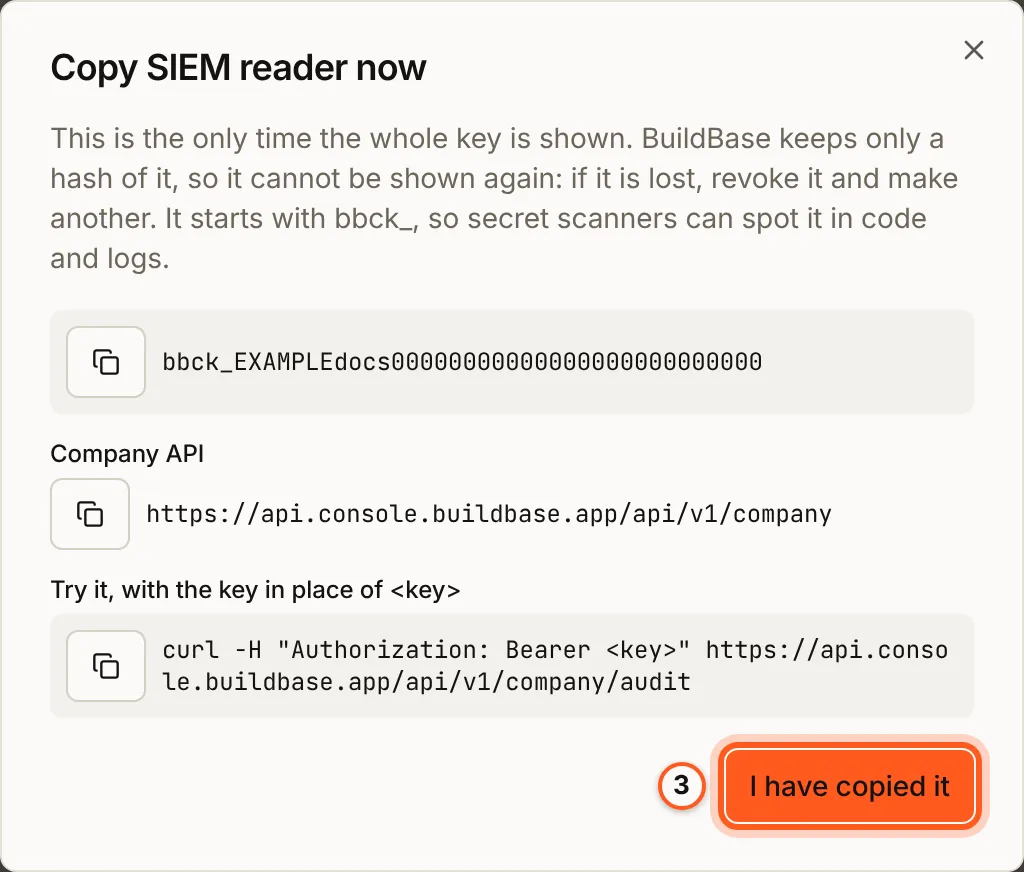
4. Let workloads in without a key
On the Enterprise tab, Workload identity for service accounts lets a company's CI jobs and cloud workloads act as one of its service accounts with their own short-lived token, from GitHub Actions, GitLab, Google Cloud, AWS, Microsoft Entra or another OpenID Connect issuer. Turn on Allow workloads; then each service account offers Add workload credential, pinned to the workload's repository or account (workload identity).

5. Let the identity provider approve agents
On the Agent readiness tab, turn on Let companies' identity providers approve agents. Then a company's page, under Agents approved by the identity provider, takes its Identity provider and Tenant and keys URL; press Check, then Approve, and the agents its identity provider approves act for its people with no consent screen. Built for Okta, which calls it Cross App Access (agents).

Until that switch is on, the company's section says so:
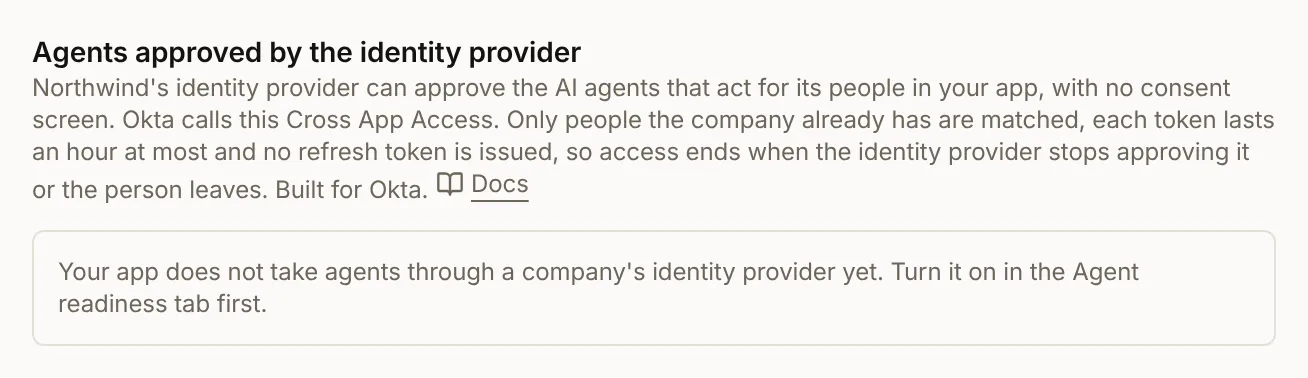
6. See the apps its people connected
Connected apps lists the third-party apps and agents the company's people connected to their accounts, by their own consent or approved by the identity provider; Disconnect for everyone ends one app's access for all of them. Which apps may connect at all is in the access policy.

Check that it worked
Call the company API with the key: the command the key dialog shows answers with the company's activity. A request with a revoked key answers 401 key_revoked.
Things to watch out for
- A key is shown once. BuildBase keeps only a hash of it.
- Give a key only the scopes its tool needs; a key never manages keys or service accounts.
- Turning workload identity off ends every workload token, and a token exchange answers
unsupported_grant_typewhile it is off. - A company that is not available answers
403 company_unavailable.
Next steps
- The company API - its routes, scopes and refusals
- Workload identity - credentials for CI and cloud workloads
- Sign-in setup guides - every other way to sign in