
A Company's Access Policy and Sessions
Set how long a company's people stay signed in, the addresses they may use, who gets in past single sign-on, and sign everyone out when you need to.
Each company you sell to has an access policy for its people, whichever way they sign in: how long a session lasts, the addresses it may come from, and the ways in besides single sign-on. You set it on the company's page in the console; the company's own admins can see and change it in your app too. Every setting is described in the reference.
Before you start
- A company with Enterprise SSO set up (Enterprise SSO).
- An owner or admin role in the console.
Open the Enterprise tab in the console
(opens the console in a new tab)1. Choose how long a session lasts
On the Enterprise tab, open the company, then Access policy. Sign out after inactivity ends a session after that long without a request; Sign out after, however active ends it that long after sign-in, whatever the person does.

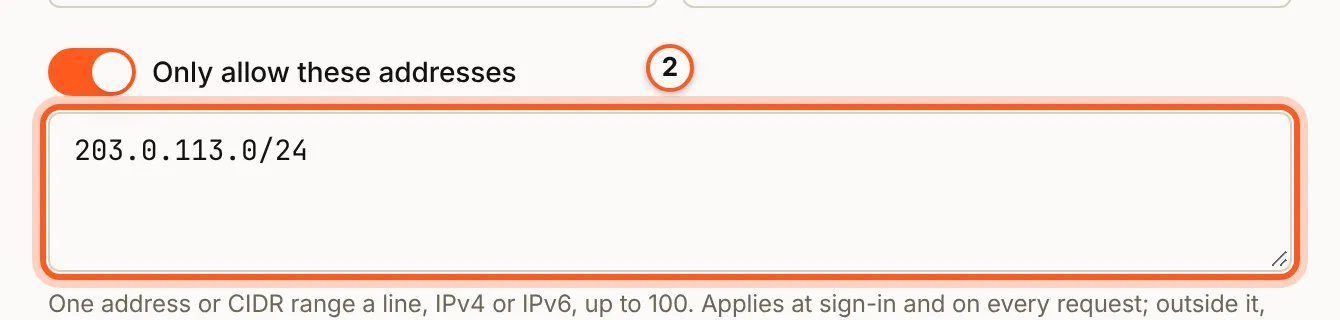
2. Keep it to the company's addresses
Turn on Only allow these addresses and list up to 100 addresses or CIDR ranges, one per line. Outside them a sign-in is refused, and a session's requests get 403 ip_not_allowed until they come from an allowed address again. If your app calls BuildBase from its own server with a person's session, add that server's addresses too.
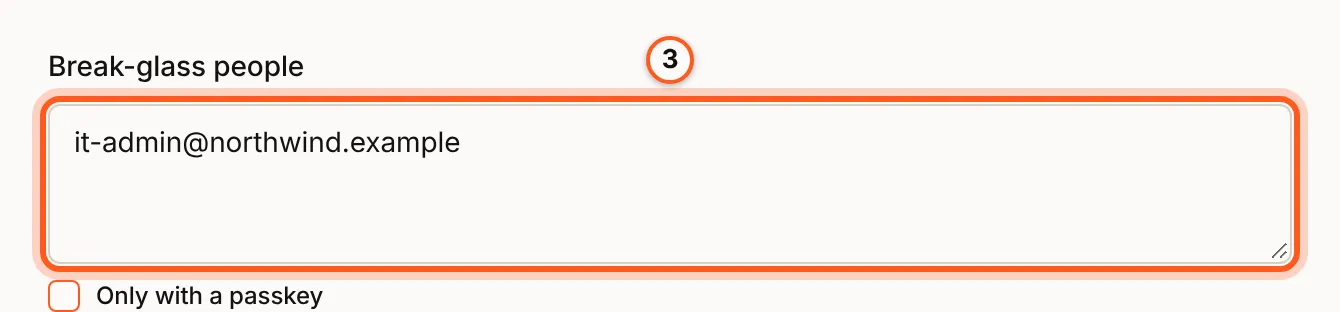
3. Name the break-glass people
Break-glass people are up to five of the company's people, by email, who may sign in another way while single sign-on is required, for when the identity provider is down. Only with a passkey limits them to a passkey. They must already be one of the company's people.
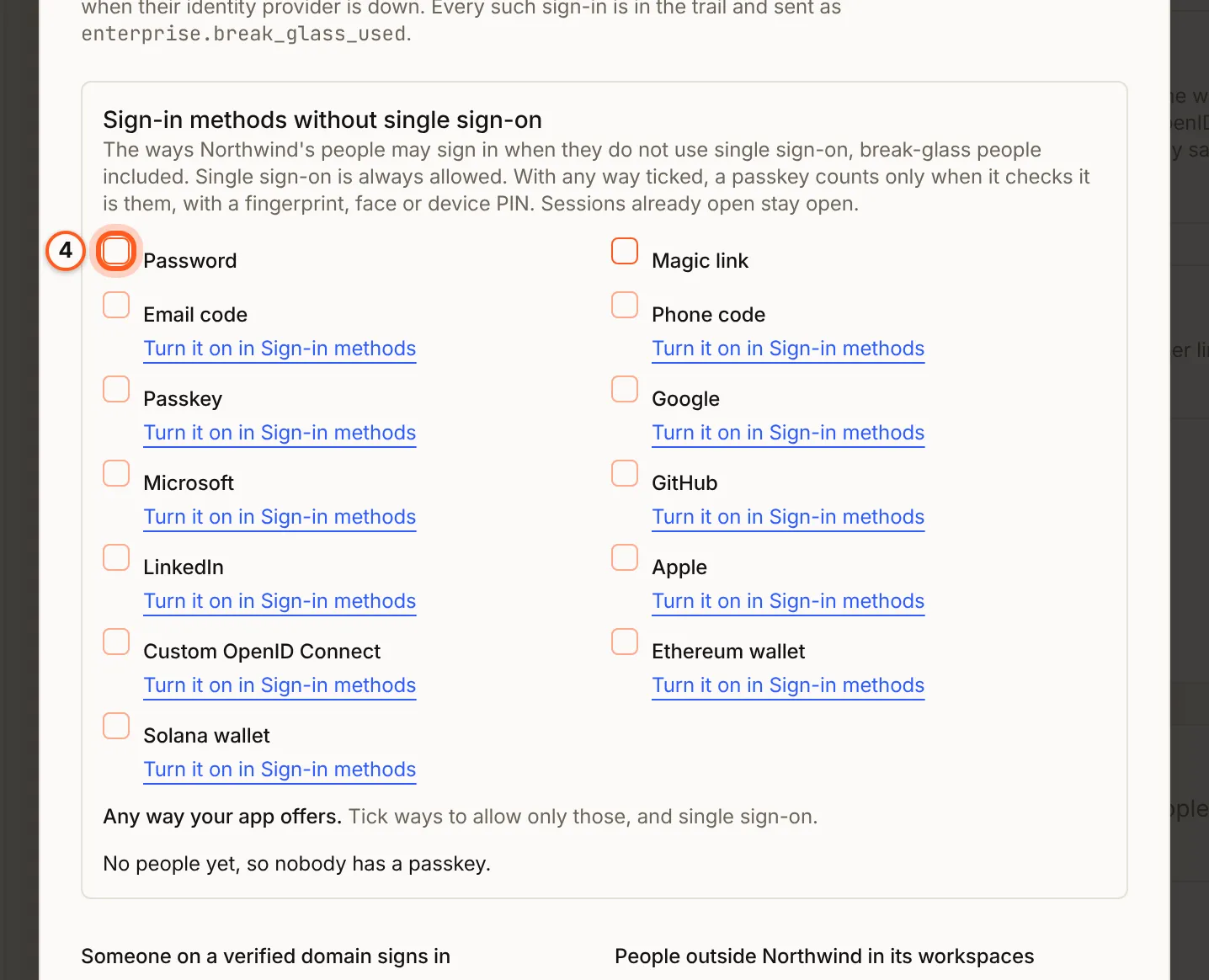
4. Choose the ways in without single sign-on
Sign-in methods without single sign-on lists the ways the company's people may sign in when they do not use single sign-on, break-glass people included. Single sign-on is always allowed; none ticked means every way your app offers (reference).
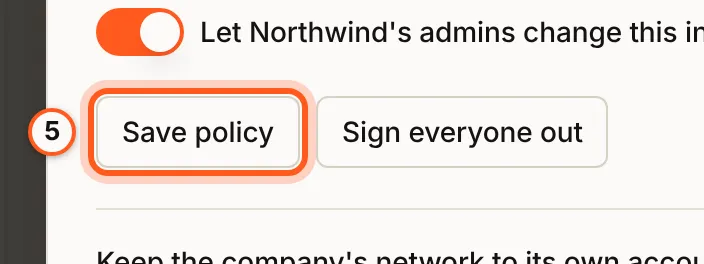
5. Save the policy
Press Save policy. A policy that limits or blocks people outside the company in its workspaces asks you to confirm first.
Sign everyone out
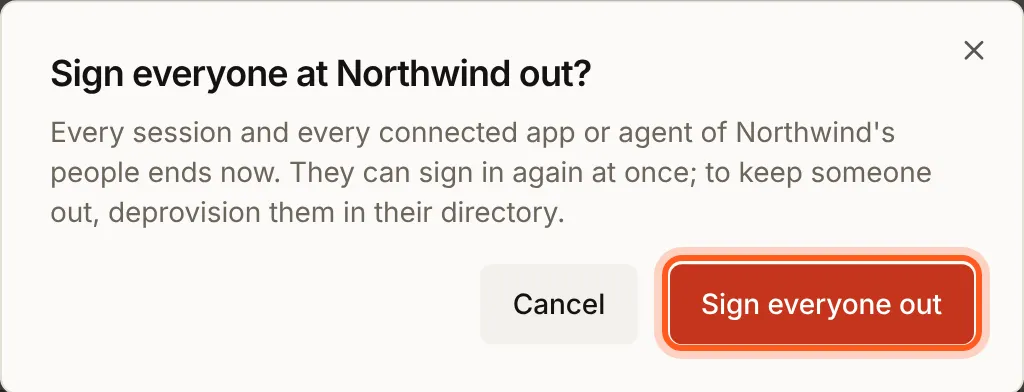
Sign everyone out ends every session, and every connected app or agent, of the company's people now. They can sign in again at once; to keep someone out, deprovision them in their directory. One person's sessions are on their row under People (reference).
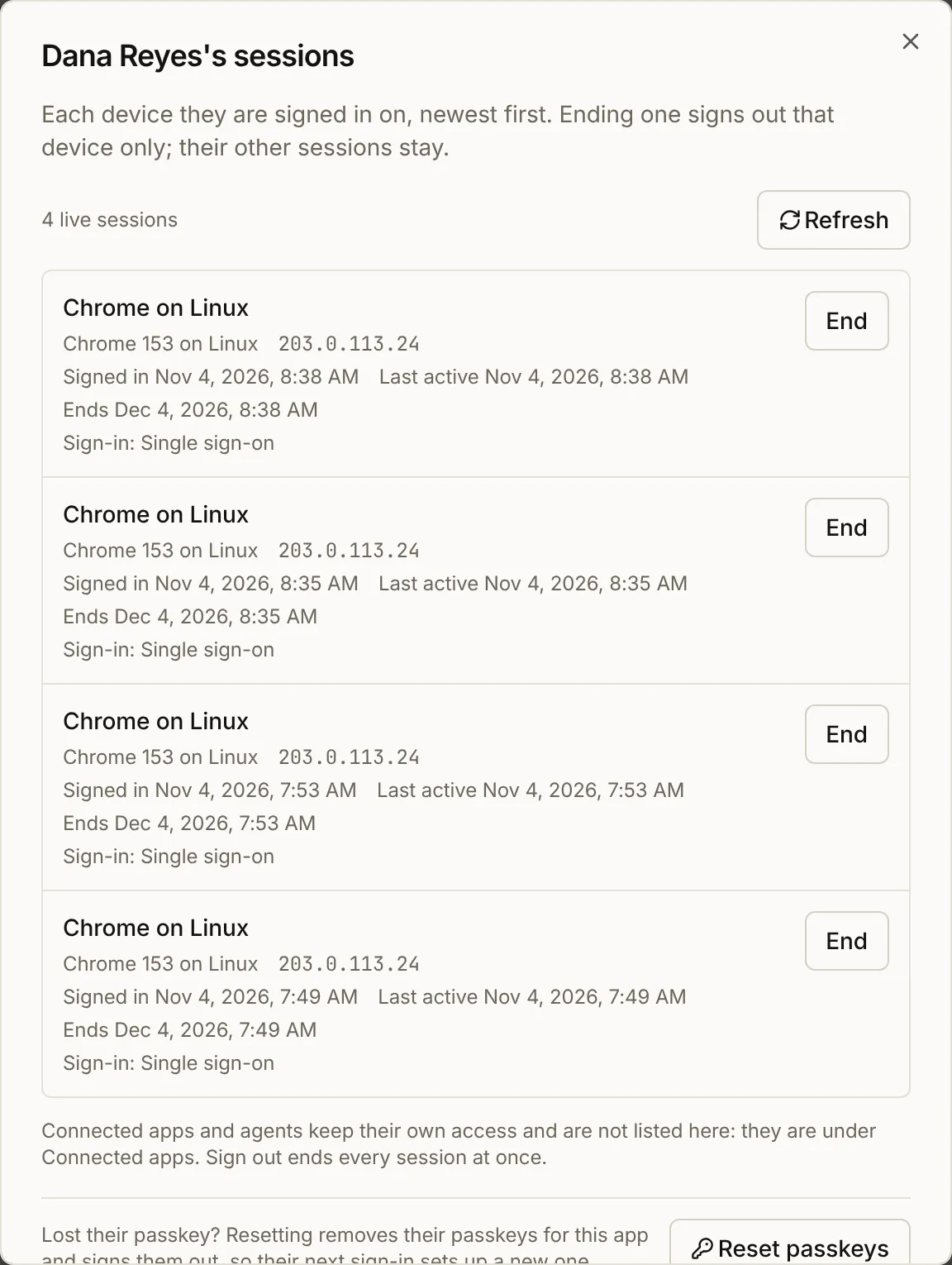
Sessions on a person's row lists each device they are signed in on, and End signs out that one:
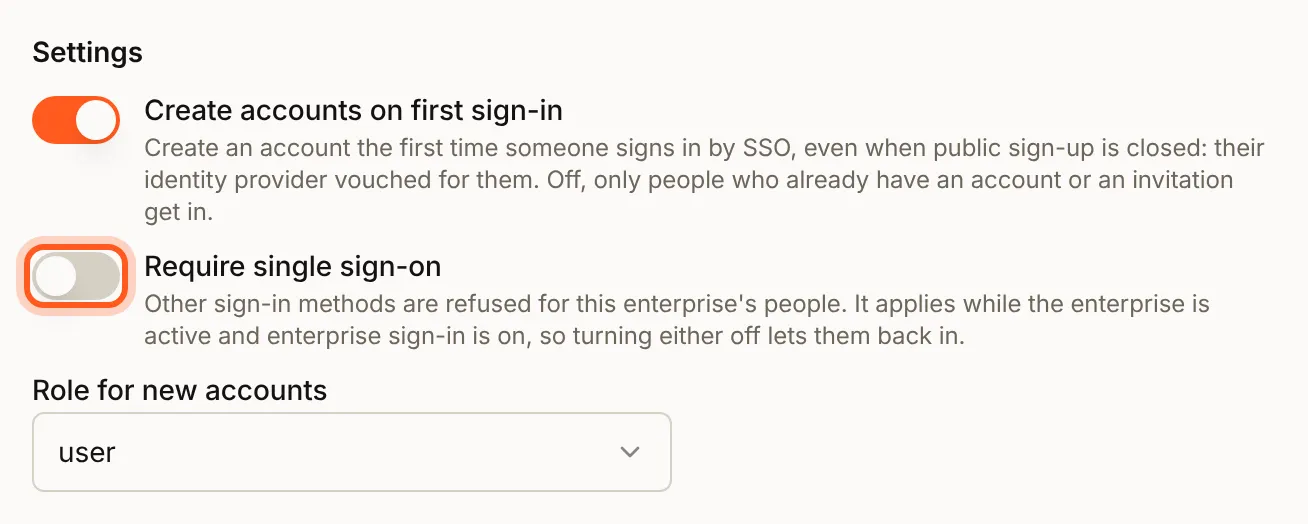
Require single sign-on
Once the company's connection is active, its Settings offer Require single sign-on. With it on, its people are refused at every other way in, except its break-glass people. Turn it on only once the connection works (reference).
Check that it worked
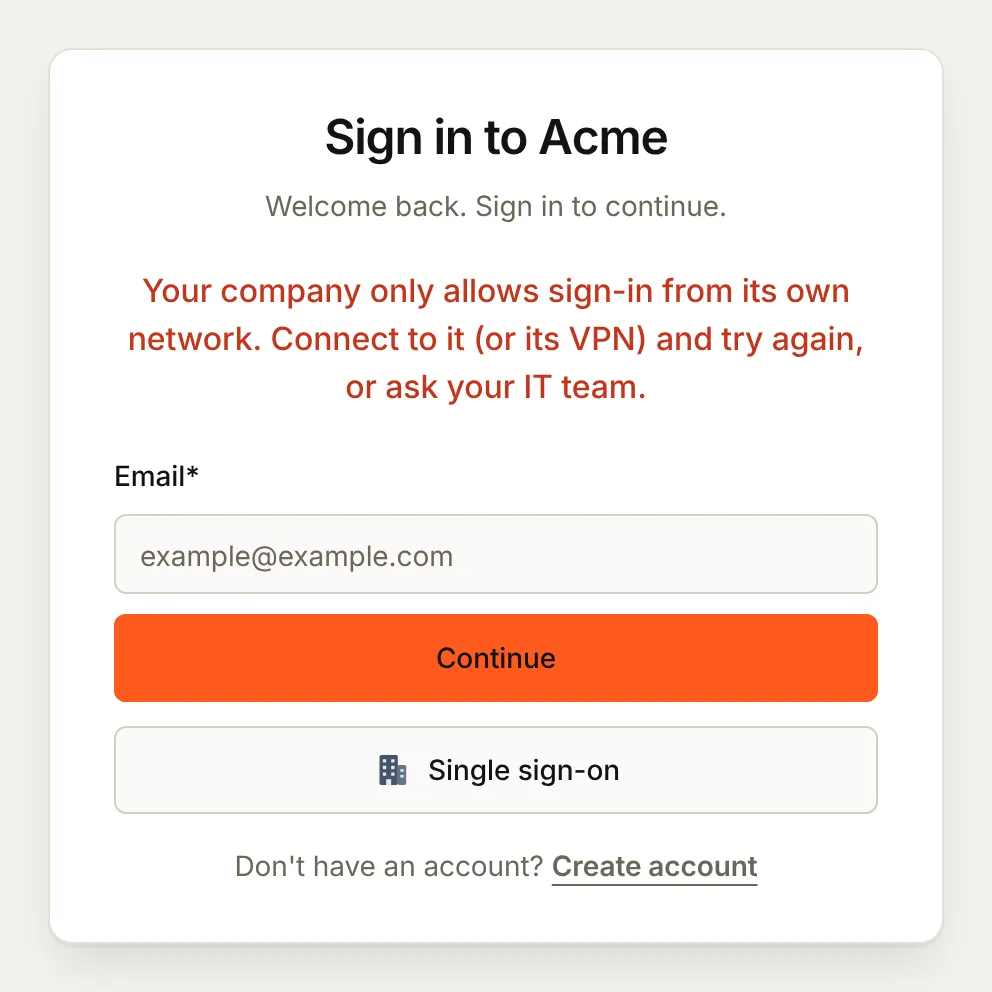
With a narrow address list, a sign-in from another address is refused with 403 ip_not_allowed, and a session left idle past the limit ends with 401 session_ended. On the hosted page, the person reads why:
Things to watch out for
- Break-glass covers only people already linked to the company.
- The network rule needs the company's IT team. Keeping the company's network to its own accounts is a header their proxy adds; send them the page for IT admins.
- Your console is never held to the policy, so you cannot lock yourself out of it.
Next steps
- Enterprise SSO - every setting of the access policy
- Enterprise SSO setup - connect the company first
- Sign-in setup guides - every other way to sign in