
Read your traffic and revenue
Install the tracker, choose which domains count, then read visitors, sources, pages, goals, customers and the revenue each source brings in the console.
The console's Analytics pages show who visits your site, where each visit came from, what they read and the payments that followed. This guide sets up collection for Acme Analytics' marketing site and then reads every report. Installing the tracker in your code is on Web analytics; the Home dashboard and the API behind it are on Reporting.
Before you start
A console role that can read web sessions (the Analytics menu needs it) and, for Settings, Analytics, web domains. The tracker on your site, and visits from a domain your organization owns or one you track under Domains.
1. Open the analytics settings
Open Analytics settings in the console
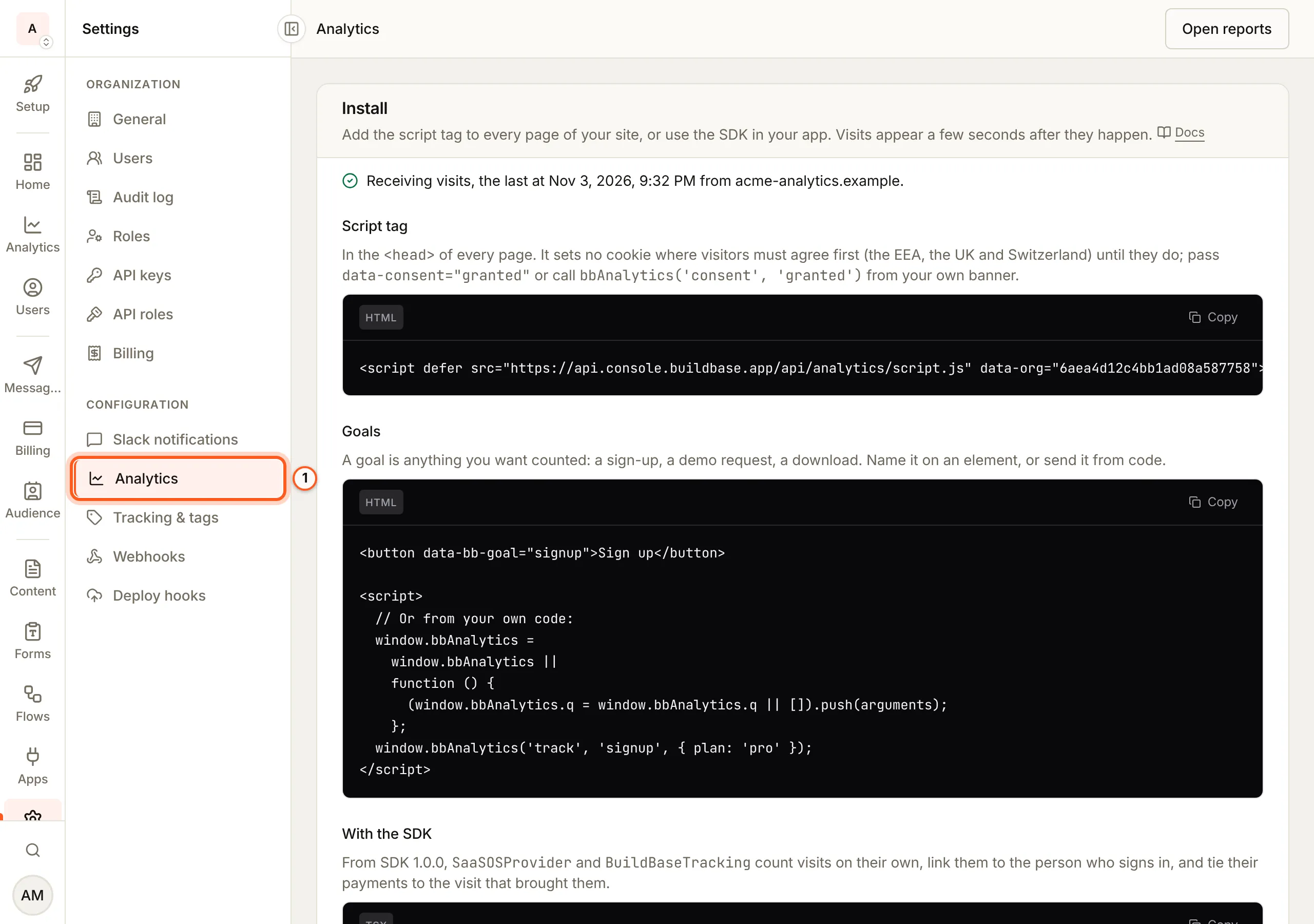
(opens the console in a new tab)In the left rail choose Settings, then Analytics. The page has four cards: Install, Domains, Collection rules and Delete data; Open reports at the top goes to the reports.
2. Install the tracker
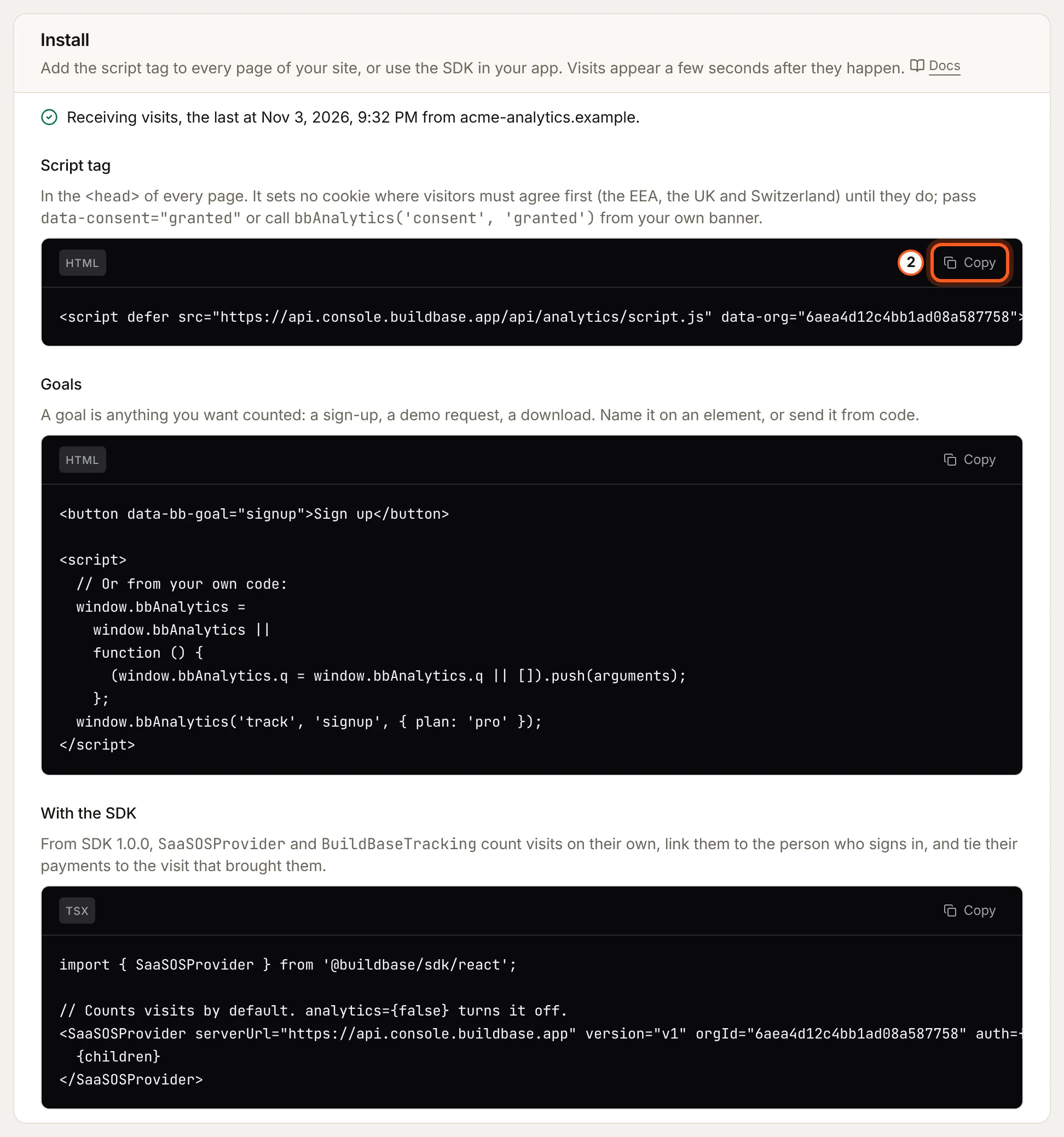
Under Install, copy the Script tag into the <head> of every page, or
the code under With the SDK into an app that already runs @buildbase/sdk.
Both already carry your organization ID and server URL. The status line reads
"Waiting for the first visit. This updates by itself." until a visit arrives,
then Receiving visits.
3. Choose which domains count
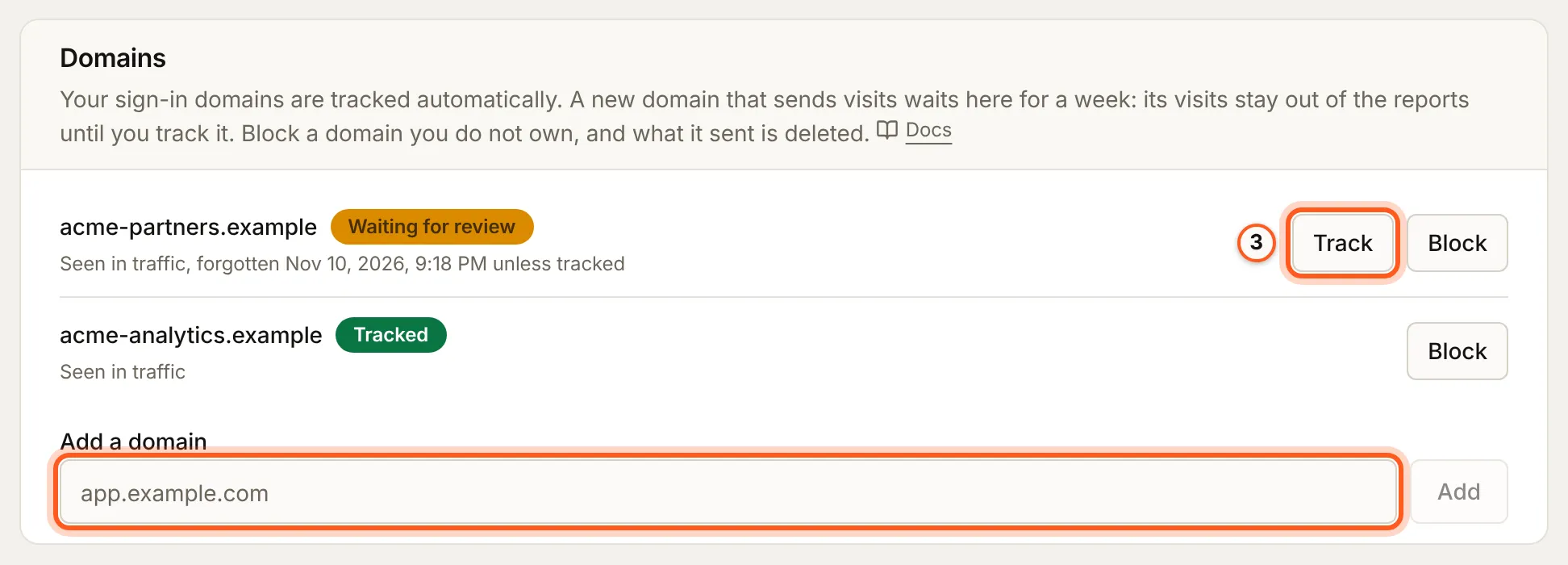
Visits from a domain your organization owns are counted. A site it does not own waits under Domains, kept out of every report: press Track to count it. To count a site before its first visit, type it under Add a domain and press Add.
Block stops collecting from a domain and deletes every visit and event it already sent: the dialog asks you to Block and delete, and this cannot be undone.
4. Set the collection rules
Under Collection rules:
- Only listed domains drops visits from any domain that is not tracked, instead of holding them for review.
- Extra URL parameters names a parameter to keep beyond the campaign tags, referral tags and ad click IDs kept already, one per line. Never a token or a code.
- Paths not to count leaves pages out, one per line:
/adminalso leaves out/admin/users.
Press Save rules.
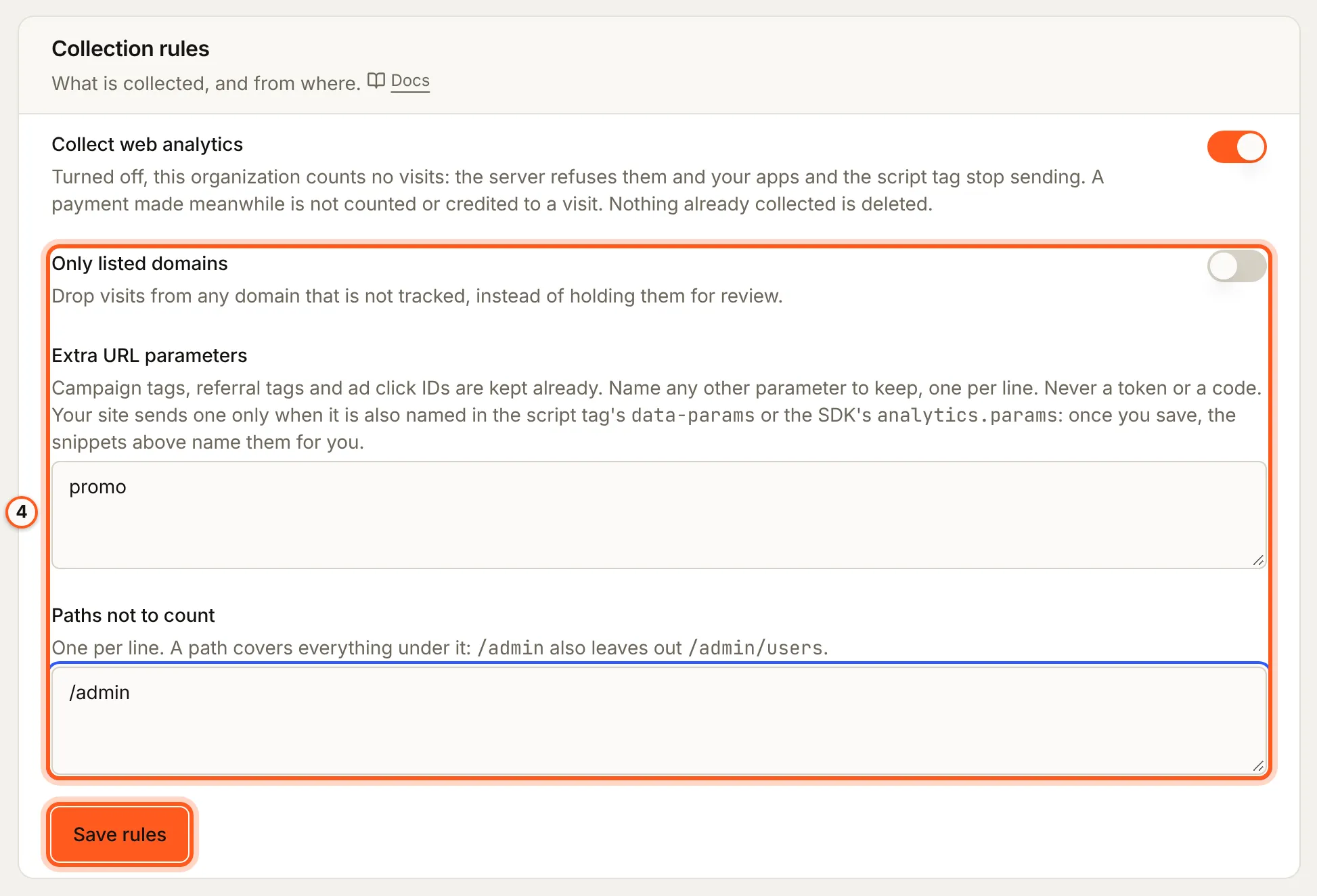
Collect web analytics is on until you turn it off. Turned off, the organization counts no visits, and nothing already collected is deleted.
5. Open the reports
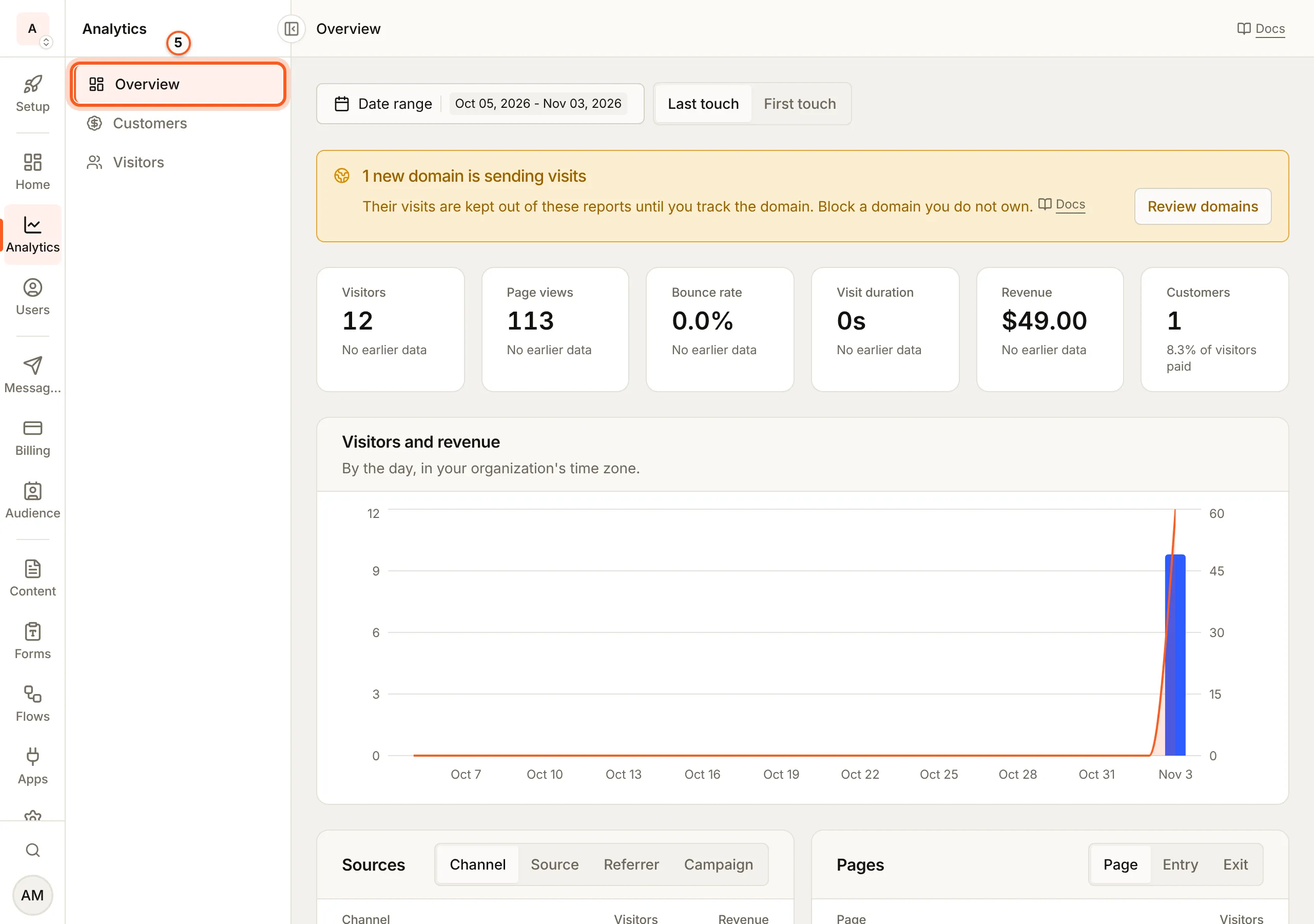
Open Analytics in the console (opens the console in a new tab)In the left rail choose Analytics, then Overview. Until the first visit the page says No visits yet and offers Install the tracker. A warning above the reports counts the new domains waiting under Domains; Review domains opens them.
6. Pick the dates and the touch
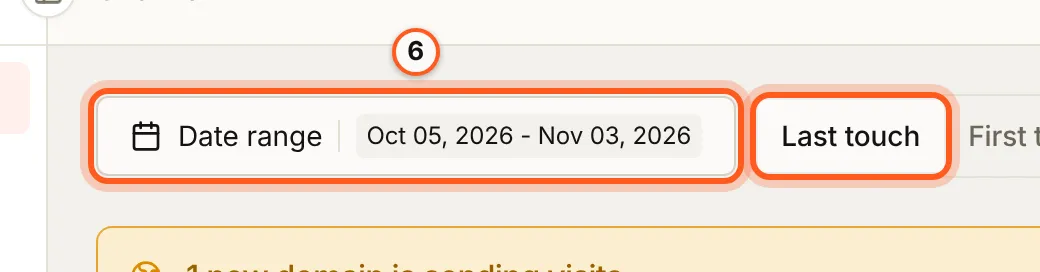
Above the reports choose the date range, and how a visit's source gets the credit for a payment: Last touch, the source of the visit just before paying, or First touch, the source that first brought the visitor. Once more than one site sends visits, a Site picker (All sites, or one) joins them.
7. Read the totals
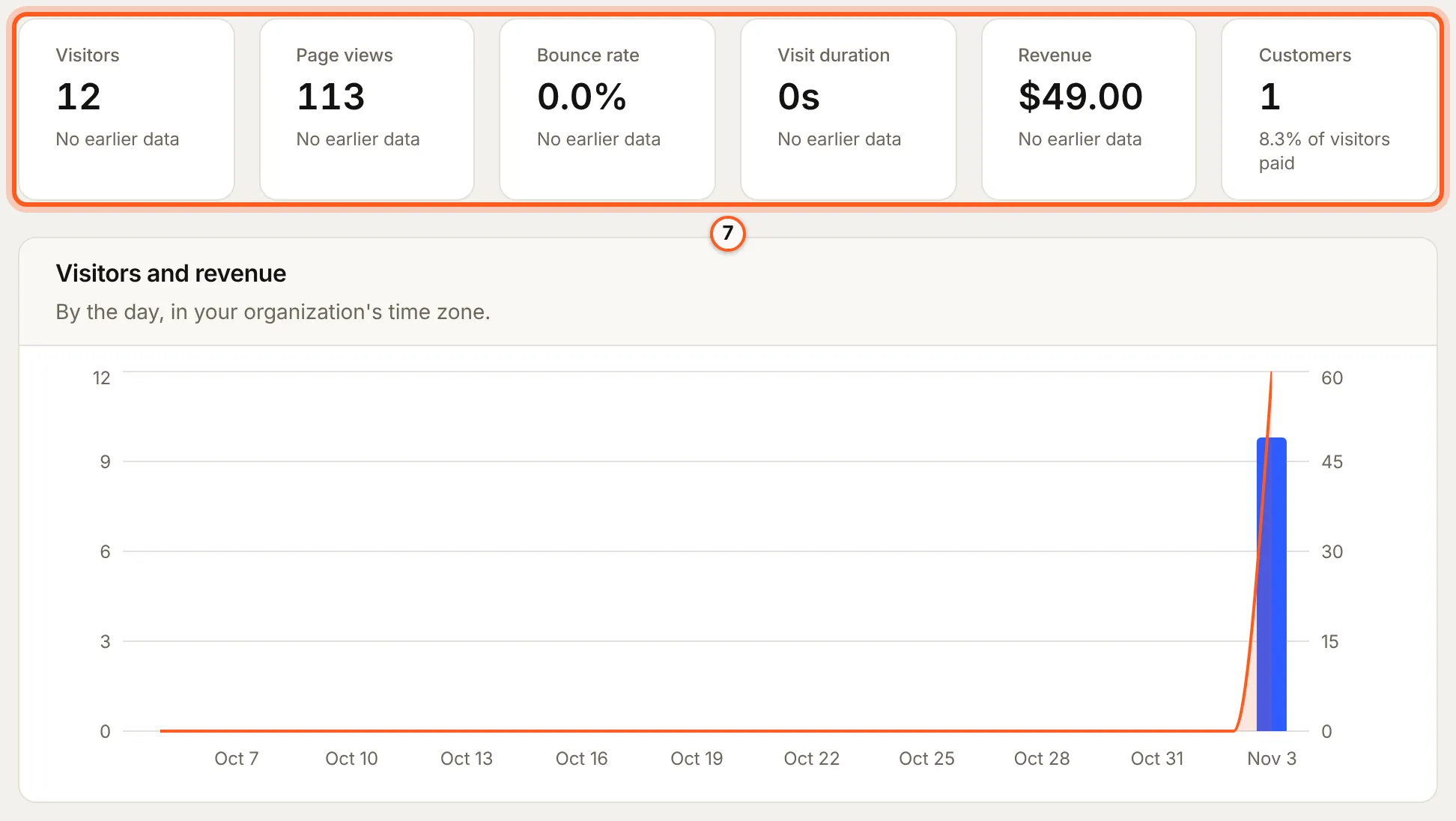
The tiles count Visitors, Page views, Bounce rate, Visit duration, Revenue and Customers, each against the period before. Visitors and revenue charts both by the day (by the hour for a range of two days or less), in your organization's time zone, UTC unless you set one under Settings > General: a day runs from midnight to midnight there (organization settings).
8. Filter by a source
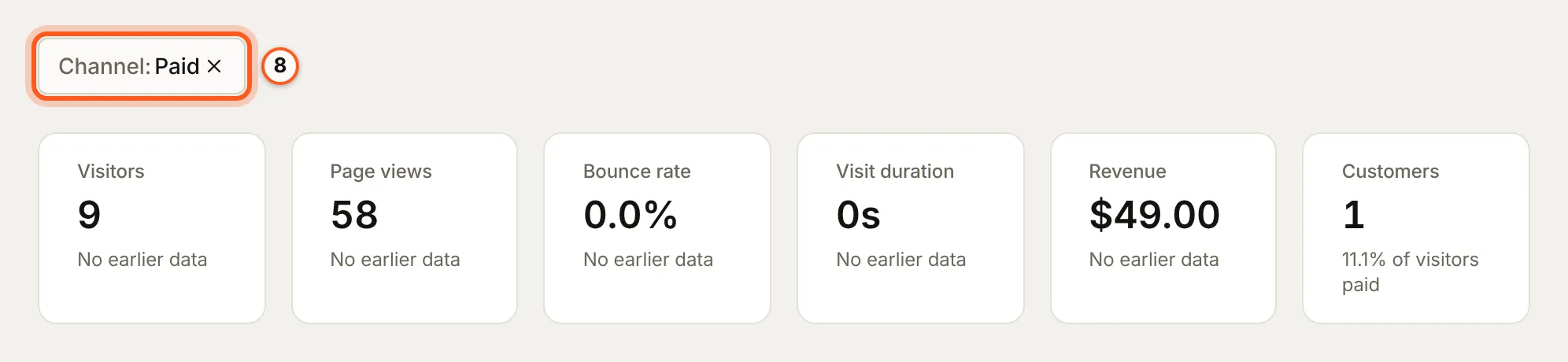
Press a row in Sources (or most other reports) to narrow every report on the page to it. The filter shows as a chip above the tiles; remove the chip to undo it.
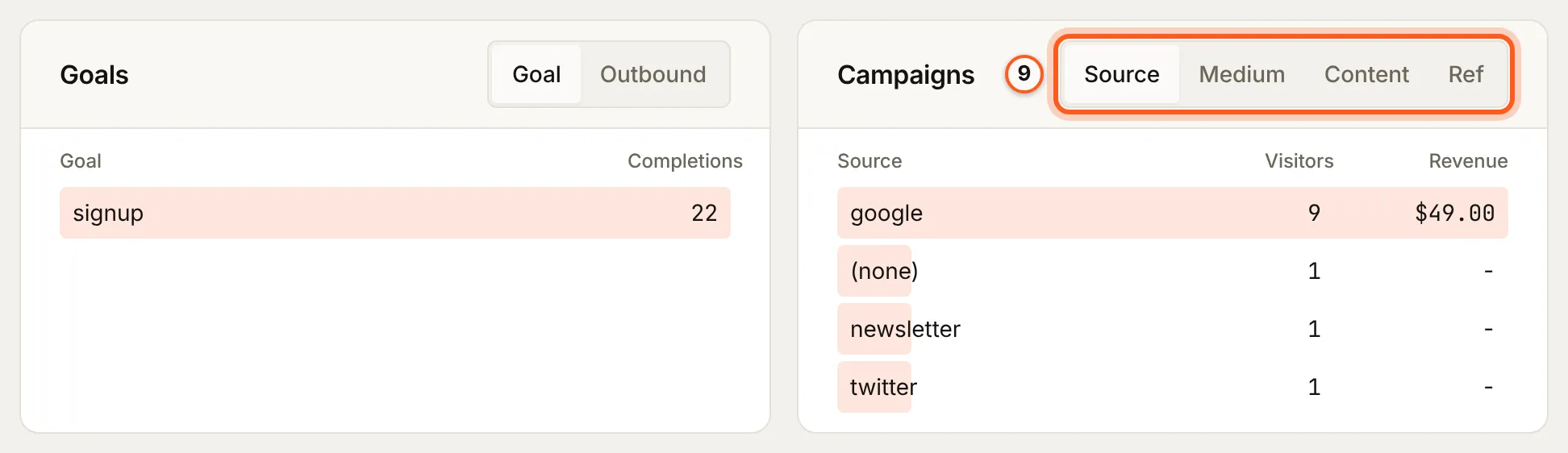
9. Read pages, places, devices, goals and campaigns
The reports below the chart break visitors down:
| Report | Tabs |
|---|---|
| Sources | Channel, source, referrer and campaign |
| Pages | Each page, Entry and Exit |
| Locations | Country and region |
| Devices | Device, browser and OS |
| Goals | The goals your site sends, and Outbound links |
| Campaigns | Source, Medium, Content and Ref tags |
10. See who paid
Choose Customers under Analytics. Each paying customer shows their Revenue, First touch, Last touch, Visits before paying, how the payment was tied to a visitor (Matched by) and when they First paid.

11. Follow one visitor
Choose Visitors under Analytics, then a visitor: their visits, the pages they read and, under Payments, what they paid. A visitor without cookies is counted for one day only, and marked Cookieless.

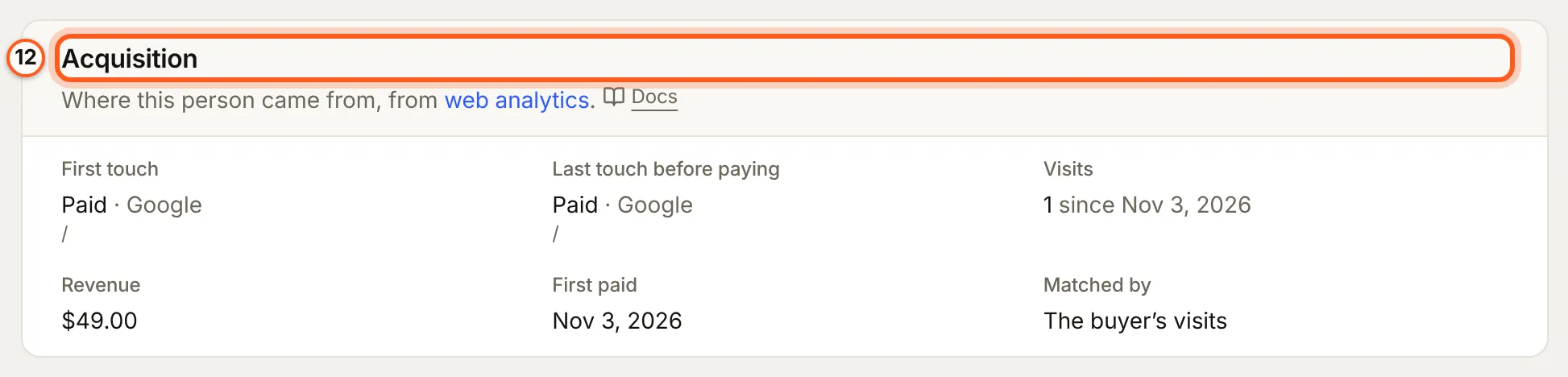
12. Read where a customer came from
On a person's page under Users, and on a workspace's page, the Acquisition card shows the same journey for that customer: First touch, Last touch before paying, Visits, Revenue, First paid and Matched by.
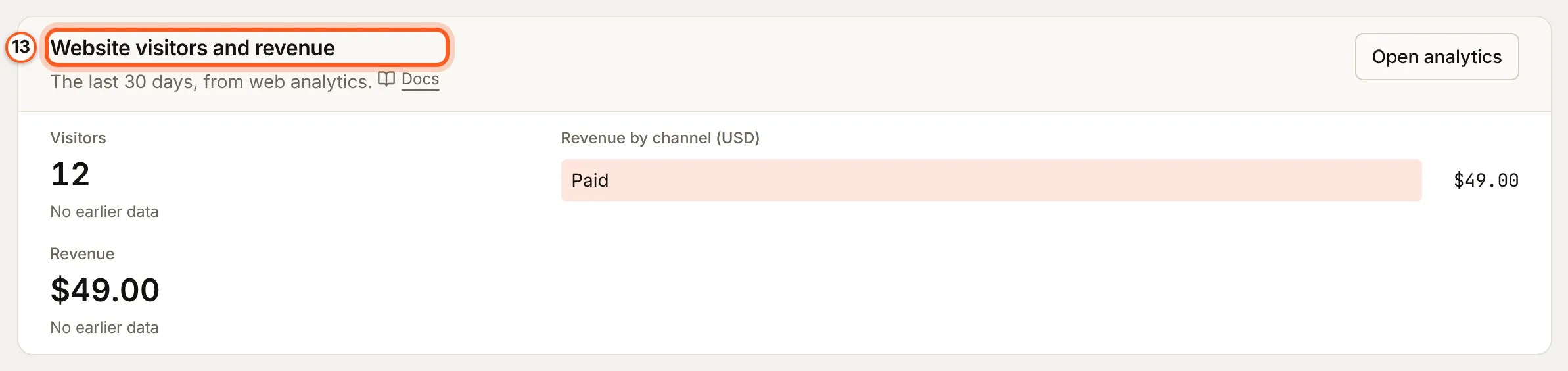
13. Read the Home card
On Home, Website visitors and revenue shows the last 30 days: visitors, revenue, and Revenue by channel. Open analytics goes to the reports. The other Home cards are on Reporting.
14. Delete what you collected
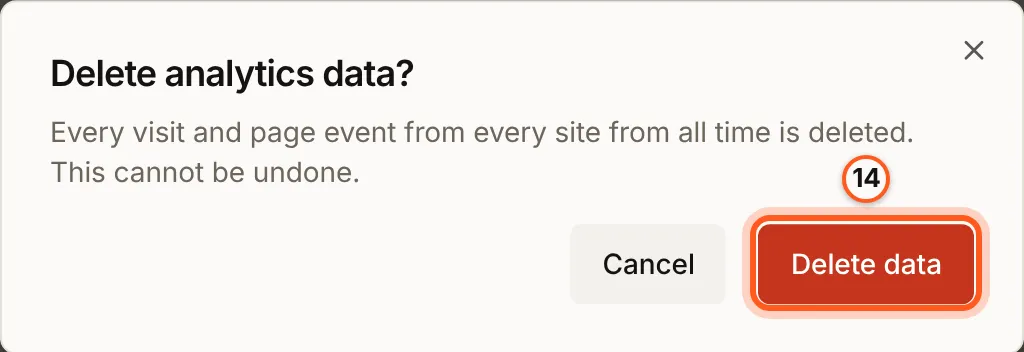
Back on Settings, Analytics, Delete data deletes visits and their page events for one Site or Every site, in a date range or all time. Press Delete data, then Delete data again in the dialog. Payments and the sources they were credited to are kept. This cannot be undone.
Check it works
Visit your site: the visit appears on Overview within a minute, under the source it came from. Pay through your app's checkout in Stripe test mode: the payment appears under Revenue and on Customers.
Things to watch out for
- A domain you do not own waits. Its visits are kept out of every report until you press Track. At most 20 domains wait at once; past that, visits from a new one are dropped, and a waiting domain is forgotten after 7 days unless tracked.
- Block and Delete data delete what was collected, and cannot be undone.
- Rules have limits: at most
10
Extra URL parameters and
20
Paths not to count. Your site sends an extra parameter only once it is
also named in the script tag's
data-paramsor the SDK'sanalytics.params: after you save, the snippets under Install name them for you. - Turning off Collect web analytics stops collection. The collector then
answers
404, which the SDK and the script tag read as "stop sending". Each environment has its own switch. - Visits count against your plan. Page views, goals and outbound clicks count against the plan's monthly web analytics events. On Free, the collector drops visits past the allowance without telling the site; paid plans bill the overage.
- Reports go back as far as the data is kept. Visits and visitor IDs are kept 730 days, page events 90 days, so the page, goal and outbound reports cover the last 90 days.
- Production never counts
localhost. A local server accepts it, for testing.
If something goes wrong
| What you see | Why |
|---|---|
| No visits yet after installing | The site's domain waits under Domains, or the tracker is not loaded |
| A visit you made is missing | Its path is under Paths not to count, or its domain is not tracked |
status must be trusted from the domains API | A domain's status can only be set to trusted (Track) |
from and to must be dates from Delete data's API | The date range was not two dates |
| Visits stop near the end of the month on Free | The plan's web analytics events are used up |
Next steps
- Web analytics - the script tag, the SDK, goals and consent
- Reporting - the Home dashboard and the API behind each card
- Measure real CAC - what each channel costs per paying customer