
Web analytics
Count visits, traffic sources, goals and the revenue each source brings, with one script tag or the SDK you already run.
BuildBase counts the visits to your site, where each one came from, the goals visitors reach and the payments that follow, in the console under Analytics: Overview, Customers and Visitors. No third-party analytics tool, and no IP address is stored.
Before you start
Open Settings > Analytics in the BuildBase console: the install snippet there already carries your organization ID and server URL.
In the console
Every report and setting, step by step, is on Read your traffic and revenue. In short:
Open Analytics settings in the console
(opens the console in a new tab)1. Copy the snippet
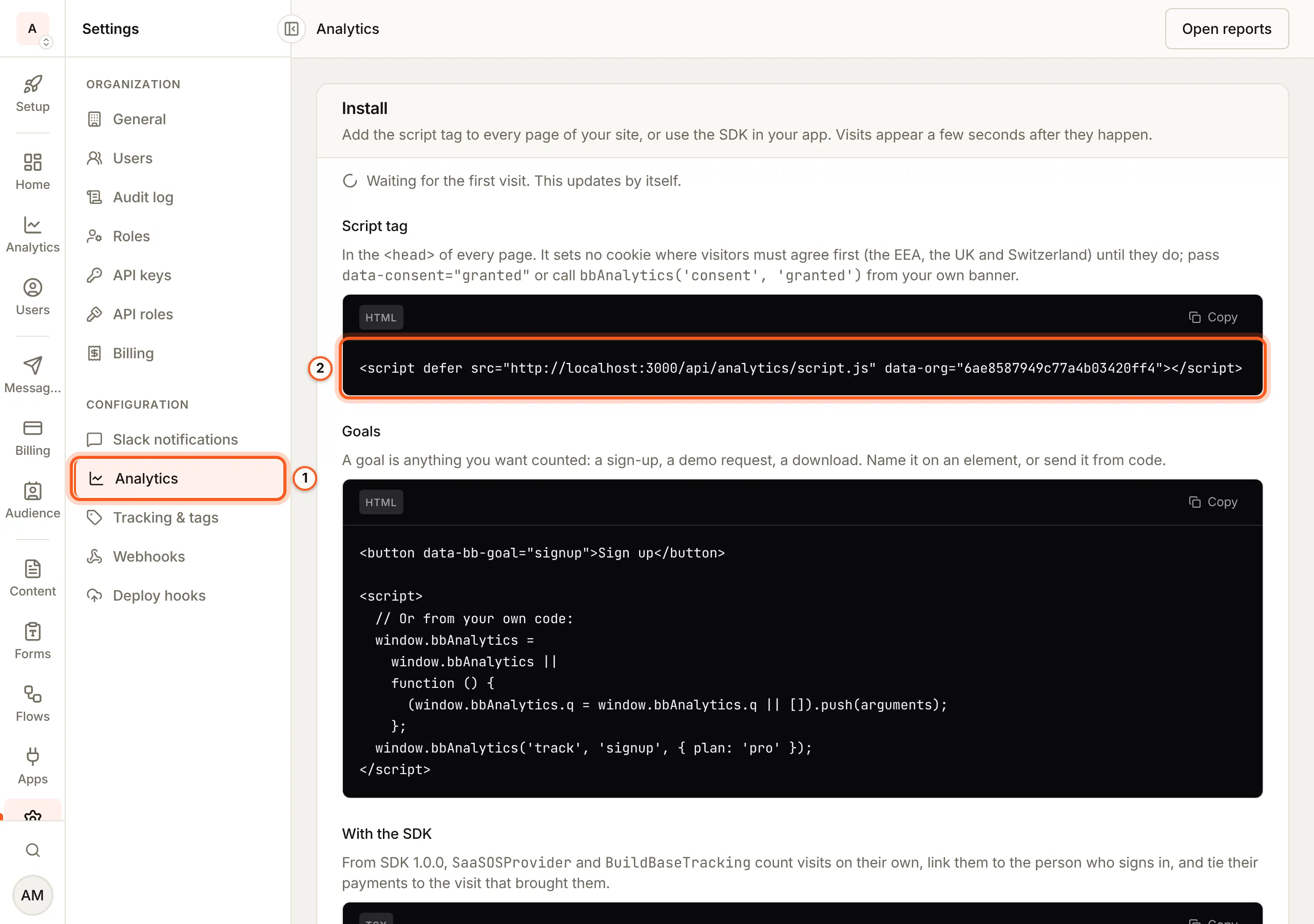
In the left rail choose Settings, then Analytics. Install holds
the script tag, already carrying your organization ID and server URL, and the
same for an app on the SDK. Paste the tag into your site's <head>.
2. Track a new domain
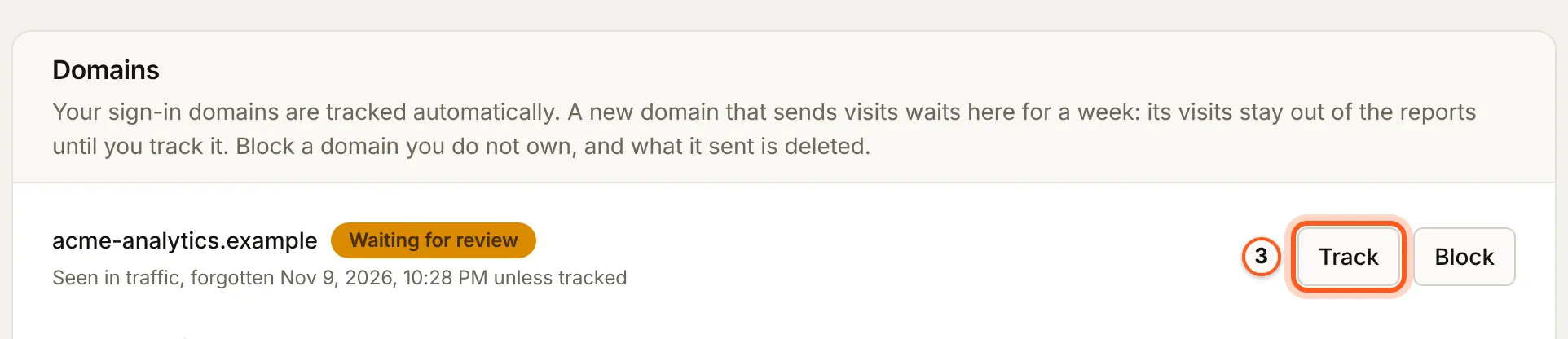
A site you do not own yet waits under Domains with its first visits held back. Press Track to count it, or Block (new domains).
3. Read the reports
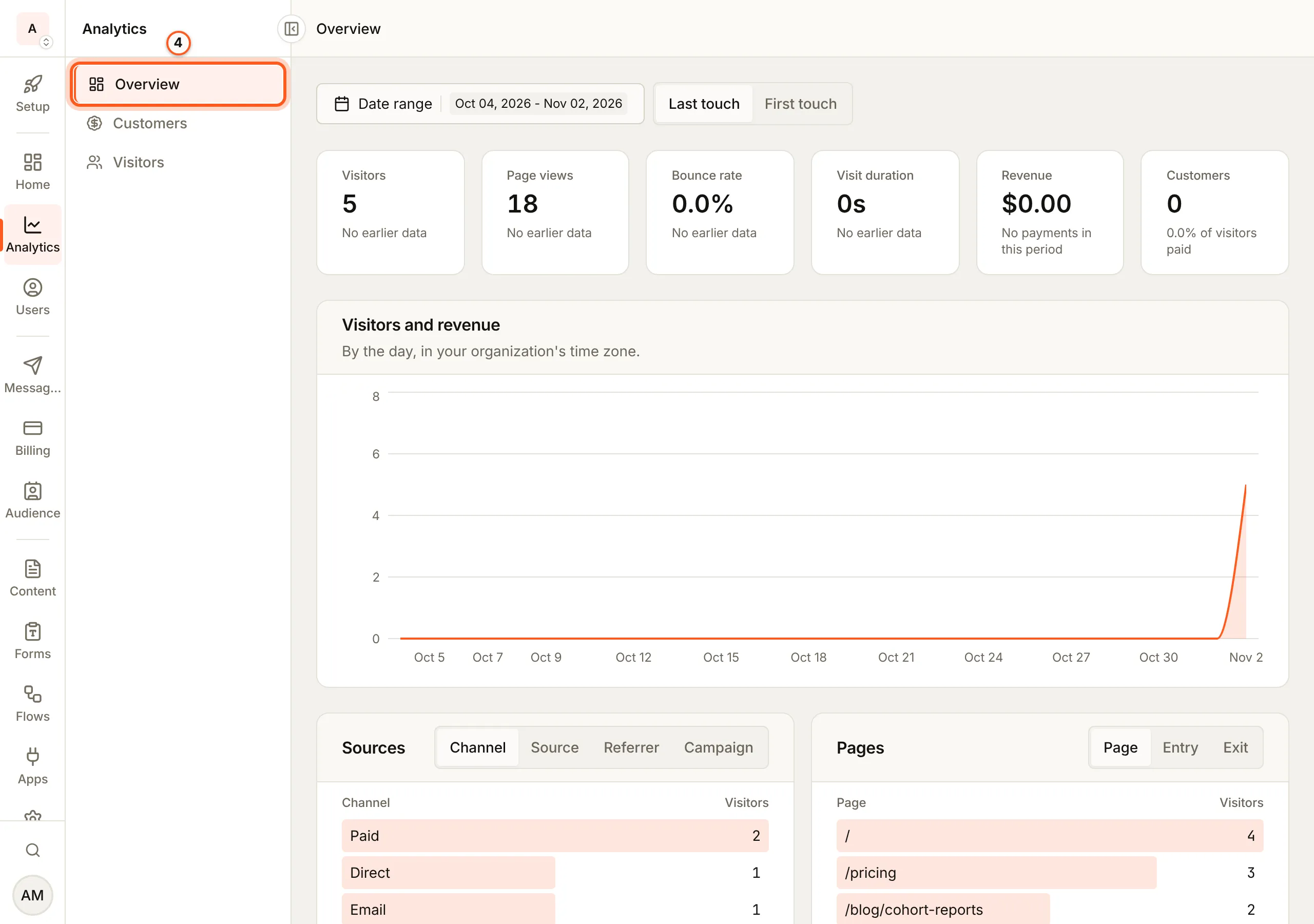
Open Analytics in the console (opens the console in a new tab)Choose Analytics. Overview counts Visitors, Page views, Bounce rate, Visit duration, Revenue and Customers against the period before, charts visitors and revenue by day, and breaks visitors down by Sources and Pages, crediting the last touch or the first.
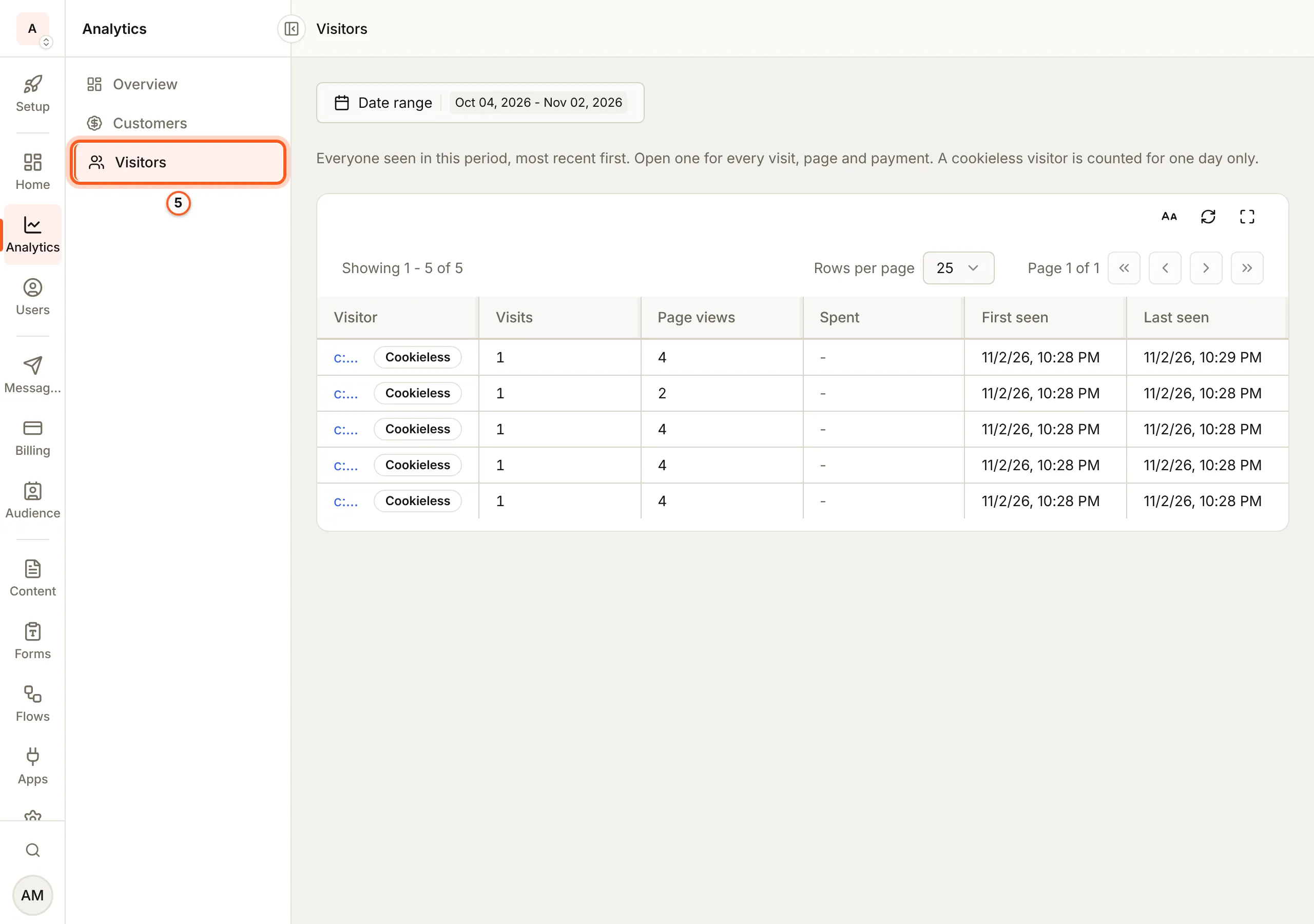
Visitors lists everyone seen in the period, most recent first; open one for its visits, pages and payments. A visitor without cookies is counted for one day only.
A site without React
Paste the script tag into the <head> of every page:
<script
  defer
  src="https://your-server-url/api/analytics/script.js"
  data-org="ORG_ID"
></script>| Attribute | Default | What it does |
|---|---|---|
data-org | Required | Your organization ID, or an environment's <orgId>-<key> |
data-api | The script's origin | The BuildBase server the visits go to |
data-consent | pending | granted or denied answers for every visitor; pending lets their answer, or their region, decide |
data-params | None | Extra query parameter names to send beside the campaign tags, comma-separated |
data-allow-localhost | Off | Also send visits from localhost, which only a server not running in production counts |
A parameter named in data-params is kept only once it is also listed under Settings > Analytics > Extra URL parameters in the console: the server drops every other parameter but the campaign tags, referral tags and ad click IDs. A server in production never counts localhost, so test against a local or self-hosted one that is not.
/api/analytics/script.js is always the newest tracker, cached for five minutes. To pin one version with Subresource Integrity, read the current version and its sri hash from /api/analytics/manifest.json on your server and load that version's own path. The browser checks the hash only on a CORS request, so keep crossorigin="anonymous", or it refuses the script and nothing is counted. Every version stays at its path for good.
<script
  defer
  src="https://your-server-url/api/analytics/v/VERSION/script.js"
  integrity="SRI_HASH"
  crossorigin="anonymous"
  data-org="ORG_ID"
></script>
An app on the SDK
SaaSOSProvider and BuildBaseTracking count visits on their own from SDK 1.0.0. They also link a visit to the person who signs in, and add the visitor to the Stripe metadata of the SDK's checkouts, so a payment is credited to the source that brought it.
'use client';

import { ApiVersion } from '@buildbase/sdk';
import { SaaSOSProvider } from '@buildbase/sdk/react';

<SaaSOSProvider
  serverUrl={serverUrl}
  version={ApiVersion.V1}
  orgId={orgId}
  auth={{ clientId, redirectUrl }}
  analytics={{ params: ['plan'] }}
>
  {children}
</SaaSOSProvider>;| Value | What it does |
|---|---|
Left out or true | Counts visits |
{ params } | Counts visits, sending these query parameters beside the campaign tags |
false | Counts nothing |
To stop counting for the whole organization without a deploy, turn off Collect web analytics under Settings > Analytics: the server then answers every visit with a 404, and the SDK and the script tag stop sending. A payment made while it is off is not added to the revenue report or credited to a visit, though a refund still lowers a payment counted before. Each environment has its own switch, and nothing already collected is deleted.
As with data-params, a parameter in params is kept only once it is also listed under Settings > Analytics > Extra URL parameters. On a marketing site without the provider tree, <BuildBaseTracking> takes the same analytics prop.
Goals
A goal is anything you want counted: a sign-up, a demo request, a download. Name it on an element, or send it from code. The tracker loads with defer, after your inline scripts run, so define the queue below before the first call: calls made before the tracker loads wait in it and are sent once it does.
<button data-bb-goal="signup" data-bb-goal-plan="pro">Sign up</button>

<script>
  window.bbAnalytics =
    window.bbAnalytics ||
    function () {
      (window.bbAnalytics.q = window.bbAnalytics.q || []).push(arguments);
    };
  window.bbAnalytics('track', 'signup', { plan: 'pro' });
</script>import { trackGoal } from '@buildbase/sdk/tracking';
trackGoal('signup', { plan: 'pro' });A goal's name is lowercase letters, digits, _, : and -, at most 64 characters, with at most 10 plain properties.
Consent
With no answer, the visitor's region decides on the server: where visitors must agree first (the EEA, the UK and Switzerland) a visit is counted with no ID and no cookie until they do. To answer for every visitor at once, set data-consent on the script tag. To answer per visitor, use your own banner, or mount the SDK's:
import { CookieBanner } from '@buildbase/sdk/react';

<CookieBanner privacyHref="/privacy" categories={['analytics']} />;<script>
// The same queue as for goals: the answer waits for the tracker, which
// applies it before it counts the first page view.
window.bbAnalytics =
window.bbAnalytics ||
function () {
(window.bbAnalytics.q = window.bbAnalytics.q || []).push(arguments);
};
window.bbAnalytics('consent', 'granted');
// or { analytics: true, marketing: false }
</script>useTracking().consent.set(), CookieBanner, setAnalyticsConsent() and the script tag share one answer. Banners, regional defaults and the tags that wait for a yes are in Consent.
| Cookie | Holds | Kept for | Written when |
|---|---|---|---|
bb_vid | A random visitor ID | 395 days | Analytics is allowed, by the visitor or by their region's default |
bb_sid | A random visit ID | 30 minutes, renewed every event | As bb_vid |
bb_consent | The visitor's answer | 395 days | They answer through CookieBanner, setAnalyticsConsent() or bbAnalytics('consent'); never consent.set(), whose app keeps its own record |
A denial deletes bb_vid and bb_sid.
New domains
A domain you own (an app's redirect origin or a verified sign-in domain) is counted at once. Any other site sending your organization ID waits under Settings > Analytics, kept out of every report, until you Track or Block it, so a copied snippet never mixes someone else's visits into yours. Block asks you to Block and delete: every visit and event that domain already sent is deleted, which cannot be undone. You can track it again later, and only new visits count. One left waiting for a week expires and is met again as new. At most 20 sites wait at once: past that, a new one's visits are dropped, not held, until you decide one, so add a domain of your own there by hand before you send it traffic. Turn on Only listed domains there to drop visits from every domain you have not tracked.
Next steps
- Read your traffic and revenue - every report in the console, step by step
- Consent - the banner, regional defaults and the cookies
- Verify and troubleshoot - check that visits arrive
- Events - the conversions BuildBase reports to your ad platforms