
Your organization's settings in the console
Change your organization's name, domain, logo and time zone, copy its Organization ID, choose its billing currencies and export its data.
Settings, then General, holds who your organization is: its name, domain, logo and ID, its time zone, the currencies it bills in, its environments and a copy of its data.
Before you start
An owner or admin of the organization. Export data is the owner's only.
1. Open General
Open organization settings in the console
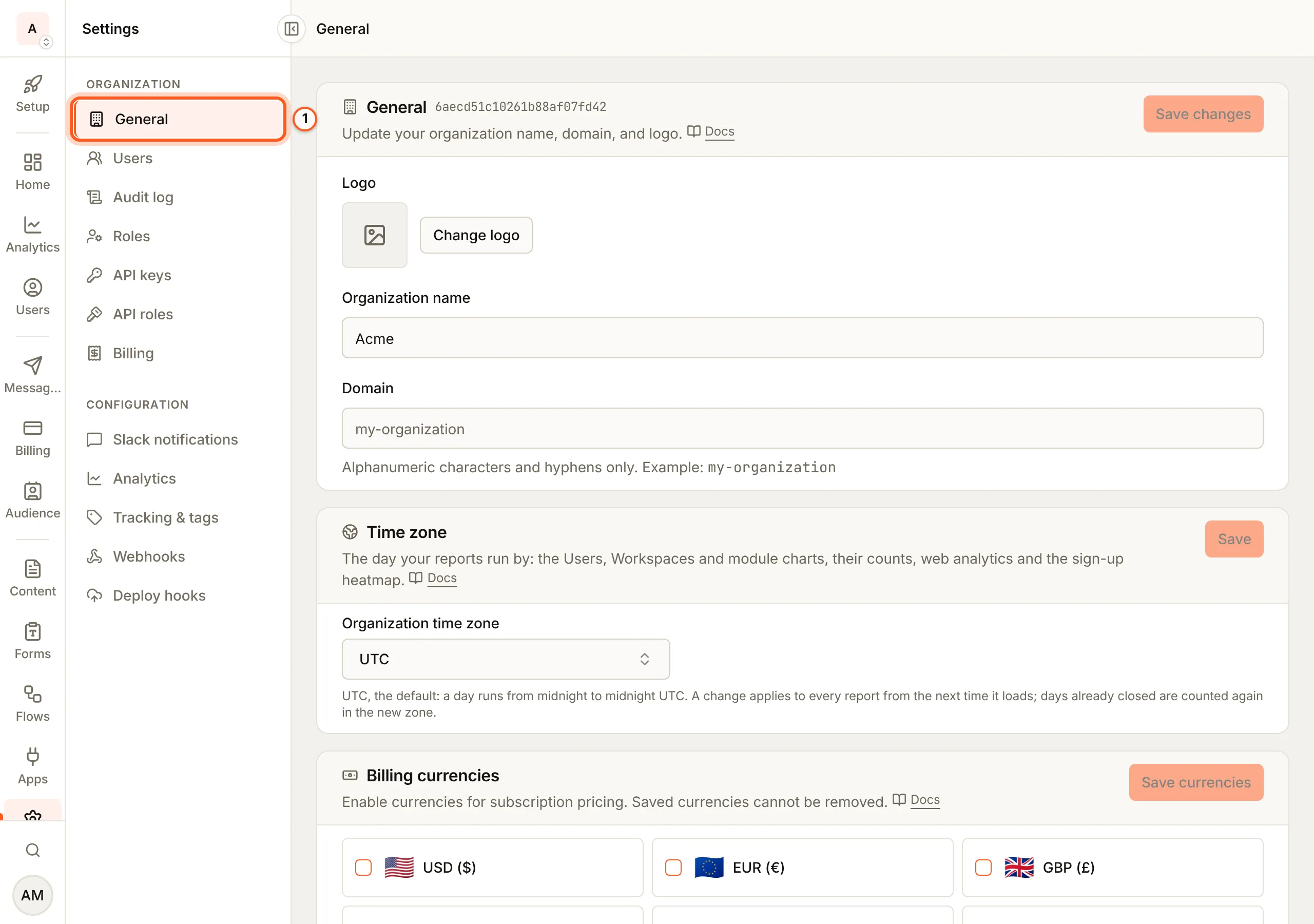
(opens the console in a new tab)In the left rail choose Settings, then General under Organization. The page is titled Organization.
2. Name and domain
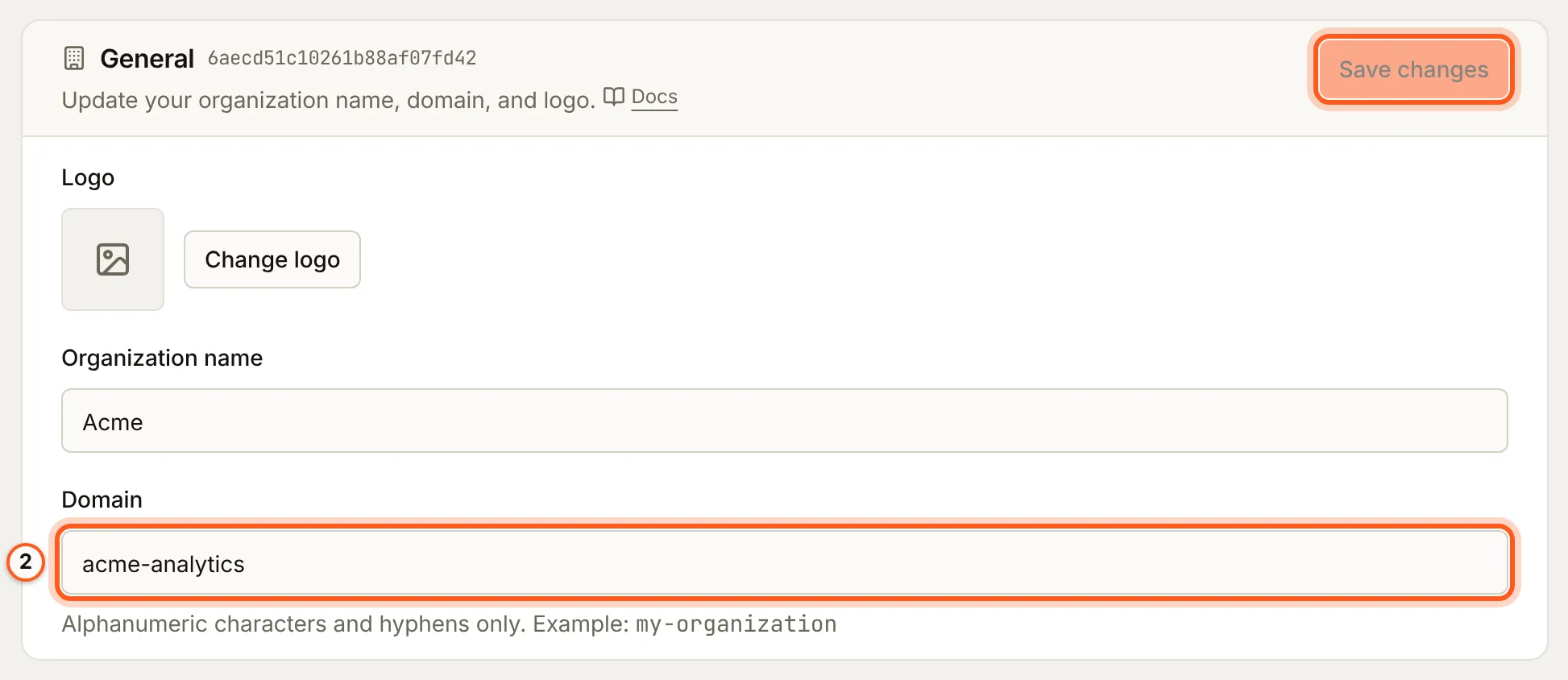
In the General card, change Organization name or Domain (letters,
digits and hyphens, such as my-organization) and press Save changes. It
stays off until something changed.
3. Logo
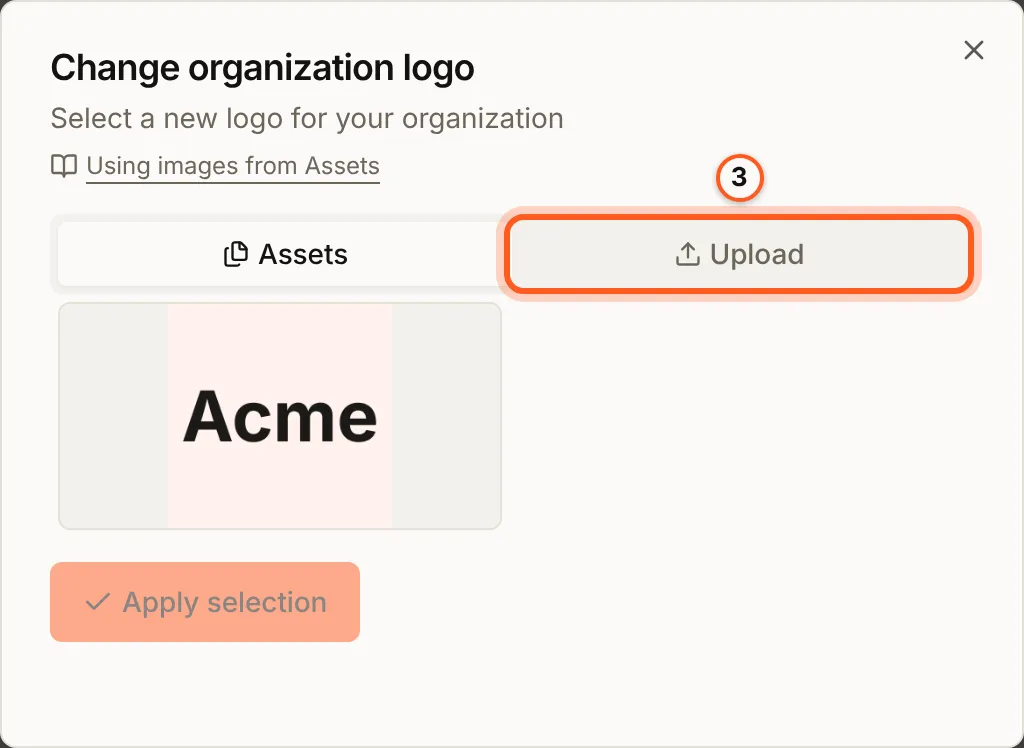
Press Change logo. Pick an image under Assets, or add one under Upload, then press Apply selection.
4. Copy the Organization ID
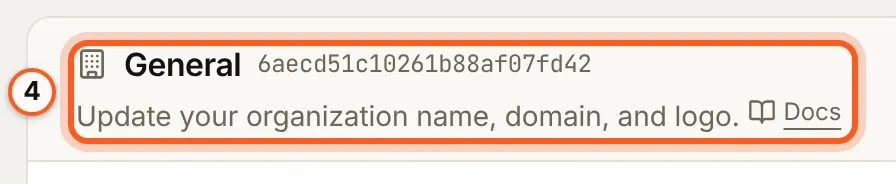
Your Organization ID sits beside General. Press it to copy it: the SDK's
orgId and every server call need it.
When your organization lives in a particular region, the card also shows its Data region. It is chosen when the organization is created and cannot be changed here.
5. Time zone
Time zone is the day your reports run by: the Users, Workspaces and module charts by day, week, month or year, the counts beside them, web analytics and the sign-up heatmap. Each day runs from midnight to midnight in your organization's time zone, UTC unless you set one under Settings > General.
Press Organization time zone, type a city such as los angeles, choose
America/Los Angeles and press Save.
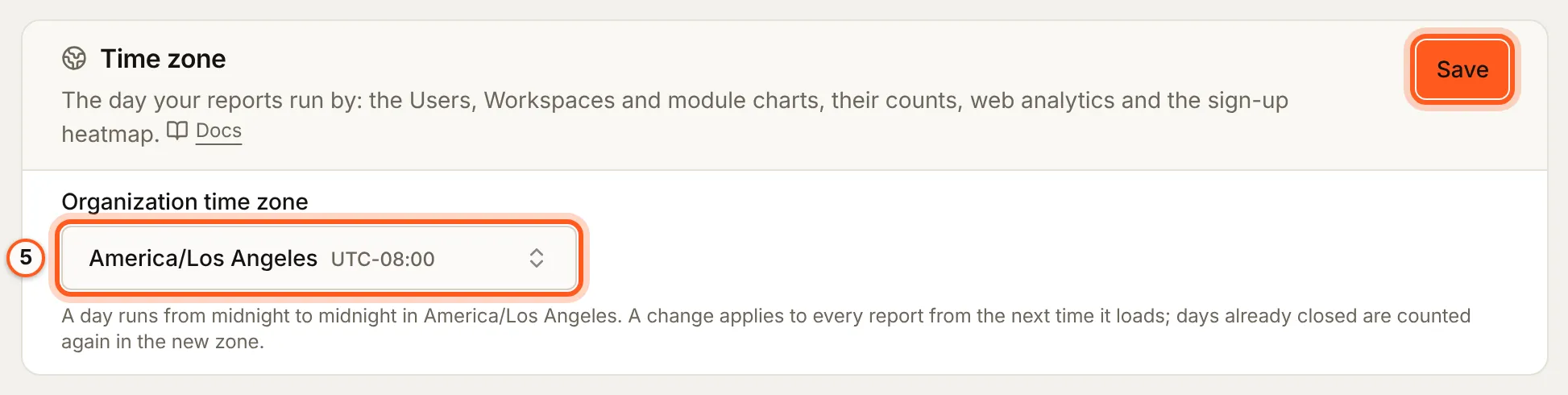
Every chart and count uses the new zone the next time it loads, for past days too: a day already closed is counted again in the new zone.
6. Billing currencies
Billing currencies chooses the currencies your plans can be priced in. Tick one and press Save currencies. A saved currency cannot be removed (billing).
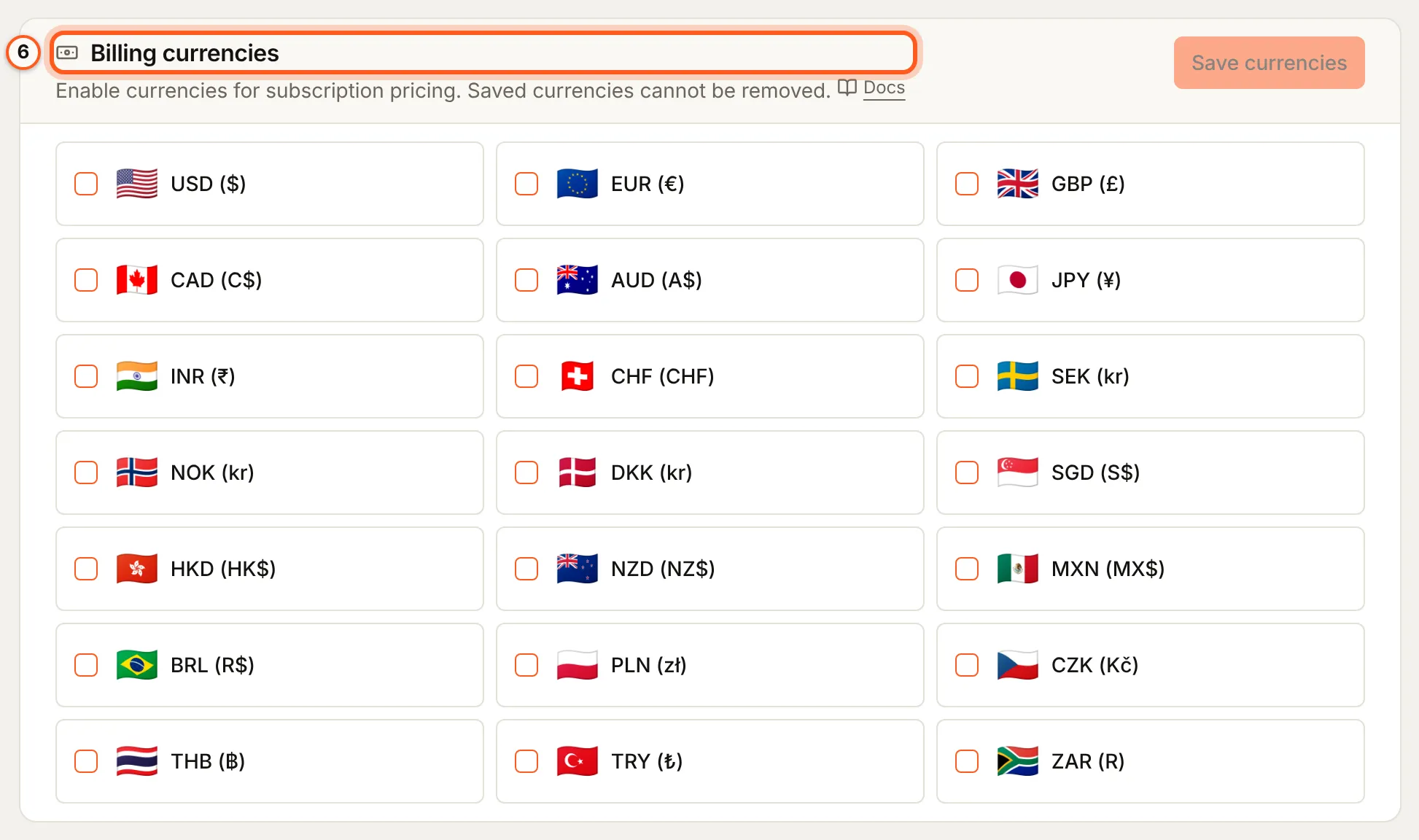
The cards below it, from Cancellation to Billing versioning, set how your customers' subscriptions behave; billing covers each.
With environments turned on, an Environments card sits here too (environments in the console).
7. Export your data
Export data downloads a copy of everything the organization holds: one file per collection, one record per line (newline-delimited JSON). Press Export now, then download each file.
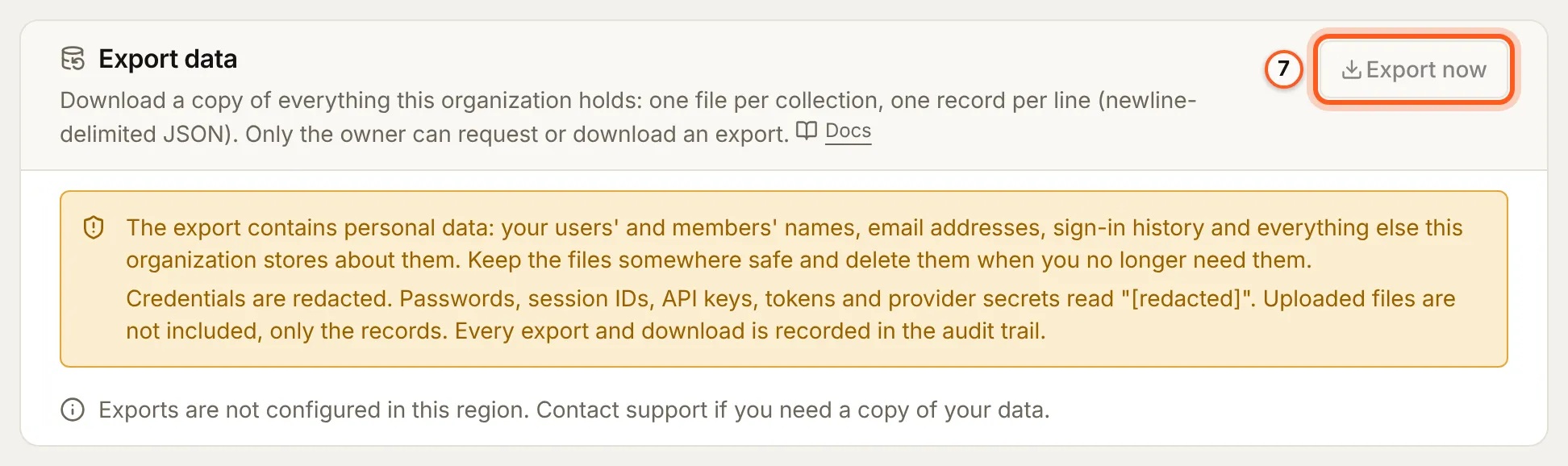
The export holds personal data: your users' and members' names, email
addresses and sign-in history. Passwords, session IDs, API keys, tokens and
provider secrets read "[redacted]", and uploaded files are not included.
Every export and download is recorded in the audit trail.
Check it works
The new name shows in the organization switcher at the top of the rail, and a finished export lists one file per collection.
Things to watch out for
- Only the owner can export, and a support session never sees the card.
- A saved billing currency stays.
- The domain is letters, digits and hyphens only.
If something goes wrong
| What you see | What it means |
|---|---|
| Exports are not configured in this region | Exports are off where your data lives: contact support for a copy. |
| Export failed | The export could not finish. Try again later. |
Next Steps
- Team and roles - invite your team and choose what each person may do.
- Your BuildBase plan - the plan your organization is on.
- Environments in the console - a staging or development copy of your setup.