
Environments in the console
Switch environments, choose who may enter each, connect an app, read the inbox, promote changes and check production before it goes live.
An environment is a separate space for development or testing, with its own users, data and keys. You can try things there without touching production, the live app your real users sign in to.
Everything on this page is in the BuildBase console, once your organization has environments, and needs no SDK upgrade. To point an app at an environment from code, see Development and staging environments.
Warning
Environments are rolling out to organizations. Yours has them once the console shows the Environments card under Settings > General. Until then, nothing on this page shows in your console, and your app keeps running in production as it always has.
Before you start
Adding, renaming, resetting and archiving an environment, choosing who may enter it and promoting changes need an owner or admin of the organization.
The environment switcher
The console's side rail shows which environment you are in, under the organization switcher. It appears once your organization has an environment, or once you are allowed to add one. Production has a green dot. Any other environment has an amber one, and its name. The colour is never the only signal, so the name is always printed.
Open the menu to move to another environment. The console switches you in, and every screen after that reads and writes that environment's own data.
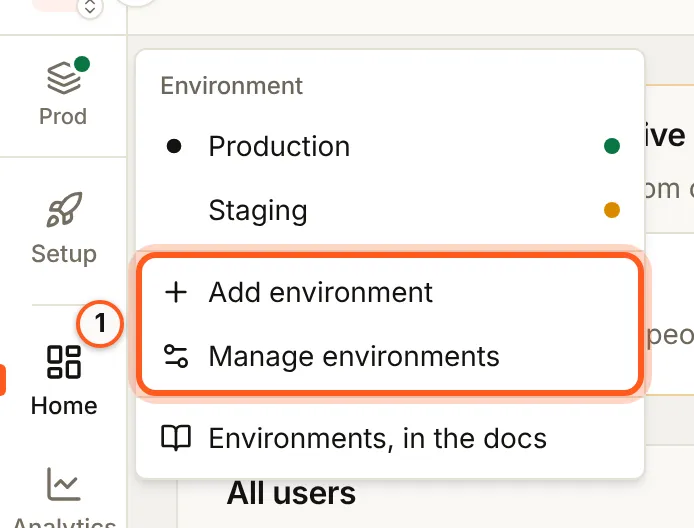
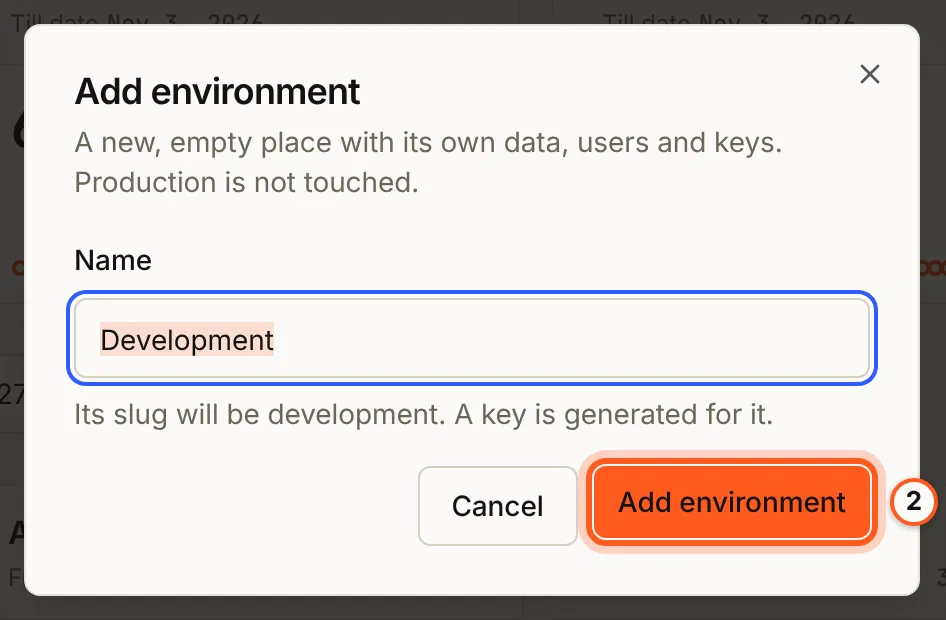
Owners and admins also get Add environment and Manage environments in the same menu. A new environment is ready a moment after you name it, and the console tells you so. Switch to it from the same menu.
- Open the switcher in the rail. Add environment and Manage environments are below the list.
- Press Add environment, type a Name, and press Add environment.
Outside production, each settings screen says in one line at the top whose settings it changes. Some belong to the environment alone: sign-in settings, senders and domains, Stripe keys, webhook endpoints. Others belong to the organization, and production and every environment share them: team members and their roles.
Managing environments
The Environments card under Settings > General lists production and every environment you may enter, each with its key (the eight lowercase letters your app uses to point at it) and a copy button. For each one, an owner or admin can:
| Action | What it does |
|---|---|
| Open | Switch into it |
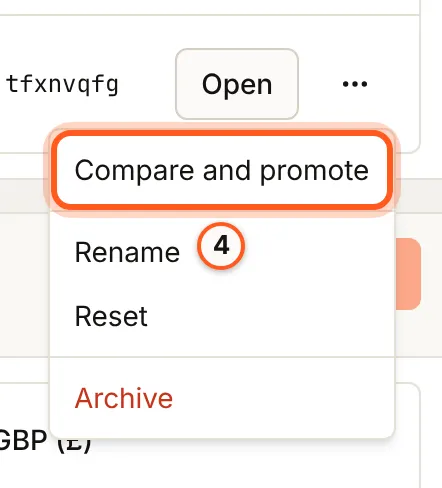
| Compare and promote | Open Changes with that environment, below |
| Rename | Change its name. The key, the database and anything deployed with the key stay as they are |
| Reset | Delete everything in it (users, content, settings, keys and the Stripe webhook endpoints made for it) and start again empty, with the same key. Production is untouched |
| Archive | Delete everything in it (data, files, and the Stripe webhook endpoints made for it) and retire its key for good. Frees its place under your plan's limit |
Reset and archive ask you to type the environment's name first. Production is listed as your live data: always on, never reset.
Open Settings, General in the console
(opens the console in a new tab)- The card lists each environment with its key, which copies when you press it.
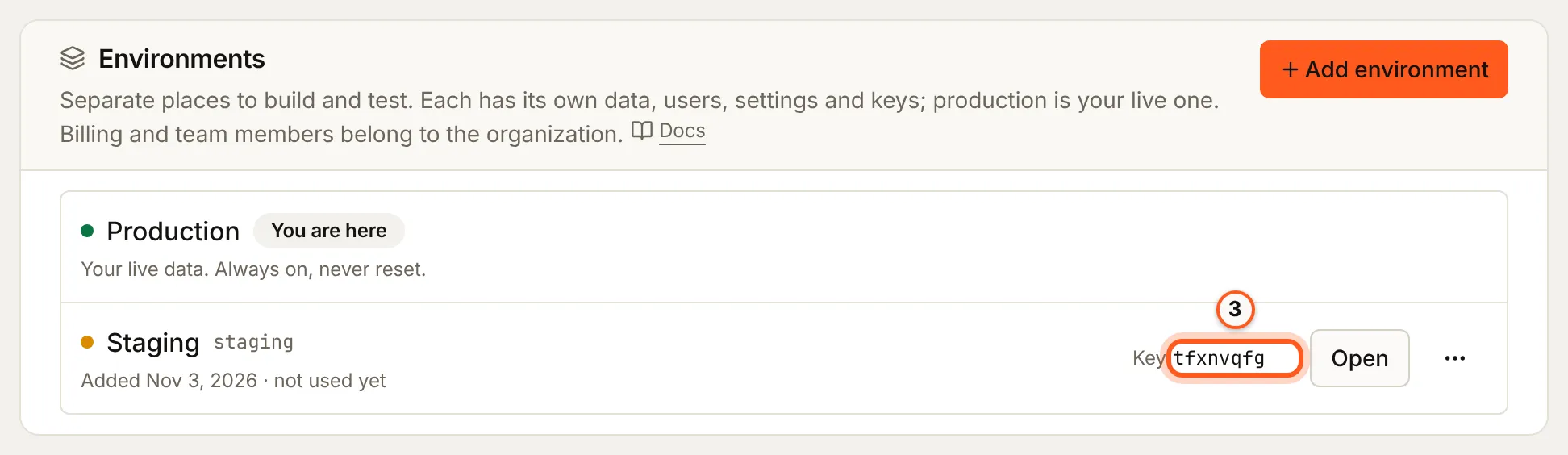
- The actions button beside Open holds Compare and promote, Rename, Reset and Archive.
Who may enter which environment
Every member of the organization is a member of every environment: there is one team. What you choose is which environments each member may open.
In Settings > Users, a member's Environment access is either every environment, including ones added later, or a list you pick. With none picked, the member works in production only. The owner always enters every environment.
A member without access does not see that environment in the switcher, and a request to switch into it is refused with ENVIRONMENT_NOT_ALLOWED.
Connect an app to an environment
The first time an environment is opened, it sets itself up with:
- Email and password, magic link (a sign-in link sent by email) and passkey sign-in.
- Google and GitHub sign-in through BuildBase's shared apps, where the platform offers them.
- A sign-in client named after the environment. A sign-in client is the record your app identifies itself with when it sends people to sign in. This one already returns people to
http://localhost:3000,http://localhost:5173andhttp://localhost:8080/auth/buildbase/callback(a localhost redirect matches on any port).
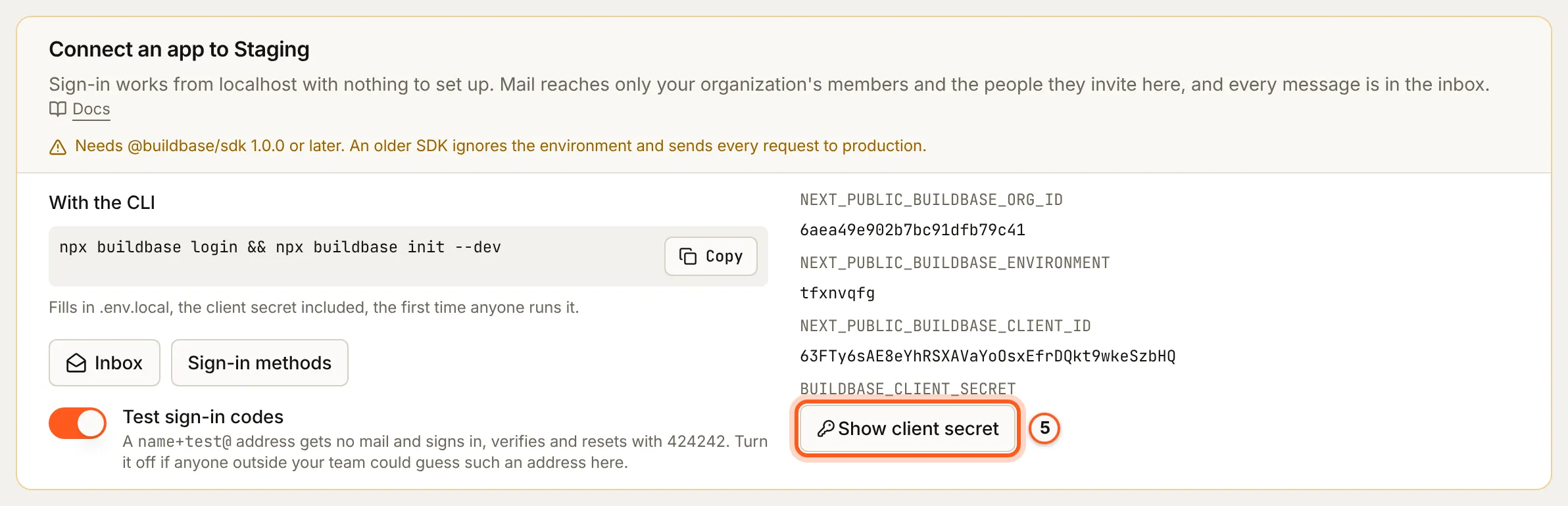
Its dashboard then opens with Connect an app to and the environment's name. That card holds everything an app needs:
NEXT_PUBLIC_BUILDBASE_ORG_IDandNEXT_PUBLIC_BUILDBASE_ENVIRONMENT, the environment's key, each with a copy button.NEXT_PUBLIC_BUILDBASE_CLIENT_ID, that sign-in client.BUILDBASE_CLIENT_SECRET, the password your server uses to prove it is your app. Show client secret hands it out once. After that, the card says when it was handed out, and Rotate mints a new one. Any app still using the old secret stops signing people in until it has the new one.- The CLI line that fills all of these in for you,
npx @buildbase/sdk login && npx @buildbase/sdk init --dev, which needs@buildbase/sdk1.0.0 or later.
- Press Open on the environment's row. Its Home starts with Connect an app to and its name.
The inbox
Test sign-ups without a real mailbox. An environment with no sender of its own sends mail through a platform sender, only to your team's addresses and to people your team invited in that environment. Every message it sends, to anyone, is kept under Messaging, then Inbox, with its links and codes. So you can sign up a test user and read the code right there.
Unless you turn off Test sign-in codes, an address ending in +test gets no mail at all and signs in with 424242. In production the inbox is empty by design: production's mail is in Email history.
- Test sign-in codes is the switch on the same card.

Limits in this environment
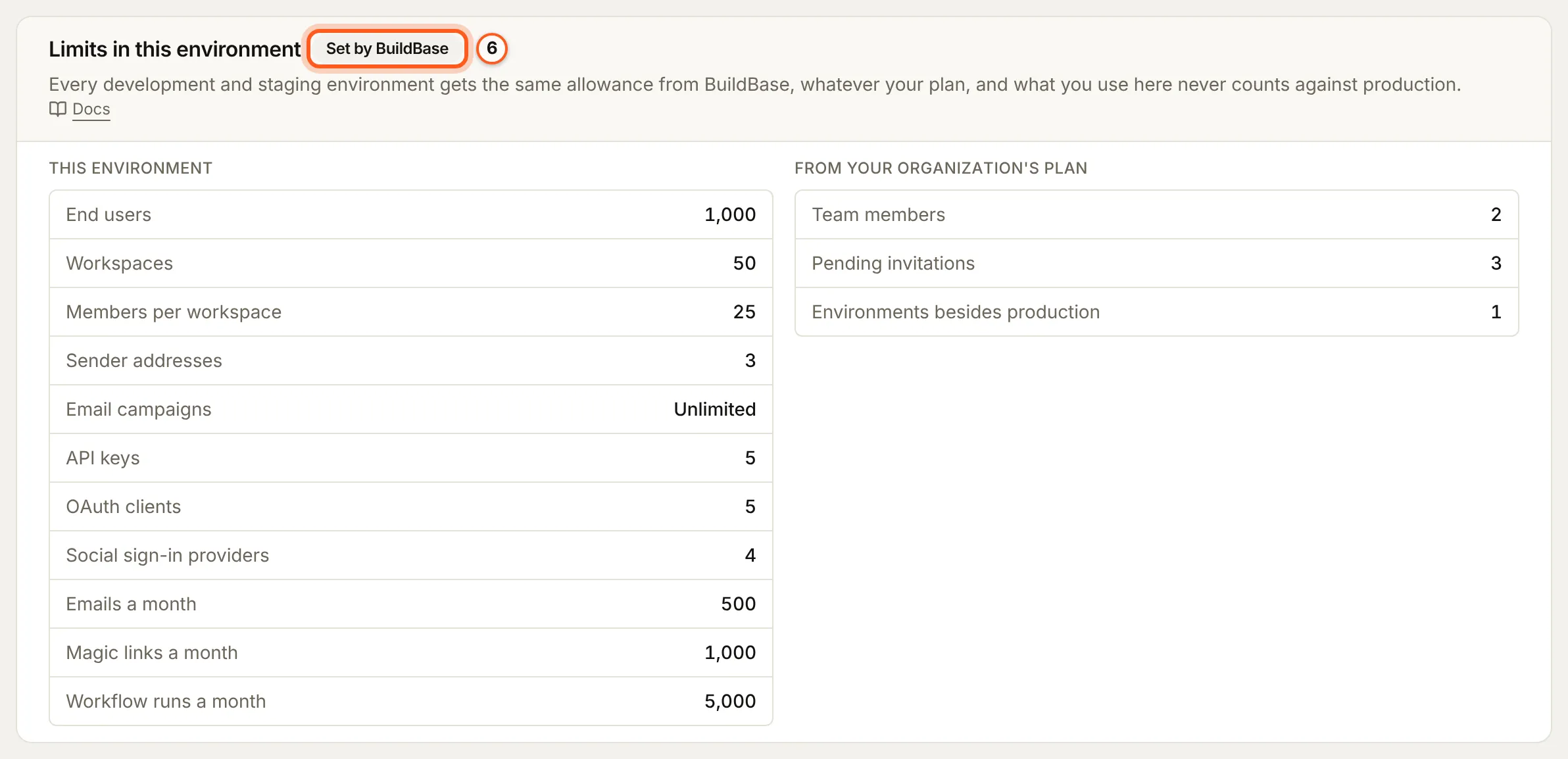
Each environment's dashboard shows Limits in this environment, marked Set by BuildBase. Every development and staging environment gets the same allowance, whatever your plan, and nothing used there counts against production.
Billing in an environment says the plan, invoices and payment method belong to the organization and cover production. The environment itself is not billed.
Changes: compare and promote
Once something works in an environment, move it to production from Changes instead of building it again by hand. Changes compares the environment you are in with one other, item by item. Inside an environment it is in the settings menu. From production, open it with Compare and promote on an environment.
It covers unsubscribe groups, email templates, workflows, plans and plan groups. Each row says whether it was added, changed or blocked, and what it lands as. Pick the rows to move and press Promote:
- A workflow arrives as a draft. A plan arrives as a new draft version with no Stripe ids yet. Either way, nothing goes live there until someone publishes it.
- Email templates and unsubscribe groups change in place.
- Users, records, history, secrets, keys and webhook endpoints never move.
- Tick the rows to move, then press Promote, and confirm.

The same screen also brings another environment's configuration here (Bring from, for example production into Development). Promotion needs an owner or admin who may enter both environments. Each one is recorded in both environments' security audit log. buildbase env diff, push and pull do the same from a terminal (the buildbase CLI).
Before production goes live
Once your organization has environments, production's dashboard shows a checklist, Before production goes live, while anything on it still needs a look. It flags what would stop real users signing in or paying. It reads production itself and is advice only: production still accepts everything it warns about.
| Check | Warns when | Goes to |
|---|---|---|
| Stripe test keys | Payments use Stripe test keys, so nobody is charged | Payment credentials |
| Sign-in returns to localhost | A sign-in client still sends people back to localhost; the card names each one | Auth clients |
| No email sender | No sender is connected, so sign-in codes and links are not delivered | Senders |
- Each row's button opens the screen where it is fixed.

Dismiss it with the close button. It stays dismissed in that browser. The same advice also appears in production where each setting lives: a note under a redirect URL that points at localhost (the computer of whoever is signing in), and a banner above Stripe keys that are test keys.
What stays in production
- Custom sign-in and sending domains are set up in production only. Outside it, adding one is refused with
ENVIRONMENT_UNSUPPORTED. - Live Stripe keys belong in production. An environment takes test keys only (
sk_test_,pk_test_), and a live key is refused withENVIRONMENT_KEY_MODE. - Your subscription is the organization's, and only production is billed.
Next steps
- Development and staging environments - the CLI, the SDK option and
environmentId() - Going to production - what to configure before real users sign in
- Error codes - every environment refusal and its status