
Secure your console account
Add an authenticator app to your BuildBase console sign-in, see and end your sessions, and require two-step sign-in for your organization.
This page is about your own login to the BuildBase console, not the sign-in your app gives its users (for that, see two-step sign-in). Open it from your avatar menu, Security, or the Security item in the account area.
| Section | What you can do |
|---|---|
| How you sign in | See the Google account you sign in with |
| Two-step sign-in | Turn an authenticator app on or off, make new backup codes |
| Where you are signed in | See each signed-in browser, end one or all the others |
| Two-step sign-in for your organization | Require two-step sign-in for every member (owners and admins) |
How you sign in
You sign in to the console with Google. Your password and email address belong to your Google account and are changed there, not in BuildBase; the page links to your Google account's security settings.
Turn on two-step sign-in
Two-step sign-in asks for a code from an authenticator app on your phone after Google, so someone who gets into your Google account still cannot get into the console.
Open Security in the console (opens the console in a new tab)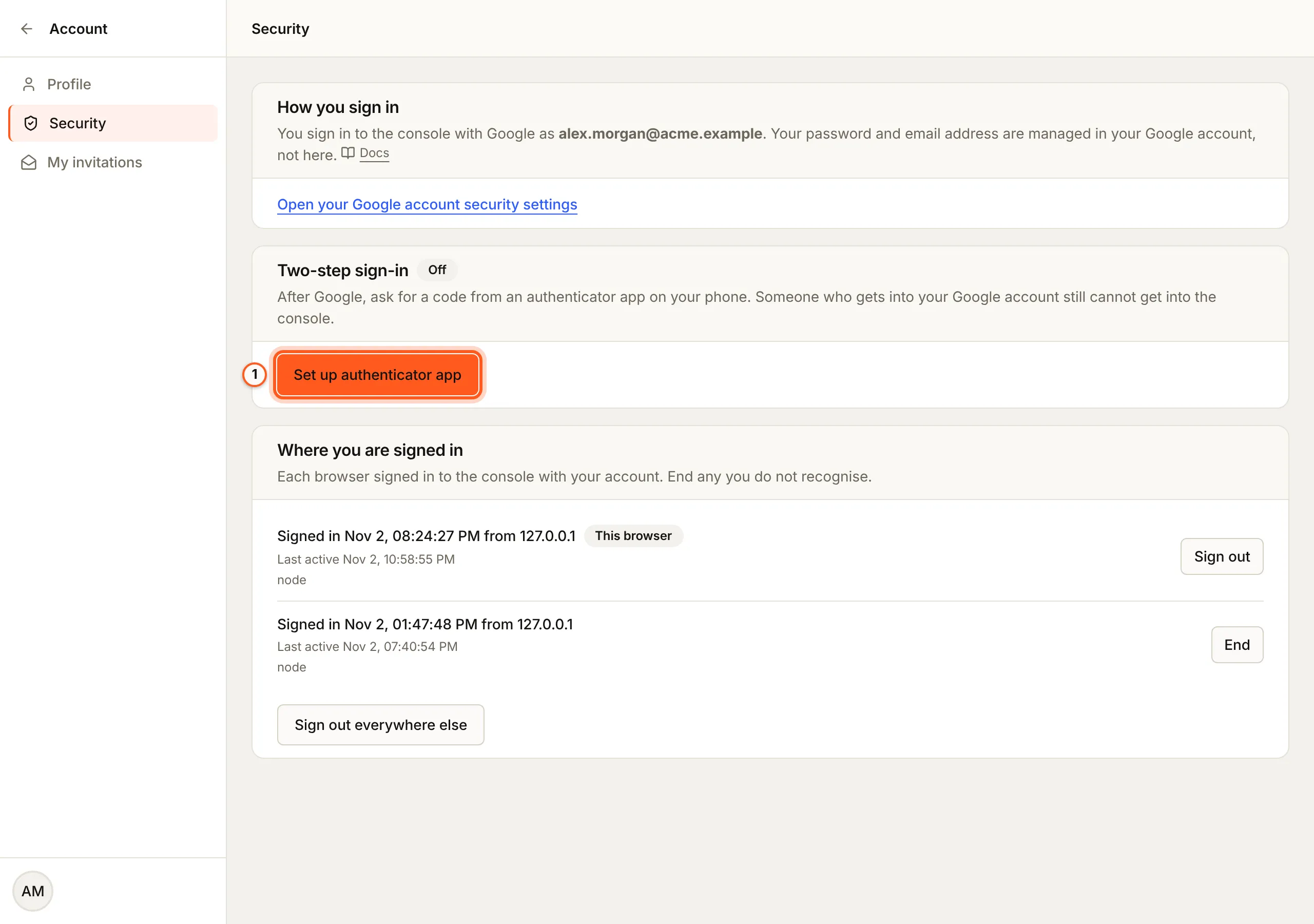
-
Press Set up authenticator app.
-
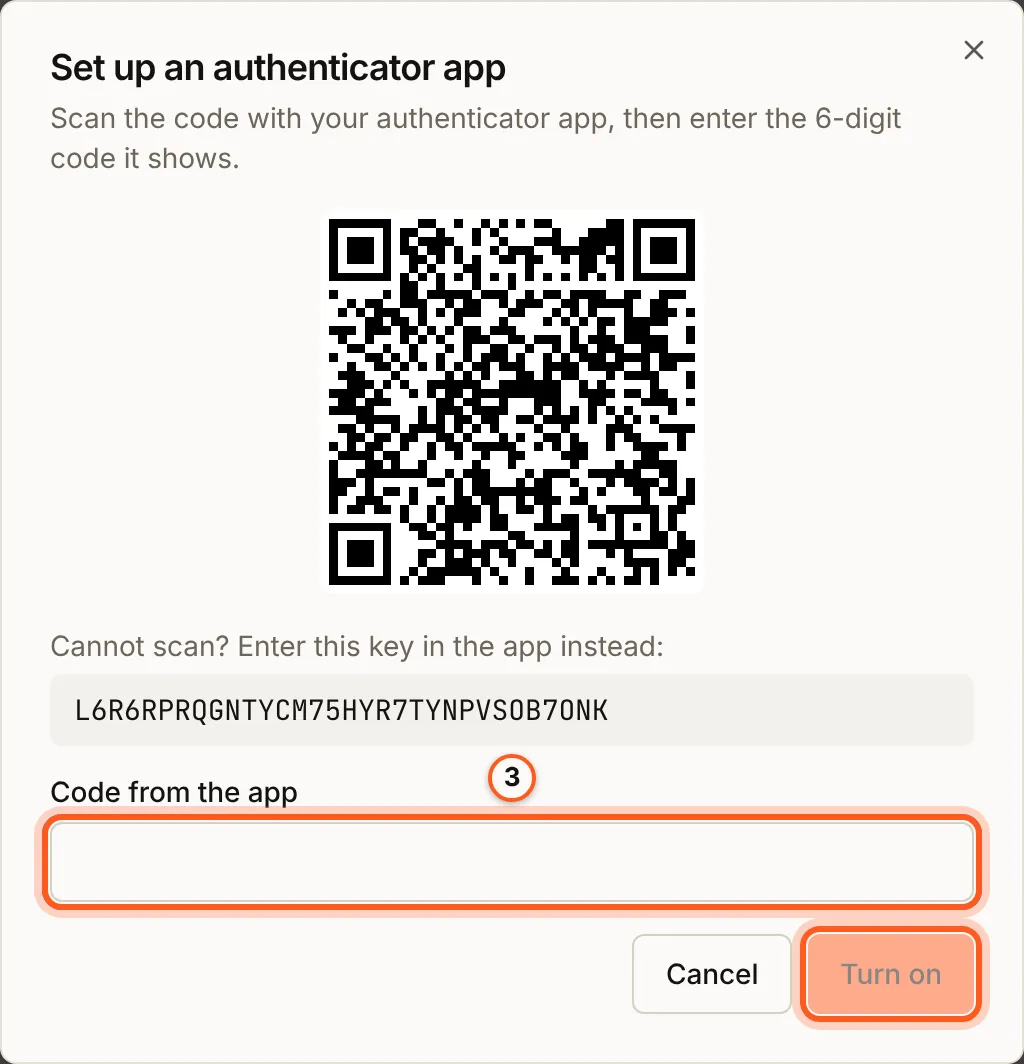
Scan the QR code with your authenticator app, or type the setup key shown under it.
-
Enter the 6-digit code the app shows and press Turn on.
-
Save the 10 backup codes. Copy or download them: they are shown once and cannot be shown again.
Each backup code signs you in once if you lose your phone. The page shows how many you have left and suggests making new ones when three or fewer remain. Make new backup codes asks for a code from the app or a backup code, and the old codes stop working.
Turn off also asks for a code, after which your next sign-in needs only Google.
Warning
Keep your backup codes somewhere other than your phone. If you lose the app and every backup code, contact BuildBase support: support can remove the app from your login, which also signs you out everywhere.
Signing in with a code
With two-step sign-in on, the console asks for Two-step sign-in after the Google step. Enter the 6-digit code from your app, or choose Use a backup code instead.
- A sign-in waiting for its code expires after five minutes.
- Five wrong codes end that sign-in; start again from Google.
- Ten wrong codes for your account in 15 minutes lock code entry for up to 15 minutes.
- Each code from the app, and each backup code, works only once.
See and end sessions
Where you are signed in lists each browser signed in to the console with your account: when it signed in and from which IP address, when it was last active, and the browser it reported. This browser marks the one you are using, and With two-step marks sign-ins that passed the second step.
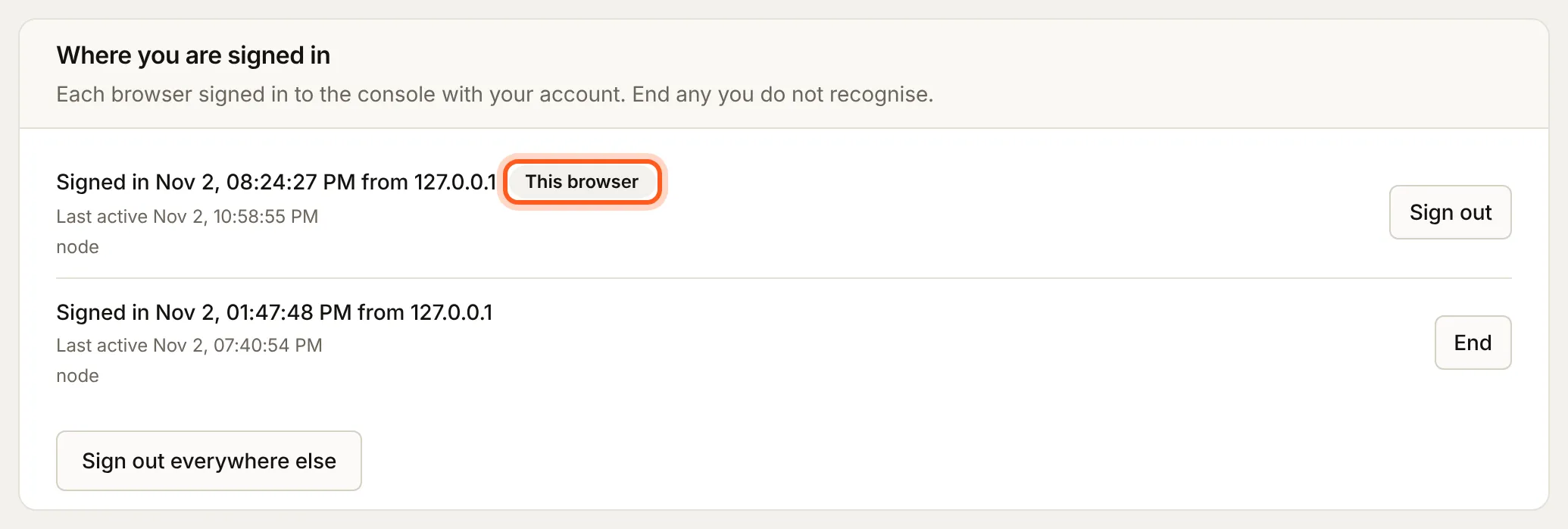
- End on another browser's row signs that browser out; it has to sign in again.
- Sign out on your current row signs you out here.
- Sign out everywhere else ends every sign-in except this one.
Ending a sign-in also ends the sessions it opened in your organizations. Other consoles you are still signed in to reopen their organization once and carry on.
Require two-step sign-in for your organization
An owner or admin can turn on Require two-step sign-in in the organization card at the bottom of the page. Every member must then have an authenticator app to open that organization.
- You must turn on two-step sign-in for your own account first, so the rule cannot lock you out.
- Nobody is signed out. A member without an app is sent to the Security page the next time they open the organization, with a note naming it, and opens it again once the app is set up.
- While you belong to an organization that requires it, you cannot turn your own two-step sign-in off.
- Turning the rule on or off is recorded in the organization's audit log.
Next Steps
- Your team and its roles - invite your team, give each person and API key a role, and hand the organization over.
- Two-step sign-in for your app's users