
Put the Sign-in Page on Your Own Domain
Move the hosted sign-in page to an address you own, such as auth.acme.example - connect it, add its DNS records, verify it and pick the apps that use it.
By default your hosted sign-in page lives on BuildBase's address. You can put it on an address of your own, such as auth.acme.example, so people see your name in the address bar while they sign in. You connect the domain on the Domains tab in the console, add the DNS records it shows at the company you bought the domain from, and press Verify. Then choose which apps sign in there: all of them, or one at a time. Your app's code changes for none of it.
Before you start
- A plan with custom auth domains. On a plan without them, the Domains tab shows your included address and offers the upgrade.
- Access to your domain's DNS settings, at the company you bought it from (GoDaddy, Namecheap or Cloudflare, for example).
- An app (auth client) on the Settings tab (Set up sign-in).
Open the Domains tab in the console
(opens the console in a new tab)1. Open the Domains tab
In the console's left rail, choose Users, then Authentication under Access, and open the Domains tab. Sign-in addresses at the top says where your apps sign in now; Authentication domains below it holds your own domains.
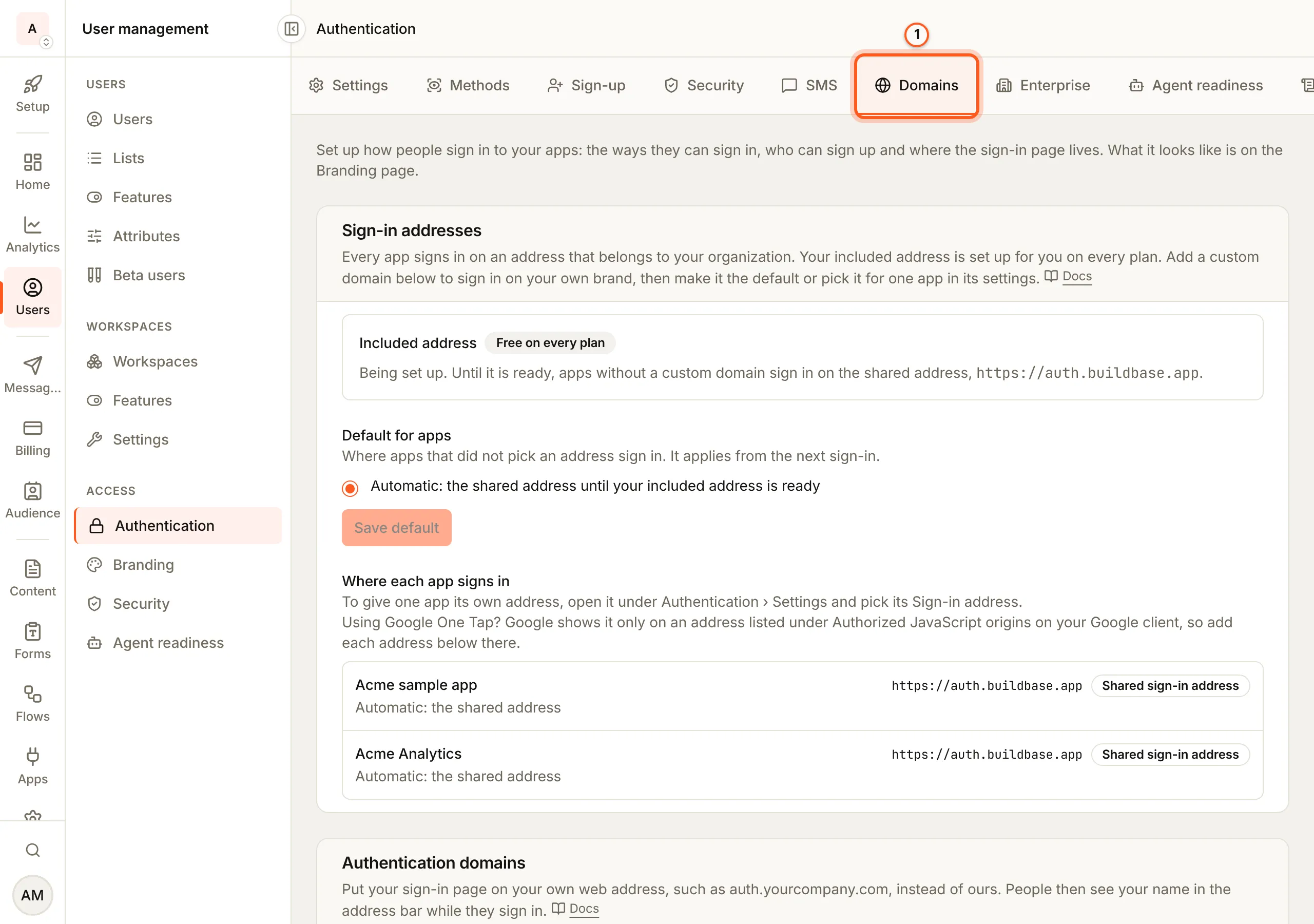
2. Press Connect new domain
Pick an address that serves nothing else, usually a new subdomain of your website such as auth.acme.example. How to connect your own domain in the Authentication domains card lists the steps, and stays open while you have no domain yet. Press Connect new domain.
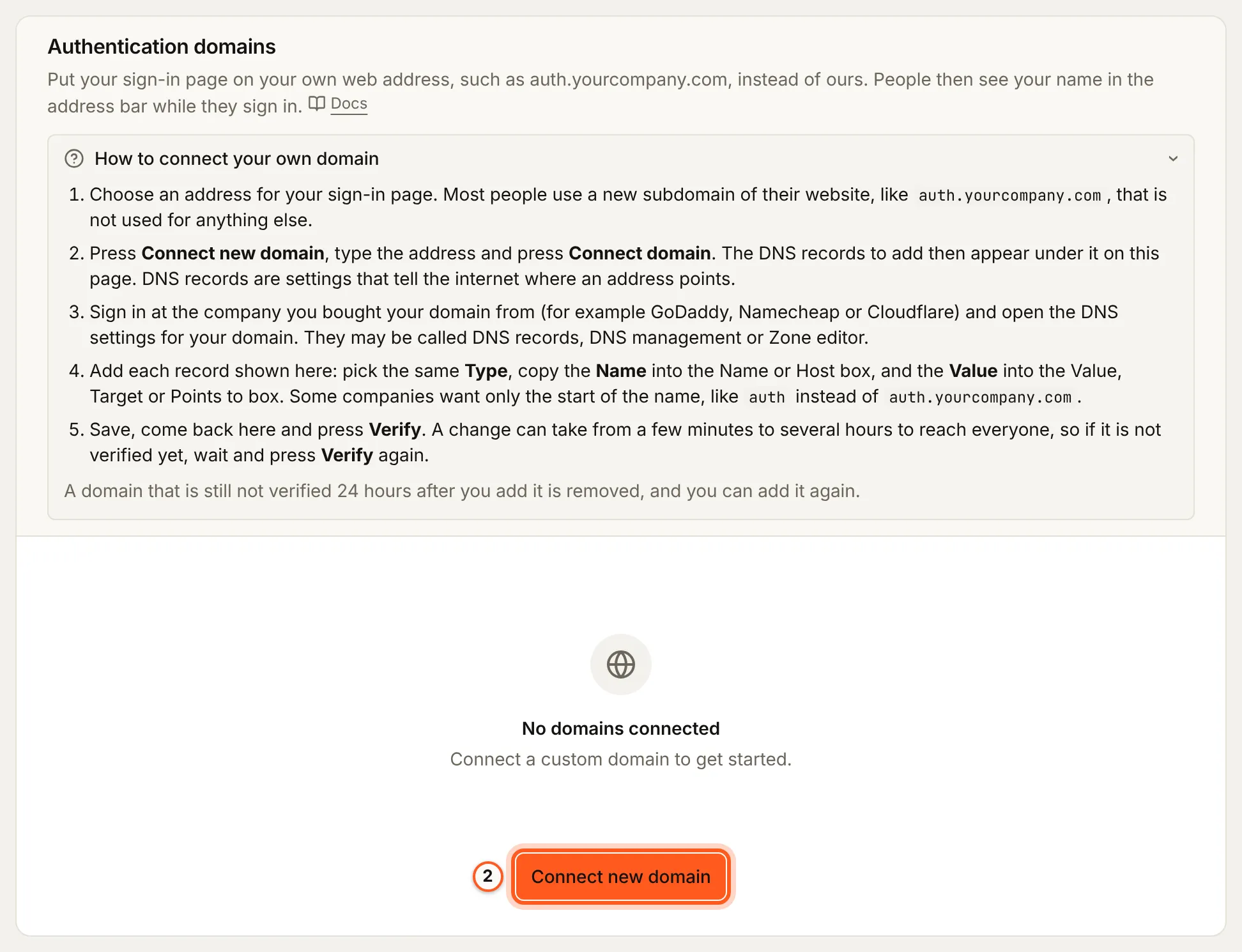
3. Type the domain and connect it
In Domain, type the address without https:// in front, such as auth.acme.example, and press Connect domain. The note above the box says what moves with the page once the domain is verified: passkeys, bot protection and Google One Tap (see Things to watch out for).
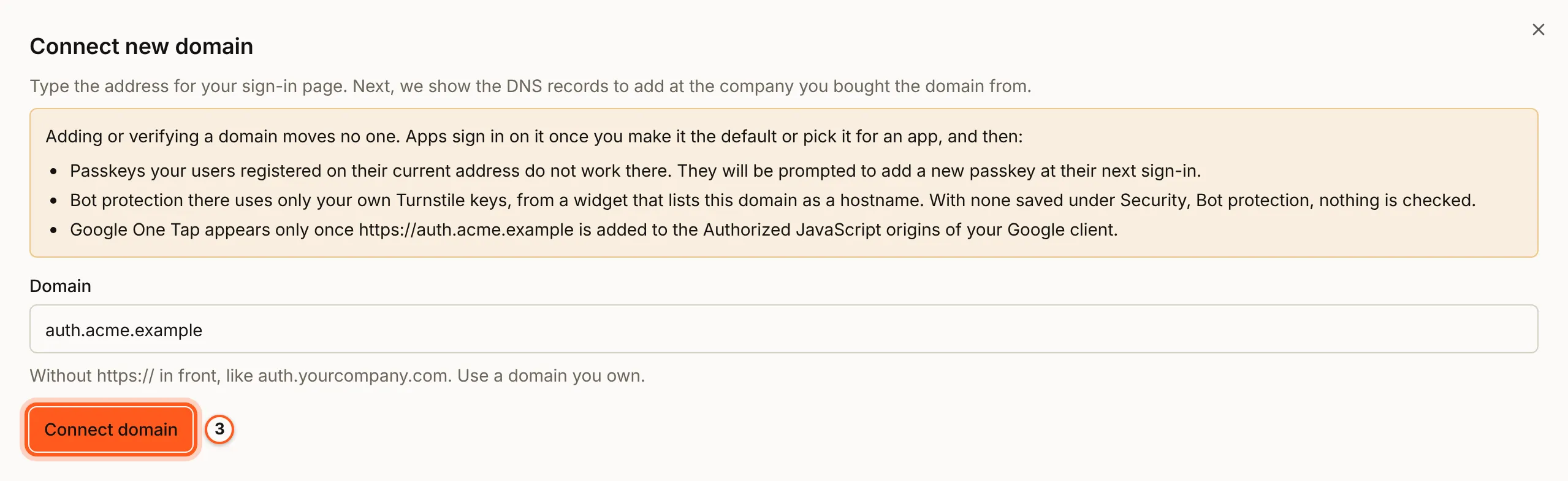
The sheet closes and the domain appears in Authentication domains as Pending, with the DNS records to add under it. Each record has a Type (usually CNAME), a Domain (the name) and a Value.
4. Add the DNS records and press Verify
Sign in at the company you bought your domain from and open its DNS settings (they may be called DNS records, DNS management or Zone editor). Add each record the Domains tab shows: pick the same Type, copy the Domain into the Name or Host box and the Value into the Value, Target or Points to box. Some companies want only the start of the name, such as auth instead of auth.acme.example. If your DNS is at Cloudflare, set the record to DNS only.
Save, come back to the Domains tab and press Verify on the domain's row. Verify checks three things, in order:
- That you own the domain.
- That its DNS points at BuildBase.
- That your sign-in page loads on it over HTTPS with a working certificate.
Until all three pass, the row reads Pending and a note under it says which one is missing, and sign-in stays where it is. A DNS change can take from a few minutes to several hours to reach everyone, and the certificate is usually issued a few minutes after the record is in place, so press Verify again shortly. When all three pass, the row reads Verified and shows how long its HTTPS certificate is valid.
A domain still not verified 24 hours after you add it is removed, and you can add it again.
5. Choose which apps sign in there
Where your Domains tab shows an Included address, a verified domain is ready but not used yet:
- For every app: press Use as default on the domain's row. Apps that did not pick an address of their own sign in there from the next sign-in. Changing the default asks first and names the apps that move.
- For one app: open User management > Access > Authentication > Settings, press Edit on the app and pick its Sign-in address: the organization default, the included address, or one of your verified domains. Several apps can share one domain, and two apps can use two different domains.
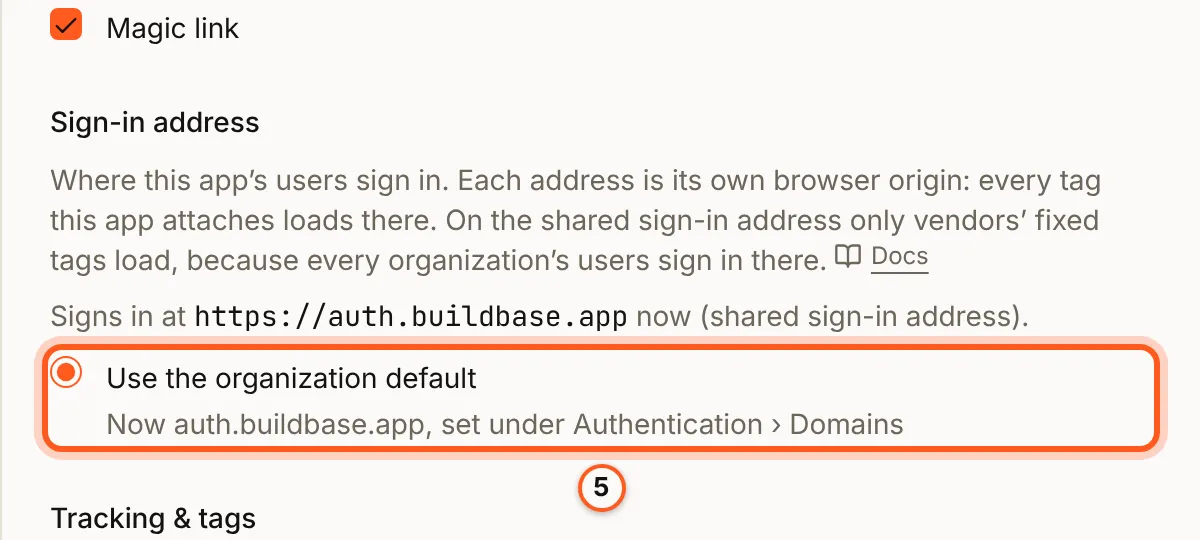
Where there is no Included address on the tab, your first verified domain is used as soon as it is verified. An organization whose domain was verified before per-app addresses keeps signing in on it.
Sign-in addresses shows the result: your included address, the default for apps, and every app with the address it signs in on now and what set it.
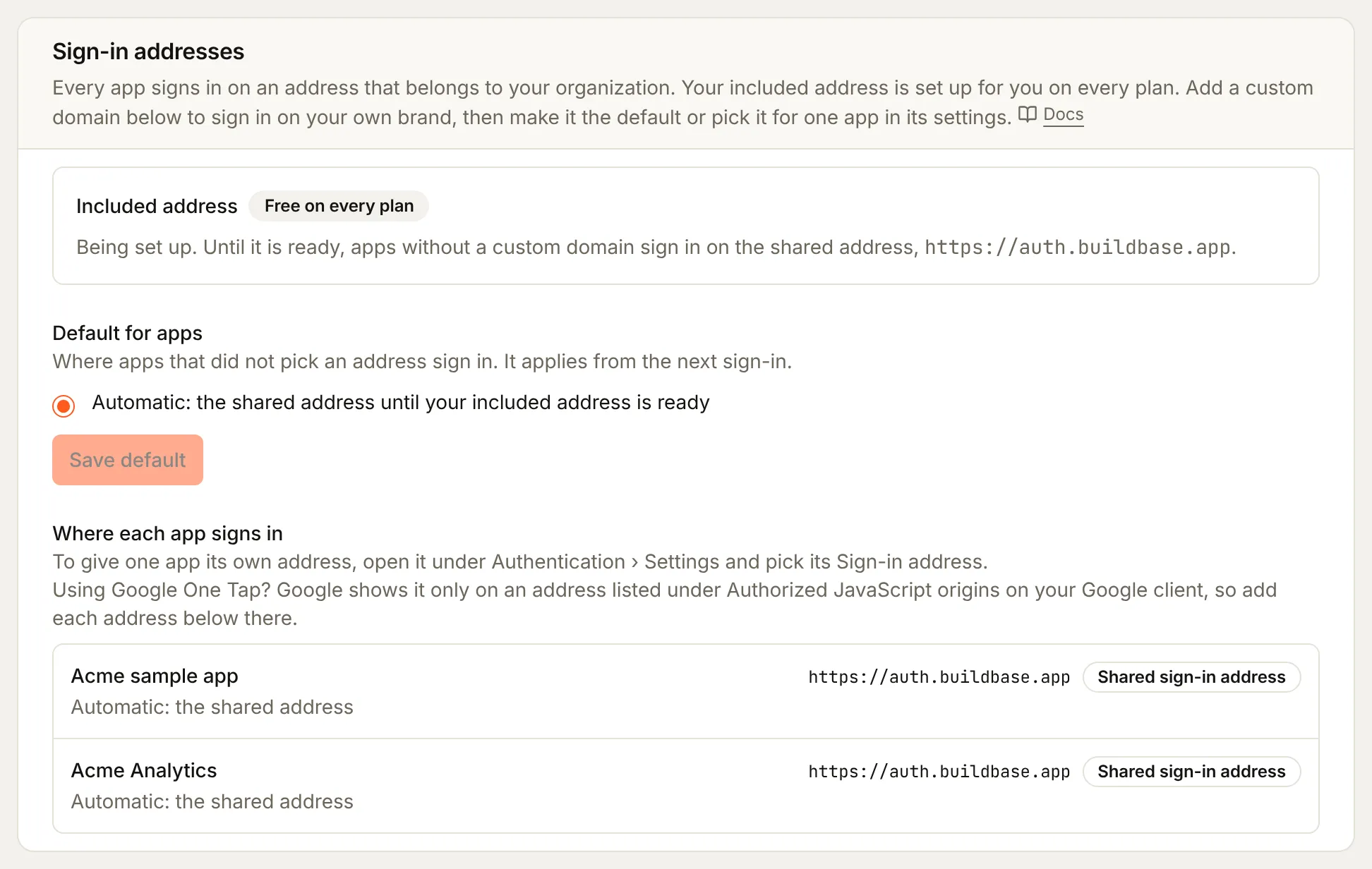
From the next sign-in on an app that uses the domain, the sign-in page, the device code link and the wallet's sign-in message name your address.
Which address each app uses
Where your Domains tab shows an Included address, every organization has one, made from its organization ID, such as 64b0000000000000000000a1.auth.buildbase.app. It is free on every plan, needs no setup and never changes, and it is where your apps sign in unless you pick another address. Only your users sign in there, so every tracking tag your apps attach loads on it (Tracking).
An app that picks nothing uses the organization default, set under Domains in Sign-in addresses: the included address, or one of your verified domains.
If your plan stops including custom domains, apps that picked one sign in on the included address until it does again; their choices are kept, and links already sent to the domain still work. Where there is no included address, they keep signing in on the domain, so nobody is moved to BuildBase's address and loses the passkeys made on the domain.
If an app's address stops serving sign-in, because the domain was removed or keeps failing its checks, that app signs in on the organization default until it is back. Deleting a domain names the apps that use it, and they move to the organization default.
A sign-in link opened on another organization's address is refused: the page says the link does not belong there and to start again from the app, and nothing of either organization loads. A link opened on BuildBase's address, or on any of your own addresses, still works. Over the API the refusal is 403 with code: 'SIGN_IN_ADDRESS_MISMATCH', and 503 with SIGN_IN_ADDRESS_UNCHECKED when the page's address could not be checked just then; try again (Error codes).
Check that it worked
- The domain's row reads Verified, and opening
https://auth.acme.exampleloads your sign-in page over HTTPS. - Sign-in addresses lists the app on
https://auth.acme.example. - A sign-in started from the app opens on
auth.acme.exampleand completes. - The device code link that app shows names
auth.acme.example.
Things to watch out for
- Your own address changes four things at once. Passkeys belong to the address they were made on, so passkeys made on the old address stop working and people are asked to add a new one at their next sign-in (Passkeys). Google One Tap needs the new address among the Authorized JavaScript origins of your Google client. Bot protection needs your own Turnstile keys, from a widget that lists the domain (Bot protection). The device code link and the wallet's message name the new address. With one address per app, each of these follows the app.
- Use a new subdomain. The record the Domains tab shows is usually a CNAME, which cannot sit on a bare domain such as
acme.example. - If your DNS is at Cloudflare, set the record to DNS only. A proxied record, or any proxy or CDN in front of the address, can stop the certificate from being issued or the page from loading.
- If your domain limits who may issue its certificates, allow Let's Encrypt. A CAA record that names other issuers stops the certificate for your sign-in page. Add
0 issue "letsencrypt.org". - A domain not verified within 24 hours is removed. Add it again once the DNS record is in place.
- The checks run again every six hours. If a verified address keeps failing them for about an hour, its row reads Not serving and sign-in moves back to BuildBase's address until they pass again.
If something goes wrong
| What you see | Why | What to do |
|---|---|---|
"That is not a domain", or 400 "Invalid domain format" | The box holds https://, a path or something that is not a host name | Type only the host, such as auth.acme.example |
400 "That is a public suffix, not a domain that can be attached" | The address is a suffix anyone can register under, such as co.uk or github.io | Use a domain you own, or a subdomain of it |
400 "This domain belongs to the platform and cannot be attached" | The address is BuildBase's own, or under it | Use a domain you own |
| "This domain is already added to your organization." | It is already in Authentication domains | Find its row and press Verify there |
409 "This domain is already in use by another organization." | Another organization added it first | Remove it from that organization, then add it here |
Connect new domain is locked, or a 402 with your plan's limit | Your plan has no custom domains, or you have as many as it allows | Upgrade, or delete a domain you no longer use |
403 "An organization may attach at most N custom domains." | A limit on domains per organization that no plan changes | Delete a domain you no longer use |
| Not verified yet, with "We have not been able to confirm you own this domain yet." | The ownership record is missing or has not spread yet | Add the record shown, wait, and press Verify again |
| Not verified yet, with "The domain does not point at our sign-in page yet." | The DNS record is missing, wrong or has not spread yet | Check the Type, name and Value at your DNS host, then press Verify again |
| Not verified yet, with "the secure (HTTPS) certificate for the domain is not ready" | The DNS is right and the certificate is still being issued | Press Verify again in a few minutes; check for a CAA record |
| Not verified yet, with "your sign-in page did not load on this address" | A proxy or CDN sits in front of the domain | Turn it off for this address (DNS only at Cloudflare), then press Verify |
| The row reads Not serving: "Sign-in has moved back to our address until this is fixed." | A verified domain kept failing its checks | Fix what the note says, then press Re-verify |
| People are asked to add a passkey again | Their passkey was made on the old address | Expected once per person; tell them before you move the address |
Next steps
- Make the sign-in page yours - your name, logo, colours and words on the page at its new address.
- Bot protection - your own Turnstile keys for the domain.
- Google One Tap - the new origin for your Google client.
- Sign-in setup guides - every other part of sign-in.