
BuildBase in your AI tools
Connect Claude, ChatGPT, Cursor, VS Code or another AI tool to BuildBase's MCP server, sign in as yourself, and manage your organization from the chat.
This page is about BuildBase in your AI tools: you connect Claude, ChatGPT, Cursor or another AI tool to BuildBase's own MCP server and manage your BuildBase organization from the chat. The agent signs in as you, acts with your role, and never sees your organization's secrets.
Note
Want your own app to be agent-ready? That is the other track, Agent-ready apps: your users connect their AI tools to the app you build with BuildBase. Start at Make your app agent ready.
The server URL
https://api.console.buildbase.app/mcp
It is a remote MCP server over Streamable HTTP. Your AI tool opens BuildBase's sign-in page the first time it connects; you sign in with your console account, whichever way you sign in to the console, and approve the tool on the consent screen. The same address is under Security (your avatar menu), on the AI agents card, under Connect an agent.
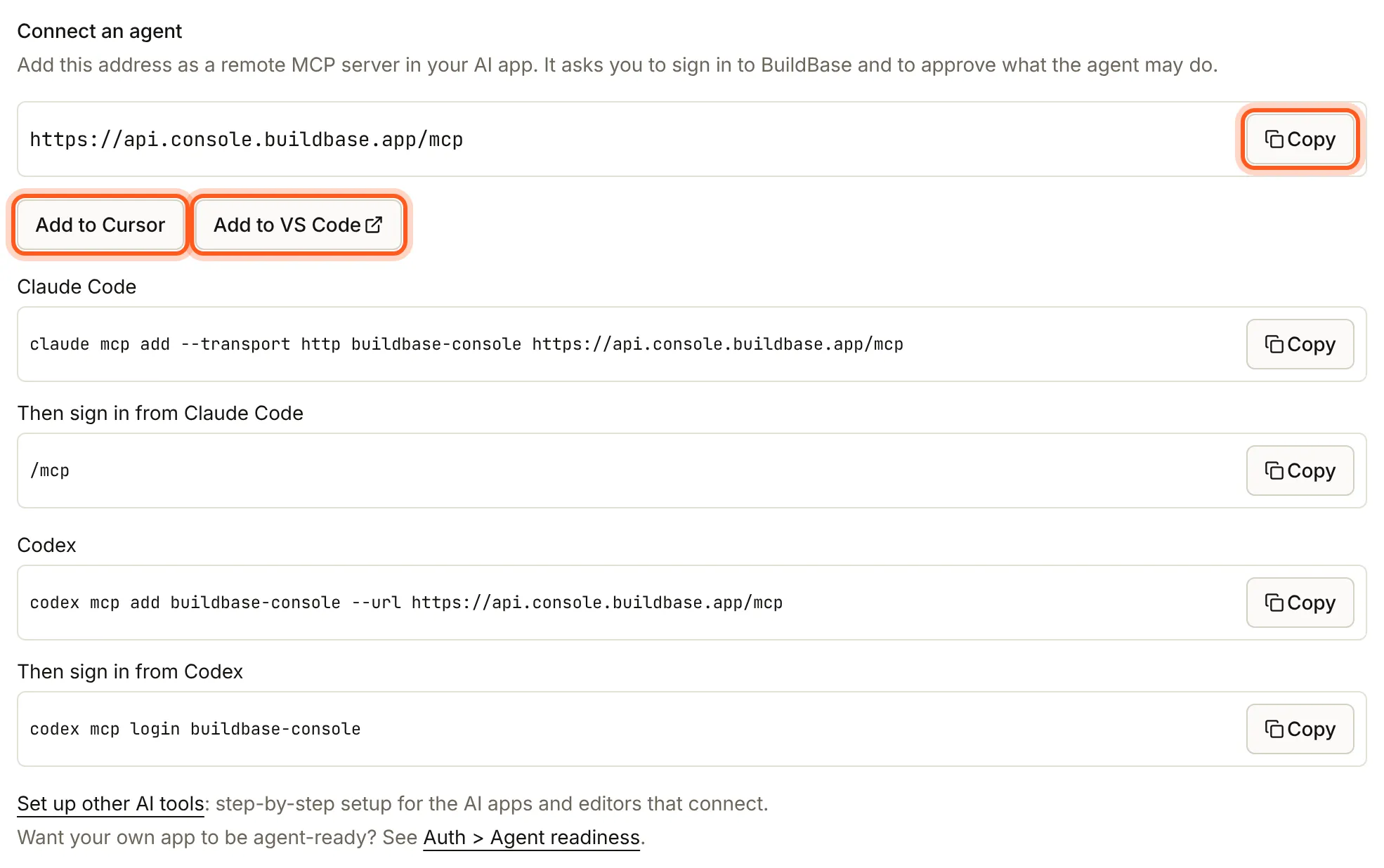
The card is also one step away from Get started: its optional last step, Connect your AI, opens it with Connect an AI app. Skip the step if you do not use an AI tool.

Connect in one click
Each button adds the server to that tool, which then asks you to sign in. The same entry by hand:
Cursor, in ~/.cursor/mcp.json (every project) or .cursor/mcp.json (one project):
{
  "mcpServers": {
    "buildbase-console": {
      "url": "https://api.console.buildbase.app/mcp"
    }
  }
}
VS Code, in your MCP configuration (VS Code uses servers and "type": "http"):
{
  "servers": {
    "buildbase-console": {
      "type": "http",
      "url": "https://api.console.buildbase.app/mcp"
    }
  }
}
Connect your tool
Every tool below takes a remote MCP server by URL and signs you in with OAuth, according to its vendor's own docs. Each page has the exact steps, the plan the tool needs, how sign-in looks there, and what to do when it does not connect.
| Tool | Where you add it | One click |
|---|---|---|
| Claude | Customize > Connectors > Add custom connector | No |
| ChatGPT | Plugins > + > Add custom MCP server | No |
| Claude Code | claude mcp add --transport http | No |
| Codex | ~/.codex/config.toml | No |
| Cursor | mcp.json | Yes |
| VS Code | MCP configuration, or code --add-mcp | Yes |
| Windsurf | mcp_config.json | No |
| Zed | Settings > AI > MCP Servers > Add Remote Server | No |
| Junie | .junie/mcp/mcp.json | No |
| Gemini CLI | gemini mcp add --transport http | No |
| Goose | goose configure > Remote Extension (Streamable HTTP) | No |
| Cline | cline_mcp_settings.json | No |
| v0 | MCP Connections | No |
| Lovable | Connectors > Add custom > MCP server | No |
| Bolt | Connectors > Manage connectors > Custom MCP server | No |
| Replit | MCP Servers > Add MCP server | No |
JetBrains AI Assistant takes a remote server by URL, but its docs describe no OAuth sign-in, so you cannot sign in to BuildBase as yourself there; use Junie in the same IDE. Another tool that supports remote MCP servers with OAuth works the same way: add the URL as an HTTP server.
What you see when you connect
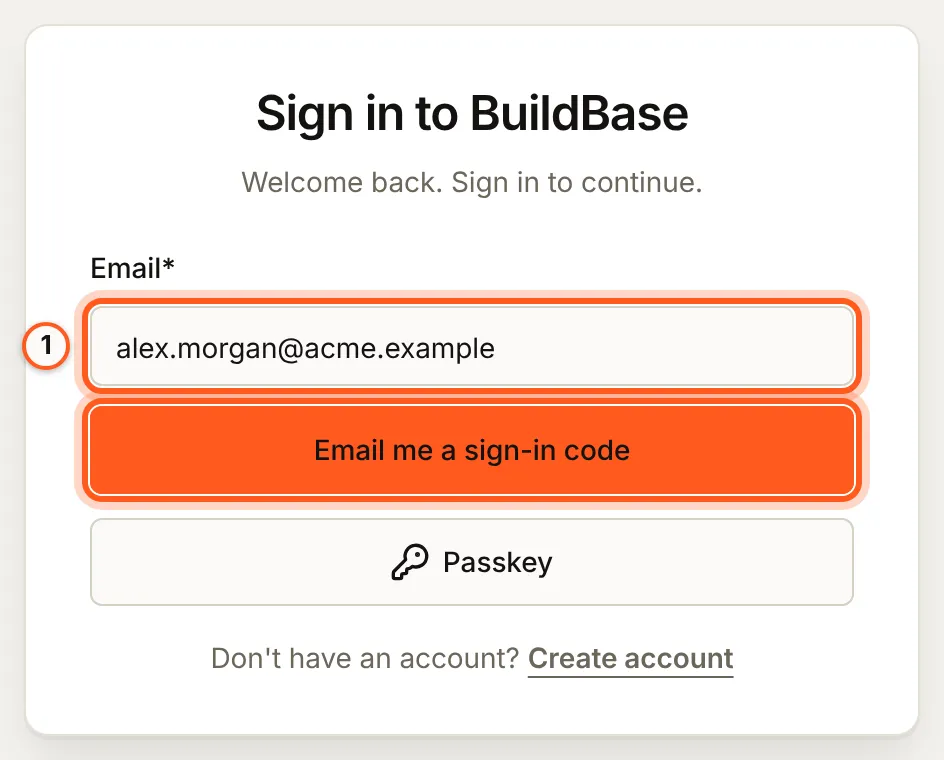
Whichever tool you use, the first connection opens two BuildBase pages in your browser.
-
Sign in with your console account, the way you sign in to the console. With an emailed code, type your address and choose Email me a sign-in code; your usual second step applies.
-
Read the consent screen and choose Allow access. It names the tool as the tool registered itself, warns that nobody has checked that name, and lists the scopes it asked for (
console:readandconsole:writeto start) and the server the access is for.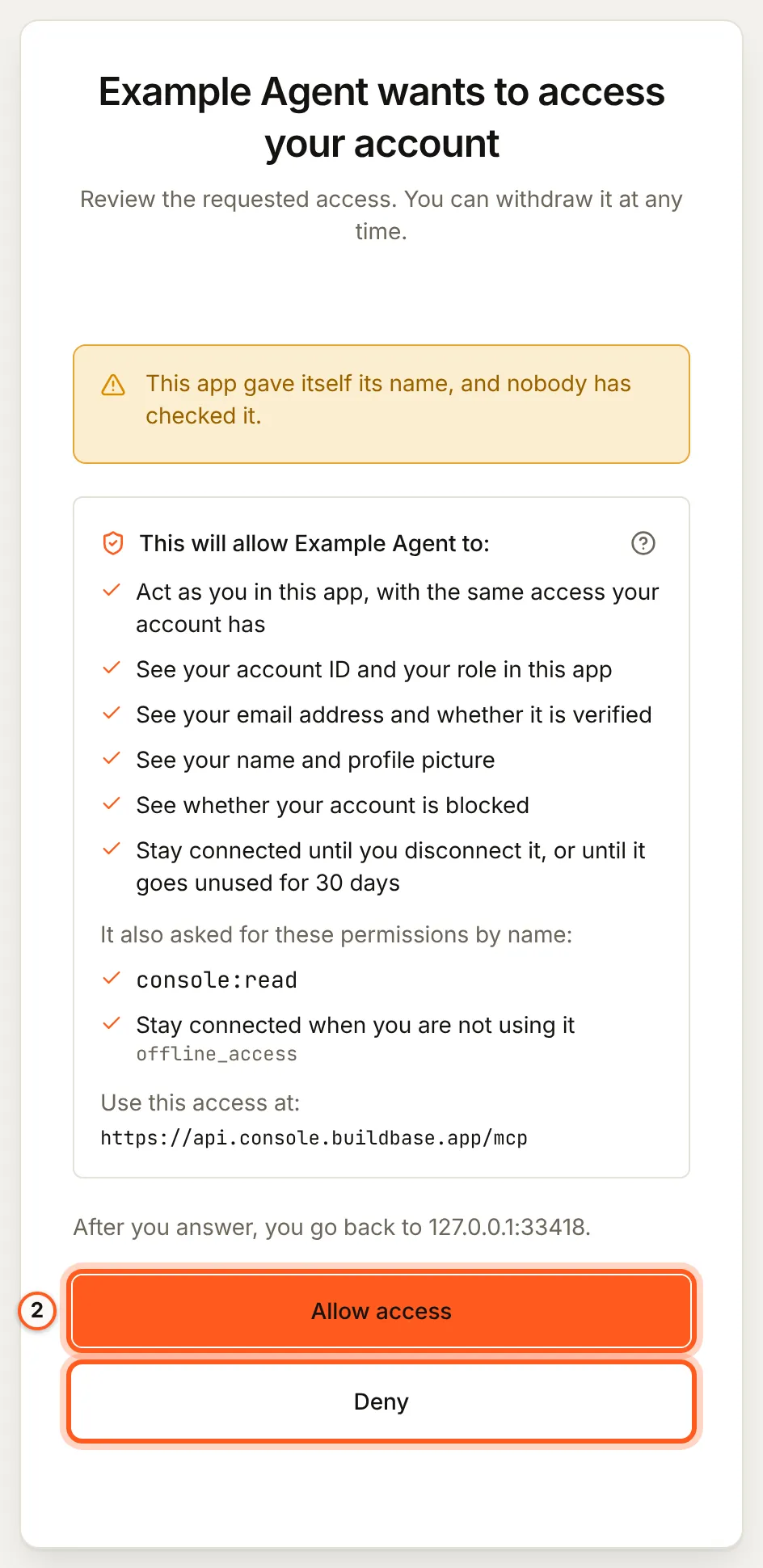
The tool then has its own session with BuildBase. You can end it at any time (disconnect an agent).
Tools
The server lists 19 tools. Each needs the scopes in its row; an agent asks for console:read and console:write when it connects, and for console:export or console:destructive only when a task needs one (what an agent asks for).
| Tool | What it does | Scopes | Your approval |
|---|---|---|---|
whoami | Who the agent acts for, and what the connection allows | console:read | No |
list_orgs | Your organizations, your role in each, and what each lets agents do | console:read | No |
open_org | Checks the agent can act in an organization and environment now | console:read | No |
console_catalog | Where things are in the console, for console_get | console:read | No |
console_get | Reads anything the console shows you (lists of people need console:export) | console:read | No |
console_write | Creates and changes things; never deletes | console:read, console:write | No |
console_destructive_change | Deletes, sends to an audience, changes members, roles or webhooks, moves money, runs a workflow for real | console:read, console:write, console:destructive | Yes, each change |
create_org | Creates an organization you own (signed-in connections only) | console:read, console:write | Yes |
blueprint_schema | What a blueprint file may hold | console:read | No |
blueprint_validate | Checks a blueprint file on its own | console:read | No |
blueprint_plan | What applying a blueprint would change (owners and admins) | console:read | No |
blueprint_export | Writes an organization out as a blueprint (owners and admins) | console:read | No |
blueprint_apply | Applies the plan you were shown (owners and admins) | console:read, console:write | When the plan is destructive (with console:destructive) |
search_docs | Searches the BuildBase docs | console:read | No |
fetch_doc | Reads one BuildBase docs page | console:read | No |
get_env_template | The environment variables an app needs, secrets left blank | console:read | No |
start_export | Exports your audience, as the Export button does | console:read, console:export | No |
get_export_status | An export's status and, once done, its rows | console:read, console:export | No |
claim_link | A claim link and code for an organization an agent created with no account | console:read | No |
| Scope | What it lets the agent do |
|---|---|
console:read | Read what you can see in the console, as you |
console:write | Create and change things, where the organization allows changes |
console:export | Read lists of your organization's own people (app users, the audience, beta sign-ups and form submissions), and export the audience |
console:destructive | Delete things, change members, roles or webhooks, send to an audience, each after a confirmation step, and apply a blueprint that does any of these |
What an agent asks for at sign-in
An agent asks for console:read and console:write when you first connect it. Whether it may change anything is your organization's choice, not the connection's: under Read only, the default, an agent holding console:write still only reads, and under Read and change it can make changes within your role (choose what agents may do).
console:exportandconsole:destructiveare asked for only when a task needs one. The server tells your AI tool which scope is missing (an HTTP 403 witherror="insufficient_scope"). Tools that follow the MCP authorization spec's step-up flow open the BuildBase sign-in page again so you can approve just that scope; in other tools the agent tells you the scope it needs, and you reconnect it and approve that scope.- Deleting, sending to an audience, changing members, roles or webhooks, moving money and running a workflow for real each wait for your approval of that one change, whatever the agent was granted.
- Approving a scope never gets past your organization's AI agents setting or your role. When either refuses, the agent tells you so, and approving again changes nothing.
- Every change an agent makes is recorded in the organization's audit log, and you can end its access at any time (disconnect an agent).
Tools that change things
Changes go through two tools, so your AI tool can treat them differently, for example "Always allow" on console_write and "Needs approval" on console_destructive_change. console_write is marked as not destructive; console_destructive_change is marked as destructive. Each tool refuses the other's changes and names the right one.
What stays with you
The agent acts as you: your role, your organization's plan and the environments you may open all apply to it. On top of that, these never reach it:
- Secrets. It never reads or changes API keys, sign-in settings and methods, signing keys, payment and mail provider credentials, or the integrations that hold a secret: deploy hooks, monday.com, form spam protection, push keys and tracking scripts. It never receives a secret, even one it creates: a webhook endpoint it adds or whose secret it rotates comes back without the signing secret, and any secret in what it reads is replaced by a note. To get the secret, rotate it in the console, where you see the new one once.
- Your app's API key and sign-in. It never takes the ad-conversions export token, never changes sign-in email (magic links, sign-in, verification and reset codes, invitations), and never signs in to your app as one of its users. A sent message's own copy, which can hold a sign-in code or link, stays with you.
- The billing catalog. It can read your plans, plan groups, items, item categories, credit packages and add-ons, but it cannot change them, by any tool. It never reads organization settings or an environment's setup kit.
- Your organization and account. It cannot switch, leave or hand over an organization, or change your own security settings. It can create an organization for you only with your approval (create an organization).
- Claiming. When an agent created an organization with no account, only a person can claim it: the agent gives you the link and code, and you sign in and type the code yourself (the claimable organization).
- Approvals. Deleting something, changing members, roles or webhooks, sending to an audience, publishing or running a workflow for real (a test that is not a dry run, a resume or a retry), and moving money (subscription actions, credits and grants) need
console:destructiveand your approval of that exact change:- In a tool that can ask you questions itself (MCP elicitation), the tool shows you the change and nothing happens unless you approve it. Each approval works once, for that change only, within five minutes. You see the whole change, with where it sends data and who it reaches first; a change too large to show whole is not put to you at all, and you make it in the console instead.
- In other tools, the agent states the change and sends it again with a one-time code. The agent takes that step, not you, so an agent misled by something it read could take it on its own.
Lists of people's contact details (app users, the audience, form submissions, the email send history and an audience-list preview) need console:export. Each change the agent makes is in the organization's audit log as an AI agent change, naming the tool, above your name.
Choose what agents may do
An owner or admin chooses in Security, AI agents. Every member sees the setting.
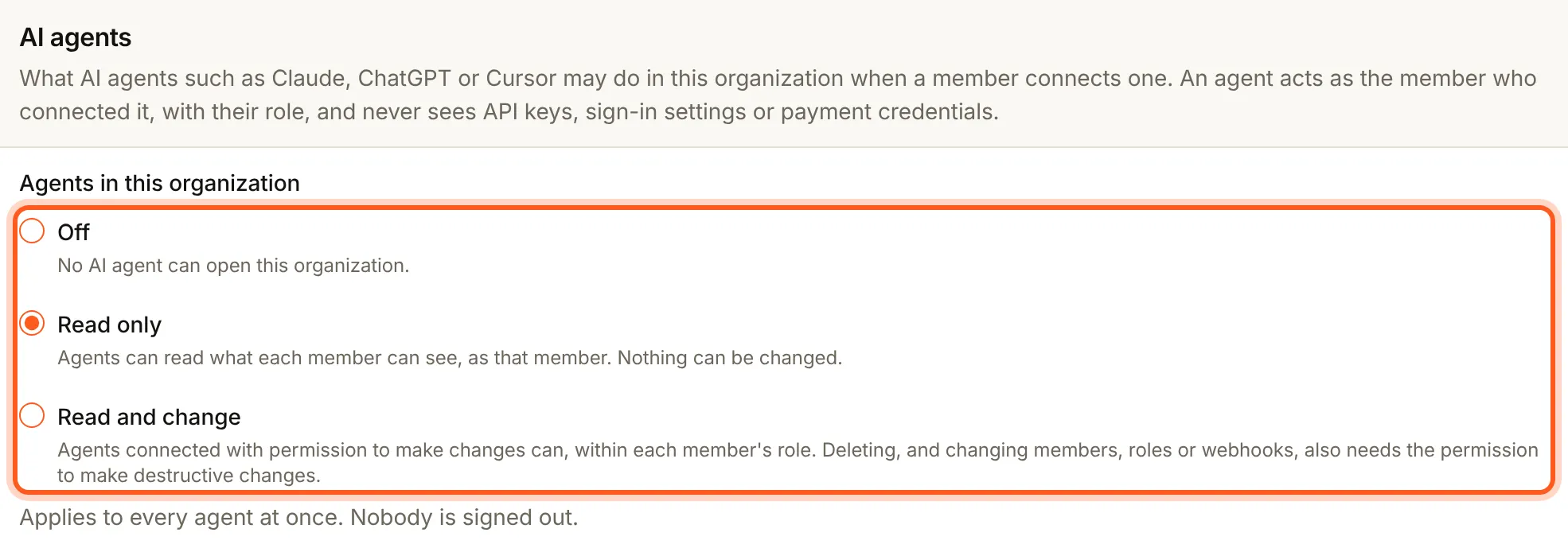
| Setting | What agents can do in this organization |
|---|---|
| Off | Nothing. No agent can open the organization |
| Read only | Read, within each member's role. This is the default |
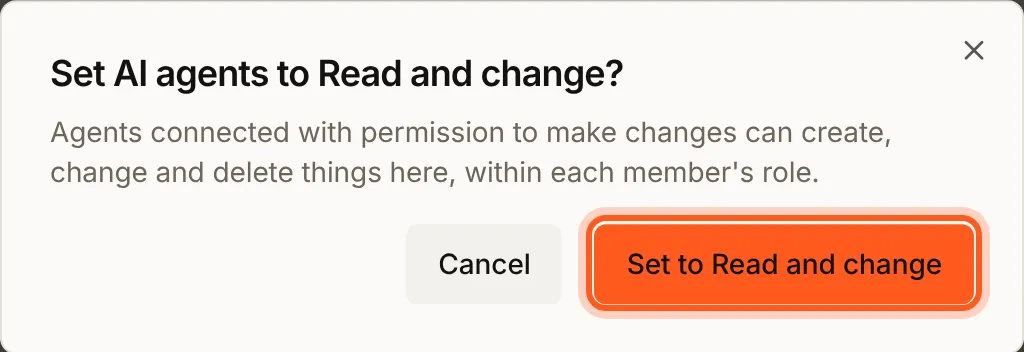
| Read and change | Read, and change things for a member who granted console:write |
A change applies to every agent at once, including agents in the middle of a task: their next request is judged by the new setting. Nobody is signed out: an agent turned away from one organization still works in the others that let it in. Changing the setting is recorded in the organization's audit log.
Choosing a setting asks first, and nothing changes until you confirm:
See and block connected agents
Security lists the AI agents connected to the organization you have open, most recently used first, with the tool's name, when it was last used and whether it could make changes.
- Owners and admins see Connected agents in this organization: every member's agents, with the member each one acts for.
- Every other member sees Your agents in this organization: only the agents they connected.
An agent appears once it has opened the organization. Block stops that one agent, for that one member, in this organization:
- It applies at once, including to a task the agent is in the middle of: its next request is refused, in every environment of the organization.
- Nothing else ends. The member stays signed in, their other agents keep working, the same tool connected by another member keeps working, and the agent still works in other organizations that let it in.
- An owner or admin can block any member's agent. A member can block their own agents, and unblock an agent they blocked themselves; an agent an owner or admin blocked stays blocked until an owner or admin unblocks it, even when the member had blocked it first.
- A member can block only an agent that has opened the organization for them, and up to 20 of their own agents at a time.
- An organization can block up to 200 agents at a time. Unblock one to make room. Owners and admins see every block in the list, including blocks on an agent that is not connected (marked Not connected), so each one can be unblocked.
- When a member leaves the organization or is removed, their agents leave the list and the blocks they placed on their own agents are lifted. A block an owner or admin placed stays: it is listed as not connected, and still holds if the member joins again, until an owner or admin unblocks it.
Unblock lets the agent in again at once, as far as the organization's AI agents setting allows. It does not need to connect again. Each block and unblock is recorded in the organization's audit log.
No agent can block or unblock an agent, or change the AI agents setting: those need your own sign-in to the console.
Disconnect an agent
Each connection is a session of its own. When you sign in to the console with BuildBase, open Security, then Connected AI agents under How you sign in. The list shows each agent you connected, what it may do and when you allowed it. Disconnect ends that session at once.
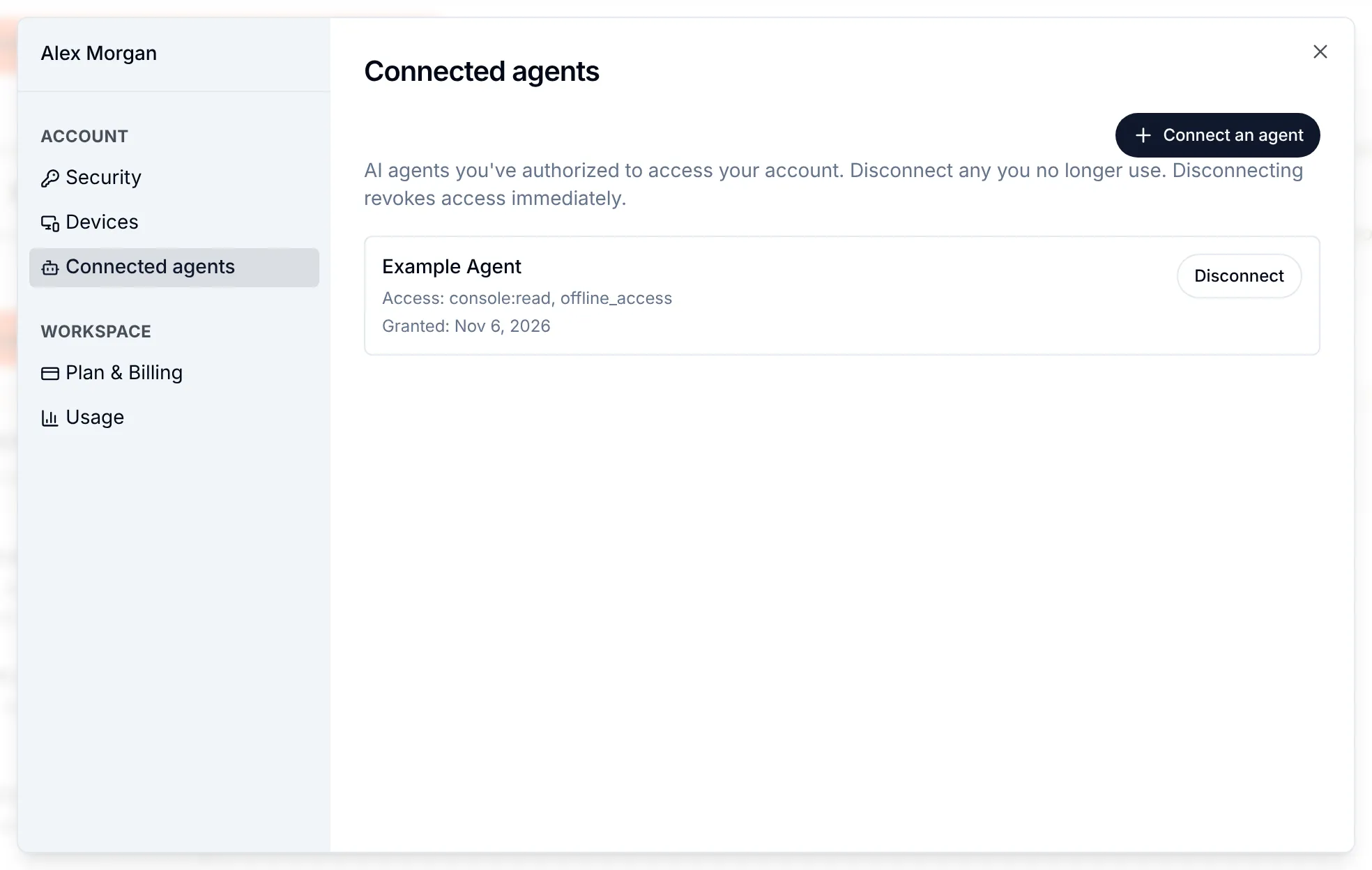
Disconnect asks first:
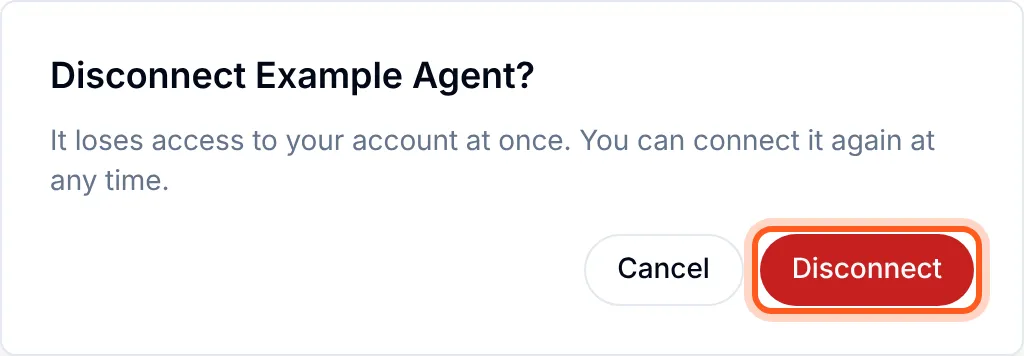
When you sign in with Google, block the agent in each organization (see and block connected agents), or an owner or admin can set the organization's AI agents to Off, which turns every agent away at once.
Note
An agent's access lasts 15 minutes at a time and is renewed in the background. Each renewal checks again that you are still a member, not blocked, that the agent is not blocked, and that the organization still lets agents in.
Use it safely
- Keep tool approval on. Most tools ask before each tool call by default. Leave that on for
console_write,console_destructive_change,create_organdblueprint_apply; "always allow" suits the read tools only. - Watch for prompt injection. An agent reads text it did not write: web pages, documents, issues, even your organization's own content. Text written to mislead it can ask it to do something you did not ask for. Read every approval before you accept it, and stop the agent when it proposes a change you did not ask for.
- Grant the least. Approve
console:destructiveonly for an agent you trust and for the task in front of you, and keep an organization at Read only when no agent should change it. - Never paste a secret into the chat. BuildBase never asks for one there. When a task needs a secret, the agent tells you where to set it in the console.
- Disconnect what you no longer use (disconnect an agent).
Example prompts
| Ask | What the agent does | What you approve or paste |
|---|---|---|
| "Which BuildBase organizations am I in, and what may agents do in each?" | list_orgs | Nothing |
| "How many app users signed up this week in Acme?" | Reads the users list with console_get | console:export the first time, since it lists people |
| "Show me Acme's plans and what each one includes." | Reads the billing catalog | Nothing |
"Create a feature flag new-editor, off, in staging." | open_org on staging, then console_write | console:write, and Read and change on the organization |
| "Draft a welcome email template in our brand voice." | Creates the template with console_write | console:write |
| "Add a contact form with name, email and message." | Creates the form with console_write | console:write |
| "Delete the feature flags whose names start with test-." | Lists the flags, then deletes each with console_destructive_change | console:destructive, then each delete |
| "Invite [email protected] as a member." | console_destructive_change, since it changes members | console:destructive, then the invitation |
"Add a webhook for user.created to https://hooks.example.com/bb." | console_destructive_change | The webhook; the signing secret you rotate in the console |
| "Export our audience created since 1 October." | start_export, then get_export_status | console:export |
| "Write a blueprint for our roles, email templates and forms, and show me the plan." | blueprint_schema, blueprint_validate, blueprint_plan | Nothing until you apply |
| "Apply that blueprint." | blueprint_apply with the plan's hash | console:write; the plan too when it changes roles or deletes |
| "Set me up a new organization called Acme Labs." | create_org, then open_org | The organization's name |
| "Which environment variables does a Next.js app need for Acme?" | get_env_template | The client secret, which you copy from the console yourself |
| "How do I add magic-link sign-in to my app?" | search_docs and fetch_doc | Nothing |
Connect with an API key
An agent with nobody to sign in, such as a CI job or a scheduled script, can use one of your organization's API keys instead. Send it as the bearer to the same address:
Authorization: Bearer <your API key>For example, with Claude Code in a CI job:
claude mcp add --transport http buildbase-console https://api.console.buildbase.app/mcp \
--header "Authorization: Bearer $BUILDBASE_API_KEY"- The key works only in its own organization, or the environment it was issued for, and can do what its role allows, as it can through the API.
- The organization's AI agents setting still decides: Off refuses the key here too, and Read only lets it read only.
- Its changes are recorded in the audit log as the API key's.
An agent with no account: the claimable organization
A coding agent can start before you have an account. It creates an organization with one request and works in it with that organization's API key; you keep it later by claiming it. Its instructions for agents are at buildbase.app/auth.md.
-
The agent gets, once, an API key, a claim link and a claim code. The link holds no personal data, and the code lasts 15 minutes; the agent can ask for a new one at any time with
claim_link. -
If the agent names its app's redirect URL in the same request (
app), the organization also gets email-and-password and magic-link sign-in and one sign-in client for that app, whose secret the agent gets once beside the key. -
If it also asks for agent sign-in (
app.agent, whatnpx buildbase init --agentdoes), and the plan includes the OAuth 2.0 server, the organization gets an OAuth 2.0 client for agents that points at the app's own/api/auth/agent-tokenand/api/auth/agent-revokeroutes. It does nothing yet: agent readiness stays off until a person turns it on, so no agent can find or register with it. -
Until it is claimed, every hosted sign-in page of the organization shows a note that it is a test app on BuildBase that its owner has not claimed yet, so it cannot pass for another company's sign-in.
-
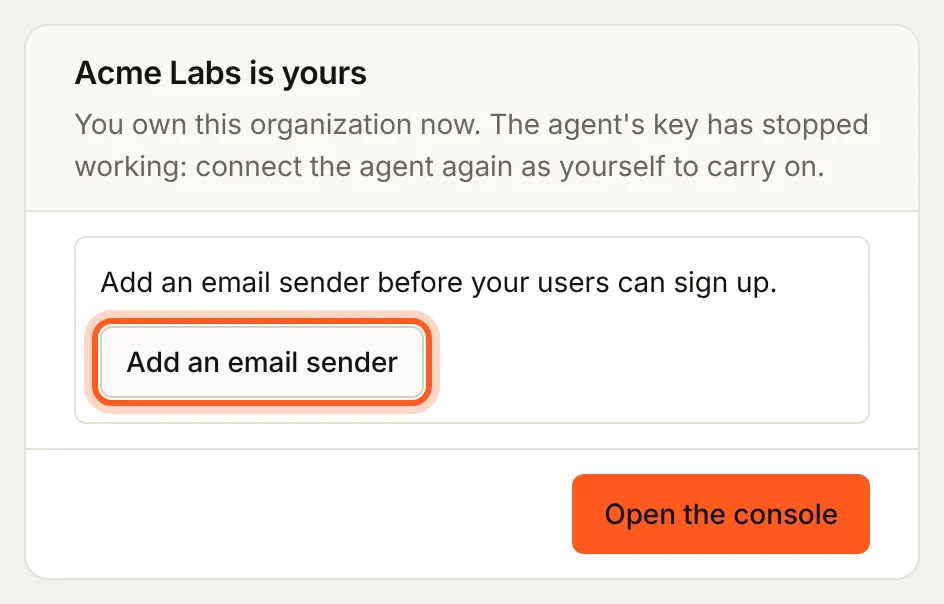
To claim it, open the link, sign in or sign up (your usual sign-in method and second step apply), and type the code the agent gave you. You become the organization's owner, and the agent's key stops working: connect the agent again as yourself. You can claim with any account; the address the agent gave, if any, is told by email when the organization is claimed.
-
Once it is claimed, the page says so. An organization with no email sender yet says your users cannot sign up until it has one, and Add an email sender opens the console where you connect one.
-
When the agent set the app up for agent sign-in, the claim page also offers Let AI agents sign in to your app, off until you tick it. Ticked, the claim turns on agent readiness, agent self-registration and client metadata documents, based on that client, so agents such as Claude and ChatGPT can use your app for its users (each asks the person to sign in and approve it first). If your plan does not include it, the claim still happens and says so; you can turn it on later under User management > Access > Authentication > Agent readiness.
-
Until it is claimed the organization runs on caps: at most 50 end users, no custom auth domain or sending domain, Stripe test keys only, no invitations and no extra environments. The only email it sends is sign-in and verification mail (magic links, codes, password resets), in BuildBase's fixed wording ("a BuildBase test app (unclaimed)", never the app's own name or logo), at most 100 a day; campaigns, workflow and custom mail wait for the claim. One address can create 3 a day.
-
It is deleted, with its data, 72 hours after it was created unless claimed. The address the agent gave gets one reminder about a day before, from BuildBase, and one notice when it is claimed. Neither repeats anything the agent typed, such as the organization's name.
-
It starts on the plan BuildBase gives every new organization. A paid plan or a trial is yours to choose in the console after the claim.
Create an organization
If you signed up and have no organization yet, or want another one, an agent with console:write can create it for you with the create_org tool:
- It asks you first. A tool that can ask you questions itself shows you the organization's name and nothing happens unless you approve it; in other tools the agent tells you and sends a one-time code back. Each approval works once, for that name only, within five minutes.
- You own the organization, as if you had created it in the console, and the same limits apply: how many organizations your account may have, and how many you may create in a day.
- It starts on BuildBase's starting plan for new organizations, the Free plan, as one you create in the console does. A paid plan or a trial is yours to choose, in the console. If the organization has no plan yet, the agent tells you so and stops until you pick one on its billing page.
- AI agents may make changes in it from the start, since you asked one to set it up. Change that under Security whenever you like.
- An agent connected with an organization's API key cannot create one.
Export your audience
An agent with console:export can export your audience (contacts), as the Export button on the audience page does, and read the result:
start_exportruns the export, as you, and answers an export id. Passfiltersto export only some contacts, written as the audience list's filter (for example, contacts created since a date).get_export_statuswith that id answers the export's status and, once it is done, its rows.
- An export hands over at most 5,000 rows or 2 MB. When there were more, the answer says
truncatedand how many there were: narrow the filters and export again. - The rows are kept for 10 minutes, for the person and the tool that started the export only, in the organization and environment it ran in. Starting a new export replaces the last one.
- No download link is made. Any secret in a contact's custom attributes is replaced by a note, as everywhere else.
- App users, beta sign-ups and form submissions have no export in the console. An agent with
console:exportreads them a page at a time instead.
Set up an organization from a blueprint
A blueprint is one JSON file that describes an organization's setup: email templates, collections, forms, feature flags, roles, webhooks, workflows and more. An agent can write one, show you what it would change, and apply it. Blueprints are for owners and admins: an agent acting for any other member can check a file but not plan, apply or export one.
blueprint_schemalists what a blueprint can hold, andblueprint_validatechecks a file on its own. They needconsole:read.blueprint_planshows what applying the file would change in an organization, andblueprint_exportwrites the organization out as a blueprint. They needconsole:read.blueprint_applyapplies the plan you were shown. It needsconsole:writeand an organization set to Read and change. It plans again first and stops if anything changed since.
A plan that deletes something, prunes, or touches roles, webhooks or workflows also needs console:destructive and your approval of that exact plan, the same way as any other destructive change (what stays with you).
A blueprint does only what the agent could do in the console as you, step by step, so the steps the agent may not take fail at that step:
- Billing. A plan can compare the billing catalog with the file, since the agent can read it, but an agent cannot change the catalog. A plan that changes billing is refused before anything is applied and before you are asked to approve it, and the agent tells you which parts are billing. Leave billing out of a file an agent applies, and apply billing yourself in the console or with the BuildBase CLI.
- Sign-in settings, credentials and organization settings are not reached either. Your Stripe keys, coupons and organization settings are not read, so a plan lists those parts of a file as not compared.
Secrets never pass through the agent, in either direction:
- No tool takes values for
${env:...}placeholders. A file that needs them is yours to apply in the console or with the BuildBase CLI. - Secrets created by an apply, such as a webhook's signing secret, are not returned to the agent, and neither is any other secret it creates or reads. Rotate the secret in the console to see a new one.
Tools for building on BuildBase
Besides working in the console, a connected agent can help you build an app on BuildBase. These tools only read, and need nothing beyond console:read:
search_docssearches this documentation andfetch_docreads one of its pages. They read only pages on https://docs.buildbase.app.get_env_templatelists the environment variables an app needs for its framework (Next.js, Vite, Express or Remix), with your organization's id and environment filled in when the agent names them. Secrets, such as your sign-in client's secret, are never filled in: it says where to get each one.
Next Steps
- Secure your console account - two-step sign-in, sessions, and the organization's two-step rule.
- Your team and its roles - what each role can do, which is what an agent acting for that person can do.
- Make your app agent ready - the other track, Agent-ready apps: let your own users connect their AI tools to your app.