
Use BuildBase in Claude
Add BuildBase as a custom connector in Claude on the web and in Claude Desktop, sign in as yourself, and manage your organization from a chat.
This page is part of BuildBase in your AI tools: it connects Claude, on claude.ai and in Claude Desktop, to BuildBase's own MCP server so you can manage your BuildBase organization from a chat. Claude signs in as you and never sees your organization's secrets.
Note
Want your own app to be agent-ready? See Let your users connect Claude to your app, in Agent-ready apps.
What you need
- A Claude account on any plan. Free allows one custom connector; on Team and Enterprise an owner adds it (below).
- A BuildBase console account. Claude signs in on BuildBase's sign-in page with your console email address, whichever way you sign in to the console.
- An organization whose AI agents setting is not Off (choose what agents may do). Agents can read by default.
Add the connector
Claude adds a remote server to your account as a custom connector; there is no install link.
-
In Claude, go to Customize > Connectors.
-
Choose + Add, then Add custom connector.
-
Enter a name, such as
BuildBase, and paste the server URL:https://api.console.buildbase.app/mcp -
Under Authentication, choose Sign in when needed (or Sign in now). Under OAuth client, choose Register automatically. BuildBase's server takes clients that register themselves, not Claude's published identity, so Use Claude's published identity does not work with it yet.
-
Choose Add.
On Team and Enterprise
On Team, an Owner or Primary Owner adds the connector once, with the same URL; on Enterprise, so can a role with Manage access to Libraries. Each member then chooses Connect under Customize > Connectors and signs in as themselves, so each member's Claude acts with that member's own role in BuildBase.
Sign in
When you first use the connector, Claude opens BuildBase's sign-in page in a new window.
- Sign in with your console account and your usual second step.
- Read the consent screen: it names Claude and the scopes it asks for,
console:readandconsole:writeto start. Approve it.
When a task needs more, such as an export or a delete, Claude is told which scope is missing and asks you to sign in again to approve just that one (what an agent asks for).
What you see when you connect
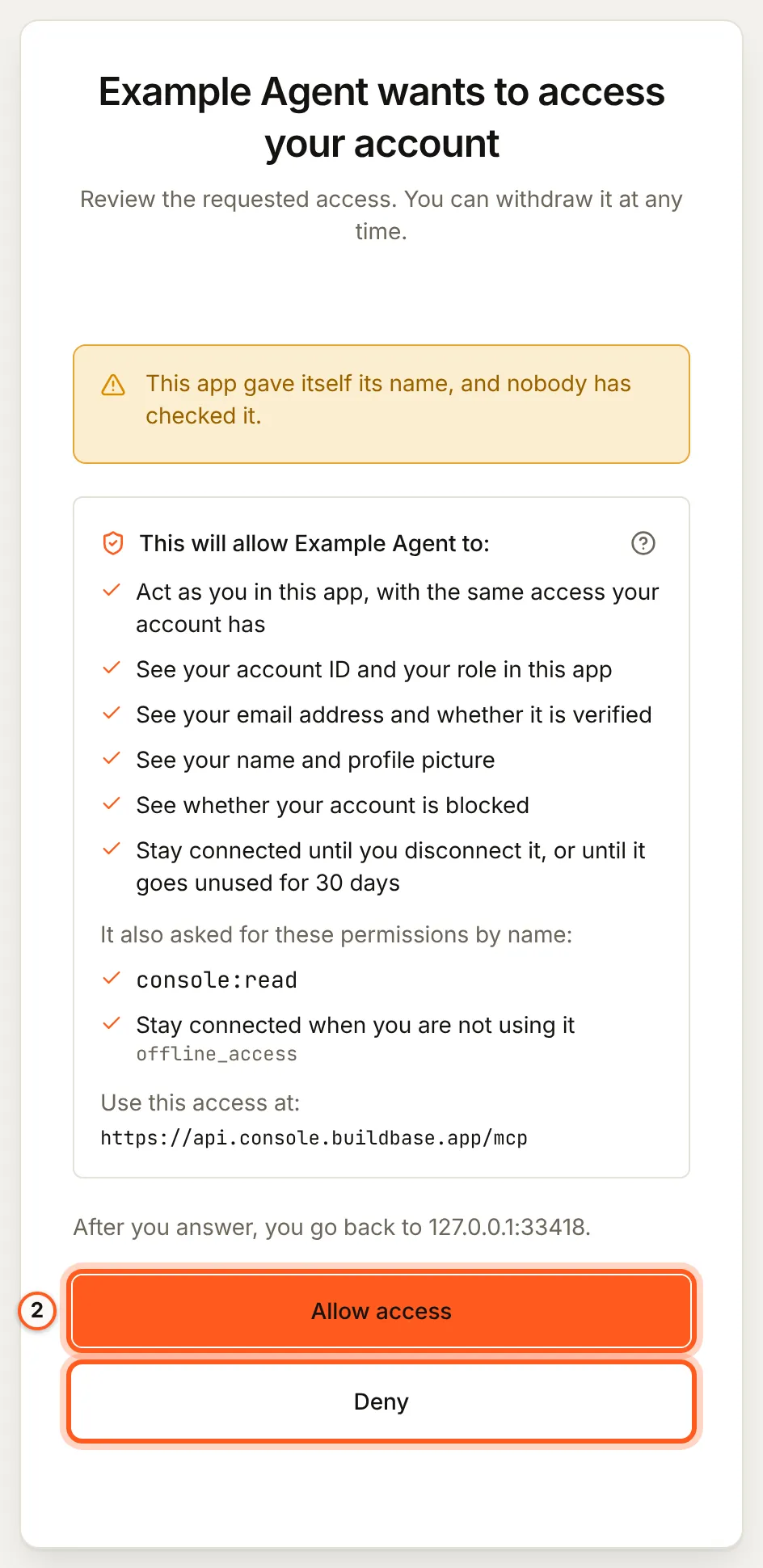
Once you have signed in, BuildBase shows the consent screen in your browser. It names the tool, lists the scopes it asks for and the server the access is for, and changes nothing until you choose Allow access. Here it is for a tool that registered itself:
Use it in a chat
Turn the connector on for a chat from + > Connectors, then ask, for example:
- "Which BuildBase organizations am I in, and what may agents do in each?"
- "In Acme, list the email templates and draft a welcome email in the same style."
- "Write a blueprint for our roles and forms and show me the plan."
More, with what each one asks you to approve: example prompts.
What differs in Claude
- It connects from Anthropic's servers, not your computer. BuildBase's server is public, so nothing is needed on your side; a company network that filters outbound traffic does not affect it.
- Tool approval. Under Customize > Connectors > BuildBase > Tool permissions, set each tool, or the read-only and write groups, to Always allow, Needs approval or Blocked; on Team and Enterprise an Owner sets these for everyone. Keep
console_destructive_change,create_organdblueprint_applyon Needs approval; Always allow suits the read tools only. - Approvals of a change. Where Claude can ask you a question itself, the change BuildBase wants to make is shown to you and nothing happens unless you approve it. Otherwise Claude states the change and confirms it with a one-time code (what stays with you).
- Research. In Research, Claude can call tools without asking each time. Set your organization to Read only, or turn the change tools off for the connector, before using BuildBase in Research.
- Editing. To change the connector's URL or name, remove it and add it again.
If something goes wrong
| What you see | Why | What to do |
|---|---|---|
| No Add custom connector option | On Team or Enterprise only an owner adds connectors | Ask an Owner to add it, then choose Connect under Customize > Connectors |
| The sign-in window opens and closes with an error | The window was blocked, or you signed in with an account that is not yours | Allow pop-ups for claude.ai and sign in again with your console account |
| Sign-in fails before the BuildBase page opens | OAuth client is set to Claude's published identity | Remove the connector and add it again with Register automatically |
| Claude says the organization does not let agents in | Its AI agents setting is Off, or your agent is blocked there | An owner or admin changes it under Security, AI agents |
| Claude can read but every change is refused | The organization is Read only, or you did not grant console:write | An owner or admin sets Read and change; then approve console:write when Claude asks |
| Claude asks for the same scope again and again | Your role or the organization refuses it, which a scope cannot get past | Do it in the console, or ask an owner or admin |
To disconnect, remove the connector in Claude and disconnect the agent in BuildBase, which ends its session at once.
Related
- BuildBase in your AI tools: the server, its tools, and what stays with you.
- Use BuildBase in ChatGPT and Use BuildBase in Claude Code.
- Let your users connect Claude to your app: the same client in Agent-ready apps.
- Anthropic's own guide: custom connectors using remote MCP.
Frequently asked questions
- Which Claude plans can add BuildBase?
- Every plan, according to Anthropic's help center. Free allows one custom connector. On Team and Enterprise an owner adds the connector for the organization, and each member then connects and signs in as themselves.
- Does Claude see my API keys or Stripe keys?
- No. BuildBase's MCP server never hands a secret to an agent, even one it creates. Claude acts with your role and reads what you can see in the console, minus credentials and sign-in settings.
- Can Claude change my organization without asking?
- Only if your organization allows changes and you granted console:write, and never a delete, a member, role or webhook change, a send or a money move without your approval in the chat. An organization set to Read only lets Claude read and nothing else.
- Does it work in Claude Desktop too?
- A custom connector belongs to your Claude account, so once added on claude.ai it is there in Claude Desktop too. Turn it on in a chat from the + menu.