
Use BuildBase in Goose
Add BuildBase's MCP server to Goose as a remote extension, sign in as yourself in the browser, and manage your organization from Goose.
This page is part of BuildBase in your AI tools: it connects Goose, the command line and Goose Desktop, to BuildBase's own MCP server so you can manage your BuildBase organization from Goose. Goose signs in as you and never sees your organization's secrets.
Note
Want your own app to be agent-ready? See Let your users connect Goose to your app, in Agent-ready apps.
What you need
- Goose, on the command line or Goose Desktop. Goose's docs name no plan for remote extensions.
- A BuildBase console account, and an organization whose AI agents setting is not Off (choose what agents may do).
Add the extension
From the command line:
-
Run
goose configure. -
Choose Add Extension, then Remote Extension (Streamable HTTP).
-
Enter the name
buildbase-consoleand the URL:https://api.console.buildbase.app/mcp
In Goose Desktop: open Settings > Extensions > Add custom extension, choose the Streamable HTTP type, and enter the same name and URL.
Sign in
Goose registers its own client with BuildBase's server, then opens BuildBase's sign-in page in your browser.
- Sign in with your console account and your usual second step.
- Approve Goose on the consent screen. It asks for
console:readandconsole:writeto start; an export or a delete asks you again for just that scope (what an agent asks for).
What you see when you connect
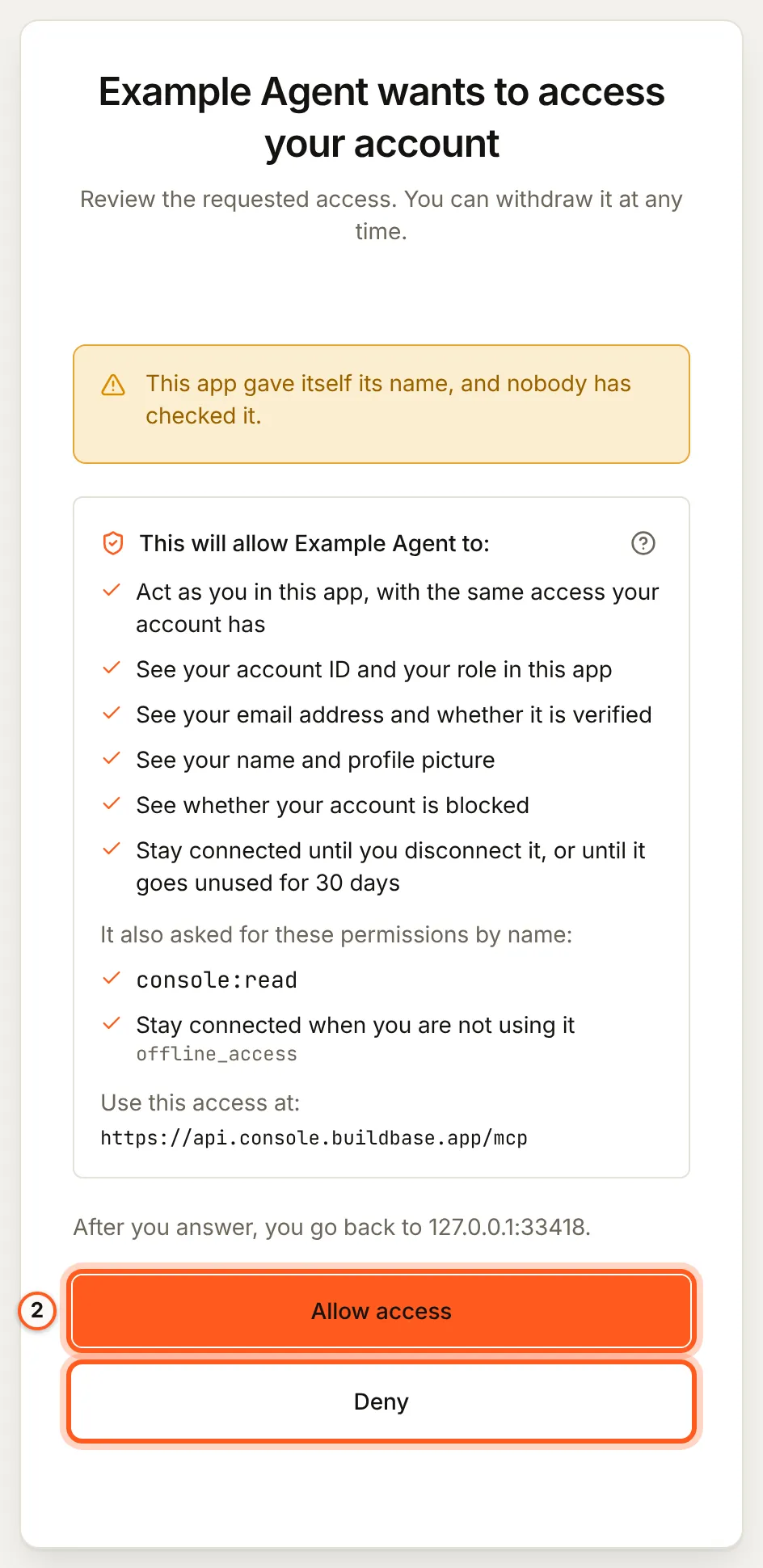
Once you have signed in, BuildBase shows the consent screen in your browser. It names the tool, lists the scopes it asks for and the server the access is for, and changes nothing until you choose Allow access. Here it is for a tool that registered itself:
Use it
Ask, for example:
- "Which BuildBase organizations am I in?"
- "Search the BuildBase docs for how to add magic-link sign-in, and summarize the steps."
- "Write a blueprint for Acme's roles and email templates, and show me the plan."
More, with what each asks you to approve: example prompts.
What differs in Goose
- A malware check first. Goose scans an extension before it turns it on, so the first start can take a moment longer.
- Timeout. A remote extension carries a timeout; a long blueprint plan or export may need it raised.
- Approvals. When BuildBase needs your approval for a change, Goose asks you where it can ask questions itself; otherwise the agent states the change and confirms it with a one-time code (what stays with you).
If something goes wrong
| What you see | Why | What to do |
|---|---|---|
| The extension does not start | It was added with another type than Streamable HTTP | Remove it and add a Remote Extension (Streamable HTTP) |
| The browser sign-in fails at the redirect | Something else holds the port Goose listens on | Set GOOSE_OAUTH_CALLBACK_PORT to a free port and try again |
| Goose says the organization does not let agents in | Its AI agents setting is Off, or your agent is blocked | An owner or admin changes it under Security, AI agents |
| Every change is refused | The organization is Read only, or you did not grant console:write | An owner or admin sets Read and change; approve console:write |
To disconnect, remove the extension in Goose and disconnect the agent in BuildBase.
Related
- BuildBase in your AI tools: the server, its tools, and what stays with you.
- Use BuildBase in Claude Code and Use BuildBase in Cline.
- Let your users connect Goose to your app: the same client in Agent-ready apps.
- Goose's own guide: using extensions.
Frequently asked questions
- Which extension type do I pick in Goose?
- Remote Extension (Streamable HTTP). BuildBase's server speaks Streamable HTTP, so the command-line and SSE types do not fit it.
- Do I need to create an OAuth client for Goose?
- No. Goose registers its own client with BuildBase's server the first time it connects, and then opens BuildBase's sign-in page.
- What if my sign-in needs a fixed redirect port?
- Goose's docs say to set GOOSE_OAUTH_CALLBACK_PORT when a provider needs one.