
Let your users connect Goose to your app
Get your app's MCP server ready for Goose, give your users a goose:// install link or the configure steps, and let Goose register itself.
This page is part of Agent-ready apps: it covers what you do so that your own users can connect Goose to the app you built with BuildBase. Your app serves MCP with @buildbase/sdk, and each user signs in on your hosted sign-in page and approves Goose as themselves.
Note
Want to manage BuildBase itself from your AI? See Use BuildBase in Goose, in BuildBase in your AI tools.
The examples use https://app.example.com/api/mcp, the default path createAgentStack serves, and the name acme.
Before you share the URL
-
Serve MCP over HTTPS at a URL your users' machines can reach.
-
Choose how Goose gets a client in Set up agent access. Goose tries a client ID metadata document or dynamic client registration by itself, so turn on Let agents register themselves with a base client, and Let agents identify themselves by a metadata document if you want that path too.
-
Check it the way a client does:
npx buildbase agent doctor --url https://app.example.com/api/mcp
What your users do
One click. Give your users a goose:// link. Every value is URL-encoded:
goose://extension?url=https%3A%2F%2Fapp.example.com%2Fapi%2Fmcp&type=streamable_http&id=acme&name=Acme&description=Acme%20for%20your%20account&timeout=300By hand, with the steps for your help page:
- Run
goose configure, choose Add Extension, then Remote Extension (Streamable HTTP). - Enter
acmeandhttps://app.example.com/api/mcp. - In Goose Desktop instead: Settings > Extensions > Add custom extension, with the Streamable HTTP type.
Goose then opens your sign-in page in the browser.
What your users see
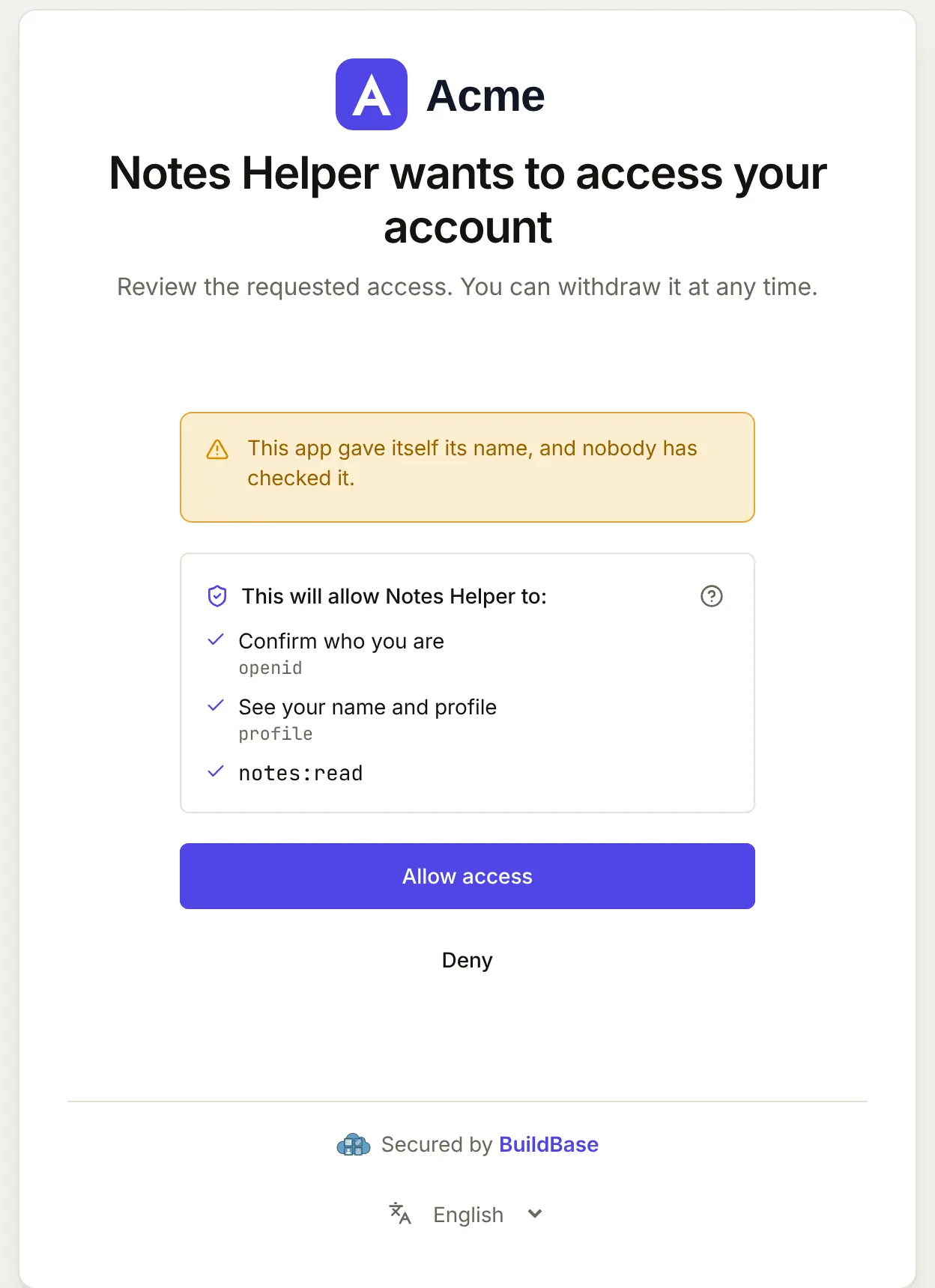
- Your sign-in page and consent screen, naming the client as it registered itself (or as its metadata document names it).
- A malware scan of the extension before Goose turns it on.
- Your tools' annotations. Mark read tools
readOnlyHint: trueand changesdestructiveHintas they are, so a client can treat them differently.
When Goose connects, your user approves it on your consent screen. Here it is for an agent that registered itself:
If something goes wrong
| What your user sees | Why | What to do |
|---|---|---|
| The install link does nothing | A value in the link is not URL-encoded | Encode every parameter, the URL most of all |
| Registration fails before your sign-in page | Neither self-registration nor metadata documents is on | Turn one on in agent access |
| The sign-in fails at the redirect | Your user's machine has the callback port in use | They set GOOSE_OAUTH_CALLBACK_PORT to a free port |
| Long calls time out | The extension's timeout is shorter than your tool takes | Raise timeout in the link, or tell users to raise it |
Related
- Connect an agent to your app: every client on one page, the MCP Registry, and agents in code.
- Let your users connect Cline to your app and Let your users connect Gemini CLI to your app.
- Use BuildBase in Goose: the same client in BuildBase in your AI tools.
- Goose's own guide: using extensions.
Frequently asked questions
- How does Goose get a client on my app?
- Goose tries a client ID metadata document or dynamic client registration on its own, or takes a client_id you give it. Turn on Let agents register themselves, or metadata documents, and it needs nothing from you per user.
- Can I give my users a one-click install?
- Yes. Goose takes a goose://extension link with your URL, the streamable_http type, an id, a name, a description and a timeout, each URL-encoded.
- Does Goose scan my server?
- Goose's docs say extensions are scanned for malware before they are turned on. Your server is called normally after that.