
Let your users connect Junie to your app
Give your users the Junie mcp.json entry for your app's MCP server, so they can authorize it in JetBrains IDEs and sign in on your hosted page.
This page is part of Agent-ready apps: it covers what you do so that your own users can connect Junie, JetBrains' coding agent, to the app you built with BuildBase. Your app serves MCP with @buildbase/sdk, and each user signs in on your hosted sign-in page and approves Junie as themselves.
Note
Want to manage BuildBase itself from your AI? See Use BuildBase in Junie, in BuildBase in your AI tools.
JetBrains AI Assistant's docs describe no OAuth sign-in for a remote server, so Junie is the path in JetBrains IDEs. The examples use https://app.example.com/api/mcp, the default path createAgentStack serves, and the name acme.
Before you share the URL
-
Let agents register themselves. Junie registers its own client when the user authorizes it. Turn on Let agents register themselves with a base client in Set up agent access.
-
Serve MCP on HTTPS. Junie connects from the user's machine.
-
Check it the way a client does:
npx buildbase agent doctor --url https://app.example.com/api/mcp
What your users do
Put these steps on your own help page, with your URL:
-
Add the server to
~/.junie/mcp/mcp.json, or to.junie/mcp/mcp.jsonat the root of a project:{ "mcpServers": { "acme": { "url": "https://app.example.com/api/mcp" } } } -
Run
/mcp.acmeshows Authorization required. Select it and choose Authorize. -
Sign in on your sign-in page and approve Junie on your consent screen. The status reads Active.
What your users see
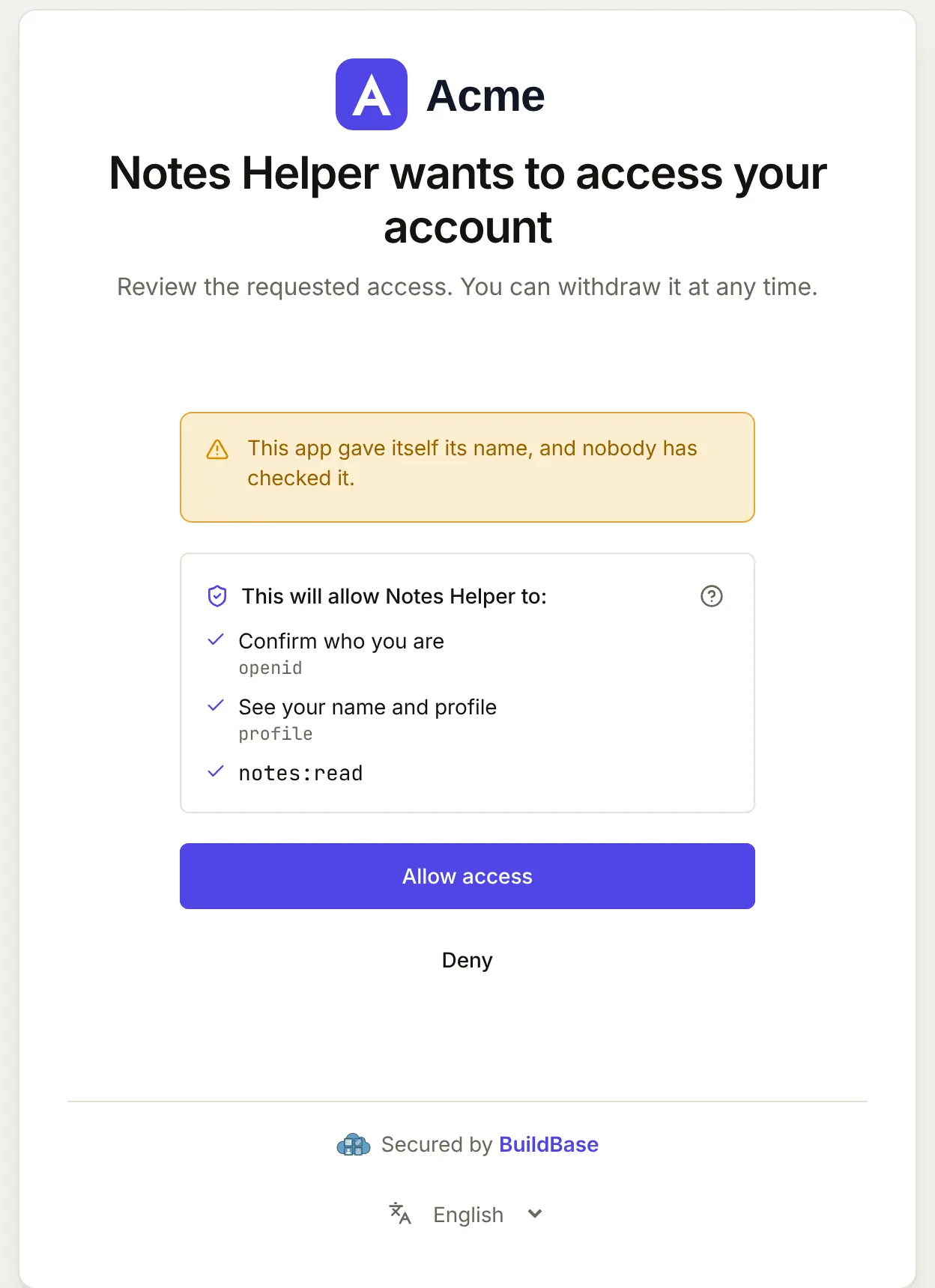
- Authorization required, then your sign-in page in their browser and your consent screen naming Junie and its scopes.
- A status per server in
/mcp: Starting, Active, Inactive, Disabled, Failed or Authorization required. - Failed when your server cannot be reached or a sign-in fails, with Reconnect to try again.
When Junie connects, your user approves it on your consent screen. Here it is for an agent that registered itself:
What differs in Junie
- A 60-second wait. Junie waits 60 seconds for each reply by default. Keep your tools fast, or tell users to set
timeout(in milliseconds) on the entry. - One file for IDE and CLI. The same
mcp.jsonserves Junie in every JetBrains IDE and Junie CLI. - No install link. Give the JSON entry and the
/mcpstep.
If something goes wrong
| What your user sees | Why | What to do |
|---|---|---|
| Authorize fails at once | Let agents register themselves is off, or no base client | Turn it on with a base client in agent access |
Failed in /mcp | A wrong URL, your server down, or a failed sign-in | Check the URL from their machine, then Reconnect |
| A tool call times out | Your tool took longer than the timeout | Make the tool faster, or have the user raise timeout |
Related
- Connect an agent to your app: every client on one page, the MCP Registry, and agents in code.
- Let your users connect Claude Code to your app and Let your users connect Zed to your app.
- Use BuildBase in Junie: the same client in BuildBase in your AI tools.
- JetBrains' own guide: Junie MCP configuration.
Frequently asked questions
- What about JetBrains AI Assistant?
- Its docs describe adding a remote server by URL but no OAuth sign-in, so your users cannot sign in to your app as themselves there. Point JetBrains users to Junie.
- Do my users configure the IDE and the CLI separately?
- No. Junie CLI uses the same MCP configuration as Junie in JetBrains IDEs, so one mcp.json entry covers both.
- My tools are slow. Will Junie wait?
- For 60 seconds by default. A user can set timeout on the entry, in milliseconds, between 1000 and 3600000, but keep your tools well under a minute if you can.