
Let your users connect Zed to your app
Give your users the Zed context_servers entry for your app's MCP server, and make sure Zed can register and run the OAuth sign-in on your hosted page.
This page is part of Agent-ready apps: it covers what you do so that your own users can connect Zed's agent to the app you built with BuildBase. Your app serves MCP with @buildbase/sdk, and each user signs in on your hosted sign-in page and approves Zed as themselves.
Note
Want to manage BuildBase itself from your AI? See Use BuildBase in Zed, in BuildBase in your AI tools.
The examples use https://app.example.com/api/mcp, the default path createAgentStack serves, and the name acme.
Before you share the URL
-
Let agents register themselves. Zed registers its own client when it runs the OAuth sign-in. Turn on Let agents register themselves with a base client in Set up agent access.
-
Serve MCP on HTTPS. Zed connects from the user's machine.
-
Check it the way a client does:
npx buildbase agent doctor --url https://app.example.com/api/mcp
What your users do
Put these steps on your own help page, with your URL:
- Open Settings > AI > MCP Servers, choose Add Server, then Add Remote Server.
- Enter
acmeandhttps://app.example.com/api/mcp, with no headers. - Sign in on your sign-in page when Zed opens it, and approve Zed on your consent screen.
Or in settings.json:
{
  "context_servers": {
    "acme": { "url": "https://app.example.com/api/mcp" }
  }
}
There is no install link.
What your users see
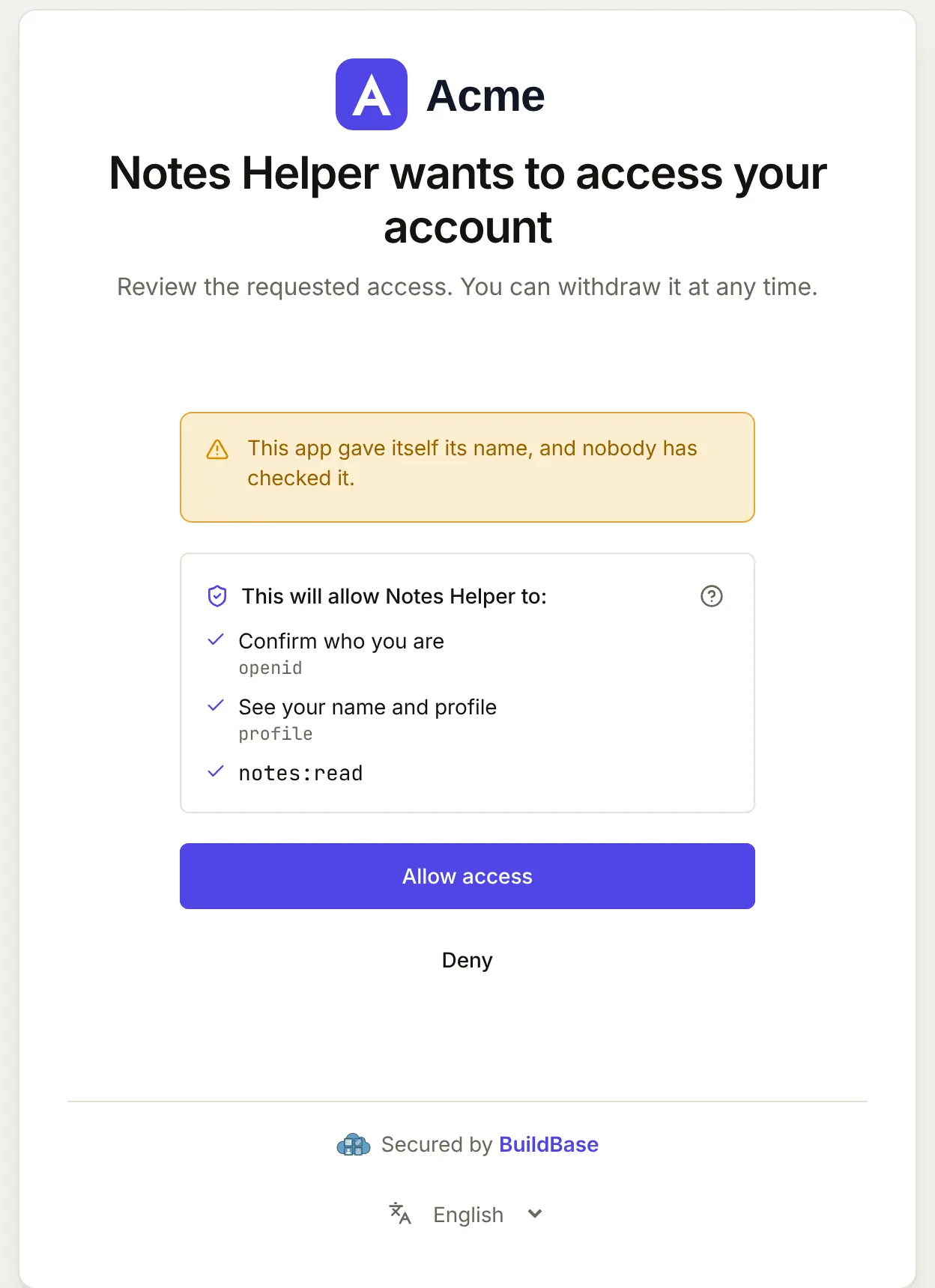
- Your sign-in page, then your consent screen naming Zed and the scopes it asks for.
- A confirmation before every tool, Zed's default. Users can allow single tools with keys such as
mcp:acme:list_notes. - Your error messages in the agent's reply when a tool fails, so make them say what to do next.
When Zed connects, your user approves it on your consent screen. Here it is for an agent that registered itself:
What differs in Zed
- The header decides. An entry with an
Authorizationheader skips sign-in and sends that header instead. Tell users to leaveheadersout, or your hosted sign-in never runs. context_servers, notmcpServers. A snippet copied from another client's docs does nothing in Zed.
If something goes wrong
| What your user sees | Why | What to do |
|---|---|---|
| Sign-in never opens | The entry has an Authorization header | Remove headers from the entry |
| Sign-in fails at once | Let agents register themselves is off, or no base client | Turn it on with a base client in agent access |
| No green dot next to the server | Zed cannot reach your URL, or the entry is under the wrong key | Check the URL from their machine, and that the entry is under context_servers |
| A tool error in the reply | Your server refused or failed the call | Read the message Zed shows; it is the one your tool returned |
Related
- Connect an agent to your app: every client on one page, the MCP Registry, and agents in code.
- Let your users connect Cursor to your app and Let your users connect Junie to your app.
- Use BuildBase in Zed: the same client in BuildBase in your AI tools.
- Zed's own guide: Model Context Protocol.
Frequently asked questions
- Do my users need to paste a token into Zed?
- No. With no Authorization header in the entry, Zed runs the standard MCP OAuth sign-in, so each user signs in on your hosted page instead.
- Can my users allow some of my tools and confirm others?
- Yes. Zed's tool permissions take keys in the form mcp:<server>:<tool>. Name your read tools plainly so users can allow them and keep the rest on confirm.
- Where do my users see that it connected?
- In Settings, AI, MCP Servers. A green dot with the tooltip Server is active means Zed is connected to your server.