
Let your users connect Cursor to your app
Give your users a one-click Cursor install link for your app's MCP server, the mcp.json entry behind it, and the redirect URLs Cursor signs in with.
This page is part of Agent-ready apps: it covers what you do so that your own users can connect Cursor to the app you built with BuildBase. Your app serves MCP with @buildbase/sdk, and each user signs in on your hosted sign-in page and approves Cursor as themselves.
Note
Want to manage BuildBase itself from your AI? See Use BuildBase in Cursor, in BuildBase in your AI tools.
The examples use https://app.example.com/api/mcp, the default path createAgentStack serves, and the name acme.
Before you share the URL
-
Let Cursor get a client. Cursor registers itself as a public client: turn on Let agents register themselves, with a base client, in Set up agent access.
-
Serve it on public HTTPS. The desktop app reaches any address the user's computer can; Cursor on the web and Cloud Agents sign in through a callback on cursor.com, so serve it publicly for those.
-
Check it the way a client does:
npx buildbase agent doctor --url https://app.example.com/api/mcp
Give your users a button
Cursor documents a one-click install link: the server's mcp.json entry as JSON, base64-encoded.
cursor://anysphere.cursor-deeplink/mcp/install?name=acme&config=eyJ1cmwiOiJodHRwczovL2FwcC5leGFtcGxlLmNvbS9hcGkvbWNwIn0%3Dnpx buildbase agent install --url <mcp-url> prints this link for your server, and buildMcpInstallLinks() renders it as a button on your own docs page (connect an agent). Give the entry by hand beside the button, for users whose browser blocks the link:
{
  "mcpServers": {
    "acme": { "url": "https://app.example.com/api/mcp" }
  }
}
It goes in ~/.cursor/mcp.json for every project, or .cursor/mcp.json for one.
What your users see
- Your sign-in page in their browser, with your branding and sign-in methods.
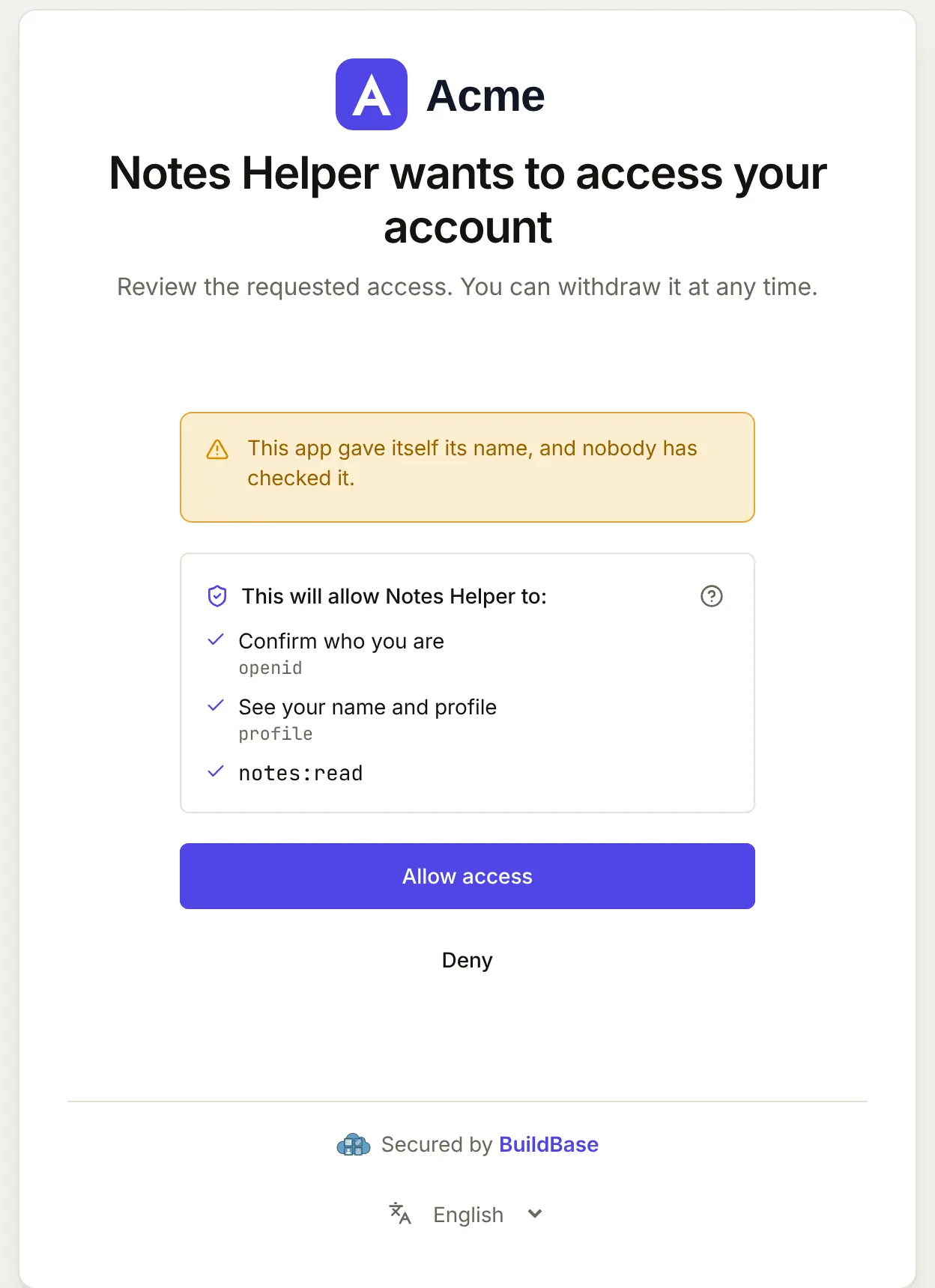
- Your consent screen, naming the client and the scopes it asks for. A self-registered agent chooses its own name, so it is shown as unverified.
- An approval before each tool call, by default. Mark read tools
readOnlyHint: trueand changesdestructiveHintas they are.
When Cursor connects, your user approves it on your consent screen. Here it is for an agent that registered itself:
If something goes wrong
| What your user sees | Why | What to do |
|---|---|---|
| The link does nothing | Cursor is not installed, or the browser blocked cursor:// | Add the entry to mcp.json by hand |
| The server shows an error | Sign-in failed | Output panel (Cmd+Shift+U) > MCP Logs shows why |
| Sign-in fails before your page opens | Self-registration is off, or no base client | Turn it on with a base client in agent access |
| Cloud Agents cannot reach the server | The endpoint is not public HTTPS | Serve it on public HTTPS |
| Cursor sees fewer tools than you defined | Tools that need a scope the token lacks are hidden | Ask for the scope at sign-in, or drop requiredScopes from the tool |
Related
- Connect an agent to your app: every client on one page, the MCP Registry, and agents in code.
- Let your users connect VS Code to your app and Let your users connect Claude Code to your app.
- Use BuildBase in Cursor: the same client in BuildBase in your AI tools.
- Cursor's own guides: MCP in Cursor and install links.
Frequently asked questions
- How do I build the install link for my URL?
- Base64-encode the server's mcp.json entry, here {"url":"https://app.example.com/api/mcp"}, and pass it as config with the name in a cursor://anysphere.cursor-deeplink/mcp/install link. npx buildbase agent install prints it for your server.
- Which redirect URLs does Cursor sign in with?
- http://localhost:8787/callback in the desktop app, and https://www.cursor.com/agents/mcp/oauth/callback on the web and in Cloud Agents. A self-registered client brings them, so you add nothing by hand.
- Can my users connect without a browser sign-in?
- An entry can send headers, but for a person OAuth is the way. Never ask a user to paste a token into a file.