
Use BuildBase in VS Code
Add BuildBase's MCP server to VS Code for GitHub Copilot agent mode in one click or by hand, sign in as yourself, and manage your organization.
This page is part of BuildBase in your AI tools: it connects VS Code, in GitHub Copilot's agent mode, to BuildBase's own MCP server so you can manage your BuildBase organization from the chat. VS Code signs you in as yourself with OAuth, and the agent never sees your organization's secrets.
Note
Want your own app to be agent-ready? See Let your users connect VS Code to your app, in Agent-ready apps.
What you need
- VS Code with chat in agent mode (GitHub Copilot). On Copilot Business or Enterprise, your organization's MCP servers in Copilot policy must be on, and it is off by default, so ask an admin. If your company manages VS Code, its MCP allowlist and policies apply, and local settings cannot override them.
- A BuildBase console account. VS Code signs in on BuildBase's sign-in page with your console email address.
- An organization whose AI agents setting is not Off (choose what agents may do).
Add the server
Pick one of three ways. Each adds the same entry.
One click. Use the VS Code button under Connect in one click. From a page already open on your machine, this link does the same:
vscode:mcp/install?%7B%22name%22%3A%22buildbase-console%22%2C%22type%22%3A%22http%22%2C%22url%22%3A%22https%3A%2F%2Fapi.console.buildbase.app%2Fmcp%22%7DFrom a terminal, into your user profile:
code --add-mcp '{"name":"buildbase-console","type":"http","url":"https://api.console.buildbase.app/mcp"}'By hand, in .vscode/mcp.json for one workspace, or with MCP: Add Server from the Command Palette:
{
  "servers": {
    "buildbase-console": {
      "type": "http",
      "url": "https://api.console.buildbase.app/mcp"
    }
  }
}
The portable .mcp.json format names the list mcpServers instead; the entry inside is the same.
Sign in
The first time the server starts, VS Code opens BuildBase's sign-in page in your browser. VS Code registers its own client with BuildBase, so there is no client id to fill in.
- Sign in with your console account and your usual second step.
- Read the consent screen: it names VS Code and the scopes it asks for,
console:readandconsole:writeto start. Approve it.
When a task needs more, such as an export or a delete, VS Code is told which scope is missing and opens the sign-in page again so you can approve just that one (what an agent asks for).
What you see when you connect
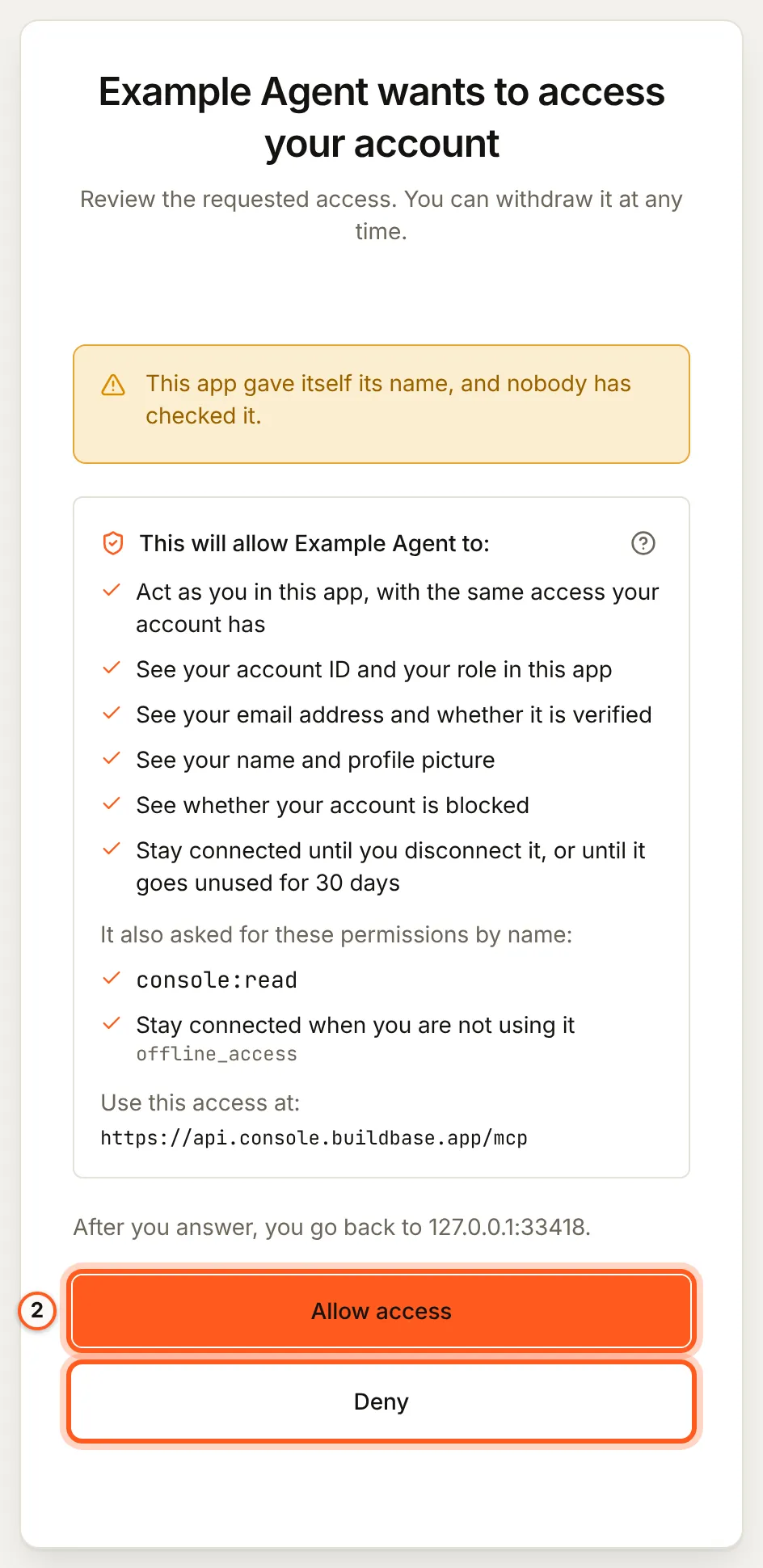
Once you have signed in, BuildBase shows the consent screen in your browser. It names the tool, lists the scopes it asks for and the server the access is for, and changes nothing until you choose Allow access. Here it is for a tool that registered itself:
Use it in a chat
Open the chat in agent mode and make sure the BuildBase tools are on under Configure Tools. Then ask, for example:
- "Which environment variables does a Next.js app need for Acme? Write them to
.env.example." - "Create a feature flag
new-editor, off, in staging." - "How do I add magic-link sign-in? Read the BuildBase docs and change this app."
More, with what each one asks you to approve: example prompts.
What differs in VS Code
- Approvals. VS Code asks before running a tool that is not marked read only. BuildBase's read tools are marked read only;
console_write,console_destructive_change,create_organdblueprint_applyare not, so each asks first. Keep it that way. - Approvals of a change. Where VS Code can ask you a question itself, the change BuildBase wants to make is shown to you and nothing happens unless you approve it. Otherwise the agent states the change and confirms it with a one-time code (what stays with you).
- Trust. A server in the workspace's
.vscode/mcp.jsonstarts only in a trusted workspace. One added to your user profile can ask for trust on first start. - Your app's code is in reach. The agent can write what BuildBase tells it into your files.
get_env_templatenever fills in a secret: copy your client secret from the console into.env.localyourself.
If something goes wrong
| What you see | Why | What to do |
|---|---|---|
| The server does not start | The workspace is in restricted mode, or a managed policy blocks it | Trust the workspace, or ask your administrator to check the managed MCP allowlist |
| Nothing happens after sign-in | The browser did not hand back to VS Code | MCP: List Servers > the server > Show Output, then restart the server |
| No BuildBase tools in the chat | The server is stopped, or its tools are off under Configure Tools | Start it from MCP: List Servers and turn its tools on |
| The agent says the organization does not let agents in | Its AI agents setting is Off, or your agent is blocked there | An owner or admin changes it under Security, AI agents |
| Every change is refused | The organization is Read only, or you did not grant console:write | An owner or admin sets Read and change; then approve console:write when asked |
To disconnect, remove the entry and disconnect the agent in BuildBase, which ends its session at once.
Related
- BuildBase in your AI tools: the server, its tools, and what stays with you.
- Use BuildBase in Cursor and Use BuildBase in Cline.
- Let your users connect VS Code to your app: the same client in Agent-ready apps.
- VS Code's own reference: MCP configuration.
Frequently asked questions
- Is there a one-click install for VS Code?
- Yes. The VS Code button on the BuildBase in your AI tools page adds the server to your user profile, and VS Code then asks you to sign in. The same entry can be added by hand or with code --add-mcp.
- Why servers and not mcpServers?
- VS Code's own format, in .vscode/mcp.json, names the list servers and needs "type": "http" for a remote server. The portable .mcp.json format uses mcpServers. Copy the snippet for the file you are editing.
- Does VS Code ask before every BuildBase tool?
- It asks before a tool that is not marked read only. BuildBase marks its read tools read only, so its change tools, including console_write and console_destructive_change, ask you first.