
Items
Let your sellers list what they sell inside your app: a ready form from your item types, hooks for your own screens, or your server on their behalf.
An item is one thing a seller in your app lists: a course, a ticket, a used phone. Each item is written against one of your item types, which decides its fields, how it is priced and what a buyer gets. Your sellers never visit the BuildBase console and never get a BuildBase login: they list items inside your app.
Note
Arrives with selling. Items arrive with selling and run on the same Stripe keys: test keys in Staging for test sales, live keys in Production once live selling is open for your app. Buyers pay for items through checkout.
Requires @buildbase/sdk 1.2.0 or later. <SellerItems>, the item hooks and the item.* events in its catalog arrive with it; earlier versions have none of them.
Walkthrough
New to selling? Zero to first sale: marketplace and Zero to first sale: storefront walk the whole flow once, from Stripe keys to a refund and going live.
When to use it
Every listing is an item: give sellers the ready screen, build your own on the hooks, or let your server list for them (an import from another system, say).
Before you start
- Selling on, and at least one published item type.
- The seller has started selling in your app (
<SellerHome>). Drafts can be saved while Stripe checks them; publishing needs a seller who can take sales, approved by you if you approve sellers.
Set it up in the console
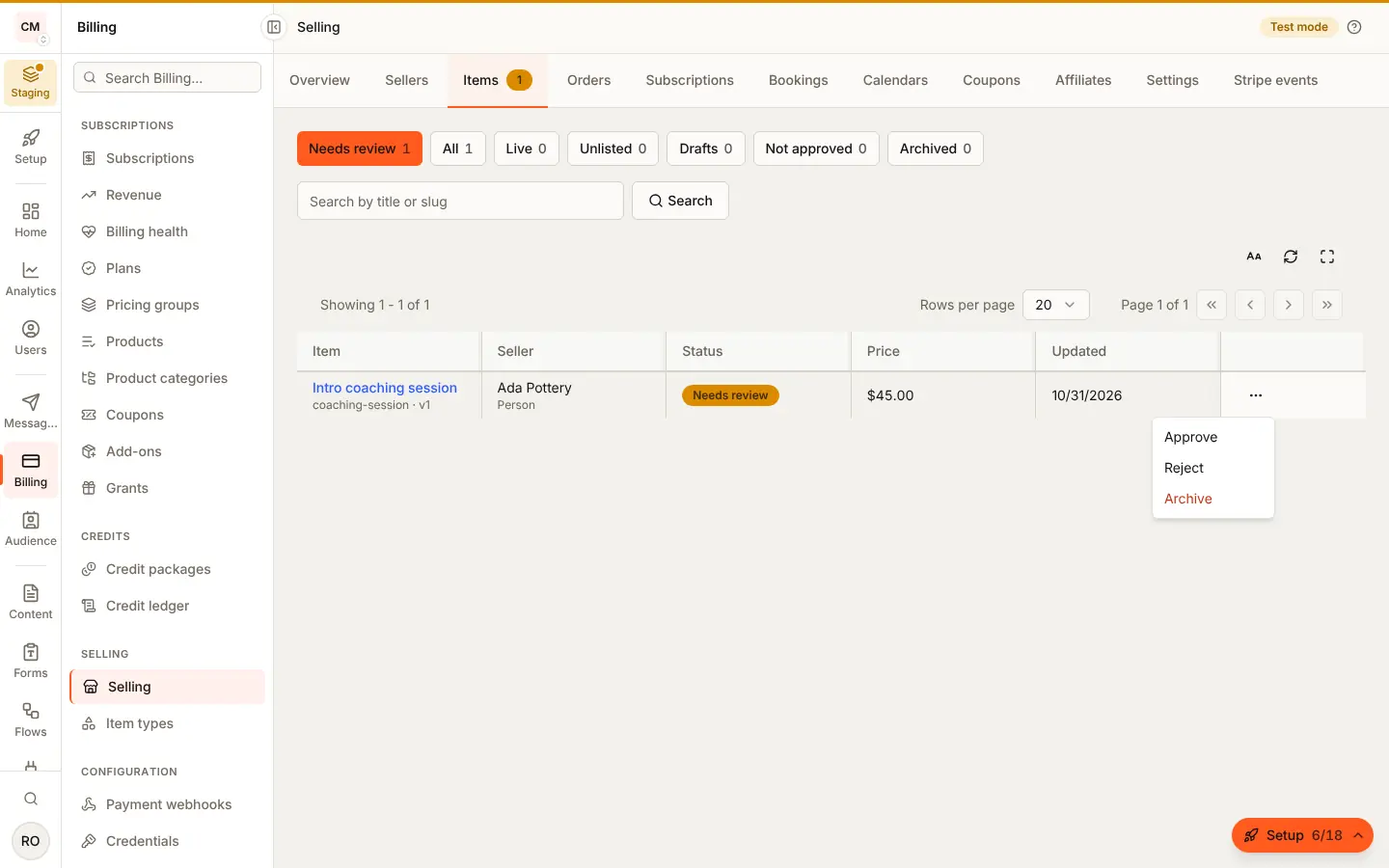
Nothing to set up for items themselves. To review new items, turn on approval in the item type (Review and refunds), then work the queue at Billing, Selling, Items, Needs review: Approve or Reject with a reason the seller reads.
Marketplace and storefront
Listing works the same in both shapes. The shape decides where the item's sales are charged, not how it is listed.
What the seller sees
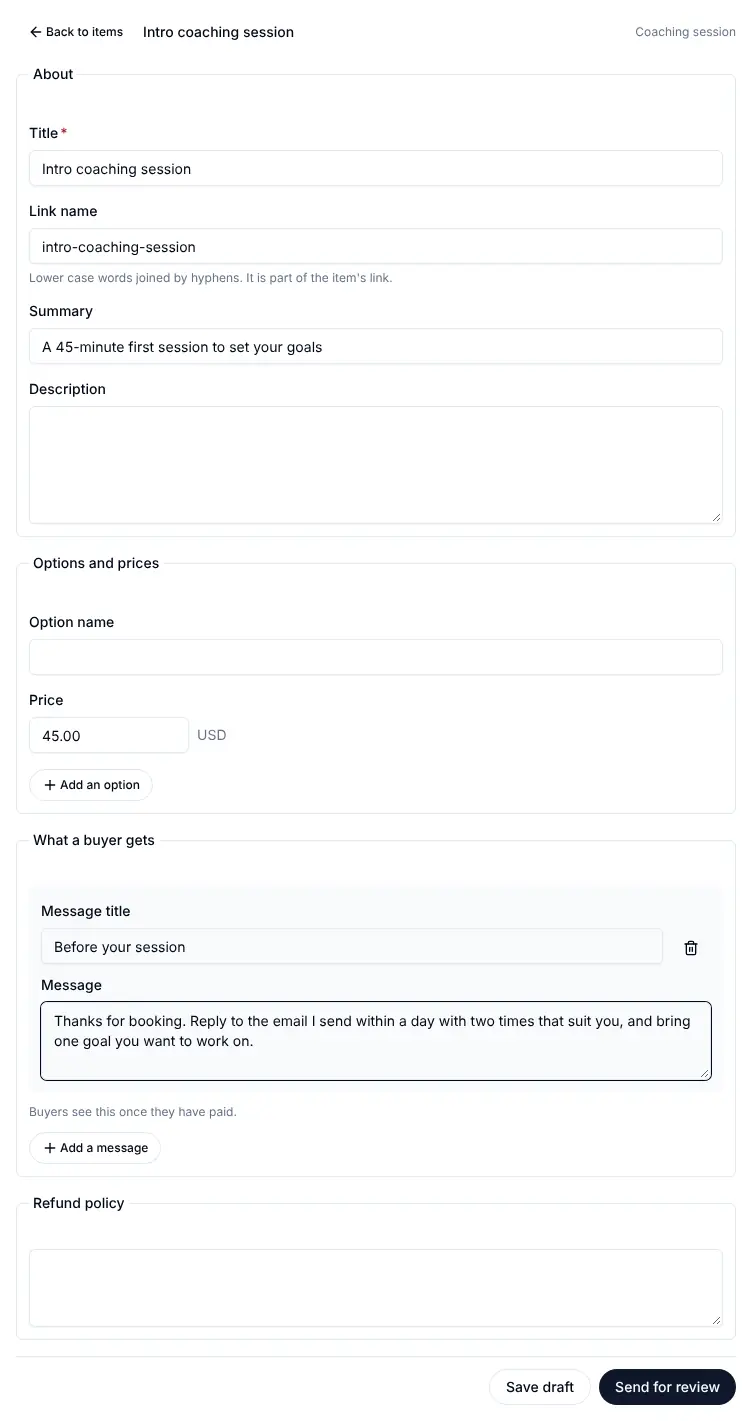
<SellerItems>: their items by status, and each item's form drawn from its
type. Problems show beside the field they point at. What the buyer gets is
added in the form too, as the type allows: a message, a private link,
something the seller delivers by hand (manual), a licence key the
platform makes, or something your app delivers (webhook_only). Files,
access and bundles have their own screens.
What the buyer sees
Published items through usePublishedItems, signed in or not, and an
unlisted item by its link: the public fields, prices and what they get.
Emails and webhooks
The seller gets Item Approved or Item Not Approved from your app's
sender when you decide a reviewed item (turn either off under
Notifications, System, Selling). Your server gets
item.created, item.updated, item.published, item.rejected and
item.archived (webhooks).
Limits
Your server sends up to 50 items per bulk call and up to 50 metadata
keys per item. A type with a listing limit caps live items by the seller's
plan in your app (ITEM_LISTING_LIMIT). A price that has sold never
changes: retire it and add another.
Staging and Production
Live sales need live sellers: each seller finishes Stripe's onboarding again in live mode, in Production (go live).
Three ways for a seller to list
| Way | What your app does |
|---|---|
| A ready screen | Places <SellerItems /> on a page, signed in as the seller |
| Your own screens | Builds them on useItemTypes, useSellerItems, useSaveItem and usePublishItem |
| Your server for them | Calls /api/v1/server/commerce/items with an organization API key, on a seller's behalf, one item or many |
A seller must have started selling (the person or the workspace, as on the selling page) before adding items. Drafts can be written while Stripe is still checking them; going live needs a seller who can take sales.
The ready screen
import { SellerItems } from '@buildbase/sdk/react';

export function MyItems() {
  return <SellerItems subject={{ user: true }} />;
}
subject is the seller: { user: true } for the signed-in person, or a
workspace id. The screen lists the seller's items by status and opens each
item's form, drawn from the type's live version: the title, a link name made
from it, a summary and description, your fields, options and prices in the
currencies and price modes the type allows, stock, and a message or private
link a buyer gets. A workspace member without workspace:selling:manage
sees the items and cannot change them.
Your own screens
import {
  useItemTypes,
  usePublishItem,
  useSaveItem,
} from '@buildbase/sdk/react';

const { itemTypes } = useItemTypes();
const { save, problems } = useSaveItem({ user: true });
const { run } = usePublishItem({ user: true });

const item = await save({
  typeKey: 'course',
  title: 'Intro to pottery',
  slug: 'intro-to-pottery',
  variants: [
    {
      id: 'standard',
      prices: [{ id: 'usd', currency: 'usd', mode: 'fixed', amount: 4500 }],
      stock: { mode: 'none' },
    },
  ],
});
if (item) await run(item._id, 'publish');
Amounts are in minor units: 4500 is $45.00. A save your item type refuses
leaves problems, each with the field it points at (title,
variants.standard.prices.usd, data.level) and a sentence to show beside
it.
Your server, for a seller
const res = await fetch(`${serverUrl}/api/v1/server/commerce/items/bulk`, {
  method: 'POST',
  headers: {
    Authorization: `Bearer ${orgId}:${apiKey}`,
    'Content-Type': 'application/json',
  },
  body: JSON.stringify({
    items: [
      {
        seller: { type: 'workspace', id: workspaceId },
        typeKey: 'course',
        title: 'Intro to pottery',
        slug: 'intro-to-pottery',
        variants: [
          /* as above */
        ],
        metadata: { erpId: 'SKU-1042' },
      },
    ],
  }),
});
const { results } = await res.json();
// [{ ok: true, item }, { ok: false, code, message, problems }]
Up to 50 items per call, each answered in the order sent, so one bad row does
not stop the rest. Your server can also read, save, publish, unlist, archive,
approve and reject single items under /api/v1/server/commerce/items/:id. It
is the only writer of metadata (up to 50 keys, never shown to sellers or
buyers) and of fields you marked as app only. The API key's role needs the
Items resource.
Going live
Publish puts an item live, so buyers can find it. It checks the item against its type version, that the seller can take sales (and that you approved them, if you approve sellers), and your listing limit when the type has one. What stops it is answered as a list, kept on the item until the next try.
Unlist keeps an item for sale by its link only. Archive stops new sales; everyone who bought it keeps what they got. A draft that never went live can be deleted; anything else is archived instead.
A price that has sold is never changed: retire it and add a new one, so every order keeps exactly what it paid.
Reviewing items
When an item type asks you to approve new items, Publish sends the item to your review queue instead: Billing > Selling > Items, "Needs review", oldest first. Approve it to put it live, or reject it with a reason the seller sees. A rejected item becomes a draft again when its seller edits it. Editing a live item does not send it back to review.
The seller hears your decision by email, from your app's own sender. Turn either message off under Messaging > Notification events > System > Selling, for example to send your own from your server instead.
Buyers
Published items are public to your app's users:
const res = await fetch(`${serverUrl}/api/v1/public/items?typeKey=course`, {
  headers: { 'x-session-id': sessionId },
});
const { docs } = await res.json();
Filter by typeKey, by seller (sellerType and sellerId) or by title
(q). A person who sells is named in seller.subject.id by their seller
id (the same as seller.id), never their user id; sellerType=user takes
that seller id, or the person's user id. GET /api/v1/public/items/:id also answers an unlisted item. A buyer
sees only the fields you made public, what each variant costs, and what they
get (never the message or link itself), and never metadata.
Webhooks
| Event | When |
|---|---|
item.created | A seller, your server or an import created an item |
item.updated | Its content changed |
item.published | It went live; action is approve when you approved it in review |
item.rejected | You rejected it in review; item.review.reason says why |
item.archived | It stopped selling |
Each carries { item, by, action }: the item as your server reads it,
metadata included, and who made the change (seller, app or owner).
Errors
A refused request answers { error, message, code }, and problems when
there are fields to fix. The console shows the message; the SDK shows each
code in the reader's language and puts each problem beside its field.
code | What the person sees | What to do |
|---|---|---|
SELLING_UNAVAILABLE | Selling is not open for this app yet, or is turned off (publishing and approving wait) | The app owner turns selling on, or contacts BuildBase support to open it |
SELLER_NOT_FOUND | Start selling before adding items | Start selling first (<SellerHome>) |
SELLER_TERMINAL | This seller can no longer sell | Nothing: a closed seller's account cannot list again |
ITEM_NOT_FOUND | No item with that id | Reload the list: the item was deleted, or is another seller's |
ITEM_INVALID | The first problem, or how many things to fix before saving | Fix each entry in problems; each names its field |
ITEM_ACCESS_NOT_ALLOWED | This item type does not let sellers give access to that resource type | Use a resource type the item type lists for sellers; the app owner sets them on the type |
ITEM_SLUG_TAKEN | You already have an item with this slug | Pick another slug |
ITEM_RESOURCE_TAKEN | Another live item already sells this | Archive the other item, or sell something else |
ITEM_TYPE_NOT_SELLABLE | No published, active item type with that key (or the type is gone, or not for this kind of seller) | Pick a live type; the app owner publishes or restores it under Billing > Item types |
ITEM_LISTING_LIMIT | You have listed as many of these as your plan allows. Archive one, or upgrade, to list another (402) | Archive an item, or move to a plan with more listings |
ITEM_STATE_CONFLICT | This item changed meanwhile. Reload it and try again (or the action does not fit its status) | Reload the item and try again |
Permissions
The console's Items resource governs the Items tab: reading every item, and approving, rejecting and archiving them. Owners and admins hold it.