
What Your Customers May Do
Choose what customers see when they cancel, whether they may pause, end a plan now or switch interval, add a checkout policy, and who gets billing notices.
Three cards under Settings > General set what your customers may do with their own subscriptions, and what they are told. Every default is how billing works today, so nothing changes until you change it.
Before you start
An owner or admin of the organization, or a role with organization settings.
Open organization settings in the console
(opens the console in a new tab)Cancellation
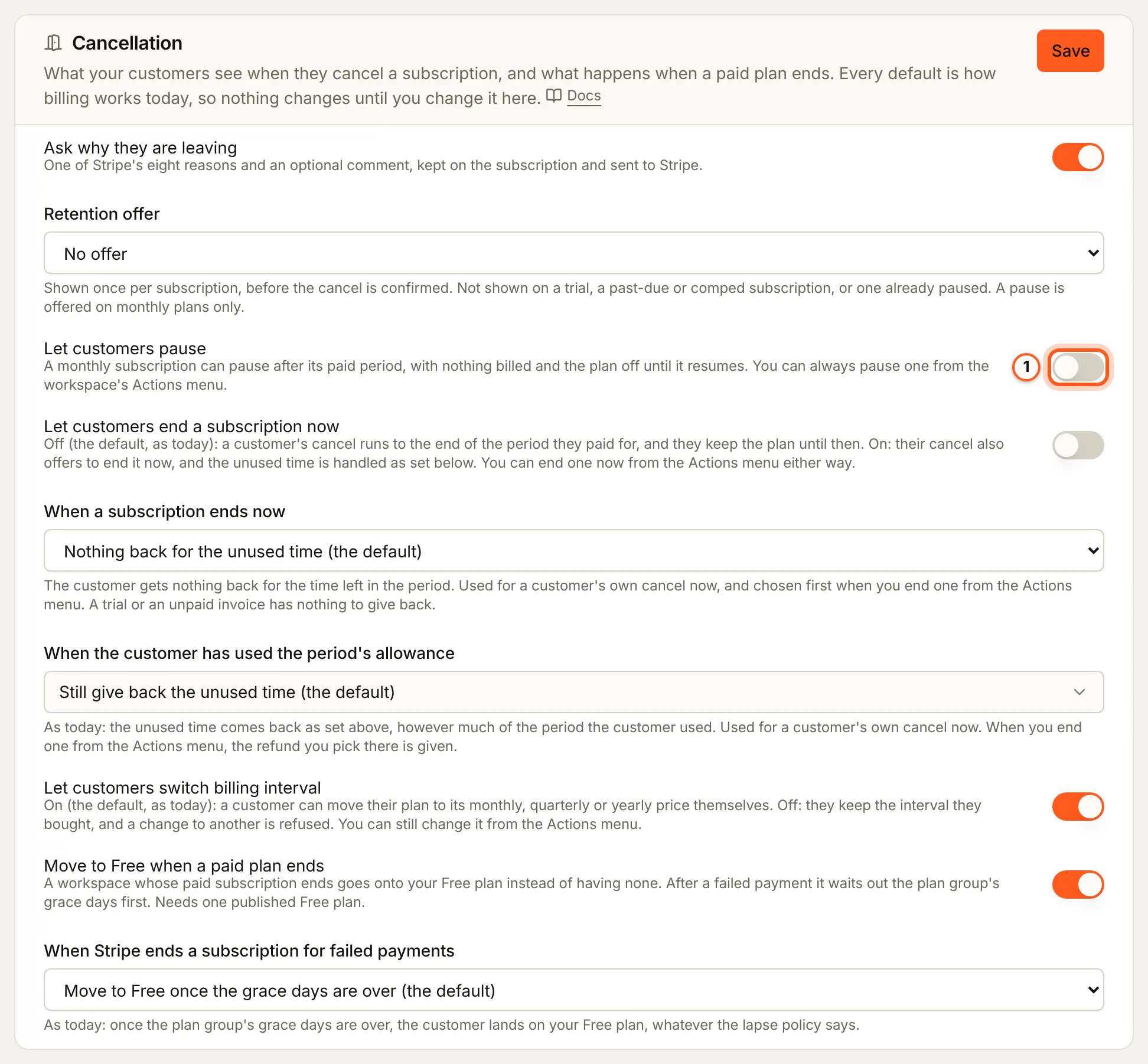
In the left rail choose Settings, then General. The Cancellation card holds what customers see when they cancel and what happens when a paid plan ends:
- Ask why they are leaving: one of Stripe's eight reasons and an optional comment, kept on the subscription and sent to Stripe.
- Retention offer: No offer, A discount or A pause, shown once per subscription before the cancel is confirmed. It is not shown on a trial, a past-due or comped subscription, or one already paused, and a pause is offered on monthly plans only.
- Let customers pause: a monthly subscription can pause after its paid period, with nothing billed and the plan off until it resumes. You can always pause one yourself from the workspace's Actions menu.
- Let customers end a subscription now: off, a cancel runs to the end of the paid period. On, it also offers to end now, and When a subscription ends now decides what comes back for the unused time.
- When the customer has used the period's allowance: whether the unused time still comes back when the customer has used the period's allowance.
- Let customers switch billing interval: on, a customer can move their plan to its monthly, quarterly or yearly price themselves.
- Move to Free when a paid plan ends, and When Stripe ends a subscription for failed payments: whether a workspace whose paid plan ends lands on your Free plan, after the plan group's grace days.
Press Save on the card.
Your policy at checkout
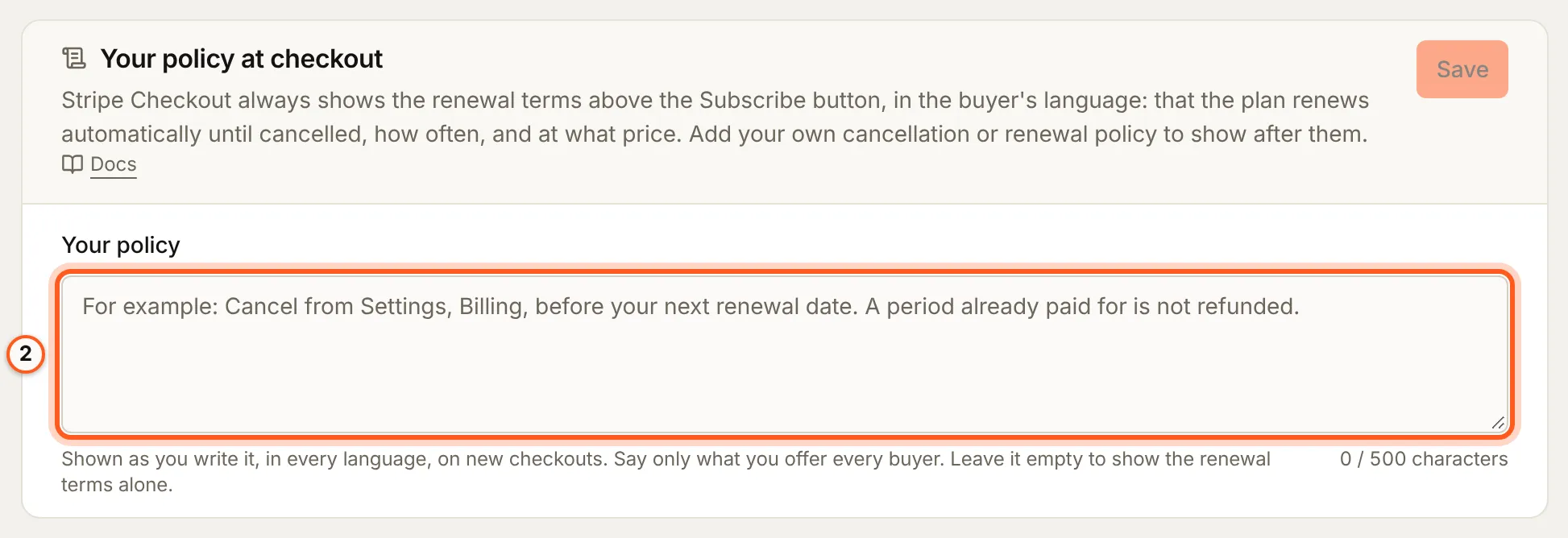
Stripe Checkout always shows the renewal terms above the Subscribe button: that the plan renews until cancelled, how often and at what price. In Your policy, add your own cancellation or renewal policy to show after them, on new checkouts, as you write it. Say only what you offer every buyer; leave it empty to show the renewal terms alone. Press Save.
Billing notices
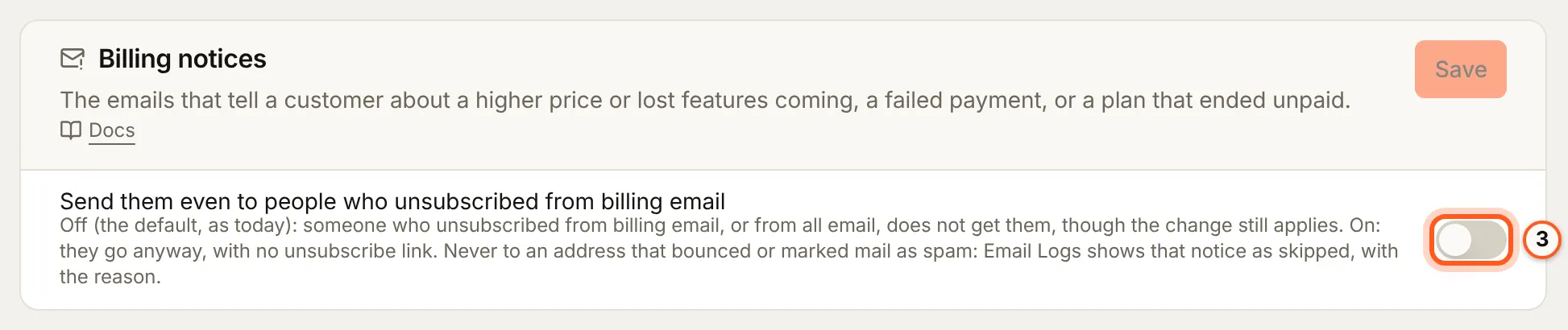
The emails that tell a customer about a higher price or lost features coming, a failed payment, or a plan that ended unpaid. Send them even to people who unsubscribed from billing email: off, someone who unsubscribed does not get them, though the change still applies; on, they go anyway, with no unsubscribe link. They never go to an address that bounced or marked mail as spam.
Check that it worked
Cancel a test subscription in your app: the cancel dialog asks why, makes the offer you chose, and offers to end now only when you allowed it. A new checkout shows your policy after the renewal terms.
Things to watch out for
- The offer is made once per subscription, never on a trial, past-due, comped, cancelling or paused one, and a pause only on a monthly plan.
- Your policy adds to the renewal terms; it cannot replace them.
- A customer's own change is refused when you turn it off (
INTERVAL_SWITCH_OFF,CANCEL_NOW_OFF); you can still make it from the Actions menu.
Next steps
- Managing subscriptions - what you can do for a customer yourself
- Failed payments - the notices and retries after a declined payment
- Billing overview - cancel, pause and resume from the SDK