
Item types
Decide what the sellers in your app can sell - the fields they fill in, how they price, what buyers get - and change it later without breaking listed items.
An item type is a kind of thing the sellers in your app can sell: a video course, a concert ticket, a used phone. It sets the fields a seller fills in for each item, how they may price it, what a buyer gets after paying, and how checkout works. You design item types in the console; your app reads them to draw its seller form.
Note
Arrives with selling. Item types are on wherever selling is, and need nothing else: you can design them before you turn selling on, and they never touch Stripe. Sellers then list items of them, inside your app.
Walkthrough
New to selling? Zero to first sale: marketplace and Zero to first sale: storefront walk the whole flow once, from Stripe keys to a refund and going live.
When to use it
Make an item type for each kind of thing your sellers list: a course, a ticket, a used phone. Start from a ready-made type or a category when one is close; design your own fields when your app needs them.
Before you start
Stripe keys saved under Billing, Credentials, so Item types shows in the Billing menu. Selling need not be on yet.
Set it up in the console
- Open Billing, Item types and choose New item type.
- Search a category, pick a ready-made type, or start blank; name it. The key is made from the name and never changes.
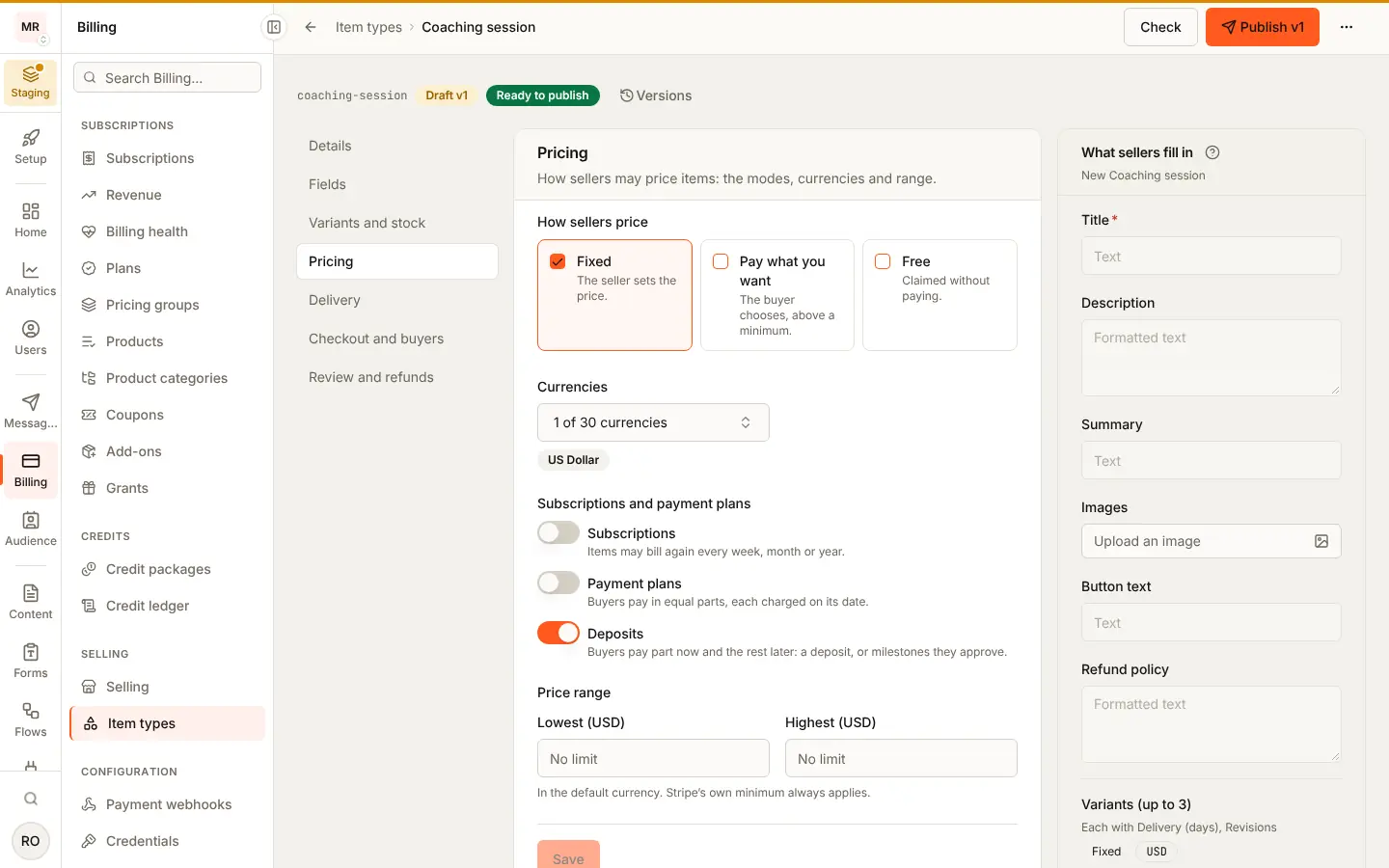
- Work through the sections, each with its own Save, watching the seller's form preview on the right.
- Press Publish once nothing stops it. Change it later with Start v2.
Marketplace and storefront
Item types never touch Stripe, so they work the same in both shapes. What a type allows on top (subscriptions, deposits, payment plans, Stripe Tax's tax code) then runs on the account the shape charges on.
What the seller sees
The form <SellerItems> draws from the type's live version: its fields,
the price modes and currencies it allows, and what a buyer gets
(items).
What the buyer sees
The item's public fields, what each variant costs and what they get, never your app-only fields.
Emails and webhooks
None for item types. Items made from them send item.* events.
Limits
ITEM_TYPE_LIMIT names how many types, and versions of one type, your app
may keep. A published version is locked; a field keeps its type in every
later version; a key is never reused.
Staging and Production
Item types do not depend on your Stripe keys. Each environment keeps its own, so design them again in Production when you go live there.
Starting a type
In the console: Billing > Item types. Open it and choose New item type. There are three ways to start, all on one screen:
- Search what people sell. Type "video course" or "ticket" and pick from about 1,100 categories; each starts with settings that suit it. A category that cannot be sold yet says why.
- A ready-made type, such as digital download, membership or service.
- Blank: a fixed price and a thank-you message, nothing else.
Then give it a name. The key is made from the name, and it is how your app and the API refer to the type. It cannot change later, so items always point at the same type. Duplicate on any type starts a copy as a new draft.
Building it
The builder edits a draft one section at a time, each with its own Save. On the right is the form a seller will fill in, updated as you edit.
| Section | What it decides |
|---|---|
| Details | Who can sell (people, workspaces, your own store) and an optional listing limit from your own app's plans |
| Fields | The item's built-in fields, and your own fields |
| Variants and stock | Variants per item, stock (unlimited, one of a kind, counted), a per-buyer limit, and the fields that set variants apart |
| Pricing | Fixed, pay what you want or free; currencies; subscriptions and trials; payment plans; deposits; a price range |
| Delivery | What a buyer can get: files, a private link, a license key, access in your app, and more |
| Checkout and buyers | Buy now, apply first or listing only; questions every buyer answers; shipping; where buyers can be; a tax code |
| Review and refunds | Whether you approve each new item, and whether a refund takes back what the buyer got |
Built-in fields. Every item has a title, always required, and a description, always optional. Summary, images, button text and refund policy can each be off, optional or required for a type: a tip needs no images, a course may require them.
Your fields use the same editor as Collections: pick a type, then the label, key, help text and the type's own settings. For item fields you also choose who sees each one, whether buyers can filter or sort by it, and whether it must be unique per seller (a SKU). Reorder by dragging, with the arrow keys on the handle, or from the row's menu.
Access sellers may give
An access benefit names a resource in your app (resourceType and
resourceId), and your app opens it when /me/access or the server's
/grants/access says yes. Your own server names any resource. A seller
names only the resource types the type lists in sellerAccessTypes, and
with none listed a seller gives no access at all: their item is refused
with ITEM_ACCESS_NOT_ALLOWED. List only types whose ids you keep apart for
sellers (a seller_course, not the course you sell yourself), since a
listed type lets a seller name any id of it. Set them under Delivery,
once access in your app is one of the things a buyer can get.
The access check follows the list too: access bought from an item its seller last saved counts only while the item type lists that resource type for sellers. Items that went live before you set the list grant nothing until you list their resource types; listing one later opens them again.
Where buyers can be
Turn on Only buyers in some countries for goods licensed by region and
pick the countries. An item can set its own list (buyerCountries), which
is the one checked: within its type's countries when the type has some.
Off on both means any country.
A buyer's country is the billing address Stripe's page asks for: a page
selling such an item always asks for it. Stripe's page cannot refuse a
country, so the order is checked once paid. A billing country outside the
item's list (or none) refunds the order in full, once, with the reason on
the refund, and its seller is not paid, as an address outside an item's
shipping regions does. The order keeps the
buyerCountry it was checked against and reads buyerCountryRefused: true.
A subscription or a price in parts would go on charging after a refund of its first payment, so what charges again is stopped first:
- A subscription is cancelled at once on the account it lives on (your app's in the marketplace shape, the seller's in the storefront shape), with nothing prorated and no further invoices, then its first invoice is refunded in full. Nothing renews.
- A price in parts has its later parts stopped (the installments pass and every charge skip the order from then on) and the card it saved let go, then its first part is refunded in full.
- In a cart, only the refused line is undone. Subscriptions billed together on one Stripe subscription lose only that line's item; the others go on, and the last one left cancels the subscription itself. A one-time line beside a subscription is refunded on its own.
Your server hears order.paid then order.refunded (and for a
subscription item_subscription.canceled and item_subscription.ended),
the refund and cancel events with reason: "buyer_country".
Either way the order is marked buyerCountryRefused, what it granted is
taken back, no affiliate commission is earned and the seller is not paid.
A trial that charged nothing yet is cancelled with nothing to refund. The
refund's reason tells the buyer why, and BuildBase also emails the buyer,
once, that the order was refused and refunded (or that nothing was
charged, for a trial): the Order Refused For Country event under
Messaging > Notification events > System > Selling, sent from your app's
sender as transactional mail. Turn it off under Billing > Selling >
Settings > Buyers, payouts and records, or on the event itself.
Asking before payment
What a buyer outside the countries meets is your choice, under Billing > Selling > Settings > Buyers, payouts and records, and each item type can choose otherwise in its Checkout section:
- Ask the country before payment (the default): your checkout sends the
country the buyer says they are in as
buyerCountry(two letters, optional) on a single, cart or guest checkout, a subscription and a price in parts included. A line whose countries exclude it is refused before any Stripe page opens and before anything is held:422CHECKOUT_REFUSED, problem codebuyer_country_outside, its pathbuyerCountry(orlines.<n>in a cart). The billing address is still checked once paid, as above, since it can differ from what the buyer said. - Refund after payment: nobody is asked, and a buyer outside pays and is refunded as above.
A checkout that sends no buyerCountry (an SDK from before the field) is
not refused for it; the check once paid still applies.
Only a free claim is refused before anything is held, since it opens no
Stripe page to ask the country (422 CHECKOUT_REFUSED, problem code
buyer_country_unknown). Subscriptions, prices in parts and carts beside a
subscription are no longer refused for their countries: the
buyer_countries_one_time_only and cart_buyer_countries_subscription
problem codes are not sent any more.
Publishing and versions
A draft does nothing until you publish it. Each section counts what stops publishing, and Publish stays off until the count is zero. Once published, a version is locked: items saved against it never break.
To change a published type, choose Start v2. It copies the live version into a new draft; the live one keeps working until you publish the draft. Before you publish, the dialog lists every change against the live version, with a note for the history. Some rules hold across versions:
- A field keeps its type. A key that was a number stays a number in every later version. To store something else, add a field with another key.
- Removing a field keeps its values. Adding the same key back, with the same type, brings them back.
- A tighter rule never stops sales. A newly required field, a removed choice or a narrower price range marks the items that break it Needs update. They keep selling, and their sellers fix them the next time they edit.
Versions shows every version, when it was published and its note. Discard draft drops a draft and leaves the live version as it is.
Retiring and deleting
Retire a type to stop new items of it. Items already listed keep selling, and buyers keep what they bought; Restore brings it back. A type that was never published can be deleted instead; its key stays reserved.
An org has up to 50 active item types. A retired type does not count, so retiring one you no longer sell frees its slot; restoring it needs a free slot again.
Reading types in your app
Your app reads the live version of every active type, for any signed-in user:
const res = await fetch(`${serverUrl}/api/v1/public/item-types`, {
  headers: { 'x-session-id': sessionId },
});
const { itemTypes } = await res.json();
// [{ key, name, description, version, definition }]
GET /api/v1/public/item-types/:key answers one type, or 404 when no
published, active type has that key. Drafts and retired types are never
returned.
With the SDK, useItemTypes reads the same list, ready for a seller form
(@buildbase/sdk
1.2.0 or later):
'use client';

import { useItemTypes } from '@buildbase/sdk/react';

export default function NewItemPage() {
  const { itemTypes, loading, error, refetch } = useItemTypes();
  if (loading) return <p>Loading...</p>;
  if (error) return <button onClick={refetch}>{error}</button>;
  return (
    <ul>
      {itemTypes.map((type) => (
        <li key={type.key}>
          {type.name}: {type.description}
        </li>
      ))}
    </ul>
  );
}
Each entry is { key, name, description, version, definition }, the live
version of an active type; definition holds the fields, pricing rules and
what buyers get.
Errors
A refused request answers { error, message, code }. The console shows the
message; the SDK shows each code in the reader's language.
code | What the person sees | What to do |
|---|---|---|
SELLING_UNAVAILABLE | Selling is not open for this app yet | Contact BuildBase support to turn it on |
ITEM_TYPE_NOT_FOUND | No item type with that id | Reload Billing > Item types: the type was deleted |
ITEM_TYPE_KEY_TAKEN | That key belongs to another type. Keys are never reused; pick another | Pick another key, even if the old type was deleted |
ITEM_TYPE_LIMIT | Up to N active item types (or N versions of one type) | Delete a draft type, retire one you no longer sell, or reuse one; for versions, retire the type and start a copy |
ITEM_TYPE_START_UNKNOWN | That starting point is not available. Pick another, or start blank | Choose another starter or catalog category, or start blank |
ITEM_TYPE_INVALID | The first problem, or how many problems stop the version from publishing | Fix each entry in problems; each names the field it points at |
ITEM_TYPE_STATE_CONFLICT | The type or version changed meanwhile, or the action does not fit its state | Reload the type and try again |
Permissions
Two console resources govern this page: Item types (create, rename, duplicate, retire, restore, delete) and Item type versions (start, edit, check, publish and discard a version). Owners and admins hold both.