
Unsubscribes, preferences and double opt-in
Unsubscribe groups, the preference center, one-click unsubscribe from the inbox, and double opt-in for people who join through a form.
The law, Gmail and Yahoo all expect your users to have an easy way to stop your emails. BuildBase builds in every way out of your list: an unsubscribe link, a page where people choose which emails they get, and the inbox's own Unsubscribe button. It also guards the way in. Anyone who joins through a form confirms by email first, so nobody can sign someone else up.
<!-- In a campaign template -->
<p>
  <a href="{{unsubscribe}}">Unsubscribe</a> -
  <a href="{{manage-preference}}">Choose which emails you get</a>
</p>
Before you start
Create unsubscribe groups in the console under Messaging > Unsubscribe groups, and pick a group on each template that should carry one.
Set it up in the console
Open Unsubscribe groups in the console
(opens the console in a new tab)1. Open Unsubscribe groups
In the left rail choose Messaging, then Unsubscribe groups. BuildBase keeps groups of its own for workspace and billing mail. Press Add new group.
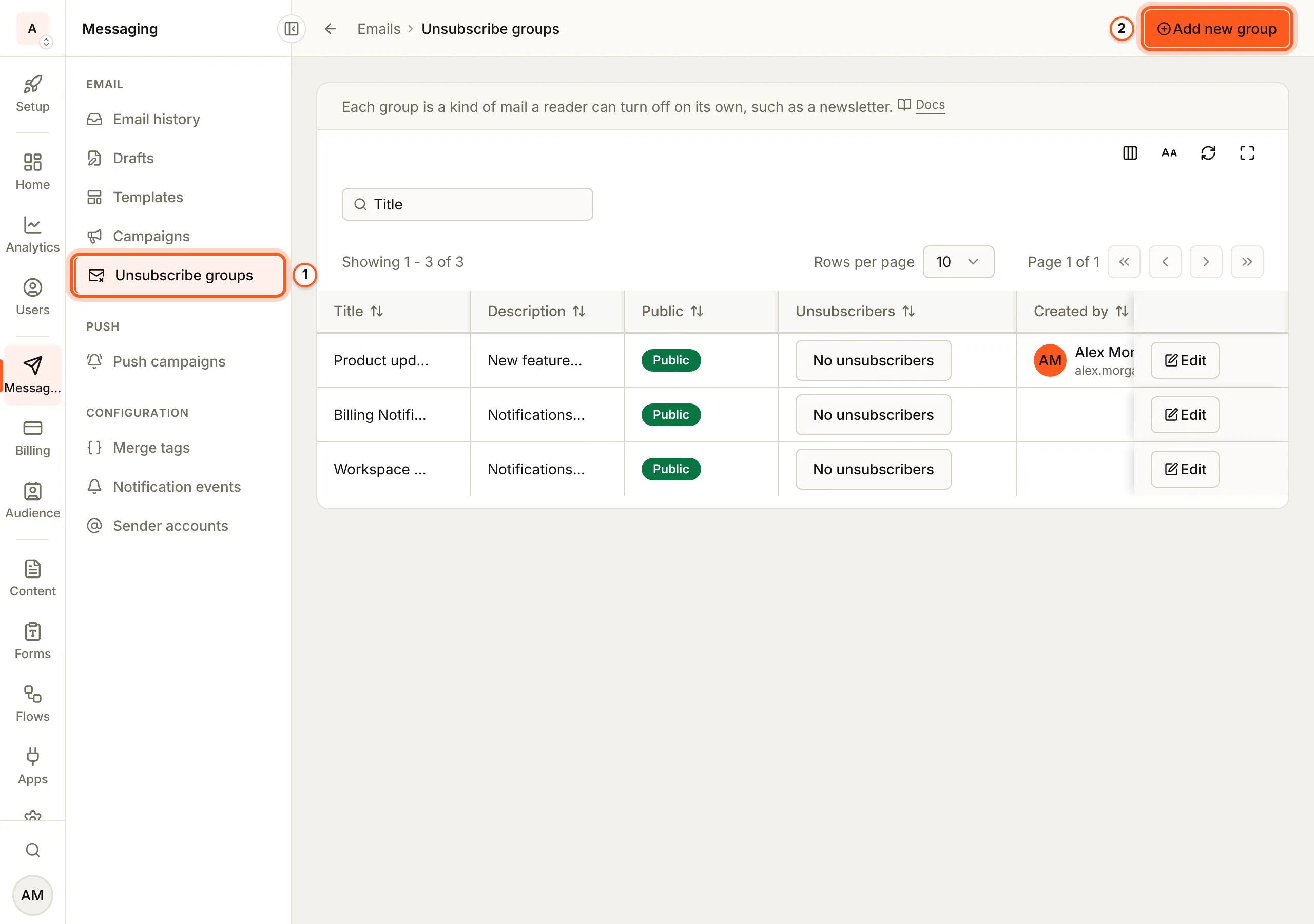
2. Add a group
Fill Title and Description: a reader sees both in the preference center. Tick Public group to list it there, and press Save. Then pick it as the Unsubscribe group of each template it covers (create a template).
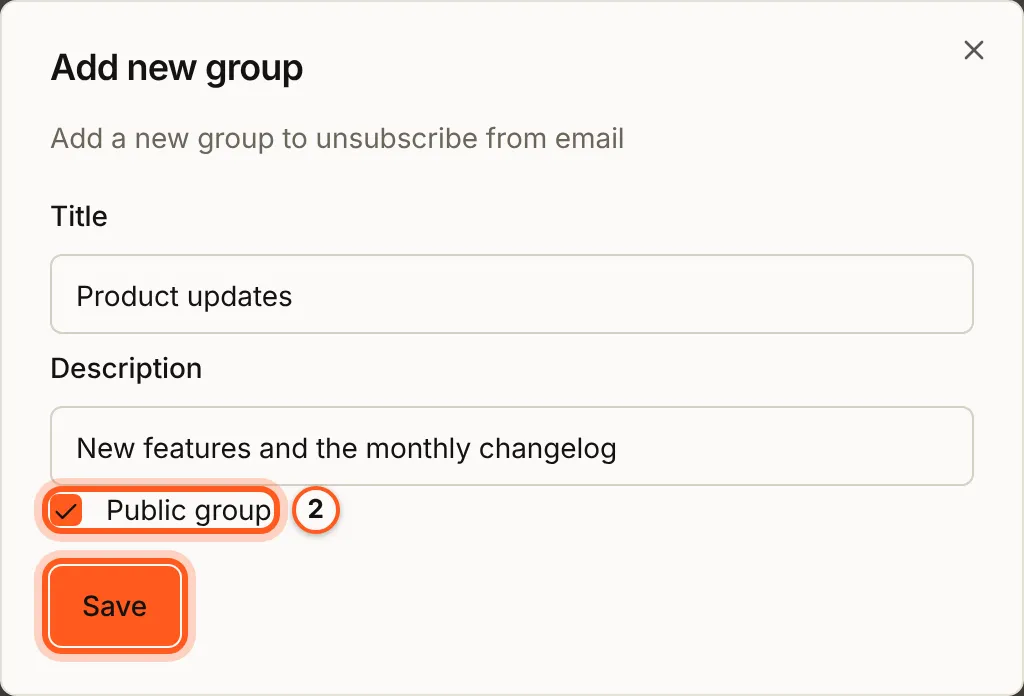
3. What a reader sees when they leave
The message's unsubscribe link opens Unsubscribe from these emails?. Its Unsubscribe button takes them out of this group only: account and security email still arrives.
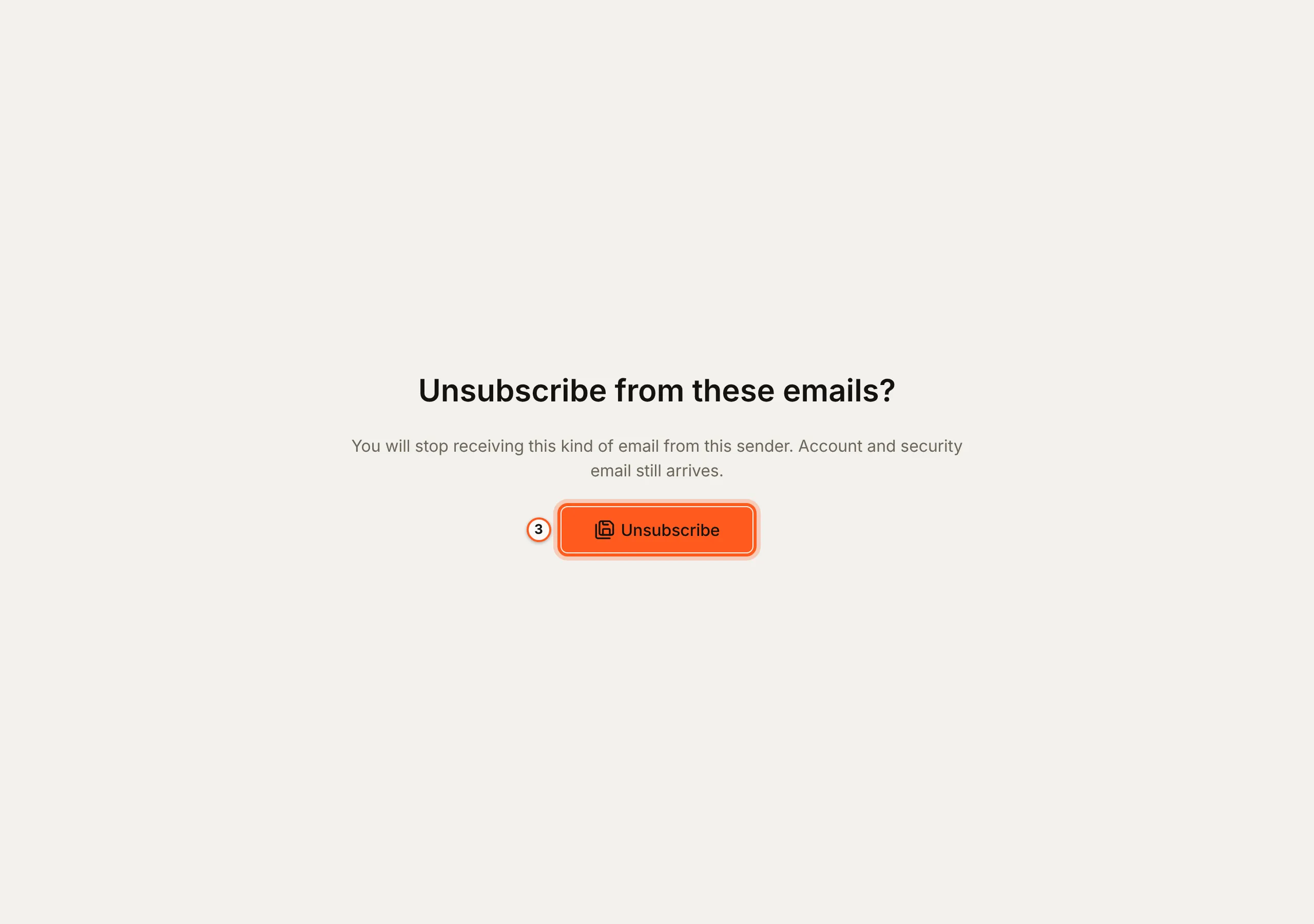
4. The preference center
Manage your email preferences on that page, or the
{{manage-preference}} link, opens Email preferences: a switch for each
public group, and Unsubscribe from all emails. A reader can turn a group
back on and press Save preferences.
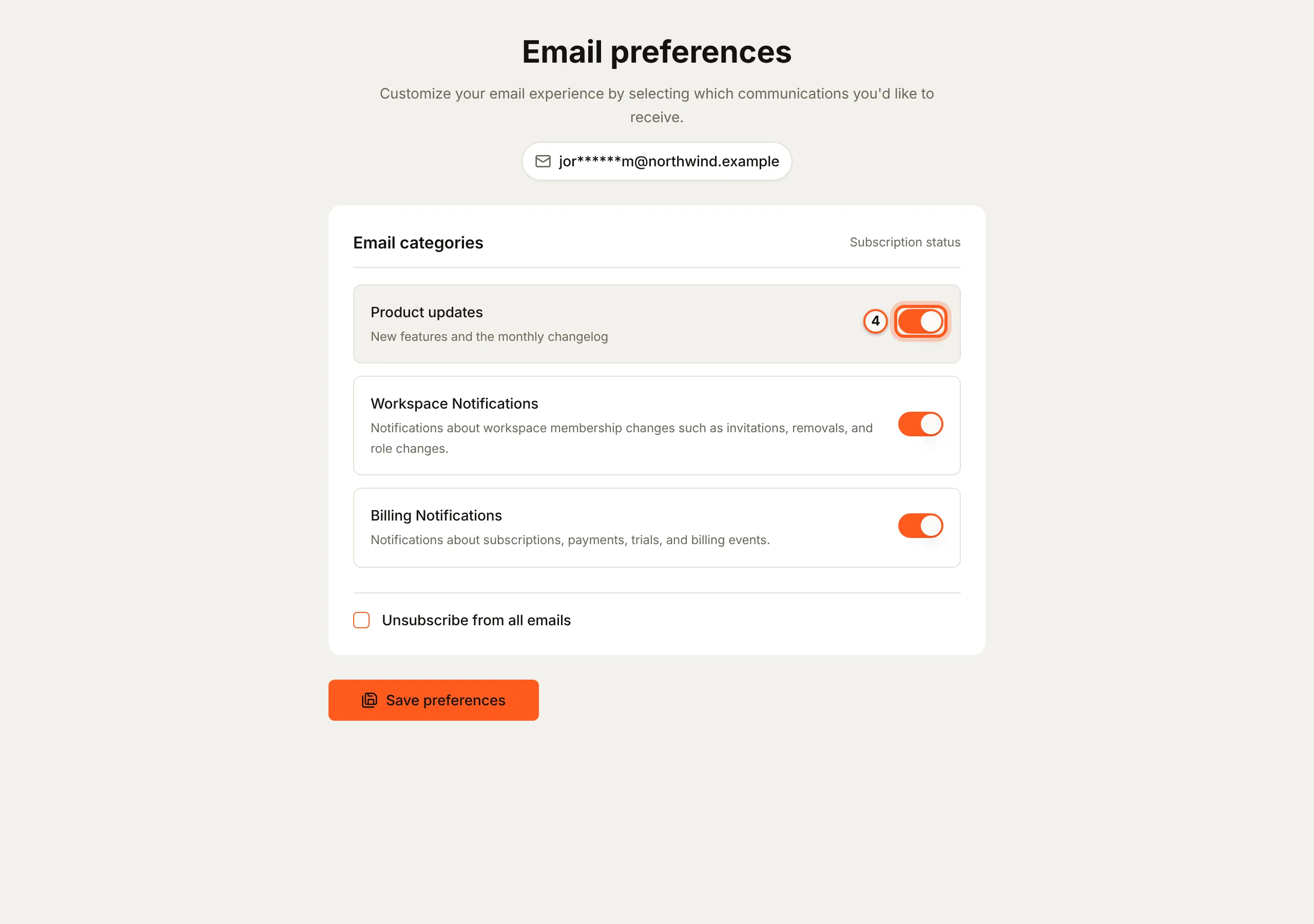
5. Who left
On Unsubscribe groups, each row's Unsubscribers count opens the group's history. It is a snapshot taken every hour, so a reader who just left shows at the next one.


Unsubscribe groups
A group is one kind of mail a person can leave on its own: product updates, a weekly digest, offers. Leaving one group keeps the person on every other group, and never stops their sign-in mail.
Mark a group Public group to list it in the preference center, the page where a person picks which groups they want. Their order there cannot be changed yet.
A public group can also have a newsletter archive: a public page of the campaigns sent under it, with a subscribe box.
The links in a message
Two merge tags (placeholders BuildBase fills in for each recipient) put the links in your template:
| Merge tag | Opens |
|---|---|
{{unsubscribe}} | A page that unsubscribes the person from the message's group |
{{manage-preference}} | The preference center: every public group, or unsubscribe from all |
Both carry a per-recipient token, so the page knows who the person is without a login. A message with no group unsubscribes from all marketing mail. The pre-send check refuses a campaign whose template has neither tag.
One-click unsubscribe from the inbox
Gmail and Yahoo show their own Unsubscribe button next to the sender's name
when a message tells them how. It does that with two headers, hidden lines at
the top of the message. List-Unsubscribe gives the address to unsubscribe
at, and List-Unsubscribe-Post says one click is enough. Gmail and Yahoo
require both from bulk senders. Marketing mail, and any message sent under a
group, carries them:
List-Unsubscribe: <https://api.console.buildbase.app/api/email/unsubscribe/TOKEN>
List-Unsubscribe-Post: List-Unsubscribe=One-Click
When the person presses the mailbox's button, it posts
List-Unsubscribe=One-Click to that address with no cookie and no session, and
the person is unsubscribed. That is the one-click flow RFC 8058, the standard
behind these headers, describes.
A GET of the same address changes nothing. Link scanners (security tools that
open every link in a message) would otherwise unsubscribe people by accident.
So a GET redirects to the confirmation page, where a person presses the
button.
Double opt-in for form sign-ups
Double opt-in means a new subscriber confirms their address by email before you can mail them. Without it, anyone can type anyone's address into a form, and that person starts getting campaigns they never asked for. They complain, and complaints are what get a sending domain blocked.
Turn on Collect subscribers on a form. You'll find it behind the envelope button on the form's row under Forms, which opens Subscribers from "(your form)". Keep Ask them to confirm (double opt-in) on, as it is by default. Then:
- A submission adds the person to your audience as pending.
- They get one email with a Confirm button. It goes out the way sign-in mail does, so it reaches someone who unsubscribed earlier and is coming back, and its link is not click-tracked.
- Pressing Confirm makes them a confirmed contact. Campaigns skip pending contacts.
| Rule | Detail |
|---|---|
| Which field holds the address | The first email field, or the field key you name in Email field |
| The confirmation link | Valid for 30 days. Opening it changes nothing; the person presses Confirm on the page |
| Resends | At most three confirmation emails per contact, at least ten minutes apart |
| Someone already confirmed | Left as they are |
| Someone who unsubscribed | Comes back only by confirming again |
| A typo'd or suppressed address | Not added. The submission itself still succeeds |
| Your plan's contact limit | When it is full, the person is quietly not added. The submission still succeeds |
Leave Collect subscribers off on a contact form: people who write in have
not asked for a newsletter. The newsletter archive's
subscribe box uses the same double opt-in. Contacts imported with a status of
pending or unconfirmed stay out of campaigns until they confirm. BuildBase
does not email them a confirmation: they confirm by signing up again through a
form or the newsletter subscribe box. See
Importing contacts.
From your backend
Your server can change a person's subscription too, for example from your own
settings page. subscribers.unsubscribe(email) and
subscribers.resubscribe(email) on the server client do it. A resubscribe is
refused for an address that bounced. subscribers.upsert() never changes
whether someone is subscribed. See Manage subscribers.
Requires @buildbase/sdk 1.0.0 or later.
Next Steps
- Deliverability - the bounce and complaint limits, and the never-email lists.
- Forms - the form a subscriber signs up through.
- Templates and merge tags - every merge tag a template can carry.