
Connect an email sender in the console
Connect the email account your mail goes out through, by SMTP or Google, test it, read its bounces, make it the default and share it with your team.
A sender is the email account BuildBase sends through. The one marked System default sends your users' sign-in links and codes, password resets and invitations; campaigns name their own. This guide connects Acme Analytics' newsletter address over SMTP and makes it the default.
Before you start
A console role that can create email senders, and room on your plan for one more. The SMTP and Amazon SES tabs need bring-your-own SMTP on your plan; Google and Mailgun do not. For SMTP, your mail server's host, port, username and an app password.
Until a sender works, every console page shows No email sender is connected: sign-in links, password resets, verification codes and invitations cannot be delivered. Its Connect a sender button opens the page below. Your first working sender becomes the System default on its own.
1. Open Sender accounts
Open Sender accounts in the console
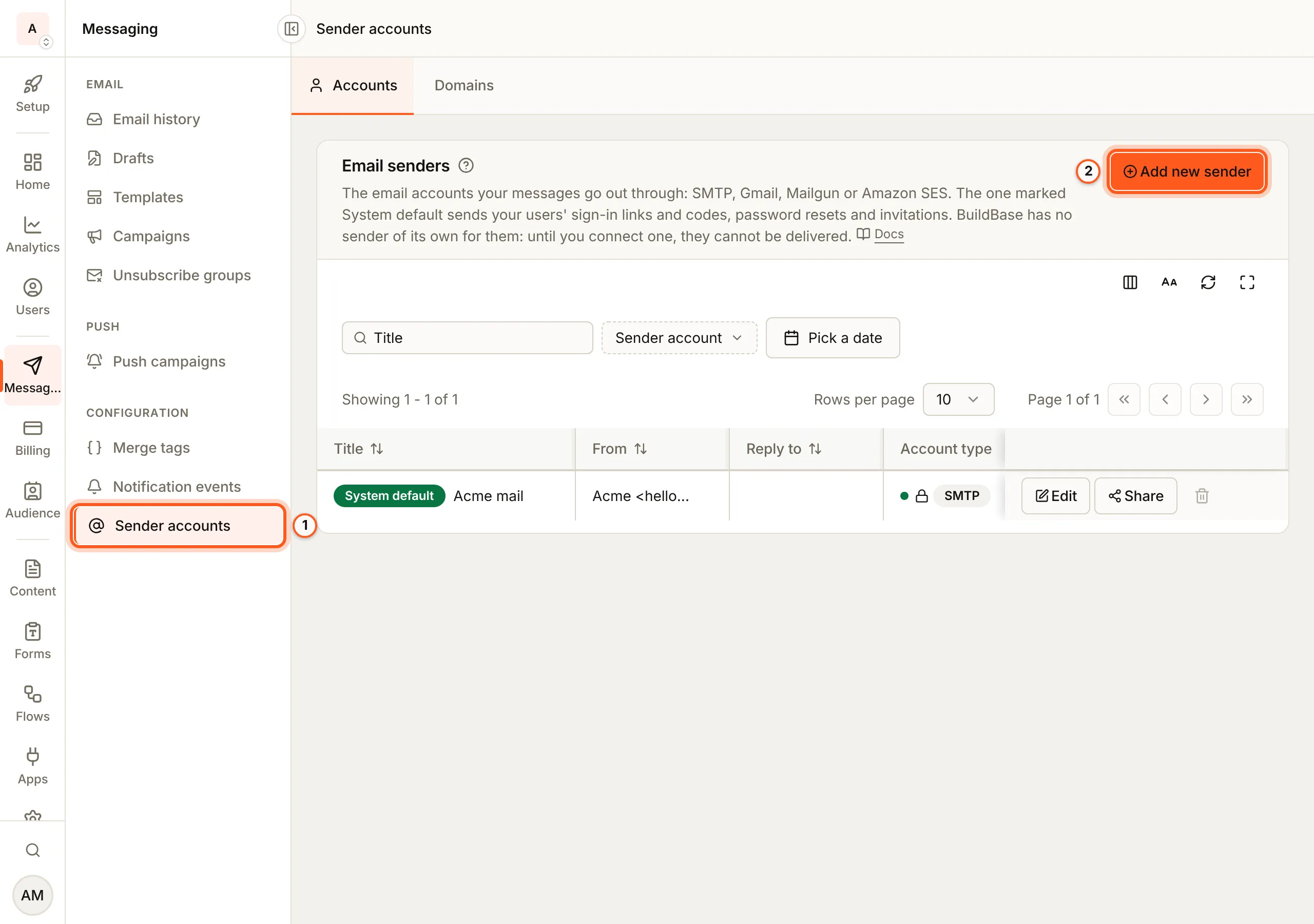
(opens the console in a new tab)In the left rail choose Messaging, then Sender accounts under Configuration. Email senders lists each sender. Press Add new sender.
2. Pick the kind of sender
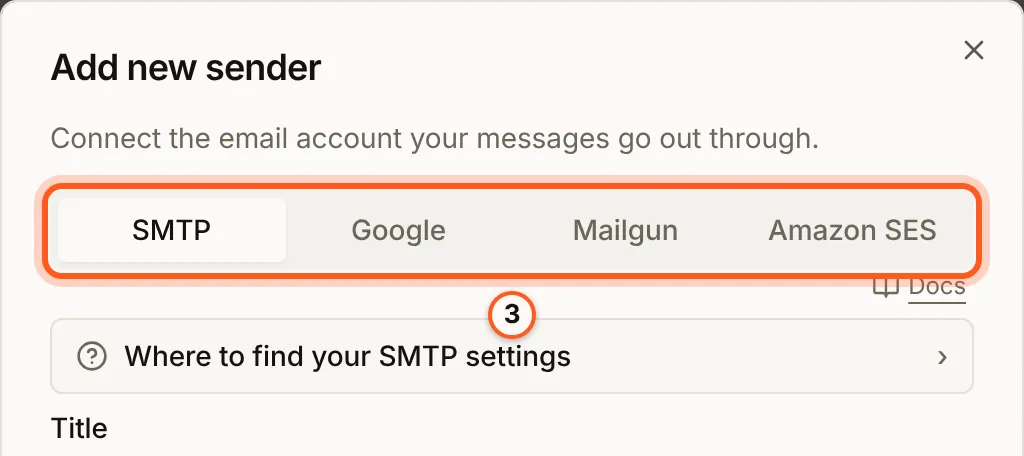
Add new sender has four tabs: SMTP, Google, Mailgun and Amazon SES. This guide uses SMTP, and Google is below. Amazon SES has its own guide, and Mailgun sends from a verified domain.
3. Find your SMTP settings
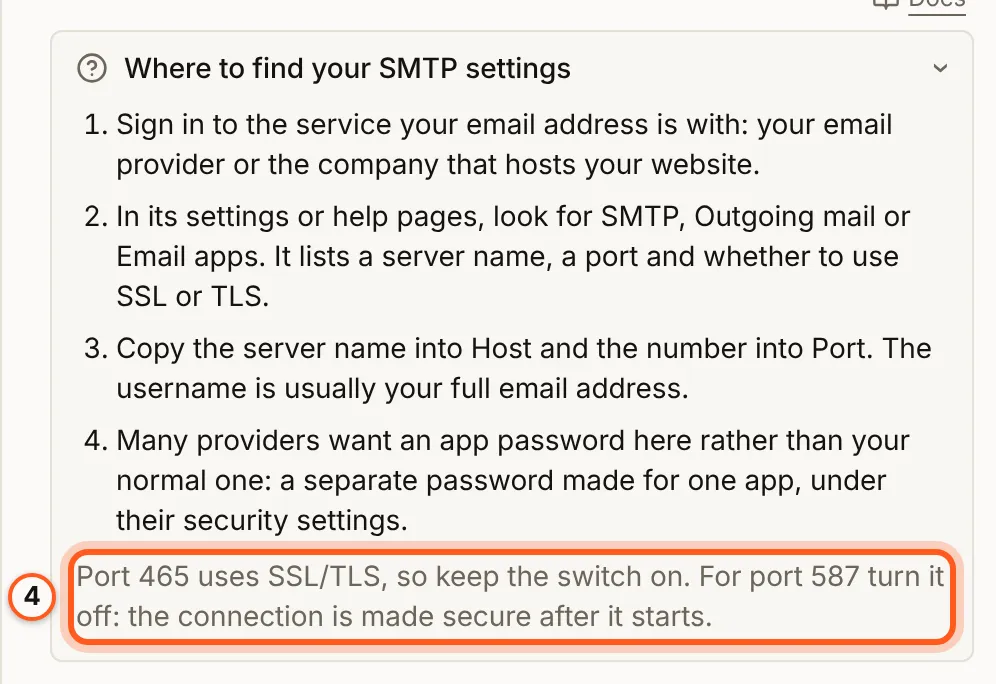
Open Where to find your SMTP settings. Your email provider's help pages list a server name, a port and whether to use SSL or TLS. Many want an app password, made for one app, rather than your normal one.
4. Fill in the account
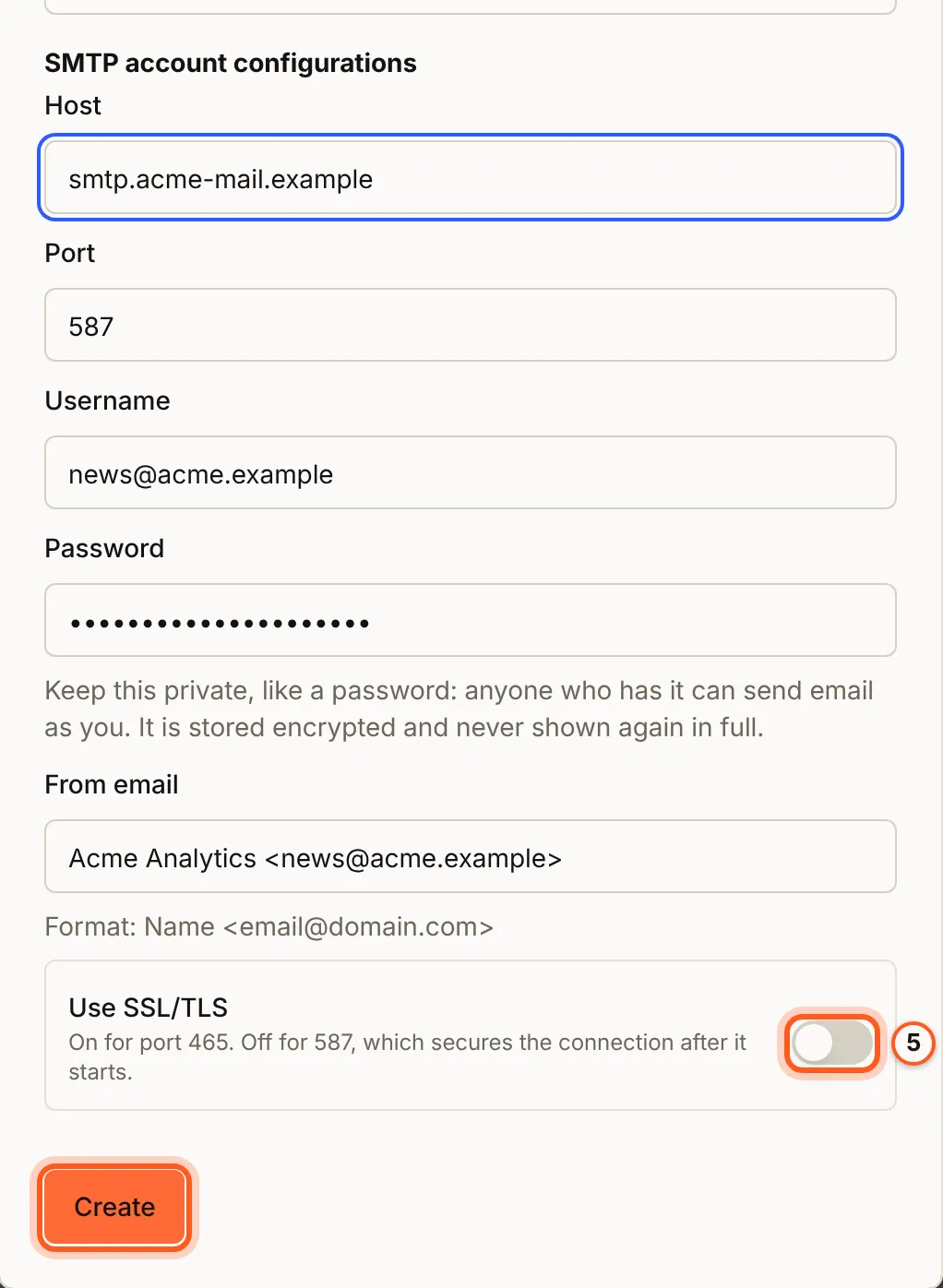
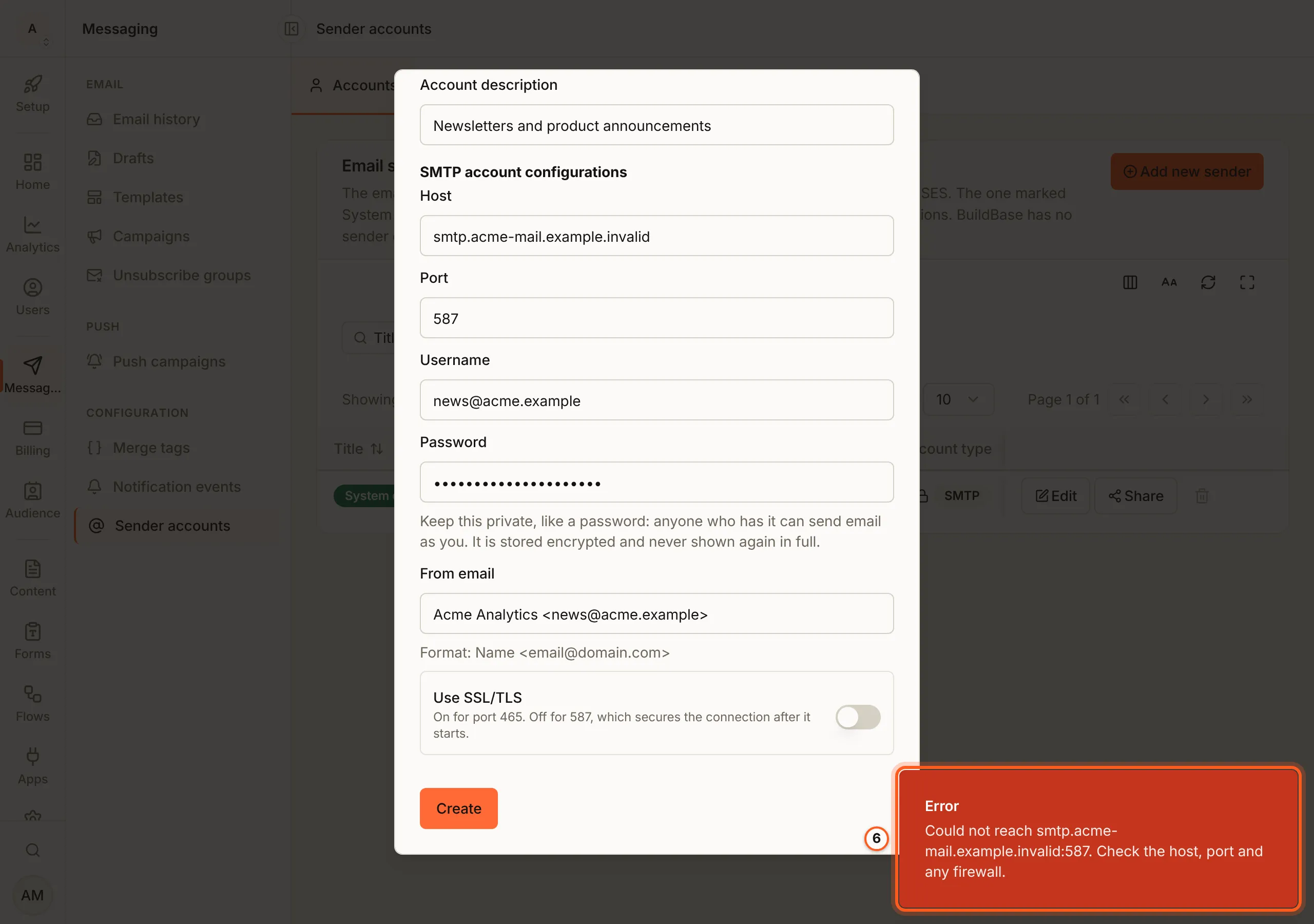
Fill Title, Account description, Host, Port, Username,
Password and From email (Name <address>). Turn Use SSL/TLS on for
port 465 and off for 587. Press Create.
5. If it is refused
Create connects to the mail server and signs in before it saves anything. A wrong host, port or password is refused with the server's own reason, and nothing is stored: fix the field and press Create again.
6. See it in the list
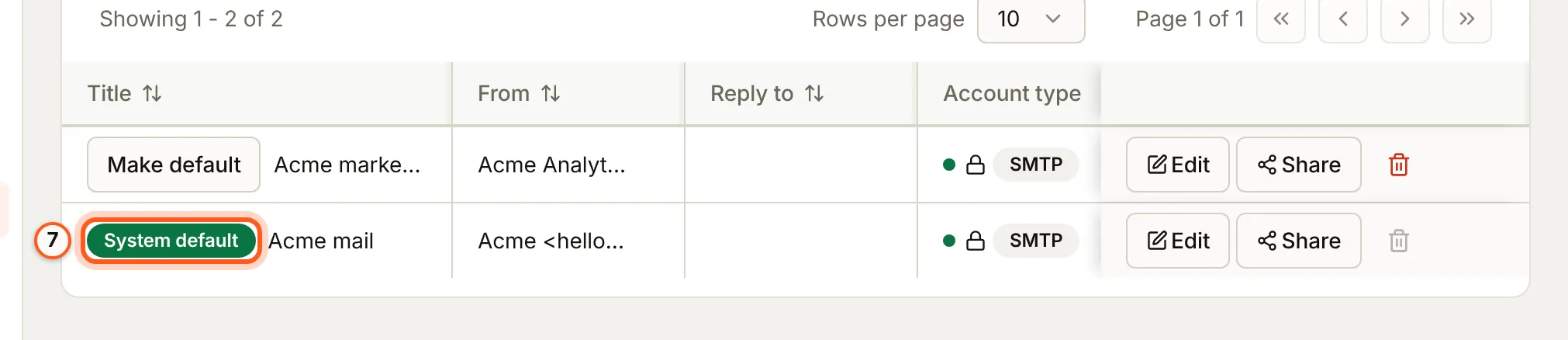
The new sender is listed. Mail goes out through it once a campaign names it, or once you make it the default.
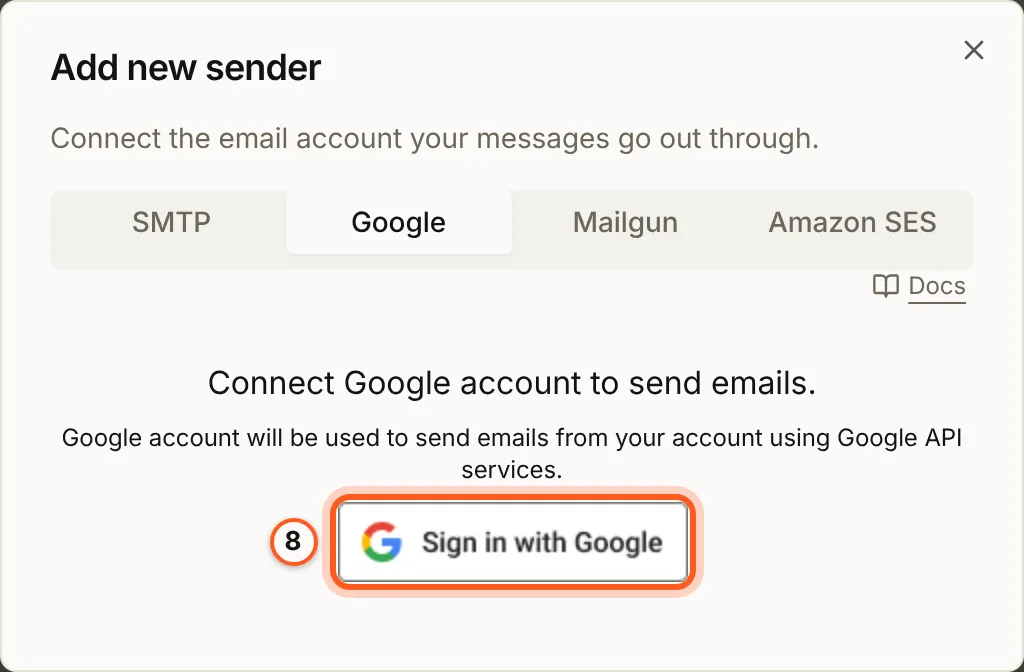
On the Google tab, press Sign in with Google and allow BuildBase to send mail for the account. Nothing is typed in: Google returns you to the console with the sender added.
7. Send a test
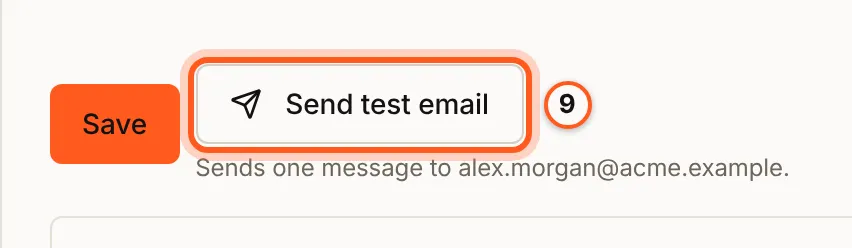
Press Edit on the sender's row, then Send test email in Edit sender. It sends one message to your own address through the saved settings, so save a change first.
8. Read its bounces
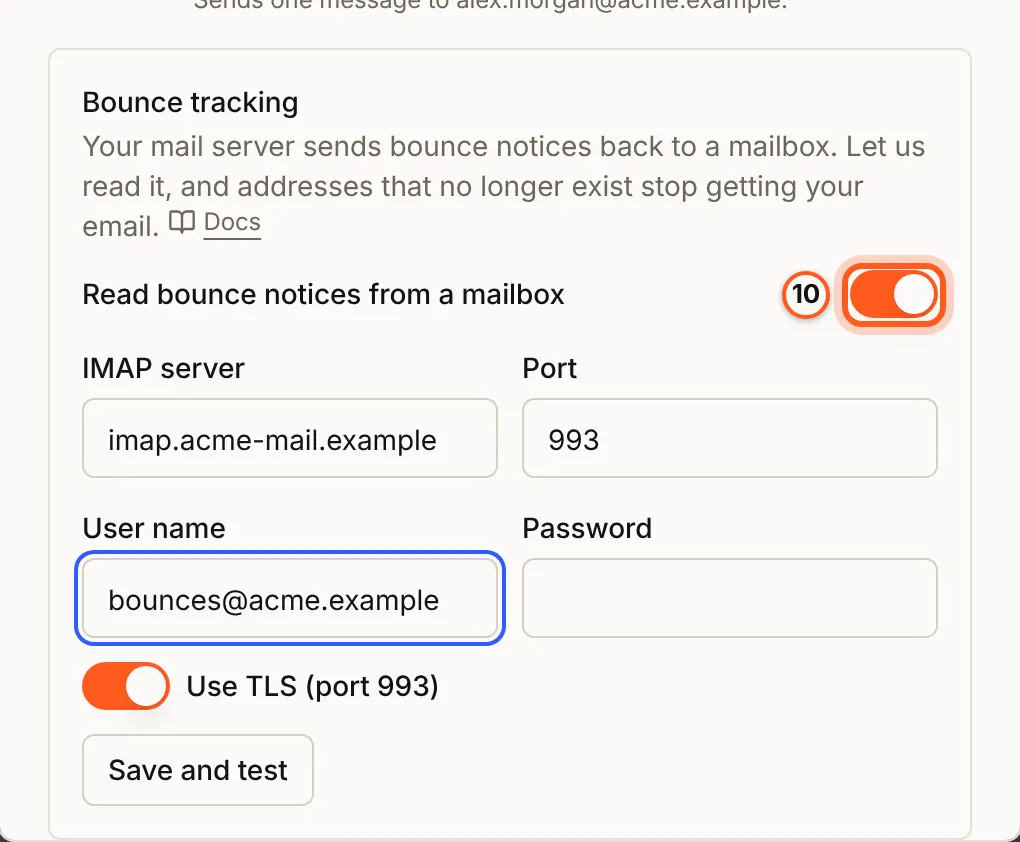
An SMTP or Google sender learns of mail that came back by reading the bounce notices in a mailbox. In Edit sender, turn on Read bounce notices from a mailbox, fill IMAP server, Port, User name and Password, and press Save and test; Check now reads it again later. A Google sender shows Allow with Google instead (bounce intake).
9. Make it the default
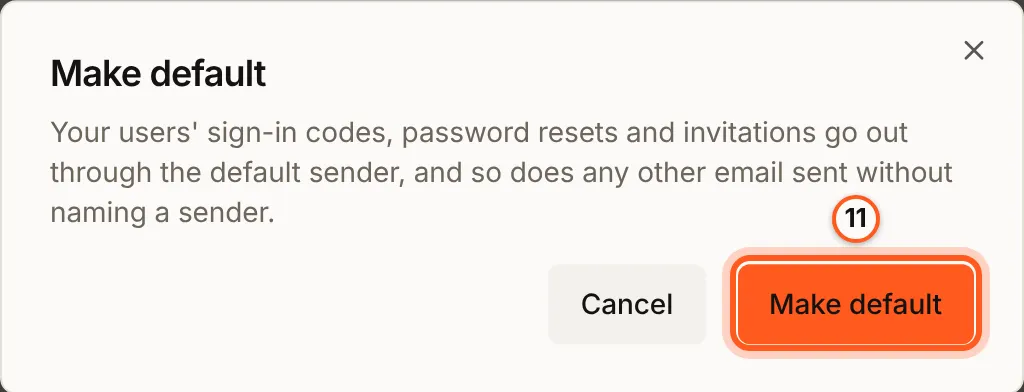
Press Make default on its row and confirm with Make default. The System default sends sign-in codes, password resets and invitations, and any other email sent without naming a sender.
10. Share it
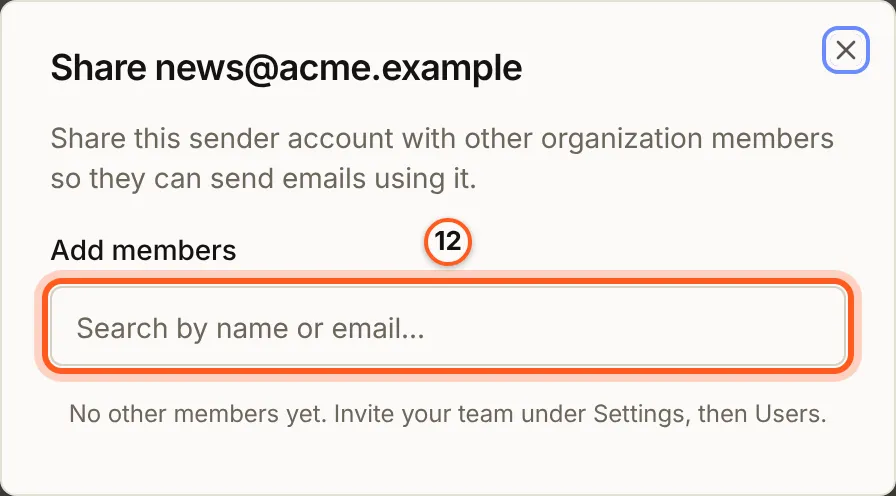
Press Share to let other members of your organization send through it. Search under Add members and add them. Only the sender's creator can share it.
Check it works
Request a magic link or an email code on your hosted sign-in page. The message arrives, and Messaging, then Email history, lists it as sent.
Things to watch out for
- SMTP and Amazon SES need bring-your-own SMTP on your plan. Google and Mailgun do not, and your plan caps how many senders you keep.
- The System default cannot be deleted. Make another sender the default first.
- A sender that fails to send turns Inactive. Nothing goes out through it until you fix its settings in Edit sender.
- Use a port your mail server listens on for submission. In production BuildBase accepts 25, 465, 587 and 2525, and only a public host.
- Apple's private relay addresses accept mail only from domains registered with Apple. Register your sending domain with Apple to reach users who hide their email.
If something goes wrong
| What you see | What it means |
|---|---|
| Could not reach (host):(port). Check the host, port and any firewall. | The mail server did not answer: a typo, a closed port or a firewall. |
| Timed out contacting (host):(port). Check the host, port and any firewall. | The server is there but did not answer in time, often a blocked port. |
| The username or password was rejected by the mail server. | Check them; many providers want an app password here. |
| Could not establish a secure connection to (host):(port). Try toggling the secure option. | Use SSL/TLS does not match the port: on for 465, off for 587. |
| SMTP port must be one of 25, 465, 587, 2525 | Production accepts only mail submission ports. |
| The default sender cannot be deleted. Make another sender the default first. | Press Make default on another sender, then delete this one. |
Next Steps
- Amazon SES - send through your own SES account.
- Sending domains - send through Mailgun from a verified domain.
- Deliverability - DMARC, bounce intake and the sending limits.