
Import contacts from a CSV
Bring a list into Audience from a CSV file and keep everyone who unsubscribed, bounced or complained off your campaigns.
Import a CSV file into Audience to bring a mailing list across in one go. Map one column to Status and the people who left your old list stay left: an unsubscribe stays an unsubscribe, a bounced address goes on your suppression list, and a spam complaint keeps that address off your mail for good.
name,email,status,tags
Ada Lovelace,[email protected],subscribed,"customer; beta"
Grace Hopper,[email protected],pending,newsletter
Alan Turing,[email protected],unsubscribed,
Old Address,[email protected],bounced,
Not A Fan,[email protected],spam,
Before you start
A console role that can create Audience members. CSV import depends on your plan; when it is not included, the console says so before you start. Define any audience attributes your file has columns for first, so they have a field to map onto.
Import step by step
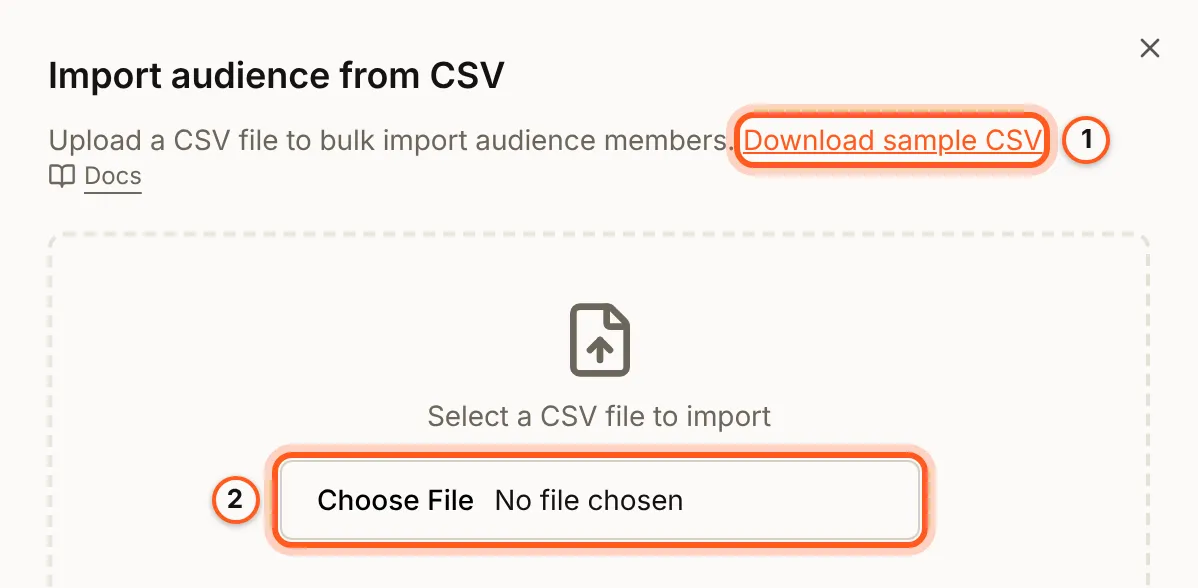
Open Audience in the console (opens the console in a new tab)- In the left rail choose Audience, then Audience, and press Import CSV. Import audience from CSV opens. Download sample CSV gives you a file with every column to fill in.
- Choose your file under Select a CSV file to import.
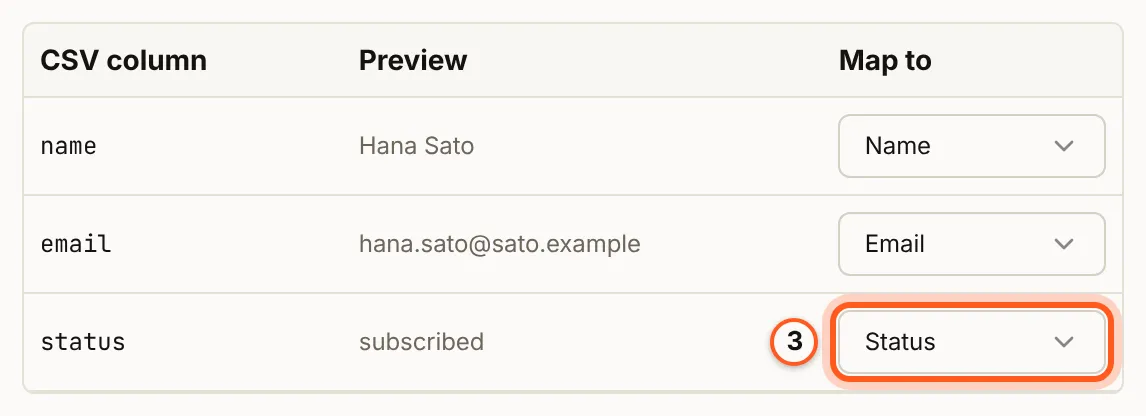
- Map each CSV column to an audience field under Map to. Name and Email are required; map your status column to Status, so the people who left your old list stay left (why). The Preview column shows the first row's value.
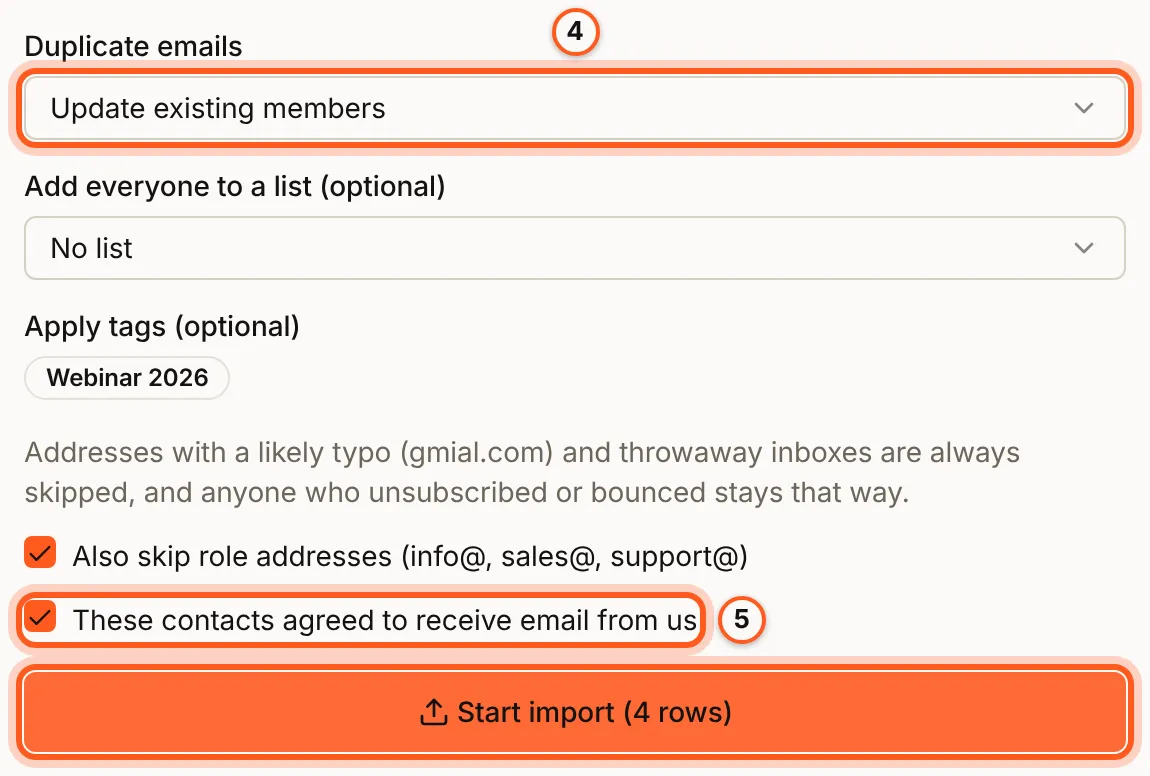
- Under Duplicate emails, choose Update existing members or Skip existing members (existing contacts). Optionally choose Add everyone to a list (optional), a static list, and Apply tags (optional) (tags and lists).
- Tick Also skip role addresses (info@, sales@, support@) if you want them left out, and These contacts agreed to receive email from us, which the import needs. Then press Start import, which says how many rows it will read.
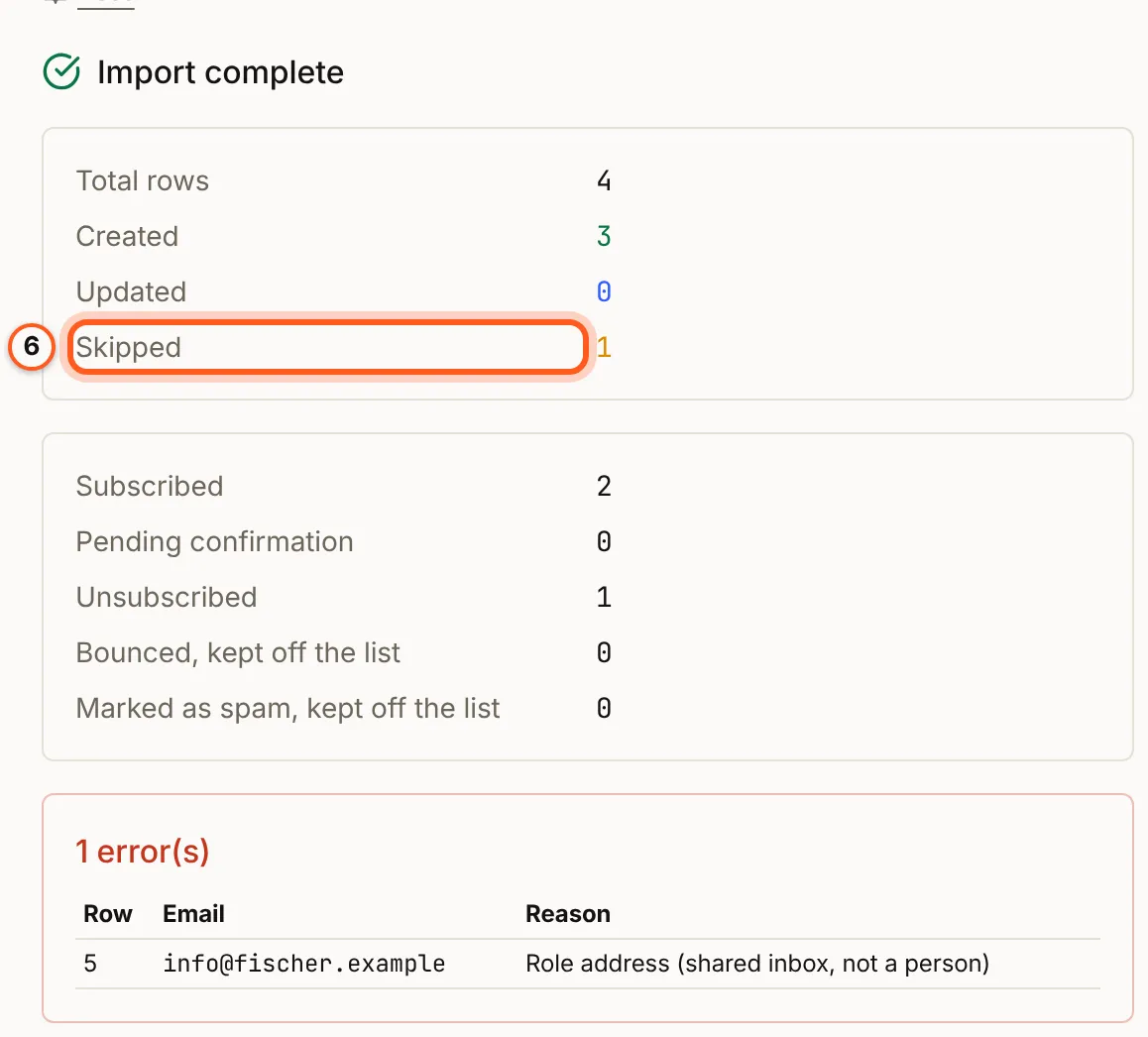
- Read Import complete: Total rows, Created, Updated and Skipped, then how many came in subscribed, pending or unsubscribed and how many were kept off the list as bounced or spam. Each row that was skipped is listed with its Row, Email and Reason (the result).
Why the status column matters
When you move a list from another email tool, the part that must come across is who opted out. Lose it and you mail people who unsubscribed, which breaks anti-spam law in most places, and you mail dead or hostile addresses, which hurts the reputation of every message you send afterwards. Export the list with its status column and map it, rather than exporting only the people still subscribed.
Status values
Values are matched without regard to case, spaces, hyphens or underscores, so
Hard Bounce, hard-bounce and hardbounce are the same value.
| Value in the file | Read as | What the import does |
|---|---|---|
subscribed, active, subscriber, confirmed, opted in | Subscribed | Imports the contact |
unsubscribed, unsubscribe, opted out, inactive | Unsubscribed | Imports the contact as unsubscribed |
bounced, cleaned, bounce, hard bounce, undeliverable | Bounced | Adds the address to your suppression list as undeliverable; creates no contact |
complained, spam, complaint, spam complaint, marked as spam, abuse | Complained | Adds the address to your suppression list as a permanent complaint; creates no contact |
pending, unconfirmed | Pending | Imports the contact with opt-in pending; it gets no campaign until confirmed |
A value that is not in this table, or an empty cell, skips the row and reports it. An unknown status is never read as subscribed. A file with no status column imports every row as subscribed.
What the stricter statuses do in more detail:
- Bounced. The address goes on your organization's suppression list as undeliverable, and that entry expires after 180 days. While it is listed, no message reaches the address except sign-in mail.
- Complained. The address goes on the suppression list as a
complaint, which never expires and replaces an undeliverable entry. It stops every message except sign-in mail. - Pending. The contact is created with opt-in pending and is left out of campaigns until they confirm.
Bounced and complained rows are not created as contacts, so they do not count toward your plan's contact limit. They are listed even when the row has no name or a role address, because the suppression list is what stops the next send to that address from any source.
Existing contacts
Duplicate emails decides what happens to an address already in Audience: Update existing members writes the file's values over it, Skip existing members leaves its details alone.
Either way, an unsubscribed, bounced or complained status is applied to the
existing contact: the file saying someone left is always honoured. It only ever
moves a contact in the stricter direction. A file cannot resubscribe someone,
and pending never changes an existing contact, who may already have confirmed.
An address listed twice in one file takes its strictest status.
Tags and lists
| Option | What it does |
|---|---|
| A column mapped to Tags | Per-row tags, split on , or ;. Matched to existing tags by title or slug; missing ones are created |
| Apply tags | Tags added to every imported contact |
| Add everyone to a list | Adds every imported or matched contact to one static list |
A tags column creates at most 50 new tags per import, and never more than your plan's tag limit allows. Tags it could not create are reported in the result. Only a static list can take members; a smart list is a filter and is not offered.
Checks on every row
- Email and Name must be mapped. A new contact needs a name; an existing one does not.
- Addresses with a likely typo and throwaway inboxes are always skipped. Tick
Also skip role addresses to skip
info@,sales@and similar too. - An address already on your suppression list is skipped.
- You confirm that these contacts agreed to receive email from you. The confirmation is kept with the import.
- The file is checked against this month's import allowance before it starts, and refused whole rather than half imported.
The result
When the import finishes, the sheet shows how many rows were read, created, updated and skipped, and, when you chose a list, how many were added to it. With a status column it also shows a count per status:
| Row in the result | Counts |
|---|---|
| Subscribed | Rows imported as subscribed |
| Pending confirmation | Rows imported with opt-in pending |
| Unsubscribed | Rows imported or marked as unsubscribed |
| Bounced, kept off the list | Addresses listed as undeliverable |
| Marked as spam, kept off the list | Addresses listed as complaints |
| Skipped, status not recognised | Rows whose status was unknown or empty |
Below the counts, each skipped row is listed with its row number, address and the reason, up to the first 100.
Next Steps
- Audience and lists - work with the contacts you imported.
- Campaigns overview - send to them.
- Sending campaigns - why a list nobody has mailed before goes to a sample first.
- Deliverability - the bounce and complaint limits.
- Unsubscribes and opt-in - how pending contacts confirm.
- Manage subscribers - keep the list in step from your backend.