
Send email through Amazon SES
Connect your own Amazon SES account as a sender, with its SMTP credentials, and send its bounces and complaints back through an SNS topic.
With an Amazon SES sender, mail goes out through your own AWS account, from an identity you verified there. SES reports bounces and complaints to an SNS topic, and BuildBase reads them from it, so the sending limits protect this sender too.
Before you start
An AWS account with the domain or address verified in SES, bring-your-own SMTP on your BuildBase plan, and a console role that can create email senders. Connect a sender shows the Sender accounts page.
1. Verify the identity in SES
In the AWS console, open SES, then Identities, and check that the domain or address you will send from reads Verified. An account still in the SES sandbox sends only to verified addresses: ask AWS for production access first.
2. Create SMTP credentials
In SES, open SMTP settings and create SMTP credentials. These are not your AWS access keys: SES shows an SMTP user name and password once. Keep both.
3. Make a topic for bounces and complaints
In SNS, create a topic, and copy its ARN (arn:aws:sns:<region>:<account>:<name>).
In SES, publish the Bounce, Complaint and Delivery delay events of
your configuration set (or of the identity) to that topic.
4. Open Add new sender
Open Sender accounts in the console
(opens the console in a new tab)In the left rail choose Messaging, then Sender accounts. Press Add new sender and choose Amazon SES.
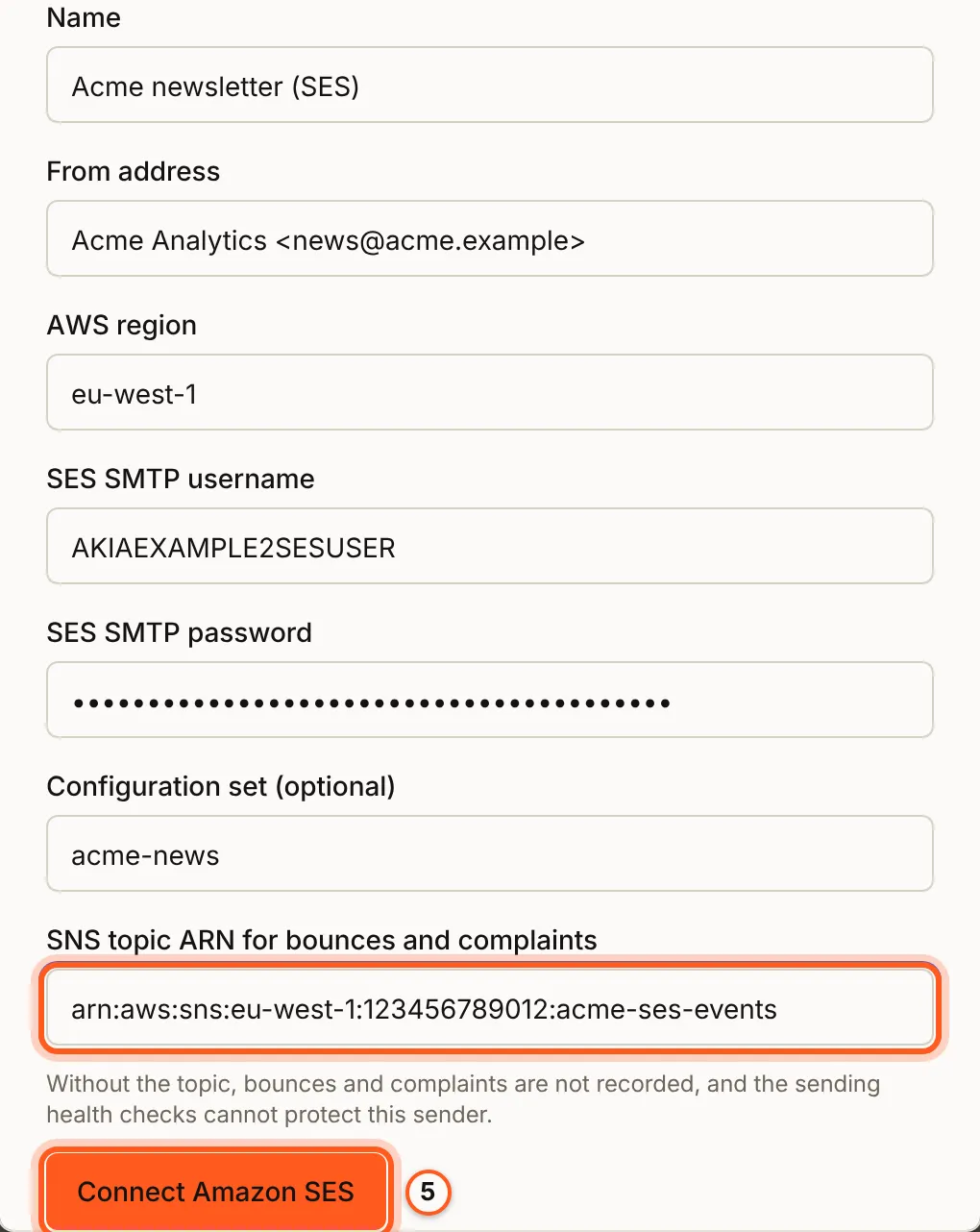
5. Fill in SES
Fill Name, From address (Name <address> on your verified identity),
AWS region (such as eu-west-1), SES SMTP username, SES SMTP
password, Configuration set (optional) and SNS topic ARN for bounces and
complaints. Press Connect Amazon SES.
BuildBase signs in to SES with those credentials before it saves anything: a wrong user name, password or region is refused and nothing is stored.
6. Subscribe BuildBase to the topic
Once connected, the dialog says Last step and shows the SNS subscription
endpoint, https://api.console.buildbase.app/api/webhooks/email/<orgId>/ses.
Copy it and press Done. In SNS, add an HTTPS subscription to your topic with
that endpoint. BuildBase confirms the subscription itself, and accepts messages
only from the topic you entered.
7. Find it in Email senders
The sender is listed under Email senders with the others. Press Make default on it to send your sign-in mail through SES too (make it the default).
Check it works
Press Edit on the sender, then Send test email. Then send to the SES
mailbox simulator's bounce address, [email protected], and see the
bounce under Messaging, then Email history.
Things to watch out for
- SES SMTP credentials are not AWS access keys. Create them under SES, SMTP settings.
- The SMTP user name is 16 to 128 characters, the password 16 to 256. The region and the topic ARN must be in AWS's own format.
- Without the SNS topic, bounces and complaints are not recorded, and the sending health checks cannot protect this sender.
- An account in the SES sandbox sends only to verified addresses.
Next Steps
- Connect a sender - test, share and make a sender the default.
- Deliverability - DMARC, bounces and the sending limits.