
Send your first email campaign in the console
Create a campaign, pick its list, sender and template, read the pre-send check, send or schedule it, then read its report and publish its web version.
A campaign sends one template to everyone on a list. This guide sends Acme Analytics' November product update to the people who joined its webinar.
Before you start
A sender, a template attached to an unsubscribe group, your postal address set, and an audience list with members (Audience, then Lists). A console role that can create and send campaigns.
1. Open Campaigns
Open Campaigns in the console
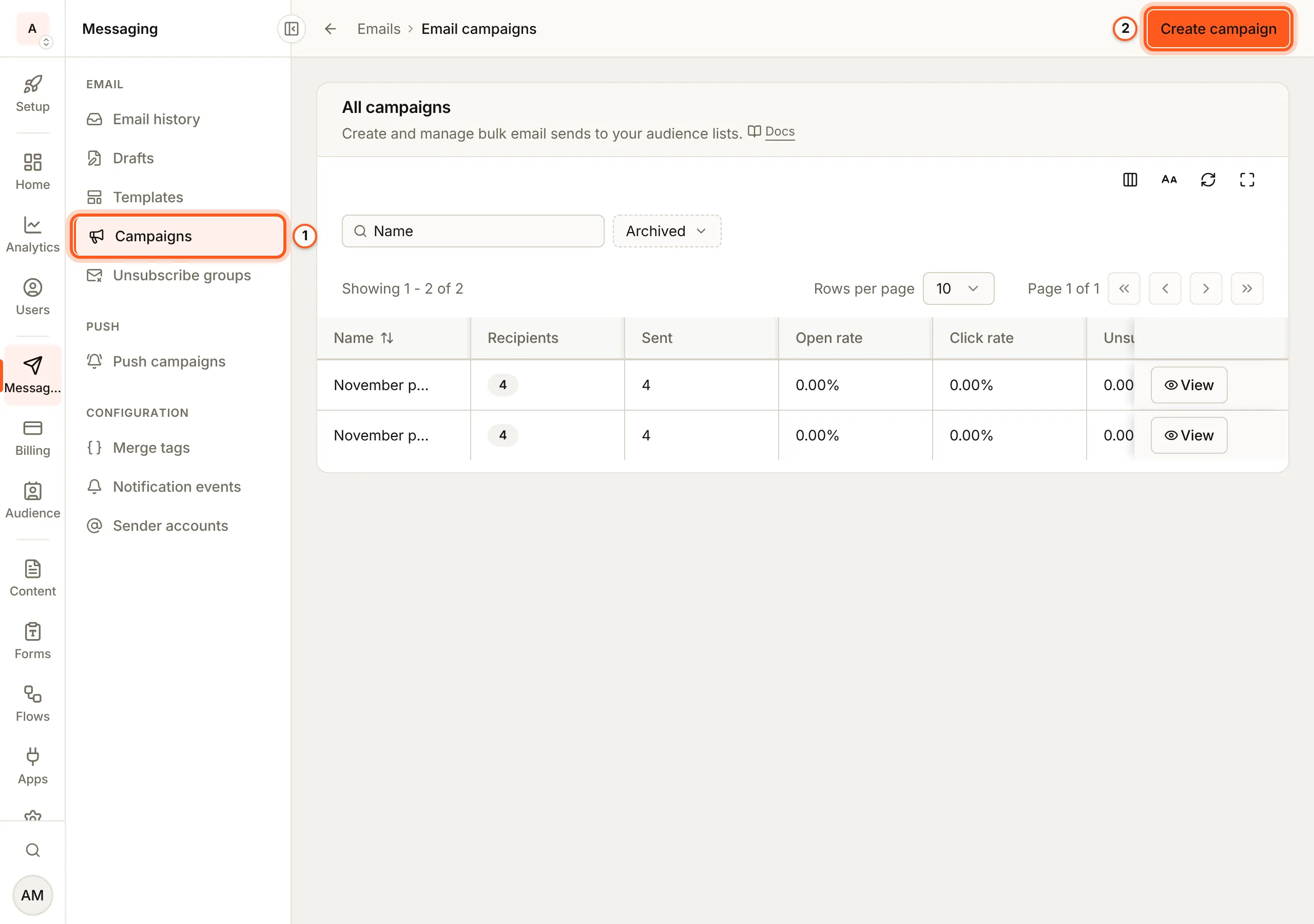
(opens the console in a new tab)In the left rail choose Messaging, then Campaigns under Email. All campaigns lists each one with its sends, opens, clicks and unsubscribes. Press Create campaign.
2. Name it
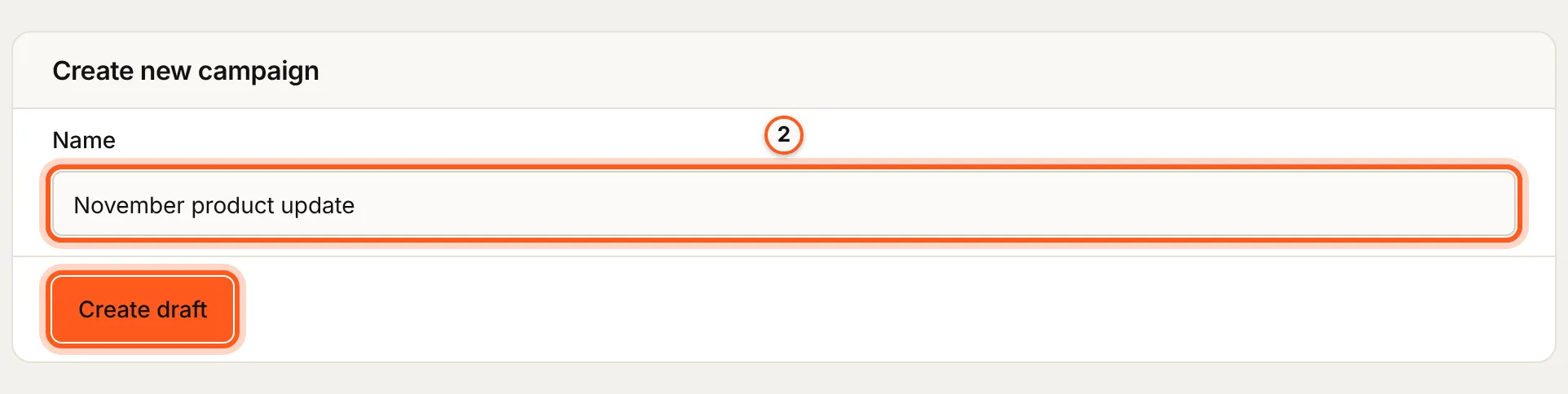
In Create new campaign, fill Name (only you see it) and press Create draft.
3. Pick who, from whom and what
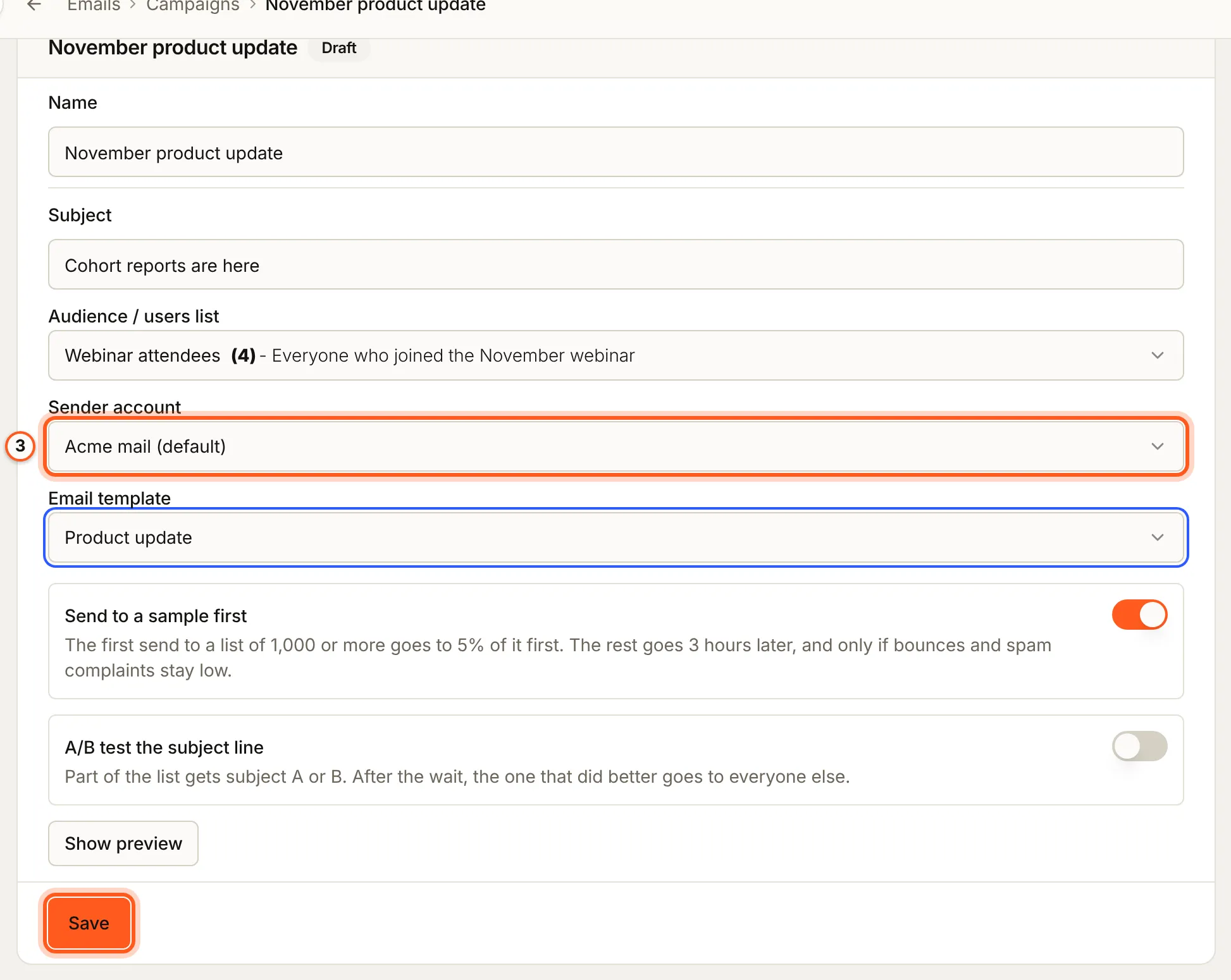
In Edit campaign, fill Subject, then pick the Audience / users list, the Sender account and the Email template. Press Save.
4. Sample first, or test the subject
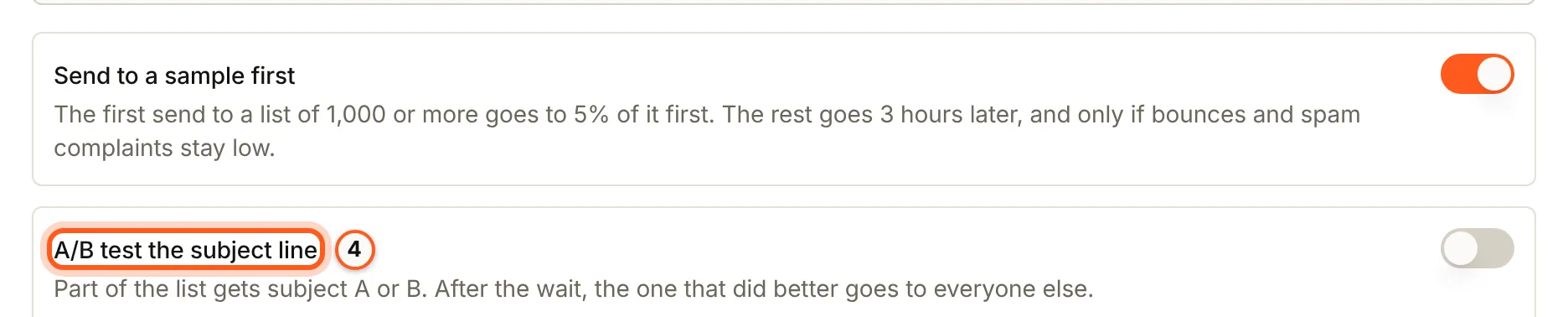
Send to a sample first is on: the first send to a list of 1,000 or more goes to 5% of it, and the rest goes 3 hours later only if bounces and spam complaints stay low. Turn on A/B test the subject line to send part of the list a second subject and send the better one to everyone else (A/B test).
5. Read the pre-send check
Above the form, Fix these before sending lists what blocks the send, such as a missing postal address or unsubscribe link, and Before you send lists advice that does not (the pre-send check).

6. Send it
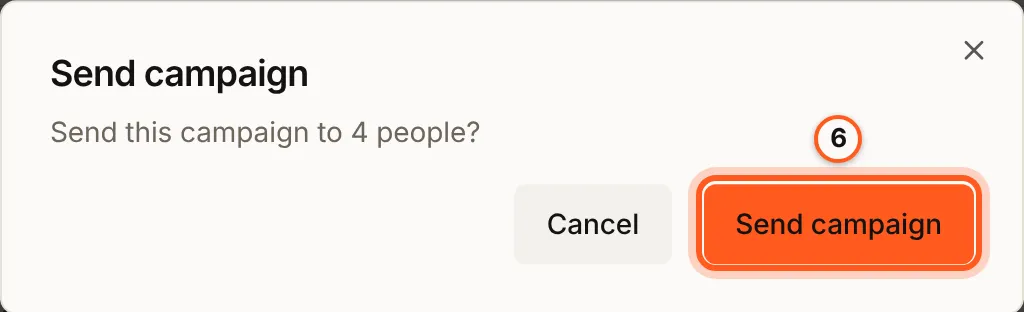
Press Send campaign and confirm with Send campaign. It goes to everyone on the list who has not left its group.
7. Or schedule it
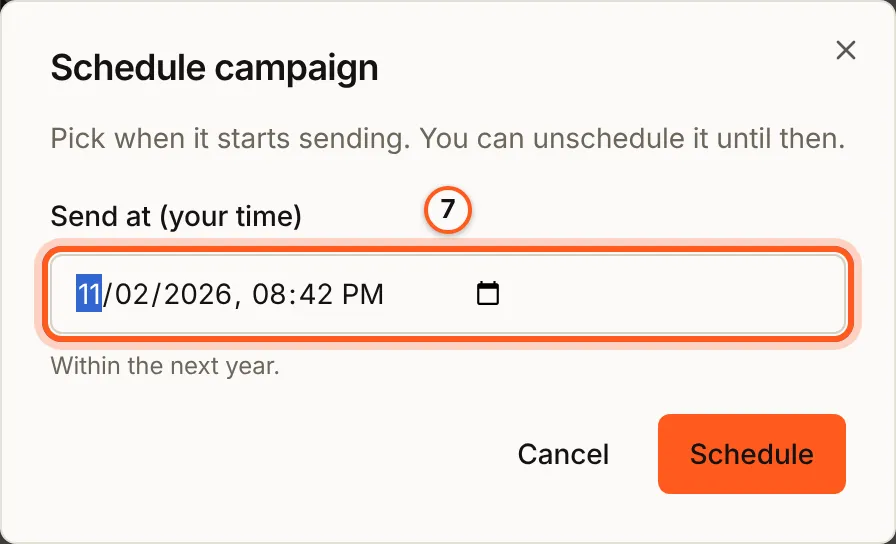
Press Schedule instead, pick Send at (your time) within the next year, and press Schedule. Unschedule it to change anything before then.
8. Read the report
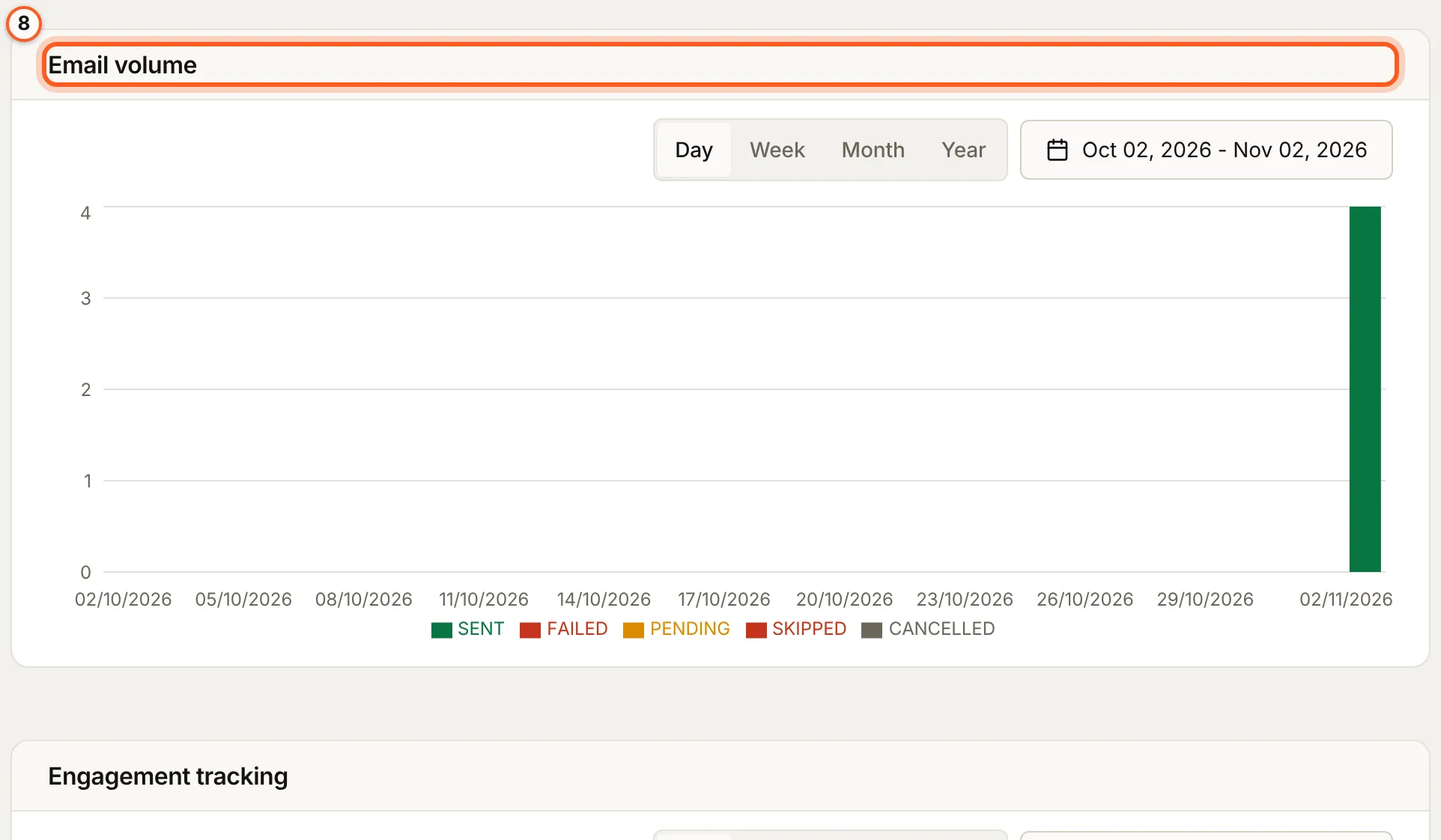
Once it is out, the campaign shows Email volume, Engagement tracking (opens, clicks, bounces and unsubscribes) and Emails, one row per recipient. Pause, Resume, Cancel campaign and Retry failed sit in the header while it sends (pause, resume, cancel).
9. Publish its web version
Turn on Web version to publish it as a public page, for the
{{view_in_browser}} link and the group's newsletter
archive. Personal details are never shown on it.

Check it works
The report counts the messages sent, Messaging, then Email history, has one row per recipient, and an unsubscribe from the message raises the group's Unsubscribers at the next hourly count.
Things to watch out for
- The first send to a list of 1,000 or more goes to a sample first, 5% of it (200 to 2,000 people), and waits 3 hours.
- An A/B test needs at least 200 recipients.
- Send campaign appears only with a list, recipients and a template, and stays disabled while anything blocks.
- A scheduled campaign must be unscheduled before you edit it.
- Your plan caps campaigns, counted per month when they are sent.
If something goes wrong
| What you see | What it means |
|---|---|
EMAIL_PRESEND_FAILED (422) | The pre-send check found a blocking problem; fix what Fix these before sending lists. |
EMAIL_MARKETING_BLOCKED (409) | Bounces or complaints passed the limit; clean the list, then Lift block. |
SENDING_SUSPENDED (403) | BuildBase has suspended sending for your organization (why). |
| Cannot send campaign in "(state)" state (400) | Only a draft or scheduled campaign can be sent. |
Next Steps
- Sending campaigns - samples, A/B tests, pausing and reports in depth.
- Unsubscribes and opt-in - what a reader sees when they leave.
- Email overview - every message, with its status.