
Create an email template in the console
Set your postal address, create an HTML, Markdown or Text template with merge tags, attach an unsubscribe group, preview it with sample data, send a test.
A template is the email itself: its subject and body, with merge tags that fill in each reader's name, your address and their unsubscribe link. Campaigns, workflows and your app's own mail all send one. This guide writes Acme Analytics' monthly product update.
Before you start
A console role that can create and update email templates and merge tags, and a sender. For marketing mail, an unsubscribe group to attach the template to.
1. Set your postal address
Open Merge tags in the console
(opens the console in a new tab)Every marketing email must carry a postal address, and BuildBase will not send a
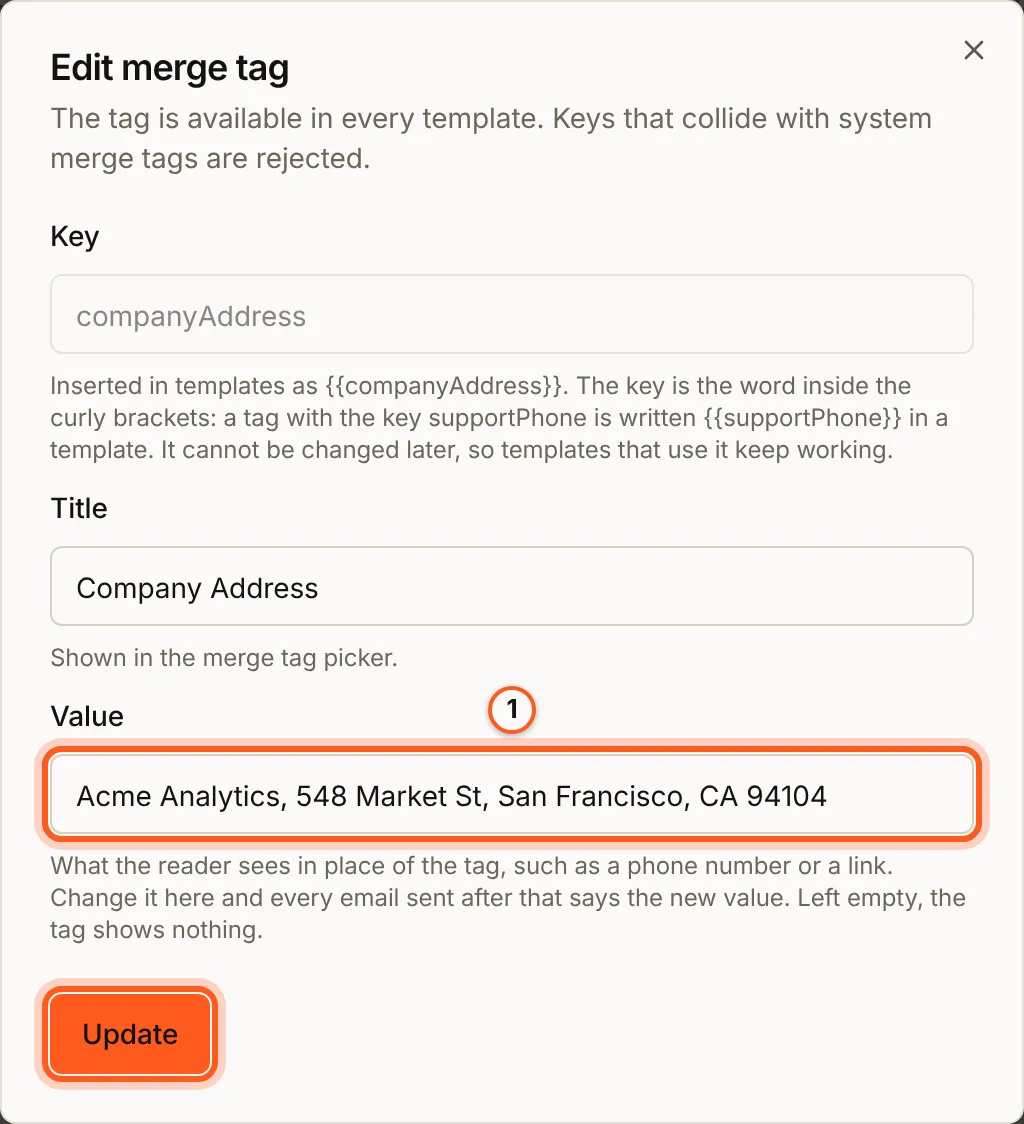
campaign without one. In the left rail choose Messaging, then Merge tags
under Configuration. Press Edit on Company Address
({{companyAddress}}), fill Value with a street address, a PO box or a
registered mailbox, and press Update.
2. Open Templates
Open Templates in the console
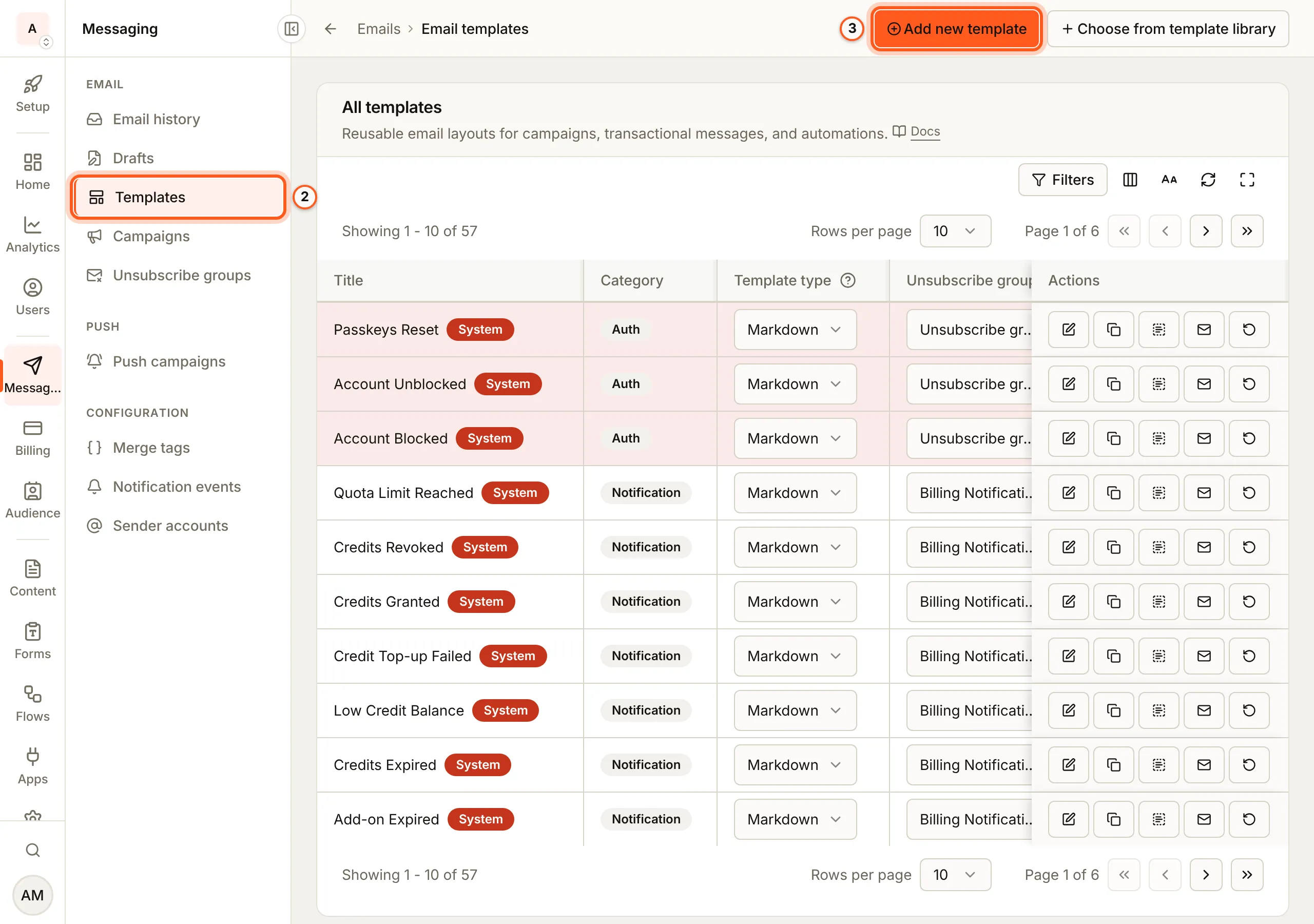
(opens the console in a new tab)Choose Templates under Email. All templates lists yours and the ones BuildBase keeps for sign-in and account mail. Press Add new template.
3. Name it and pick its type
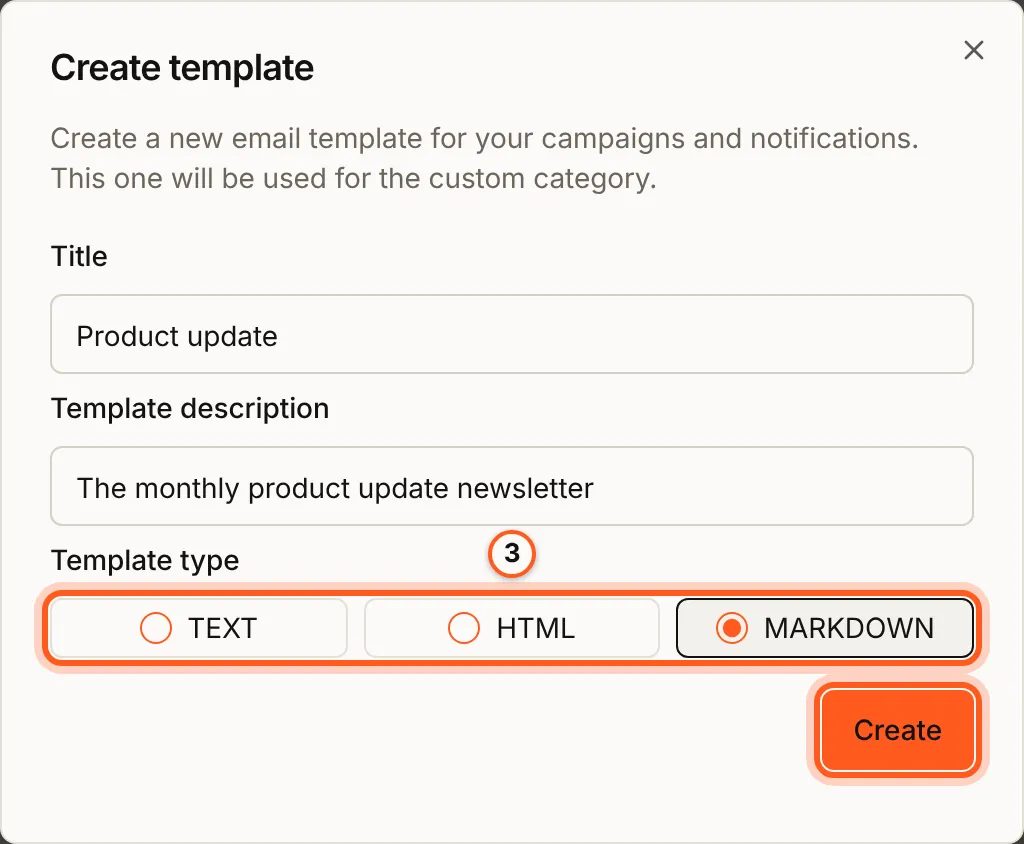
In Create template, fill Title and Template description, and pick a Template type:
- HTML: a drag-and-drop designer, for a laid-out newsletter.
- Markdown: headings, lists and links written as text.
- Text: plain text, nothing else.
Press Create, then Edit template on its row. This guide uses Markdown.
4. Write it with merge tags
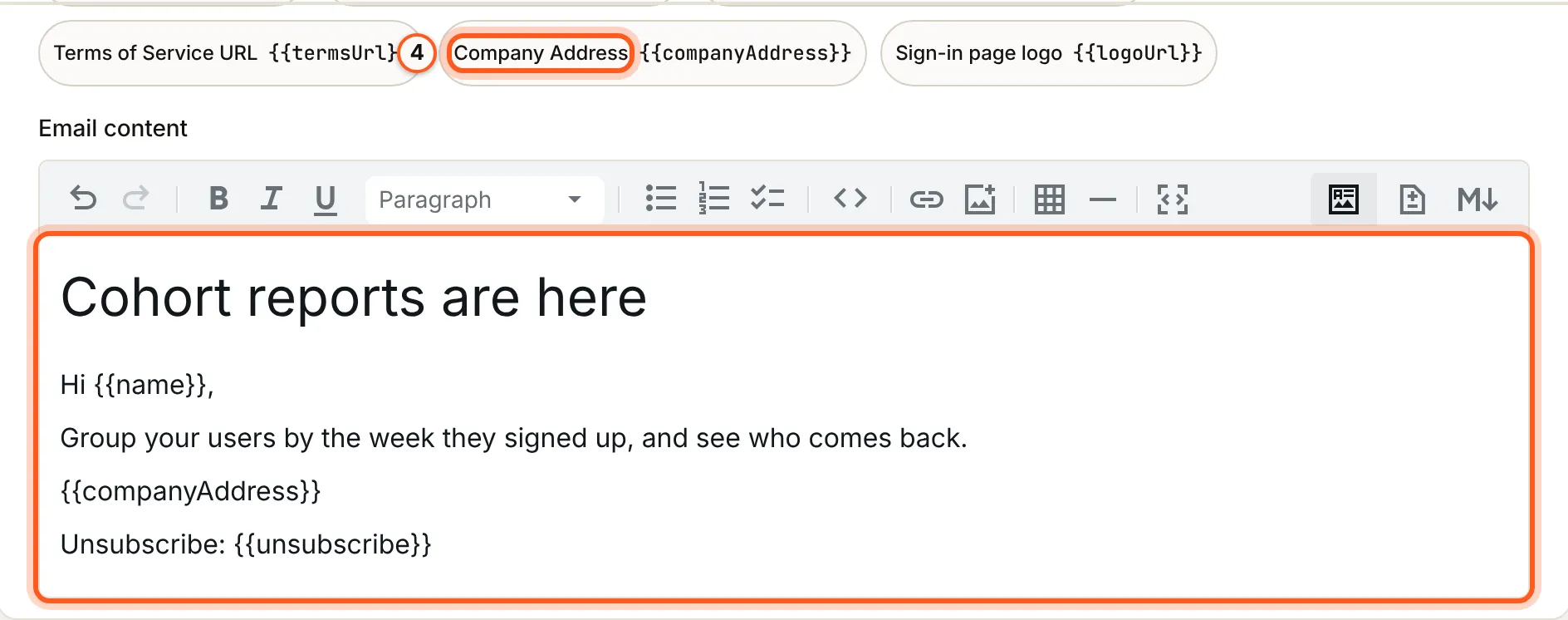
Fill Email subject, then write the body under Email content. The merge
tags above it are what you can use, by group: Recipient ({{name}},
{{unsubscribe}}), Attributes, and Organization ({{companyAddress}}).
Press one to copy it, and paste it where it goes. Press Update to save.
5. Attach the unsubscribe group
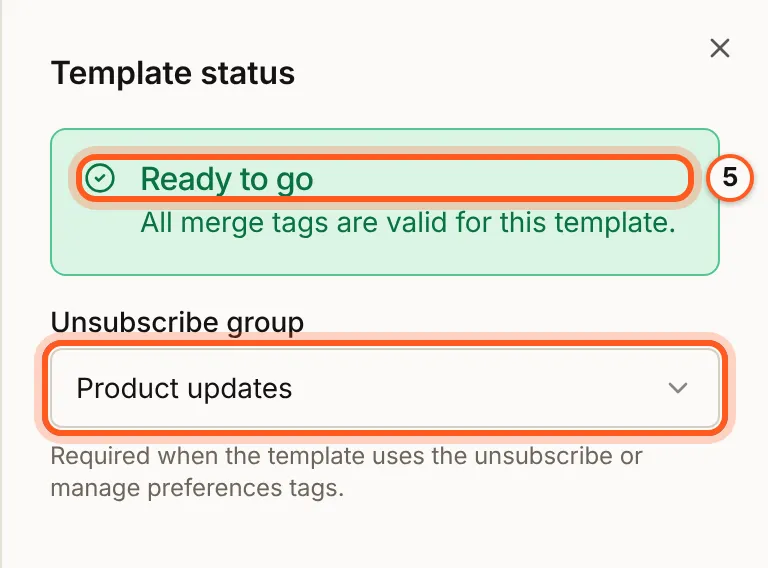
The chip in the page header says Ready or how many issues the template has. Press it to open Template status, and pick the Unsubscribe group this mail belongs to: a reader who leaves it stops getting this kind of mail and nothing else. It reads Ready to go once every merge tag is valid.
6. Preview it
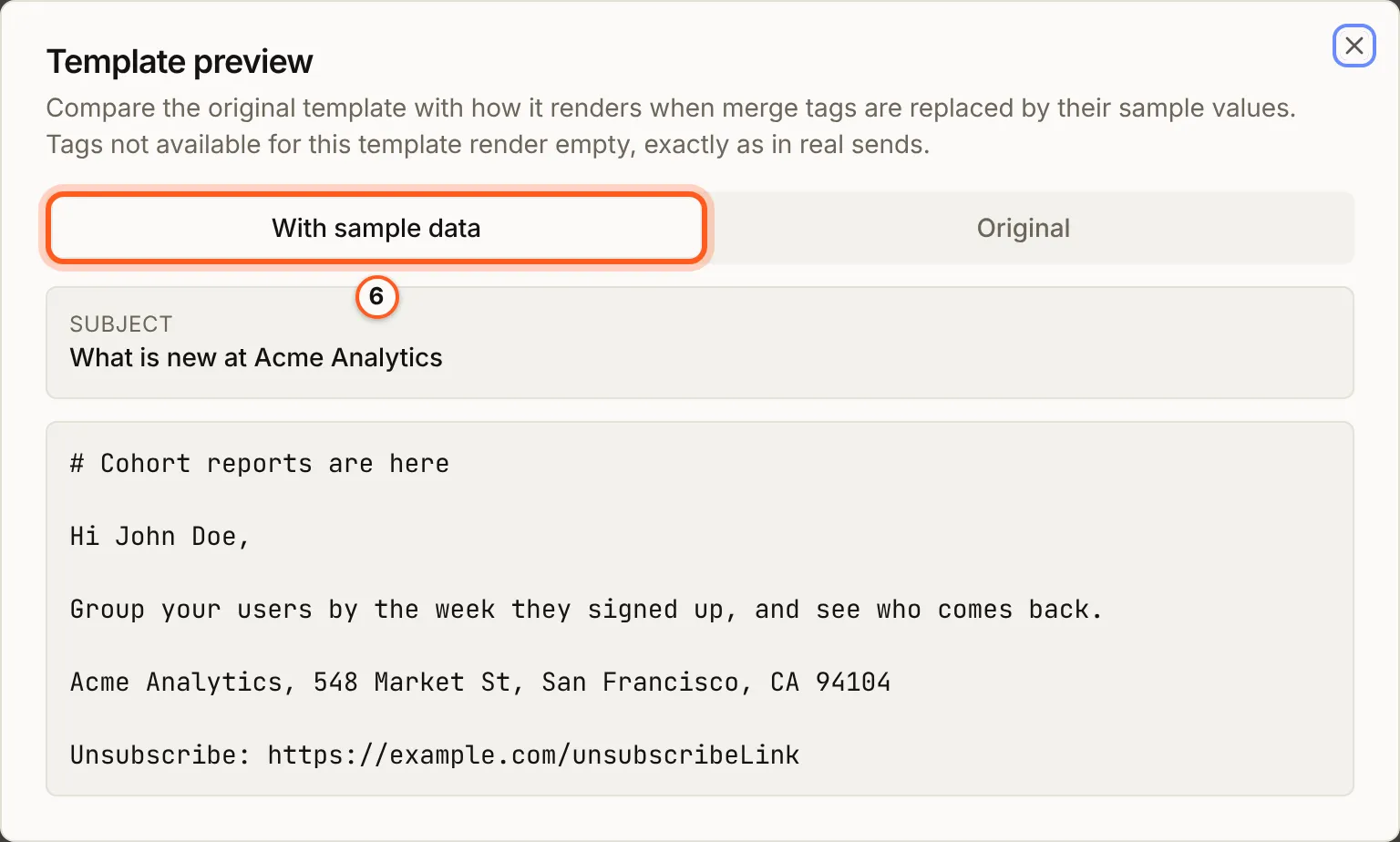
Press Preview. With sample data shows it with each tag filled in, and Original with the tags as written. A tag this template cannot use renders empty, as it would in a real send.
7. Send yourself a test
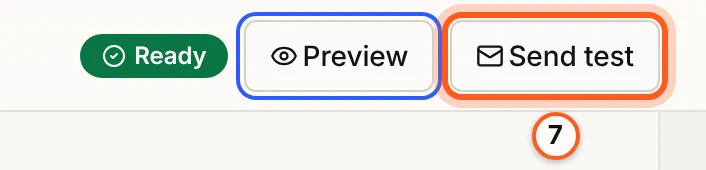
Press Send test in the header, pick who it goes to, and send it.
8. Manage it from the list
Back on Templates, each row has its type (change it with the picker), its unsubscribe group, and buttons to edit, Duplicate template, send a test and delete. Templates BuildBase keeps for sign-in mail have Reset to platform defaults instead of delete.

Check it works
The test email arrives with your postal address and a working unsubscribe link.
Things to watch out for
- Changing a template's type copies the content as it is. An HTML design is dropped.
- A merge tag with no value renders as nothing. Set every Organization tag you use under Merge tags.
- Your plan caps how many templates you keep. The ones BuildBase keeps for sign-in mail do not count.
- An HTML body over 100 KB blocks a campaign.
If something goes wrong
| What you see | What it means |
|---|---|
| (tag) is not available for this template and will render empty. | That merge tag does not exist for this kind of mail; pick one from the list. |
Add your postal address ({{companyAddress}}) to the template. | A marketing email needs {{companyAddress}} in it. |
Set your postal address: the {{companyAddress}} merge tag is empty. | Fill its Value under Merge tags (step 1). |
Next Steps
- Send your first campaign - send this template to a list.
- Templates and merge tags - every merge tag and the template API.
- Unsubscribes and opt-in - the groups a template belongs to.