
Your first plan
Create a plan, give its first version a price in each billing currency, add your products with what the plan includes of each, and publish the version.
A plan is a name and a slug. What it costs and what it includes live on its versions: you price a version in each billing currency, add products to it, say how much of each the plan includes, and publish it. A published version is fixed, so a later change is a new version, and the plan decides what happens to the customers already on the old one.
Before you start
- Your billing currencies and products (Currencies and products).
- A console role that can create plans and plan versions.
1. Create the plan
Open plans in the console (opens the console in a new tab)In the Billing menu choose Plans, then press Create plan. Fill Name and Slug, here Pro and pro, and a Description if you like. Press Create.
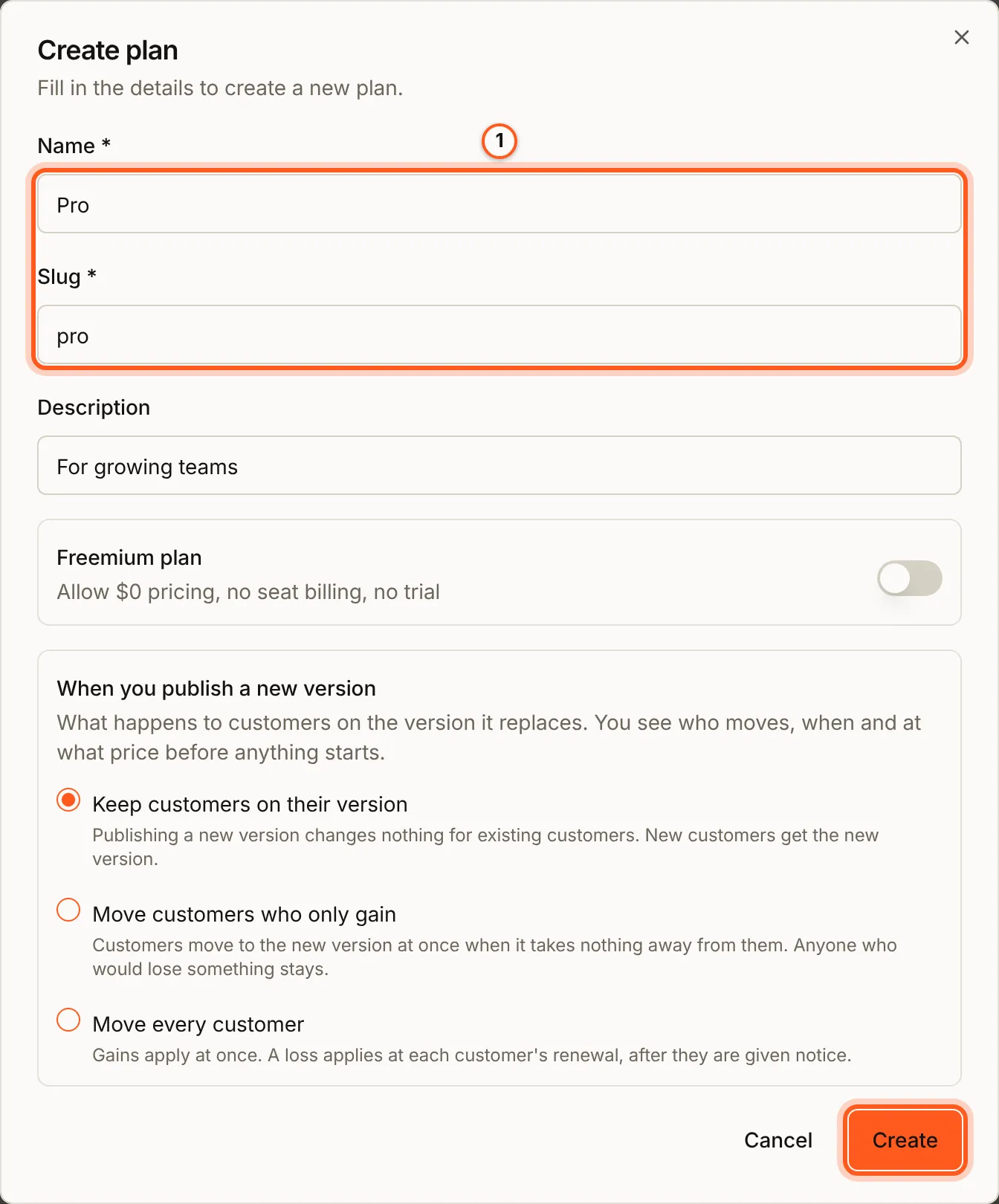
Two settings in the dialog are worth a look now:
- Freemium plan: "Allow $0 pricing, no seat billing, no trial". It is locked once a version is published.
- When you publish a new version: what happens to customers on the version a new one replaces. Keep customers on their version changes nothing for them; Move customers who only gain moves those who lose nothing; Move every customer applies a gain at once and a loss at each customer's renewal, after notice.
2. Manage versions
On the plan's row, press Manage versions. Its Latest version reads No version until you make one.
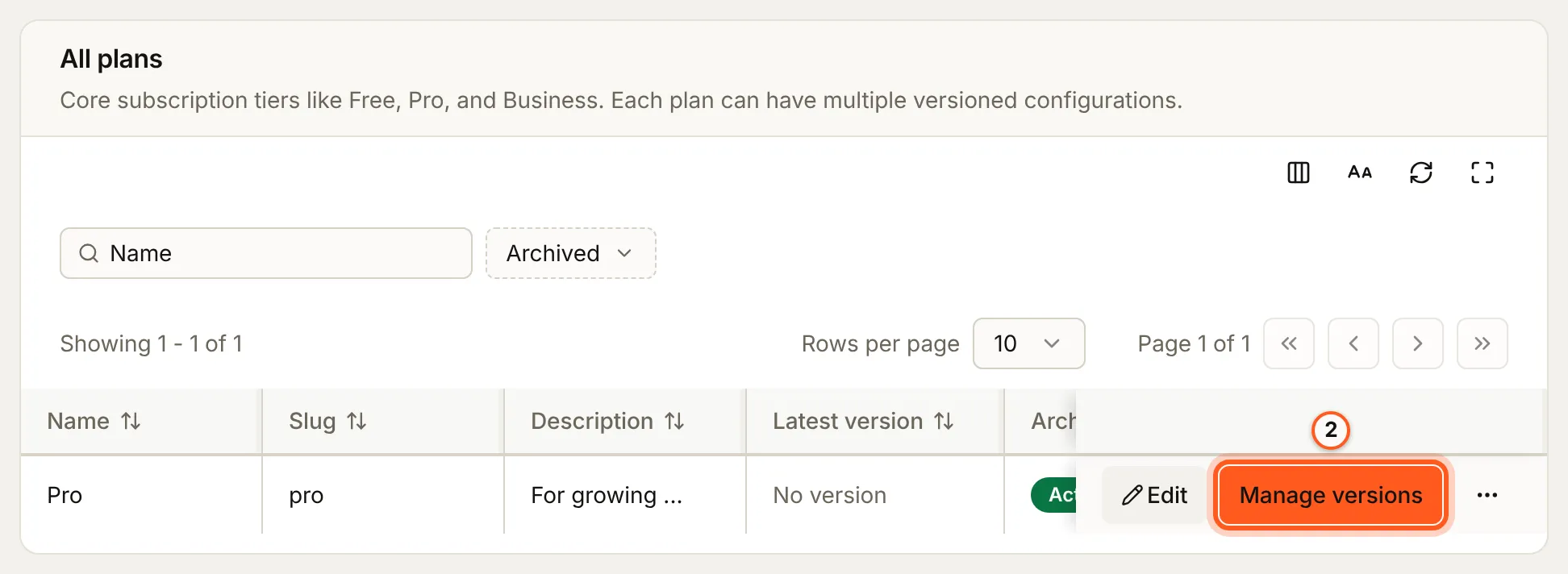
3. Create the first version
Press Create version. Base version (optional) copies the products and values of an existing version; for the first one, leave it on Start from scratch and press Create. Versions are numbered for you: v1, v2 and on.
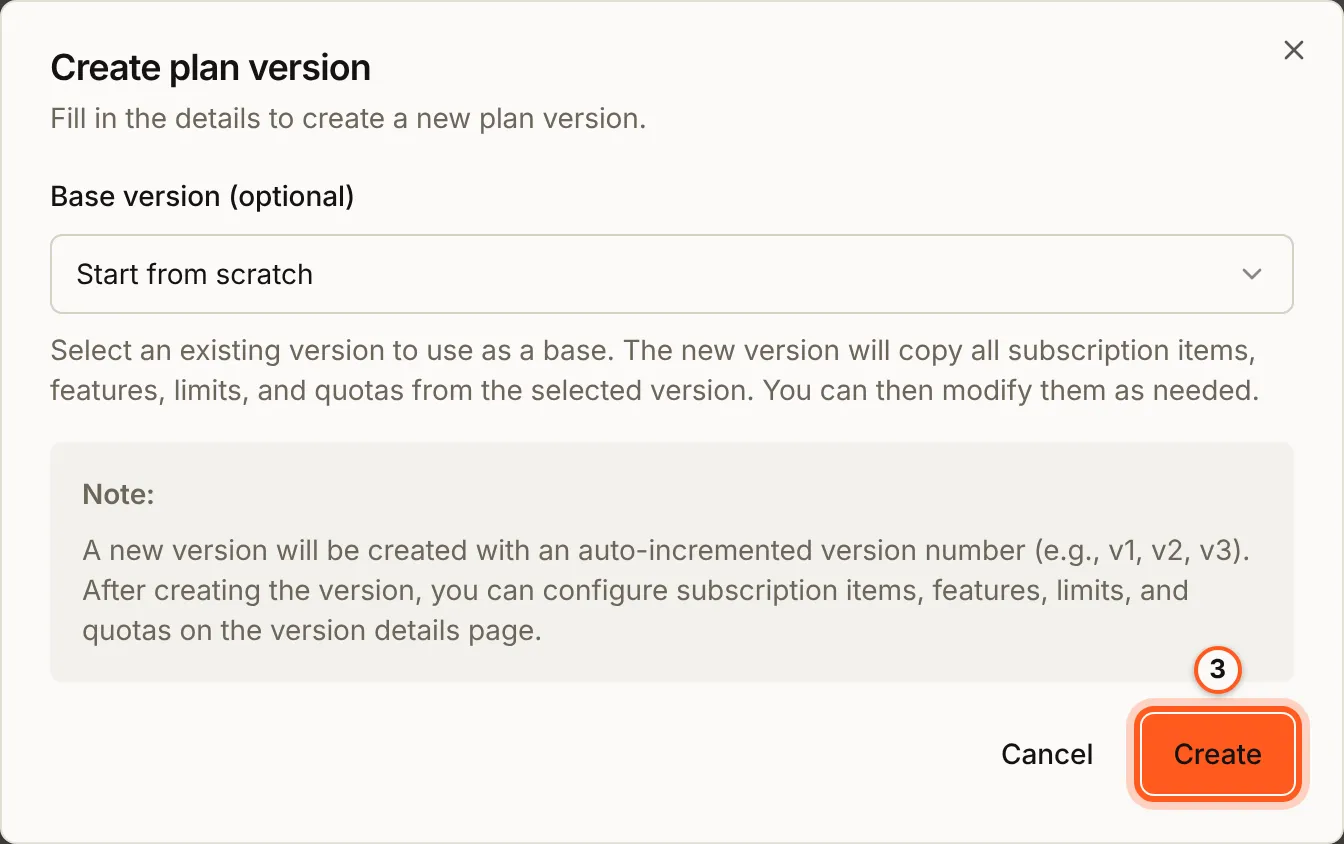
4. Open the draft
v1 is a Draft, with no products yet. Press Edit on its row.
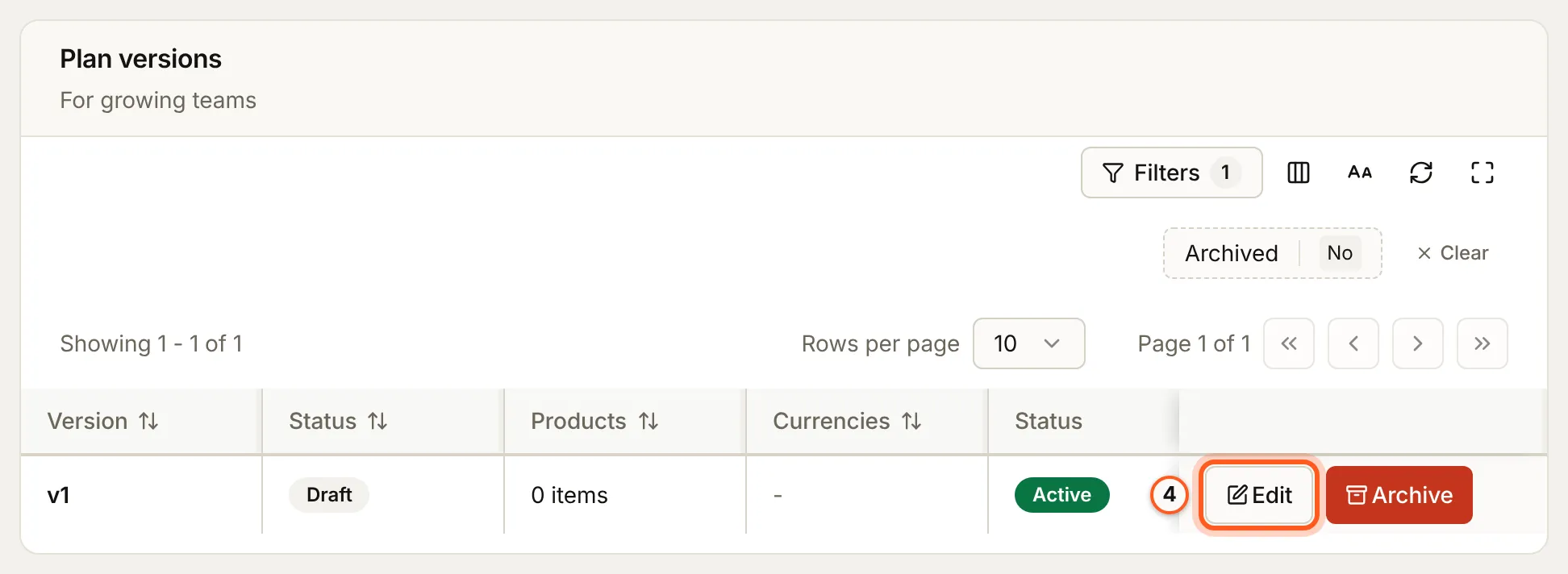
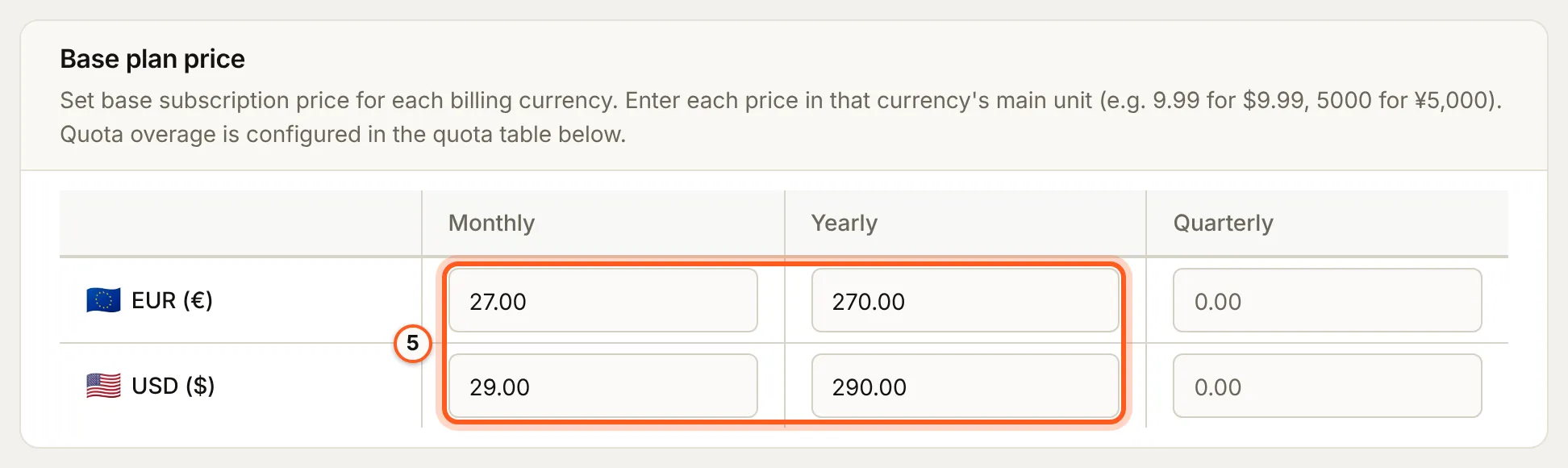
5. Price it in each currency
Base plan price has a row for each billing currency and a column for each billing interval: Monthly, Yearly and Quarterly. Enter each price in the currency's main unit (29 for $29). For a paid plan, every currency needs a price above 0 for at least one interval.
Seat-based pricing, below it, charges per workspace member as a separate line item (seats).
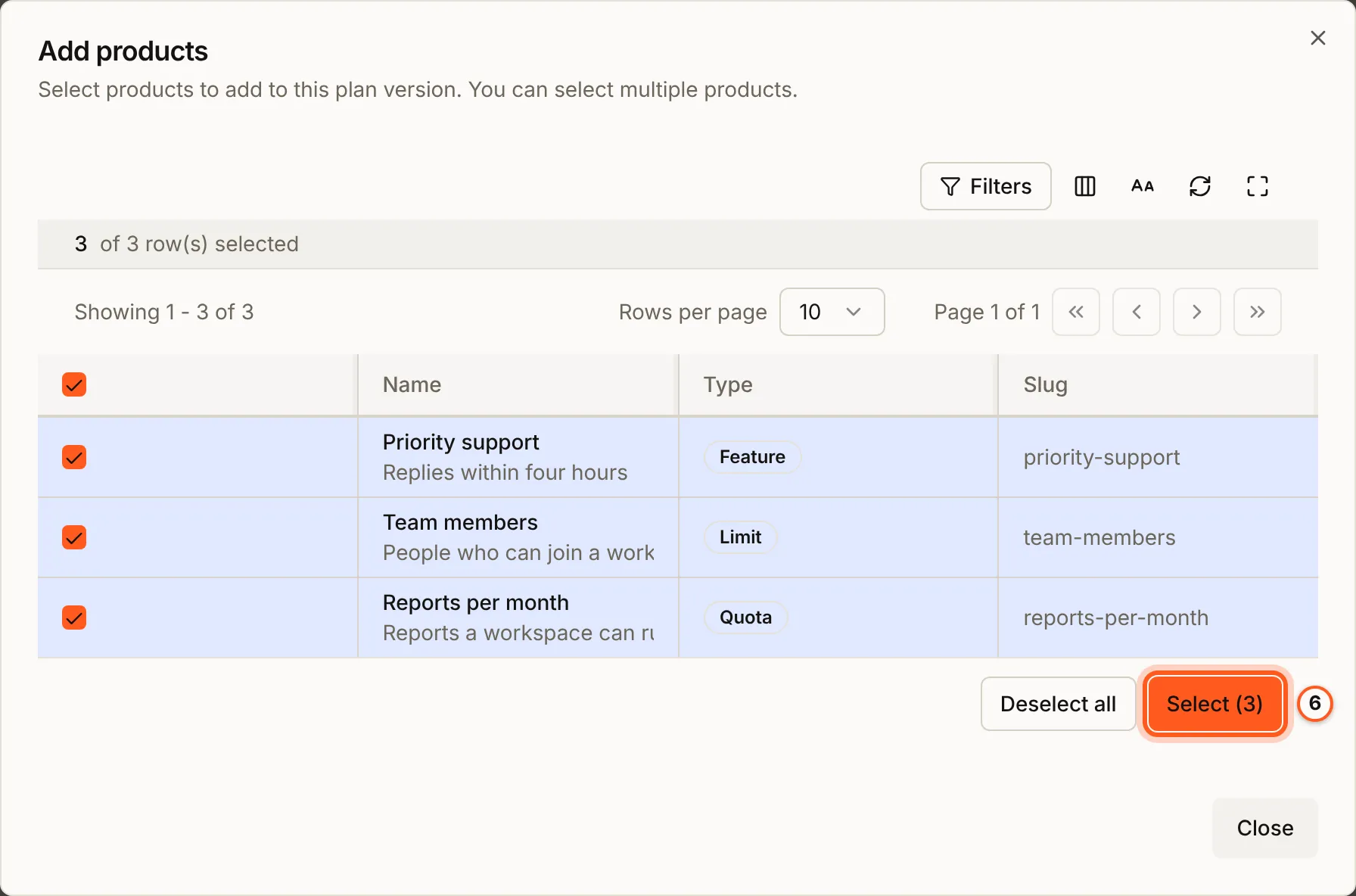
6. Add the products
Under Subscription items, press Add item. In Add products, tick the products this plan includes and press Select. A version needs at least one product before it can be saved.
Each product type gets its own card, in the next three steps.
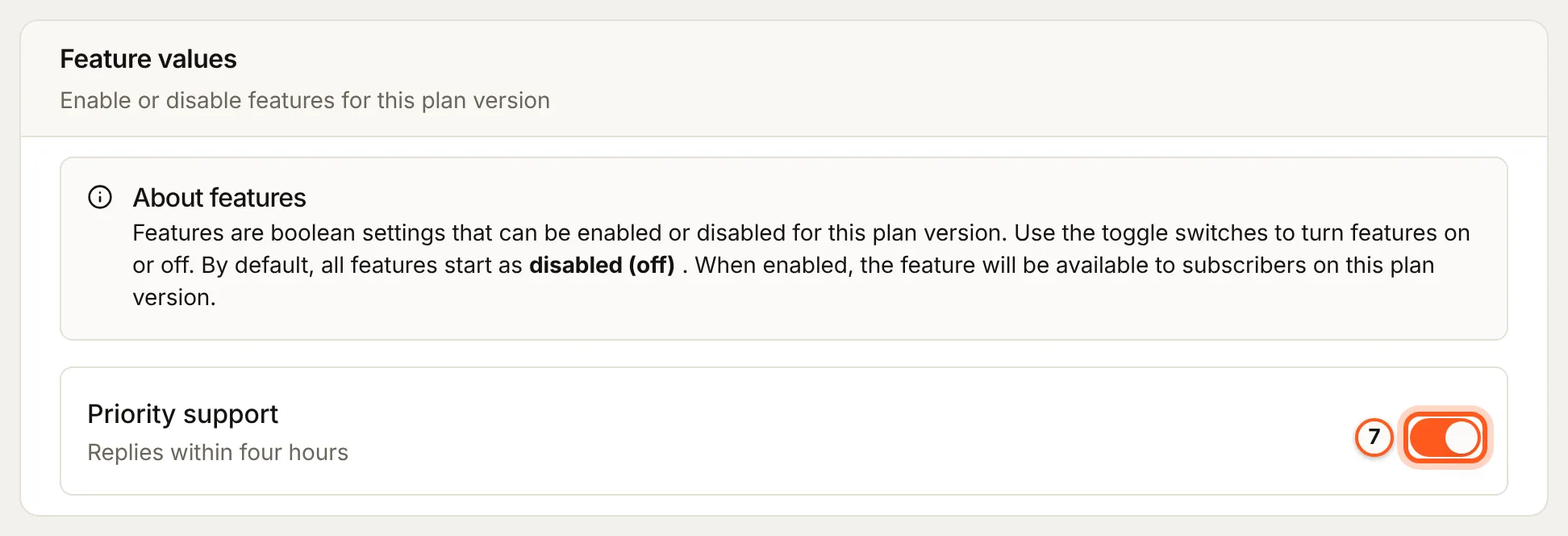
7. Feature values
Every feature starts off. Switch on each one this plan includes.
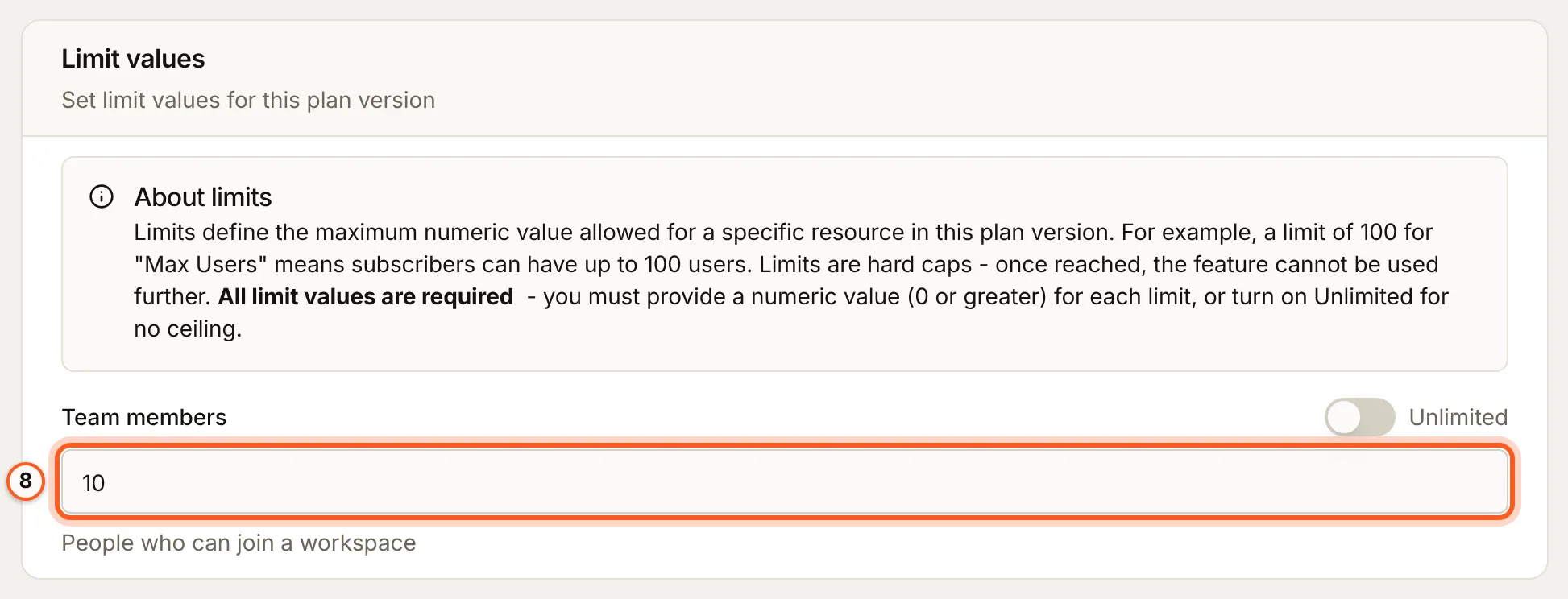
8. Limit values
Every limit needs a value: a number, 0 or more, or Unlimited for no ceiling. Here, 10 team members.
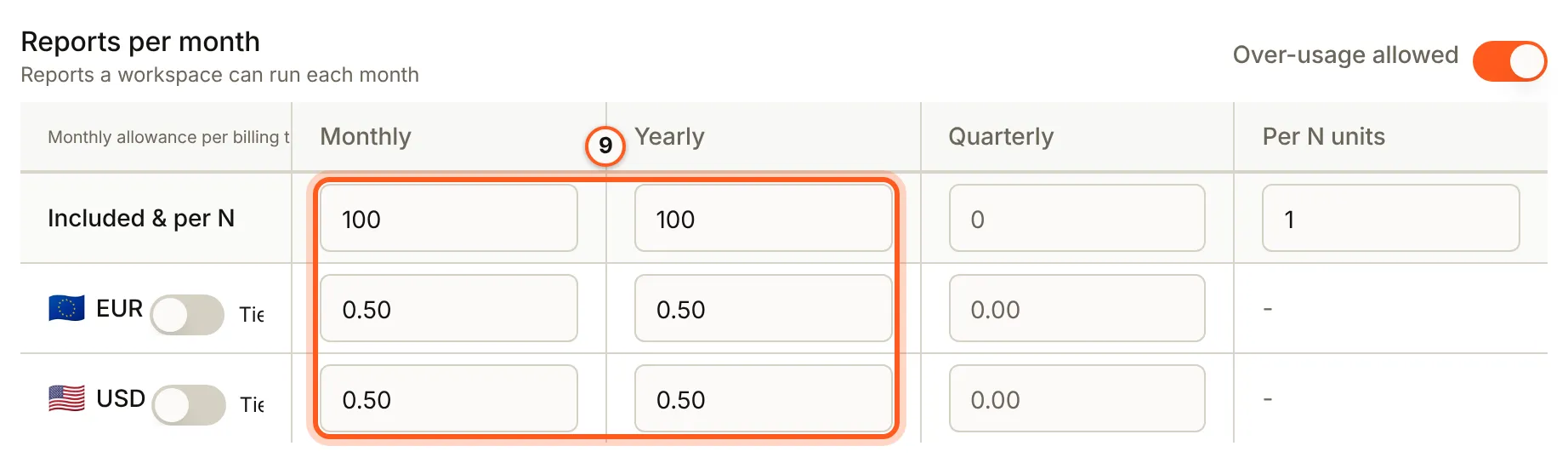
9. Quotas
Each quota has a table of its own:
- Included: what a workspace can use each month, for subscribers on each interval. Every quota resets monthly, whatever the billing interval, and a yearly or quarterly subscriber can be given more as a perk.
- Per N units: overage is charged per this many units (1000 means a price per 1000).
- One row per currency for the overage price, in the currency's main unit, while Over-usage allowed is on.
10. Save the draft
Press Save changes at the top of the page. A draft can be saved and changed as often as you like.
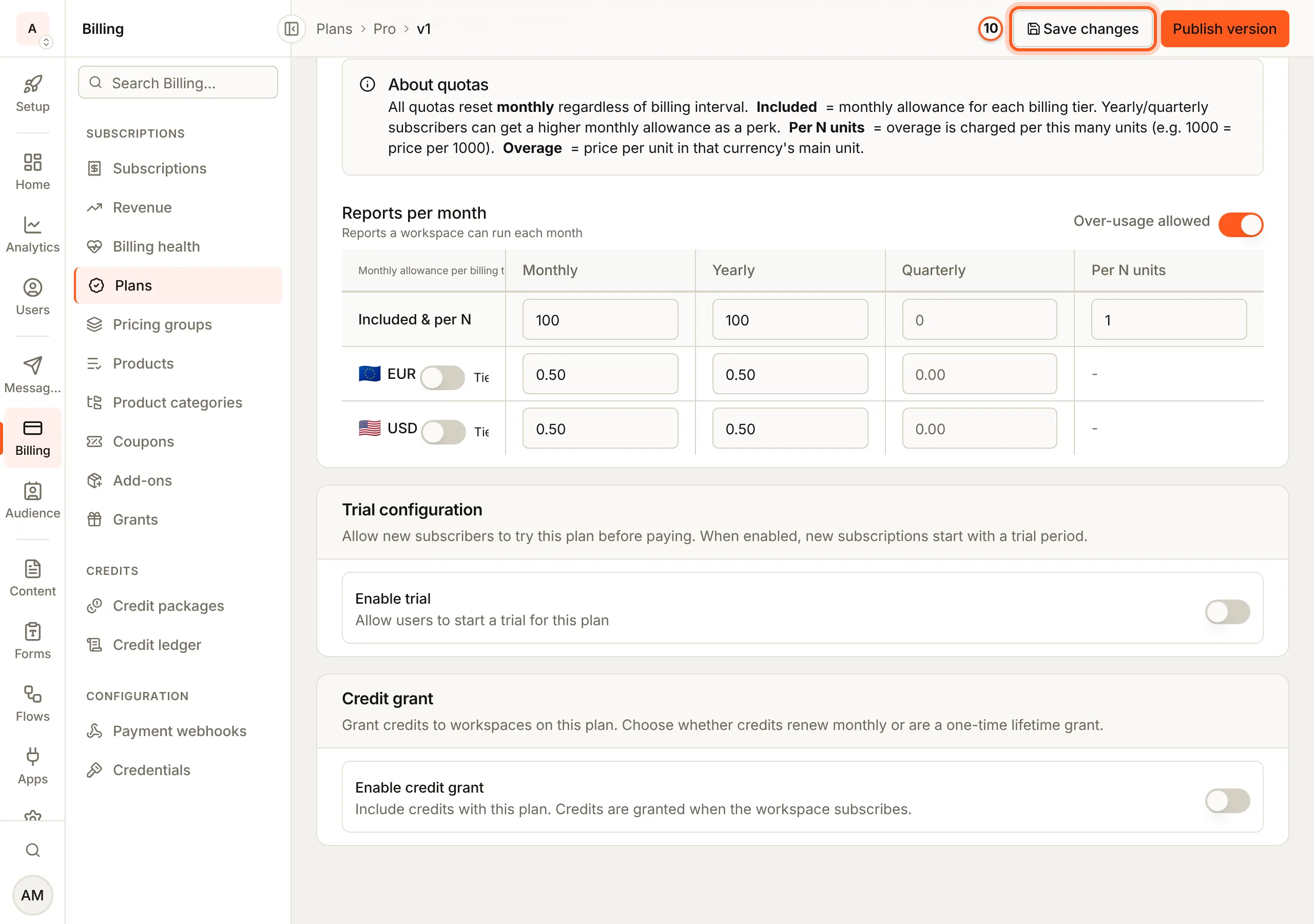
Trial configuration and Credit grant, at the bottom of the page, are optional: a trial before the first payment (trials), and credits granted with the plan (credits).
11. Publish it
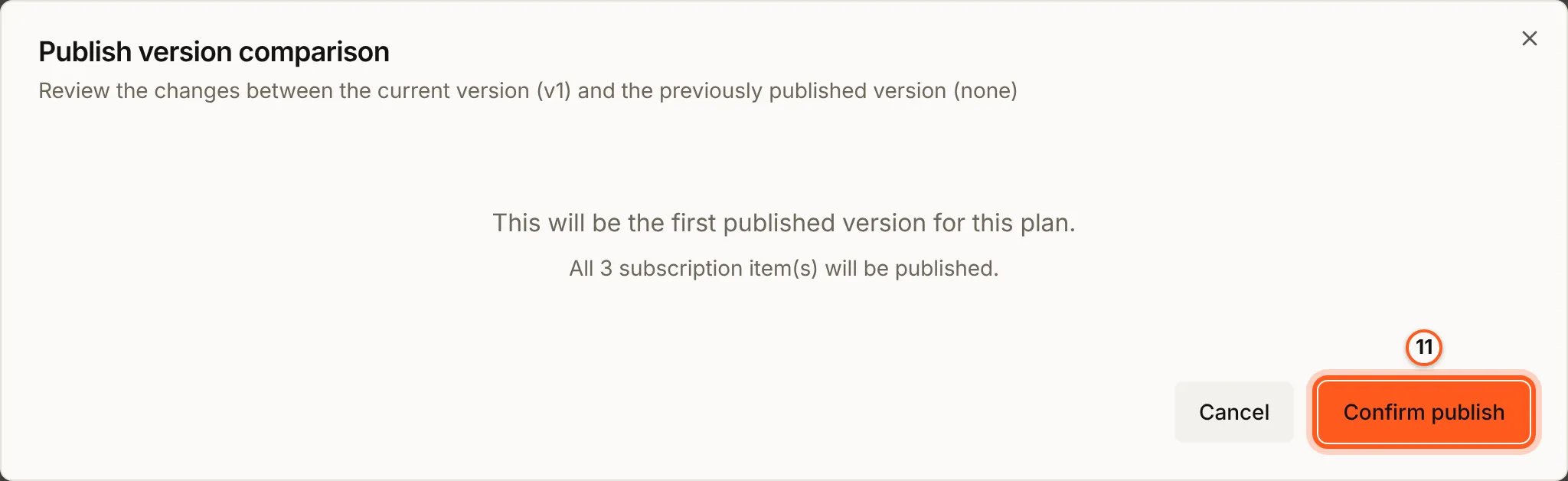
Press Publish version. Publish version comparison shows what changes from the version published before it; for v1 it reads "This will be the first published version for this plan." Press Confirm publish.
Once published, the version's prices and values cannot be changed. To change them, create a new version, with this one as its Base version to copy its products and values, and publish that.
Check that it worked
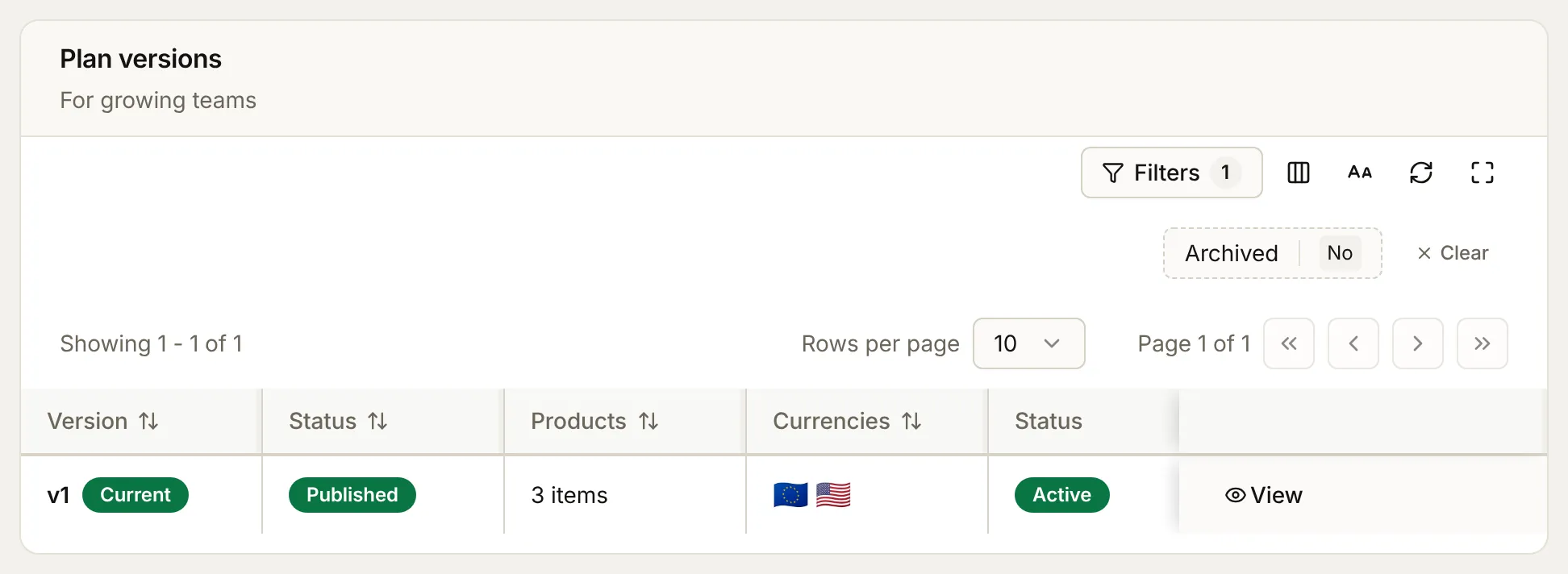
Billing > Plans > Manage versions lists v1 as Current and Published, with its products and a flag for each currency.
Things to watch out for
- Your app cannot sell it yet. Checkout takes a version that a pricing group sells; until one does, the version page reads Sold to: Not in a pricing group yet (Your pricing group).
- Every billing currency needs a price. Saving a currency means "All plan versions will need to support these currencies", so choose your currencies before you publish.
- A published version is fixed. Draft carefully, and publish a new version for any change.
Next steps
- Your pricing group - put the plan on your pricing page
- Entitlements - read what the plan includes in your app
- Billing overview - plan changes, trials and cancellations