
Look up a customer's workspace
Find one workspace in the console, read its details and members, revoke an invitation, and see what it was sent and its credits, one screen at a time.
When a customer writes in about their team, their workspace's page in the console shows who is in it, who was invited, what they were sent, and their plan, credits and usage. This guide looks up Northwind Traders, a workspace Priya Shah created in Acme Analytics, with Sam Lee as an editor and an invitation to Jordan Kim waiting.
Before you start
A console role that can read Workspaces. Revoking an invitation also needs delete on workspaces, and editing usage needs update; see roles.
1. Open Workspaces
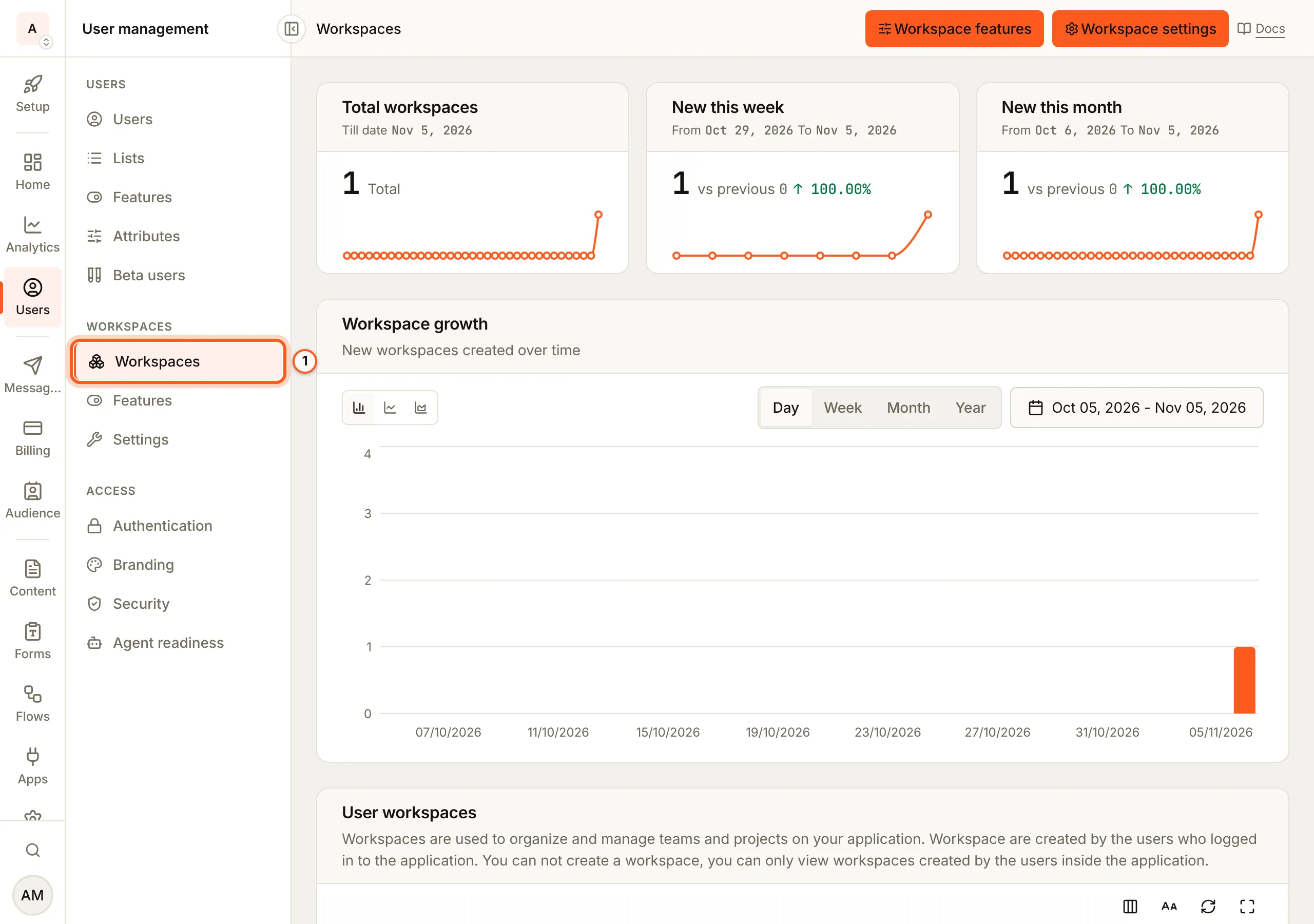
Open Workspaces in the console (opens the console in a new tab)In the left rail choose Users, then Workspaces under Workspaces. The counts at the top are Total workspaces, New this week and New this month. Workspace settings, at the top right, opens the mode and limits.
2. Find the workspace and open it
User workspaces lists each workspace with its Name, how many Users it has, its Subscription, its Billing currency and its Creator. Search by name, or pick a date, then press View on its row. Workspaces are made by your users in your app; the console cannot create one.

3. Read its details
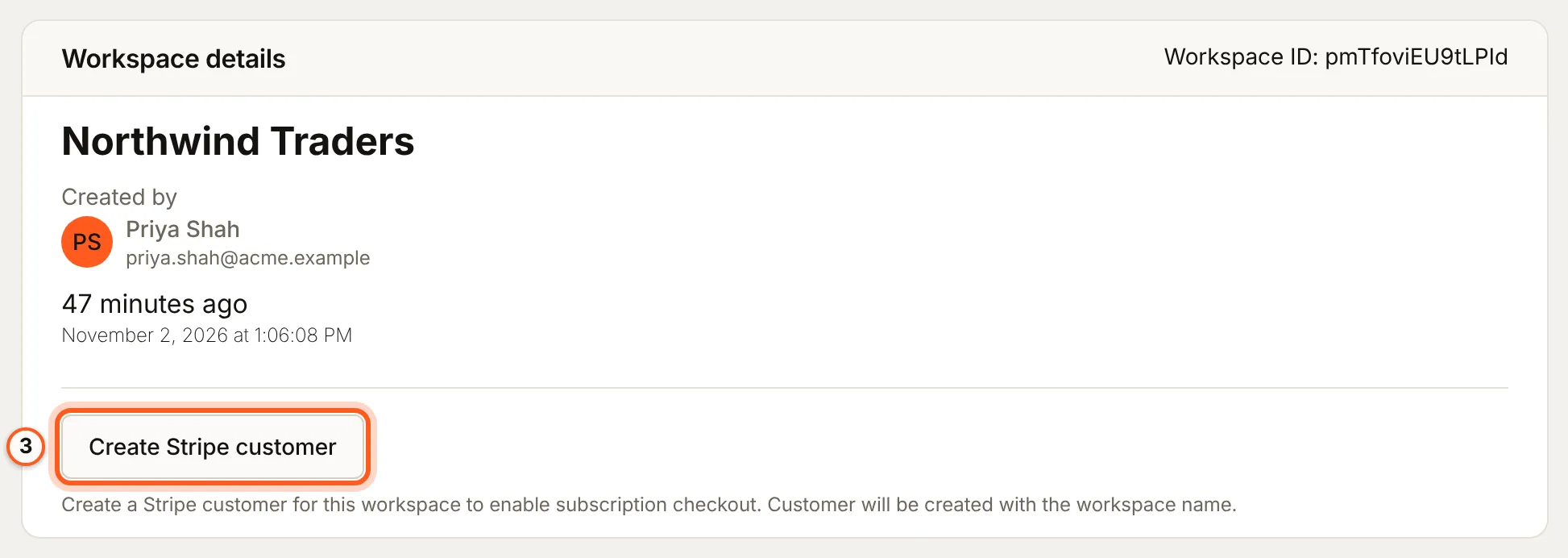
Workspace details shows its name, its Workspace ID, who created it and when. A workspace with no Stripe customer yet shows Create Stripe customer, which makes one with the workspace's name so it can check out a subscription.
4. See who is in it
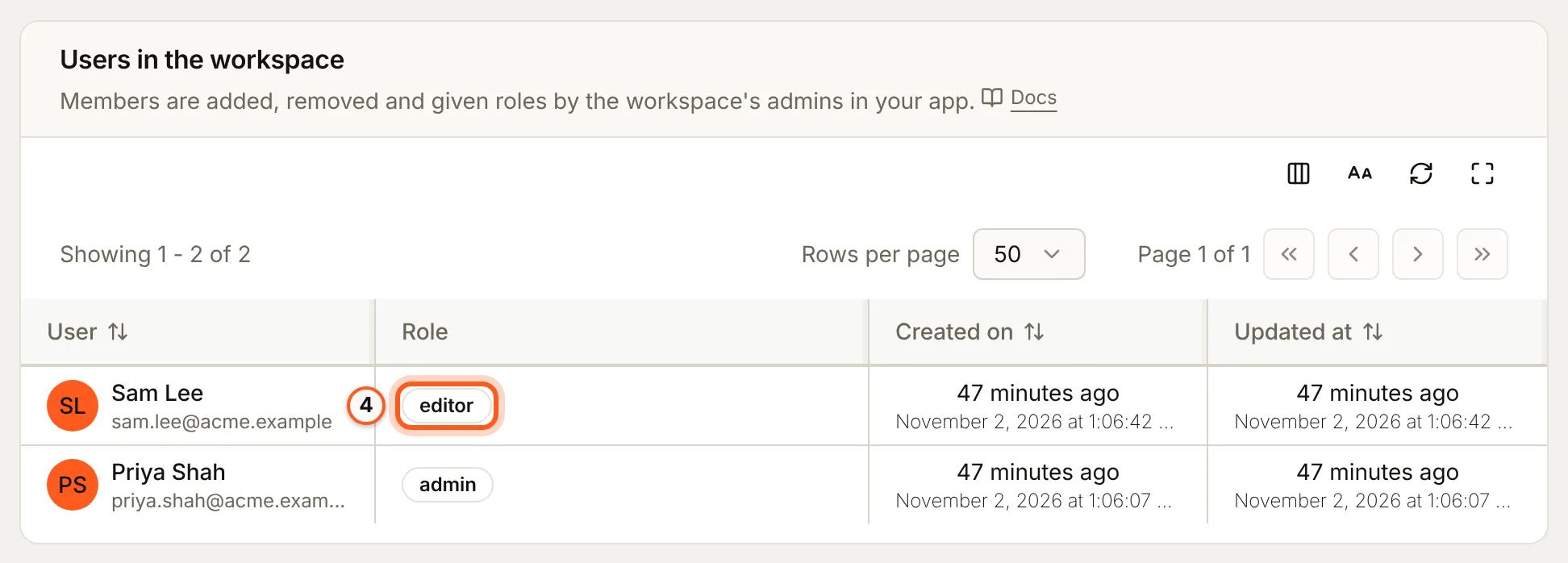
Users in the workspace lists each member with their Role. It is read-only here: members are added, removed and given a new role by the workspace's admins in your app, on the members screen, or over the API.
5. Revoke an invitation
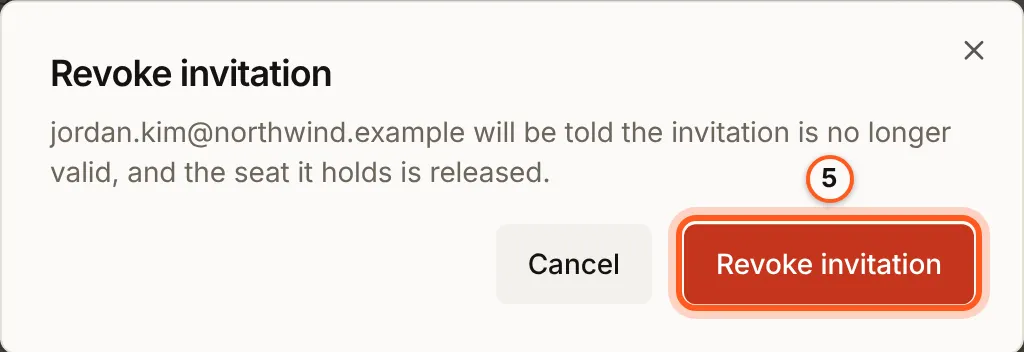
Invitations lists the people invited by email who have not joined yet, with their role, status, who invited them and when it expires. A pending invitation holds a seat. To withdraw one, press Revoke on its row, then Revoke invitation. The invitee is told the invitation is no longer valid, and the seat is released (seats).
6. See what its members were sent
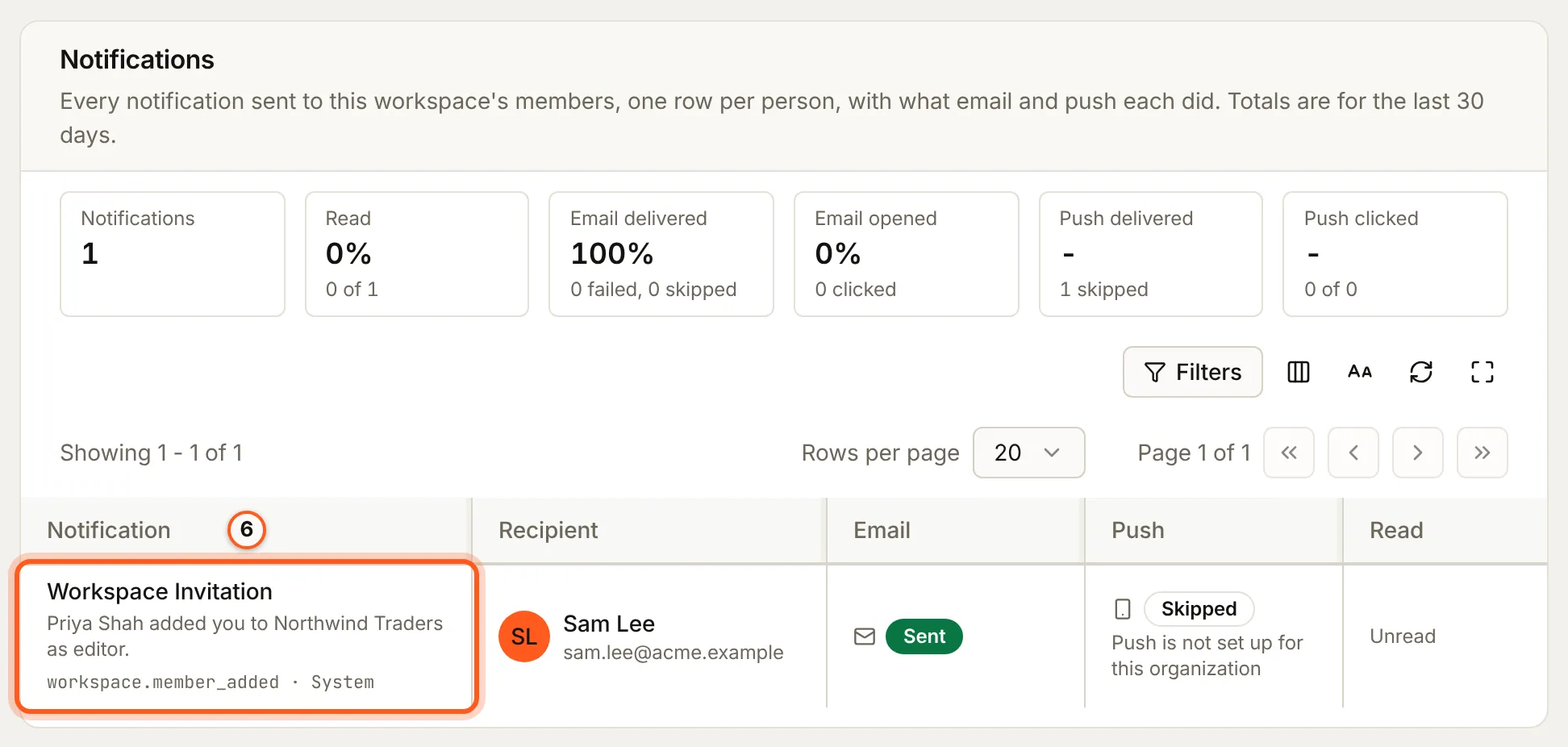
Notifications lists every notification sent to the workspace's members, one row per person, with what the email and push did. The totals at the top are for the last 30 days. Here Sam was told Priya added him.
7. Its plan, credits and usage
Further down the page:
- Feature flags switches a flag for this workspace alone (feature flags).
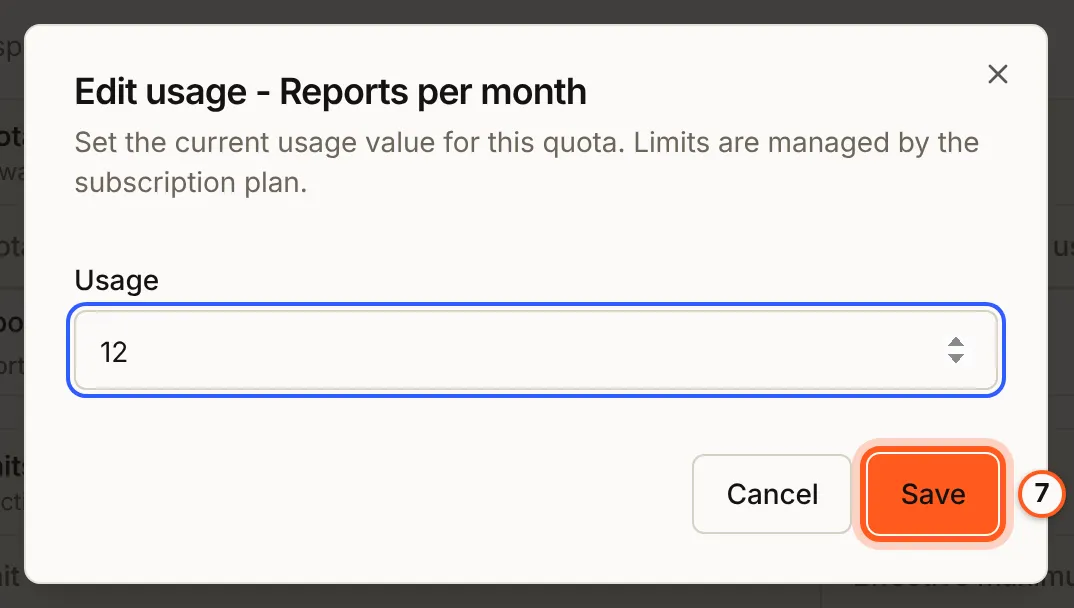
- Workspace quotas & credits shows each quota's usage, which you can change by one (Increase usage by 1, Decrease usage by 1), set back to 0 (Reset usage to 0), or set to a number: Set value opens Edit usage, where you type the usage and press Save (quotas). A workspace has quotas once it is on a plan that has them.
- Subscription shows its plan and what it holds beyond the plan, and Subscription history and Invoices what it bought (managing subscriptions).
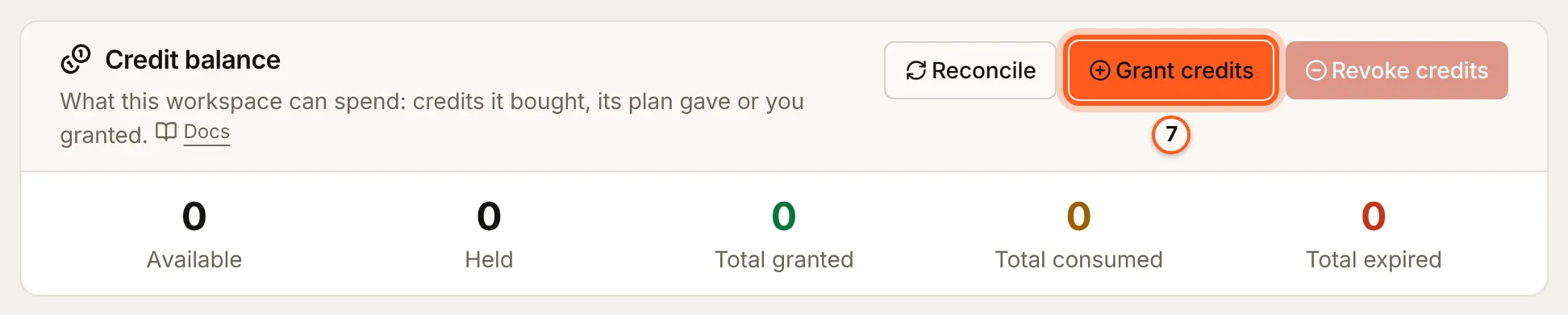
- Credit balance shows what it has, and Grant credits gives it more, with the transactions, holds and buckets below (credits).
- Workflow runs lists the workflows that ran for it.
Check it works
Revoke a test invitation: it leaves Invitations, and the invitee's link no longer works. Change a test workspace's usage: its row under Workspace quotas & credits shows the new value.
Things to watch out for
- Members are managed in your app, not here. The console shows them; the workspace's admins add, remove and change them.
- Editing usage is what the customer sees. It changes how much of its quota the workspace has used, so note why you did it.
- Revoking releases the seat. A seat a pending invitation held is free again at once.
Next Steps
- Mode and limits - personal or team workspaces, roles and caps.
- Invitations - how invitations, seats and expiry work.
- Managing members - the members screen in your app.