
Workspace mode and limits
Choose one workspace per person or shared team workspaces, who may create and invite, the roles on offer and the caps, in the console without code.
Decide whether each of your users gets one workspace of their own or teams share workspaces, who may create workspaces and invite people, and how big a workspace can get. You set it once in the console, on Workspace configuration. Your app reads it through the SDK, so a change needs no deploy: the switcher, the members screen and the server all follow the same settings. This guide sets up Acme Analytics, an app teams share.
Before you start
A console role that can update the organization's settings, for the mode and its overrides, and one that can update workspace settings, for the roles, limits and permissions (team and roles). Platform mode needs a BuildBase plan that includes it, and adding roles needs room in your plan's custom workspace roles.
Set it up in the console
Open Workspace configuration in the console
(opens the console in a new tab)- Open https://console.buildbase.app. In the left rail choose Users, then Settings under Workspaces. The page is Workspace configuration, and Workspace settings on it holds every section below.
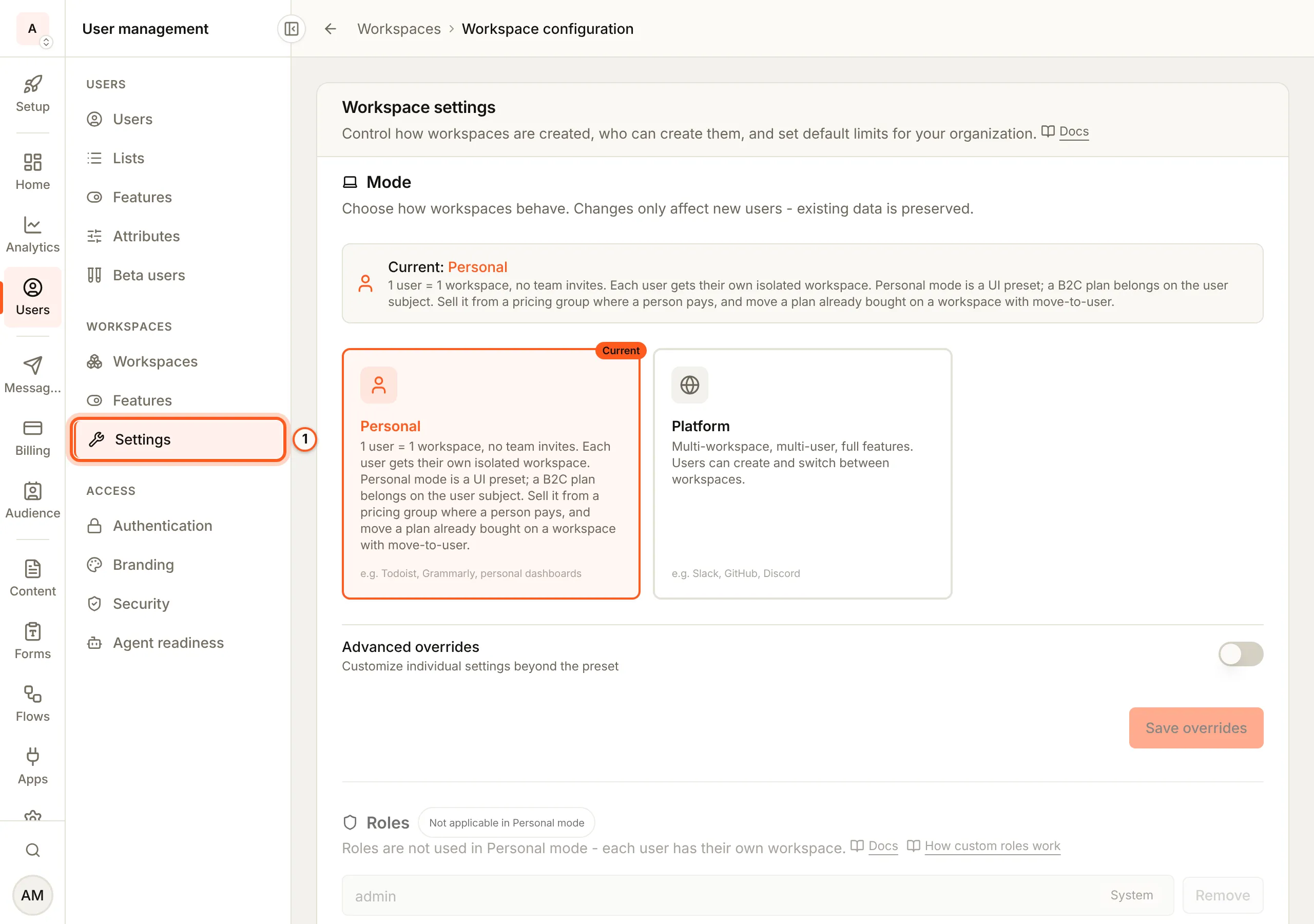
- Under Mode, choose Personal or Platform (which to choose). A table then shows each setting the switch changes, from the current mode to the new one.
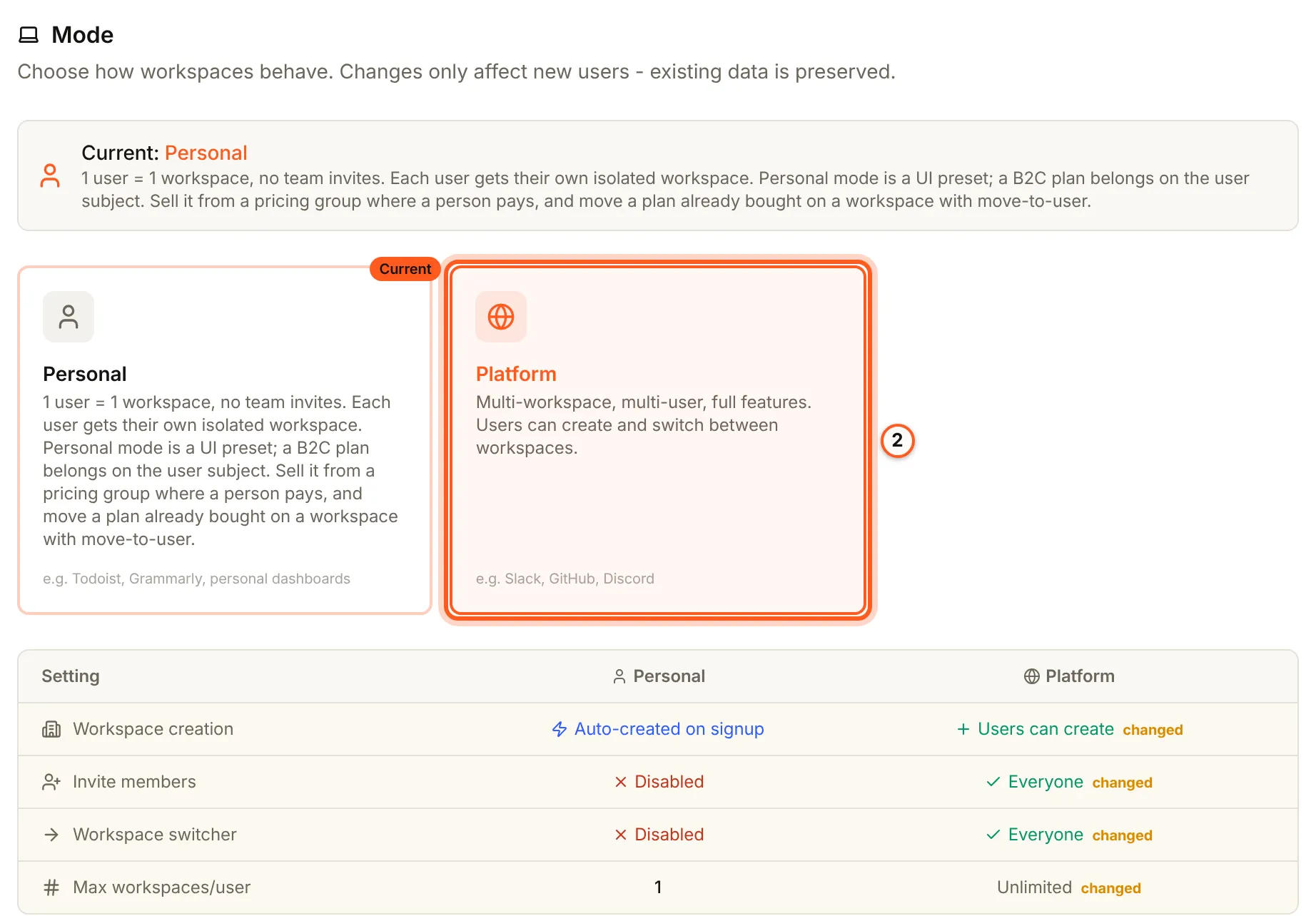
- Press Switch to Platform (or Switch to Personal). It saves the mode on its own. A switch only affects new users: existing workspaces and their data stay.

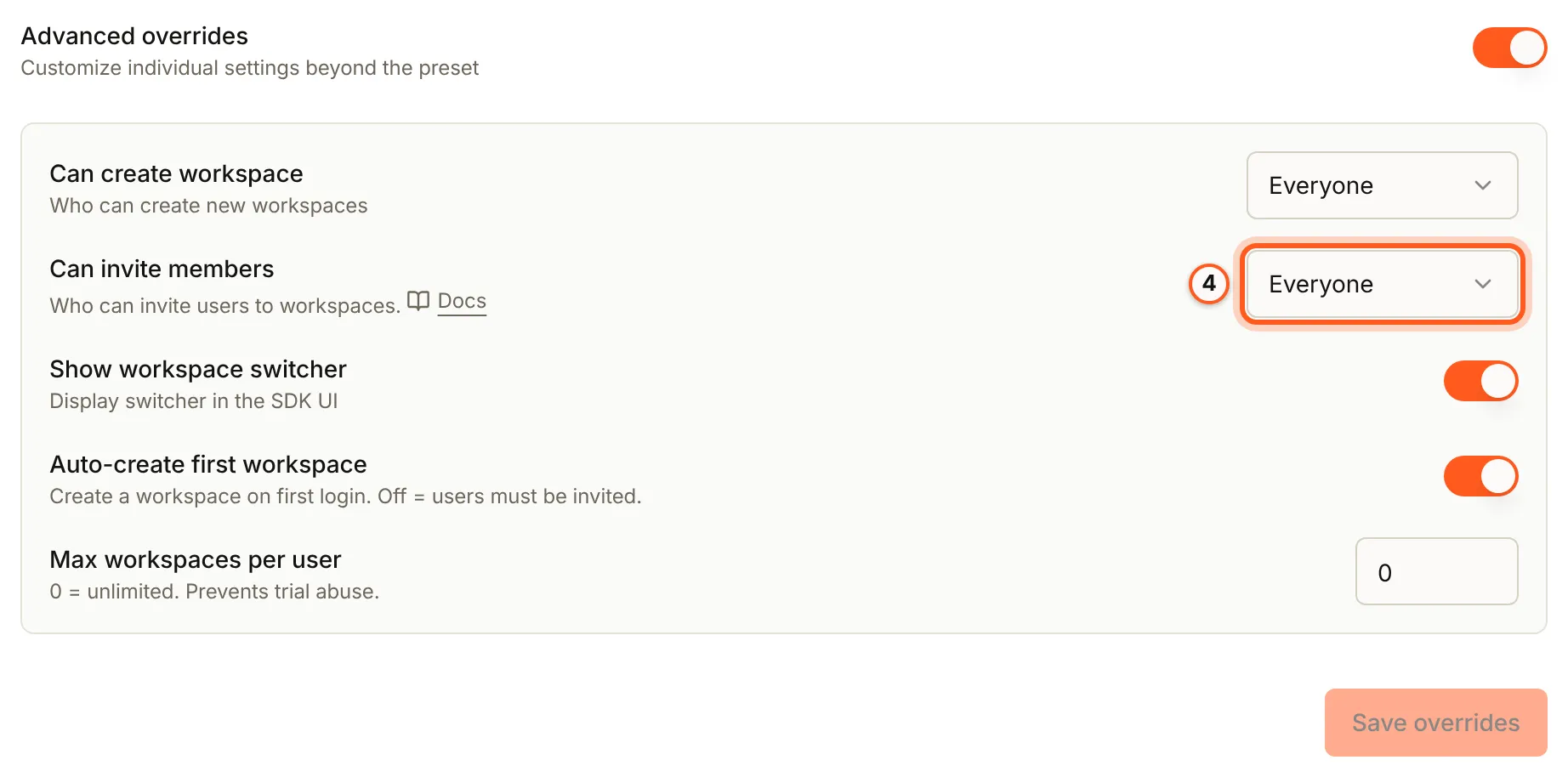
- Optional: turn on Advanced overrides to change the mode's settings one by one (what each does). Can invite members is the one most apps change, to Admin only. Press Save overrides.
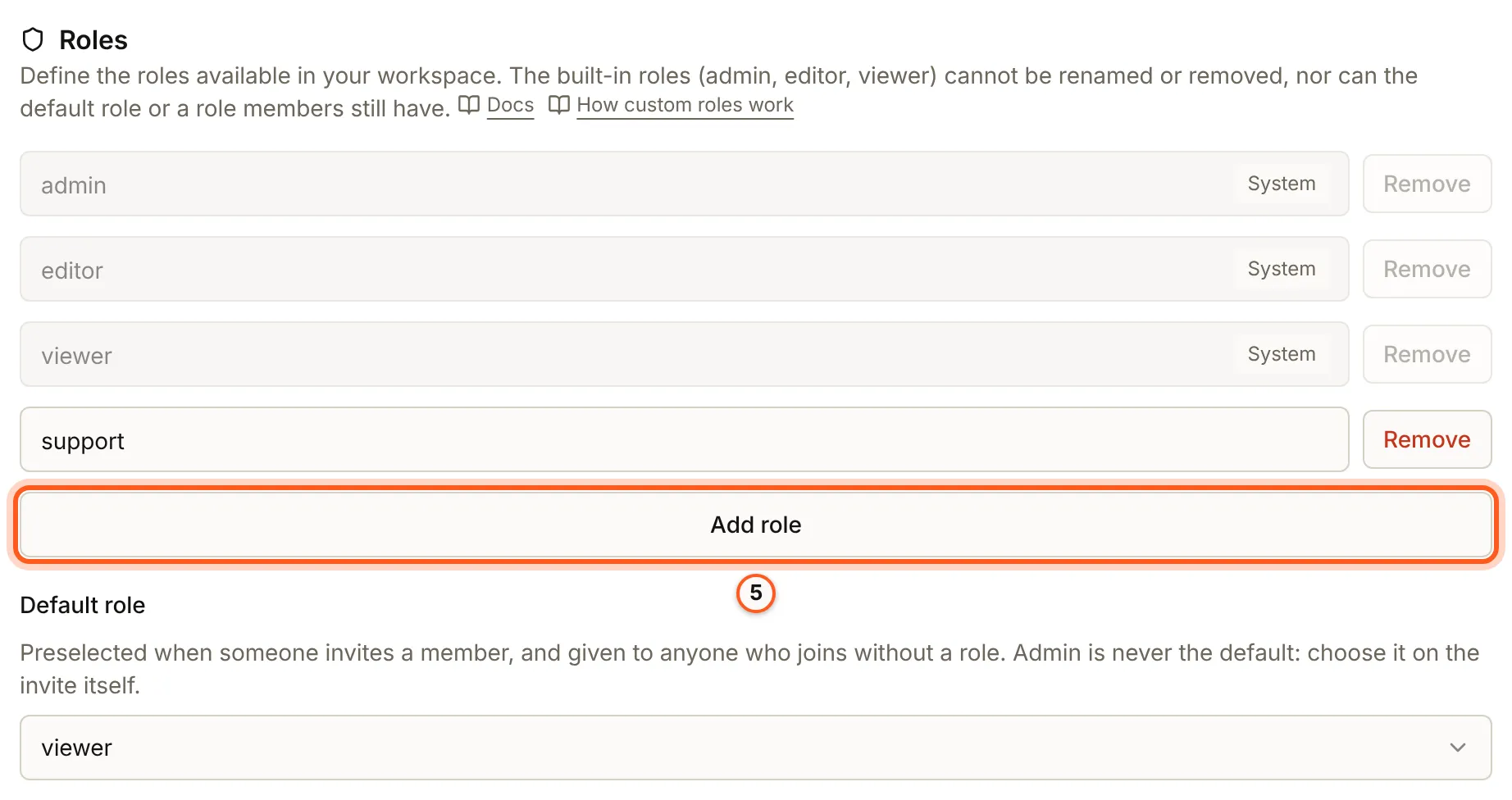
- Under Roles, press Add role and type its name, such as
support. Pick the Default role: the one an invite starts with, and the one given to anyone who joins without a role.
- Under Limits, set Max workspaces (per person, 2 to 1,000) and Max members per workspace (2 to 10,000).

- Press Save roles & limits, at the bottom of Workspace settings. It saves the roles, the default role and both limits together.
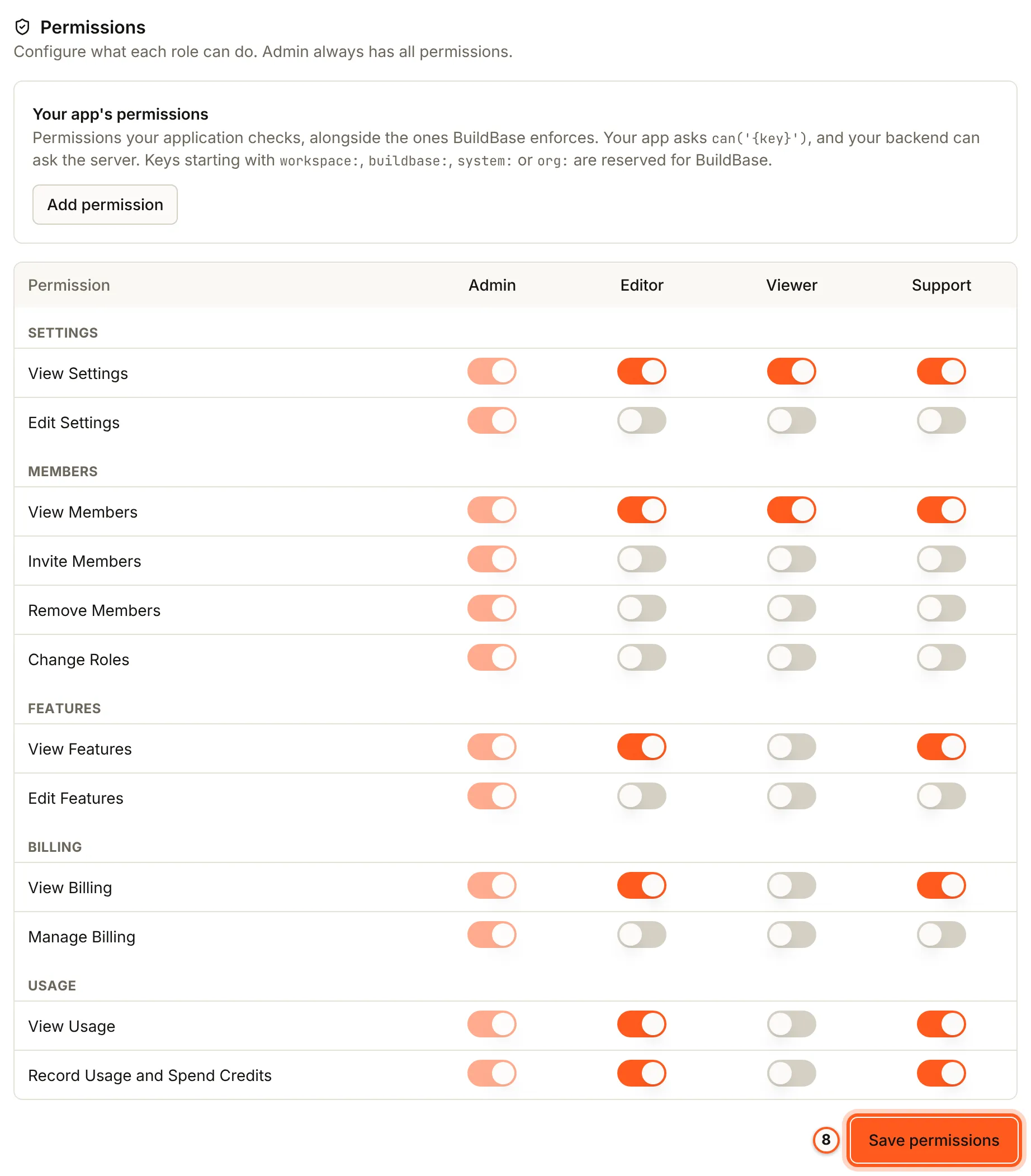
- Under Permissions, switch on what each role may do, and press Save permissions. A new role starts with what editor may do. The grid and your own permissions are in permissions and roles.
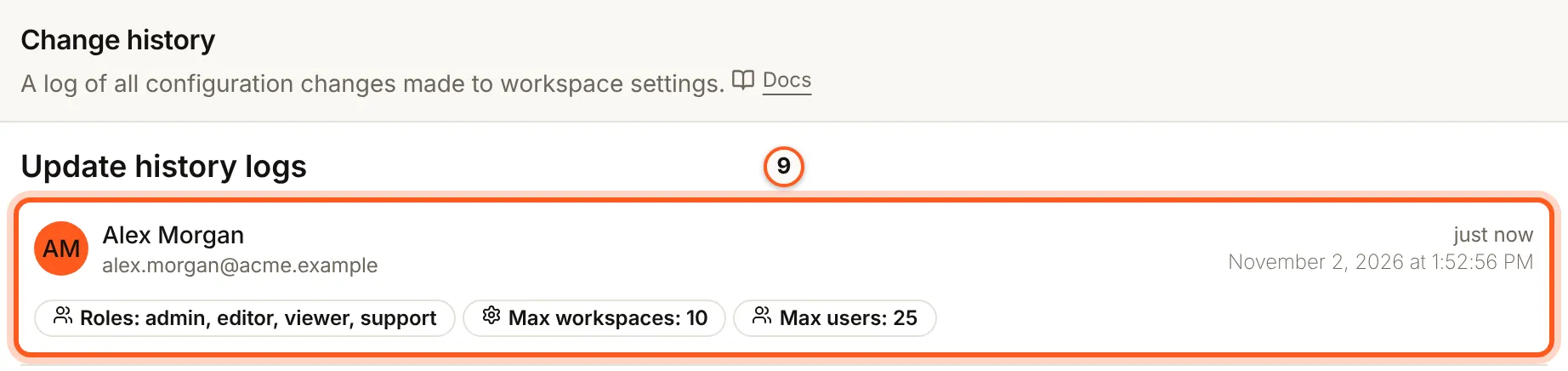
- Read Change history, below the card: each save, newest first, with who made it and what it changed.
Personal or Platform
Pick the mode that matches your app. It's a preset: it fills in five settings at once. In Platform mode you can change any of them afterwards. In Personal mode the preset holds, with one exception: invitations for admins only.
| Mode | For | Each person |
|---|---|---|
| Personal | Apps one person uses on their own, such as a writing tool or a tracker | Gets exactly one workspace of their own, with no team invites |
| Platform | Apps teams share, such as a chat tool or a project tracker | Creates and joins any number of workspaces, and invites people |
| Setting | Personal | Platform |
|---|---|---|
| Users may create workspaces | No | Yes |
| Members may invite | No | Everyone |
| Show the workspace switcher | No | Yes |
| Workspaces one person may own | 1 | Unlimited |
| A workspace on first sign-in | Yes | Yes |
A new organization starts in Personal. Platform needs a BuildBase plan that includes it, and switching to it is refused on a plan without it. Two rules make sure a switch never loses anyone's data:
- An organization already in Platform stays there, and can still edit its own settings, if its plan later drops it.
- Switching to Personal is refused while anyone owns more than one workspace. The console says how many people do.
A Personal workspace still has a plan, but in a consumer app you usually sell the plan to the person instead: see users and workspaces.
Advanced overrides
Turn on Advanced overrides to change the preset's settings one by one. Turning it off puts the mode's preset back.
| Setting | Choices | What it does |
|---|---|---|
| Can create workspace | Everyone, or Disabled | Whether users may create workspaces themselves. The first one, made for them when they first sign in, is not affected |
| Can invite members | Everyone, Admin only, Disabled | Whether members may send invitations. With Admin only, each member's role decides |
| Show workspace switcher | On or off | Whether the switcher shows in your app |
| Auto-create first workspace | On or off | Whether a new user lands in a workspace of their own on their first sign-in. Turn it off for an invite-only app, where a new user starts with their pending invitations |
| Max workspaces per user | 0 to 100, 0 for no cap | How many workspaces one person may own |
In Personal mode, letting users create workspaces, showing the switcher, more than one workspace per person, turning off the first workspace and invitations for Everyone are all refused. Invitations for admins only need a plan that includes Platform, because invitations are what make a workspace shared. If your invitations are already on, you keep the control.
Roles and limits
Roles decide what each member can do inside a workspace. They're not used in Personal mode, where each person is alone in their workspace.
Roles lists the roles a member can hold. admin, editor and viewer
are built in, and you can add your own. Default role is the one an invite
starts with and the one given to someone who joins without a role chosen:
viewer, unless you pick another. It is never admin: choose admin on the
invite itself. Below it, the permission grid sets what each role may do, with
your own permissions beside BuildBase's: see
permissions and roles.
Two limits stop workspaces growing past what you allow:
| Limit | What it caps | Range |
|---|---|---|
| Max workspaces | How many workspaces a user may belong to and still create another | 2 to 1,000 |
| Max members per workspace | How many people one workspace may hold | 2 to 10,000 |
In Personal mode both are fixed at one. A workspace at its member limit turns away one more member, whether they come by invitation, a direct add or a company's single sign-on. Your BuildBase plan has limits of its own too, and whichever is tighter wins. Paid seats are a separate limit again, set by the workspace's plan: see managing members.
Change history
The bottom of the page lists every save: who changed what, and when. An entry names the roles, the default role, the two limits, and down to which role gained or lost which permission. A mode switch shows as the limits it changed. Changes to one workspace's permissions, and to a member's role, are logged against that workspace.
One workspace at a time
Workspaces in the console lists every workspace in your app. Open one to see its members, invitations, features, quotas, credits and plan: see looking up a customer's workspace.
Check it works
Sign in to your app as a test user. In Platform mode with the preset, the switcher shows with a way to create a workspace, and the members screen has an invite form. Switch Can invite members to Disabled, save, and reload your app: the invite form is gone.
Things to watch out for
- Three buttons save three things. Switch to ... or Save overrides saves the mode, Save roles & limits the roles and limits, and Save permissions the grid. A change in one section is not saved by another's button.
- Switching to Personal is refused while anyone owns more than one workspace. The console says how many people do.
- A role cannot be removed while anything depends on it. The built-in roles stay; the default role is refused with "Choose another default role before removing it."; a role members hold is refused with how many still have it, "Give them another role before removing it."
- Invitations off stops role changes too. With Can invite members on Disabled, members stay listed and can be removed, but no one can be added or given a new role (invitations).
- Invitations in Personal mode. Turning them on for everyone is refused with "Cannot enable invites in Personal mode. Use Platform mode for team features."; for admins only, it needs a plan that includes Platform.
Next Steps
- Looking up a workspace - one customer's workspace, members and plan.
- Invitations - how invitations behave in each mode.
- Managing members - roles, seats and the members screen.
- Permissions and roles - the permission matrix and your own permissions.